
How To Create A Timeline on WordPress using Kadence Blocks
Timelines are a fantastic way to showcase key milestones, events, or processes in a visually engaging way. Whether you’re highlighting your company’s journey, laying out a project roadmap, or sharing a step-by-step process, timelines help communicate information clearly and effectively.
At Kadence, we’ve noticed that timelines are one of the most requested features from our users. While we don’t currently have a dedicated timeline block developed, you can easily create stunning timelines using pre-built design patterns available in the Kadence Design Library.
In this guide, we’ll walk you through how to create and customize timelines on your WordPress site using three powerful new patterns made with Kadence Blocks. With just a few clicks, you can import these designs and tailor them to your exact needs—no extra plugins required! Let’s dive in.
Why Use Timelines on Your Website?
Timelines are more than just a way to display chronological information—they’re a visually appealing tool that enhances your website’s user experience. Here are a few reasons why you should consider adding a timeline to your site:
- Simplify Complex Information – Timelines break down detailed stories, events, or processes into bite-sized pieces. They help visitors absorb and understand the information quickly, making your site more engaging.
- Create a Professional Look – A well-designed timeline can add polish and credibility to your website. Whether you’re showcasing your company’s growth, outlining a project plan, or sharing a personal journey, timelines provide a sleek and organized way to present your content.
- Increase Engagement – Visual storytelling keeps users engaged. Timelines guide visitors through your content in a structured way, encouraging them to spend more time exploring your site.
- Versatility Across Industries – Timelines work for virtually any type of website. Here are just a few examples of how they can be used:
- Businesses: Highlight key achievements, company history, or product development stages.
- Event Planners: Share event schedules or milestones leading up to a launch.
- Personal Blogs: Showcase life milestones, fitness journeys, or travel stories.
- Educational Sites: Present historical events or processes in a clear, chronological order.
By using Kadence Blocks’ design patterns, you can easily create timelines tailored to your website’s goals, style, and audience.
And the best part? You don’t need to be a design expert to make them look amazing! In the next section, we’ll introduce you to three timeline patterns you can import and customize directly from the Kadence Design Library.
How To Import A Timeline Pattern via the Kadence Design Library
Follow these steps to import and customize a timeline pattern directly into your WordPress page or post.
Step 1: Browse Timeline Patterns in the Kadence Design Library
- Ensure that you have Kadence Blocks (free or pro) installed and activated.
- Go to your WordPress editor and open the page or post where you want to add the timeline.
- In the block editor, look for the Design Library button (a Kadence feature).

4. Browse the Patterns for pre-designed patterns. Or use the search bar to look for “timeline”.
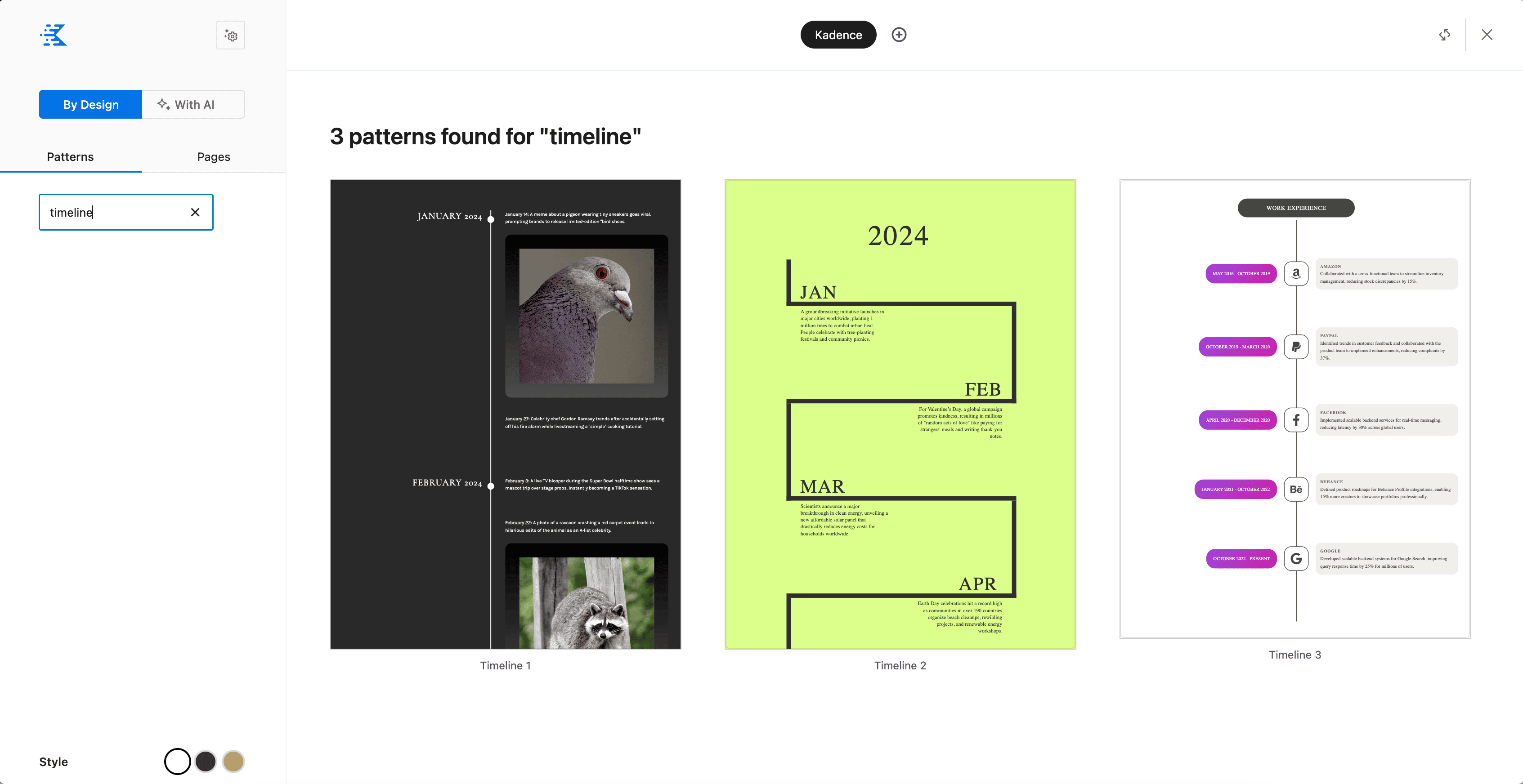
5. Once you find a timeline design you like, click Import to add it to your page.
Step 2: Customize Your Timeline
After importing your timeline pattern, it’s time to make it your own!
1. Edit Content: Replace the placeholder text and dates with your actual timeline events.
2. Adjust Layout: Use Kadence Blocks’ settings to adjust spacing, alignment, and visibility.
3. Style it Up: Modify colors, fonts, and backgrounds to match your brand or theme.
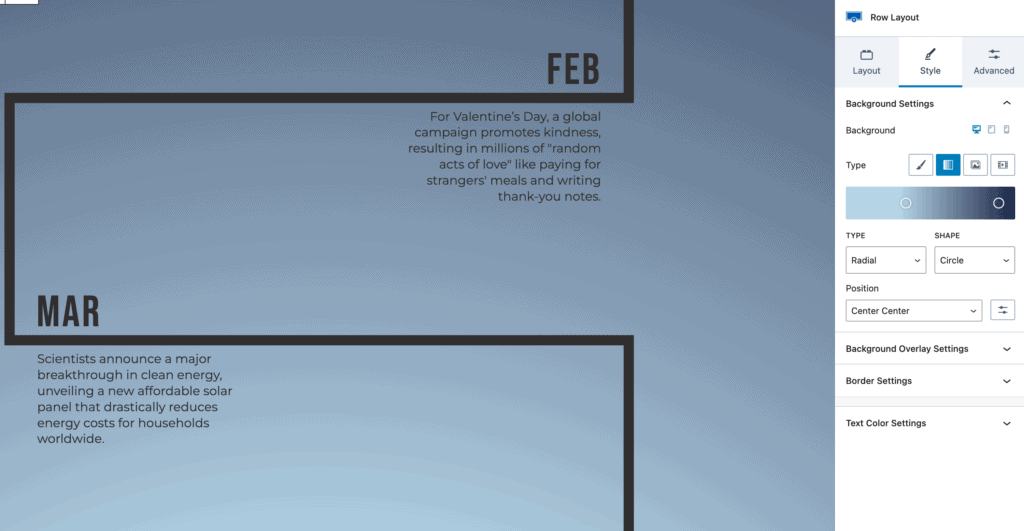
4. Add Icons or Images: Enhance your timeline by adding icons or images that represent each event.
*Tip: For a richer design, don’t be afraid to mix and match other blocks (like Info Boxes or Advanced Headings).
IMPORTANT: Most of our patterns don’t use custom CSS within the template, but to make these timeline patterns work, we had to add some custom CSS in the parent row layout.

Just be mindful of that in case you want to tweak the code yourself.
Step 3: Save and Preview Your Timeline
Once your timeline is customized:
- Click Save Draft or Publish.
- Preview the page to ensure everything looks great on desktop, tablet, and mobile screens.
- Make any final tweaks to achieve the perfect look.
Wrapping Up
Creating a visually engaging timeline doesn’t have to be a daunting task. With Kadence Blocks and the Kadence Pattern Hub, you can design and customize stunning timelines in just a few clicks. Whether you’re a blogger, business owner, or creative professional, we are here to help you bring your vision to life. So, why wait? Install Kadence Blocks, explore the Design Library, and start crafting your perfect timeline today!
Create Your Website With KadenceWP Today!

Written by Hannah
Hannah Ritner is the product expert at KadenceWP. With over 10 years at Kadence, she’s worn many hats, but her main drive has always been helping customers reach their goals. Hannah loves empowering people and has been a key player in building the Kadence Community. She’s all about making a real impact for businesses and their customers.
2 responses to “How To Create A Timeline on WordPress using Kadence Blocks”
-

-

This looks great.
I have a community organisation website that would like to show the various groups and sub groups in the community, I’m wondering if there is a pattern that can allow me to show an organisational chart?
By Hannah
Hannah Ritner is the product expert at KadenceWP. With over 10 years at Kadence, she’s worn many hats, but her main drive has always been helping customers reach their goals. Hannah loves empowering people and has been a key player in building the Kadence Community. She’s all about making a real impact for businesses and their customers.
Updated December 18, 2024
Create Your Website With Kadence




What an awesome feature! I was just working on a demo for a prospect and this will help sealing the deal.