Creating a Gallery
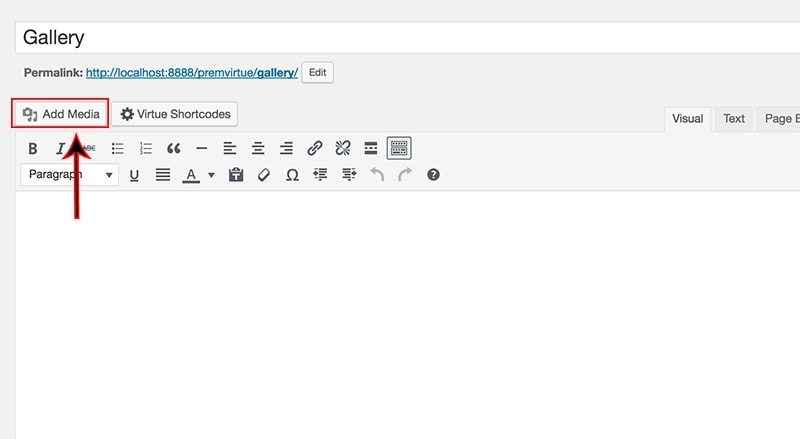
- From the visual editor of your edit page click the “Add Media” button.
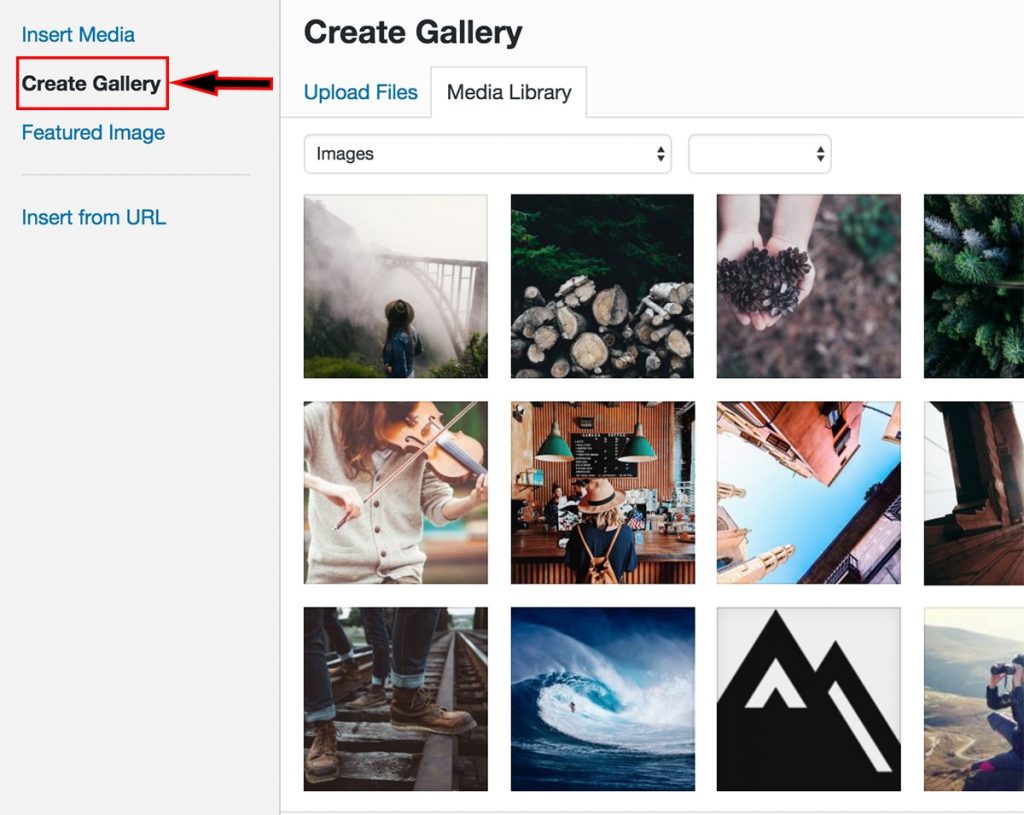
2. Click “Create Gallery” then either upload new files or choose images from your current media library.
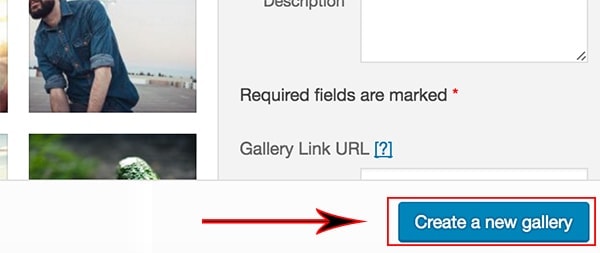
3. Once you have selected your images, click “Create a new gallery”.
4. Set captions for each of your images (optional).
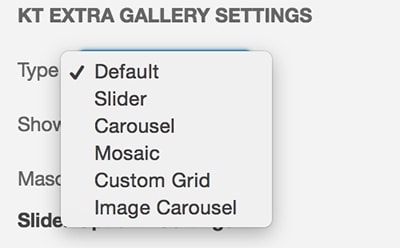
5. Choose your gallery settings and your KT extra gallery settings.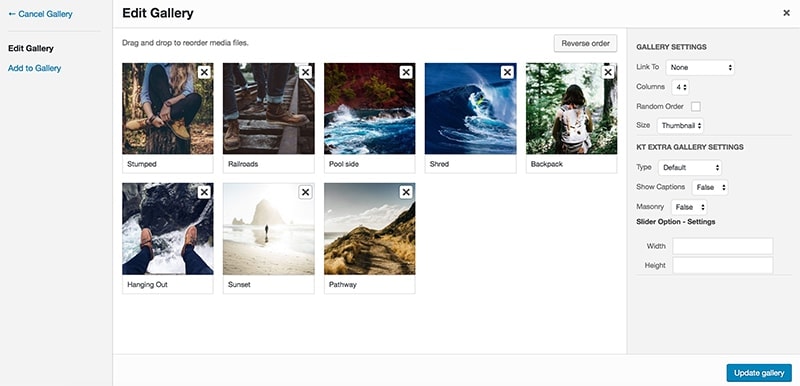
6. Select a Gallery Type:
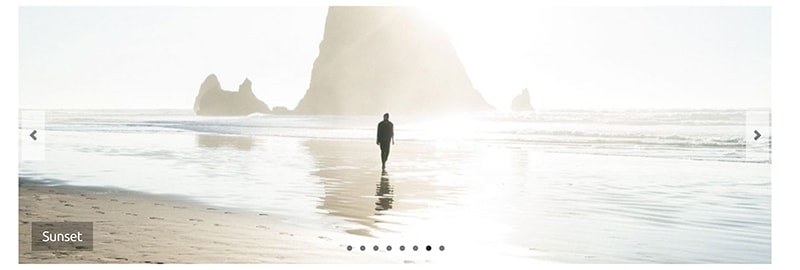
Slider example:
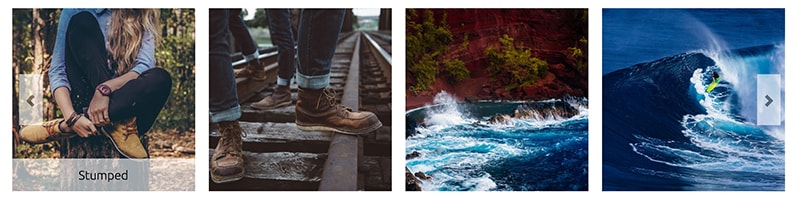
Carousel example:
Mosaic example:
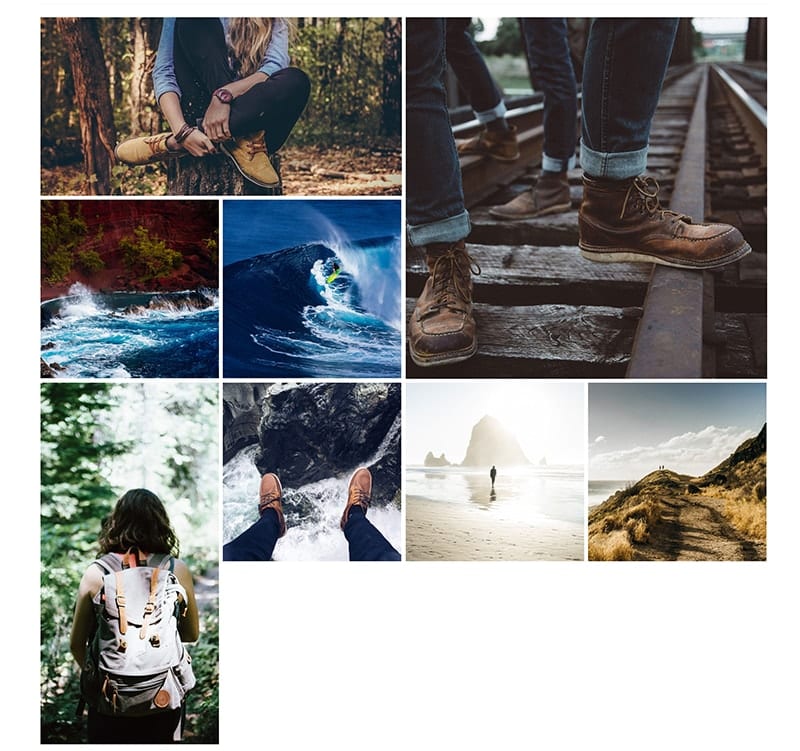
Custom Grid example:
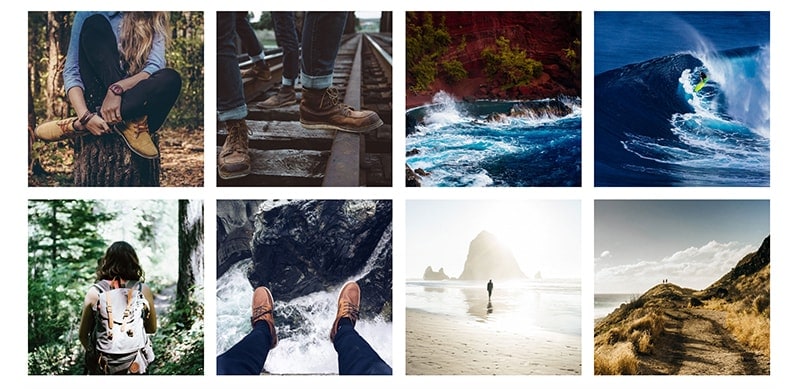
Image Carousel example:

7. Set a height and width for your images (optional).
8. Click “Insert gallery”.

Create Your Website With KadenceWP Today!


Written by Hannah
Hannah Ritner is the product expert at KadenceWP. With over 10 years at Kadence, she’s worn many hats, but her main drive has always been helping customers reach their goals. Hannah loves empowering people and has been a key player in building the Kadence Community. She’s all about making a real impact for businesses and their customers.
By Hannah
Hannah Ritner is the product expert at KadenceWP. With over 10 years at Kadence, she’s worn many hats, but her main drive has always been helping customers reach their goals. Hannah loves empowering people and has been a key player in building the Kadence Community. She’s all about making a real impact for businesses and their customers.
Updated July 22, 2024
Create Your Website With Kadence