With the Advanced Buttons block, you can create custom buttons that stand out from the rest. This block offers a wide range of customization options, allowing you to choose from various styles, colors, and designs. You can add single or multiple buttons to your page or post, and each button can have its own unique style. Whether you want a simple button or a more elaborate one with icons and animations, the Advanced Buttons block can help you achieve your desired look. With this block, you can enhance the user experience and make your website more interactive and engaging.
Getting Started
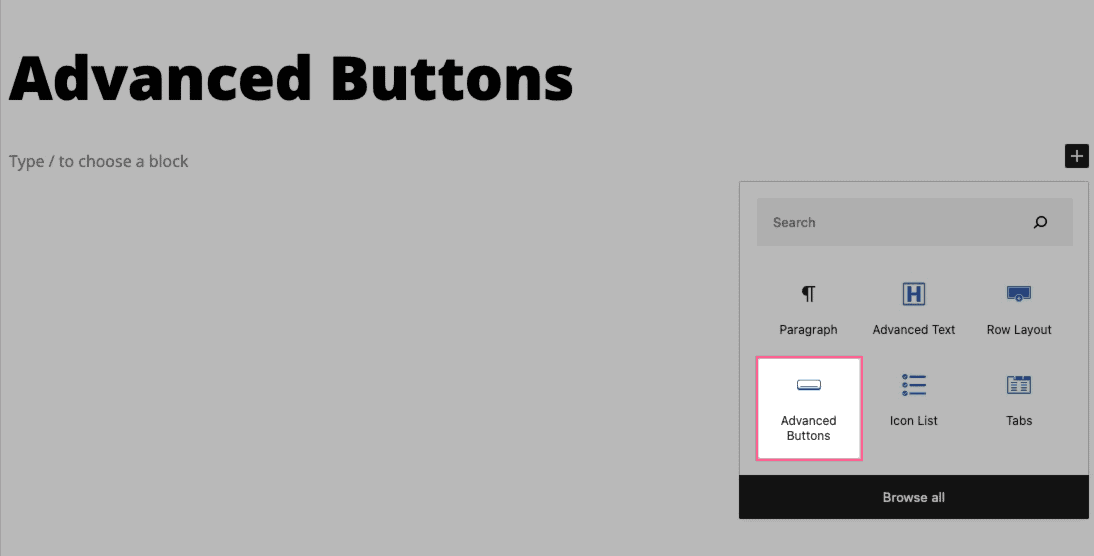
You can begin by selecting the Advanced Buttons Block from the Add Block menu.
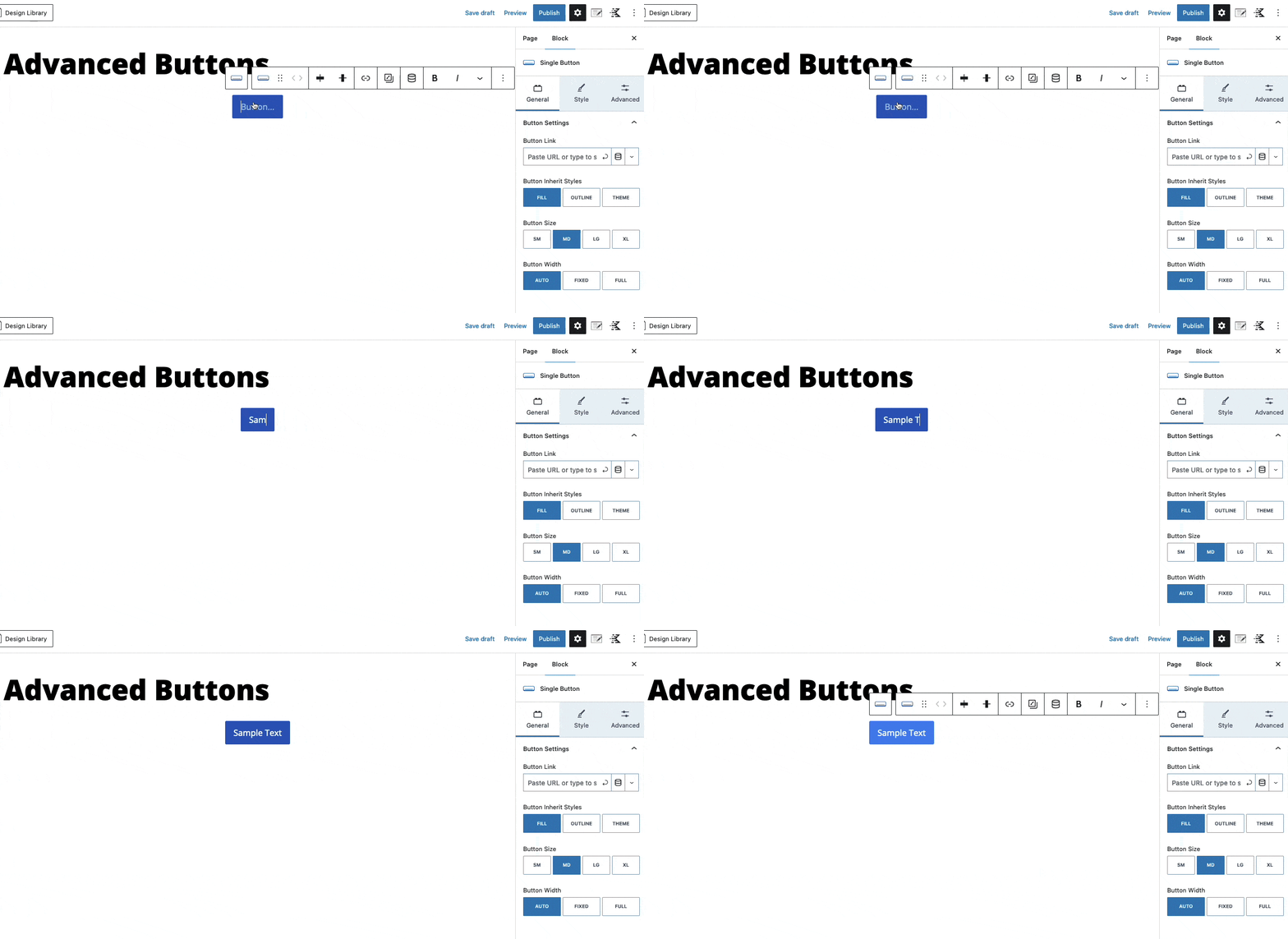
To customize the text displayed, select any button and enter the text you wish to use.
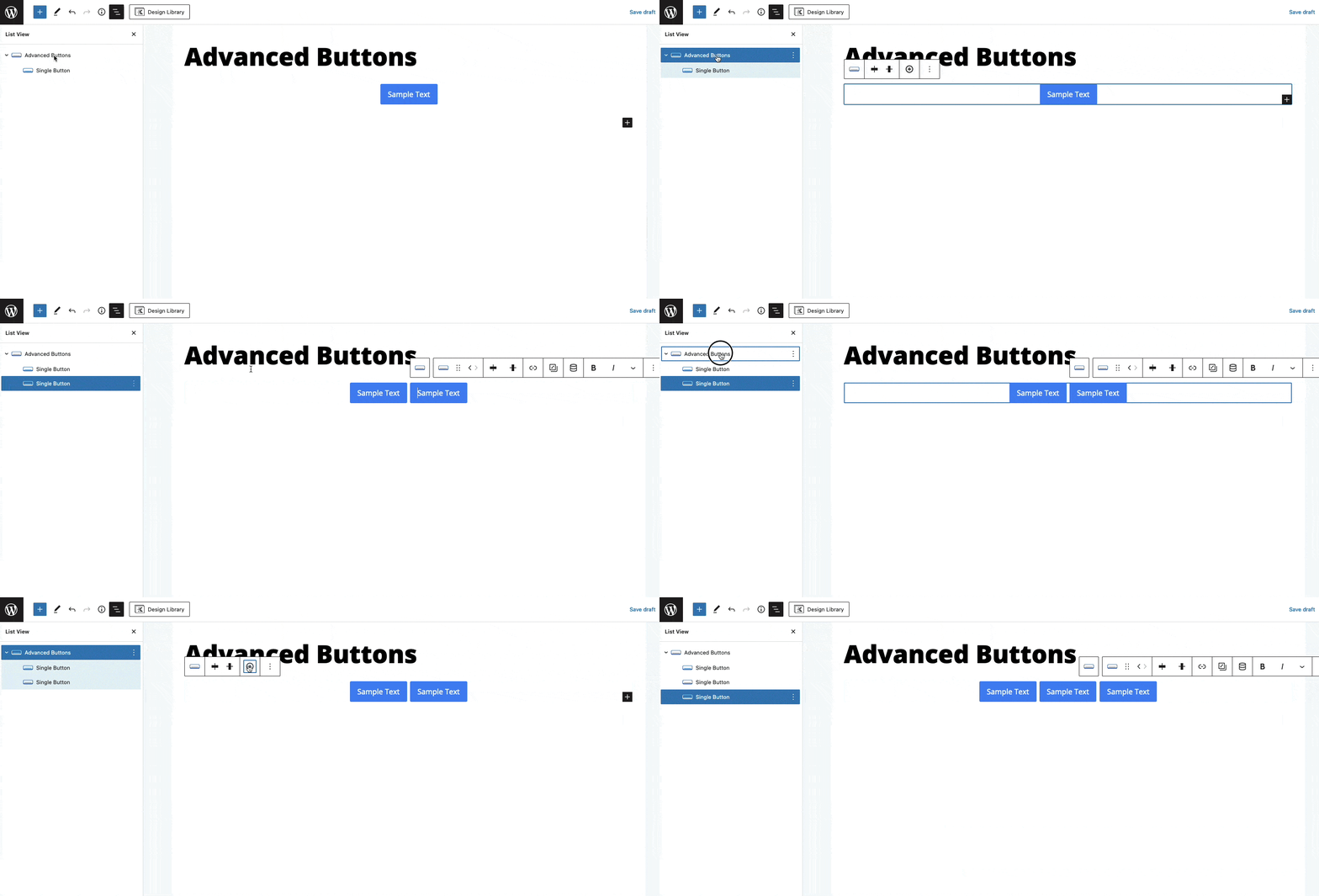
In the Advanced Buttons block, you have the option to add multiple buttons. These buttons will be displayed as Single Button blocks within the Advanced Buttons block. To add a button, simply select the Advanced Buttons block and click on the plus icon in the toolbar. This will add a new button, duplicating your previous button.
Select the Single Button Block and use the Single Button Block Settings to adjust various button-related settings, such as the Button-Link and Styling Settings. These settings apply to each Single Button Block individually.
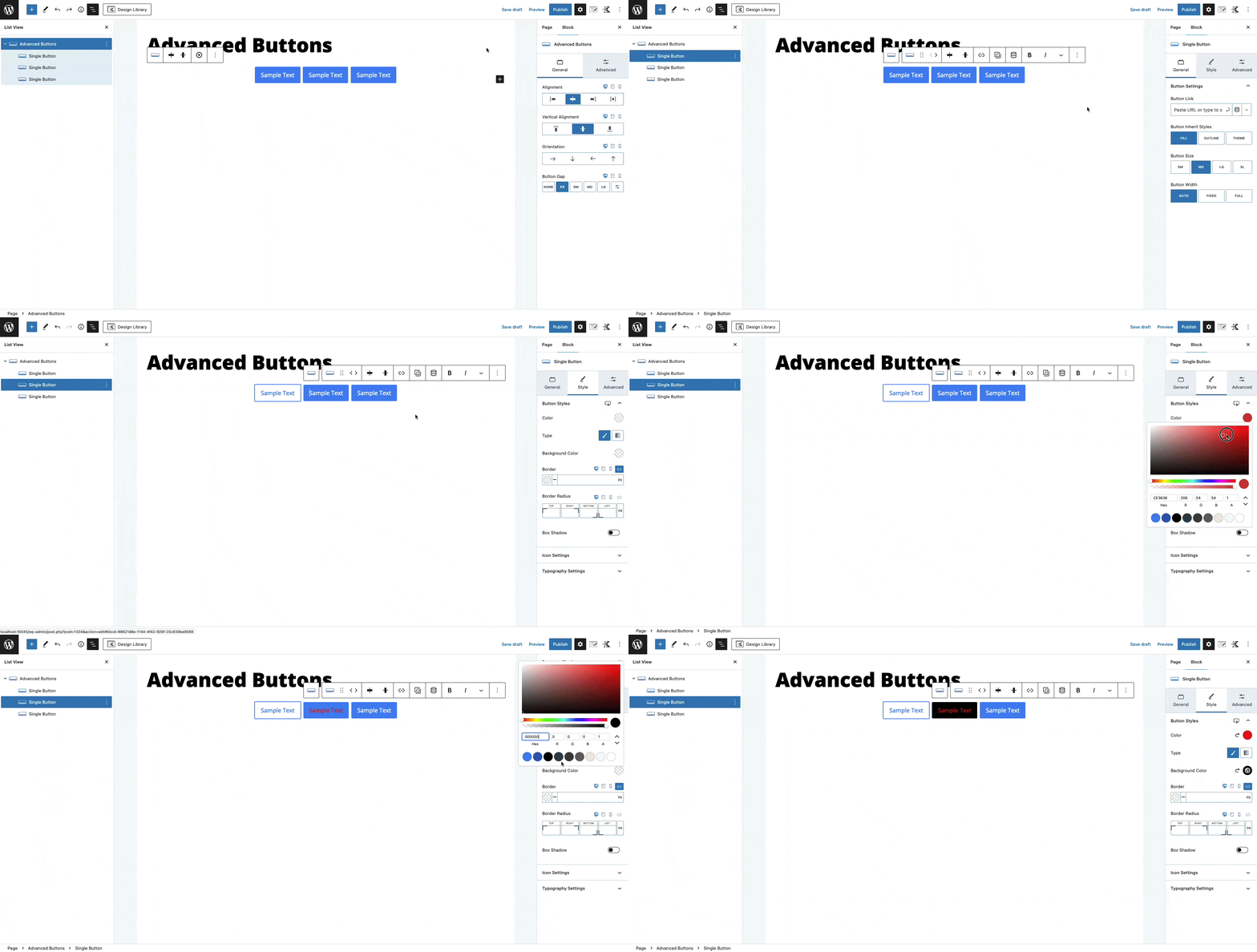
Select the parent Advanced Button Block and use the Advanced Button Block Settings to adjust the overall settings for all nested Single Buttons, such as the Alignment and Orientation.
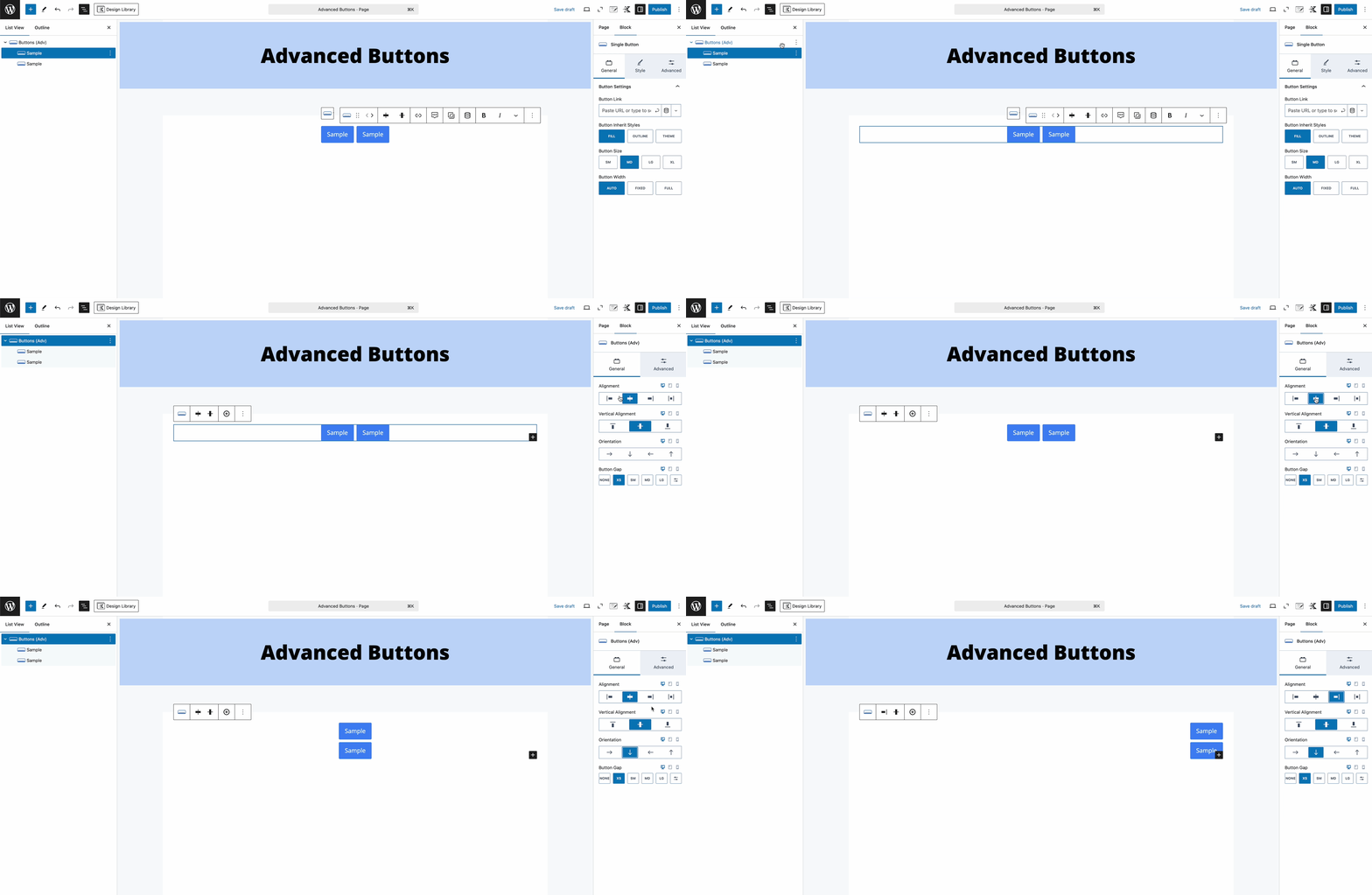
Additionally, use the Responsive Settings to adjust Setting Values across Desktop, Tablet, and Mobile Devices. These settings are represented by a Desktop, Tablet, and Mobile Icon next to the Block Setting Title.
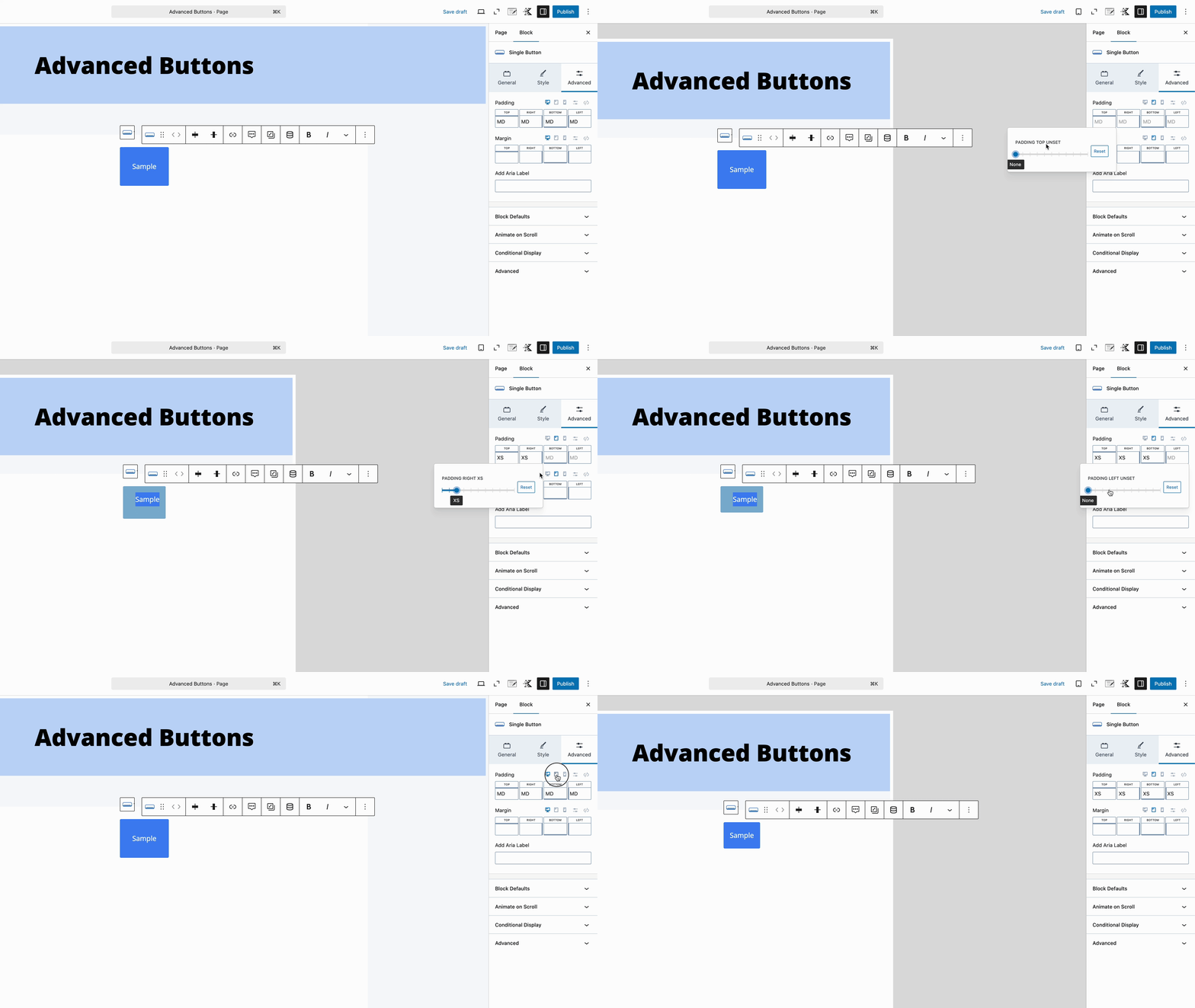
Click on the respective Responsive Icon for any available Block Setting to adjust the value for that device type. This is useful for creating responsive designs that transition smoothly across device types.
Advance Buttons Block Settings
You can style your Advanced Buttons using the Block Settings.
General Settings
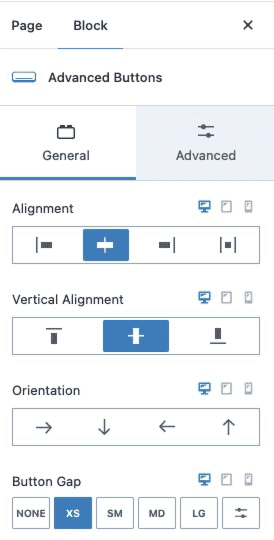
The General Settings allow you to set the alignment, vertical alignment, orientation, and button gap for mobile, tablet, and desktop devices.
Advanced Settings
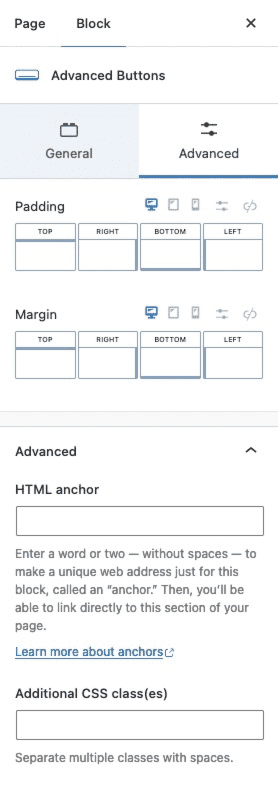
The Advanced Settings allow you to customize the padding and margin for mobile, tablet, and desktop devices.
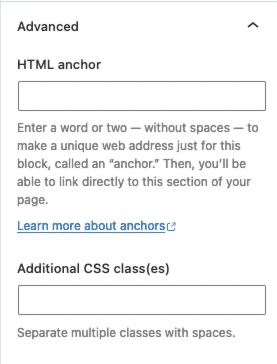
You can expand the Advanced Tab to add an HTML anchor or additional CSS class(es) to your block.
Single Button Block Settings
Inside the Advanced Buttons block, you will find Single Button blocks nested. Each Single Button block can be customized using the Block Settings.
General Settings
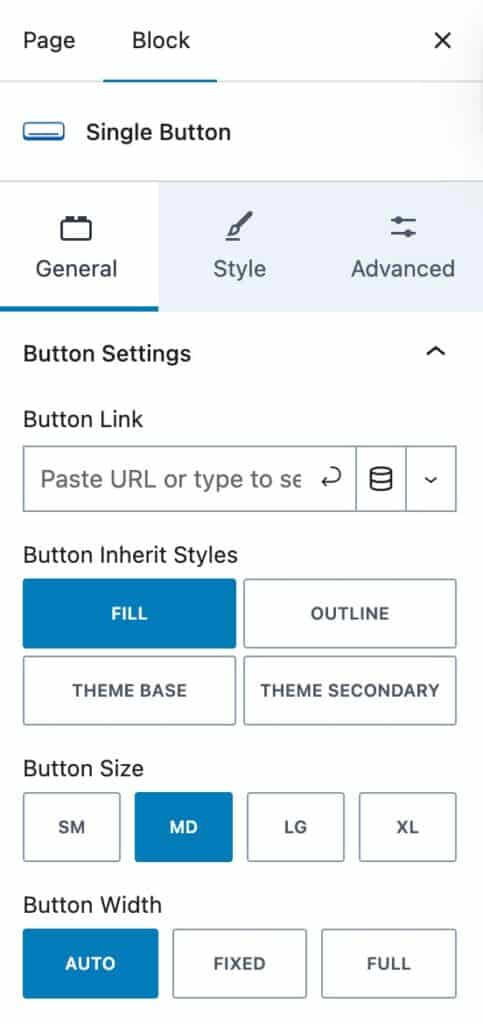
The General Settings allow you to add a button link, set the button’s inherited styles, set the button’s size, and set the button’s width.
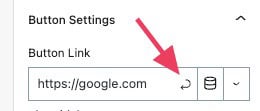
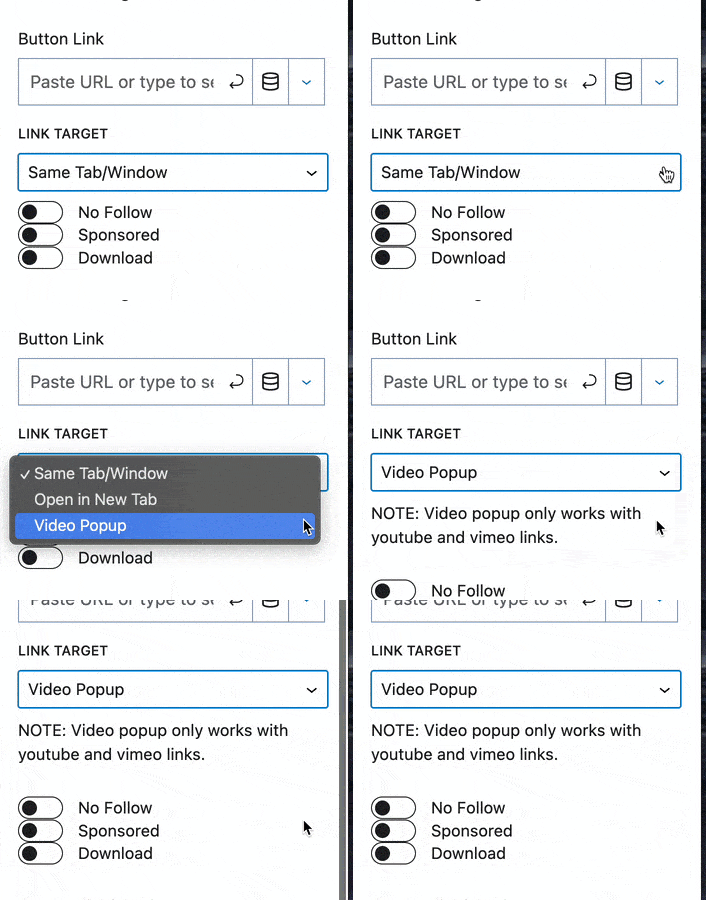
When setting a link to a button, you can click on the Down Arrow Icon for more options, such as opening the link in the same tab, opening the link in a new tab, or opening the link in a Video Popup modal. You can also set the link as a No Follow, Sponsored, or Download.
There are 3 options for “Button Inherit Styles“:
- Fill: Uses a solid button style. The Text Color and Background Color are pulled from the Kadence Theme Base Button Styles, while other styles, such as borders, default to the Single Button settings.
- Outline: Uses the Kadence Theme Outline Button Styles with a transparent background and border. Supports block-level overrides while keeping the global outline style intact.
- Theme Base: Inherits the Kadence Theme Base Button Styles. Individual block settings can override specific properties without affecting other theme styles.
- Theme Secondary: Inherits the Kadence Theme Secondary Button Styles. Supports block-level overrides while keeping the global secondary style intact.
Making a Video Popup Modal with a Button Link
You can also open Video Links from YouTube and Vimeo in a Pop-Out Modal using the Video Popup Link Setting
Sample Video Popup Button Link:
Style Settings
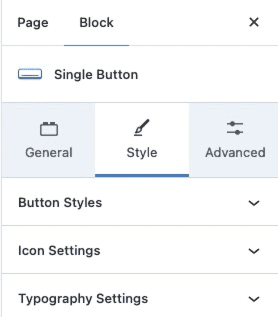
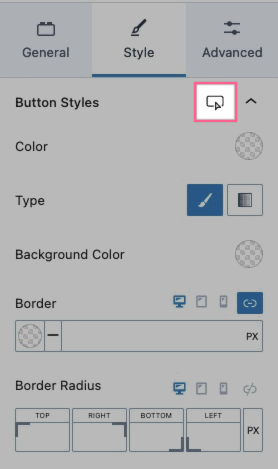
The Style Settings allow you to adjust the button styles, icon settings, and typography settings.
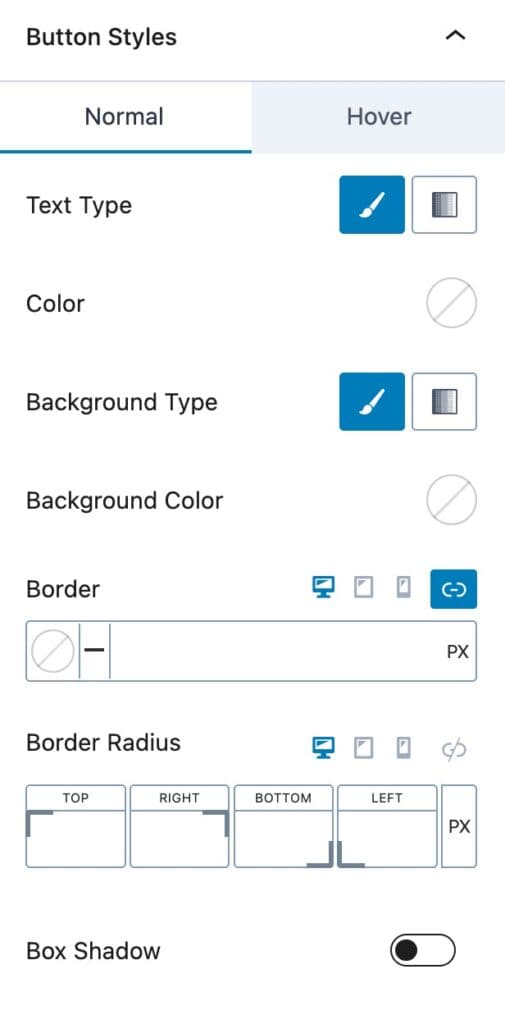
The Button Styles allow you to change the color, background color, and border settings.
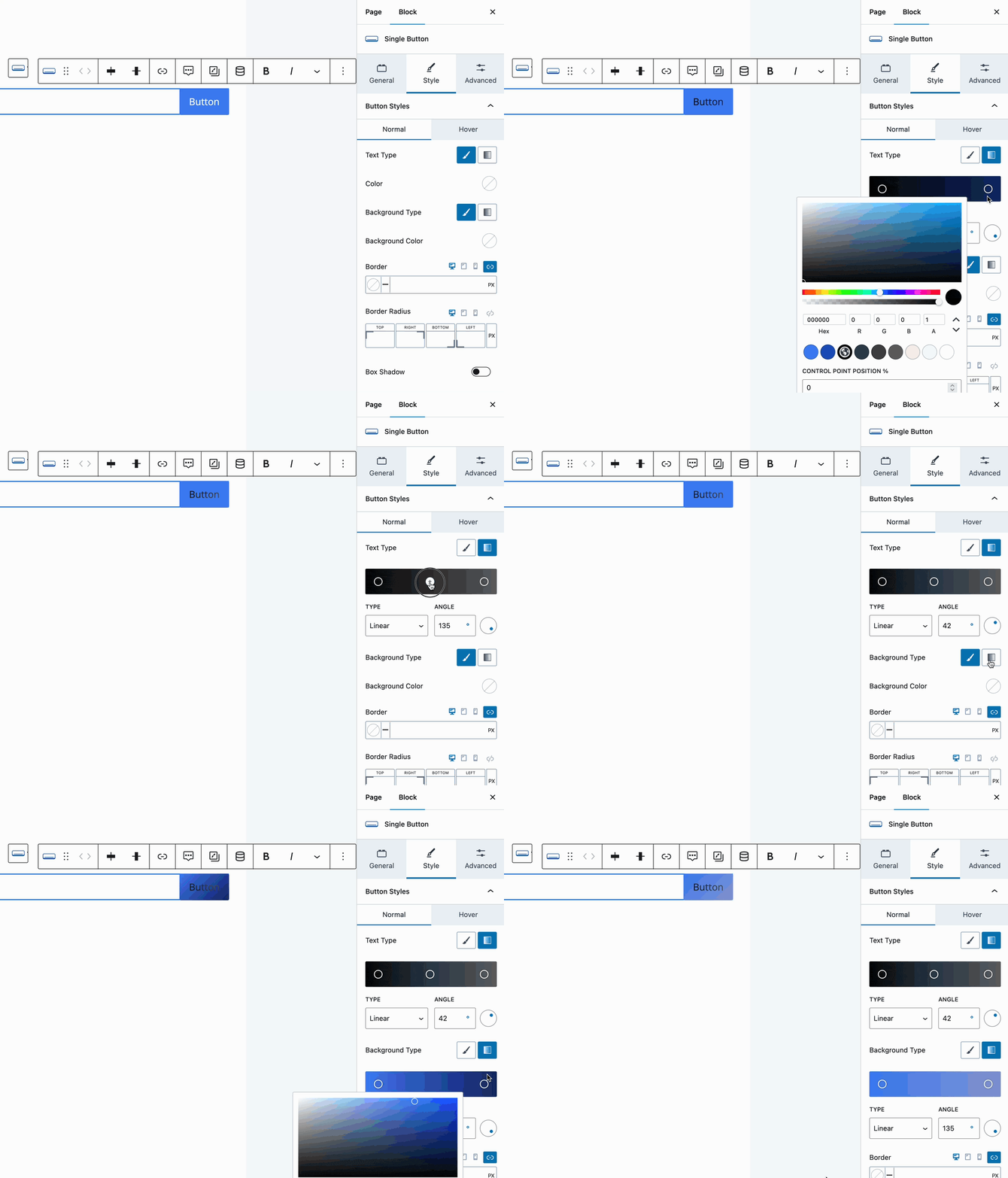
Use a Solid or Gradient Color for the Button Text and Background.
Use the Border settings to add a Border, set a Border Color, and assign a Border Radius to the button.
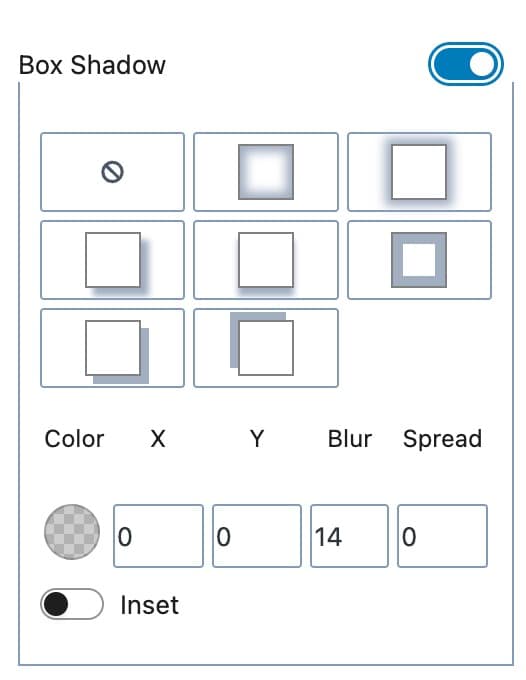
You can also enable and customize a box shadow.
You can change your Hover Styles by clicking on the Hover Styles icon. Here you can change the hover colors and settings used on the button.
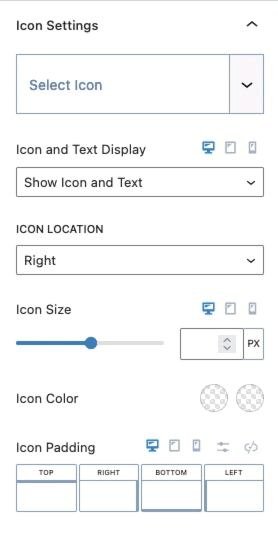
The Icon Settings allow you to use an icon on your button. You can select an icon and set whether you want the icon to display alone or with text. You can set the icon location, size, color, and padding.
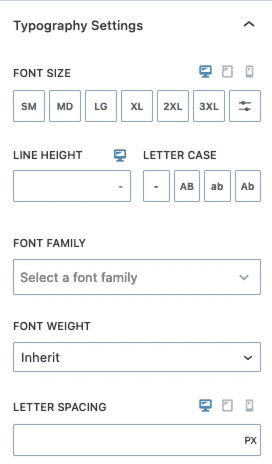
The Typography Settings allow you to customize the typography of your button. You can set the font size, line height, letter case, font family, font weight, and letter spacing for your button.
Advanced Settings
The Advanced Settings allow you to add an aria-label to your button and change the padding and margin for mobile, tablet, and desktop devices. You also will be able to change the block defaults, animate on scroll, conditional display, and advanced settings.
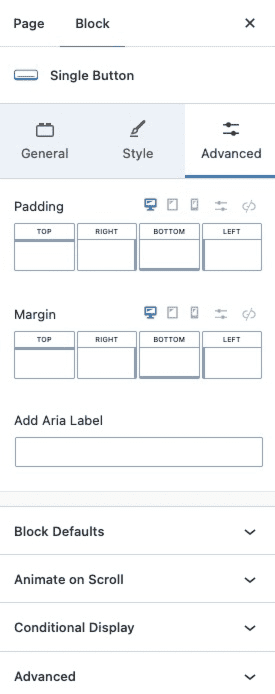
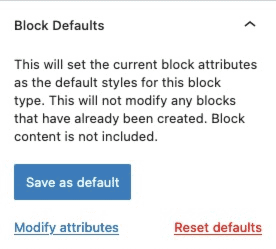
The Block Defaults setting allows you to set the current block attributes as the default styles for this block.
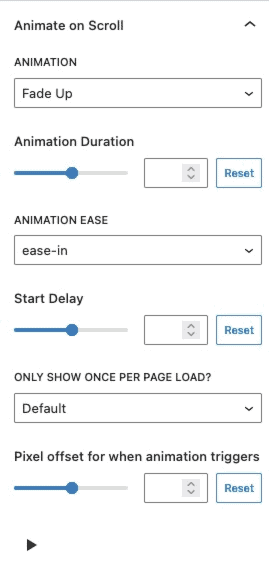
The Animate on Scroll settings allow you to add an animation to your button. This is a Premium feature and requires either Kadence Blocks Pro or Kadence Creative Kit to work.
You can select an animation duration, ease, and start delay. You can set this animation to show once per page and set a pixel offset for when the animation triggers.
You can press on the play icon at the bottom of the settings to see how your animation looks in the editor.
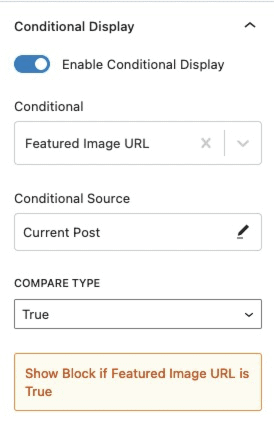
Conditional Display (Pro)
The Conditional Display setting allows you to display the block based on a condition. This is also a Kadence Blocks Pro feature.
Check out our post here for more details about the Conditional Display options.
You can expand the Advanced Tab to add an HTML anchor or additional CSS class(es) to your button.