Kadence offers the Dynamic HTML Block. This block allows you to display Content Dynamically. You can use default content, such as the Post Title and Post Content, or you can use Custom Field Content from ACF (advanced custom fields) or MetaBox. Below we will go over how you can use the Dynamic HTML Block to display content Dynamically.
What Is Dynamic Content?
Dynamic Content is a type of content that changes depending on different factors. For example, a Post Title is Dynamic. Whenever you view a post on WordPress, you see the Title of the post. If you go to another Post, it will have a different Title. You can use the Post Title as a Dynamic Source in the Dynamic HTML Block. This would show the Post Title Dynamically based on the Current Post being viewed. This can be useful when creating an Element Template.
Using The Dynamic HTML Block
You can use the Dynamic HTML Block by adding the Block to your Post, Page, or Element.
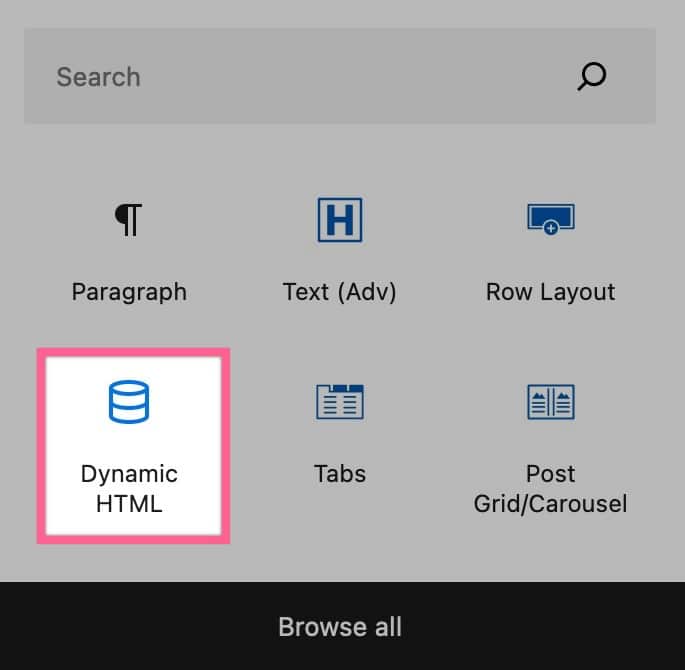
Then you can use the Block Settings to customize your Dynamic HTML Block.
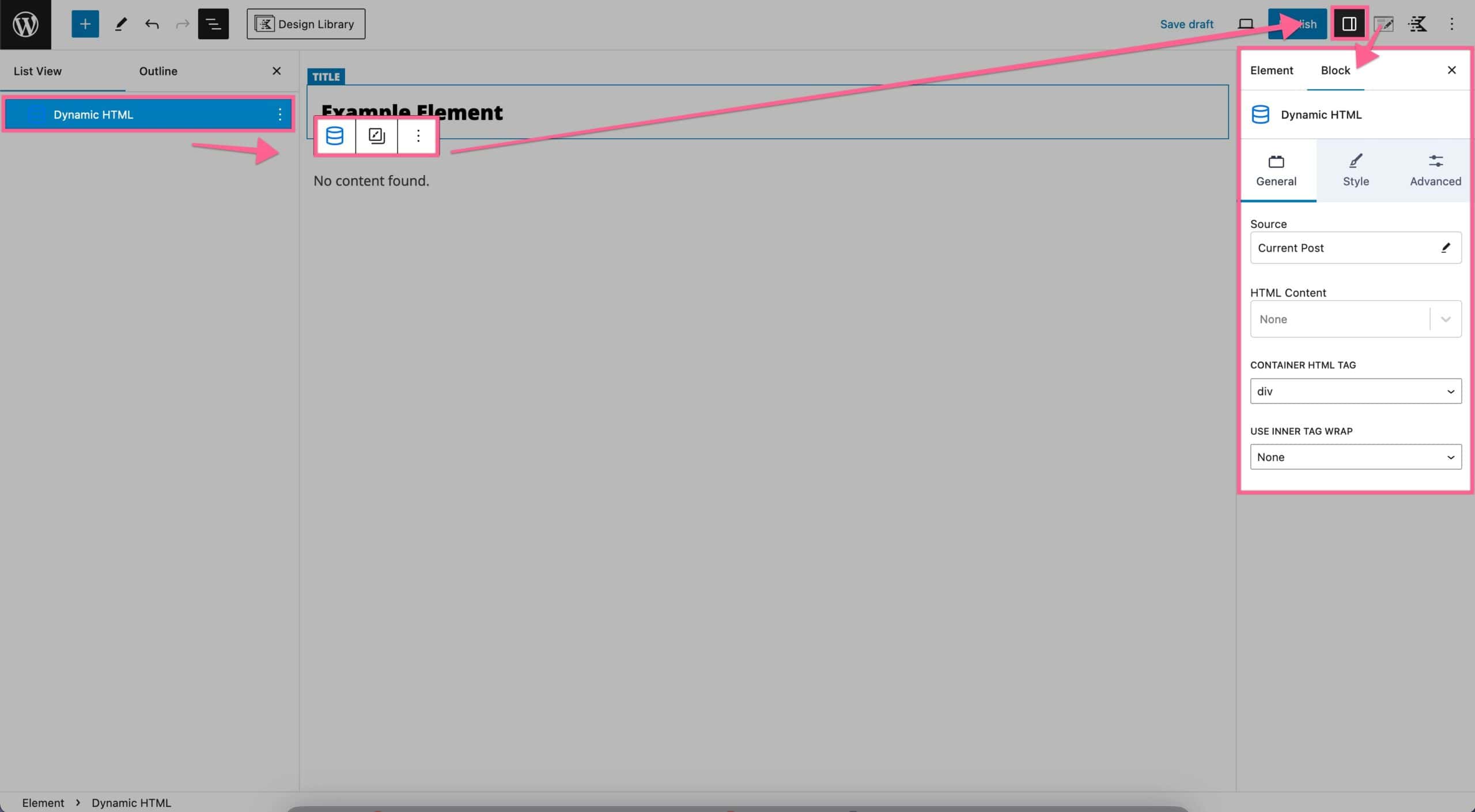
General Settings
The General Settings control where your Dynamic Content comes from and what is used.
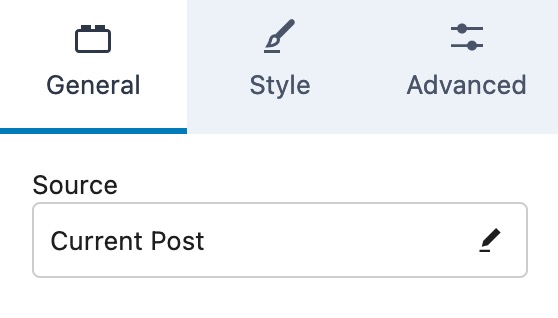
Source: This is your Dynamic Source. By default, this will be set to Current Post, and in most cases, you want to leave this as Current Post. However, you can change this to use content from a specific post instead.
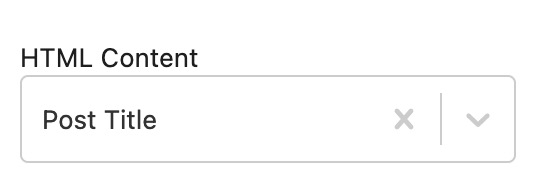
HTML Content: This Block Setting is the setting that determines what kind of Dynamic Content is shown.
Available Sources:
Post – Post Title, Post Content, Post Excerpt, Post Date, Post Last Modified Date, or Post Custom Field.
Archive – Archive Title, Archive Description, or Archive Custom Field.
Site – Site Title, Site Tagline, Site URL, Page Title, Current User Display Name, or Site Custom Setting.
Author – Author Display Name Author First Name Author Last Name Author Bio Info or Author Custom Field.
Meta Relationship – Post Title, Post Content, Post Excerpt, or Post Custom Field.
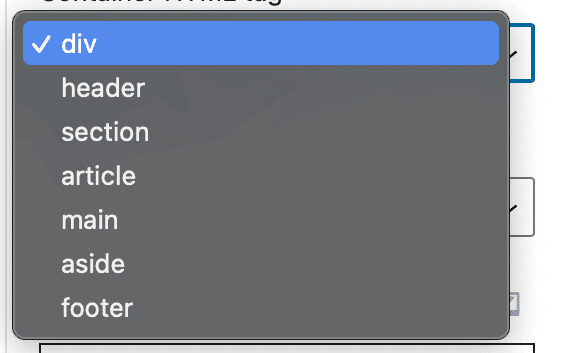
Container HTML Tag: This Block Setting controls the HTML Tag used for this Dynamic Content. For example, you can use a header, section, article, main, aside, or footer HTML Element to nest your Dynamic HTML Block Content.
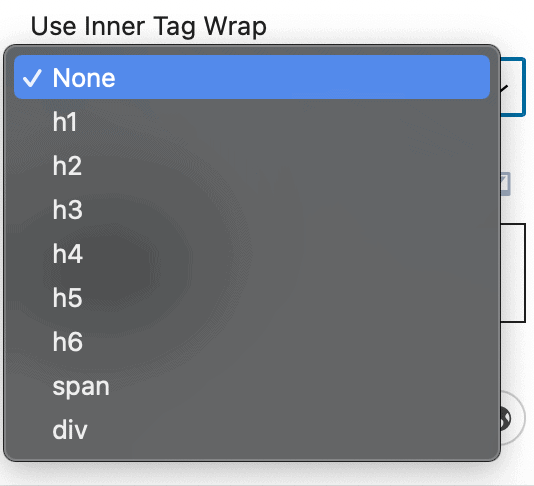
Use Inner Tag Wrap: If you would like to apply specific HTML tags to the entire Dynamic HTML Block, you can do so with the Use Inner Tag Wrap. For example, if you set this to H1, your theme’s H1 styles would be set to the entire block.
Note: Selecting H1-H6 will apply the global settings for these heading tags. You can customize this using the heading typography settings.
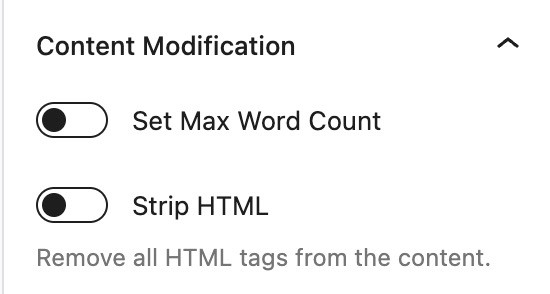
Content Modification: These settings allow you to modify the content displayed from your Dynamic HTML Block.
You can set a Max Word Count for content such as Excerpts.
You can also enable the option to Strip HTML. This removes all HTML Tags from the content.
Style Settings
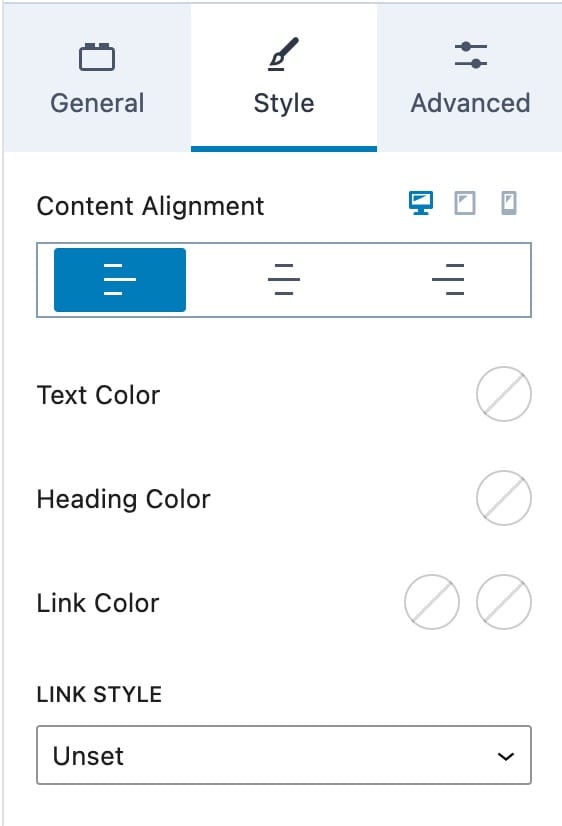
The Style Settings allow you to customize the Style of your Dynamic HTML.
Content Alignment: Content alignment can be set for the entire block per device. This means you can set different alignments for the entire block separately for desktop, mobile, and tablet devices.
Text Color: If you’d like to specifically set the text color for the Dynamic HTML Block instead of inheriting it from your theme settings, you can do so with the Text Color setting.
Heading Color: If you’d like to specifically set the heading color for the Dynamic HTML Block instead of inheriting from your theme settings, you can do so with the Heading Color setting. This will apply to any heading tags (e.g., H1, H2, H3, etc.) that were set by the user adding content to the custom post field.
Link Color: If links are added to the Dynamic HTML Block and you’d like to specifically set the link colors for both normal and hover for the Dynamic HTML Block instead of inheriting from your theme settings, you can do so with the Link Color setting.
Link Style: If links are added to the Dynamic HTML Block and you’d like to specifically set the link style for the Dynamic HTML Block instead of inheriting from your theme settings, you can do so with the Link Style setting. Options include Unset, None, Underline, and Underline on Hover.
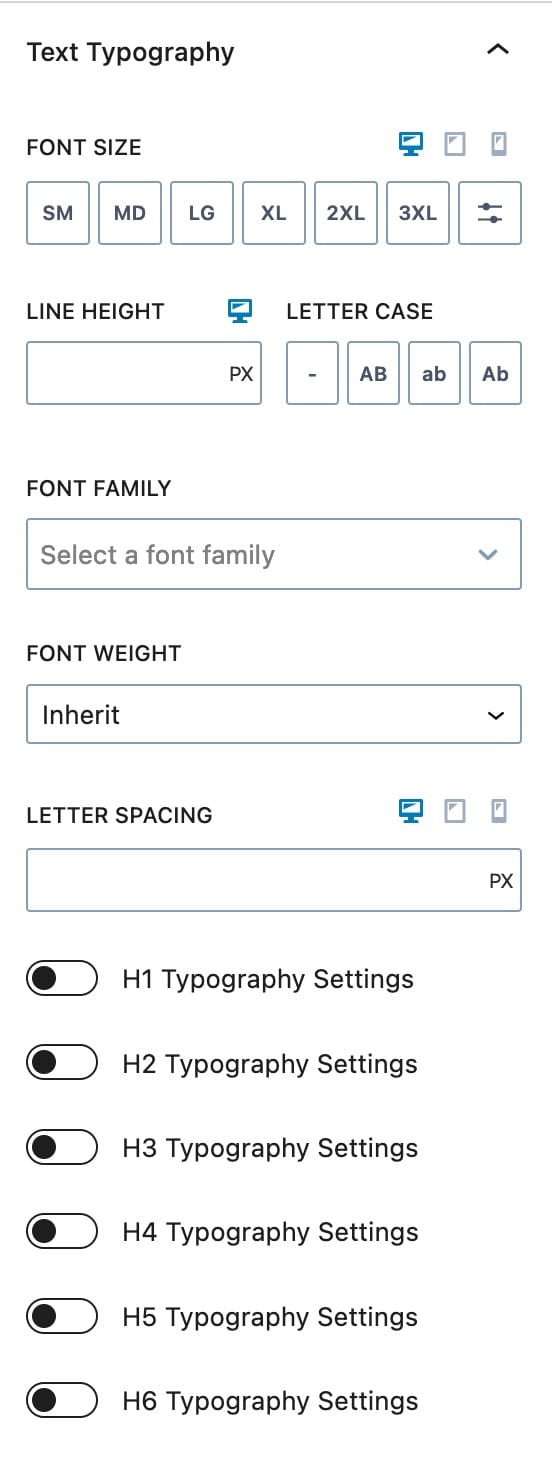
Font Size: Font size can be set using a preset or by entering a numeric value for px, em, or rem. Font size can be set for desktop, tablet, or mobile.
Line Height: Line Height can be set either by entering a numeric value for px, em, or rem. Font size can be set for desktop, tablet, or mobile. You can click on the Desktop Icon to see the Tablet and Mobile Responsive Settings.
Letter Case: You can set your Letter Case to AB, aa, or Ab.
Font Family: Font family can be set for this individual block if you’d like to transform it separate from your overall theme settings.
Font Weight: Font weight can be set for this individual block if you’d like to transform it separate from your overall theme settings.
Letter Spacing: Letter Spacing can be set by entering in a numeric value for px, em or rem. Letter Spacing can be set for desktop, tablet or mobile.
Heading Typography Settings – For each of the headline typography settings, you can override your overall theme settings for the Dynamic HTML Block individually. First, toggle the typography settings for whichever HTML headline tag you’d like to set (e.g., H1, H2, H3, etc.) and you will then be able to set font size, line height, letter spacing for each headline tag you’d like, and you can do so on a per-device basis.
Advanced Settings
The Advanced Block Settings allow you to adjust more advanced settings for the Dynamic HTML Block.
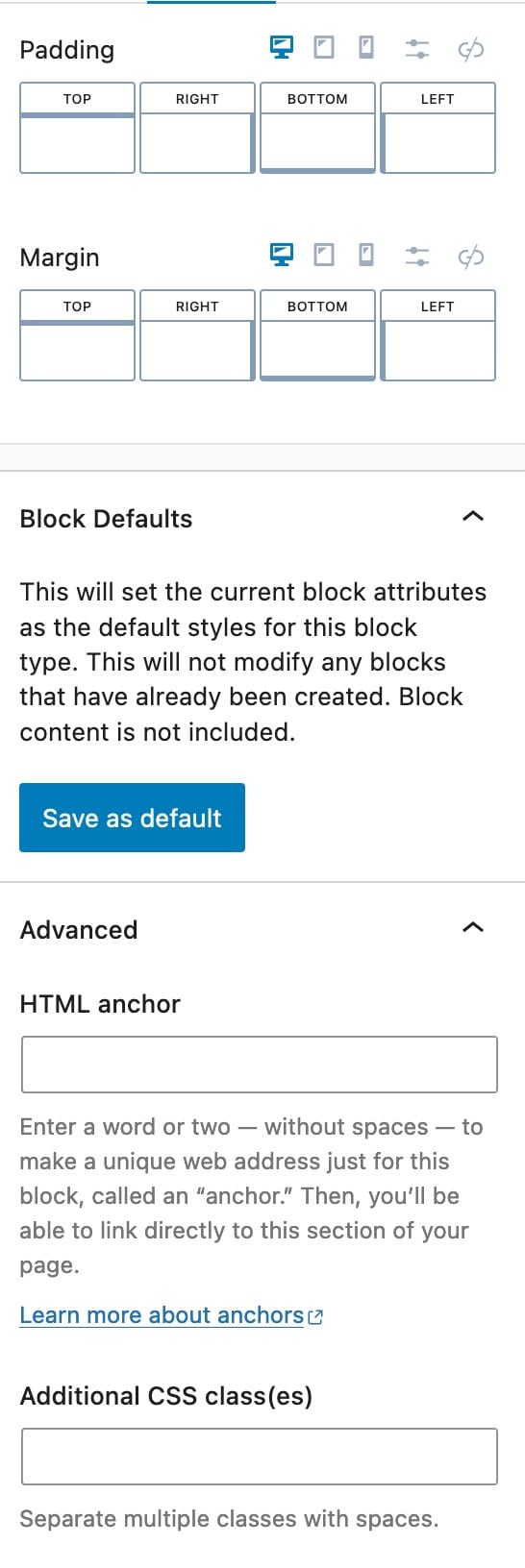
Padding: Padding settings can be set for the Dynamic HTML Block much like they are set for other blocks. You can set padding for each device type (desktop, tablet, mobile) and set the padding for top, right, bottom, or left.
Margin: Margin settings can be set for the Dynamic HTML Block much like they are set for other blocks. You can set margins for each device type (desktop, tablet, mobile) and set the margin for top, right, bottom, or left.
Block Defaults: You can save your Block Settings as the Block Default.
HTML Anchor: You can add an HTML Anchor ID to your Dynamic HTML Block.
Additional CSS Class(es): You can add a CSS Class or multiple CSS Classes to your Dynamic HTML Block.