Skip to content
Help Center
  • Pricing
  • ProductsExpand
    • Premium PlansGet all the tools you need in one plan
    • Kadence ThemeLightning-fast performance theme for modern websites
    • Kadence BlocksDrop in ready designs with advanced controls for pixel perfect websites
    • Kadence Shop KitCreate a more effective WooCommerce shopping experience
    • Kadence ConversionsBoost sales and build engaged audiences with popups and banners
    • Kadence InsightsEasily create A/B tests. Optimize your pages to drive higher conversions.
    • View All Products
    • Get Kadence + Hosting
      In One Place

      Enjoy faster setup, top-tier performance, and worry-free WordPress hosting – Kadence Theme, Kadence Blocks, and Solid Security all pre-installed.

      Learn More

  • Kadence AI
  • Starter Templates
  • Blog
  • SupportExpand
    • Resource HubStart here for guides, Product docs, FAQs, and Troubleshooting tips, all in one place.
    • Contact SupportStuck on something? We’re here to help! Open a ticket for top-notch support.
    • Contact Our TeamGot pre-sales questions or need help choosing a plan? Open a ticket and our team will guide you.
    • About usCrafted with love in Missoula, Montana. Meet the team behind the mission.
Account Account
Get Kadence
Kadence ai
Help Center
Kadence ai

Kadence AI

  • Kadence AI-Powered Design Library
  • Home
  • Knowledge Base
  • Kadence AI
  • Kadence Blocks

Icon List Block

The Icon List Block allows you to add a styled list to your pages and posts. Start by inserting an Icon List block to your post.
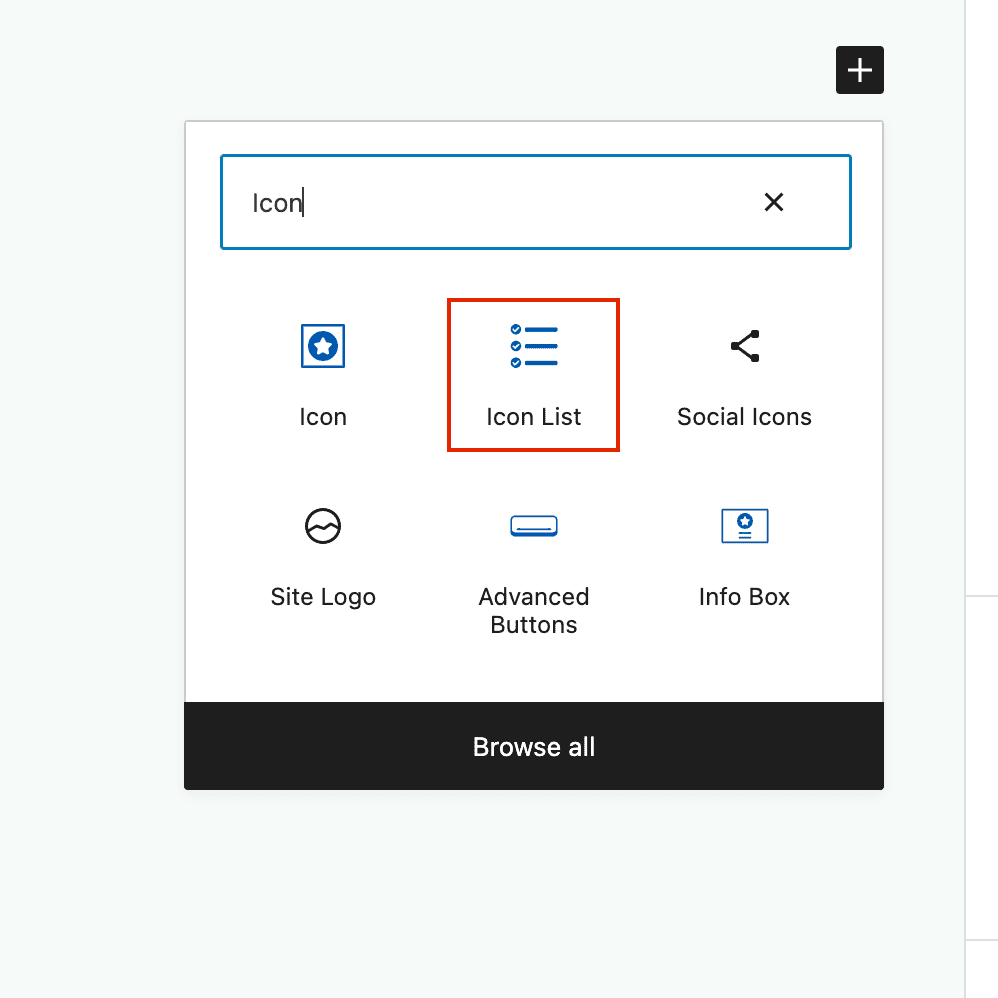
Table of Contents
  • General Settings
  • Style Settings
    • Icon Styling
    • Text Styling
    • Link Styling
  • List Items
    • General Settings
    • Style Settings
      • Advanced Highlight Settings

General Settings

Note: Be sure to select the Parent Block to adjust these settings.

List Columns: Choose from 1, 2 or 3 columns. Select tablet or mobile to adjust the responsive columns.

List Column Gap: When using 2 or 3 columns, adjust the gap between your columns.

List Vertical Spacing: Adjust the spacing between your list items.

List Horizontal Icon and Label Spacing: Adjust the spacing between your icon and list text.

Icon Align: Align your icon to the text (top, center, bottom). This is especially important when you have multi-line list items.
Icon List Block - General Settings

Style Settings

Icon Styling

Select the default icon. This can be overridden on individual list items.

Icon Size: Adjust your icon size in pixels units. Blank will inherit the size of your text font-size.

Line Width: Adjust the thickness of your icon lines. This setting may not work when using custom icons.

Icon Color: Customize the color of your icons. Defaults to the color of your text settings. This setting may not work when using custom icons.

Icon Style: Setting to “Stacked” allows you to set the icon background and border color, border size, border radius, and padding.
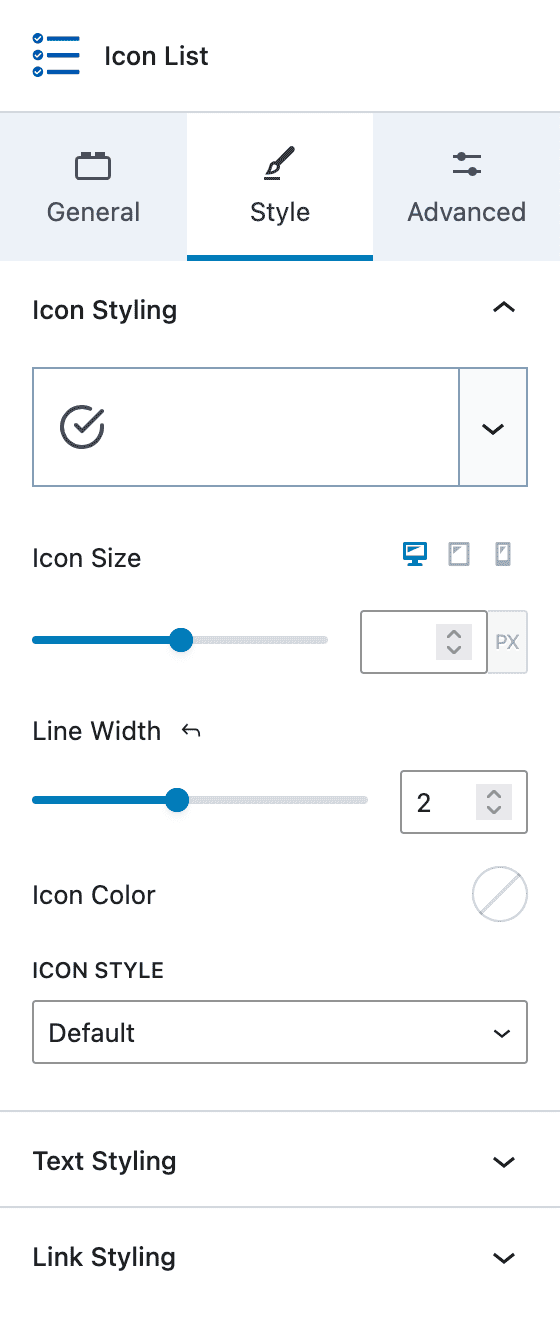
Icon List Block - Style - Icon Styling

Text Styling

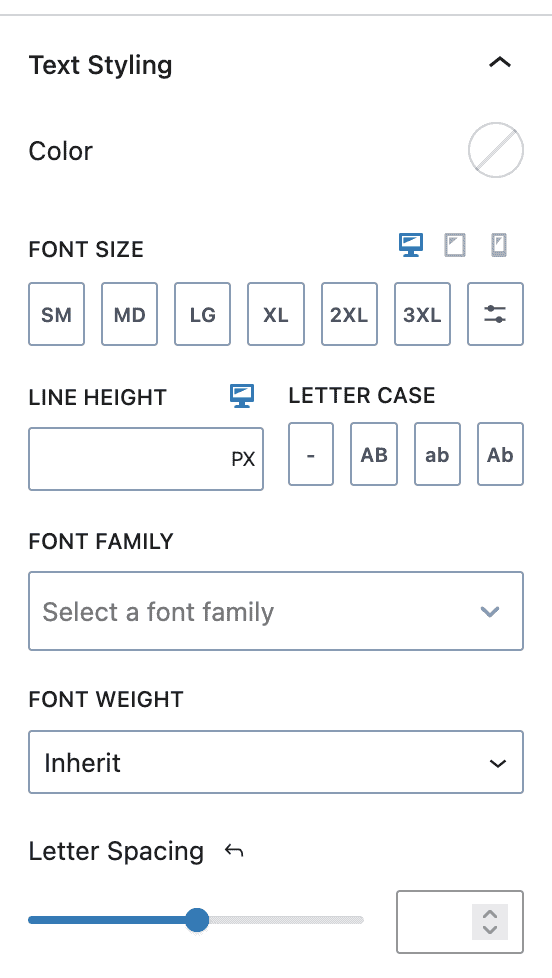
The Text Styling section allows you to set:

  • Color
  • Font Size
  • Line Height
  • Letter Case
  • Font Family
  • Font Weight
  • Letter Spacing
Icon List Block - Style - Text Styling

Link Styling

The Link Styling section allows you to set:

  • Link Color – Normal and Hover
  • Underline – Inherit, Underline, Underline on Hover, None
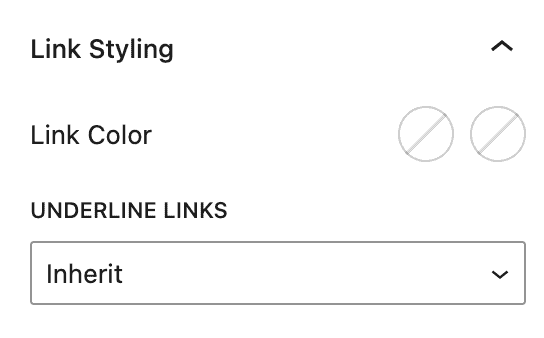
Icon List Block - Style - Link Styles

List Items

Individual list items have their own settings that will override the parent settings.

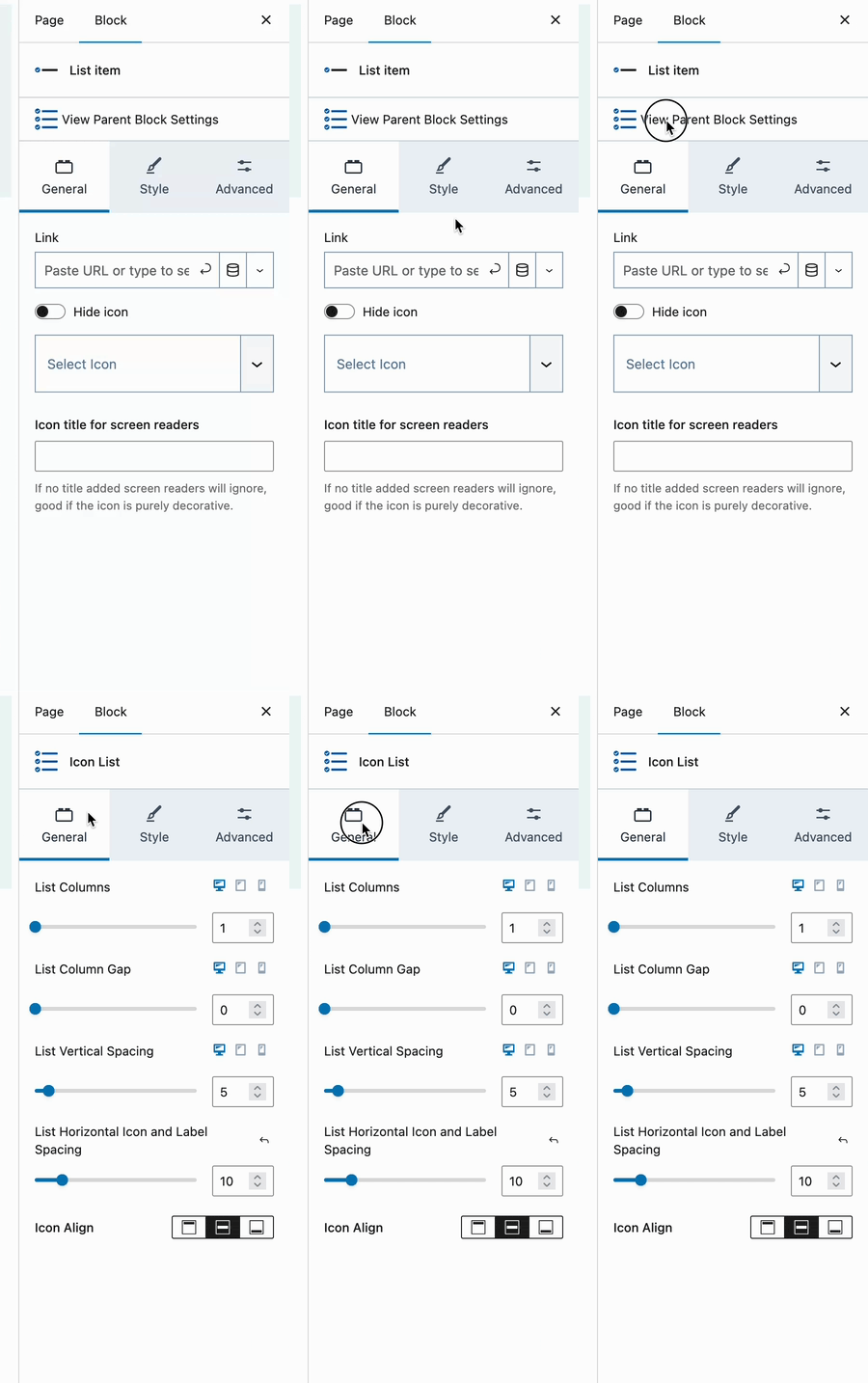
General Settings

Link: Apply a link to the entire list item (including the icon).

Hide icon: Hide the icon for this list item.

Select Icon: Set an icon for this list item. This will override the Icon List block parent setting.

Icon title for screen readers: If your list item does not include descriptive text, you can specify a title for improved accessibility.
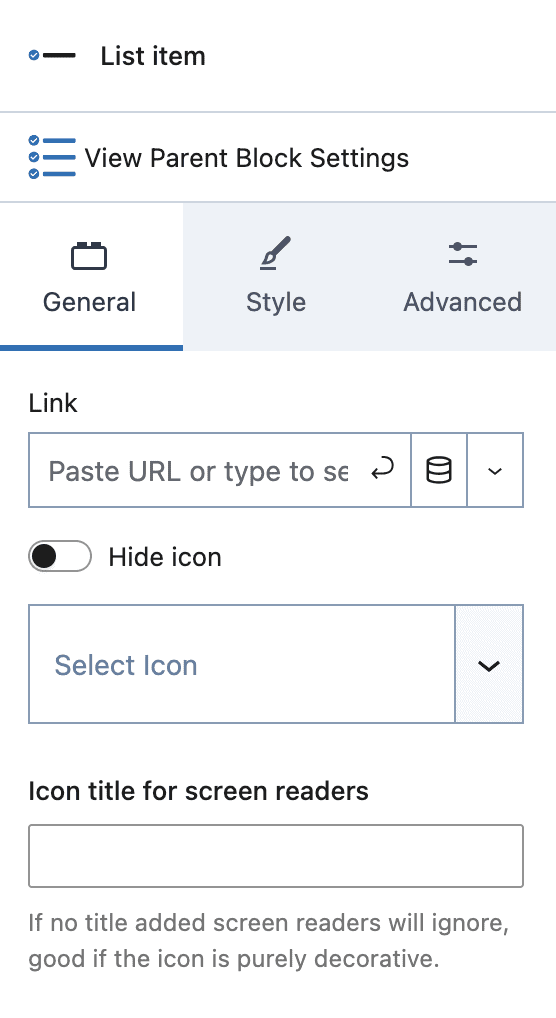
Icon List Block - Item - General Settings

Style Settings

Icon Size: Set the icon size for this item.

Line Width: Set the icon line width.

Icon Color: Set a custom color for your icon.

By default, the above settings will be inherited from the Icon List block settings unless overridden here.

Icon Style:

  • Inherit – Use the parent Icon List setting
  • Default – Use the default setting
  • Stacked – Set a custom “stacked” style
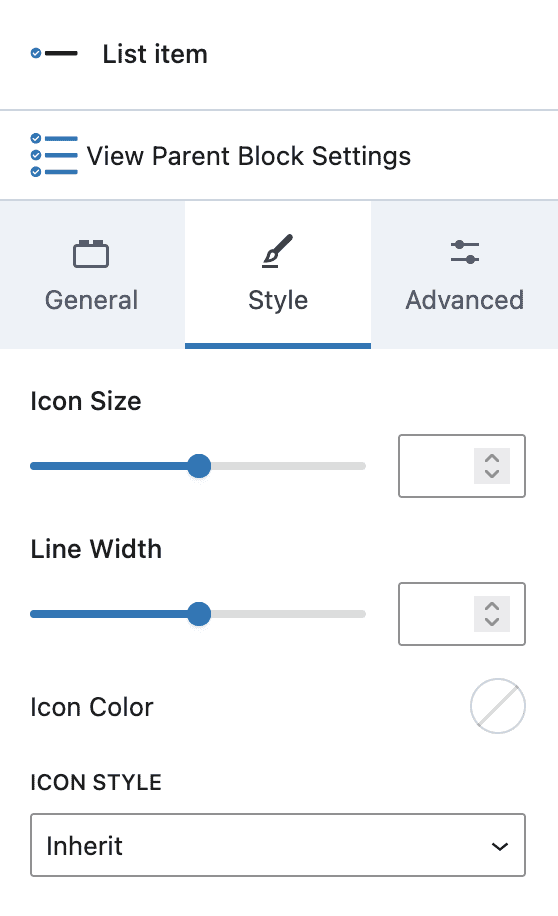
Icon List Block - Item - Style

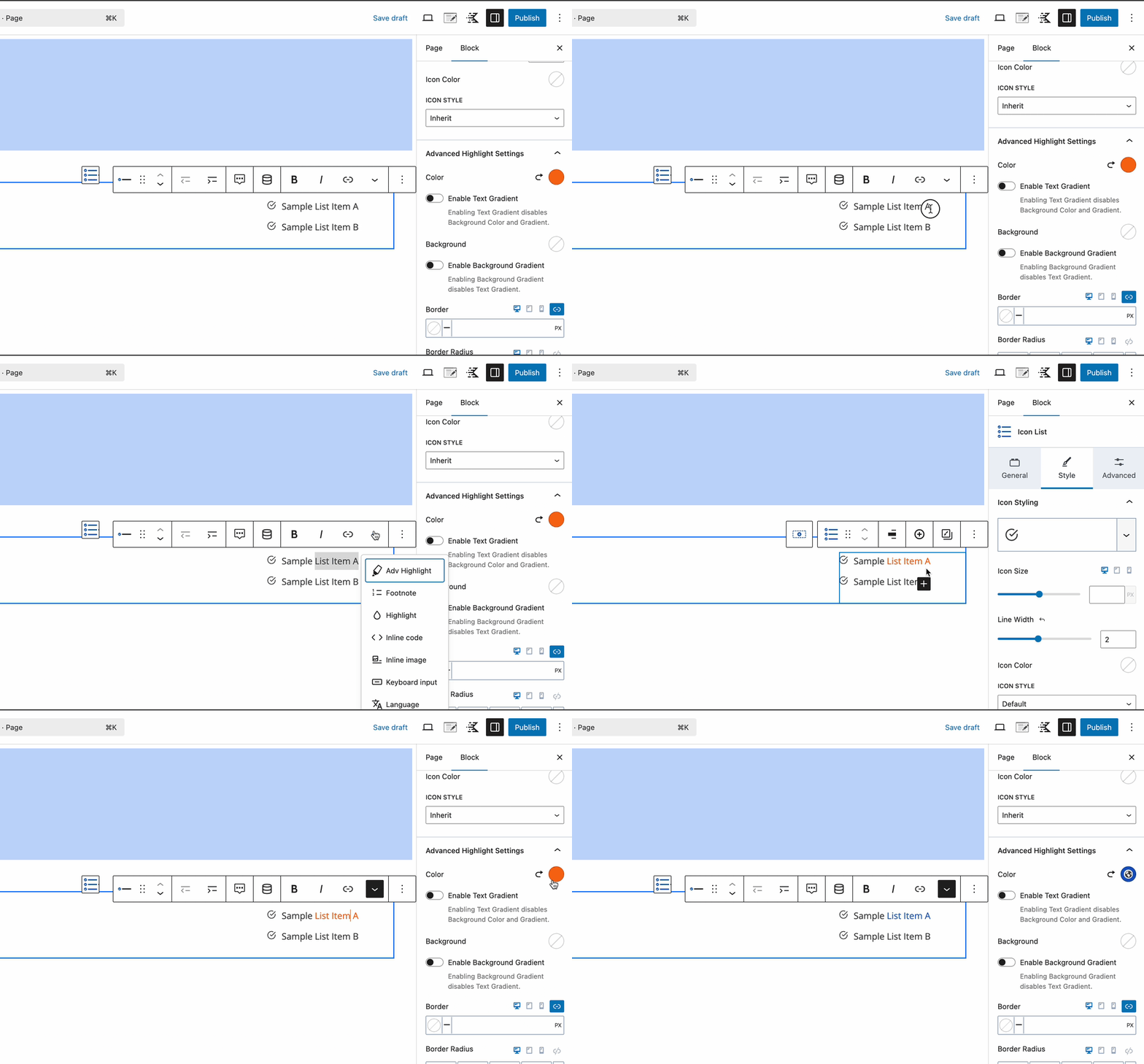
Advanced Highlight Settings

List Advanced Highlight Settings
Do you feel this document was helpful?
The Kadence WP Logo
Crafted in Missoula, Montana
  • Follow Kadence on Facebook
  • Follow Kadence on Youtube
  • X
  • Follow Kadence on Instagram
Trustpilot
Products
  • Kadence Plans
  • Kadence Theme
  • Kadence Blocks
  • Kadence AI
  • Kadence Starter Templates
  • Kadence Shop Kit
  • Kadence Conversions
  • Kadence Pattern Hub
  • View All
Resources
  • Blog
  • Podcast
  • Knowledgebase
  • Support ticket
  • Feature Requests
  • FAQ
  • WordPress Hosting Services
About Us
  • About Kadence
  • Become an affiliate
  • Contact us
  • Terms
  • Privacy Policy
  • Security
Our Partner Brands
  • SolidWP
  • LearnDash
  • The Events Calendar
  • GiveWP
  • MemberDash
Kadence Community
  • Kadence Marketplace
  • Join the Facebook Group
  • Subscribe to our YouTube Channel
© 2024 Kadence WP | All prices are in USD
Logo for StellarWP an umbrella brand of Premium WordPress plugins
  • Pricing
  • Products
    • Premium PlansGet all the tools you need in one plan
    • Kadence ThemeLightning-fast performance theme for modern websites
    • Kadence BlocksDrop in ready designs with advanced controls for pixel perfect websites
    • Kadence Shop KitCreate a more effective WooCommerce shopping experience
    • Kadence ConversionsBoost sales and build engaged audiences with popups and banners
    • Kadence InsightsEasily create A/B tests. Optimize your pages to drive higher conversions.
    • View All Products
    • Get Kadence + Hosting
      In One Place

      Enjoy faster setup, top-tier performance, and worry-free WordPress hosting – Kadence Theme, Kadence Blocks, and Solid Security all pre-installed.

      Learn More

  • Kadence AI
  • Starter Templates
  • Blog
  • Support
    • Resource HubStart here for guides, Product docs, FAQs, and Troubleshooting tips, all in one place.
    • Contact SupportStuck on something? We’re here to help! Open a ticket for top-notch support.
    • Contact Our TeamGot pre-sales questions or need help choosing a plan? Open a ticket and our team will guide you.
    • About usCrafted with love in Missoula, Montana. Meet the team behind the mission.
Account Login