Skip to content
Help Center
  • Pricing
  • ProductsExpand
    • Premium PlansGet all the tools you need in one plan
    • Kadence ThemeLightning-fast performance theme for modern websites
    • Kadence BlocksDrop in ready designs with advanced controls for pixel perfect websites
    • Kadence Shop KitCreate a more effective WooCommerce shopping experience
    • Kadence ConversionsBoost sales and build engaged audiences with popups and banners
    • Kadence InsightsEasily create A/B tests. Optimize your pages to drive higher conversions.
    • View All Products
    • Get Kadence + Hosting
      In One Place

      Enjoy faster setup, top-tier performance, and worry-free WordPress hosting – Kadence Theme, Kadence Blocks, and Solid Security all pre-installed.

      Learn More

  • Kadence AI
  • Starter Templates
  • Blog
  • SupportExpand
    • Resource HubStart here for guides, Product docs, FAQs, and Troubleshooting tips, all in one place.
    • Contact SupportStuck on something? We’re here to help! Open a ticket for top-notch support.
    • Contact Our TeamGot pre-sales questions or need help choosing a plan? Open a ticket and our team will guide you.
    • About usCrafted with love in Missoula, Montana. Meet the team behind the mission.
Account Account
Get Kadence
Kadence ai
Help Center
Kadence ai

Kadence AI

  • Kadence AI-Powered Design Library
  • Home
  • Knowledge Base
  • Kadence AI
  • Kadence Blocks
  • Getting Started

Setting custom widths in multi-column Row Layout Blocks

The Kadence Row Layout Block supports the use of up to 6 Columns in a Single Row. Each column can be adjusted, giving you the power to make stunning multi-column layouts of different widths.
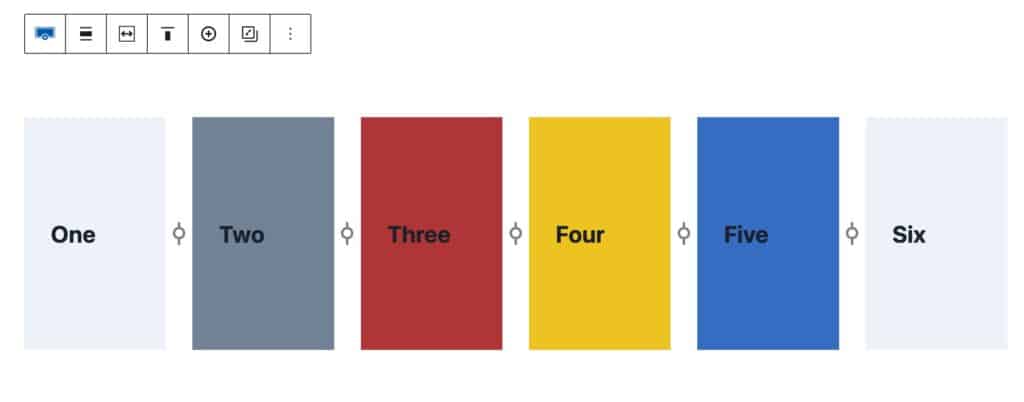
Six Column Layout

You can only adjust the width of Row Layout Blocks that use a single-row layout. If it is a multi-row layout, the column adjustment option won’t be available.

This is a Single-Row Layout. These types of Layouts do support the Custom Width Adjuster.
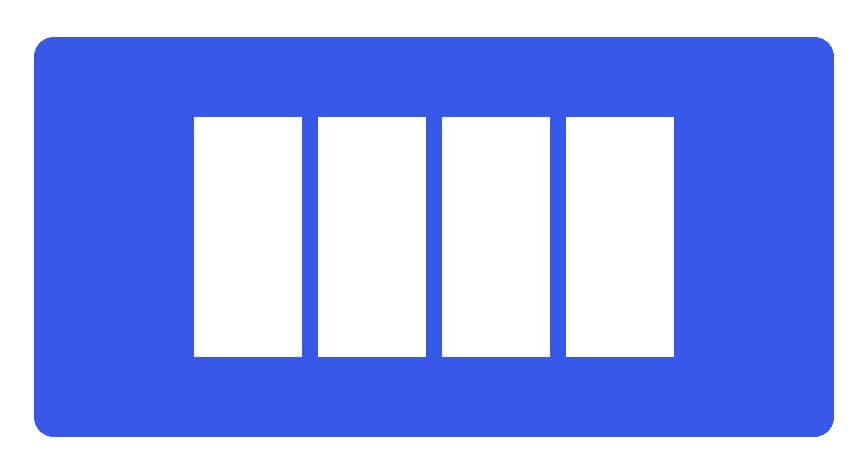
Single Row Layout

This is a Multi-Row Layout. These types of Layouts do not support the Custom Width Adjuster.
Table of Contents
  • Examples
  • Adjusting Multi-Column Layouts
    • Layout Block Setting
    • Adjusting Tablet and Mobile Widths Separately

Examples

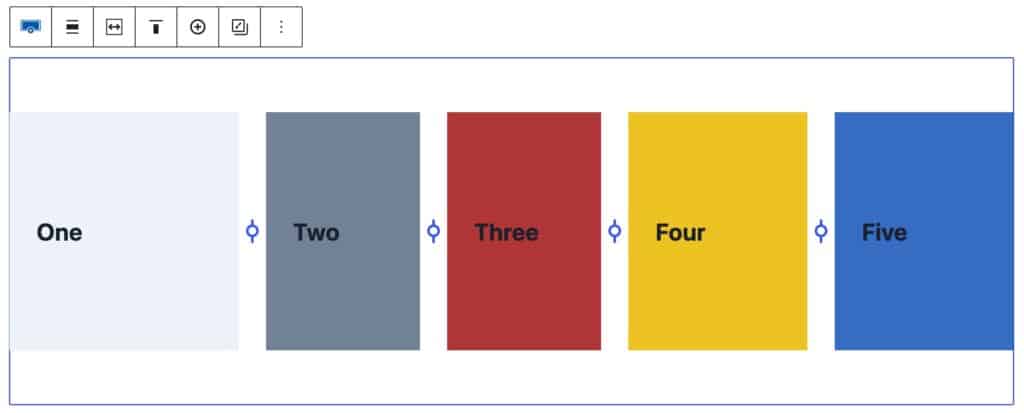
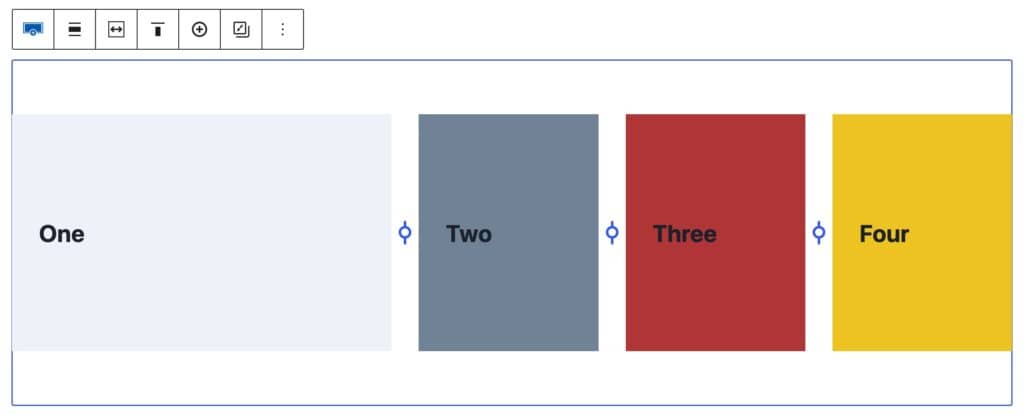
You can adjust the number of columns and widths of each column to meet your design needs. Reference the examples below for layouts that the Row Layout Block can achieve.
Adjusting Multi-Column Layouts

To adjust a Row Layout Block with multiple columns, add a Row Layout Block to the page and select a multi-column layout.
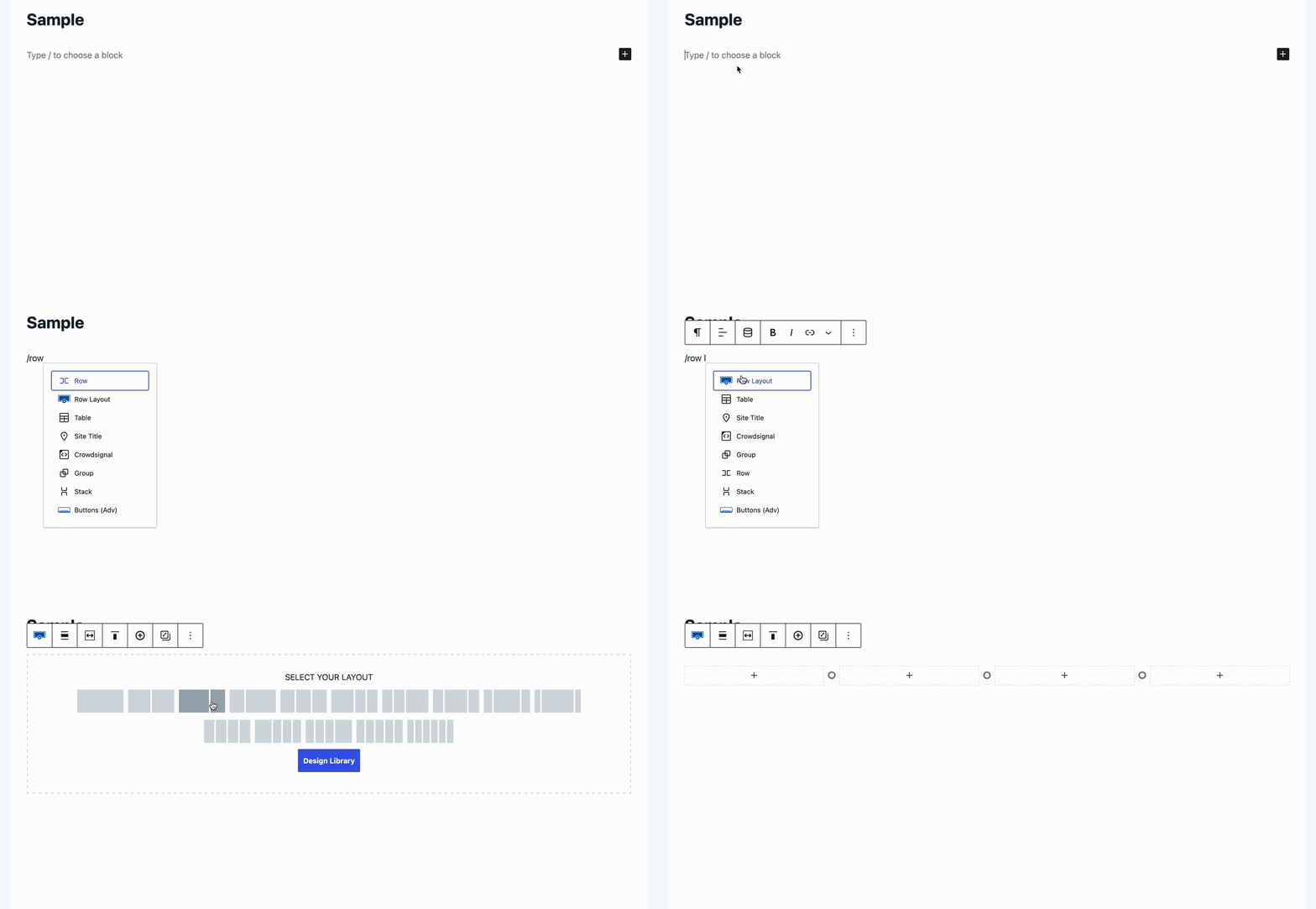
Adding Row Layout Blocks

Select the Row Layout Block. With the Row Layout Block selected, notice the adjuster icon(s) between the sections within the Row Layout Block.
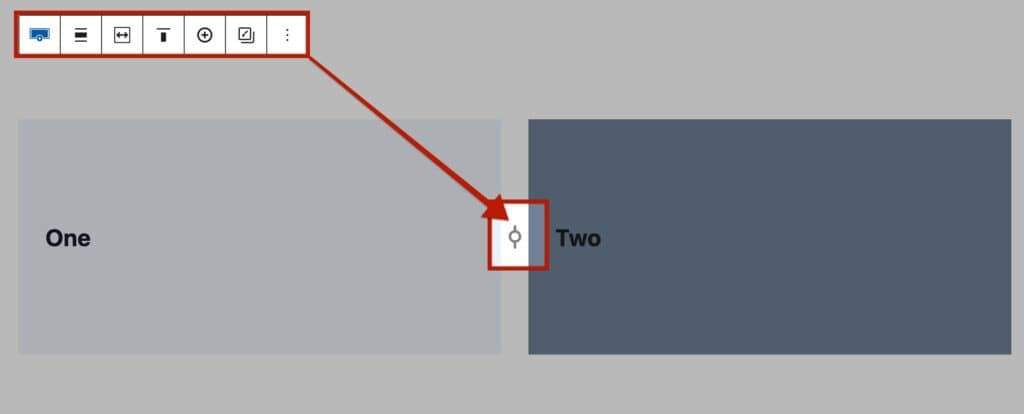

Hovering over this icon will show you the percentage of the section split
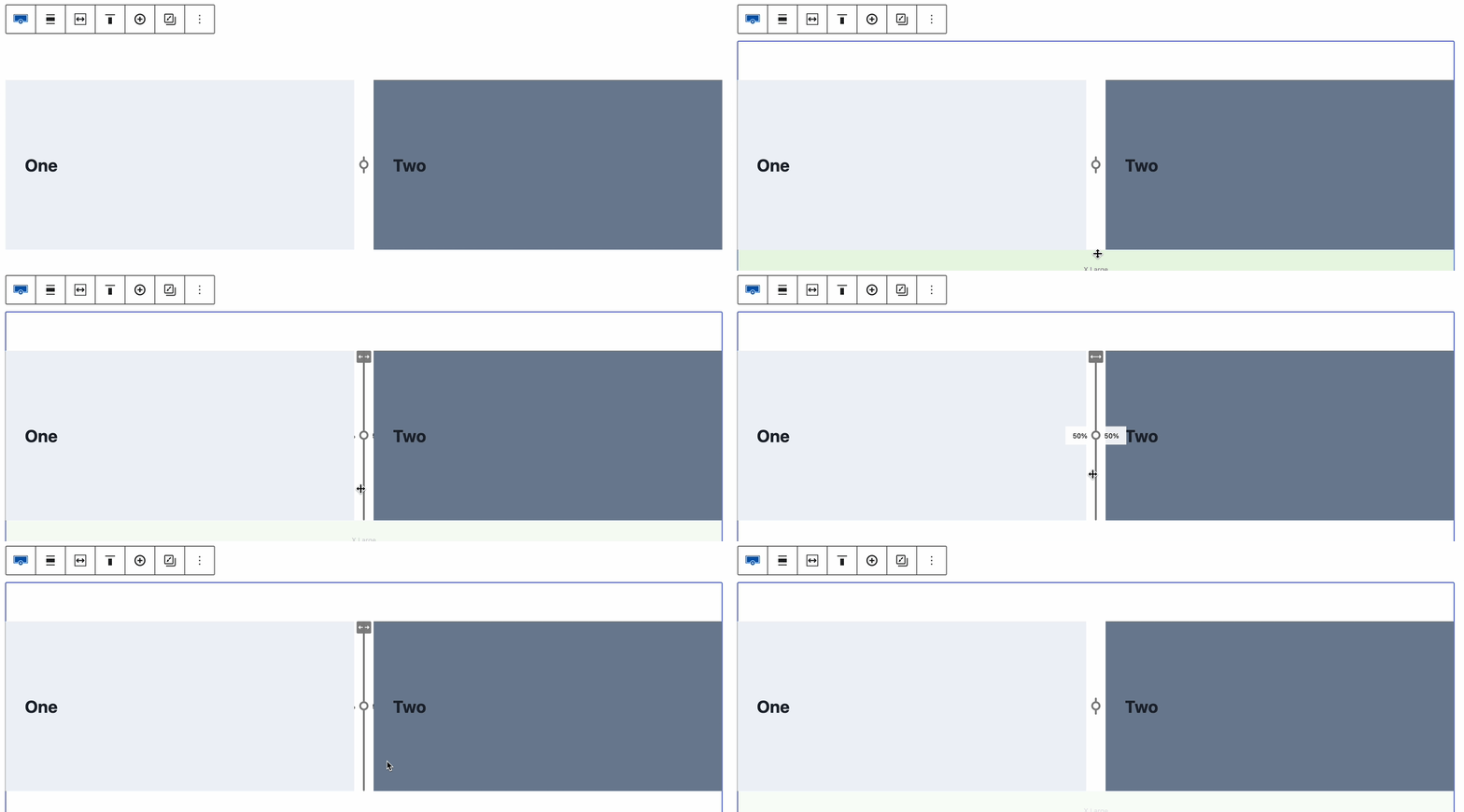
Hover Percentage

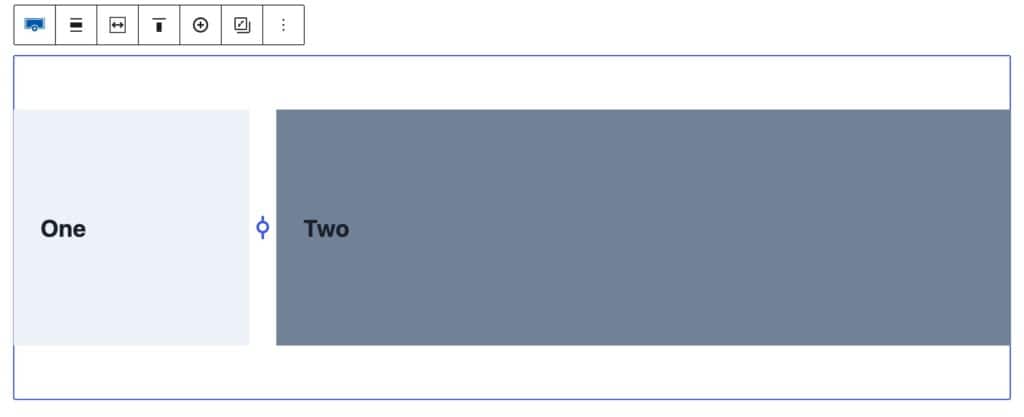
Once you click the adjuster icon, it can be dragged to the left or right to adjust the column widths.
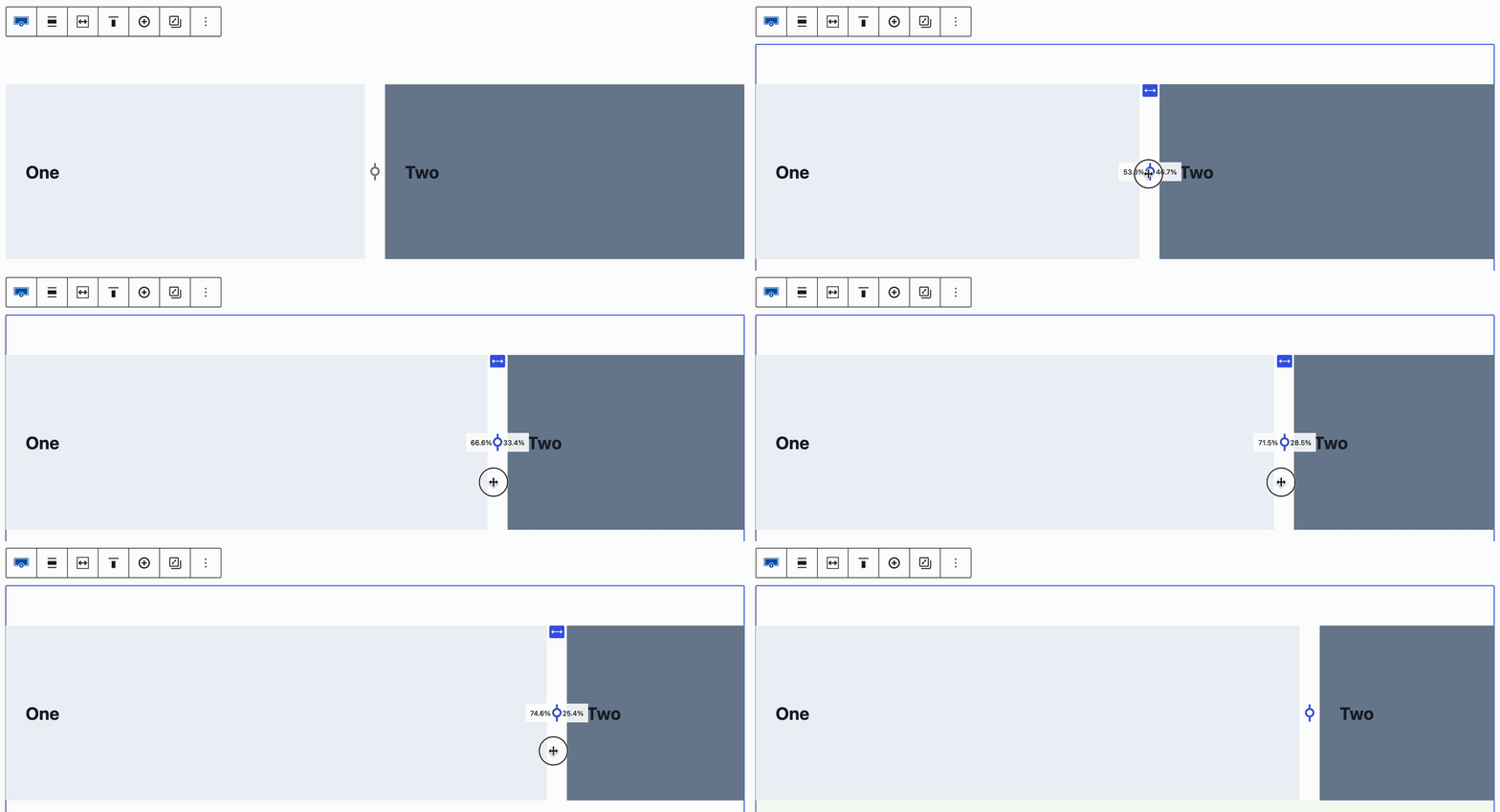
Adjusting Two Columns

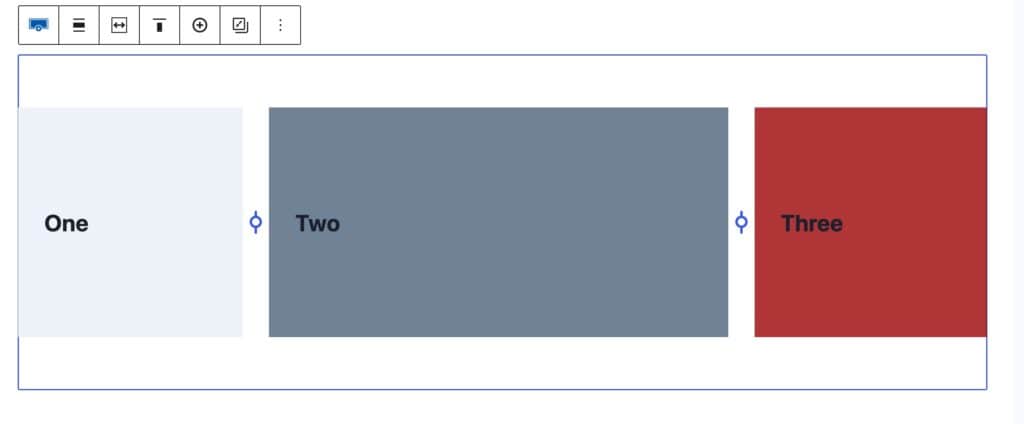
On each side of the adjuster, the percentage of each column can be viewed for adjustment. The left side of the adjuster will display the percentage of the column to the left of the adjuster and the right side of the adjuster will display the percentage of the column to the right of the adjuster accordingly.
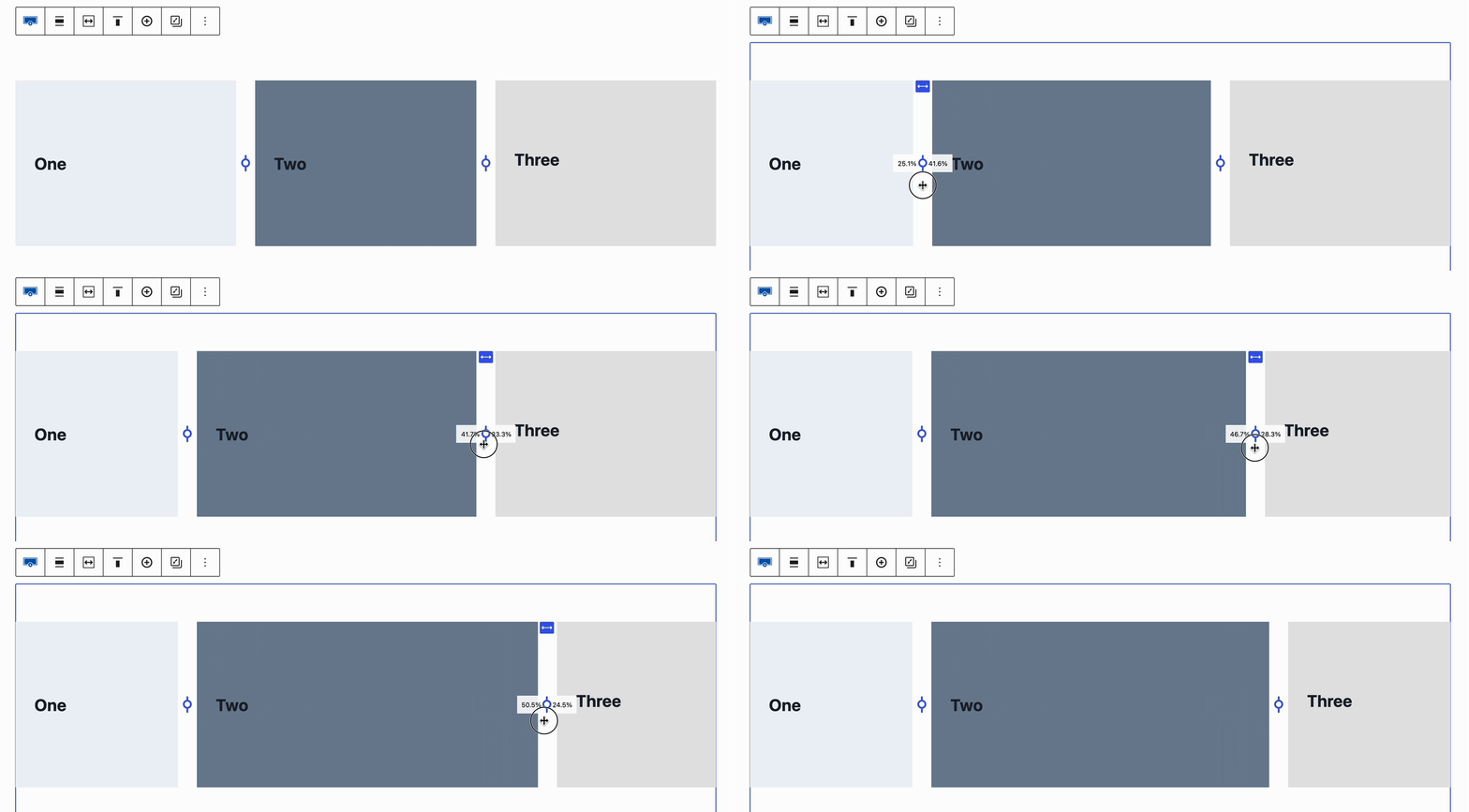
Adjusting Three Columns

Layout Block Setting

The Layout Block Setting can be used to select a standard layout for your Row Layout Block. The number of columns you decide to use will determine the available layout options.
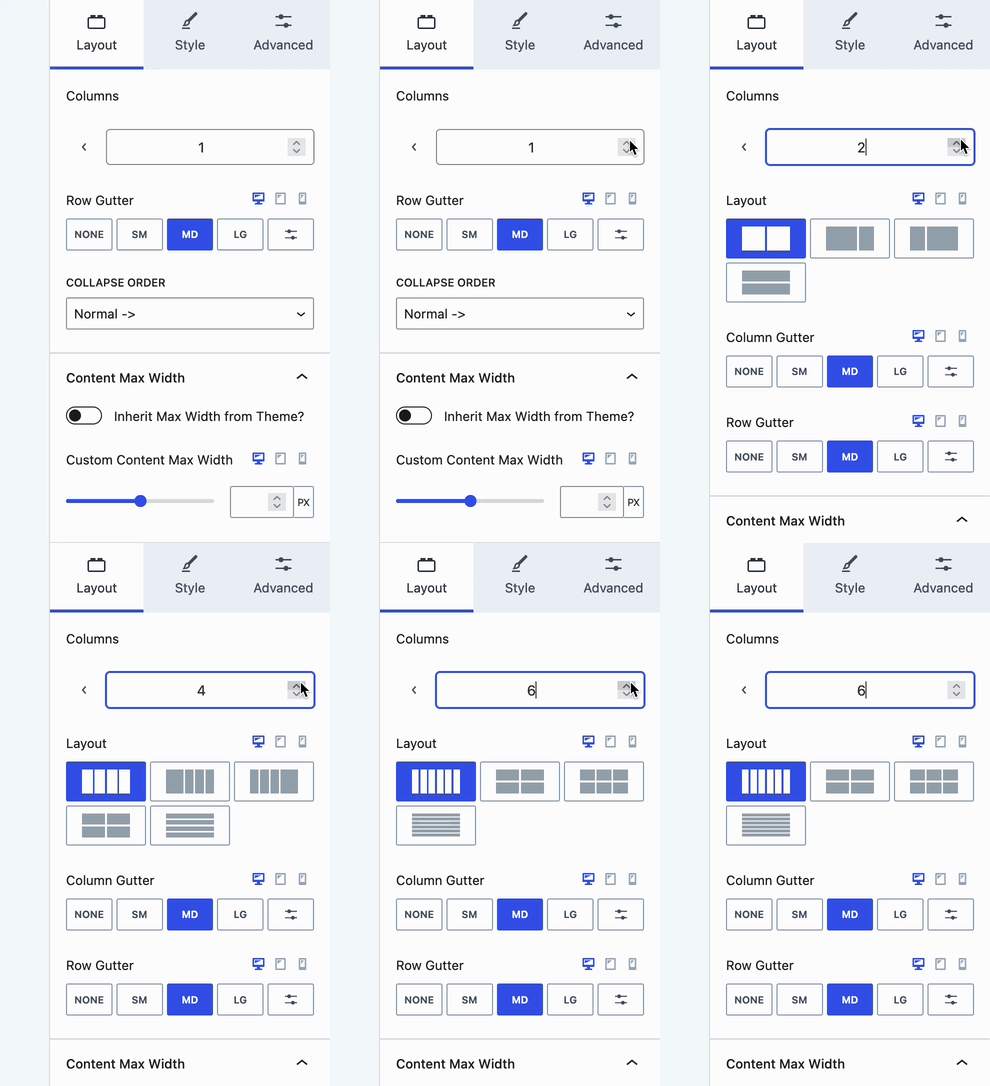
Layout Options

Adjusting Tablet and Mobile Widths Separately

Whenever an adjustment is made for a desktop, there are cases where it would be ideal to use different column widths depending on the device type. The Kadence Row Layout Block allows you to use different column widths for desktop, tablet, and mobile screen sizes.

When selecting the Row Layout Block, look for the Layout Block Setting. Click on the tablet or mobile icon next to the Layout Block Setting to adjust the setting for that screen size.
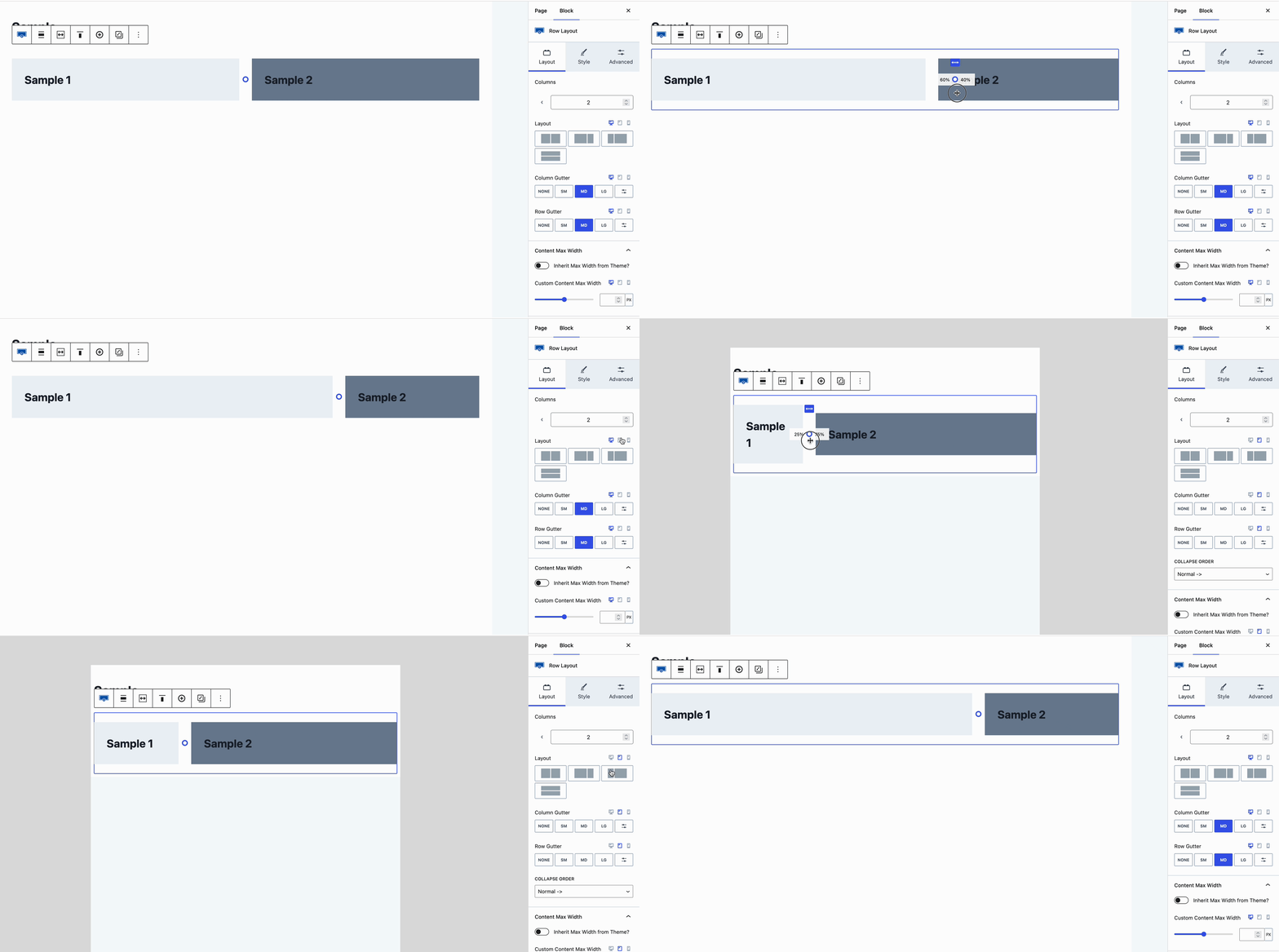

Responsive Adjustments
Do you feel this document was helpful?
The Kadence WP Logo
Crafted in Missoula, Montana
  • Follow Kadence on Facebook
  • Follow Kadence on Youtube
  • X
  • Follow Kadence on Instagram
Trustpilot
Products
  • Kadence Plans
  • Kadence Theme
  • Kadence Blocks
  • Kadence AI
  • Kadence Starter Templates
  • Kadence Shop Kit
  • Kadence Conversions
  • Kadence Pattern Hub
  • View All
Resources
  • Blog
  • Podcast
  • Knowledgebase
  • Support ticket
  • Feature Requests
  • FAQ
  • WordPress Hosting Services
About Us
  • About Kadence
  • Become an affiliate
  • Contact us
  • Terms
  • Privacy Policy
  • Security
Our Partner Brands
  • SolidWP
  • LearnDash
  • The Events Calendar
  • GiveWP
  • MemberDash
Kadence Community
  • Kadence Marketplace
  • Join the Facebook Group
  • Subscribe to our YouTube Channel
© 2024 Kadence WP | All prices are in USD
Logo for StellarWP an umbrella brand of Premium WordPress plugins
  • Pricing
  • Products
    • Premium PlansGet all the tools you need in one plan
    • Kadence ThemeLightning-fast performance theme for modern websites
    • Kadence BlocksDrop in ready designs with advanced controls for pixel perfect websites
    • Kadence Shop KitCreate a more effective WooCommerce shopping experience
    • Kadence ConversionsBoost sales and build engaged audiences with popups and banners
    • Kadence InsightsEasily create A/B tests. Optimize your pages to drive higher conversions.
    • View All Products
    • Get Kadence + Hosting
      In One Place

      Enjoy faster setup, top-tier performance, and worry-free WordPress hosting – Kadence Theme, Kadence Blocks, and Solid Security all pre-installed.

      Learn More

  • Kadence AI
  • Starter Templates
  • Blog
  • Support
    • Resource HubStart here for guides, Product docs, FAQs, and Troubleshooting tips, all in one place.
    • Contact SupportStuck on something? We’re here to help! Open a ticket for top-notch support.
    • Contact Our TeamGot pre-sales questions or need help choosing a plan? Open a ticket and our team will guide you.
    • About usCrafted with love in Missoula, Montana. Meet the team behind the mission.
Account Login