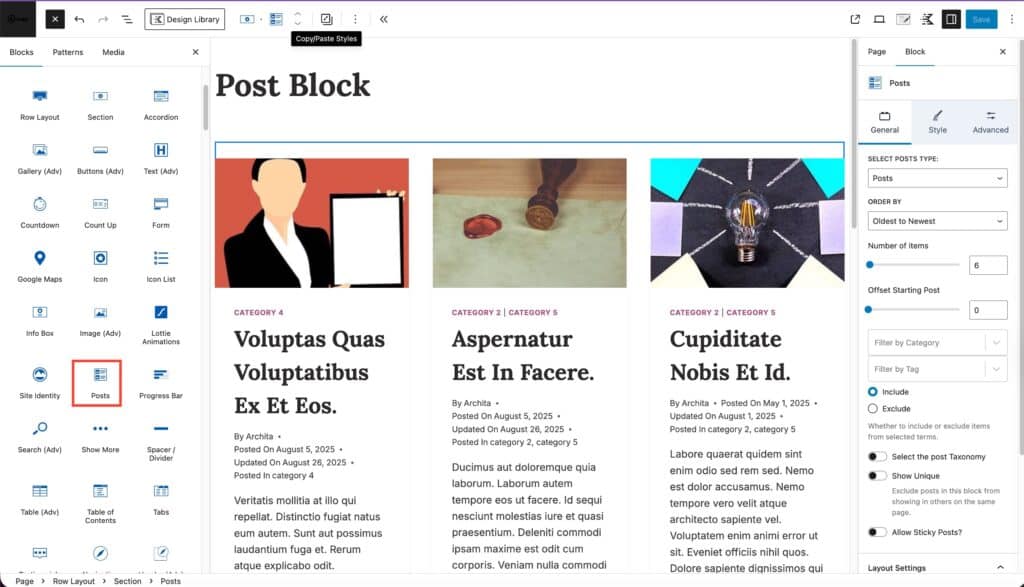
The Posts Block is a part of the free version Kadence Blocks. The Posts Block lets you display your latest posts or any custom post type dynamically anywhere on your website. You can create engaging post listings such as recent articles, news sections, or blog grids with full control over layout and design, all within the WordPress block editor.
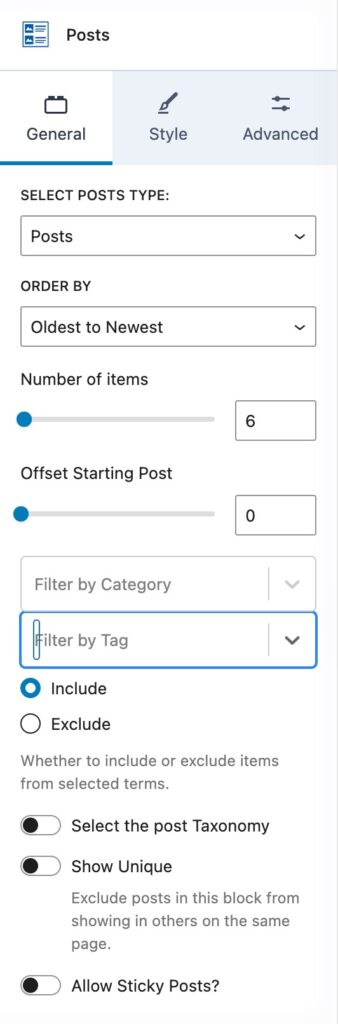
General Settings
The Post Type setting allows you to specify which Post Type you would like to show on your Post Block.
The Order By setting allows you to order your posts from newest to oldest, oldest to newest, modified ascending, modified descending, A -> Z, Z -> A, menu order, or by a random order.
You can adjust the Number of items displayed and set an Offset Starting Post. This can be used to offset recent posts from being shown.
You can also use the Filter by Category and Filter By Tag settings to filter which posts are shown. You can either include or exclude the selected taxonomies.
The Select the post Taxonomy setting allows you to use a different taxonomy.
The Show Unique setting allows you to exclude posts in the block from showing in others on the same page.
The Allow Sticky Posts setting allows you to enable sticky posts on your posts block.
Layout Settings
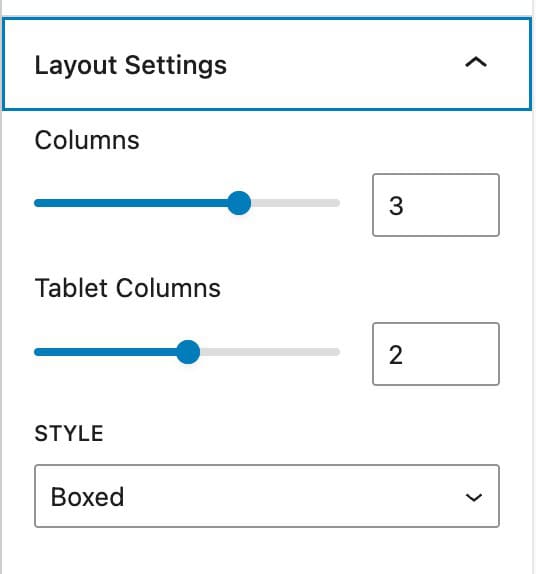
The Layout Settings allow you to control how your posts are displayed on the page.
Columns:
- Set the number of columns for Desktop and Tablet views.
- By default, Mobile displays as 1 column to ensure readability.
Style: Choose between Boxed or Unboxed layouts, depending on whether you want each post to appear inside a defined container.
Style Settings
The Style Settings allow you to adjust the styling of your block.
Title Settings:
- The title settings allow you to set the HTML tag of your title
- You can adjust the Font Size for desktop, tablet ,and mobile devices.
- You can adjust the Line height and Letter case
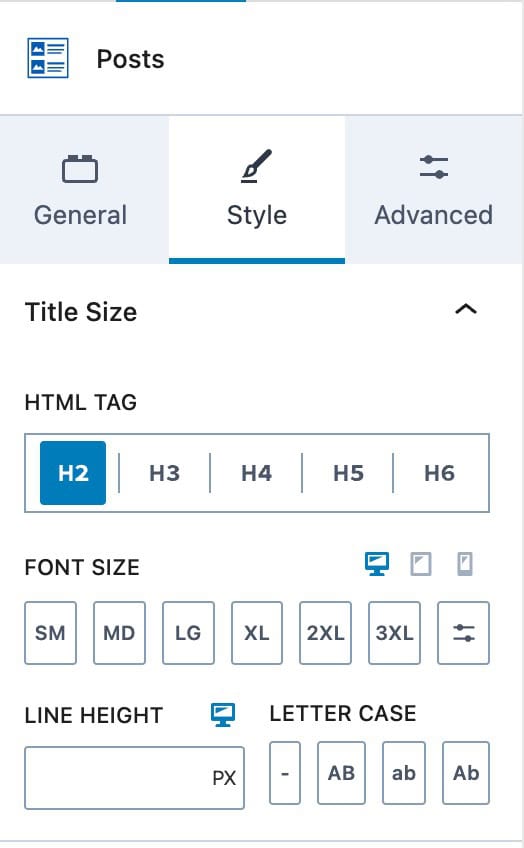
Image Settings
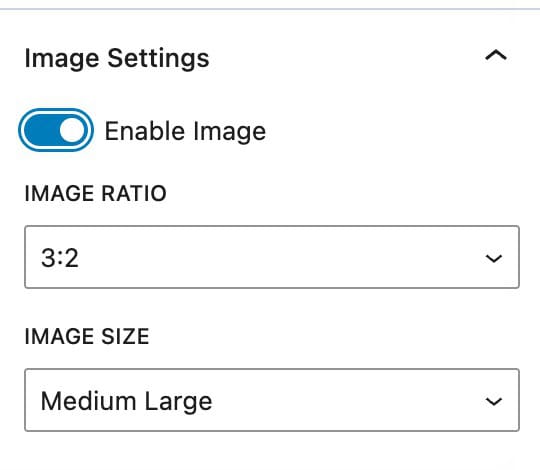
The Image Settings allow you to customize the images on your Posts Block.
You can enable or disable the option to Show Images.
The Image Ratio and Image Size setting allows you to select the ratio and size you would like to use.
Category Settings
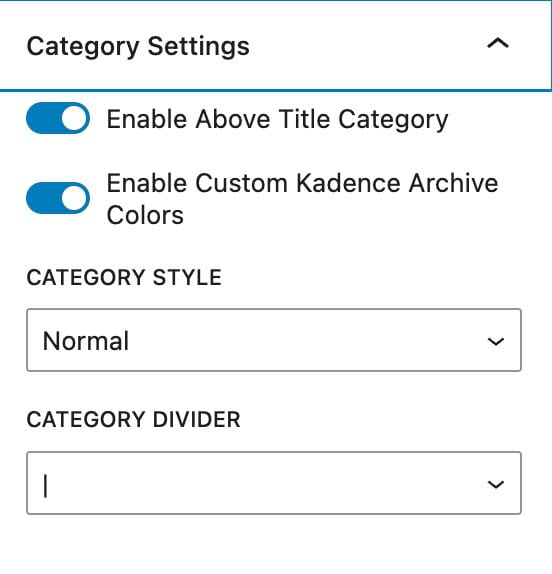
You can enable and Show Above Title Category.
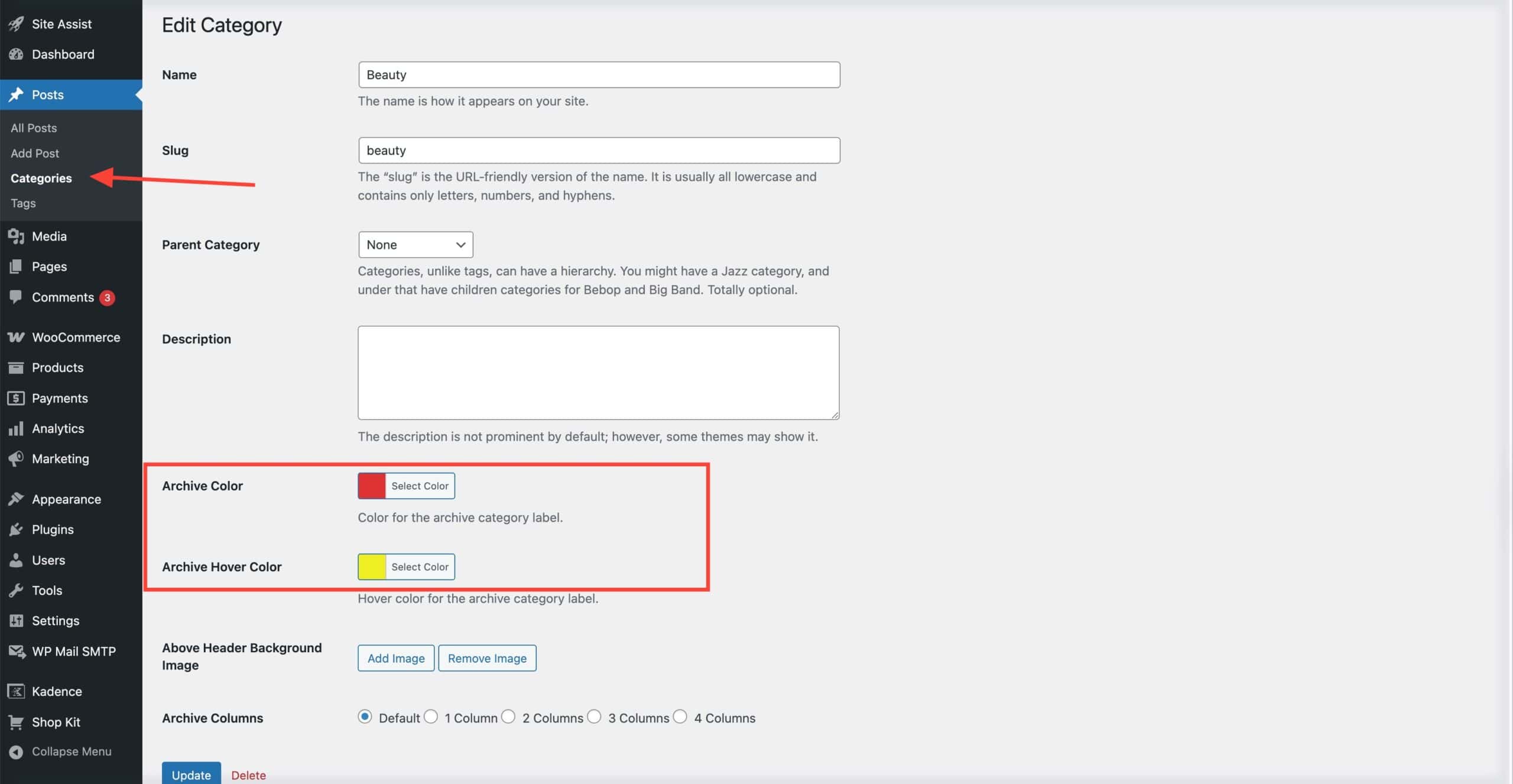
You can select the color for Enable Custom Kadence Archive Colors; it tells the block to use the archive color settings defined in each category (not inside the block itself).
You can set those colors in:
- Navigate to Posts > Categories.
- Edit each category and set an individual Category Color. This color will be used for the category label displayed on your service images.
Advanced Settings
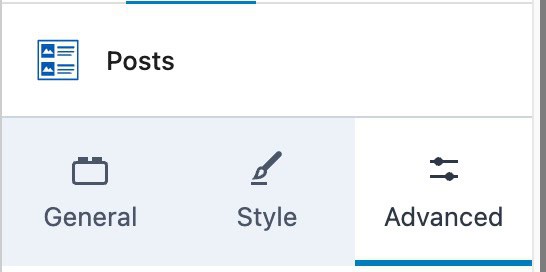
You can use the Advanced Settings to adjust the more advanced settings on your block. There are multiple tabs that you can expand and adjust. We will go over each advanced setting.
Meta Settings
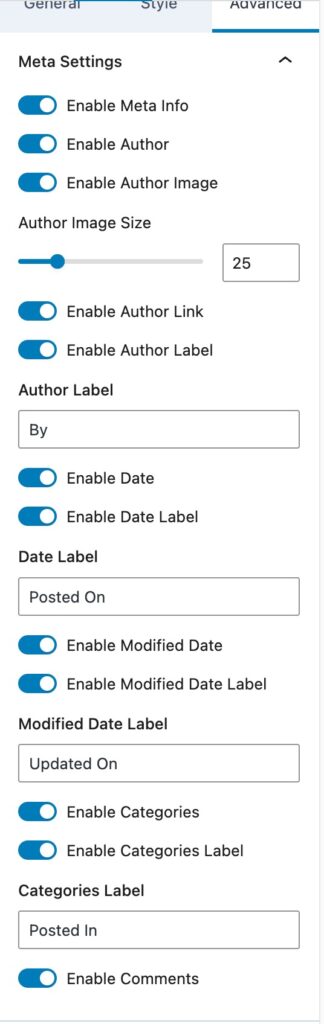
The Meta Settings control which post meta information is displayed. You can toggle each option on or off and customize the accompanying labels.
Enable or disable the Author Name, Author Image, Image Size, Author Link, and Author Label.
Enable or disable the Show Modified Date setting and set a custom Modified Date Label.
Enable or disable the Show Category setting and set a custom Categories Label.
Enable or disable the Show Comments option.
Content Settings
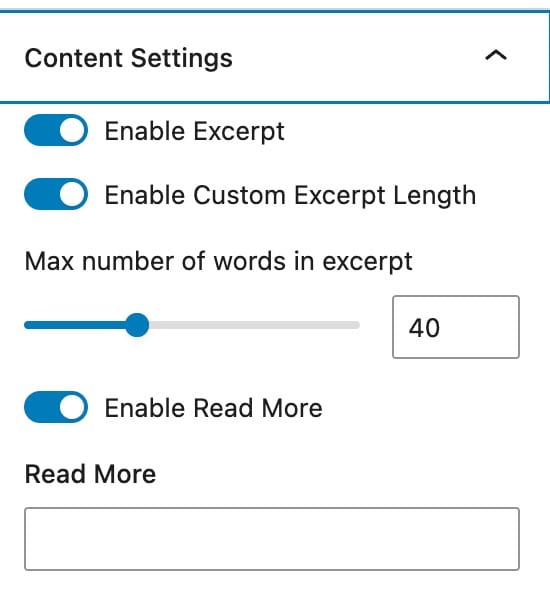
The Content Settings let you control the content portion of each post.
Enable and customize the Excerpt display.
Enable or disable the Show Modified Date setting and set a custom Modified Date Label.
Adjust the Excerpt Length using the Enable Custom Excerpt Length and Max Number of Words in Excerpt settings.
Enable the Show Read More option and customize the Read More Text to change the link text to change the read more text.
Block Defaults
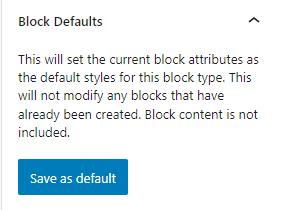
Kadence blocks have a Block Defaults section under the Advanced tab in the block settings. After you adjust the settings to the desired defaults, find the Block Defaults section and click the button that reads Save as Default.
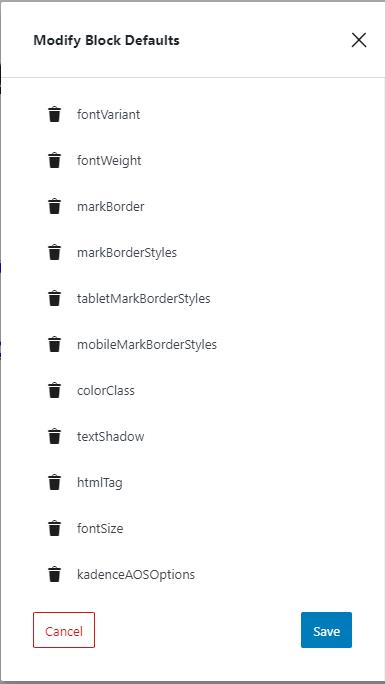
After clicking the button, you will find two new links in the section to Modify Attributes and Reset Defaults. If you choose to Modify Attributes, you can delete the default settings individually. If you choose to Reset Defaults, all the default settings are removed.
Remember, the default settings only apply to newly added blocks, not existing blocks.
Advanced Settings
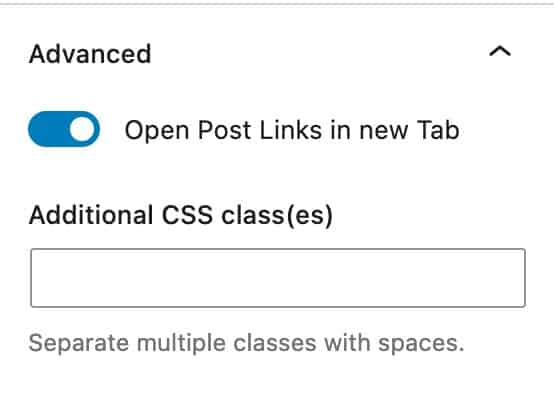
The Advanced Settings allow you to enable the option to Open Post Links in new Tab.
You can also add Additional CSS class(es) to your block.