
Skip to content
Help Center
  • Pricing
  • ProductsExpand
    • Premium PlansGet all the tools you need in one plan
    • Kadence ThemeLightning-fast performance theme for modern websites
    • Kadence BlocksDrop in ready designs with advanced controls for pixel perfect websites
    • Kadence Shop KitCreate a more effective WooCommerce shopping experience
    • Kadence ConversionsBoost sales and build engaged audiences with popups and banners
    • Kadence InsightsEasily create A/B tests. Optimize your pages to drive higher conversions.
    • View All Products
    • Get Kadence + Hosting
      In One Place

      Enjoy faster setup, top-tier performance, and worry-free WordPress hosting – Kadence Theme, Kadence Blocks, and Solid Security all pre-installed.

      Learn More

  • Kadence AI
  • Starter Templates
  • Blog
  • SupportExpand
    • Resource HubStart here for guides, Product docs, FAQs, and Troubleshooting tips, all in one place.
    • Contact SupportStuck on something? We’re here to help! Open a ticket for top-notch support.
    • Contact Our TeamGot pre-sales questions or need help choosing a plan? Open a ticket and our team will guide you.
    • About usCrafted with love in Missoula, Montana. Meet the team behind the mission.
Account Account
Get Kadence
Kadence Blocks
  • Features
  • Pro
  • Blocks
  • HelpExpand
    • Documentation
    • Submit a Ticket
    • Facebook Group
    • Feature Requests
    • Roadmap
    • Changelog
Help Center
Kadence Blocks

Kadence Blocks

Getting Started

Block Tutorials

  • Responsive Breakpoints in Kadence
  • Create a Full Screen Landing Page
  • How to Control the Hero or Title Section Sitewide and Per Page in Kadence

Kadence Blocks Pro

  • How to hook elements inside of post or page content
  • Kadence Custom Fonts
  • How to Create a Custom Search Page with Hooked Elements and the Advanced Query Loop

Troubleshooting Blocks

  • Troubleshooting White/Blank Screens in the Editor or Customizer
  • How to Download Previous Versions of the Kadence Theme and Plugins
  • How to run the WordPress built-in database repair tool
  • Recommended Server Resources
  • Troubleshooting the “Update Failed: Service Unavailable” error when updating Kadence Pro plugins

Advanced

Advanced Headers

Kadence Form Integrations

  • Home
  • Knowledge Base
  • Kadence Blocks
  • Kadence Theme
  • General WordPress

Adding Google Analytics

Google Analytics is a free web analytics service provided by Google that helps website owners and marketers track and analyze website traffic and user behavior. This guide will outline a few different methods for adding Google Analytics to your site.

Table of Contents
  • Set Up Google Analytics
    • Create an Analytics Account
    • Set up a GA4 Property
    • Set up a Data Stream
  • Add Google Analytics to Your Site
    • Custom Snippet Method
    • Plugin Method: Site Kit by Google
    • Plugin Method: MonsterInsights
    • Plugin Method: Flying Analytics
  • Verify Google Analytics Tracking
  • Related Documents

Set Up Google Analytics

Create an Analytics Account

If you don’t already have a Google Analytics account, you’ll need to create one:

  1. Go to https://analytics.google.com.
  2. Sign in with your Google account (or create one).
  3. Click “Start measuring”.
  4. Fill in the Account Name (e.g. your business name).
  5. Choose the data-sharing settings you prefer and click Next.

Set up a GA4 Property

  1. Enter a Property Name (e.g., “My Website”).
  2. Select your time zone and currency.
  3. Click Next, then answer some basic questions about your business.
  4. Click Create and accept the terms of service.

Set up a Data Stream

  1. Choose your platform: Web, iOS, or Android. For a website, choose Web.
  2. Enter your website URL and a stream name.
  3. Click Create Stream.
  4. You’ll now see your Measurement ID (looks like: G-XXXXXXXXXX) and the global site tag (gtag.js).

If you intend on using the custom snippet method, copy the global site tag code to your clipboard.

See Google Analytics Help for additional help and information.

Add Google Analytics to Your Site

Custom Snippet Method

<!-- Example -->
<script async src="https://www.googletagmanager.com/gtag/js?id=G-XXXXXXXXXX"></script>
<script>
  window.dataLayer = window.dataLayer || [];
  function gtag(){dataLayer.push(arguments);}
  gtag('js', new Date());

  gtag('config', 'G-XXXXXXXXXX');
</script>

Your site code should look something like the above Javascript example.

  1. Copy the full site code snippet generated by Google. Make sure your Measurement ID (i.e. id=G-XXXXXXXXXX) is correct.
  2. Use a plugin such as Code Snippets to insert the site code snippet inside the <head> tag of your site.

Plugin Method: Site Kit by Google

Site Kit by Google – Analytics, Search Console, AdSense, Speed Site Kit by Google – Analytics, Search Console, AdSense, Speed

Author(s): Google

Current Version: 1.178.0

Last Updated: May 4, 2026

Direct Download

84%Ratings 5,000,000+Installs WP 5.2+Requires

Site Kit is the official WordPress plugin from Google.

  1. Install the Site Kit by Google plugin.
  2. Activate the plugin.
  3. Connect Site Kit to your Google Analytics Account.

For more detailed instructions, visit this Site Kit Setup and Installation document.

Plugin Method: MonsterInsights
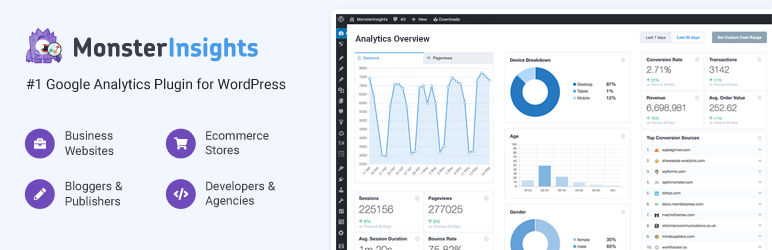
MonsterInsights – Google Analytics Dashboard for WordPress (Website Stats Made Easy) MonsterInsights – Google Analytics Dashboard for WordPress (Website Stats Made Easy)

Author(s): chriscct7

Current Version: 10.1.3

Last Updated: April 22, 2026

Direct Download

90%Ratings 2,000,000+Installs 5.6.0Requires

MonsterInsights is one of the most popular Google Analytics plugin for WordPress.

  1. Install Google Analytics for WordPress by MonsterInsights.
  2. Activate the plugin.
  3. Navigate to the Insights tab in your WordPress admin menu and configure the plugin.

For more detailed instructions on how to set up MonsterInsights, please see their setup document.

Plugin Method: Flying Analytics

Flying Analytics: Self-Host Google Analytics v4 with Speed Optimization Flying Analytics: Self-Host Google Analytics v4 with Speed Optimization

Author(s): Gijo Varghese

Current Version: 2.0.0

Last Updated: December 2, 2025

Direct Download

98%Ratings 5,000+Installs WP 4.5+Requires

For enhanced performance, Flying Analytics copies the Google Analytics scripts to your local server.

  1. Install the Flying Analytics plugin.
  2. Activate the plugin.
  3. Navigate to Settings → Flying Analytics.
  4. Add your Google Analytics Tracking ID (a.k.a. Measurement ID)
  5. Save your changes.

Verify Google Analytics Tracking

  1. Visit your site in a new browser tab.
  2. Go back to Google Analytics.
  3. Under Reports → Realtime, you should see your visit show up within a few seconds.

Note: you may need to log out of WordPress for your traffic to be recorded. Do not use an Incognito/private window or a browser with an ad blocker as this may block the Google Analytics script.


Related Documents

  • How to add a custom filter or function with Code Snippets
  • Adding Google Tag Manager with a child theme or code snippet plugin
  • Common Code Snippets for Kadence Users
Do you feel this document was helpful?
The Kadence WP Logo
Crafted in Missoula, Montana
  • Follow Kadence on Facebook
  • Follow Kadence on Youtube
  • X
  • Follow Kadence on Instagram
Trustpilot
Products
  • Kadence Plans
  • Kadence Theme
  • Kadence Blocks
  • Kadence AI
  • Kadence Starter Templates
  • Kadence Shop Kit
  • Kadence Conversions
  • Kadence Pattern Hub
  • View All
Resources
  • Blog
  • Podcast
  • Knowledgebase
  • Support ticket
  • Feature Requests
  • FAQ
  • WordPress Hosting Services
About Us
  • About Kadence
  • Become an affiliate
  • Contact us
  • Terms
  • Privacy Policy
  • Security
Our Partner Brands
  • SolidWP
  • LearnDash
  • The Events Calendar
  • GiveWP
  • MemberDash
Kadence Community
  • Kadence Marketplace
  • Join the Facebook Group
  • Subscribe to our YouTube Channel
© 2024 Kadence WP | All prices are in USD
Logo for StellarWP an umbrella brand of Premium WordPress plugins
  • Pricing
  • Products
    • Premium PlansGet all the tools you need in one plan
    • Kadence ThemeLightning-fast performance theme for modern websites
    • Kadence BlocksDrop in ready designs with advanced controls for pixel perfect websites
    • Kadence Shop KitCreate a more effective WooCommerce shopping experience
    • Kadence ConversionsBoost sales and build engaged audiences with popups and banners
    • Kadence InsightsEasily create A/B tests. Optimize your pages to drive higher conversions.
    • View All Products
    • Get Kadence + Hosting
      In One Place

      Enjoy faster setup, top-tier performance, and worry-free WordPress hosting – Kadence Theme, Kadence Blocks, and Solid Security all pre-installed.

      Learn More

  • Kadence AI
  • Starter Templates
  • Blog
  • Support
    • Resource HubStart here for guides, Product docs, FAQs, and Troubleshooting tips, all in one place.
    • Contact SupportStuck on something? We’re here to help! Open a ticket for top-notch support.
    • Contact Our TeamGot pre-sales questions or need help choosing a plan? Open a ticket and our team will guide you.
    • About usCrafted with love in Missoula, Montana. Meet the team behind the mission.
Account Login
  • Features
  • Pro
  • Blocks
  • HelpExpand
    • Documentation
    • Submit a Ticket
    • Facebook Group
    • Feature Requests
    • Roadmap
    • Changelog