
Skip to content
Help Center
  • Pricing
  • ProductsExpand
    • Premium PlansGet all the tools you need in one plan
    • Kadence ThemeLightning-fast performance theme for modern websites
    • Kadence BlocksDrop in ready designs with advanced controls for pixel perfect websites
    • Kadence Shop KitCreate a more effective WooCommerce shopping experience
    • Kadence ConversionsBoost sales and build engaged audiences with popups and banners
    • Kadence InsightsEasily create A/B tests. Optimize your pages to drive higher conversions.
    • View All Products
    • Get Kadence + Hosting
      In One Place

      Enjoy faster setup, top-tier performance, and worry-free WordPress hosting – Kadence Theme, Kadence Blocks, and Solid Security all pre-installed.

      Learn More

  • Kadence AI
  • Starter Templates
  • Blog
  • SupportExpand
    • Resource HubStart here for guides, Product docs, FAQs, and Troubleshooting tips, all in one place.
    • Contact SupportStuck on something? We’re here to help! Open a ticket for top-notch support.
    • Contact Our TeamGot pre-sales questions or need help choosing a plan? Open a ticket and our team will guide you.
    • About usCrafted with love in Missoula, Montana. Meet the team behind the mission.
Account Account
Get Kadence
Kadence Blocks
  • Features
  • Pro
  • Blocks
  • HelpExpand
    • Documentation
    • Submit a Ticket
    • Facebook Group
    • Feature Requests
    • Roadmap
    • Changelog
Help Center
Kadence Blocks

Kadence Blocks

Getting Started

  • Kadence AI-Powered Design Library

Block Tutorials

Kadence Blocks Pro

Troubleshooting Blocks

Advanced

Advanced Headers

Kadence Form Integrations

  • Home
  • Knowledge Base
  • Kadence Blocks
  • Kadence AI

Design Library: Changing AI Image Collections

AI Settings

Kadence Blocks and Starter Templates are now powered by Kadence AI. Our patterns and pages have been designed to support changes. To make these patterns and pages truly yours, we understand that your information and imagery needs may change over time. That’s why we’ve made it incredibly simple for you to update and create new image collections whenever you need to. This article will guide you through the process of selecting from different existing collections, editing them, or creating new ones from scratch.

Image Collections

Collections are sets of images that are used across your Design Library patterns and pages. You can add images to your collection from your Media Library, upload them from your computer, or search for them on Pexels. 

There are two image groups within each collection:

  • Featured images: These images are meant to draw attention and complement your content.
  • Background images: These images enhance your site’s style by using them as backgrounds.

There are two categories of Collections:

  • Premade Collections: These collections are made up of a set of curated Collections by our team, named according to the industry. There’s an additional collection in this group called “AI Search Collection” which is a collection made using AI to create a search term, which is then used in Pexels to find corresponding images. All the images in the premade collections are powered by Pexels.
  • My Collections: These are collections that you create from scratch with your own images, or premade collections that you have edited to make your own. 

Accessing Image Collections

To get started, follow these steps to access and update your collections:

  1. Design Library: Begin by navigating to the Design Library.
  2. AI Settings Icon: In the Design Library, you’ll find the AI Settings icon. Click on it to open a sub-menu with various options.
  3. Update your image Collections: Click on the “Update Design Library Images” button. Start editing your current collection, or replace it with a new collection.
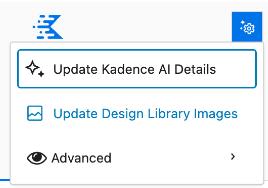
Update Design Library Images

Editing Existing Collections

Collections can be edited in the following ways:

  • Change its name
  1. Click on the collections dropdown
  2. Browse through collections under the “My Collection” category
  3. Click on the pencil icon of the collection you want to edit
  4. Edit the name of the collection

Click on “Save”
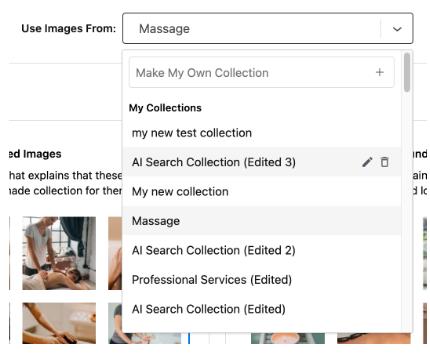
AI Image Collections
  • Delete the collection
  1. Click on the collections dropdown
  2. Browse through collections under the “My Collection” category
  3. Click on the trash can icon of the collection you want to delete
  4. Click on “Delete collection”
  • Add images
  1. Click on the “Edit Collection” button below the Featured or Background groups
  2. Click on the “Add to Collection” menu item on the left column menu
  3. Choose “Upload Files”, “Media Library” or “Pexels”
  4. Select all the images you want to add to the collection
  5. Click on the ‘Add to Collection’ button
  6. Click on the “Update Collection” button
  • Remove images
  1. Click on the “Edit Collection” button below the Featured or Background groups
  2. Click on the “X” on the top right of the image you want to remove
  3. Click on the “Update Collection” button

With the power to edit Collections, you’re in control of how the Design Library patterns and pages represent you and your organization. Enjoy the journey of creating engaging and relevant content for your website with Kadence!


Do you feel this document was helpful?
The Kadence WP Logo
Crafted in Missoula, Montana
  • Follow Kadence on Facebook
  • Follow Kadence on Youtube
  • X
  • Follow Kadence on Instagram
Trustpilot
Products
  • Kadence Plans
  • Kadence Theme
  • Kadence Blocks
  • Kadence AI
  • Kadence Starter Templates
  • Kadence Shop Kit
  • Kadence Conversions
  • Kadence Pattern Hub
  • View All
Resources
  • Blog
  • Podcast
  • Knowledgebase
  • Support ticket
  • Feature Requests
  • FAQ
  • WordPress Hosting Services
About Us
  • About Kadence
  • Become an affiliate
  • Contact us
  • Terms
  • Privacy Policy
  • Security
Our Partner Brands
  • SolidWP
  • LearnDash
  • The Events Calendar
  • GiveWP
  • MemberDash
Kadence Community
  • Kadence Marketplace
  • Join the Facebook Group
  • Subscribe to our YouTube Channel
© 2024 Kadence WP | All prices are in USD
Logo for StellarWP an umbrella brand of Premium WordPress plugins
  • Pricing
  • Products
    • Premium PlansGet all the tools you need in one plan
    • Kadence ThemeLightning-fast performance theme for modern websites
    • Kadence BlocksDrop in ready designs with advanced controls for pixel perfect websites
    • Kadence Shop KitCreate a more effective WooCommerce shopping experience
    • Kadence ConversionsBoost sales and build engaged audiences with popups and banners
    • Kadence InsightsEasily create A/B tests. Optimize your pages to drive higher conversions.
    • View All Products
    • Get Kadence + Hosting
      In One Place

      Enjoy faster setup, top-tier performance, and worry-free WordPress hosting – Kadence Theme, Kadence Blocks, and Solid Security all pre-installed.

      Learn More

  • Kadence AI
  • Starter Templates
  • Blog
  • Support
    • Resource HubStart here for guides, Product docs, FAQs, and Troubleshooting tips, all in one place.
    • Contact SupportStuck on something? We’re here to help! Open a ticket for top-notch support.
    • Contact Our TeamGot pre-sales questions or need help choosing a plan? Open a ticket and our team will guide you.
    • About usCrafted with love in Missoula, Montana. Meet the team behind the mission.
Account Login
  • Features
  • Pro
  • Blocks
  • HelpExpand
    • Documentation
    • Submit a Ticket
    • Facebook Group
    • Feature Requests
    • Roadmap
    • Changelog