Skip to content
Help Center
  • Pricing
  • ProductsExpand
    • Premium PlansGet all the tools you need in one plan
    • Kadence ThemeLightning-fast performance theme for modern websites
    • Kadence BlocksDrop in ready designs with advanced controls for pixel perfect websites
    • Kadence Shop KitCreate a more effective WooCommerce shopping experience
    • Kadence ConversionsBoost sales and build engaged audiences with popups and banners
    • Kadence InsightsEasily create A/B tests. Optimize your pages to drive higher conversions.
    • View All Products
    • Get Kadence + Hosting
      In One Place

      Enjoy faster setup, top-tier performance, and worry-free WordPress hosting – Kadence Theme, Kadence Blocks, and Solid Security all pre-installed.

      Learn More

  • Kadence AI
  • Starter Templates
  • Blog
  • SupportExpand
    • Resource HubStart here for guides, Product docs, FAQs, and Troubleshooting tips, all in one place.
    • Contact SupportStuck on something? We’re here to help! Open a ticket for top-notch support.
    • Contact Our TeamGot pre-sales questions or need help choosing a plan? Open a ticket and our team will guide you.
    • About usCrafted with love in Missoula, Montana. Meet the team behind the mission.
Account Account
Get Kadence
Kadence Blocks
  • Features
  • Pro
  • Blocks
  • HelpExpand
    • Documentation
    • Submit a Ticket
    • Facebook Group
    • Feature Requests
    • Roadmap
    • Changelog
Help Center
Kadence Blocks

Kadence Blocks

Getting Started

Block Tutorials

  • Responsive Breakpoints in Kadence
  • Create a Full Screen Landing Page
  • How to Control the Hero or Title Section Sitewide and Per Page in Kadence

Kadence Blocks Pro

  • How to hook elements inside of post or page content
  • Kadence Custom Fonts
  • How to Create a Custom Search Page with Hooked Elements and the Advanced Query Loop

Troubleshooting Blocks

  • Troubleshooting White/Blank Screens in the Editor or Customizer
  • How to Download Previous Versions of the Kadence Theme and Plugins
  • How to run the WordPress built-in database repair tool
  • Recommended Server Resources
  • Troubleshooting the “Update Failed: Service Unavailable” error when updating Kadence Pro plugins

Advanced

Advanced Headers

Kadence Form Integrations

  • Home
  • Knowledge Base
  • Kadence Blocks
  • Kadence Theme
  • Customize Settings

Typography Settings

Within your Kadence Theme settings, you can adjust various Typography Settings to take complete control of texts across your website. You can also responsively adjust font size-related settings for desktop, tablet, and mobile devices.

Kadence includes built-in support for Google Fonts in both the free Kadence Theme and the free Kadence Blocks plugin. No additional plugins or the Custom Fonts add-on are required to access Google Fonts in Kadence. You can select Google Fonts directly in typography settings, and they will load automatically from Google’s servers.

Table of Contents
  • Typography Customizer Settings
  • Responsive Font Sizes

Typography Customizer Settings

First, navigate to the Dashboard -> Appearance -> Customize settings.
Then, go to the Colors & Fonts -> Typography section of the customizer.

The Typography Settings control the Fonts, Font Color, Font Sizes, and other Font Styles across your website.

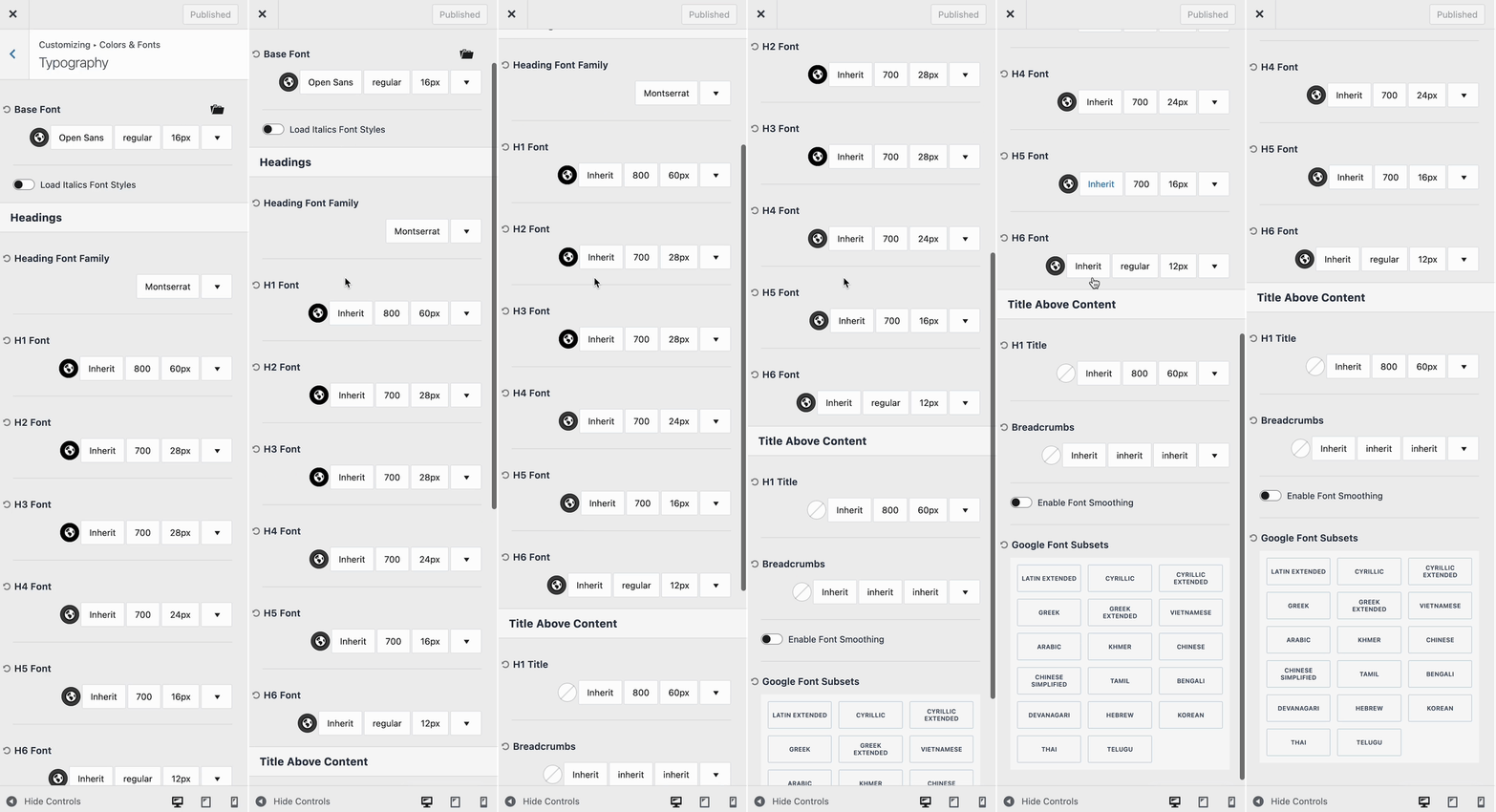
The Base Font controls the basic font across the website. For example, in Paragraph Text, Navigation Texts, Breadcrumbs, etc.

The Heading Font Family option allows you to set a Font that applies across all Heading HTML tags like H1, H2, H3, etc.

By default, “Inherit” is selected in the Customize options, which means the font will follow either the Base Font or the Heading Font Family, depending on the element.

Use the Color Picker to select a Font Color. Then, you can use the Font Selector to set a Specific Font. On the side of the Font Selector, you can set the Font Weight. Next to the Font Weight, you can set a specified Font Size and adjust additional font settings.

Font Settings

On the far right of the Typography Setting, use the dropdown arrow to view an example of the current font setting selection.
Typography Settings

Responsive Font Sizes

When selecting a Font Size, there are responsive options available. This allows you to adjust the font size, line height, and letter spacing individually for different device types.

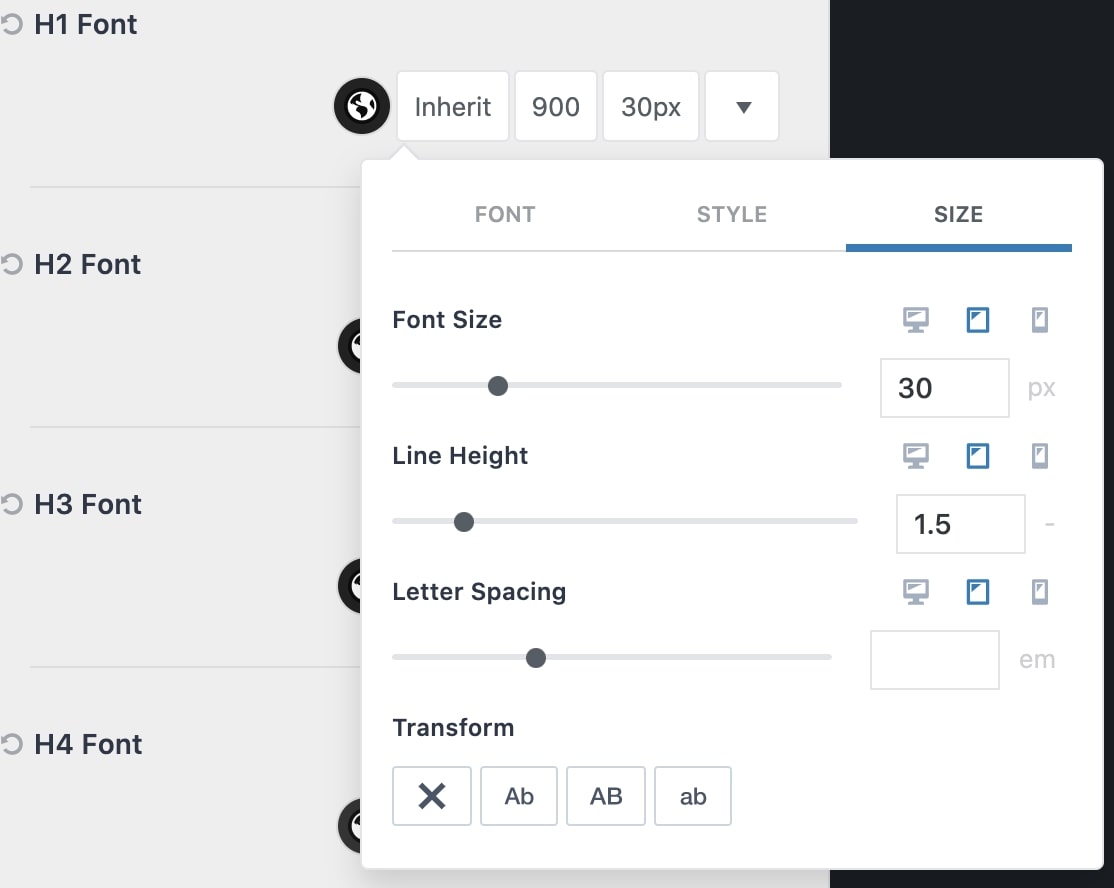
In the Typography Settings, find the font size setting for the appropriate Heading Tag and click the font size value. This will open up the size selector.

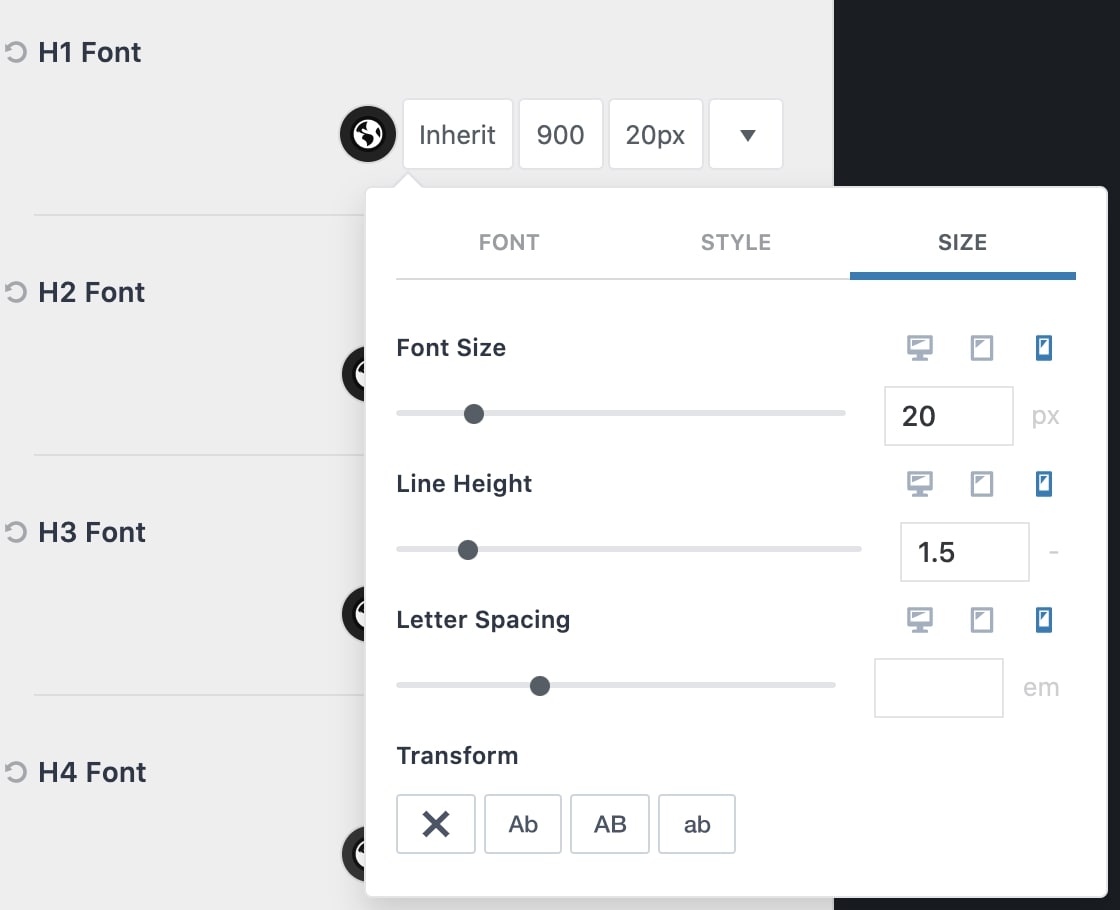
Notice that there are three icons next to each font size-related setting. These are the responsive controls. You can click on the Tablet Icon to modify the value for tablet devices. You can also click on the Mobile Icon to modify values on mobile devices.
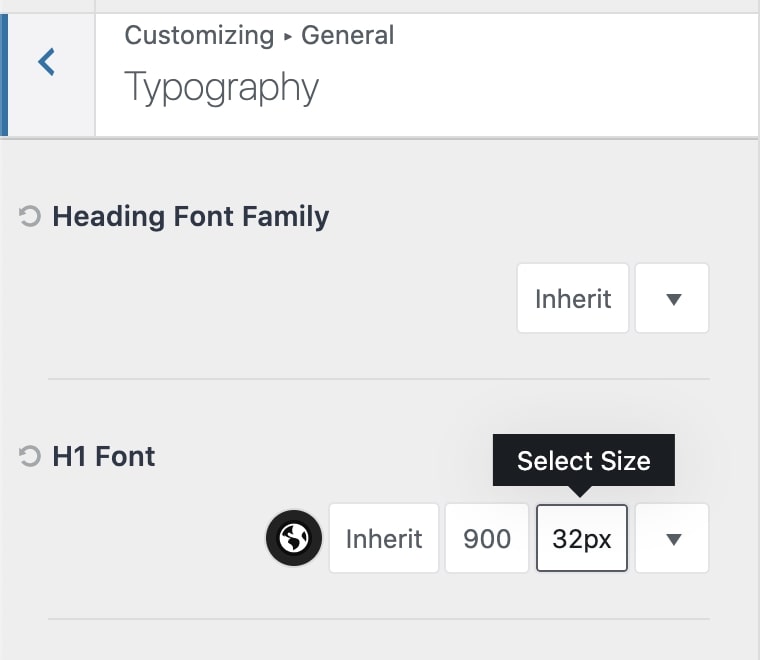
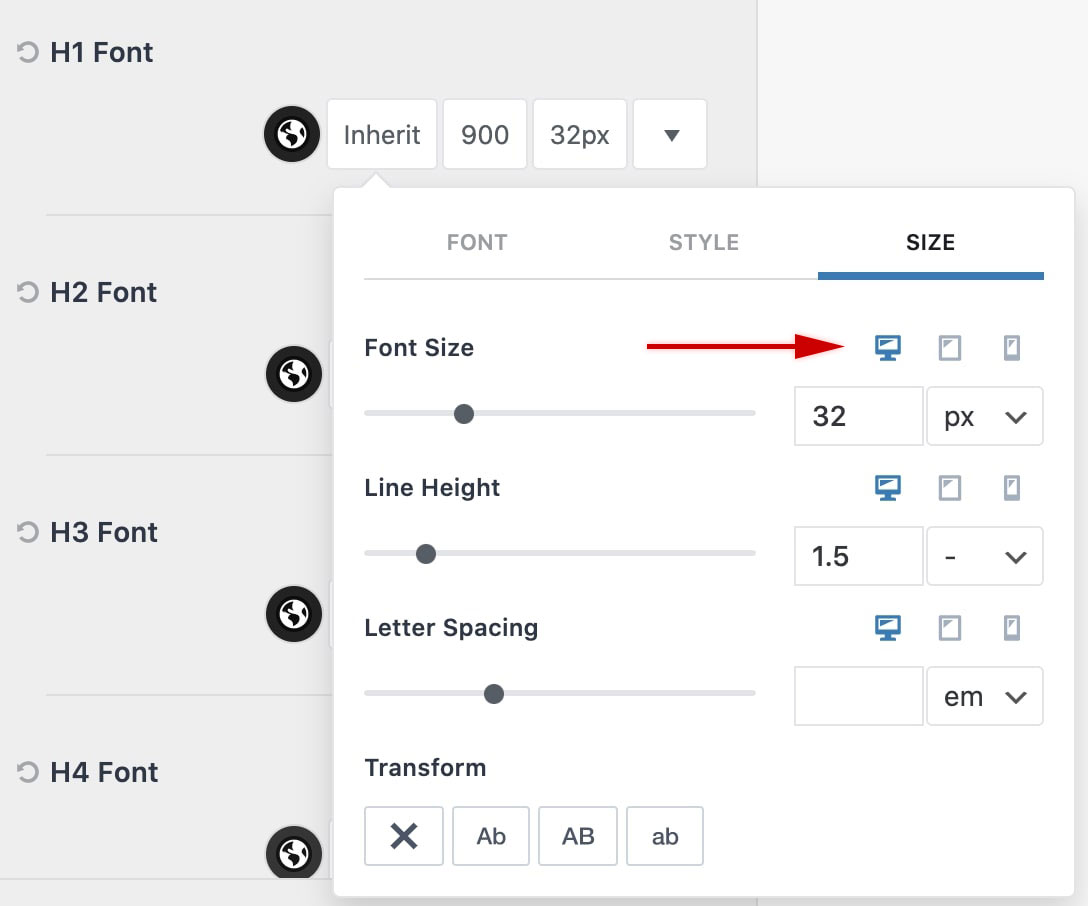
This feature is extremely useful for providing precise and responsive text on your website. Once finished, make sure to press the Publish button to save your changes!


Do you feel this document was helpful?
The Kadence WP Logo
Crafted in Missoula, Montana
  • Follow Kadence on Facebook
  • Follow Kadence on Youtube
  • X
  • Follow Kadence on Instagram
Trustpilot
Products
  • Kadence Plans
  • Kadence Theme
  • Kadence Blocks
  • Kadence AI
  • Kadence Starter Templates
  • Kadence Shop Kit
  • Kadence Conversions
  • Kadence Pattern Hub
  • View All
Resources
  • Blog
  • Podcast
  • Knowledgebase
  • Support ticket
  • Feature Requests
  • FAQ
  • WordPress Hosting Services
About Us
  • About Kadence
  • Become an affiliate
  • Contact us
  • Terms
  • Privacy Policy
  • Security
Our Partner Brands
  • SolidWP
  • LearnDash
  • The Events Calendar
  • GiveWP
  • MemberDash
Kadence Community
  • Kadence Marketplace
  • Join the Facebook Group
  • Subscribe to our YouTube Channel
© 2024 Kadence WP | All prices are in USD
Logo for StellarWP an umbrella brand of Premium WordPress plugins
  • Pricing
  • Products
    • Premium PlansGet all the tools you need in one plan
    • Kadence ThemeLightning-fast performance theme for modern websites
    • Kadence BlocksDrop in ready designs with advanced controls for pixel perfect websites
    • Kadence Shop KitCreate a more effective WooCommerce shopping experience
    • Kadence ConversionsBoost sales and build engaged audiences with popups and banners
    • Kadence InsightsEasily create A/B tests. Optimize your pages to drive higher conversions.
    • View All Products
    • Get Kadence + Hosting
      In One Place

      Enjoy faster setup, top-tier performance, and worry-free WordPress hosting – Kadence Theme, Kadence Blocks, and Solid Security all pre-installed.

      Learn More

  • Kadence AI
  • Starter Templates
  • Blog
  • Support
    • Resource HubStart here for guides, Product docs, FAQs, and Troubleshooting tips, all in one place.
    • Contact SupportStuck on something? We’re here to help! Open a ticket for top-notch support.
    • Contact Our TeamGot pre-sales questions or need help choosing a plan? Open a ticket and our team will guide you.
    • About usCrafted with love in Missoula, Montana. Meet the team behind the mission.
Account Login
  • Features
  • Pro
  • Blocks
  • HelpExpand
    • Documentation
    • Submit a Ticket
    • Facebook Group
    • Feature Requests
    • Roadmap
    • Changelog