
Skip to content
Help Center
  • Pricing
  • ProductsExpand
    • Premium PlansGet all the tools you need in one plan
    • Kadence ThemeLightning-fast performance theme for modern websites
    • Kadence BlocksDrop in ready designs with advanced controls for pixel perfect websites
    • Kadence Shop KitCreate a more effective WooCommerce shopping experience
    • Kadence ConversionsBoost sales and build engaged audiences with popups and banners
    • Kadence InsightsEasily create A/B tests. Optimize your pages to drive higher conversions.
    • View All Products
    • Get Kadence + Hosting
      In One Place

      Enjoy faster setup, top-tier performance, and worry-free WordPress hosting – Kadence Theme, Kadence Blocks, and Solid Security all pre-installed.

      Learn More

  • Kadence AI
  • Starter Templates
  • Blog
  • SupportExpand
    • Resource HubStart here for guides, Product docs, FAQs, and Troubleshooting tips, all in one place.
    • Contact SupportStuck on something? We’re here to help! Open a ticket for top-notch support.
    • Contact Our TeamGot pre-sales questions or need help choosing a plan? Open a ticket and our team will guide you.
    • About usCrafted with love in Missoula, Montana. Meet the team behind the mission.
Account Account
Get Kadence
Kadence Blocks
  • Features
  • Pro
  • Blocks
  • HelpExpand
    • Documentation
    • Submit a Ticket
    • Facebook Group
    • Feature Requests
    • Roadmap
    • Changelog
Help Center
Kadence Blocks

Kadence Blocks

Getting Started

Block Tutorials

  • Responsive Breakpoints in Kadence
  • Create a Full Screen Landing Page
  • How to Control the Hero or Title Section Sitewide and Per Page in Kadence

Kadence Blocks Pro

  • How to hook elements inside of post or page content
  • Kadence Custom Fonts
  • How to Create a Custom Search Page with Hooked Elements and the Advanced Query Loop

Troubleshooting Blocks

  • Troubleshooting White/Blank Screens in the Editor or Customizer
  • How to Download Previous Versions of the Kadence Theme and Plugins
  • How to run the WordPress built-in database repair tool
  • Recommended Server Resources
  • Troubleshooting the “Update Failed: Service Unavailable” error when updating Kadence Pro plugins

Advanced

Advanced Headers

Kadence Form Integrations

  • Home
  • Knowledge Base
  • Kadence Blocks
  • Kadence Theme
  • Theme Kit Pro

How to use Element Hooks

One of the features that Kadence Theme Kit Pro adds to the Kadence theme is called Hooked Elements (or Element Hooks) which provides an interface to build an element using the WordPress Gutenberg editor (or custom code) and hook it to one of the several locations on your site’s pages so it appears exactly where and when you want.

In short, element hooks allow you to add content in different areas of a page, with unlimited customization options.

One possible use case would be for adding a notification bar above the site header for announcements that automatically expire after a set date for seasonal banners.

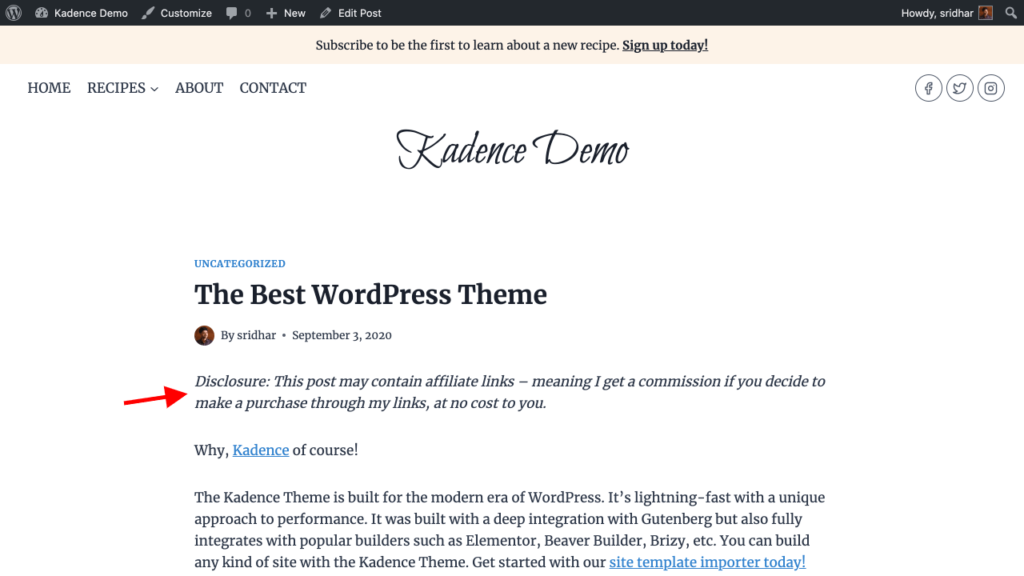
Here’s a detailed walkthrough on how an affiliate disclosure text can be automatically added above the entry content for all posts that have a specific tag:

Step 1

Install and activate the Kadence Theme Kit Pro plugin. It is included in Kadence Plans and can also be purchased individually.

Enter your license key and email at Appearance > Kadence if you have not already.

Enable Hooked Elements.
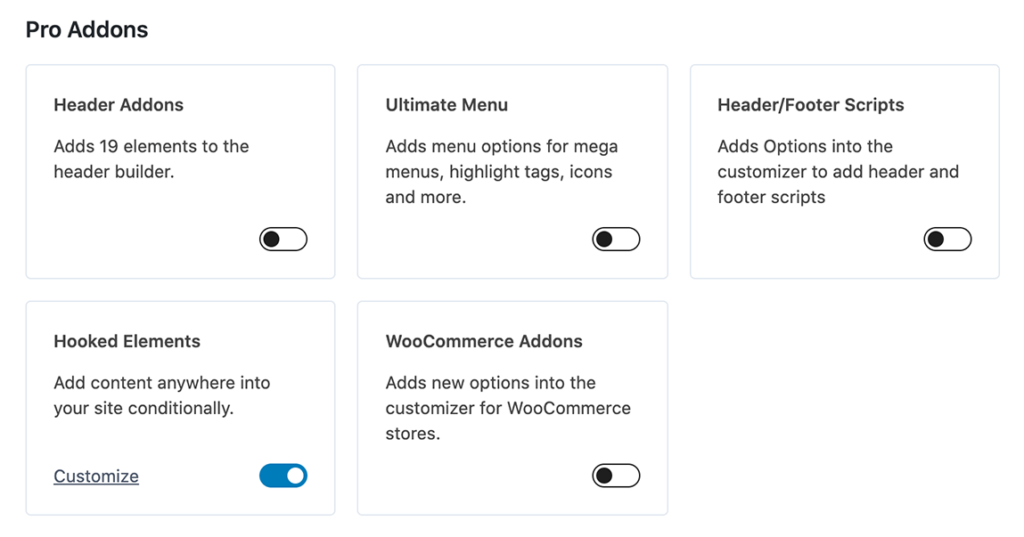
Kadence Pro - Hooked Elements

Step 2

Click on the Customize link to be taken to the Elements page. This page can be reached via Appearance > Kadence > Elements.

Click Add New to add a new element.
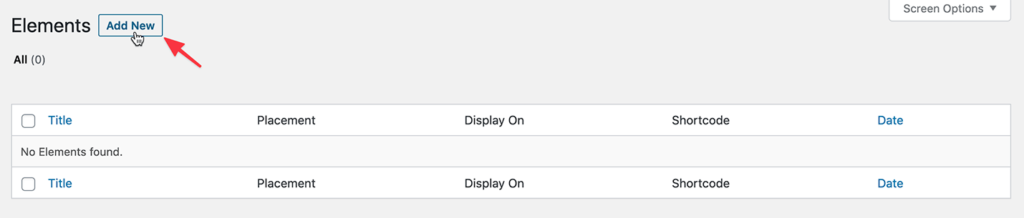
Adding a new element in Kadence

Here you are presented with four options.

CONTENT SECTION lets you build the element using the Customizer blocks.

FIXED SECTION allows you to create content that is fixed to your site.

TEMPLATE lets you make templates that replace sections like a sidebar or page.

HTML EDITOR lets you build your element using HTML code.

In this example, we shall go with the CONTENT SECTION.
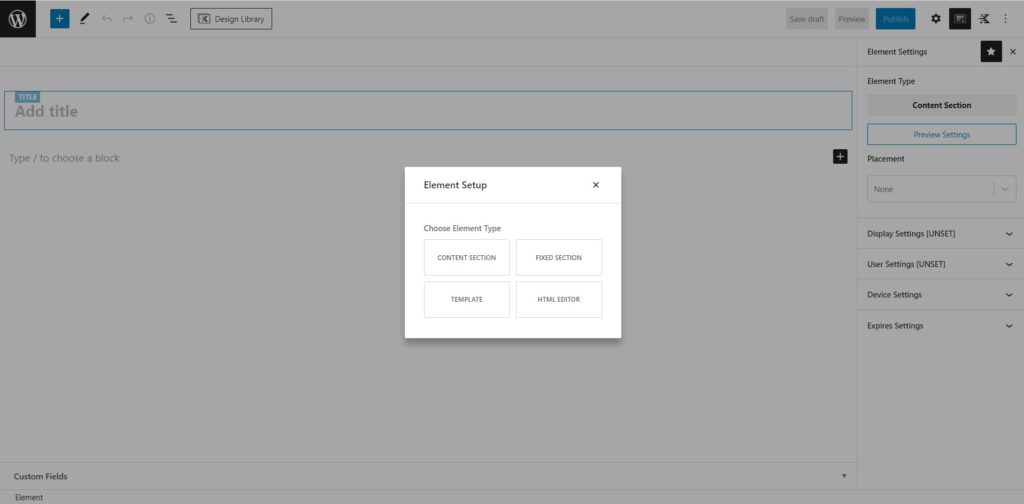
Kadence Element Setup

Enter a title and the content for your element.

Click on the Element Settings icon next to the gear icon near the top right.
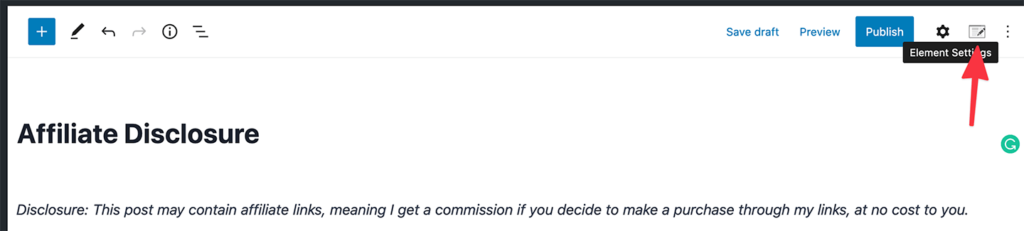
Kadence Element Settings icon in the Gutenberg editor

Configure the element’s behavior by selecting where it should appear.
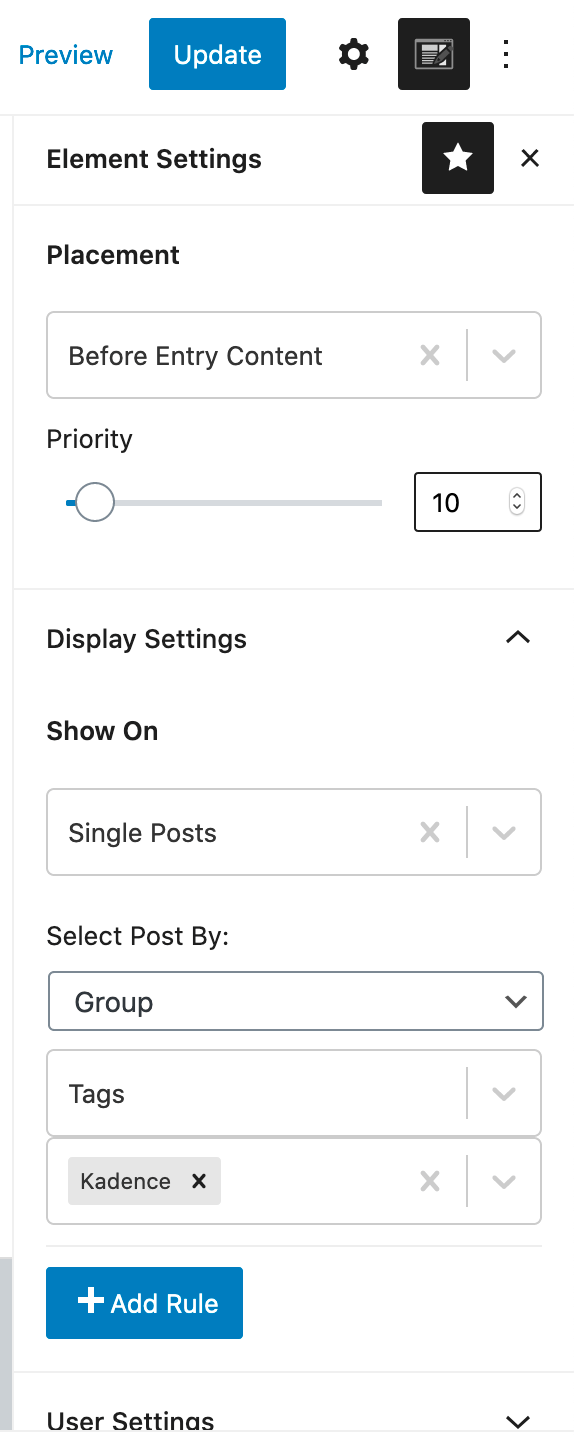
Configuring an element's settings

In this example, we have set the element to be added before entry content on all single posts that are tagged Kadence.

The screenshot below shows all the options in the Display Settings‘ Show On dropdown:
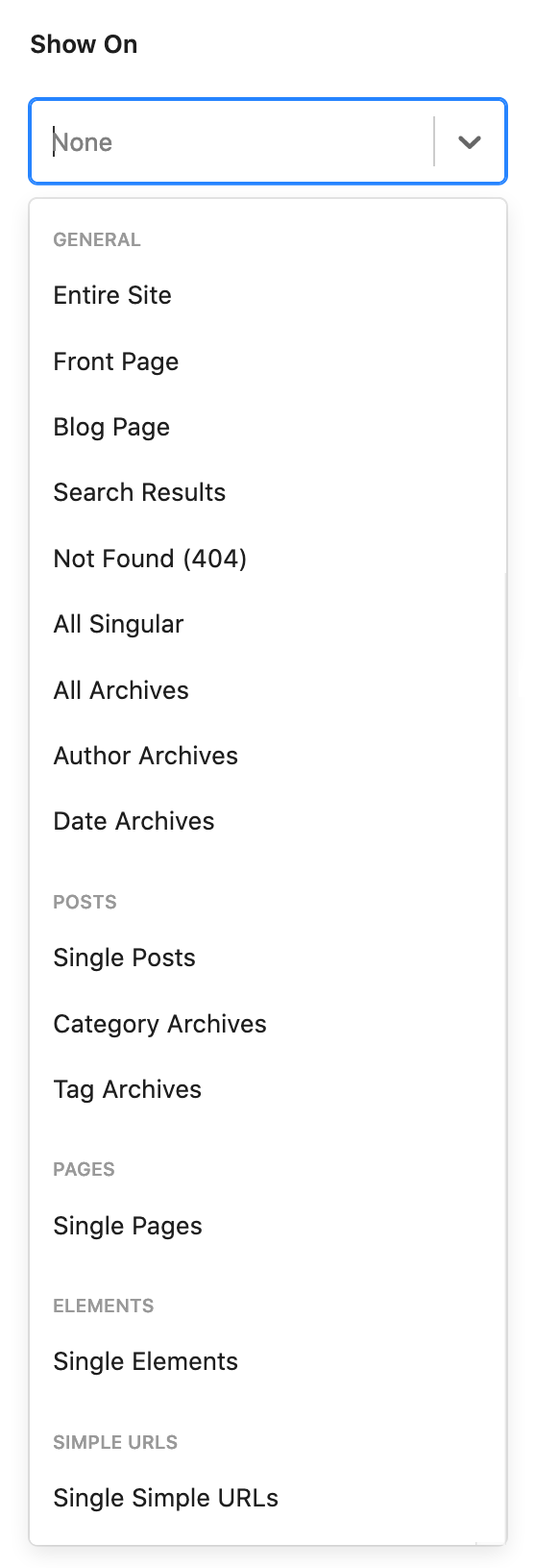
Element Hooks Display Settings options
The last “Single Simple URLs” is a Custom Post Type in our demo site

The screenshot below shows all the options in the Placement dropdown:

Kadence element hook placement options

What is a Custom Hook?

The dropdown list for element hook placement includes the most commonly used hooks. However, it is not possible to include every available hook from the theme and plugins.

That is why there is an option to specify a custom hook. You can use this if you are familiar with an existing hook in your theme or plugin that you would like to target. Please note that:

  • The hook must already exist in the theme or plugin. This feature only lets you hook into existing hooks, it does not create new ones.
  • Using custom hooks requires a deeper understanding of the theme or plugin code, since you will need to know the exact hook name and where it is applied.

An element with a higher priority hooked to the same location as another will appear below or after the one with lower priority in the HTML output.

Note: A specific tag or category will appear under the "Select Posts By:" only if there is at least one published post having that tag/category.

Publish your changes.

Here’s the result:
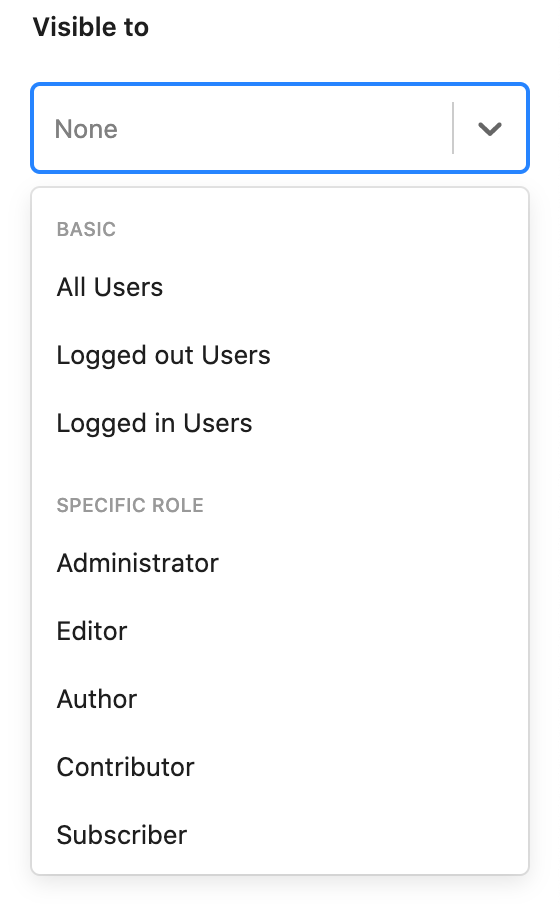
User Settings

User Settings section enables you to specify whether the element should be shown to all users, only the logged-out, the logged-in, or users having a specific role.
Expires Settings

Expires Settings section enables you to specify whether the element should automatically be removed (not shown) at a specified date and time.
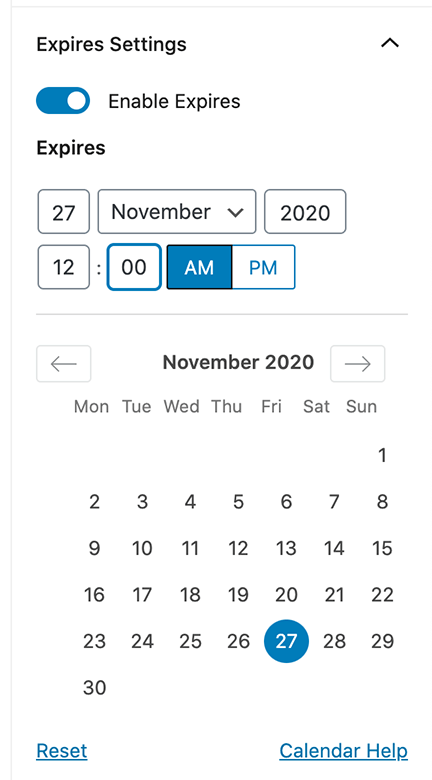
Expires Settings section when adding an element in Kadence

Viewing Elements on a Page

When using the Admin Toolbar, you can view the current number of elements on a specific page. This makes it easier to track where Elements are being used.

Hover over the element count to directly edit any of the listed elements on the page. Just click on the element you wish to edit, and it will open up within the element editor.
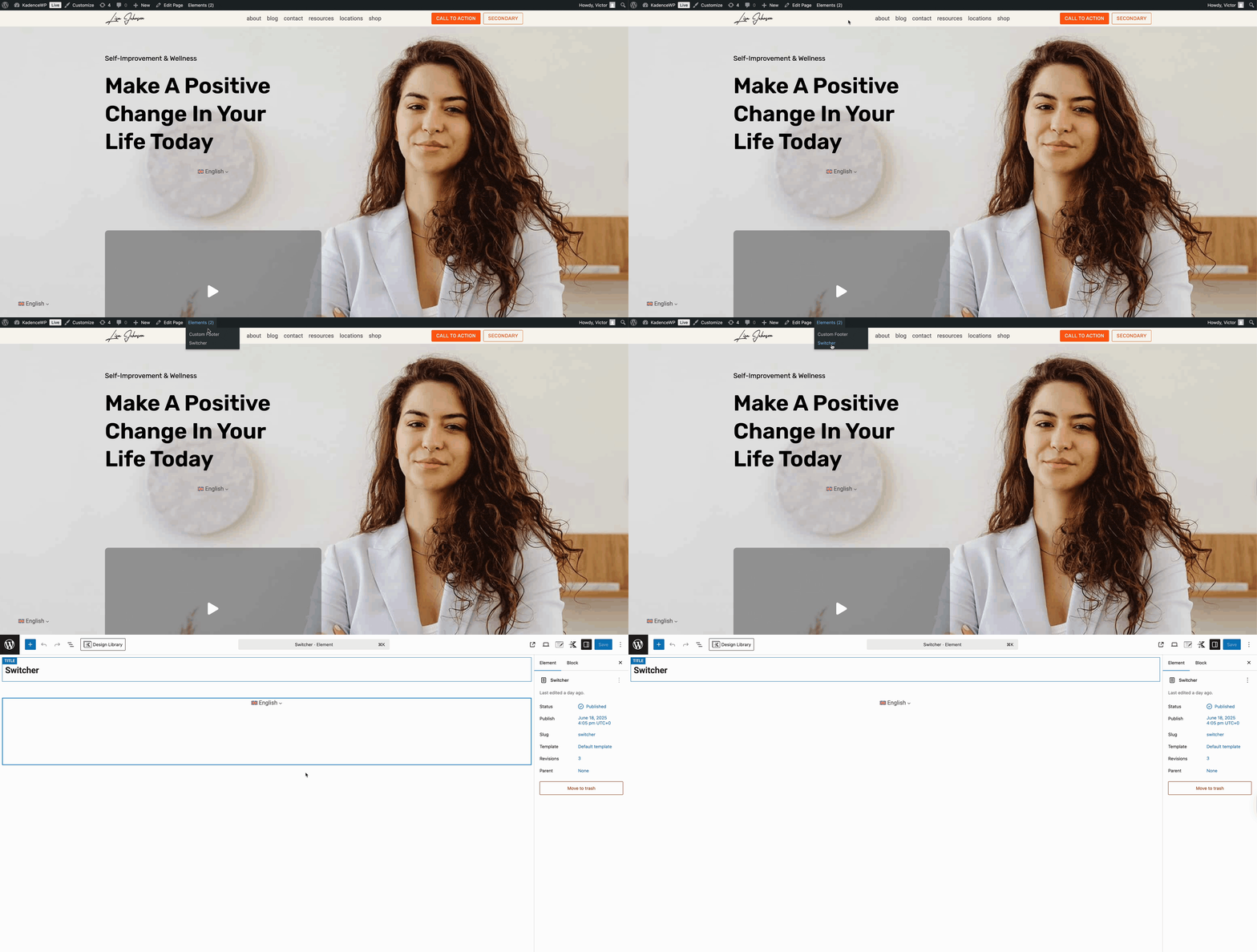

Elements Tracking
Do you feel this document was helpful?
The Kadence WP Logo
Crafted in Missoula, Montana
  • Follow Kadence on Facebook
  • Follow Kadence on Youtube
  • X
  • Follow Kadence on Instagram
Trustpilot
Products
  • Kadence Plans
  • Kadence Theme
  • Kadence Blocks
  • Kadence AI
  • Kadence Starter Templates
  • Kadence Shop Kit
  • Kadence Conversions
  • Kadence Pattern Hub
  • View All
Resources
  • Blog
  • Podcast
  • Knowledgebase
  • Support ticket
  • Feature Requests
  • FAQ
  • WordPress Hosting Services
About Us
  • About Kadence
  • Become an affiliate
  • Contact us
  • Terms
  • Privacy Policy
  • Security
Our Partner Brands
  • SolidWP
  • LearnDash
  • The Events Calendar
  • GiveWP
  • MemberDash
Kadence Community
  • Kadence Marketplace
  • Join the Facebook Group
  • Subscribe to our YouTube Channel
© 2024 Kadence WP | All prices are in USD
Logo for StellarWP an umbrella brand of Premium WordPress plugins
  • Pricing
  • Products
    • Premium PlansGet all the tools you need in one plan
    • Kadence ThemeLightning-fast performance theme for modern websites
    • Kadence BlocksDrop in ready designs with advanced controls for pixel perfect websites
    • Kadence Shop KitCreate a more effective WooCommerce shopping experience
    • Kadence ConversionsBoost sales and build engaged audiences with popups and banners
    • Kadence InsightsEasily create A/B tests. Optimize your pages to drive higher conversions.
    • View All Products
    • Get Kadence + Hosting
      In One Place

      Enjoy faster setup, top-tier performance, and worry-free WordPress hosting – Kadence Theme, Kadence Blocks, and Solid Security all pre-installed.

      Learn More

  • Kadence AI
  • Starter Templates
  • Blog
  • Support
    • Resource HubStart here for guides, Product docs, FAQs, and Troubleshooting tips, all in one place.
    • Contact SupportStuck on something? We’re here to help! Open a ticket for top-notch support.
    • Contact Our TeamGot pre-sales questions or need help choosing a plan? Open a ticket and our team will guide you.
    • About usCrafted with love in Missoula, Montana. Meet the team behind the mission.
Account Login
  • Features
  • Pro
  • Blocks
  • HelpExpand
    • Documentation
    • Submit a Ticket
    • Facebook Group
    • Feature Requests
    • Roadmap
    • Changelog
