
Skip to content
Help Center
  • Pricing
  • ProductsExpand
    • Premium PlansGet all the tools you need in one plan
    • Kadence ThemeLightning-fast performance theme for modern websites
    • Kadence BlocksDrop in ready designs with advanced controls for pixel perfect websites
    • Kadence Shop KitCreate a more effective WooCommerce shopping experience
    • Kadence ConversionsBoost sales and build engaged audiences with popups and banners
    • Kadence InsightsEasily create A/B tests. Optimize your pages to drive higher conversions.
    • View All Products
    • Get Kadence + Hosting
      In One Place

      Enjoy faster setup, top-tier performance, and worry-free WordPress hosting – Kadence Theme, Kadence Blocks, and Solid Security all pre-installed.

      Learn More

  • Kadence AI
  • Starter Templates
  • Blog
  • SupportExpand
    • Resource HubStart here for guides, Product docs, FAQs, and Troubleshooting tips, all in one place.
    • Contact SupportStuck on something? We’re here to help! Open a ticket for top-notch support.
    • Contact Our TeamGot pre-sales questions or need help choosing a plan? Open a ticket and our team will guide you.
    • About usCrafted with love in Missoula, Montana. Meet the team behind the mission.
Account Account
Get Kadence
Help Center
  • Home
  • Knowledge Base
  • Kadence Theme
  • Kadence Elements

Kadence Element Settings

Use the Element Settings to control the placement, along with various display settings to determine where and who sees the element.

The Element Settings can be found at the top right corner of the element editor. Look for an icon with a paper and pencil.

Kadence Element Settings Icon

This document provides a general overview of Element Settings and how they work. Keep in mind that each Element Type may include different options within its settings. For full details on each Element Type and the specific settings available, please refer to the resources linked below.

  • Content Section Hooked Element Settings
  • Template Hooked Element Settings
  • Fixed Section Hooked Element Settings
  • HTML Editor Hooked Element Settings
Table of Contents
  • Preview Setup
  • Placement Settings
  • Display Settings
  • User Settings
  • Target Language
  • Device Settings
  • Expires Settings

Preview Setup

The Preview Setup settings allow you to set the context and display size for the Element preview. The preview settings are helpful when designing an Element and will only affect what is seen in the editor.

This is an important step to ensure that dynamic content can be visually seen within the live editor. For example, if you are seeing "No Content" within a dynamic content text, it could be because you need to select a proper preview post type and preview post.

Kadence Element - Preview Settings modal

Placement Settings

There are numerous options for the Element Placement. Each placement option offers a Priority setting to further customize the placement choice. Setting the right placement for the right case is important. Each Element Type has different Placement Settings available. You can learn more about each placement type below:

  • Content Section Element Placement Settings
  • Template Element Placement Settings
  • Fixed Section Element Placement Settings
  • HTML Editor Element Placement Settings

Display Settings

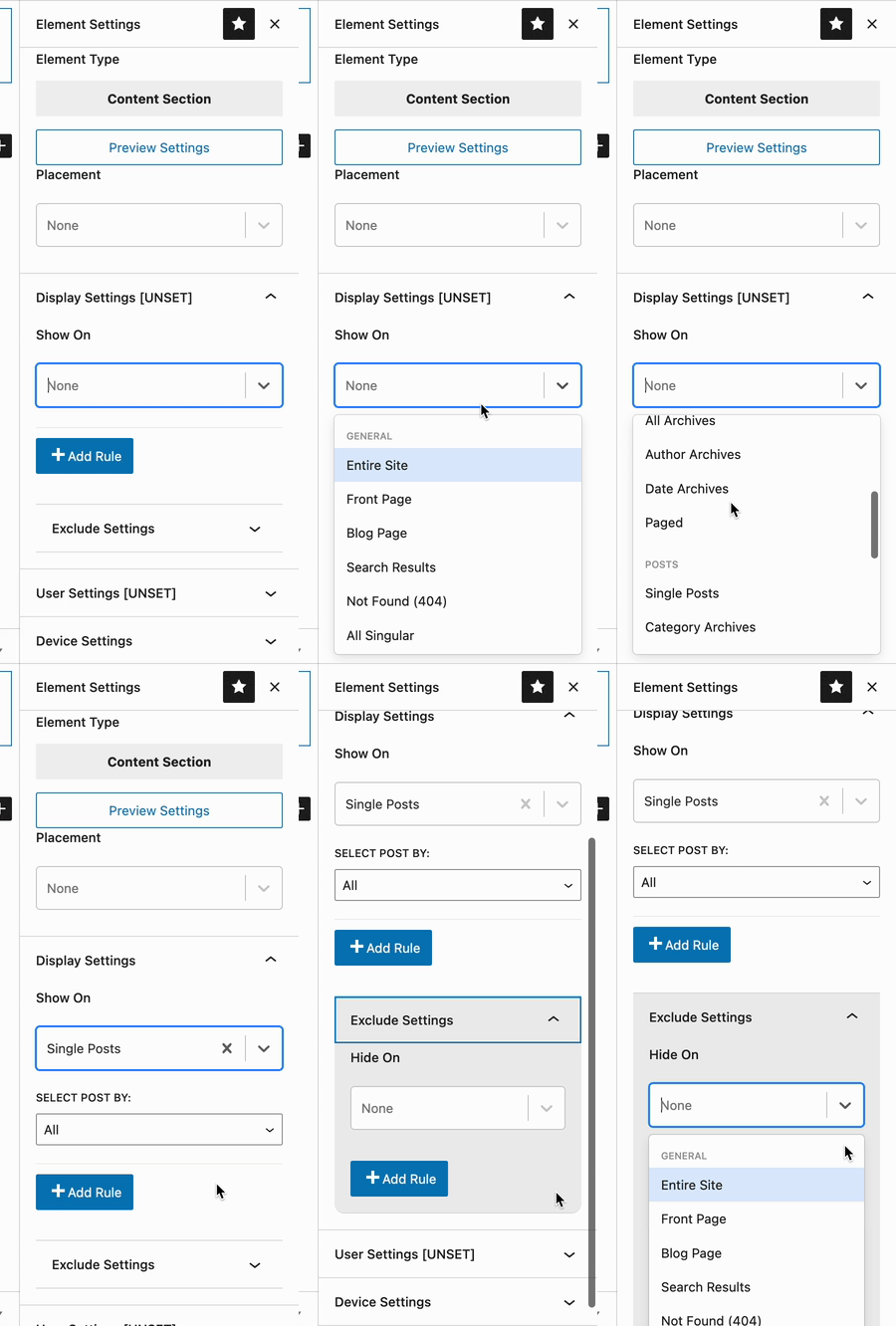
Use the Display Settings to determine where to insert the element. Use the Add Rule button to include additional options.
Kadence Elements - Display Settings

User Settings

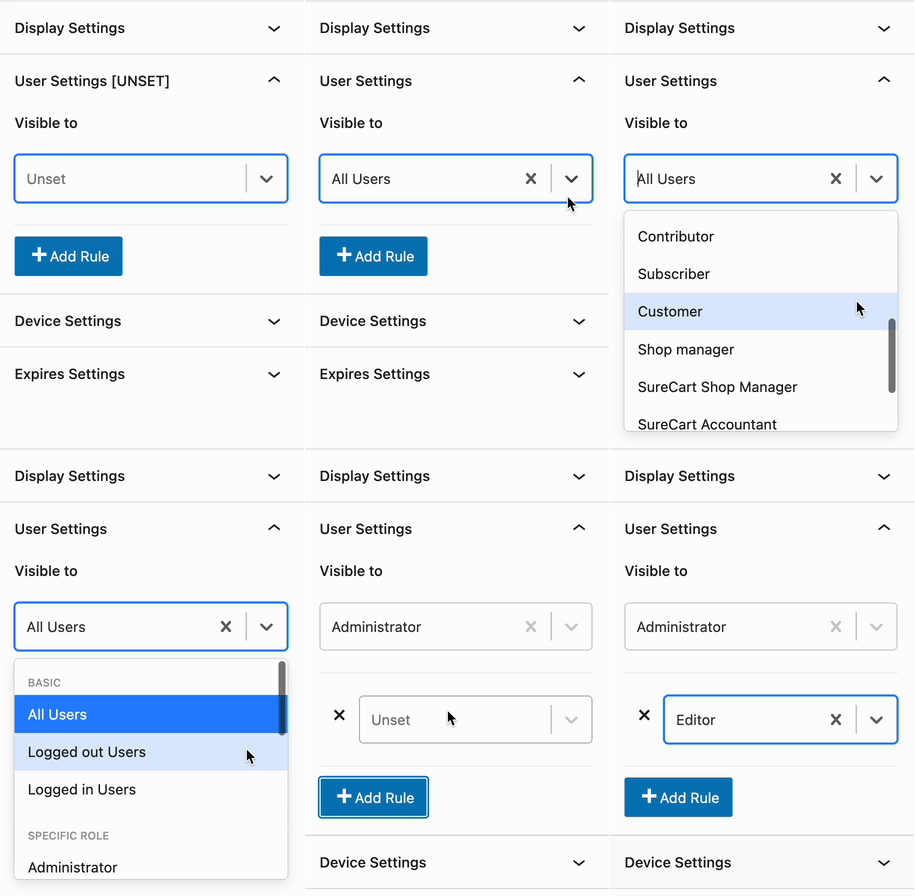
Determine which user role(s) will be able to see the element in effect.

  • Options include: All Users (Default), Logged Out Users, Logged In Users, or based on the available current website roles.
    • Use the Add Rule button to add more visibility options.
User Settings

Target Language

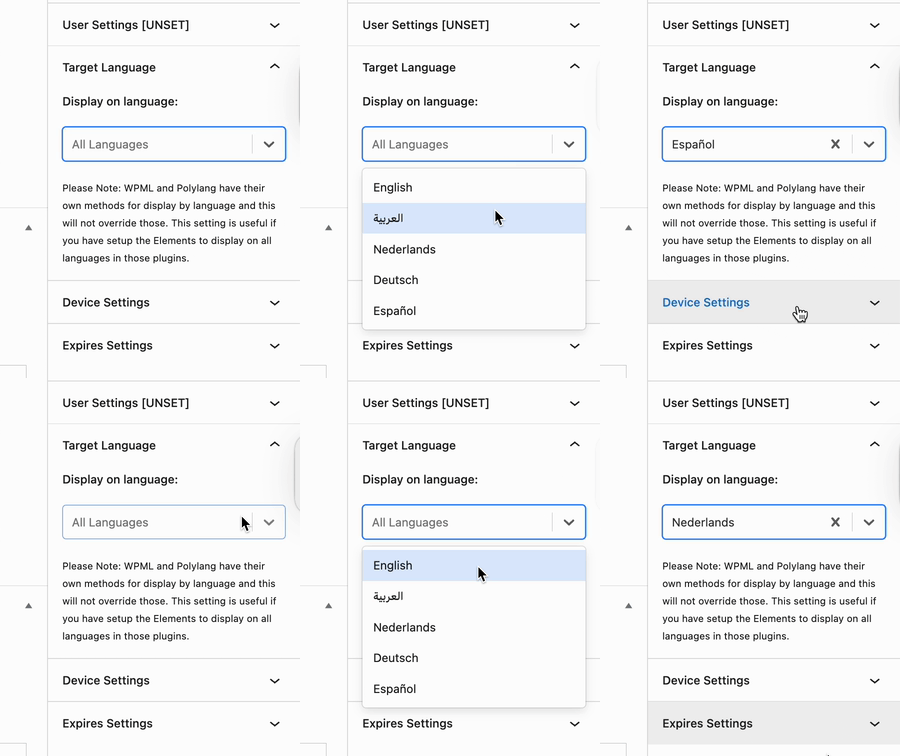
The Target Language setting in Kadence Hooked Elements allows you to display content based on your multilingual plugin configuration. This is especially useful for multilingual websites, ensuring that visitors see content in their selected language.

  • The available language options depend on the multilingual plugin you are using. If no multilingual plugin is installed, the Target Language setting will not appear.
  • To ensure accurate targeting, make sure your translation plugin is properly configured and synced with Kadence Elements.
To ensure accurate targeting, make sure your translation plugin is properly configured and synced with Kadence Elements.

Device Settings

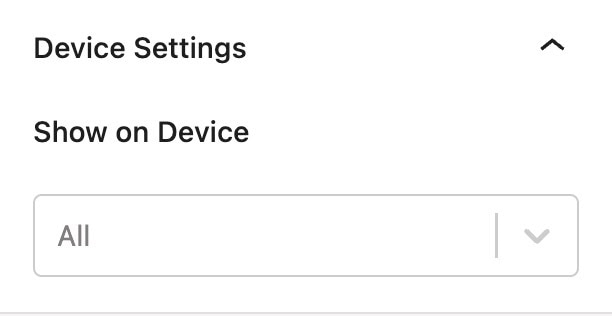
By default, all devices will see the element. Use the Device Settings to control which device types can see the element.
Device Settings

Expires Settings

Enable this option to add an expiration to the element. Once the expiration is met, the element will no longer take effect.
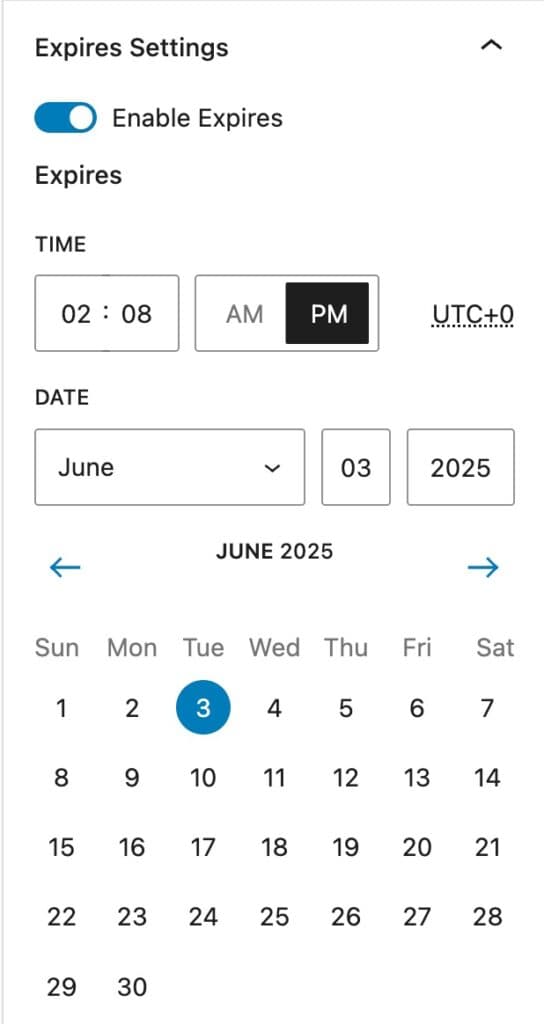

Expires
Do you feel this document was helpful?
The Kadence WP Logo
Crafted in Missoula, Montana
  • Follow Kadence on Facebook
  • Follow Kadence on Youtube
  • X
  • Follow Kadence on Instagram
Trustpilot
Products
  • Kadence Plans
  • Kadence Theme
  • Kadence Blocks
  • Kadence AI
  • Kadence Starter Templates
  • Kadence Shop Kit
  • Kadence Conversions
  • Kadence Pattern Hub
  • View All
Resources
  • Blog
  • Podcast
  • Knowledgebase
  • Support ticket
  • Feature Requests
  • FAQ
  • WordPress Hosting Services
About Us
  • About Kadence
  • Become an affiliate
  • Contact us
  • Terms
  • Privacy Policy
  • Security
Our Partner Brands
  • SolidWP
  • LearnDash
  • The Events Calendar
  • GiveWP
  • MemberDash
Kadence Community
  • Kadence Marketplace
  • Join the Facebook Group
  • Subscribe to our YouTube Channel
© 2024 Kadence WP | All prices are in USD
Logo for StellarWP an umbrella brand of Premium WordPress plugins
  • Pricing
  • Products
    • Premium PlansGet all the tools you need in one plan
    • Kadence ThemeLightning-fast performance theme for modern websites
    • Kadence BlocksDrop in ready designs with advanced controls for pixel perfect websites
    • Kadence Shop KitCreate a more effective WooCommerce shopping experience
    • Kadence ConversionsBoost sales and build engaged audiences with popups and banners
    • Kadence InsightsEasily create A/B tests. Optimize your pages to drive higher conversions.
    • View All Products
    • Get Kadence + Hosting
      In One Place

      Enjoy faster setup, top-tier performance, and worry-free WordPress hosting – Kadence Theme, Kadence Blocks, and Solid Security all pre-installed.

      Learn More

  • Kadence AI
  • Starter Templates
  • Blog
  • Support
    • Resource HubStart here for guides, Product docs, FAQs, and Troubleshooting tips, all in one place.
    • Contact SupportStuck on something? We’re here to help! Open a ticket for top-notch support.
    • Contact Our TeamGot pre-sales questions or need help choosing a plan? Open a ticket and our team will guide you.
    • About usCrafted with love in Missoula, Montana. Meet the team behind the mission.
Account Login
