
How To Recreate the Kadence Homepage Animation
Ever scrolled through the KadenceWP homepage and thought, “Whoa, how did they make that“? The animation is a subtle yet engaging effect that adds a polished touch to the design. We’ve had a few people ask in the Web Creator Community on Facebook how to recreate it, so we thought we’d share so you can implement a similar effect on your own Kadence website.
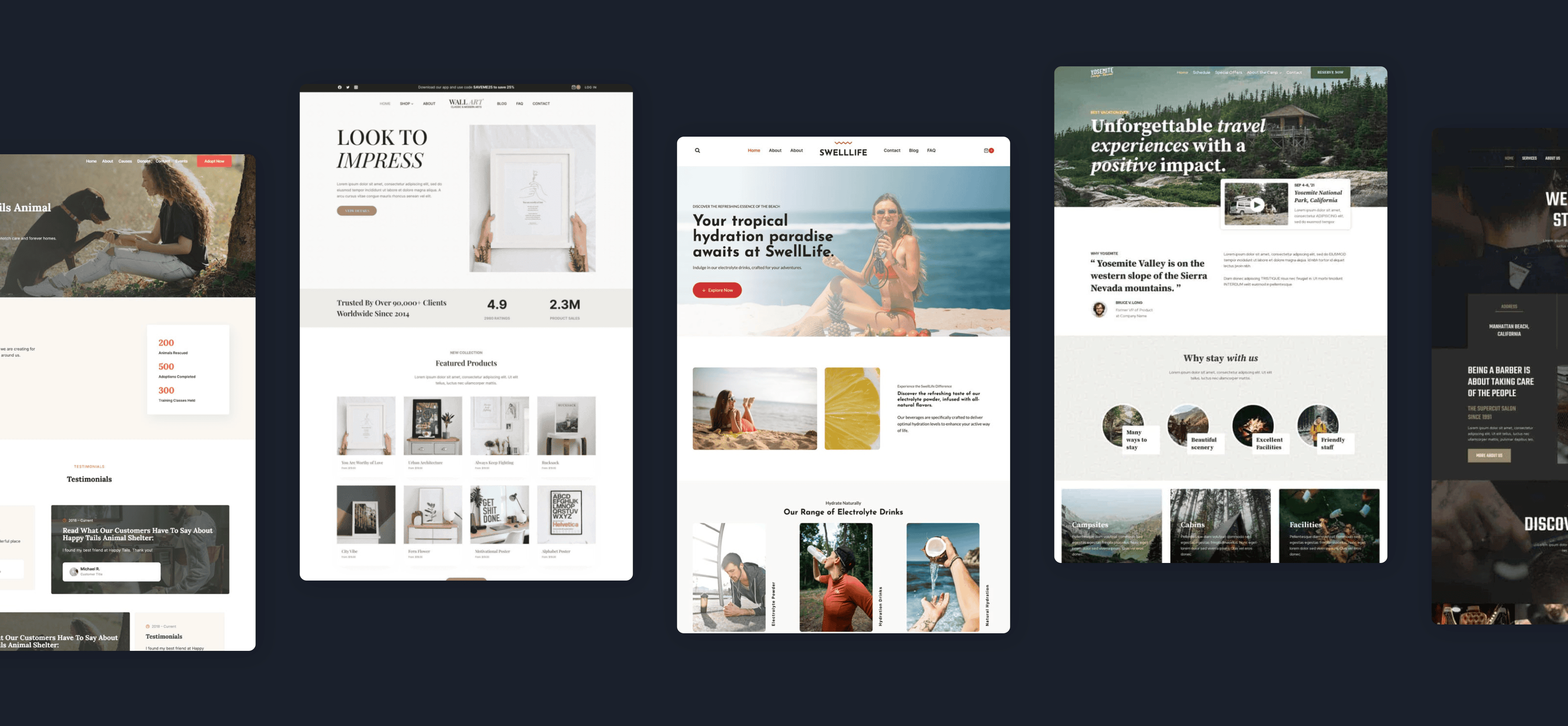
The Effect
This animation creates a smooth slide-left effect as you scroll down and a slide-right effect as you scroll back up. It’s a small yet impactful addition that subtly guides the viewer’s eye and enhances the user experience.
How to implement this animation effect
This effect uses Javascript. While we plan to add this feature to Kadence in the future, here’s a workaround for now:
Step 1: Set up the Row Layout Block
- Add a Row Layout Block to your page.
- If desired, set a background color for the row.
- Navigate to the Advanced tab and add padding to the section.
- In the Custom CSS Settings (under the Advanced tab), add the following CSS:
#site-scroller .kadence-blocks-gallery-item:nth-child(1) {
    transform: translateY(50px);
}

#site-scroller .kadence-blocks-gallery-item:nth-child(2) {
    transform: translateY(-30px);
}

#site-scroller .kadence-blocks-gallery-item:nth-child(3) {
    transform: translateY(30px);
}

#site-scroller .kadence-blocks-gallery-item:nth-child(4) {
    transform: translateY(-50px);
}

#site-scroller .kadence-blocks-gallery-item:nth-child(5) {
    transform: translateY(20px);
}
Step 2: Add the Kadence Gallery Block
- Inside the Row Layout Block, add a Gallery (Advanced) Block.
- Select five images to include in the gallery.
- Configure the General tab settings:
- Set the Gallery Type to Grid.
- Set the Image Ratio (we use Inherit, but if your images aren’t the same size, select the ratio you want).
- Set the desired number of columns (ours is set to 5).
- Define the Gutter Settings (ours is set to 50px).
- Configure the Style tab settings:
- Set a Border Radius (ours is 8px).
- Add an Image Shadow if desired (ours is set to X: 4, Y: 2, Blur: 24, Spread: 0).
- Configure the Advanced tab settings:
- Set the Padding (ours is 4XL on the top and bottom).
- Set the Margin (ours has -400px on the left margin).
- Under the Advanced heading, add
site-scrollerto the HTML Anchor.
Step 3: Add The Javascript Code To The Page
To add page-specific JavaScript, you’ll need Kadence Blocks Pro.
- Follow the steps in this help doc if you need help installing the plugin and adding your license key.
- Once Kadence Blocks Pro is installed, navigate to the page where you want to add the code.
- Click on the Kadence “K” icon in the top right-hand corner of the page.
- Click on Page Scripts.
- Click < > Custom CSS and JS, and a pop-up window will appear.
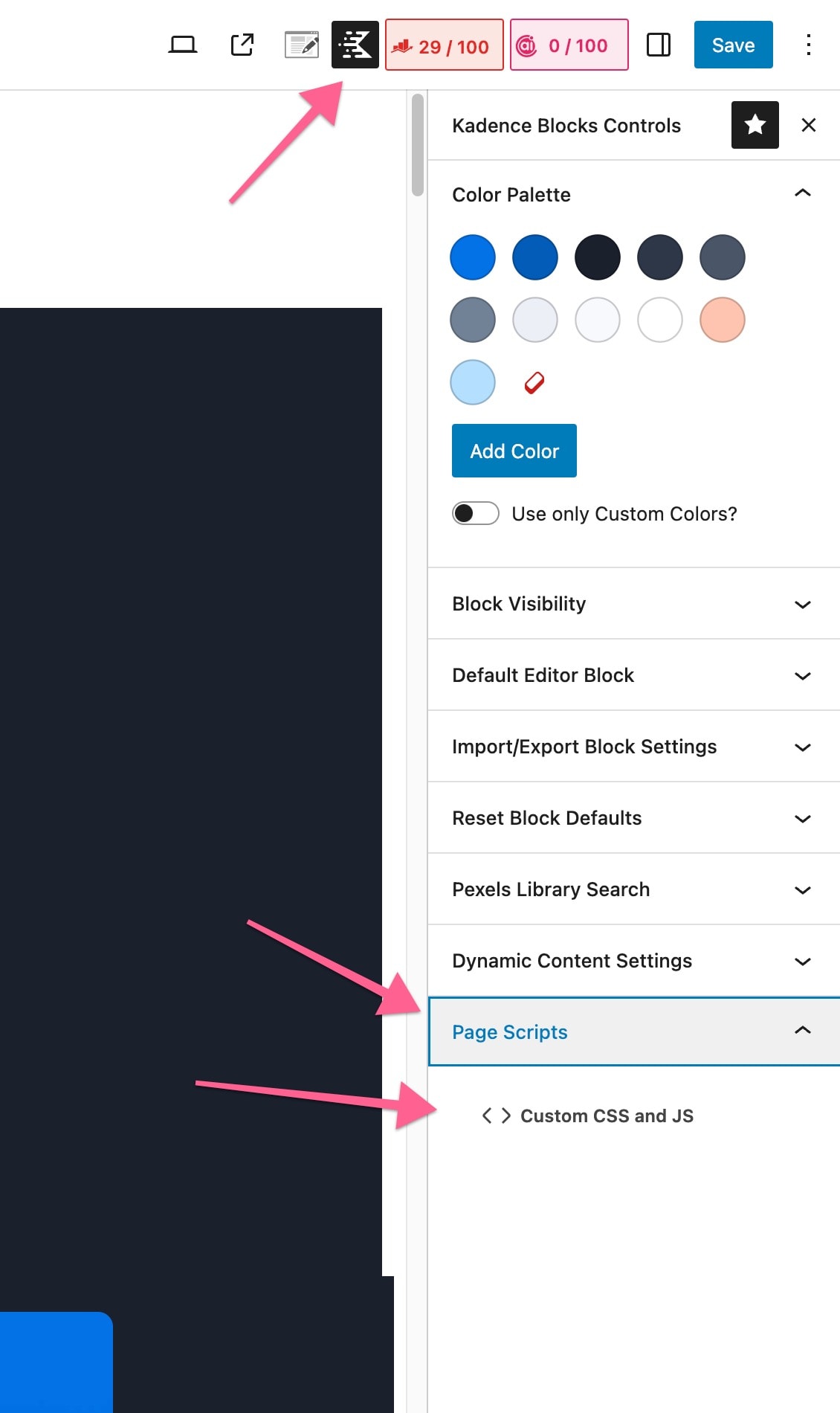
- Copy and paste the following script into your snippet manager:
<script>
document.addEventListener('DOMContentLoaded', () => {
    const targetElement = document.getElementById('site-scroller');
    const options = {
        root: null, // Relative to the viewport
        rootMargin: '100px',
        threshold: 0 // Trigger when at least 10% of the element is visible
    };

    let observer = new IntersectionObserver((entries, observer) => {
        entries.forEach(entry => {
            if (entry.isIntersecting) {
                window.addEventListener('scroll', handleScroll);
            } else {
                window.removeEventListener('scroll', handleScroll);
            }
        });
    }, options);

    observer.observe(targetElement);

    function handleScroll() {
        const scrollY = window.scrollY;
        const transformValue = scrollY * 0.1; // Adjust as needed
        targetElement.style.transform = `translate(${transformValue}px, 0)`;
    }

    handleScroll();
});
</script>
- Paste the JavaScript code into the box labeled <head>. (NOTE: If you accidently add this code to the first box, dedicated to CSS, it will not work!)
- Click Save to apply the script to your page.

Step 5: Identify the Correct ID
By default, this script applies to an element with the ID site-scroller. However, you may need to adjust this based on your specific site structure. To find the correct element ID:
- Open your website in Chrome (or another browser with developer tools).
- Right-click the section you want to animate and select Inspect.
- Locate the
idattribute on the<div>or<section>element you wish to target. - If no
idexists, manually assign one within the WordPress editor, or use a custom CSS class.
Replace site-scroller in the JavaScript snippet with the appropriate ID, and the effect will be applied.
Final Thoughts
We are excited about this effect and plan to integrate it into Kadence Blocks in the future! 🎉 In the meantime, this workaround allows you to achieve the same animation with minimal effort. Let us know how it works for you!
Happy building! 🚀
Create Your Website With KadenceWP Today!


Written by Katy Boykin
Katy Boykin is the Senior Product Marketing Manager at StellarWP, leading marketing strategy and messaging for KadenceWP, StellarSites, SolidWP, and StellarPay. With years of experience in web design, branding, and digital marketing, including creating custom websites, child themes, and design libraries at DIY Dream Site, she understands what creators and business owners need to build beautiful and high-performing websites with ease.
4 responses to “How To Recreate the Kadence Homepage Animation”
-

-

click here while in a desktop browser:
https://www.kadencewp.com/#site-scroller
Scroll upwards or downwards and watch the movement.
Easy. -

Thanks, love it. Will try to add it soon
-

I notice that Michelle from Brand+Build Templates has this exact same concept:
https://brandandbuildtemplates.me/kadence-cloud/responsive-scroller-1
By Katy Boykin
Katy Boykin is the Senior Product Marketing Manager at StellarWP, leading marketing strategy and messaging for KadenceWP, StellarSites, SolidWP, and StellarPay. With years of experience in web design, branding, and digital marketing, including creating custom websites, child themes, and design libraries at DIY Dream Site, she understands what creators and business owners need to build beautiful and high-performing websites with ease.
Updated February 11, 2025
Create Your Website With Kadence



I would like to see a video showing the effect in action, as I have no idea what happens!=