Getting Started with Woo Templates
Creating a Woo Template
- Once your Kadence Woo Template Builder Plugin has been installed and activated, navigate to Woo Templates from your WordPress admin panel.
- To create a single product template, click “Add Single Product Template.”

- Give your template a label, then add as many rows as you would like.
- Click “Add Widget” and select which widgets you want to display in your template.
- The Woo Templates plugin comes packed with product, archive, and checkout widgets. For quick access to these widgets click “Add Widget”, then in the left sidebar you should see Single Product Page, Shop Archives, and Checkout Page. Clicking each of these will limit your view of widgets to the selected tab.
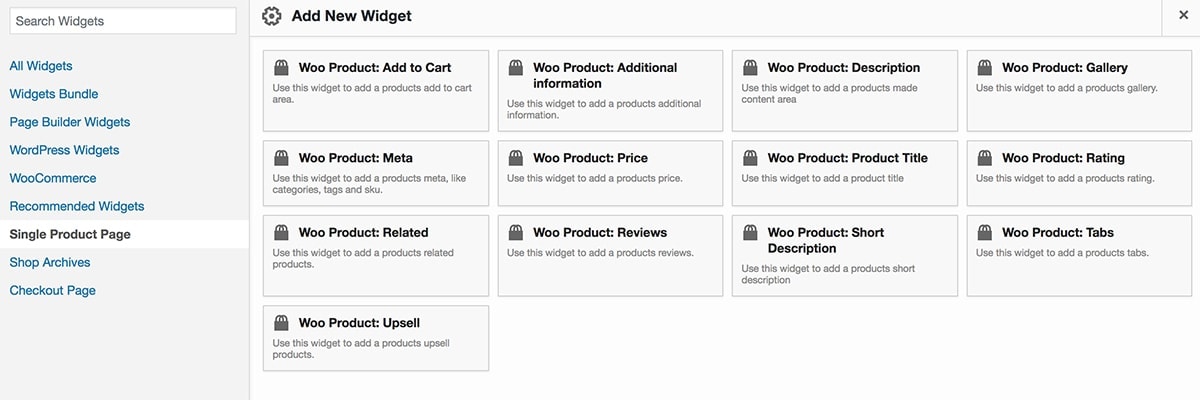
- Add as many rows, columns and widgets as you would like to create your own custom layout.
*Note You are not limited to the woo template widgets.
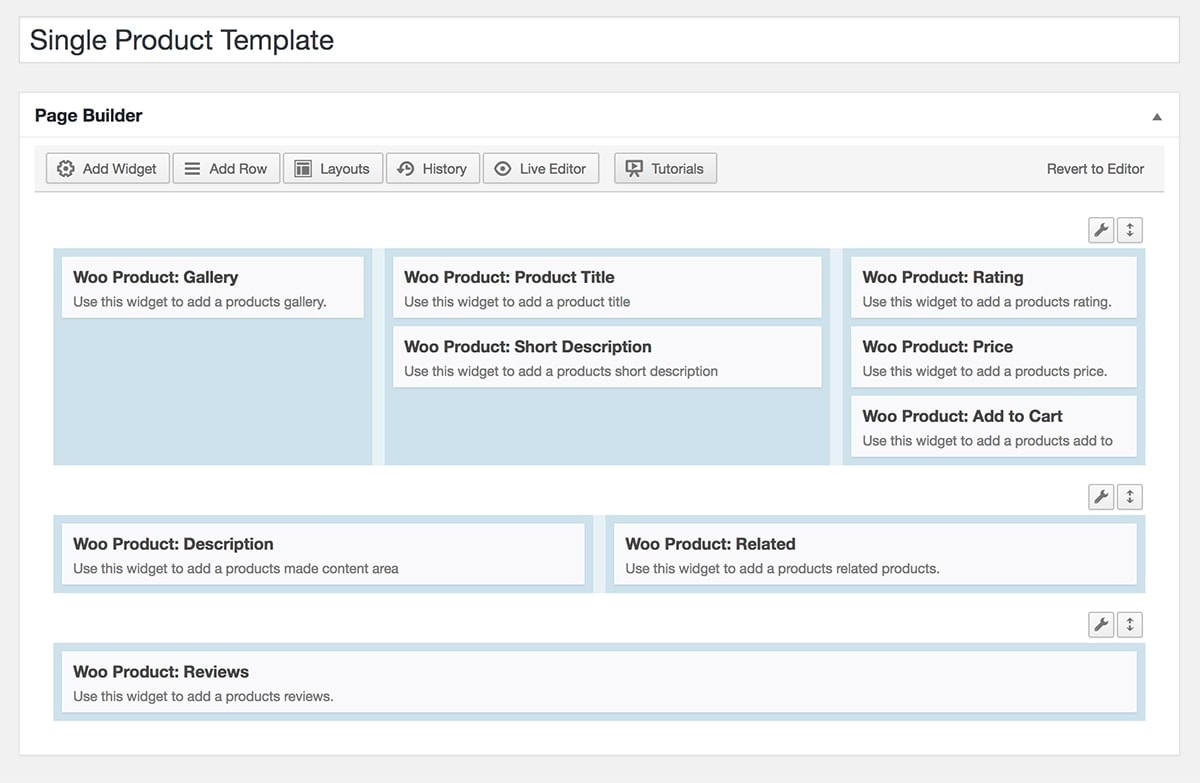
- Save changes.
- Repeat the above steps to create as many single product templates as you want.
- Repeat the above steps to create product archive and checkout page templates.
Displaying Your Woo Templates
Default Settings:
- Navigate to Woo Templates > Template Settings.
- Here you can set the default template settings for your single product pages, archives pages, and the checkout page.
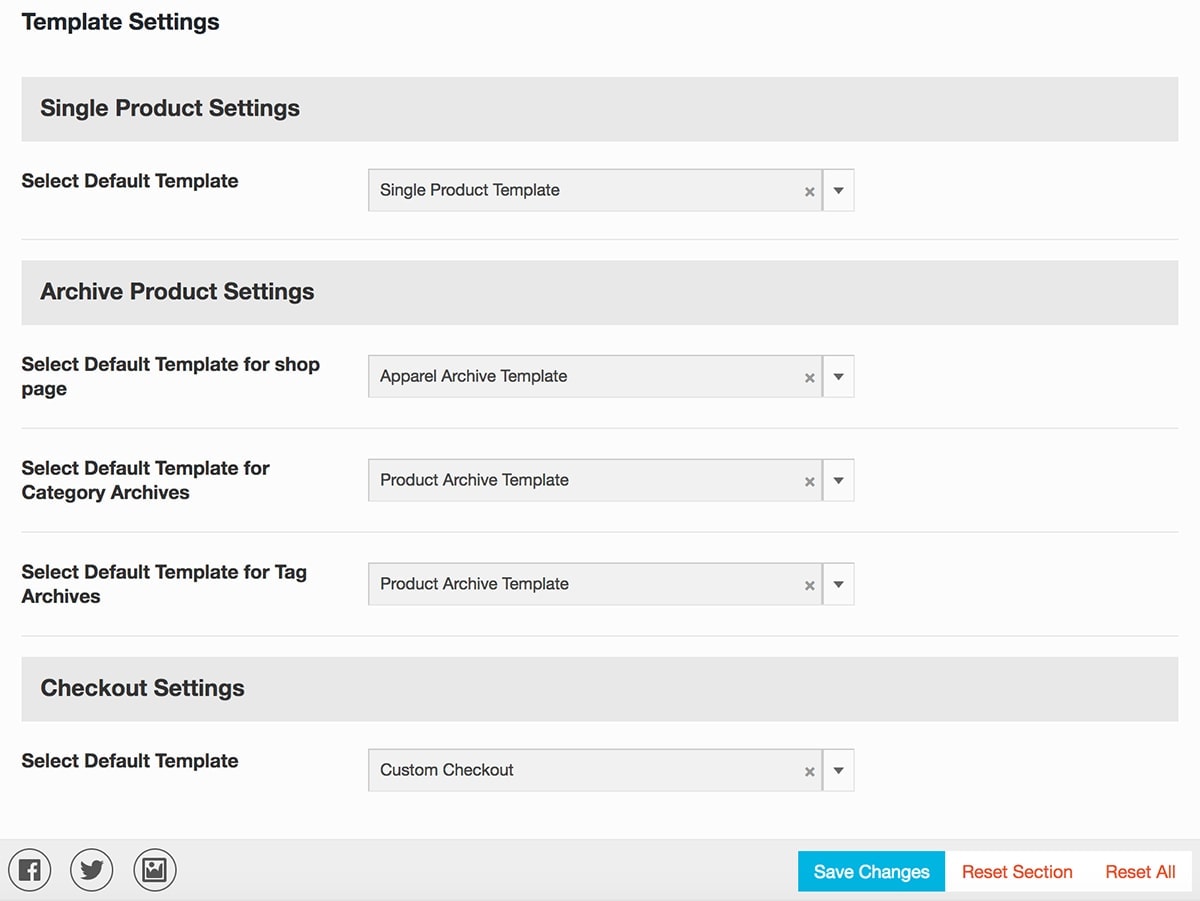
Product Page Settings:
Single Product Template
- To select a specific woo template for a specific product, navigate to the product edit page.
- On the right side of the page, you should see a Product Template box with a dropdown like this:
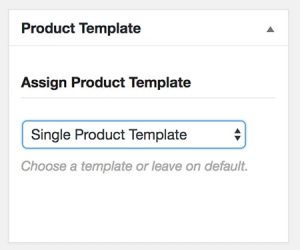
- There you can select your custom template for a specific product.
Single Product Page Builder:
- Another option for single product pages is to use to select “Use this products Page Builder” from the Assign Product Template dropdown.
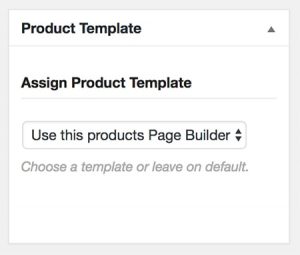
- You can then create a template for that particular post using page builder right from the post edit page.
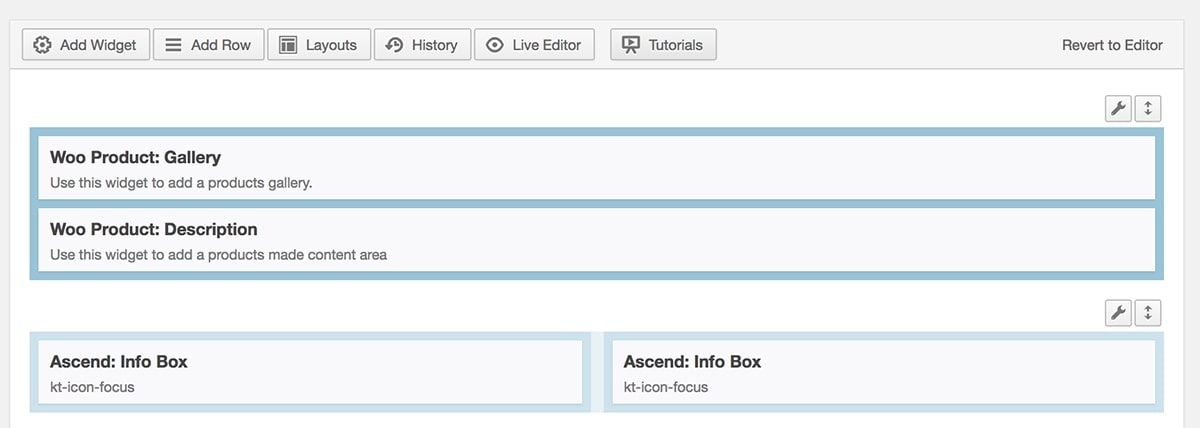
*Note This will only work if you have added “Products” as a Page Builder Post Type from Settings >> Page Builder >> General.
Archive Page Settings:
- To select a specific template for a specific product category, navigate to Products >> Category and edit the category you would like to set a template for.
- Scroll down till you see “Product Archive template” and there you can select an archive template from the dropdown.

Create Your Website With KadenceWP Today!

Written by Hannah
Hannah Ritner is the product expert at KadenceWP. With over 10 years at Kadence, she’s worn many hats, but her main drive has always been helping customers reach their goals. Hannah loves empowering people and has been a key player in building the Kadence Community. She’s all about making a real impact for businesses and their customers.
By Hannah
Hannah Ritner is the product expert at KadenceWP. With over 10 years at Kadence, she’s worn many hats, but her main drive has always been helping customers reach their goals. Hannah loves empowering people and has been a key player in building the Kadence Community. She’s all about making a real impact for businesses and their customers.
Updated July 22, 2024
Create Your Website With Kadence