
Create a Marquee Effect in WordPress with the New Kadence Marquee Block
Want to add eye-catching motion to your WordPress site without touching a line of code?
Until now, creating a marquee effect in WordPress often meant piecing together custom CSS or installing bulky plugins. The new Kadence Marquee block changes that by giving you a simple, modern way to add marquee effects directly in the block editor.
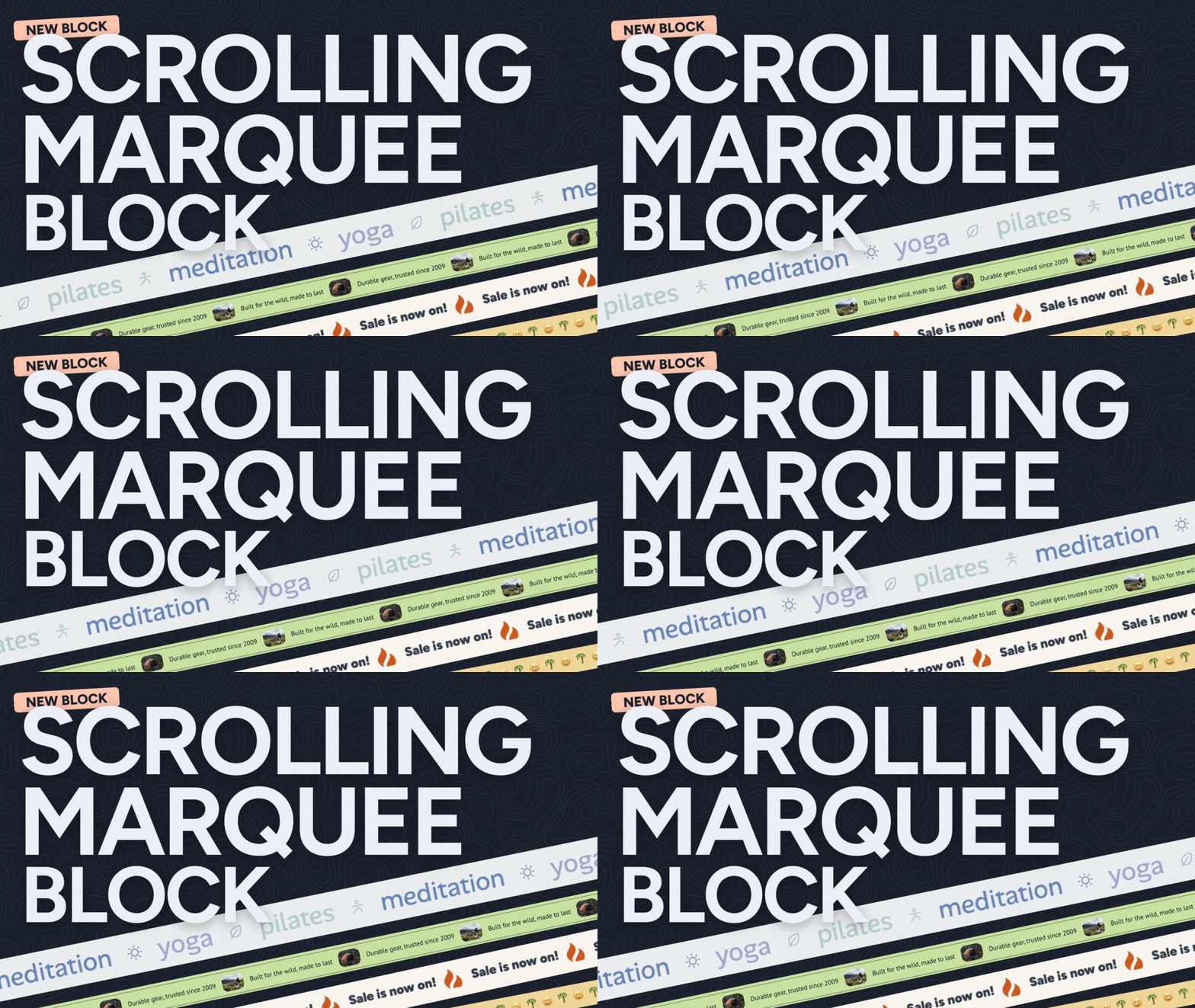
You can combine the Kadence Advanced Text, Icon, and Image blocks inside the Marquee block to create effects that are fast, accessible, and fully customizable, all in just a few clicks.
What Is a Marquee Effect?
A marquee effect is a continuous animation where text, images, or icons move smoothly across a page. It’s often used to highlight announcements, showcase logos, or add visual interest to a section of a website.
In the early days of the web, marquee effects were created with the <marquee> HTML tag. While it was a quick solution, it’s now outdated, not supported in modern standards, and can cause accessibility issues. Today, the best practice is to use a dedicated tool like the new Kadence Marquee block, which delivers the scrolling effect in a modern, lightweight, and user-friendly way.
Marquee effects work best when they’re used to draw attention to supporting details, like promotions, testimonials, or sponsor logos. For important details, though, it’s best to keep things static so your message is easy to read and your visitors don’t get distracted.
Introducing the Kadence Marquee Block
The Kadence Marquee block makes it simple to add smooth, modern marquee effects directly inside the WordPress block editor. Instead of relying on code or third-party plugins, you can now create scrolling text, logo strips, or icon rows in just a few clicks.
Here’s what it offers:
- Flexible content options – Place Advanced Text, Icon, or Image blocks inside the Marquee to create different styles of effects.
- Customizable settings – Control the speed, direction and spacing match your design.
- Fade Edges – Apply subtle fade masks to the edges of the marquee for a smoother transition.
- Responsive by default – Your marquee adapts beautifully to desktops, tablets, and mobile screens.
- Accessibility features – Options like pause on hover and a visible pause button help ensure the marquee is user-friendly for all visitors.
- Performance-focused – Built with lightweight code so animations run smoothly without slowing down your site.
Whether you want to announce promotions, feature testimonials, or highlight partners, the Kadence Marquee block gives you a tool that’s both powerful and easy to use.
The Kadence Marquee Block in Action
Words can only go so far. The best way to understand the Marquee block is to see it live.
Here are a few examples of what you can create:
Scrolling Headlines: Highlight promotions or announcements with animated text.
Logo/image Showcase: Display a continuous row of partner logos or images.


Combine icons and text to create visual effects
You can build each of these in just a few clicks by placing Advanced Text, Icon, or Image blocks inside the Marquee Block. These are just a few examples of how you can create marquee effects in WordPress with Kadence Blocks.
How to Create a Marquee Effect in WordPress
(Step by Step)
Step 1: Download the Creative Kit plugin from your Kadence account area and install it on your WordPress site. Make sure to activate it with your license key, otherwise the Marquee block won’t appear in the block list.
Step 2: Create a new Page or Post then click on the block inserter and select the Marquee Block
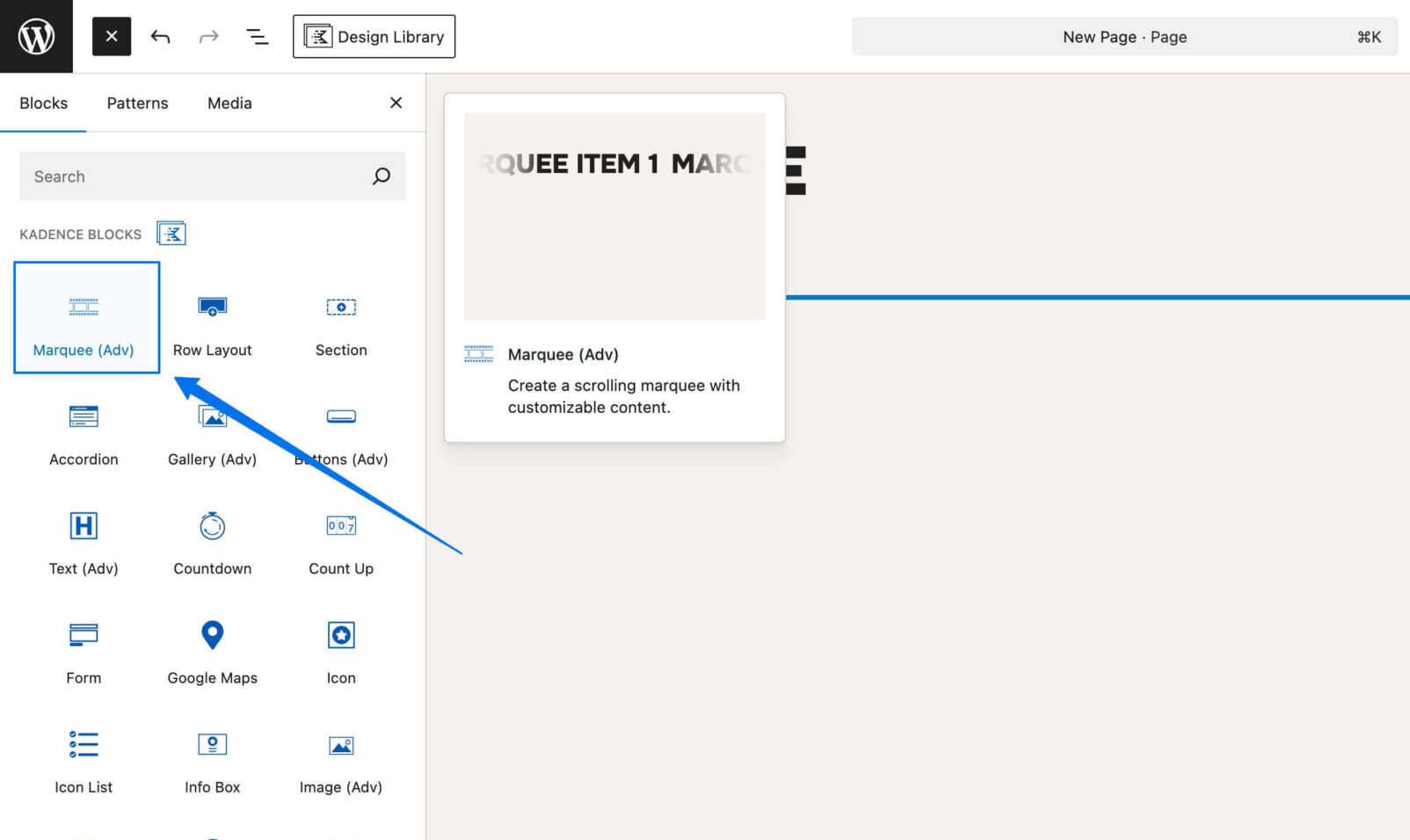
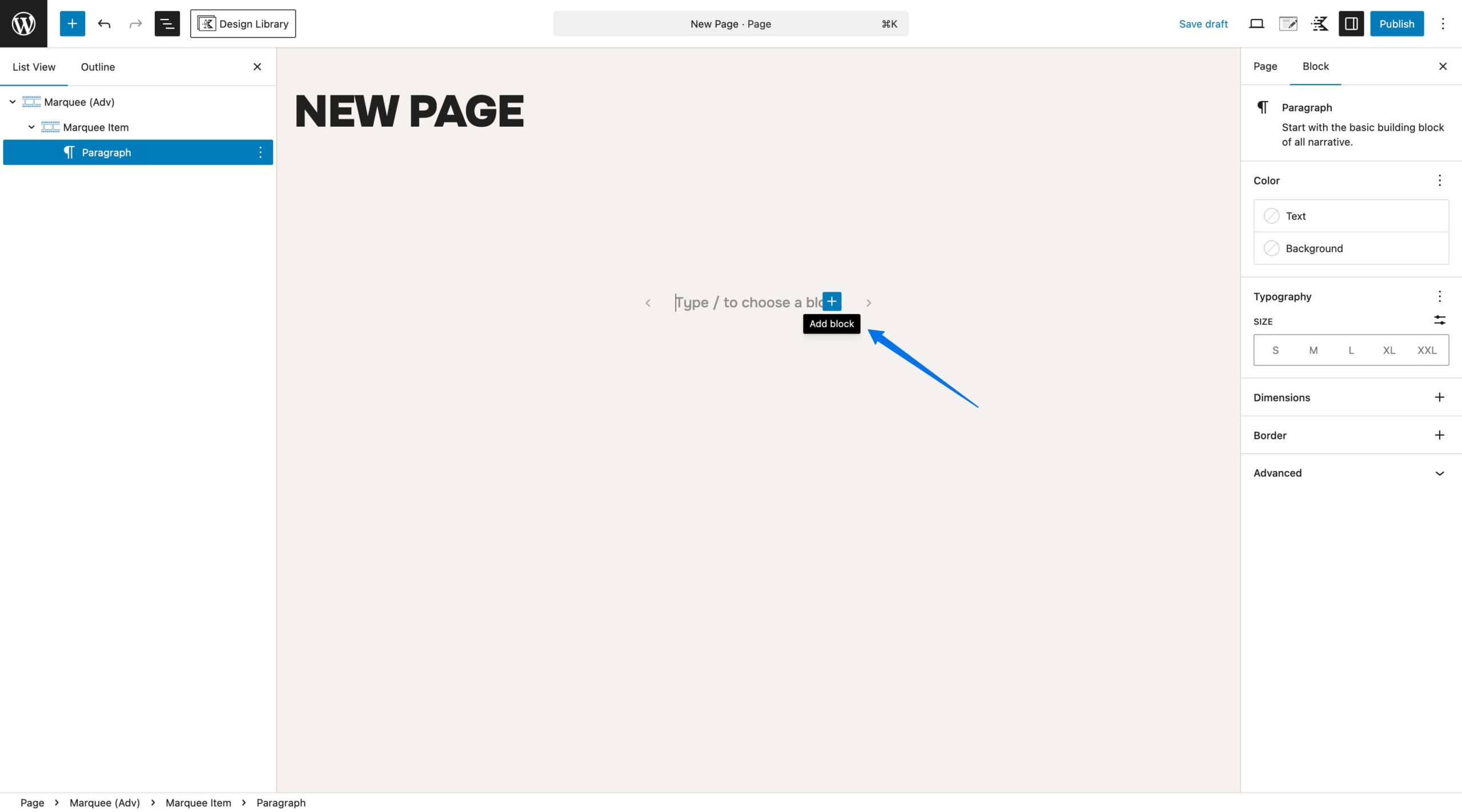
Step 3: Inside the Marquee Item, click the Add Block button and choose either an Advanced Text, Advanced Image, or Icon block to add your content.
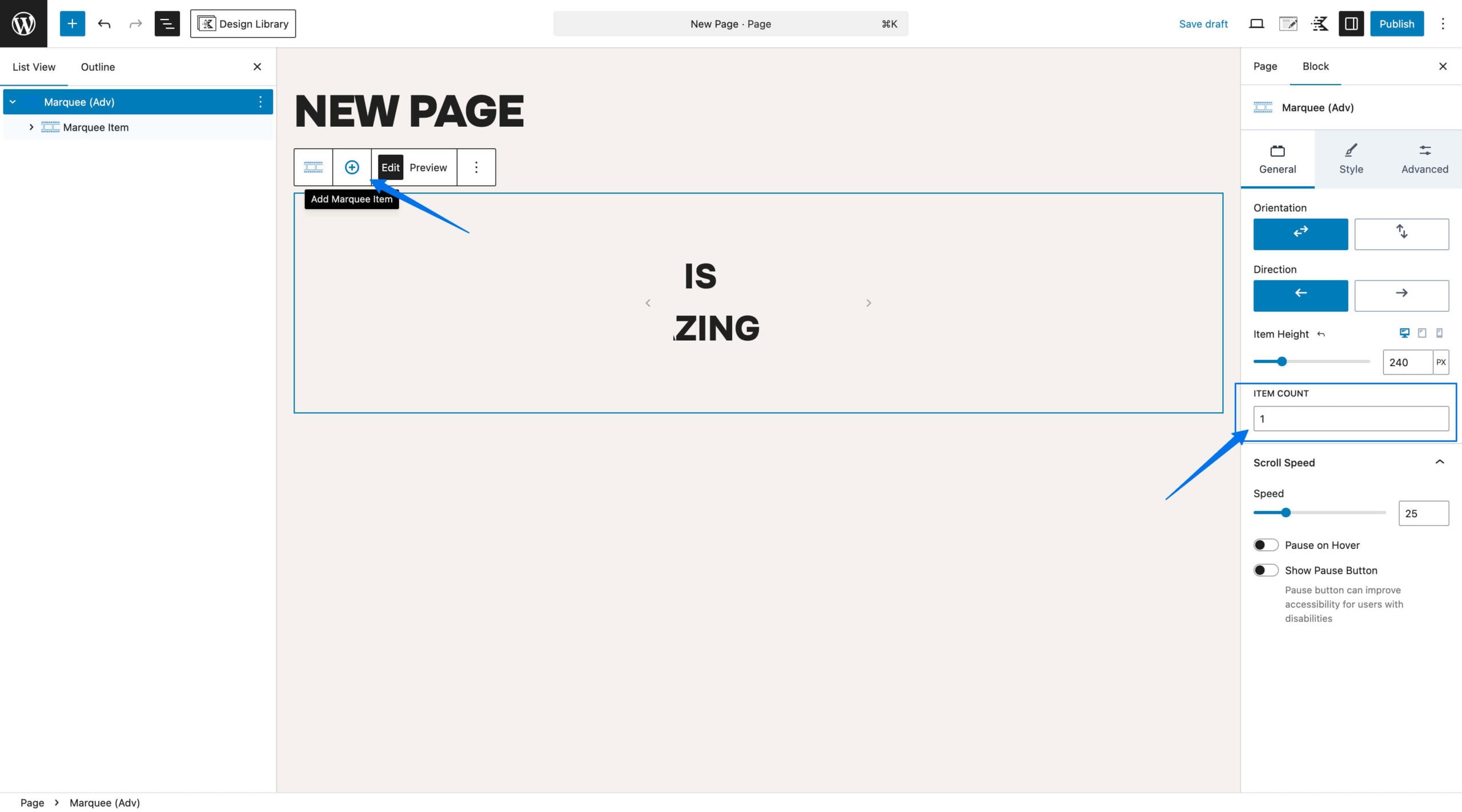
Step 4: Now it’s time to build out your marquee. You can add more items with just a click, either by adjusting the item count in the settings panel or hitting the plus icon in the parent block.
💡 Tip: For the best user experience, keep marquee text short and enable pause on hover so visitors can easily read the content.
Step 5: Adjust and Style Your Marquee
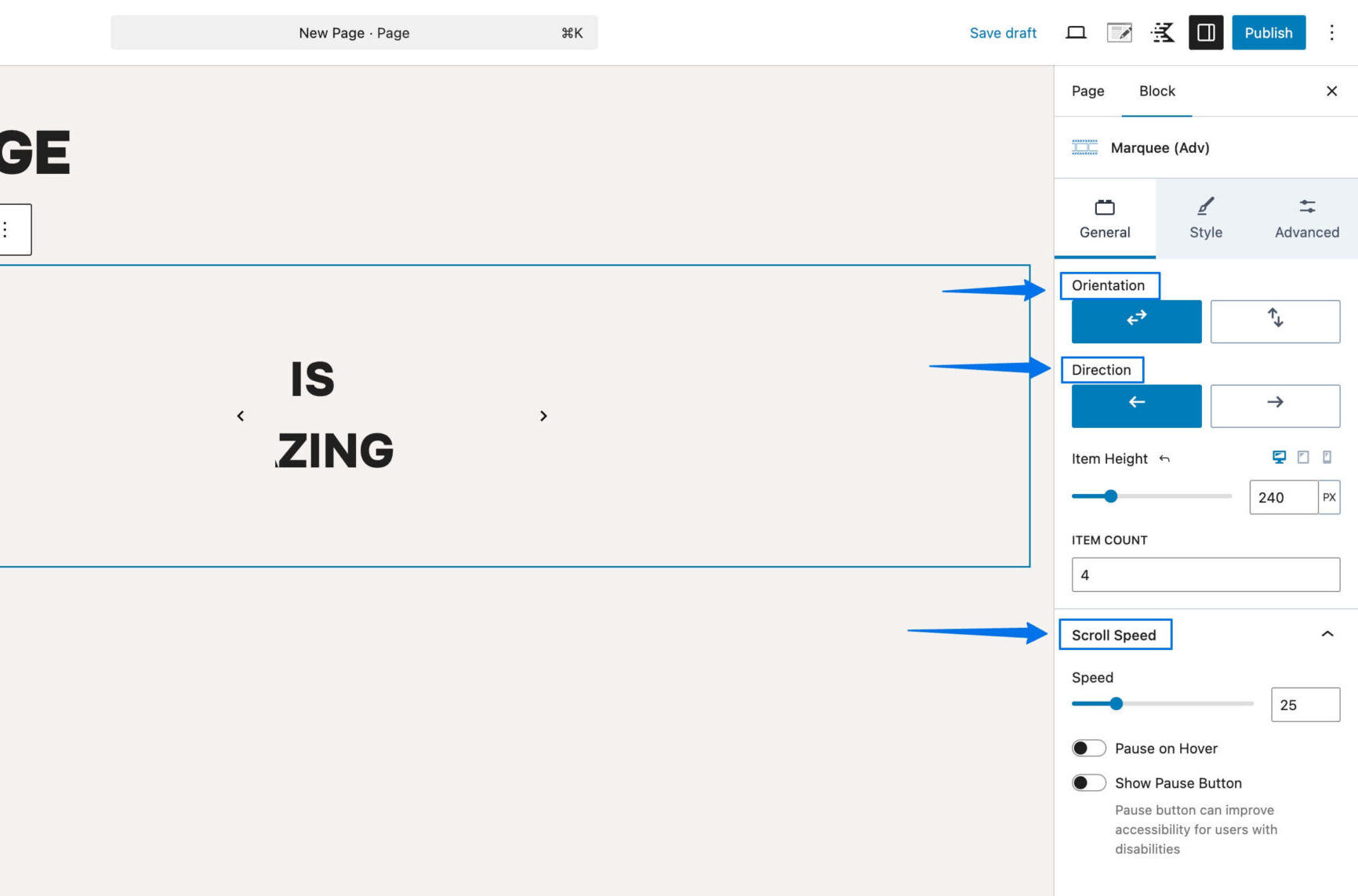
Once your Marquee items are in place, select the parent Marquee block to fine-tune the settings. You can control the orientation, direction, and speed until you get the look you want.
For extra polish, open the Style tab to add finishing touches like:
- Fade Edges – Apply subtle fade masks to create smoother transitions.
- Background Settings – Customize the background behind your marquee to match your site’s design.
- Pause button – Customize the padding, background color and icon color.
These options help you polish the look so your marquee feels like a natural part of your design.
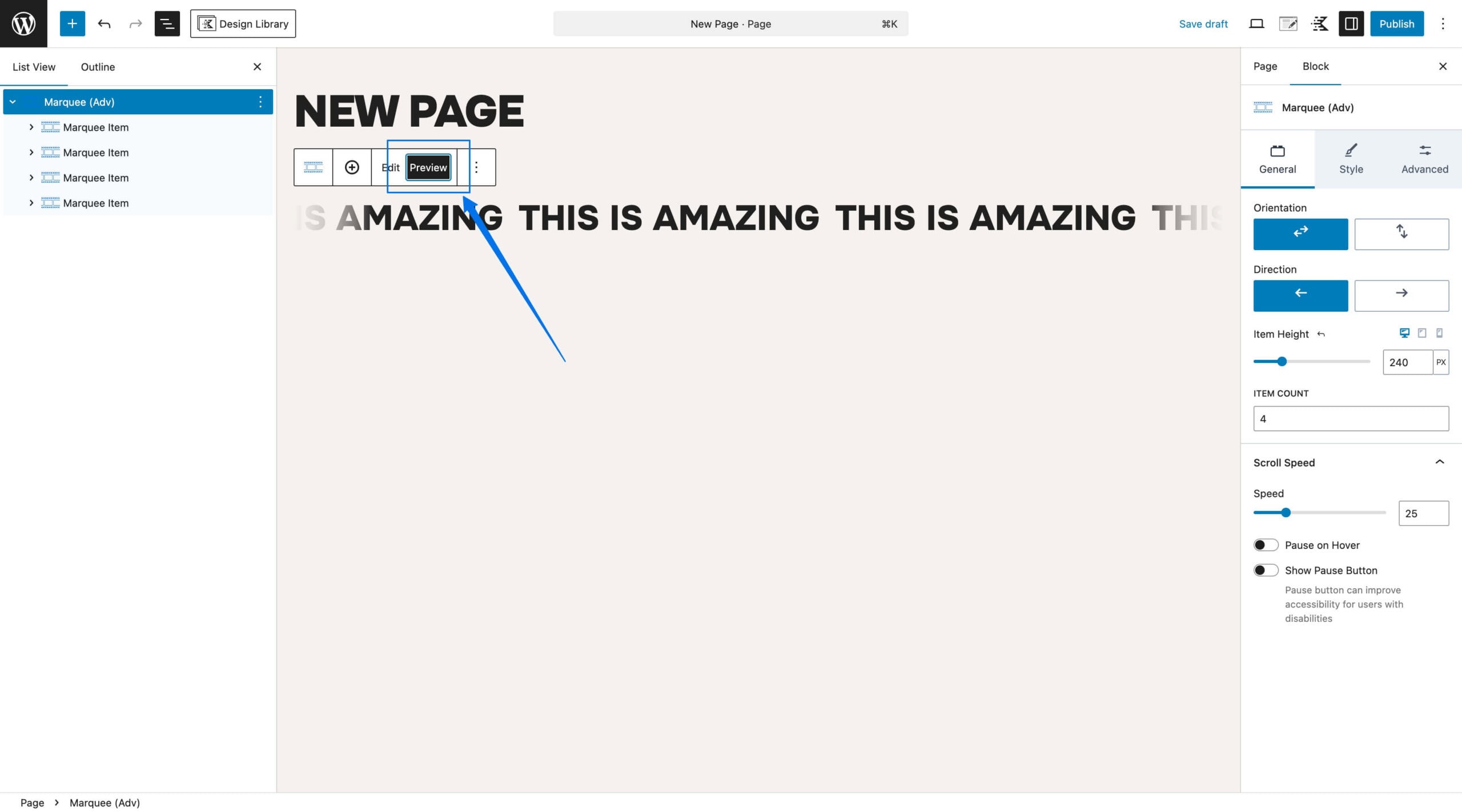
Step 6: When you’re happy with your setup, click the Preview button in the parent block to see your marquee effect in action. This lets you check the speed, direction, and spacing before publishing.
Step 7: Once you’re happy with how your marquee looks in the preview, click Publish in the top-right corner of the editor. Your marquee effect is now live on your WordPress site, ready to capture attention and add movement to your design.
Frequently Asked Questions
Which Kadence plan includes the Marquee block?
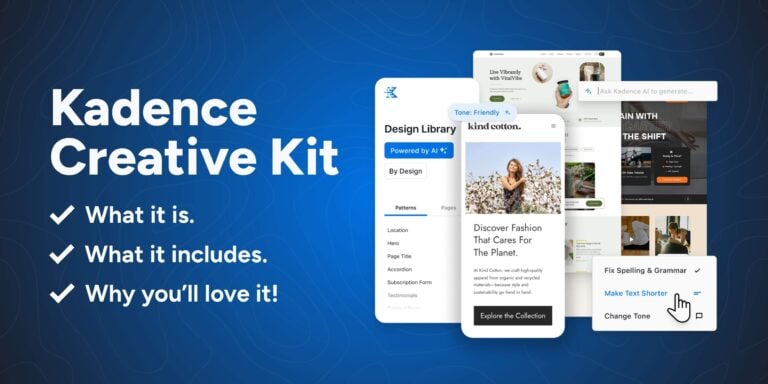
The Marquee block is part of Creative Kit, which comes with the Kadence Express Plan and all higher plans. In addition to that Creative Kit is now included in the Kadence Blocks Pro Plan. If you are on one of these plans, you’ll find it ready in your account.
Do I need the Creative Kit to use the Marquee block?
Yes, the Marquee block is included in Creative Kit. If you’re on the Express Plan (or a higher plan) or Kadence Blocks Pro plan, you’ll already have access. Simply download Creative Kit from your Kadence Account, install it on your WordPress site, and the Marquee block will be ready to use.
Which blocks can be used in the Kadence Marquee block?
The Advanced Text, Icon, and Image blocks can be used inside the Kadence Marquee block. We’re working on adding support for more blocks soon. Keep an eye on this space for updates as new options roll out.
What accessibility settings are available for marquee effects?
The Kadence Marquee block includes options like pause on hover and a pause button, giving visitors control over moving content. These features help make your site more comfortable to browse, especially for users who prefer less animation.
Can I pause or slow down a marquee for better accessibility?
Yes. You can enable pause on hover, which stops the marquee when a visitor hovers over it, making the content easier to read. You can also adjust the speed of the animation directly in the block settings to create a slower, more user-friendly effect.
Can I control the speed and direction of the marquee effect?
Absolutely. The Kadence Marquee block lets you set the scroll direction (left, right, up, or down) and control the speed of the animation. You can fine-tune both settings to match your design style and your audience’s comfort level.
Ready to Try the Marquee Block?
The new Kadence Marquee block makes it easier than ever to add motion and energy to your WordPress site without touching code. Whether you want to showcase logos, highlight promotions, or draw attention to key messages, you can do it all in a way that’s fast, accessible, and fully customizable.
👉 Get a Kadence Plan today to unlock the Marquee block and all the Creative Kit advanced design tools, everything you need to bring your designs to life right away.
Create Your Website With KadenceWP Today!
4 responses to “Create a Marquee Effect in WordPress with the New Kadence Marquee Block”
-
-
Thanks so much for the kind words, we’re thrilled you’re finding the new Marquee Block useful! 💙
There’s actually a bigger plan behind how this block fits into the Creative Kit. The Creative Kit is designed as a creative suite of tools — a collection of features that help creators design with more freedom and flair. By keeping the Marquee Block within the Creative Kit, it can be used in any starter template without requiring Kadence Blocks Pro, and it fits perfectly into our vision for the Creative Kit as a full creative toolkit included with the Express Plan and above.
-
-
As a request it would be nice when launching such features in the future, to also release some accompanying patterns in the design library. This feature is highly appreciated though, and will be used in my clients projects.
-
Our pleasure! We’re so happy to hear you’re loving this new feature. We’ve got a fresh batch of patterns in the works and can’t wait to share them with you in the next couple of weeks — keep an eye out!
-


By Nicola Tweed
Nicola is the newest member of the Kadence marketing team, stepping in with more than 10 years of hands-on web design experience. She knows exactly what it takes to create beautiful, user-friendly websites that connect with people and get real results.
Updated October 24, 2025
Create Your Website With Kadence

Really nice block — super useful for adding a scrolling (‘marquee’) effect without any coding. It’s a bit of a shame that you need to install the separate Creative Kit plugin to use it. This block really feels like something that should be included in Kadence Blocks Pro or at least in the main Kadence package instead of requiring an extra add-on