How to Open WooCommerce External Products in a New Tab
By default, there are no options in WooCommerce to open affiliate or external product links in another tab. This is one of the most frequently asked for features with those using WooCommerce for affiliate stores.
We built some rad features into our Kadence Woo Extras plugin that allows for the “Add to cart” or action button to open in a new tab. We also added support to make the product image in an archive open to the affiliate link. Getting it set up is simple!
First, be sure you have the latest version of Kadence WooExtras installed on your site. Once installed, navigate to WooExtras >> Affiliate Product Options and enable the output:
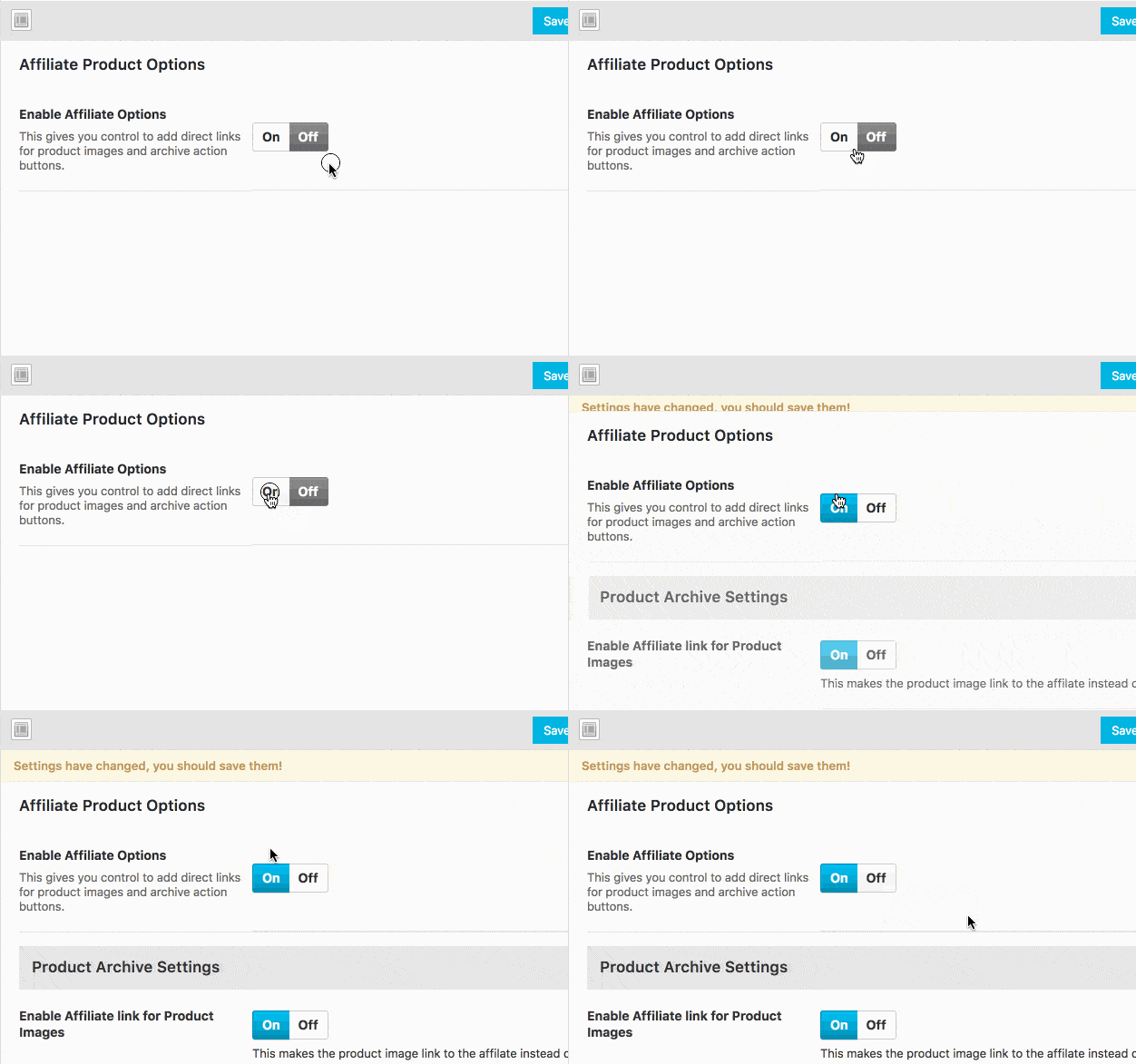
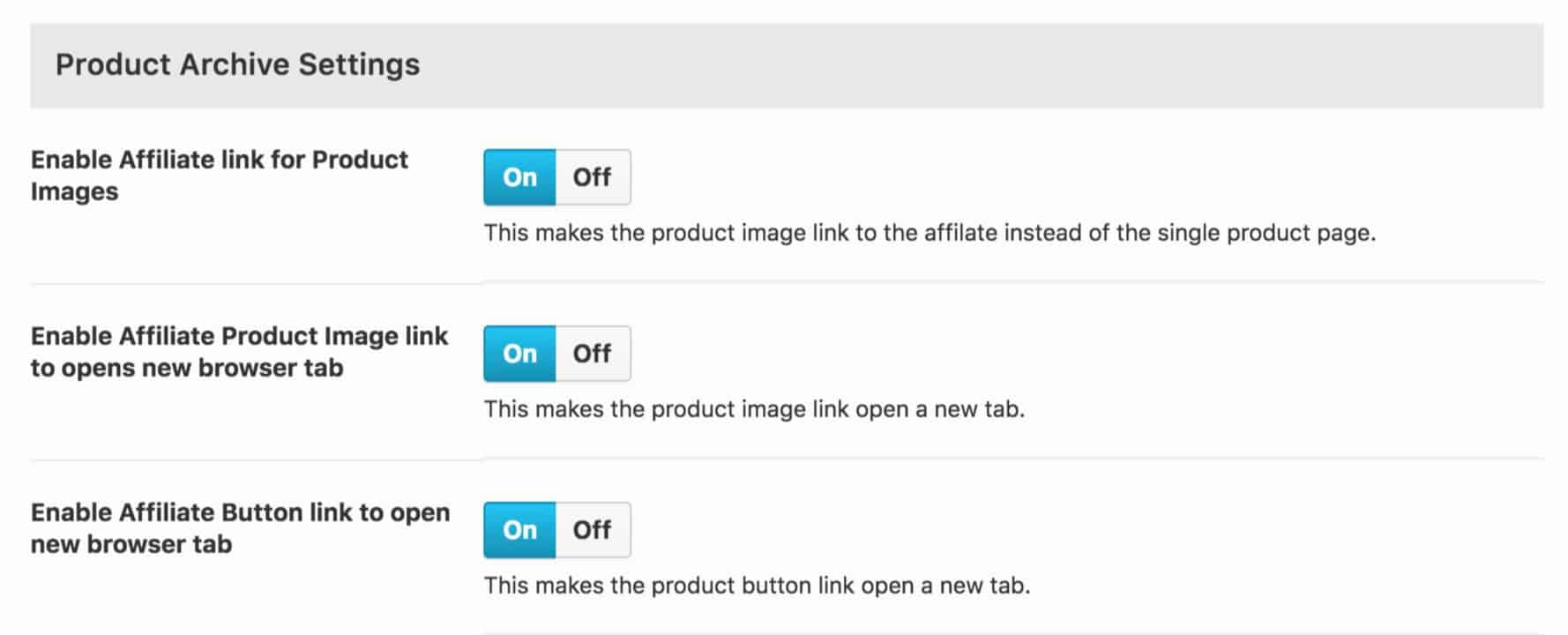
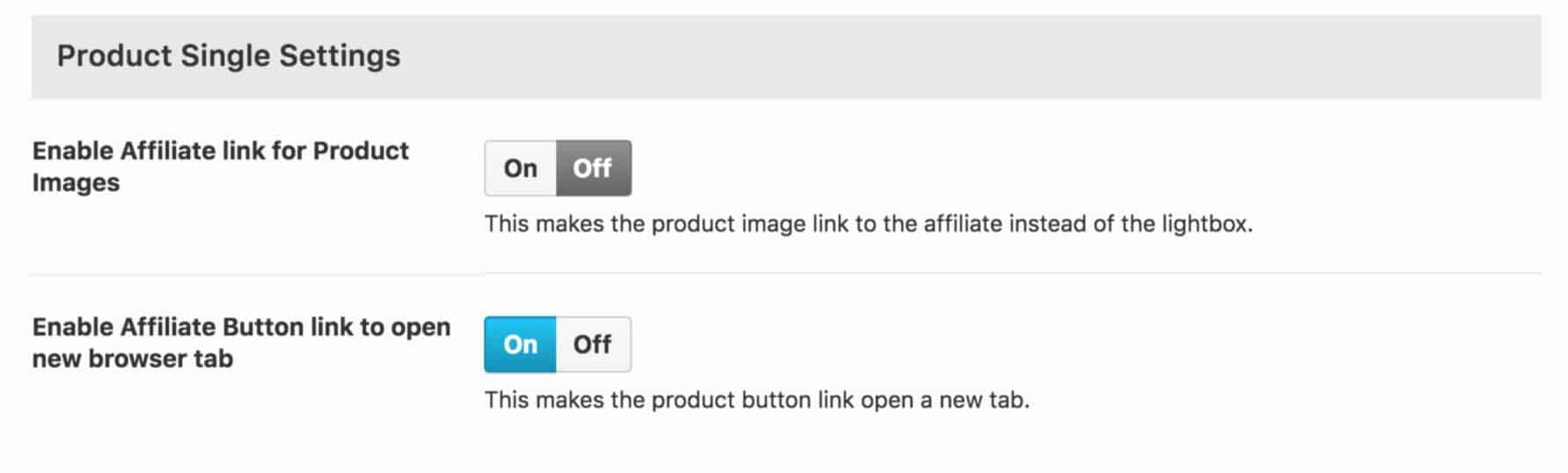
Once you’ve enabled the affiliate options in the WooExtras Settings, turn on the features you’d like to use.
Product Archive Settings appear as follows:
Single Product Options:
Once you’re happy with your affiliate product settings, configure your affiliate/external products.
To configure an external/affiliate product, set the product data and add the product URL. You can also change the “Buy Product” button text to whatever you like:
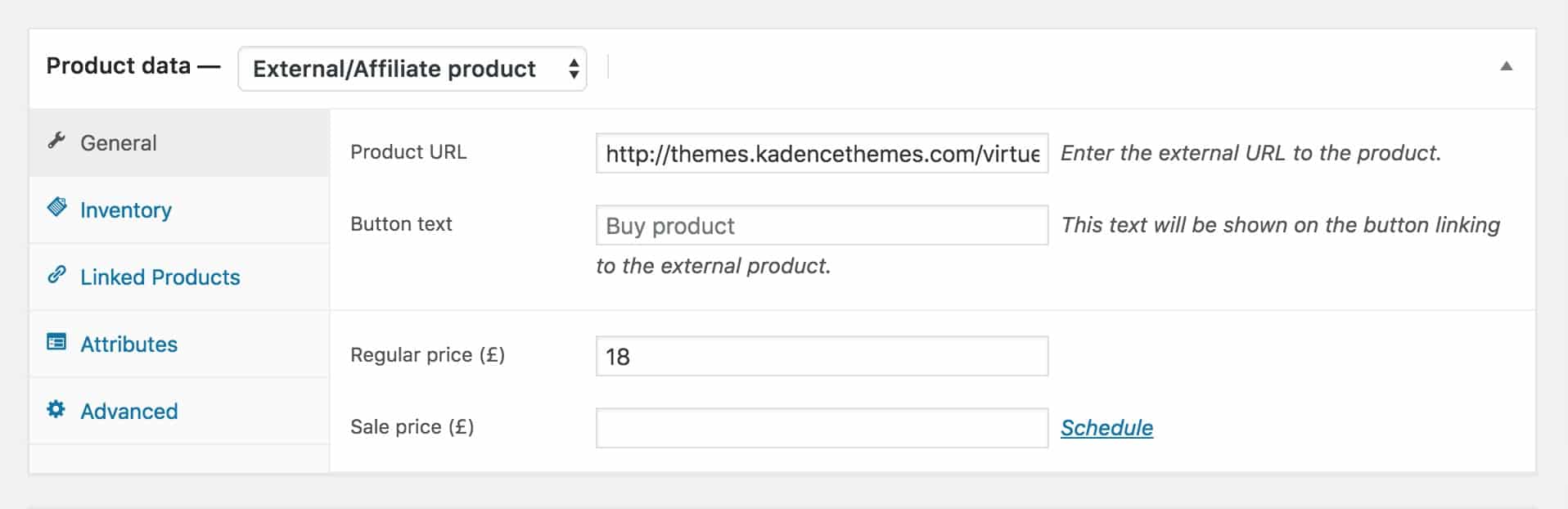
Set the up the information for the product as you would for any other product. Publish the product, and test that your link opens as desired.
Create Your Website With KadenceWP Today!


By Kevin
Support staff for Kadence Themes. I’m here to help!
Updated July 22, 2024
Create Your Website With Kadence