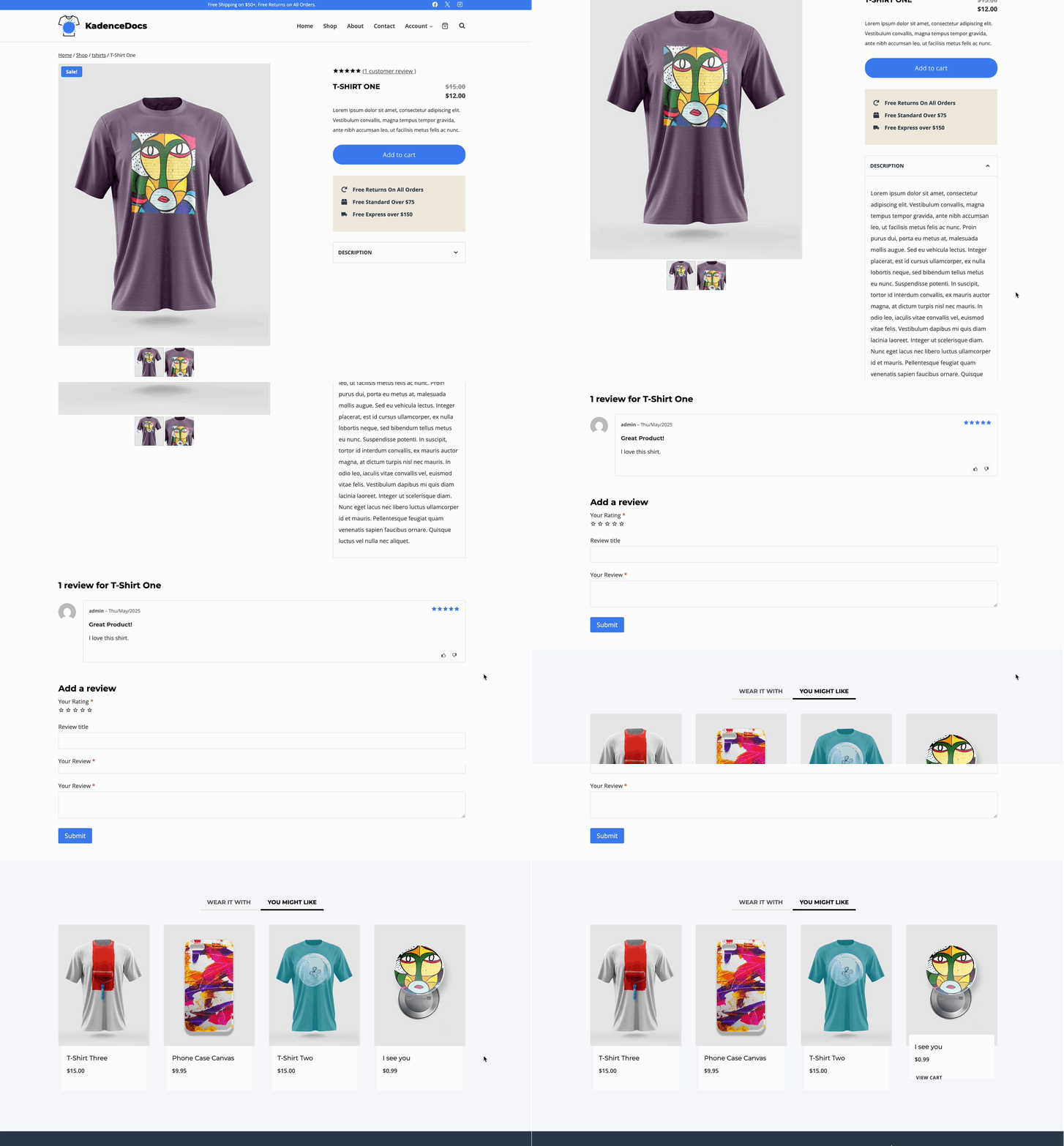
The Kadence Shop Kit plugin features the Single Product Woo Template, allowing you to dynamically control and customize WooCommerce Product Pages. Choose from a variety of customizable Woo Template Blocks to display and style multiple elements of the single product page. This includes the product title, gallery, price, add to cart button, and more.
This document will go over the process of building and using a Single Product Woo Template. Click here to learn about the four Woo Template types.
Creating a Single Product Woo Template
In order to create a Single Product Woo Template, you must install, activate, and license the Kadence Shop Kit plugin. (Click here to learn more.) Once the Shop Kit plugin is activated on the website, navigate to the Dashboard -> Shop Kit page and go to the Product Templates tab.
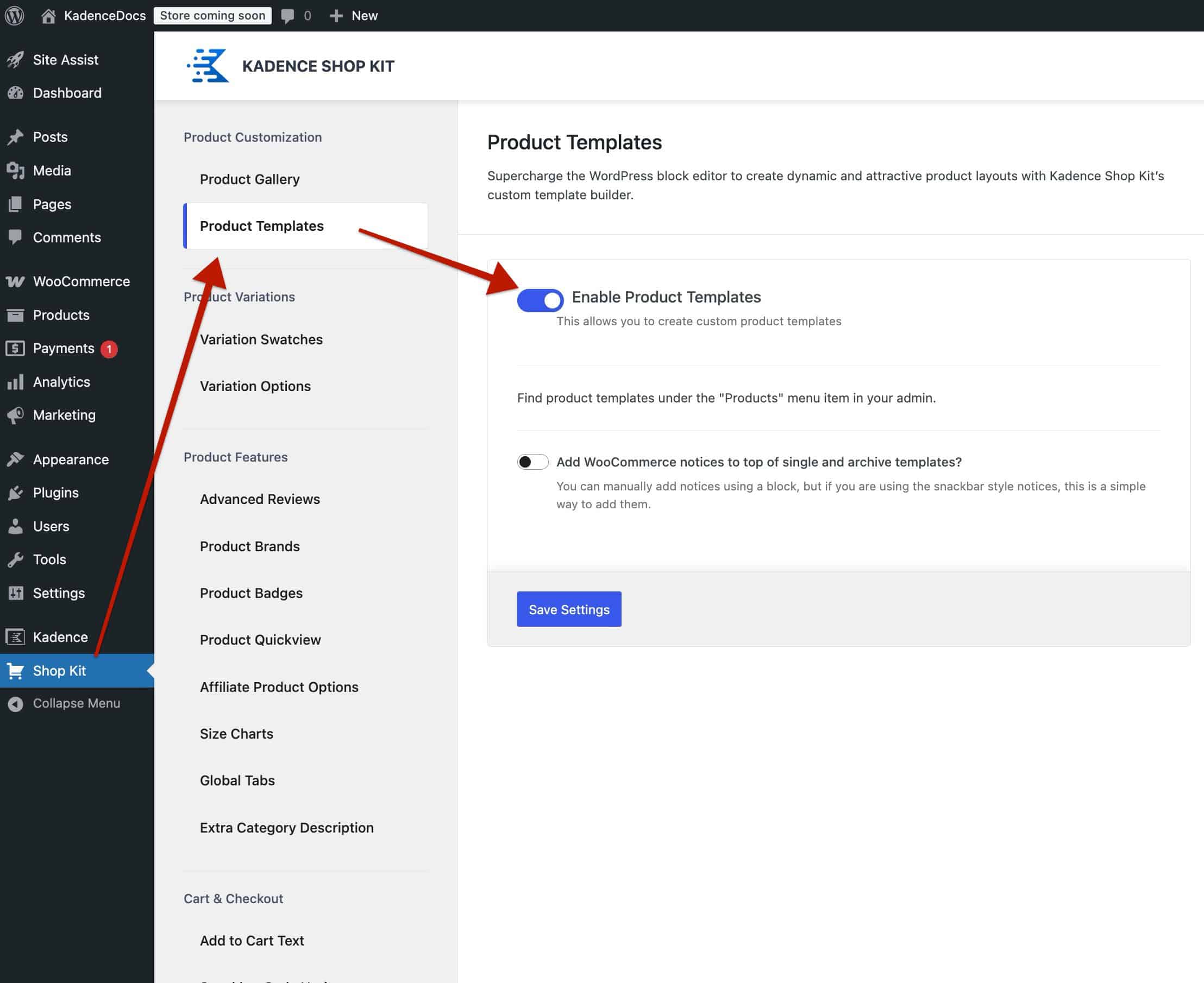
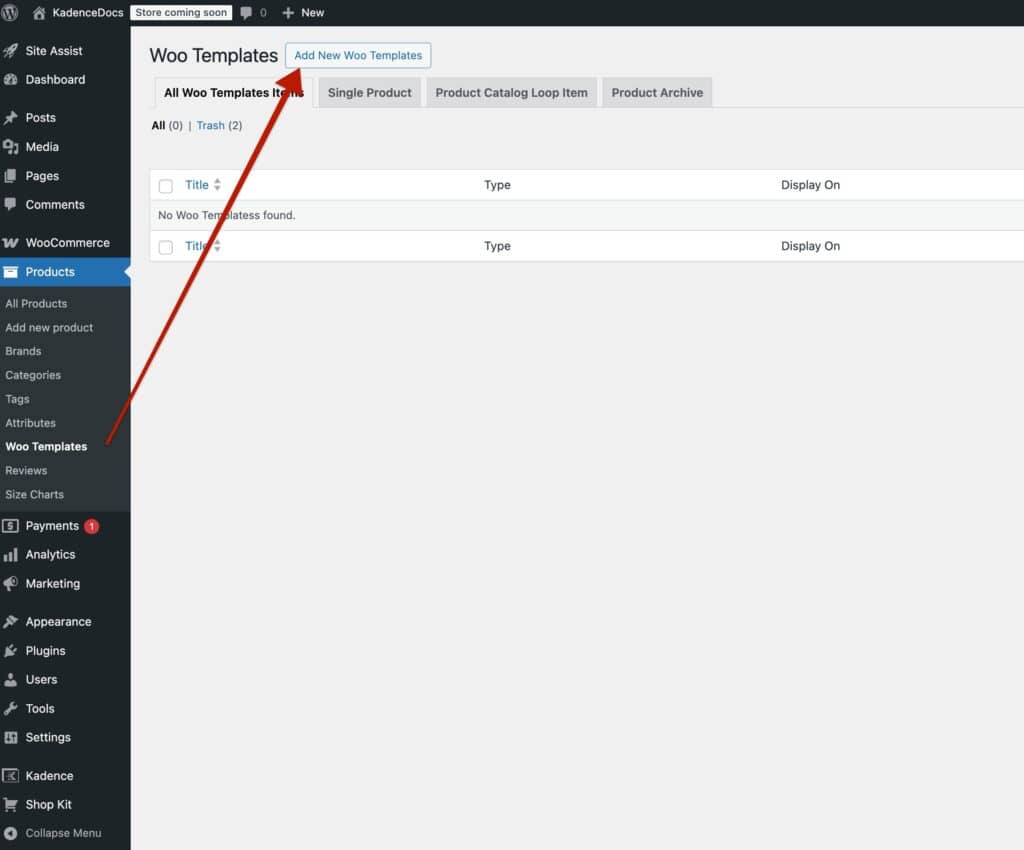
Enable Product Templates and save the changes. Afterward, refresh the page. Then, navigate to the Dashboard -> Products -> Woo Templates page. At the top of the Woo Templates page, click on the Add New Woo Templates button.
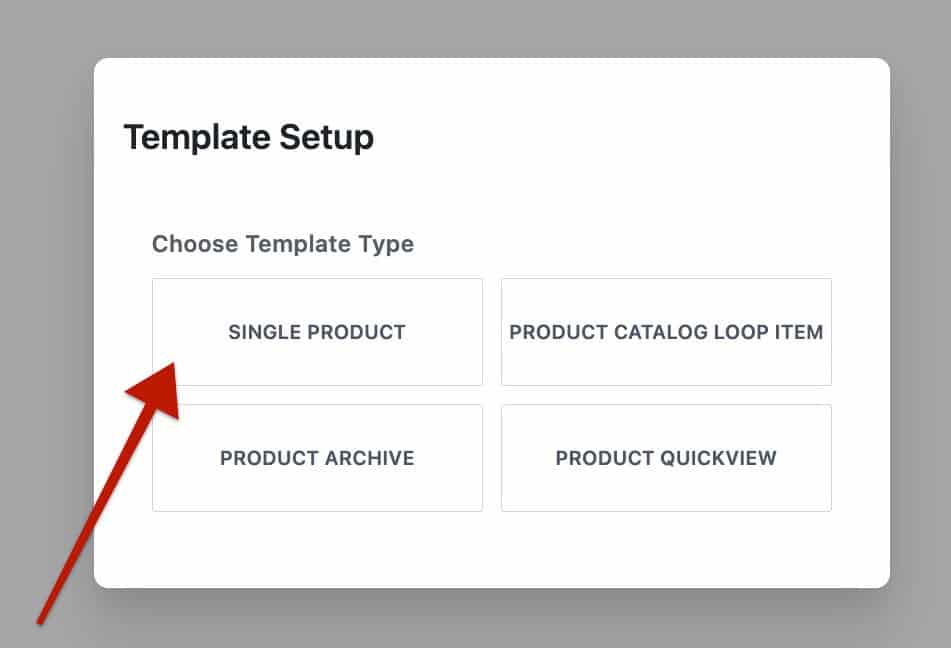
This will open a new Woo Template Post with the option to select the template type. Select the Single Product option to get started.
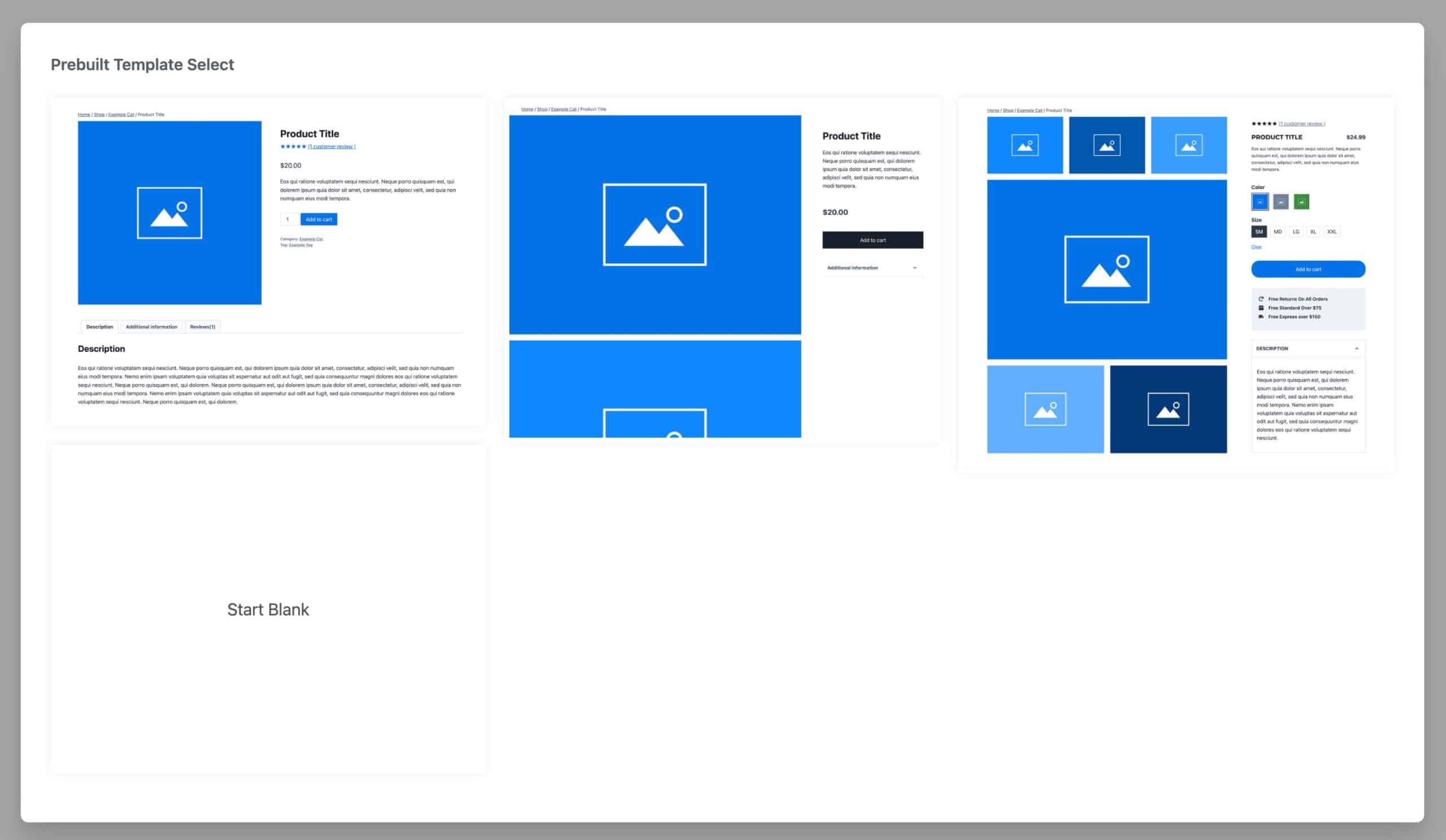
Once you have selected the template type, you will have the option to select a prebuilt template. The prebuilt templates include preconfigured Woo Template blocks and can help simplify the task of designing the entire product page. There are three main prebuilt templates available. You can also start from a blank state if preferred.
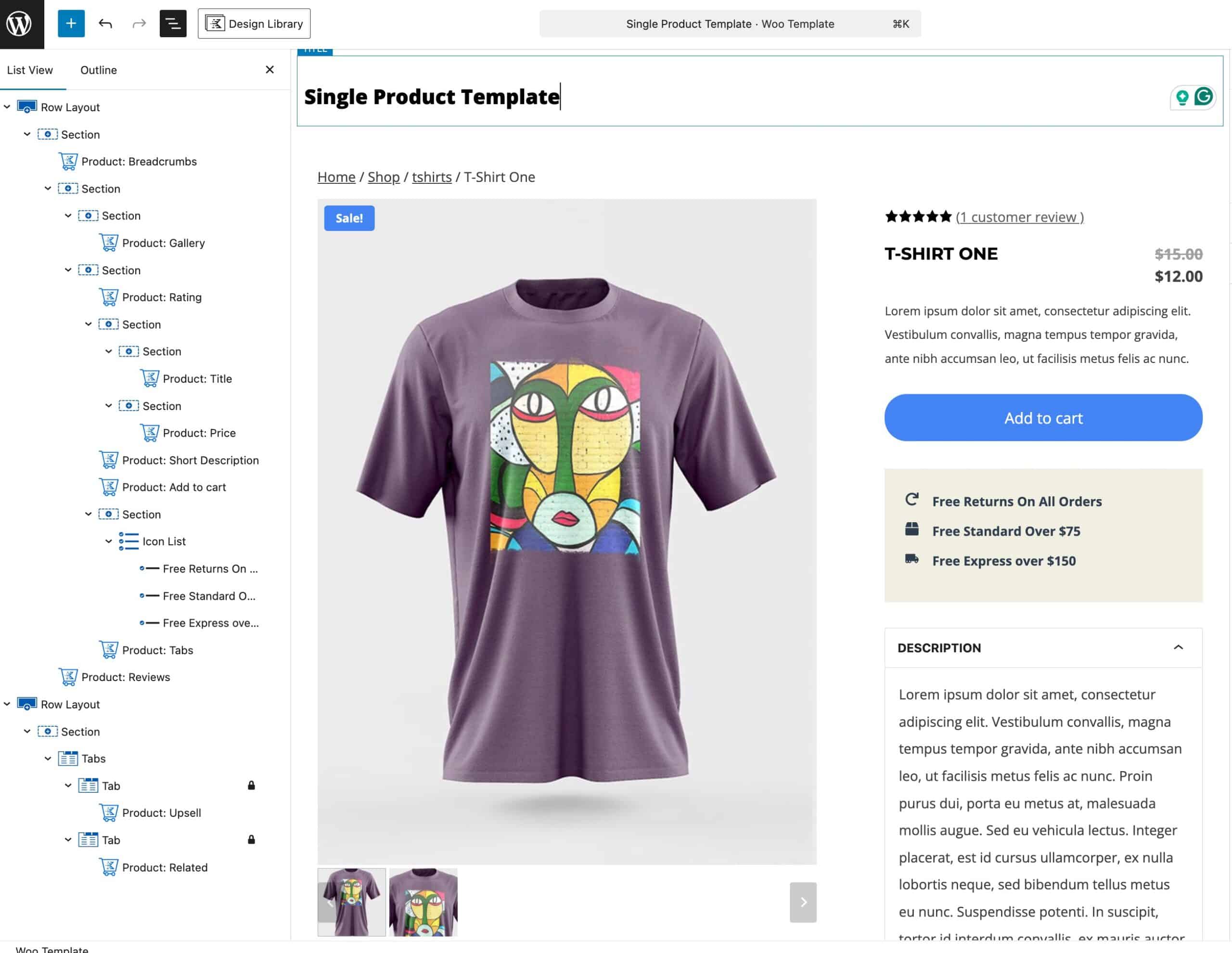
There are various Woo Template Blocks that can be used within the Single Product Page. Some common Woo Template Blocks that can help you get started include the following:
There are many more Woo Template Blocks that can also be used in Single Product Templates. For a complete list and overview of each available Woo Template Block, click here.
Start by designing the layout and styling of your Single Product Page using core and Kadence Blocks. Then, use Woo Template Blocks to display product information dynamically. Next, use the Block Settings for each block to adjust the look and behavior to your liking.
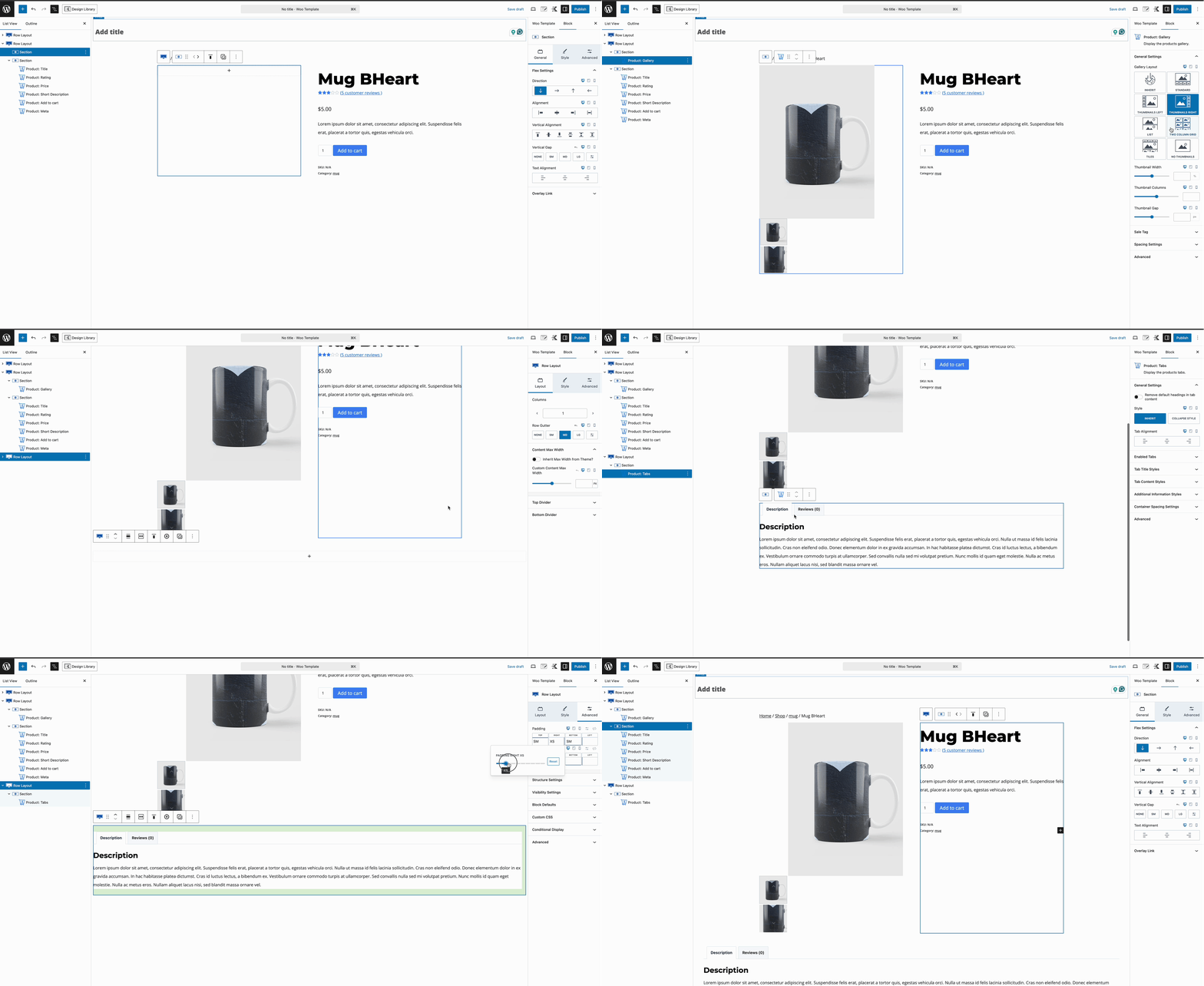
Once the Single Product Page is designed and working the way you would like, use the Woo Template Settings to control which products the template will apply to.
Woo Template Settings
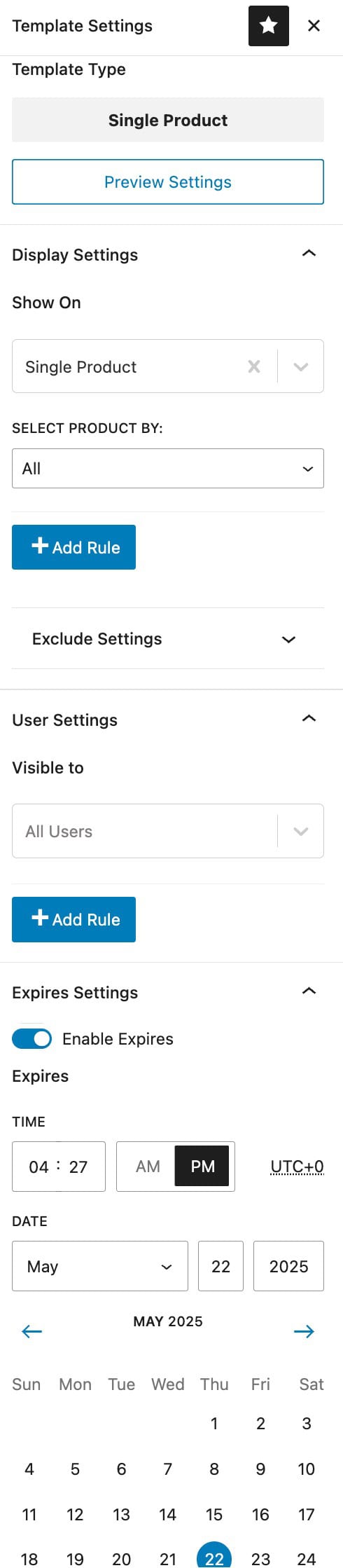
Use the Woo Template Settings to control where the current Woo Template will override and who will see it. Click on the pencil/paper icon in the top right of the editor.
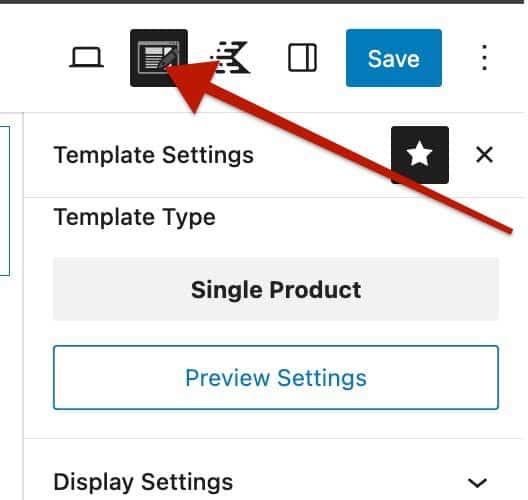
Template Type: Define the template type. This document overviews the Single Product Woo Template. However, there are other Woo Template types available as well.
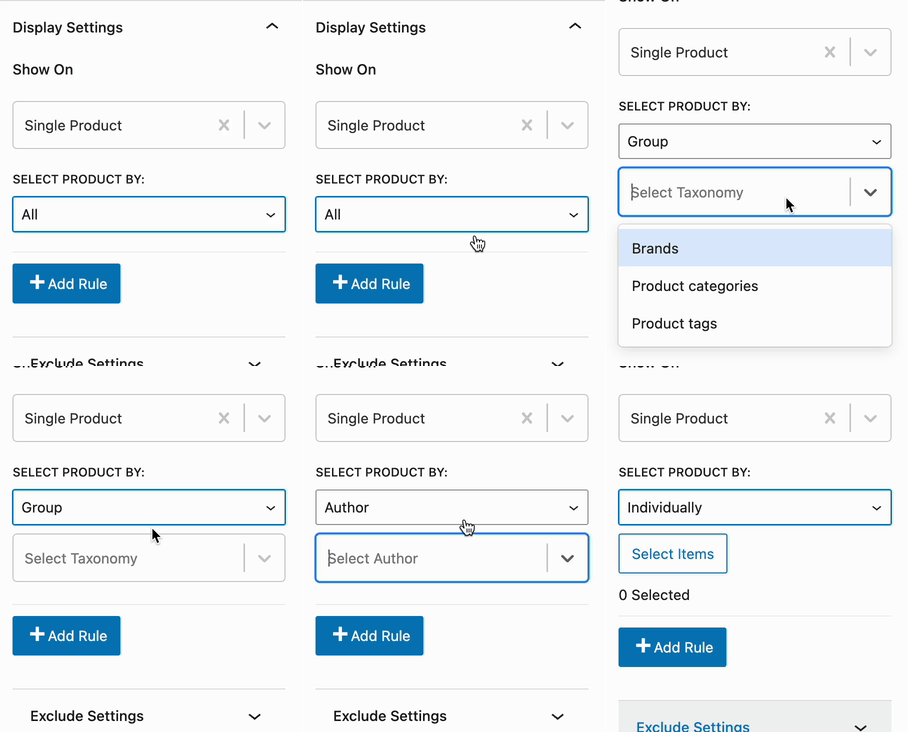
Display Settings -> Show On: Use the Display Settings to determine where the Single Product Woo Template will take effect. Use the Add Rule button to include additional options.
- Select Product By: This setting allows you to further specify which Single Products the template will apply to. Options include: By Group (Taxonomy), By Author, or by an Individual selection. Each option will allow you to further specify the products shown. (See the GIF below)
User Settings -> Visible To: Determine which user roles will be able to see the Woo Template in effect.
- Options include: All Users (Default), Logged Out Users, Logged In Users, or based on the website Role. Use the Add Rule button to add more visibility options.
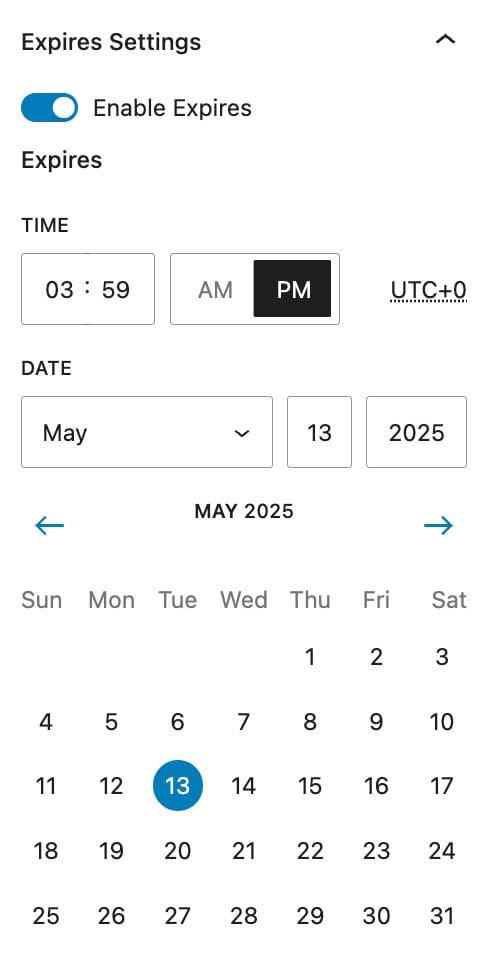
Expires Settings: Enable this option to add an expiration to the Woo Template. Once the expiration is met, the Woo Template will no longer take effect.