
Here are some common questions related to Starter Templates and some Troubleshooting Steps you can follow when experiencing an issue with our Starter Templates.
FAQs
The Starter Template Plugin can be removed once you import your template. However, you should be aware of the two additional features this plugin provides in addition to the Starter Template Importer feature.
The Starter Template Plugin also adds the following:
- Adds Social Media URLs to the User Profile – These Social Media URLs are applied to the Author Box on the front-end. If you remove the Starter Templates Plugin, you can no longer add these Social Media URLs to user profiles.
- Adds the Customizer Import/Export Settings – This feature would no longer be available if you remove the Starter Templates Plugin.
Whenever you Fully Import a Starter Template, you will usually import the following:
-The Importer will import Posts/Pages with their respective contents, such as Images. (Shop Starter Templates will also import Sample Products, and Events Templates will also import Sample Events, etc)
-The Importer will also install plugins selected in the Starter Template Plugin Importer setup.
-The Importer also imports Header/Footer Widgets.
-You have options during importation to exclude things, such as the Widgets, Customizer Settings, or select Individual Pages. You can view our Pre-Designed Templates Overview Here. You can also view our AI-Powered Templates Overview Here.
You can repurpose our Starter Templates as needed. You can fully customize everything that a Starter Template Imports to use your preferred Layout, Text, and Style. Many users pick Starter Templates based on their design and then repurpose them for their business/goals.
All of our Premium Starter Templates require you to have either, both the Kadence Blocks Pro and Kadence Theme Kit Pro plugins enabled, or the Creative Kit plugin (Available in the Express Plan) to import. You should install, activate, and license the plugins accordingly. Then, you will gain access to our Premium Starter Template & Design Library Items.
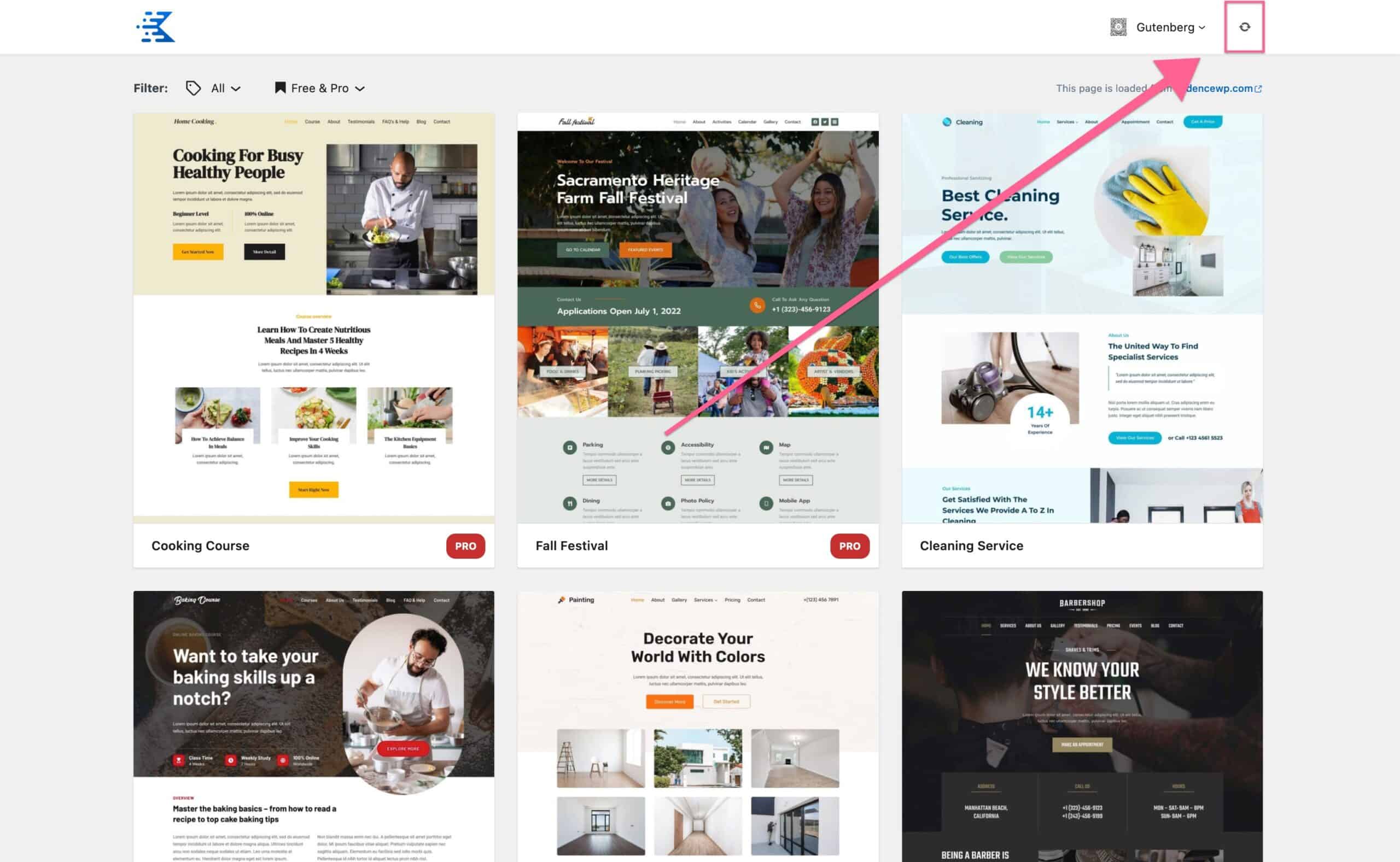
If your Premium Starter Templates still don’t allow you to import them, you should try refreshing the Kadence Cloud.
The Kadence Full Plan provides access to the Kadence Child Theme Builder plugin. This plugin allows you to Package a Child Theme and import it similarly to how our Classic Starter Templates are imported.
A Starter Template is a ready-made site design that you can import into your existing WordPress setup with just a few clicks. It typically includes pre-built pages, layouts, and styles to help you quickly launch a site without starting from scratch.
A child theme, on the other hand, is a framework built on top of a parent theme (like Kadence) that allows developers to safely add customized functions, PHP templates, or CSS. Some child theme developers also include access to pre-built page templates and/or block libraries that you can use to build your site.
Troubleshooting Starter Templates
If you have issues with importing a Starter Template, you can complete the Troubleshooting Steps below.
If you are using Hostinger as a hosting provider and are having issues importing Starter Templates, click here to view our guide on resolving Hostinger import issues.
Resync the Cloud
You may need to resync the cloud if you have issues importing templates or if the styles look broken. This can be done on the Dashboard → Kadence → Starter Templates page. At the top right of the screen, click on the Refresh Icon to resync the cloud.
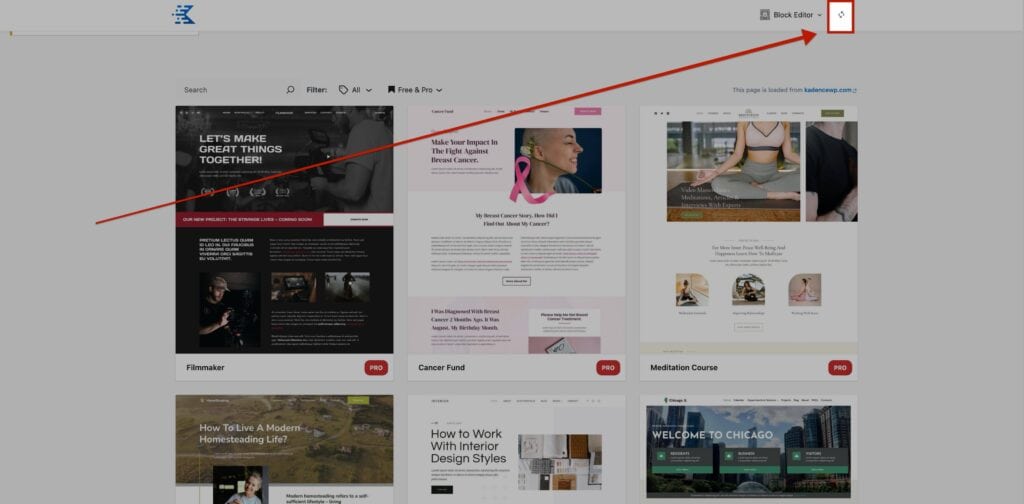
This method can also help resolve issues related to importing Premium Kadence templates.
Initial Troubleshooting steps
Kadence offers an extensive guide on troubleshooting your WordPress website. When facing a Kadence issue, you should complete all the steps in this Initial Troubleshooting Guide. Completing these troubleshooting steps is important, as they cover many possible scenarios where an error can be encountered.
Checking Error Logs
You should also check for Console Logged Errors. Console errors can provide more insight into your issue.
Additionally, you should check your WordPress Error Logs. Some Hosting Providers offer a built-in way to view the WordPress Error Logs. If yours doesn’t, you can enable the Error Log by following a guide like this one.
Server Resources
You should ensure your site meets the minimum recommended server resources for WordPress. You can either modify these manually or contact your Hosting provider to ensure these requirements are met. See our Recommended Server Resources help document for more information.
| Server Setting | Value |
| PHP Memory Limit | 512MB |
| Max Post Size | 50MB |
| WP Memory Limit | 256/512MB |
| Max Upload Size | 50MB |
| Max Input Vars | 2500 |
| Max Execution Time | around 300 |
Ensure your server allows CURL calls.
To fully import content from Kadence, you should allow external cURL calls on your website. This can be done by enabling the cURL extension. If you are unfamiliar with enabling the cURL extension, you can confirm this with your hosting provider.
Ensure XMLReader PHP extension is enabled
This is necessary and standard for all servers running WordPress. This is especially important for theme and demo content imports because it provides a fast, low-memory way to read and parse large XML files.
If you have access to cPanel, search for Select PHP Version or PHP Extensions, and enable xmlreader. If you don’t see the option, contact your hosting provider for assistance.
Firewall Settings
You should check your Firewall Settings and ensure your server isn’t blocking anything from Kadence. If you aren’t familiar with modifying your Firewall Settings, you can contact your Hosting Provider to see if your Firewall is blocking Kadence.
Disable “Delete Previously Imported Posts and Images?“
Sometimes, server limitations or timeouts can prevent all media files and settings from being imported successfully in one attempt. To work around this, you can try importing the starter template in smaller batches. This process helps ensure that all files are eventually imported, even if your server cannot handle the full import at once.
- Import the starter template you want to use.
- Check your Media Library to confirm whether the media files are being added.
- If the media files are being imported, try importing the same starter template again but this time do not enable the option “Delete Previously Imported Posts and Images?”.
- Repeat the import process a couple of times. This method can help gradually import all media files, pages, and settings if your server is unable to process the full import in one go.

