Creating a Blog Demo Style Page with Pinnacle
[blockquote align=”center”]UPDATE: We have a plugin called the Kadence Importer. You can now install the plugin, choose the blog demo and install all that content in one click. Check it out here: Kadence Importer
[/blockquote]
[space size=”30px”]
Getting Started:
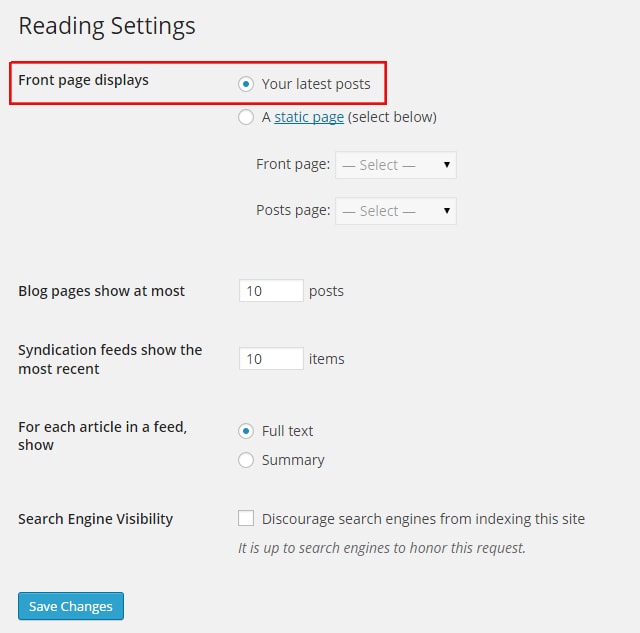
- Go to Settings > Reading.
- Set the Front page display to Your latest posts.
- Save changes.
Layout:
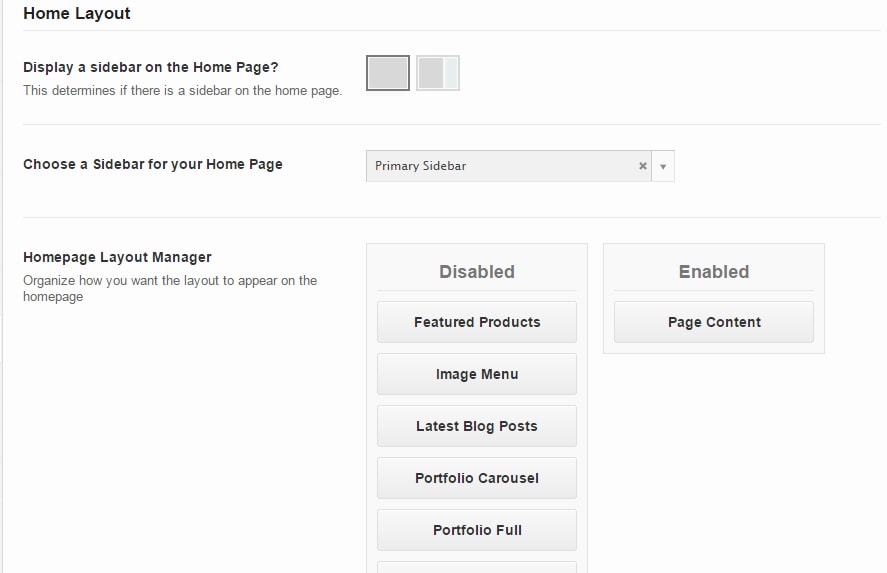
- Go to Theme Options > Home Layout.
- Choose full screen option beside “Display a sidebar on the Home Page?”
- Enable Page Content in the Homepage Layout Manager.
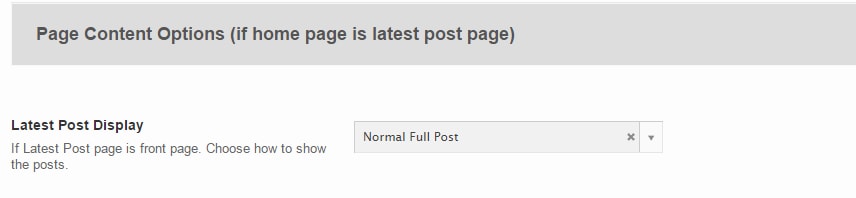
- Scroll down to Latest Post Display.
- Set to Normal Full Post
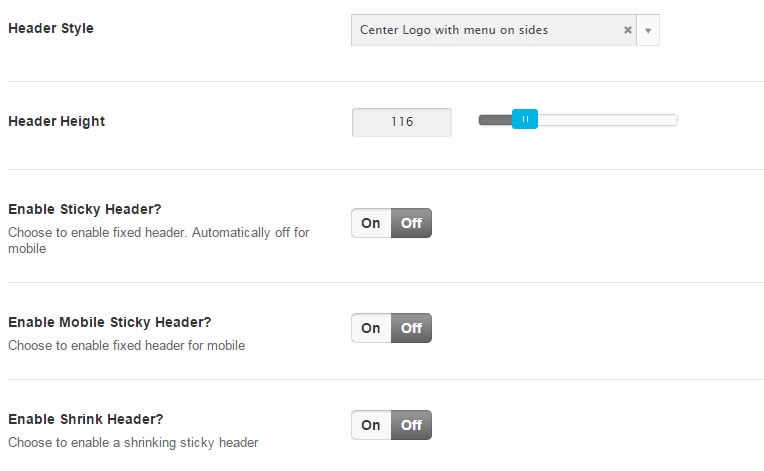
- In Theme Options > Site Header choose Center logo with menus on sides.
- Set desired height for your header.
- Leave other options off.
Topbar Settings:
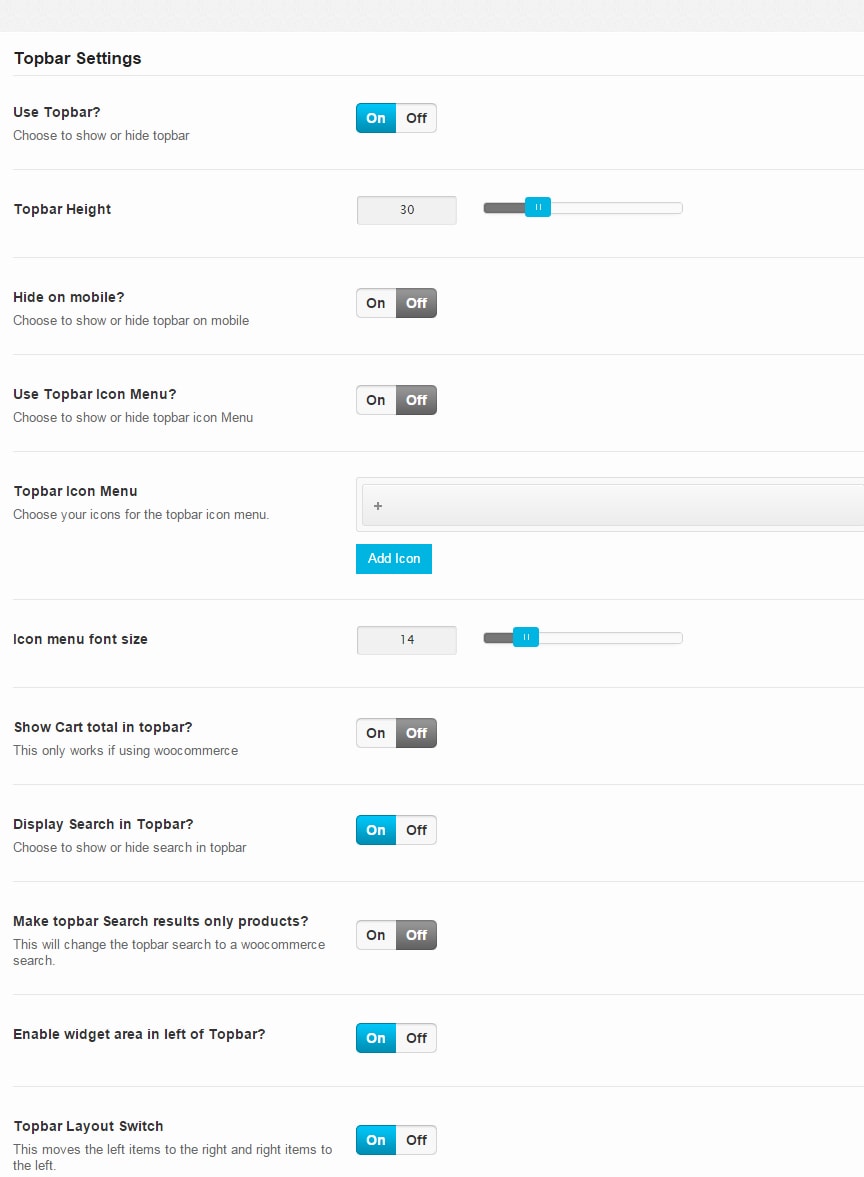
- In Theme Options > Tobar Settings turn the topbar on.
- Set desired height for your topbar.
- Choose to show or hide topbar in mobile view.
- Leave topbar icon menu off.
- Leave cart tool off.
- Turn search on.
- Choose whether or not to make topbar search woocommerce only.
- Turn topbar widget area on.
- Turn topbar layout switch on.
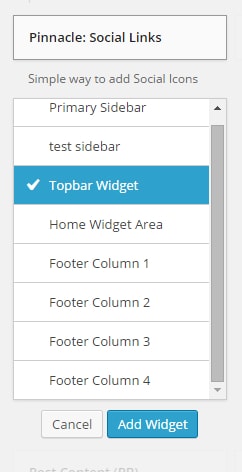
- Go to Appearance > widgets and add Pinnacle: Social Links to your Topbar Widget.
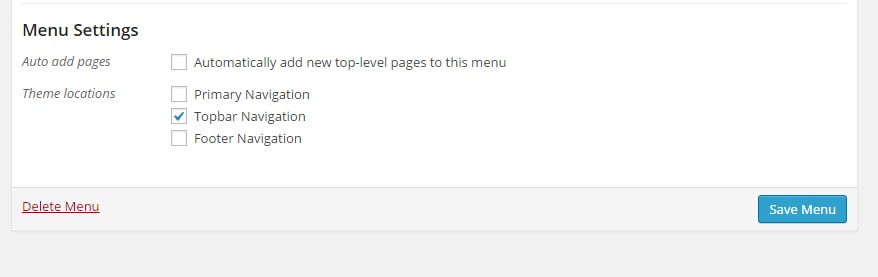
- In Appearance > menus create a menu and set it to Topbar Navigation under Menu Settings.
Slider Settings:
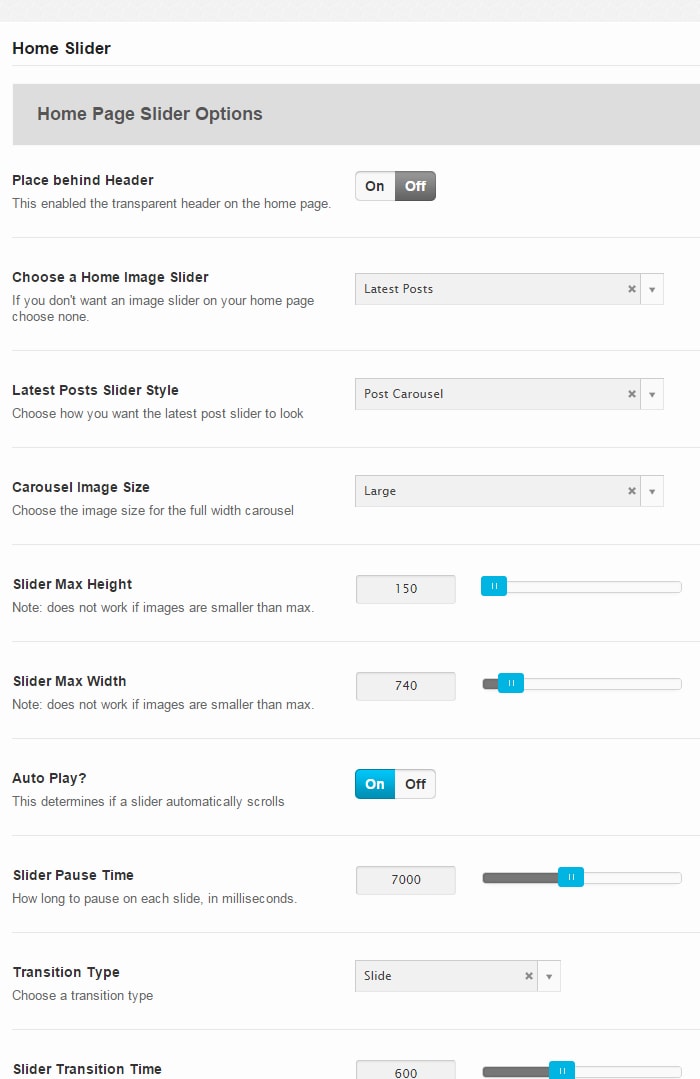
- Leave the place behind header option turned off.
- Select Latest Posts as your home image slider.
- Select Post Carousel as the latest posts slider style.
- Select Large for the carousel image size.
- Set desired heights and widths.
- Set auto play option to on.
- Set desired pause time.
- Set transition type to Slide.
- Set slider transition time.
Blog Post Settings:
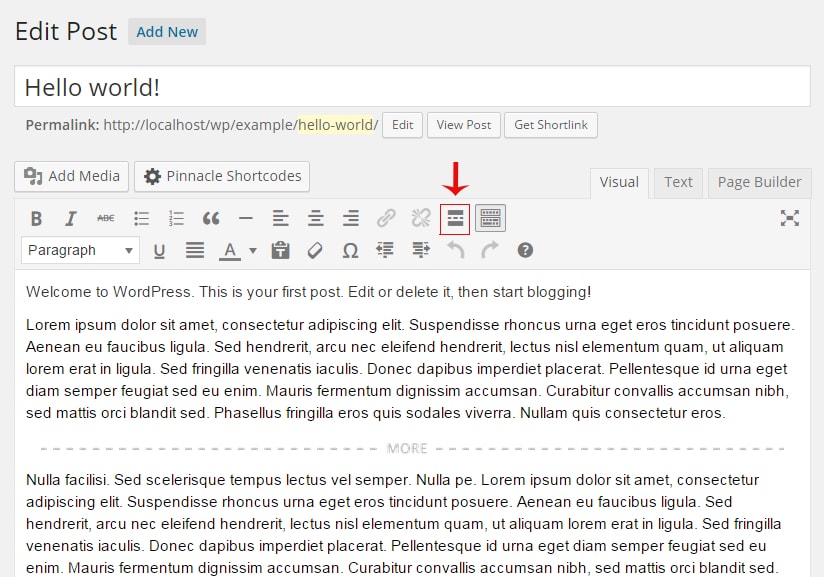
- In your edit post pages add a “Read More” tag to the place you want your summary to end.
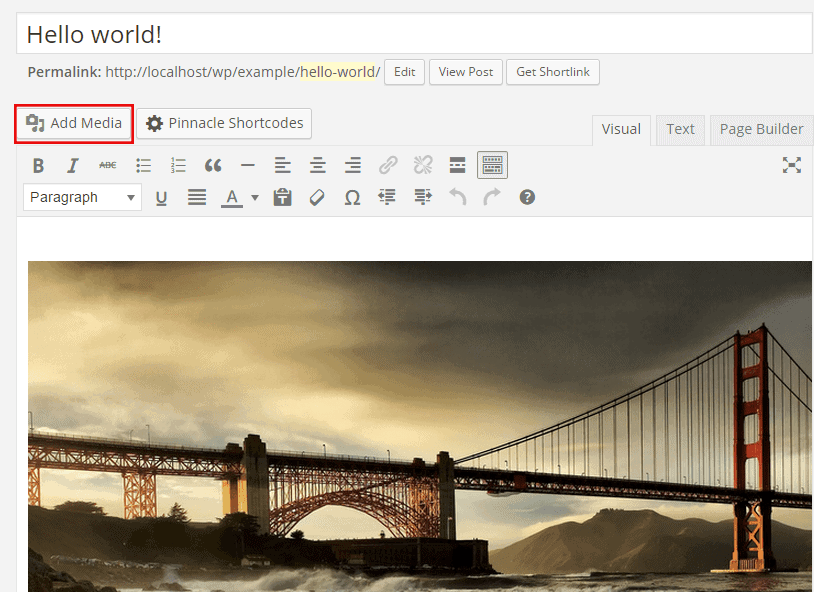
- To add image/images to your blog click Add Media.
- Upload an image, a gallery, a slider, etc.
Create Your Website With KadenceWP Today!

Written by Hannah
Hannah Ritner is the product expert at KadenceWP. With over 10 years at Kadence, she’s worn many hats, but her main drive has always been helping customers reach their goals. Hannah loves empowering people and has been a key player in building the Kadence Community. She’s all about making a real impact for businesses and their customers.
By Hannah
Hannah Ritner is the product expert at KadenceWP. With over 10 years at Kadence, she’s worn many hats, but her main drive has always been helping customers reach their goals. Hannah loves empowering people and has been a key player in building the Kadence Community. She’s all about making a real impact for businesses and their customers.
Updated July 22, 2024
Create Your Website With Kadence