
Creating a Portfolio Page
Step One: Create Portfolio Posts
1) In your WordPress admin go to Portfolio >> Add New.
You will be directed to a post edit screen. There you can add content, and define how your portfolio posts should look. Study each area of the page. *Note that some options are only available for the premium version.
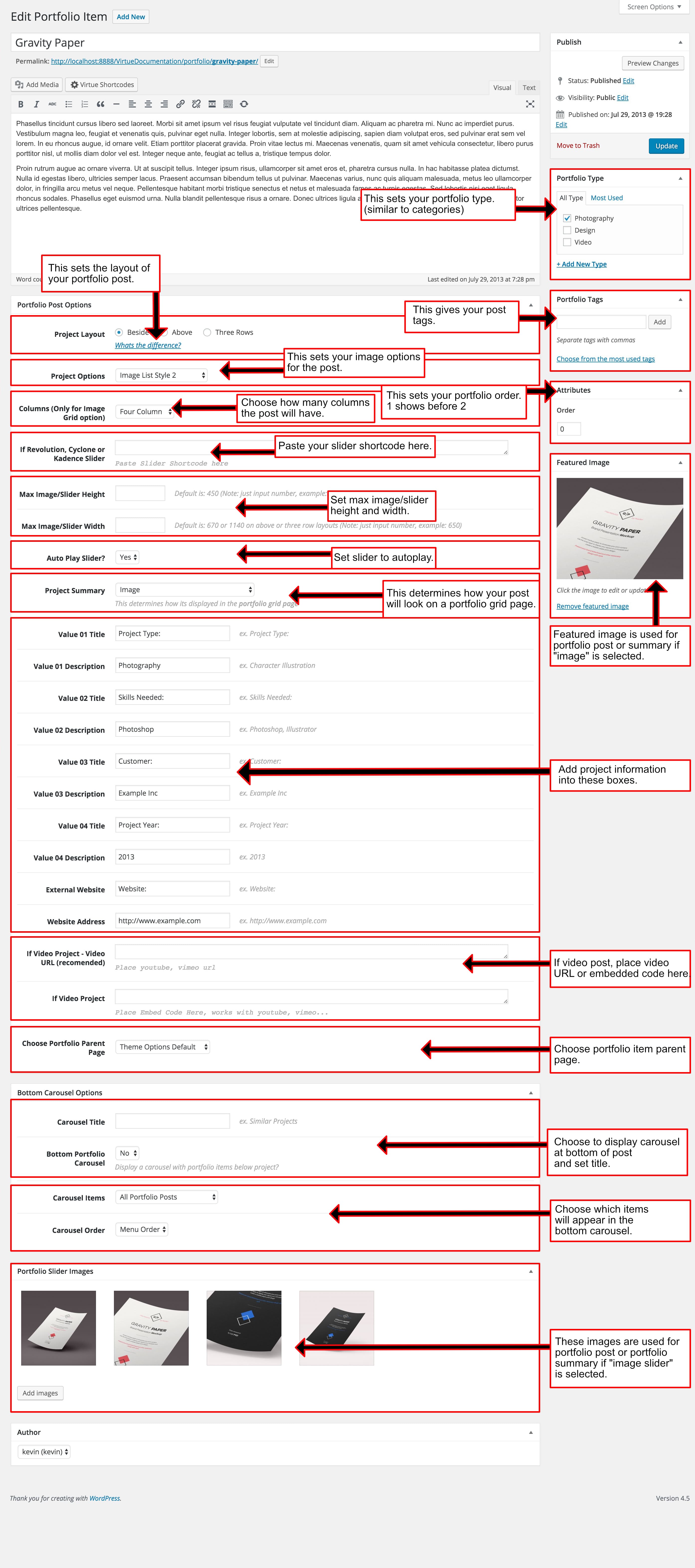
2) Give your new post a title and add some content into your content area.
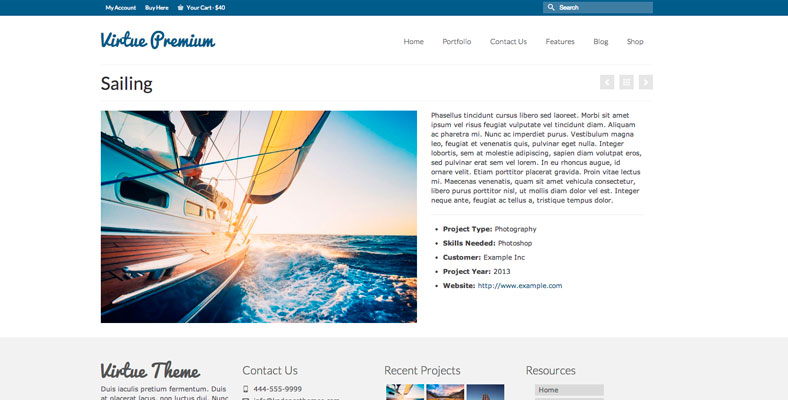
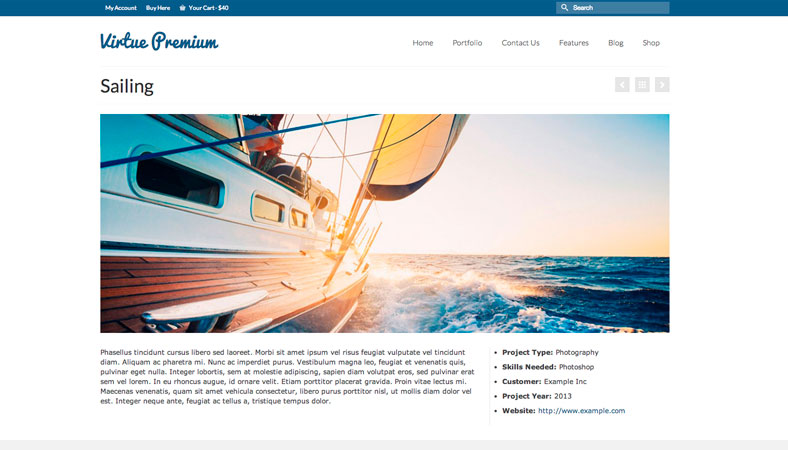
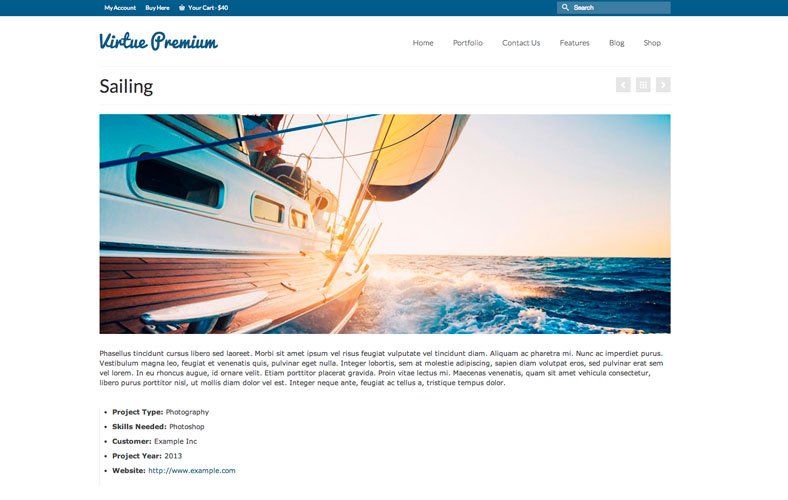
3) Now scroll down to your portfolio post options and select your layout.
You have three options: beside, above, or three row. Examples below:
4) Select your project options: image, image slider, or video.
5) You can add some content to the value title and value description boxes.
6) Set your portfolio featured image.
This image is important to set, even if using an image slider as your portfolio post option.
It is important to note that it’s encouraged to use large images because the theme will automatically re-size images down.
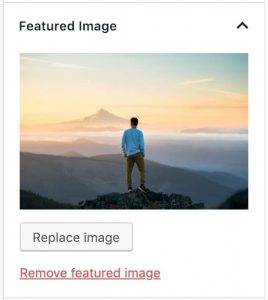
7) If you are using an image slider as your portfolio post option then add images to your portfolio slider images gallery.

8) Now save your post and view it.
9) Repeat this process as many times as you like. This will give some content for the portfolio grid page.
* Trouble Shooting – If you keep seeing “page not found” when you click on your portfolio post you likely need to re-save your permalinks. Just go to Settings >> Permalinks in your WordPress admin and click the save button at the bottom
Step Two: Create a Portfolio Grid Page
1) In your WordPress admin go to Pages >> Add New.
2) Find the page attributes box (usually on the right) and locate the template select box and choose “Portfolio Grid”.
3) Save or Publish the page by clicking the appropriate button in the top right of your screen.
You should now see a page like below. Study each area of the page.
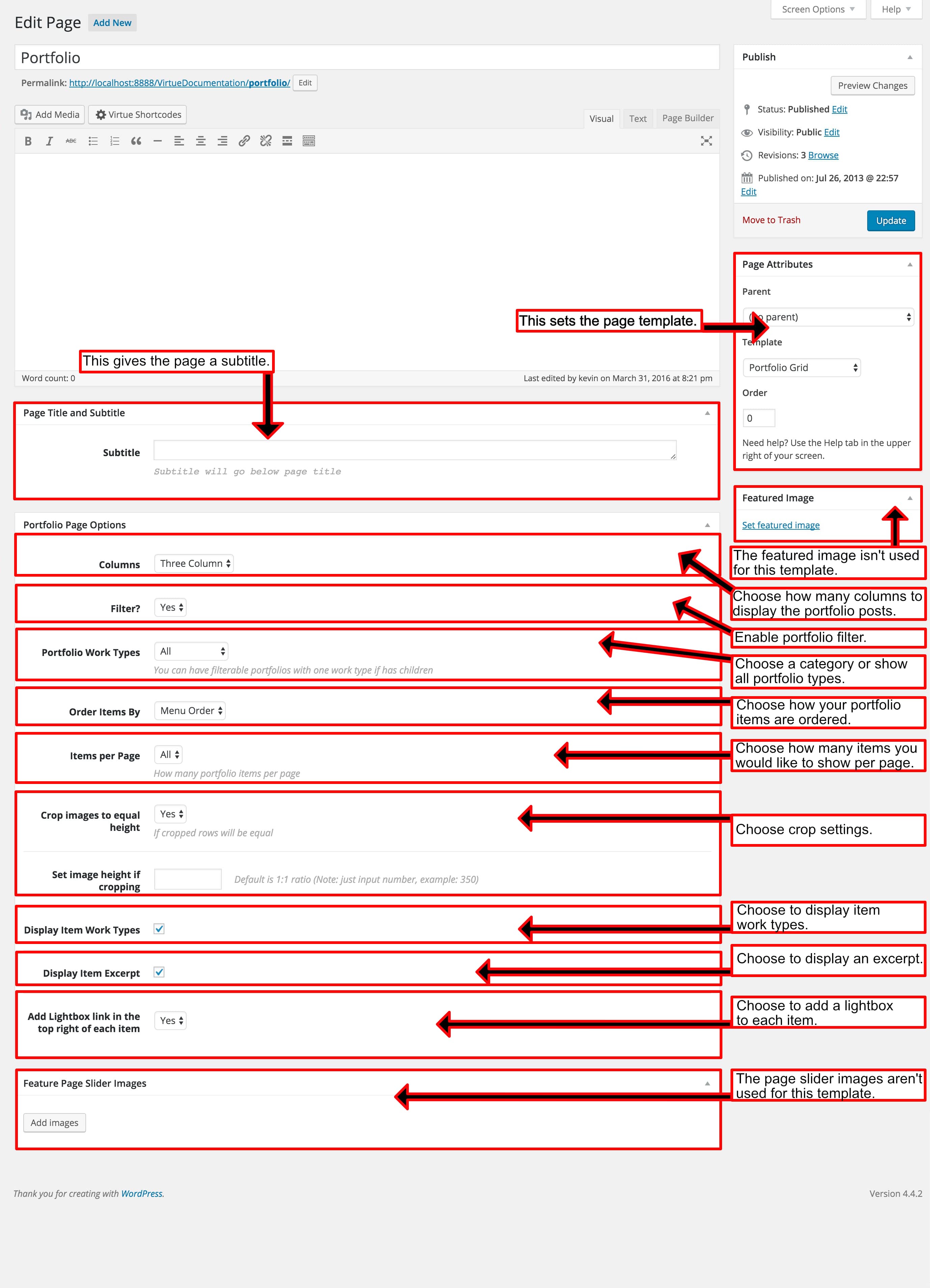
4) You can choose how many columns you would like to display as well as how many items per page and if you want to limit what’s displayed to only one portfolio type.
5) Premium users can also choose to enable a dynamic filter.
6) Save and view.
Create Your Website With KadenceWP Today!

Written by Ben Ritner
Ben Ritner is the Sr. Director of Product at StellarWP and the founder of Kadence WP. Ben builds innovative tools that empower individuals and small businesses to compete with major corporations on the web. He creates comprehensive tutorials that guide users through WordPress, enabling them to build effective and engaging websites. His expertise in product development, strategy, and marketing drives innovation and success for users worldwide.
One response to “Creating a Portfolio Page”

By Ben Ritner
Ben Ritner is the Sr. Director of Product at StellarWP and the founder of Kadence WP. Ben builds innovative tools that empower individuals and small businesses to compete with major corporations on the web. He creates comprehensive tutorials that guide users through WordPress, enabling them to build effective and engaging websites. His expertise in product development, strategy, and marketing drives innovation and success for users worldwide.
Updated July 22, 2024
Create Your Website With Kadence


If you have support questions please use the support forms. For premium customers that simply means logging in and going to https://www.kadencewp.com/support-forums/
Thanks