
Kadence Shop Kit gives you the functionality to fully customize your WooCommerce archive pages. You can design exactly how you wish your products should appear with either the Archive: Main Query Block for simple layouts or the Advanced Query Loop Block for more dynamic and flexible control. It’s a powerful way to create a shopping experience that matches your brand!
This document will guide you through the process of building and using a Product Archive Woo Template. Click here to learn about the four Woo Template types.
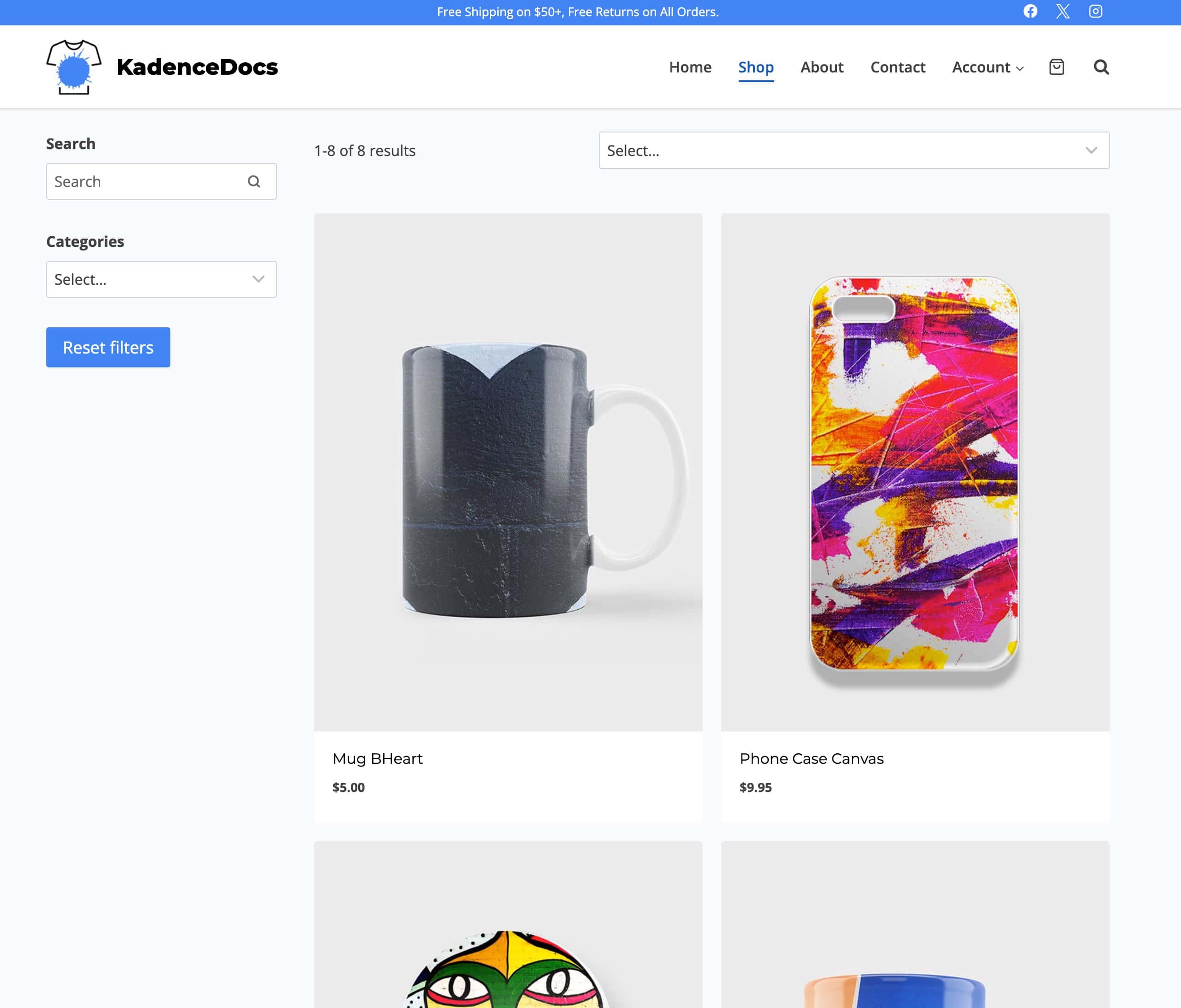
Creating a Product Archive Template
In order to create a Product Archive Template, you must install, activate, and license the Kadence Shop Kit plugin. (Click here to learn more.) Once the Shop Kit plugin is activated on the website, navigate to the Dashboard -> Shop Kit page and go to the Product Templates tab.
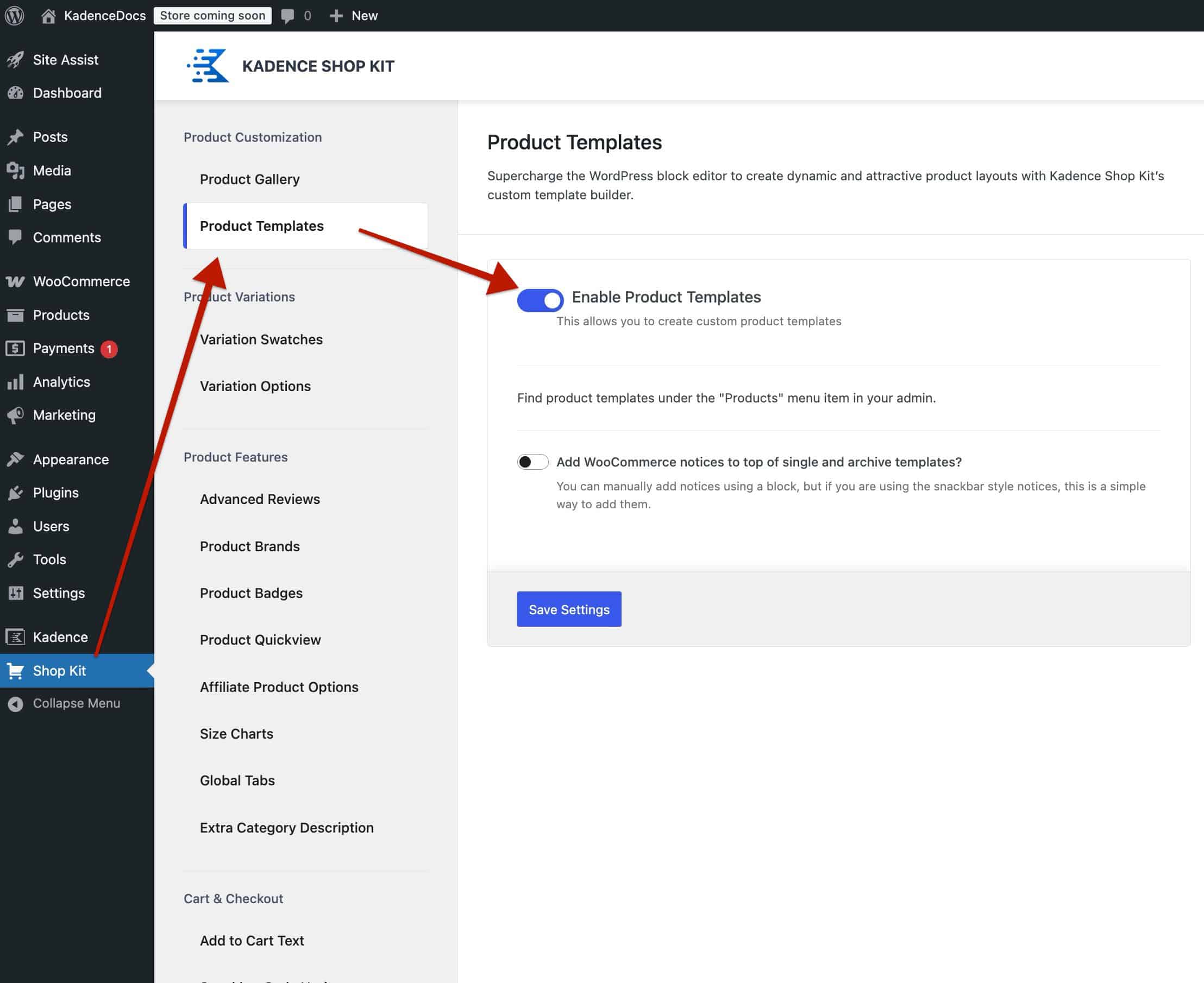
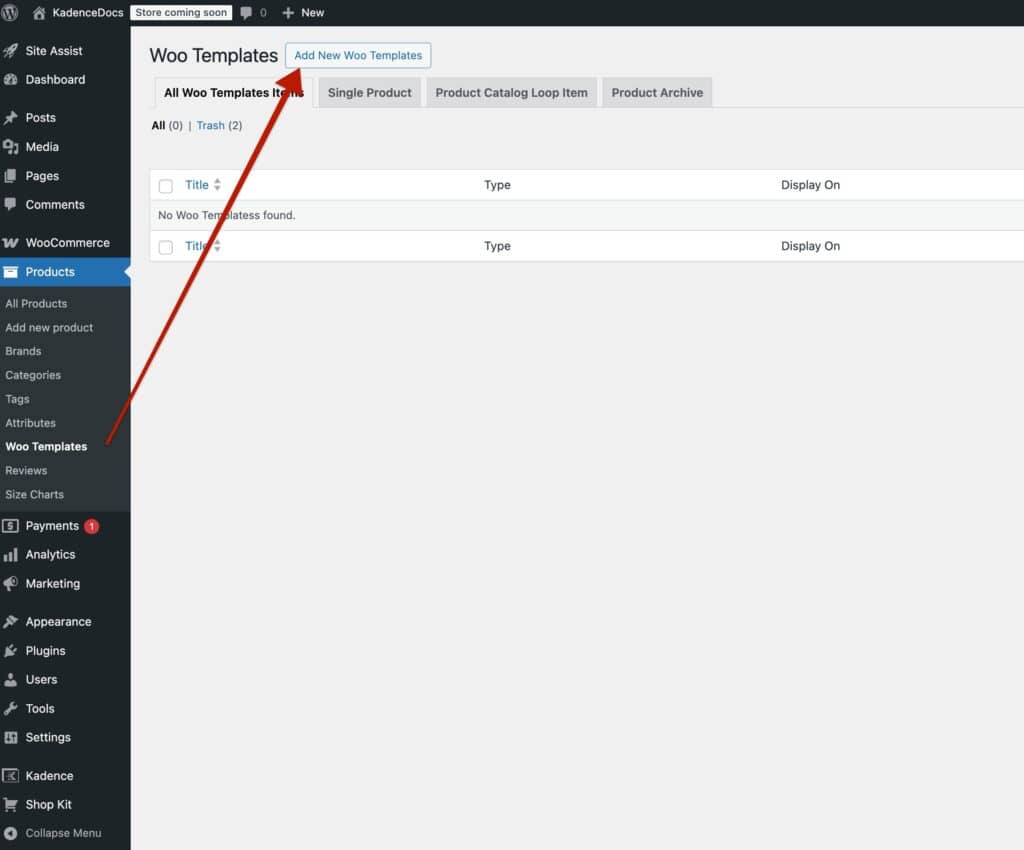
Enable Product Templates and save the changes. Afterward, refresh the page. Then, navigate to the Dashboard -> Products -> Woo Templates page. At the top of the Woo Templates page, click on the Add New Woo Templates button.
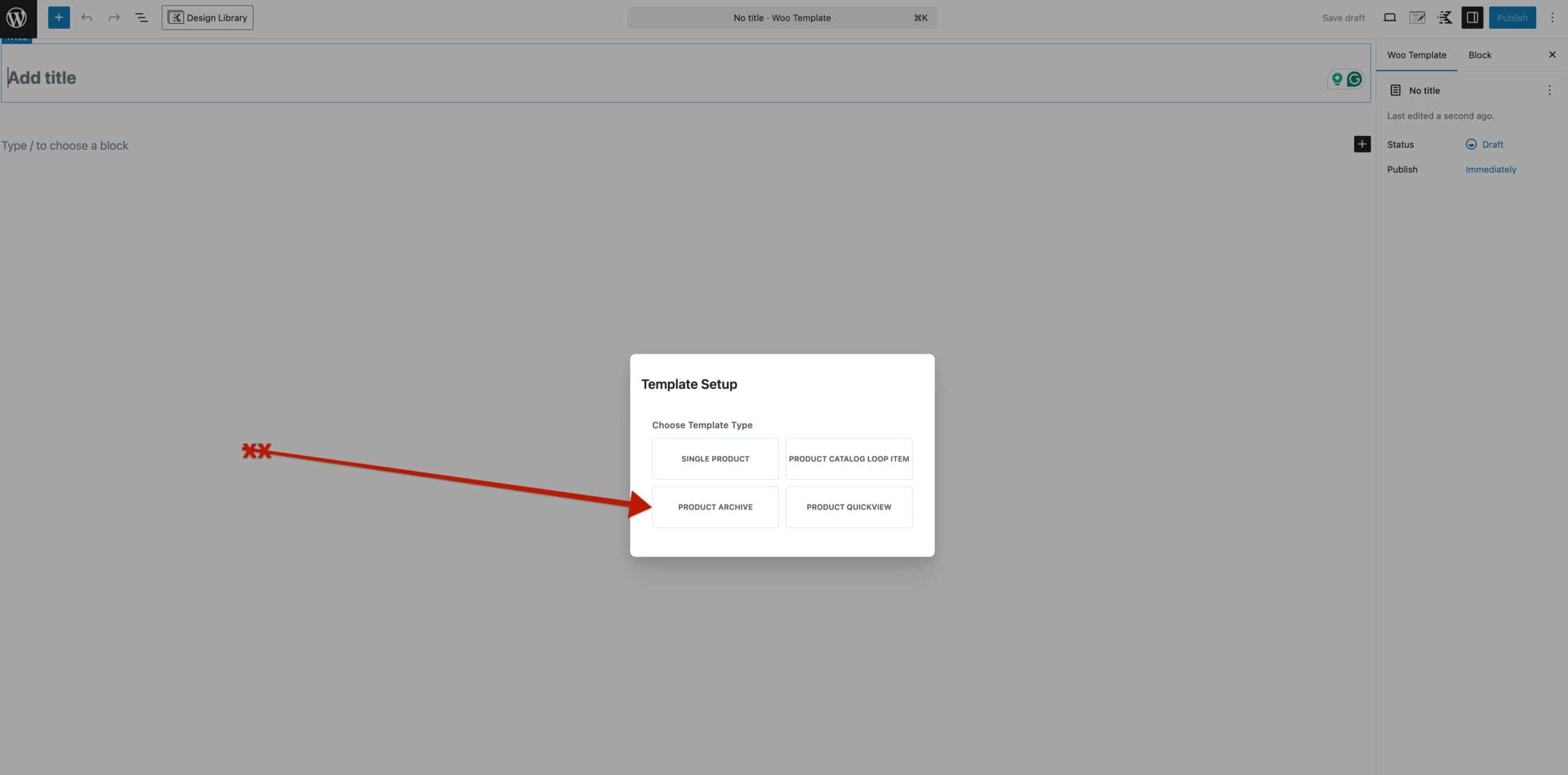
This will open a new Woo Template Post with the option to select the template type. Select the Product Archive option.
Once you have selected the template type, you will have the option to start from a blank template.
Within the Woo Template, you can add various forms of Dynamic Content. For example, you can create a Custom Title Element to display the current Archive Title.
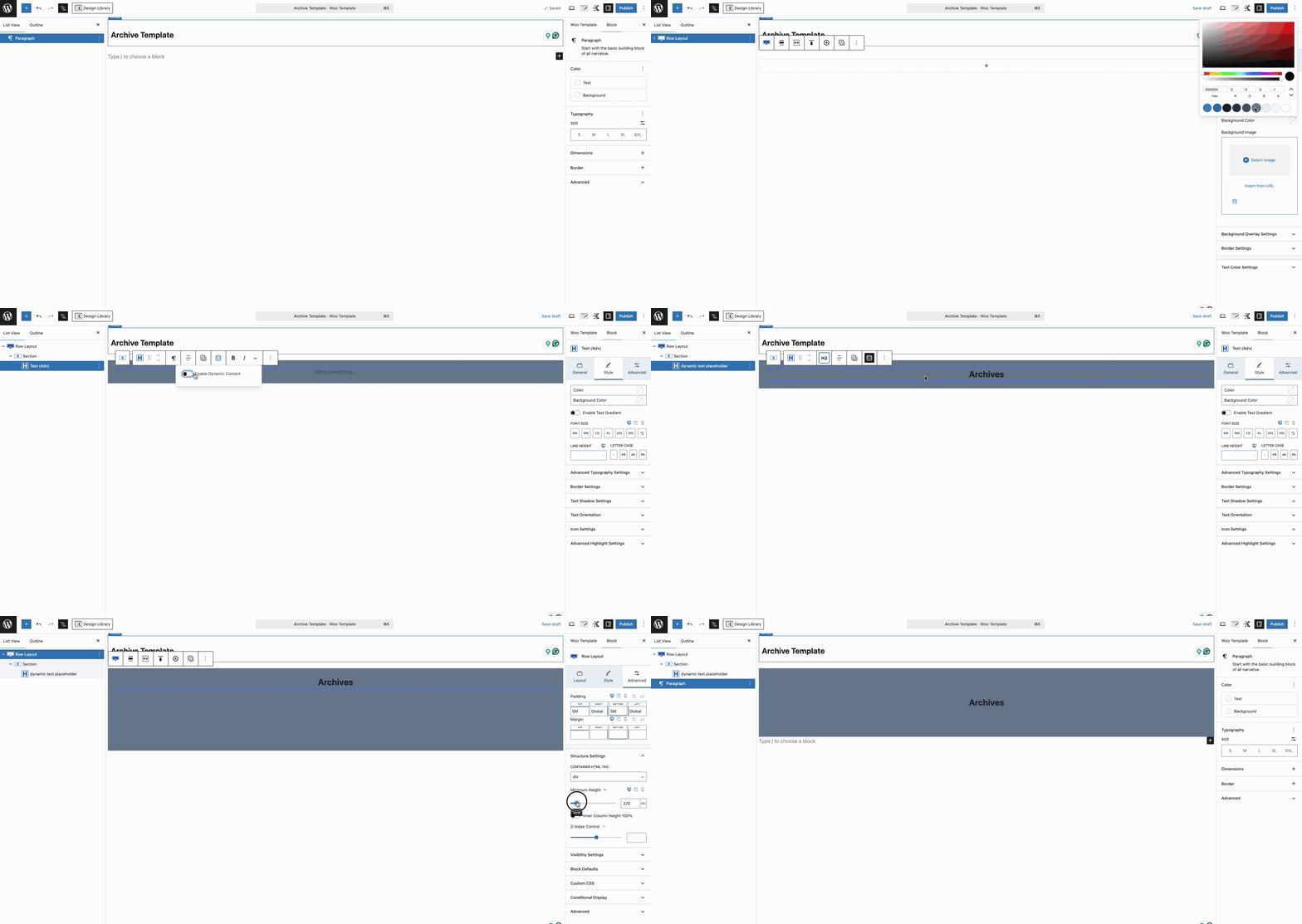
Eventually, you will also need to display the Product Queries dynamically. Learn more about displaying product queries below.
Building Product Queries
Product Queries can be built in two main ways: using the Archive Main Query Block or the Advanced Query Loop Block. Learn more about each method below.
Using The Archive: Main Query Block
The Archive: Main Query Block can be added to Product Archive Woo Templates to display the default current product archive loop items dynamically. The block offers settings for changing the number of columns shown responsively, spacing settings for adding padding/margin responsively, and the option to add custom CSS classes.
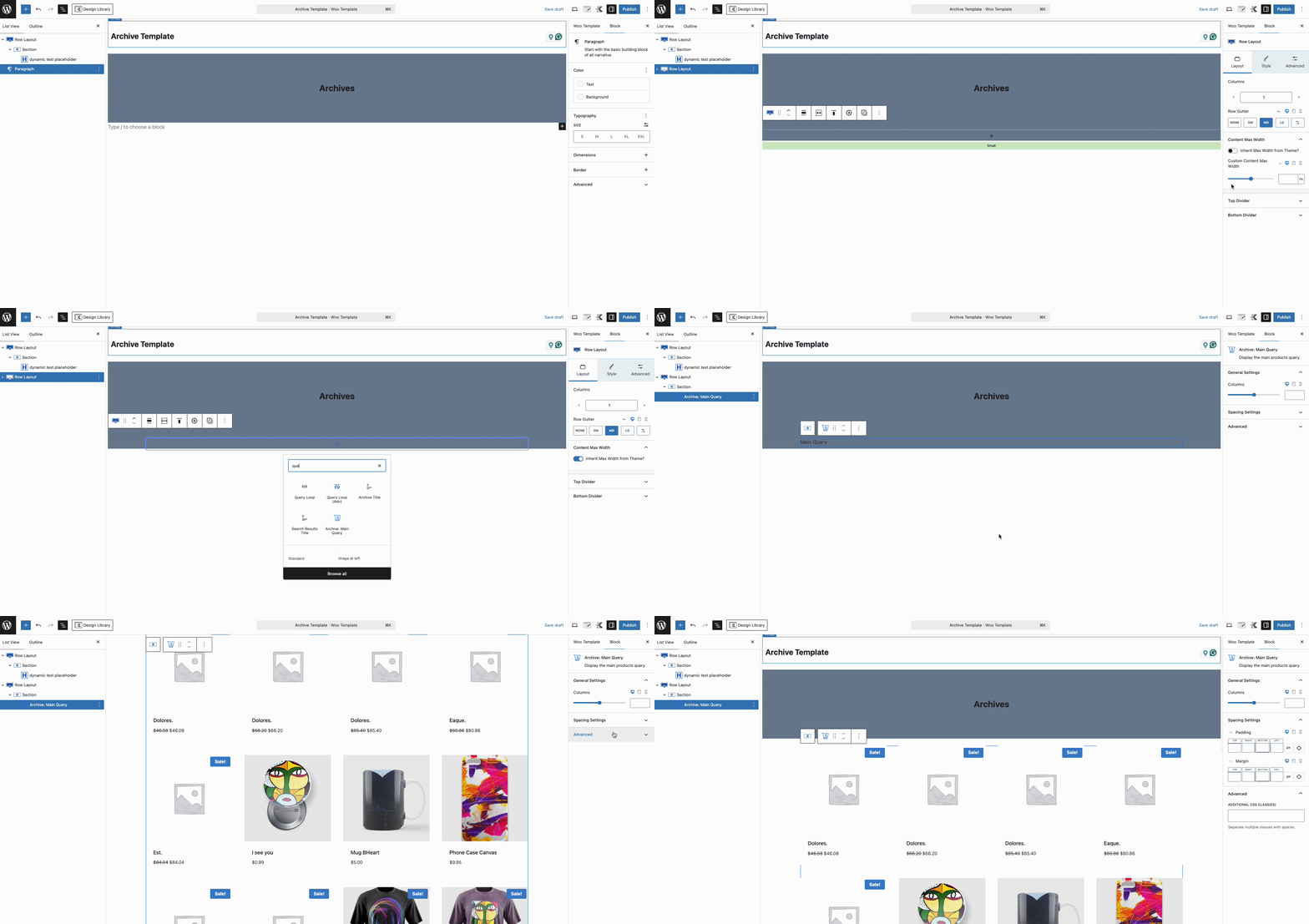
The Archive Main Query Block will use applicable WooCommerce Product Catalog Layout Settings, such as adding the off-canvas widget area, for filtering and sorting options. Learn more about the Archive: Main Query block by clicking here.
Using Advanced Queries
Kadence Blocks Pro features the Query Loop (Adv) Block. The Advanced Query Loop Block can be used to add advanced filters to your archive query and works dynamically across archive pages. Getting started with using an Advanced Query and Product Archive Woo Template consists of three main steps.
- Creating a Product Catalog Loop Item Woo Template; Product Loop Catalog Woo Templates give you control over individual product loop items within an archive.
- Creating a Query Loop (Adv) Block that uses the Product Loop Woo Template as the query card.
- Creating a Product Archive Woo Template to display your Query Loop (Adv) Block dynamically.
Learn more about each step below.
Creating a Product Loop Item
The first step is to create a Product Catalog Loop Item Woo Template. This is specific kind of Woo Template that is specifically for controlling Product Loops. Navigate to the Dashboard -> Product -> Woo Templates page. Then, add a new Product Catalog Loop Item Woo Template.
You can select from the premade template or start from a blank state. Use various Woo Template Blocks to customize your product loop item. (For example, the Product Price and Product Add to Cart blocks.)
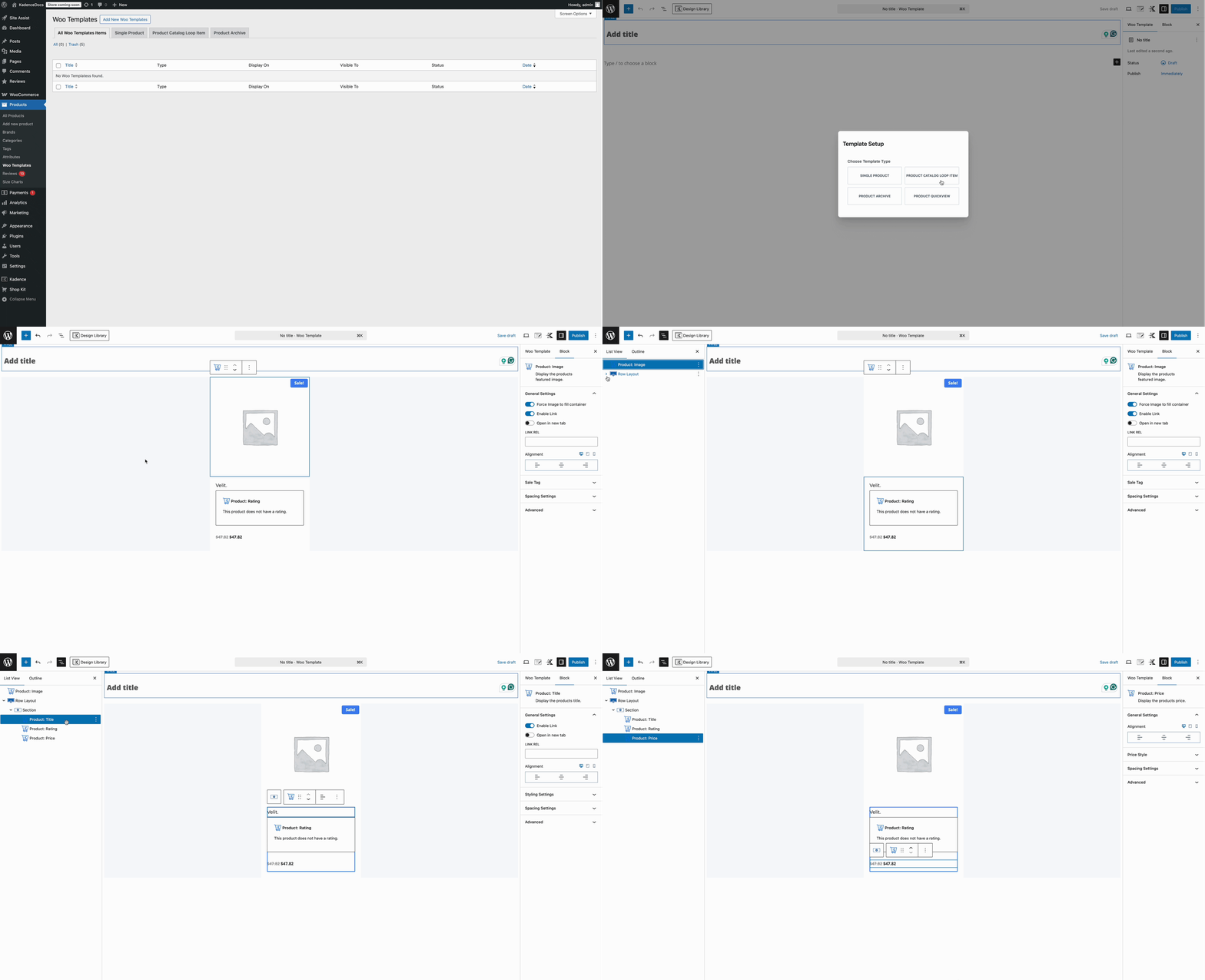
Once the Product Catalog Loop Item is designed and created, publish the Woo Template and continue to the next step.
Creating a new Advanced Query
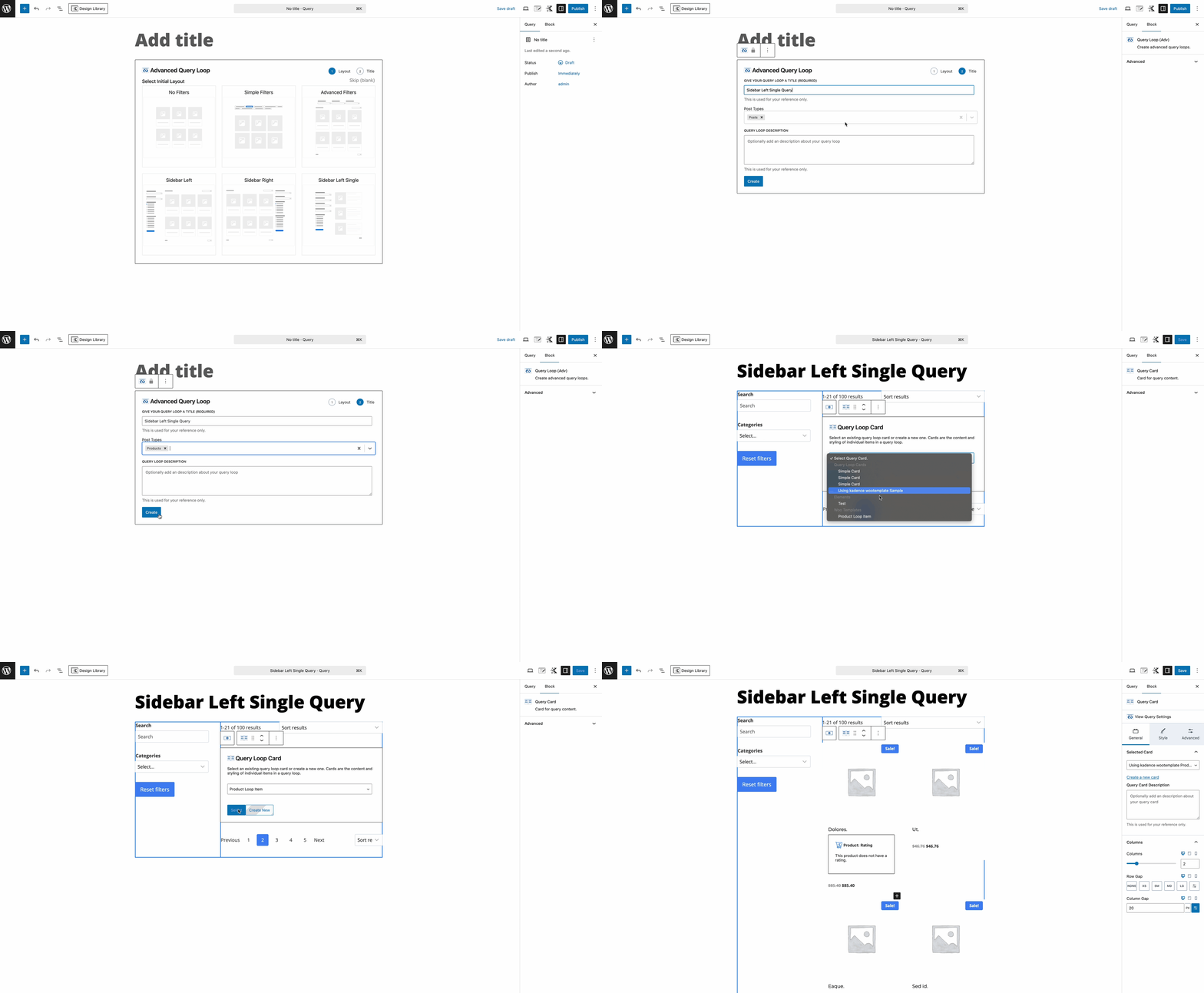
The next step is to create a new Advanced Query Loop. This can be done by navigating to the Dashboard -> Kadence -> Queries page and adding a new query.
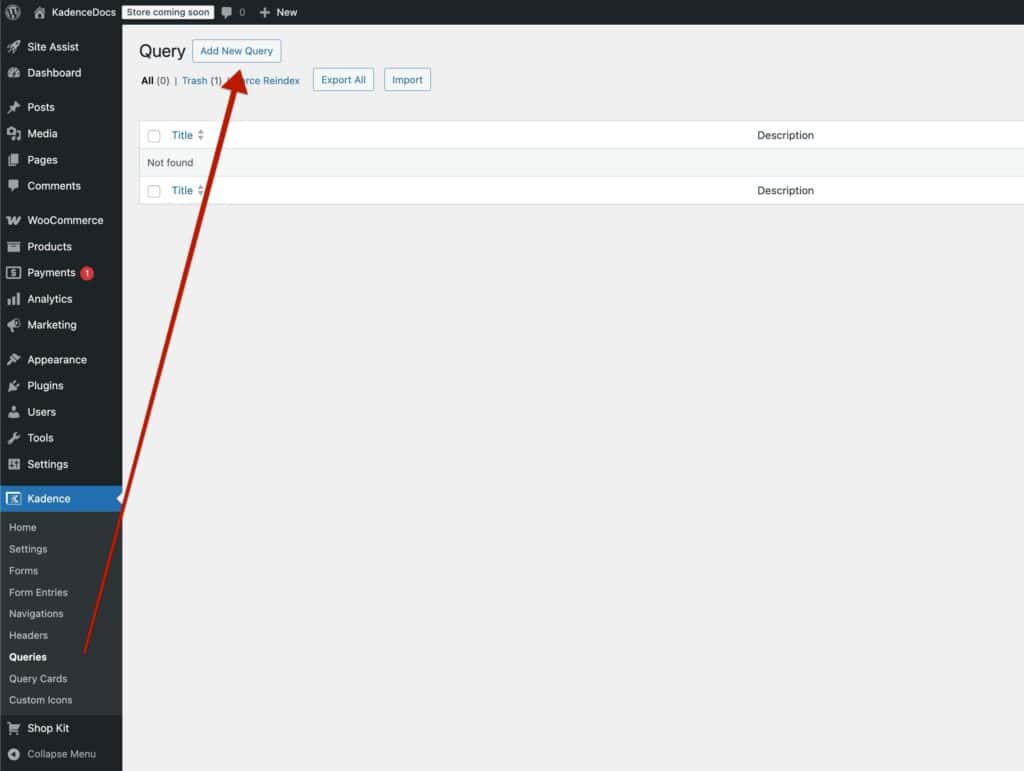
When setting up the query, select a preferred layout. Some layouts include ready-to-use filter designs. Ensure you select the proper Product Post Type during this setup.
Once the query is created, you will have the option to select a Query Card. Here, you can select the Product Catalog Loop Item Woo Template that was created in the previous step.
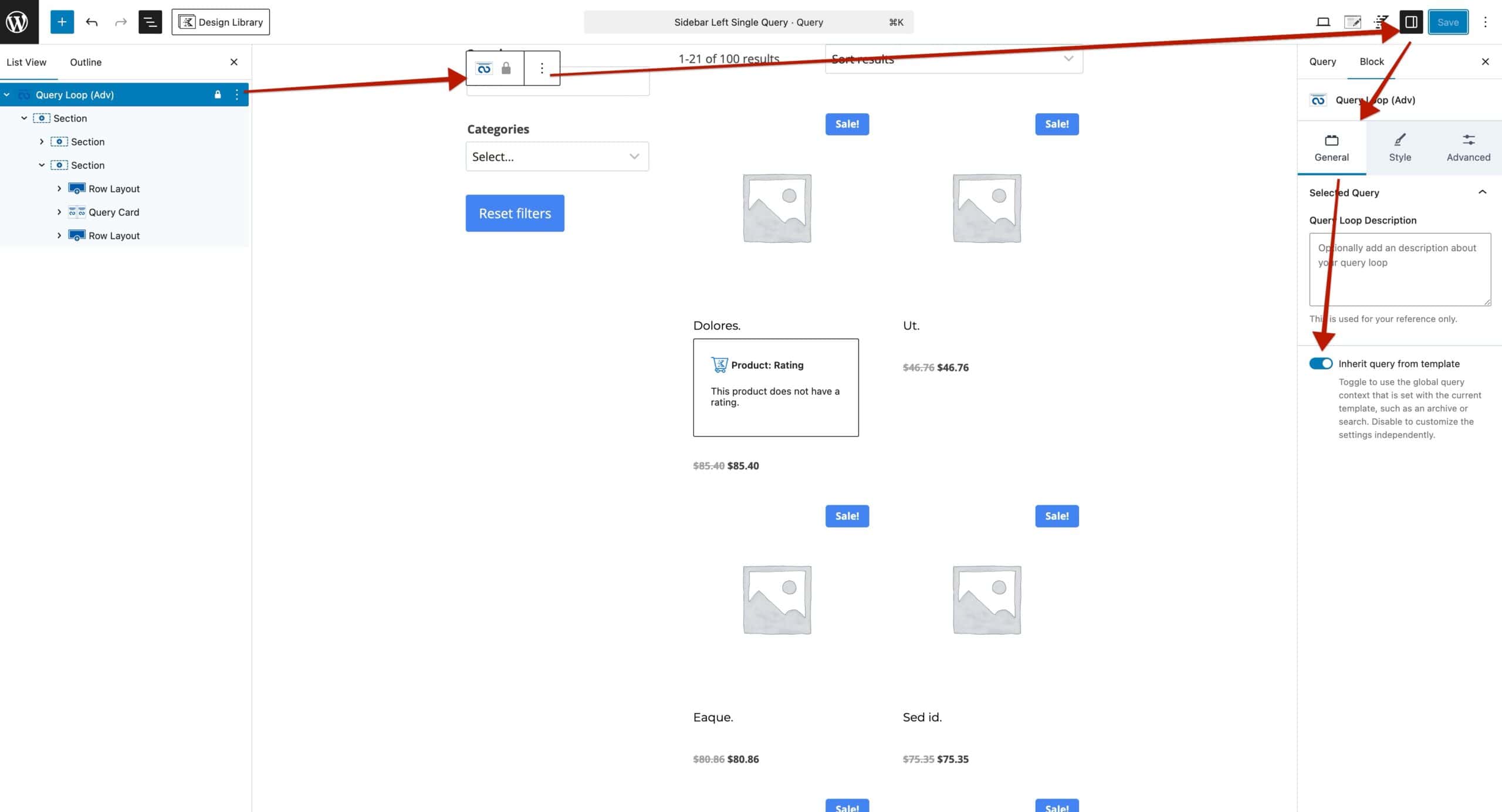
From within the Query Loop (Adv) Block Settings -> General Tab, you must enable the option named Inherit Query From Template. This will ensure the query dynamically picks up items wherever they may be. (The main shop page, specific product category archives, etc)
You can use various Query Loop Filtering Blocks to add filters to your query. This includes the ability to filter by WooCommerce taxonomies, product variations, and more! You can click here to learn more about the available Query Loop (Adv) Filter Blocks.
Once the query is complete, remember to Publish your changes to properly save everything.
Finalizing the Product Archive Woo Template
The final step is to edit or create a new Product Archive Woo Template. Within the Woo Template, add a Query Loop (Adv) Block and select the query created in the previous step.
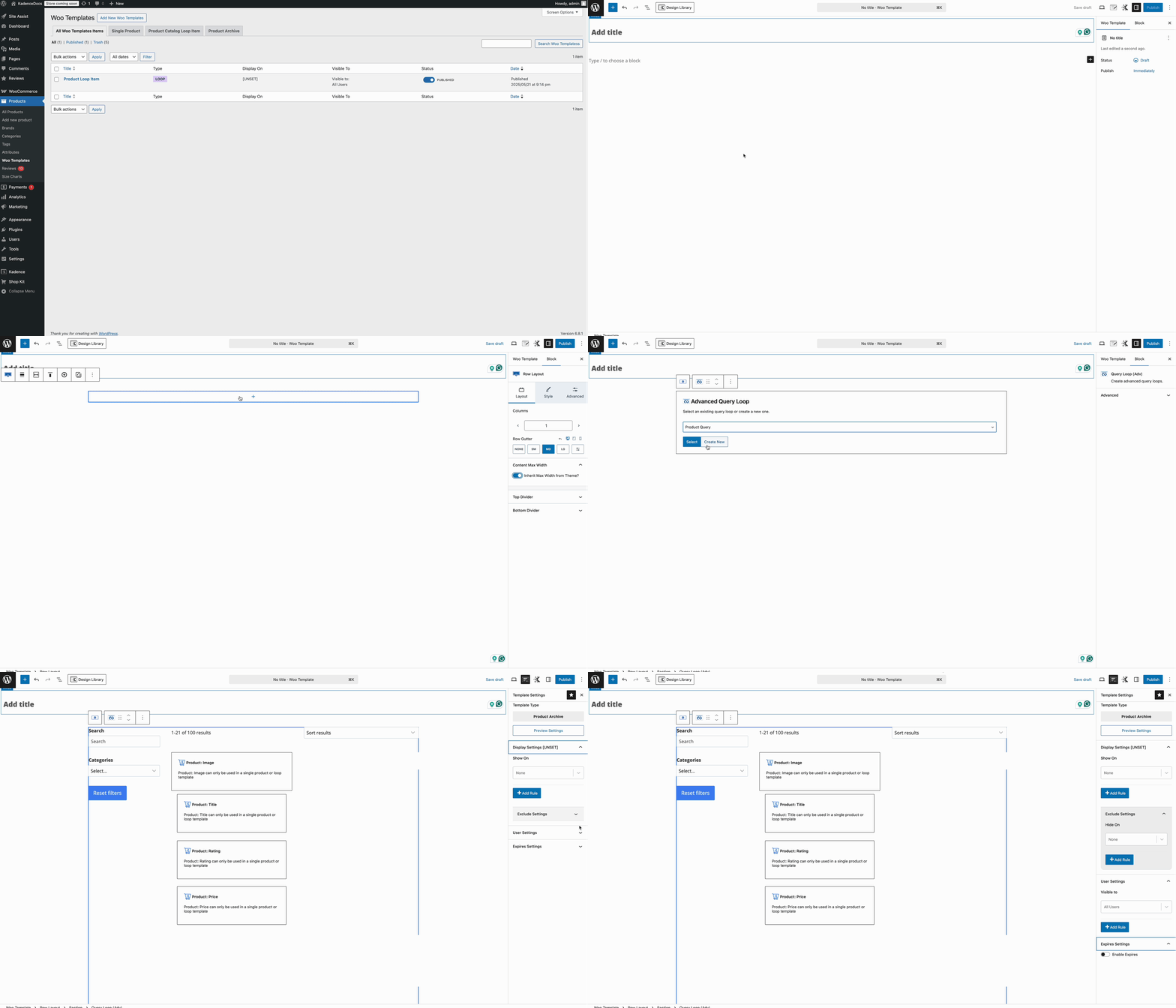
Use the Woo Template Settings, detailed below, to determine where the Woo Template will apply. The Query Loop (Adv) Block will dynamically display products for the current page. So if it is placed on the main shop page, the query will show the main shop content. If it is placed on a product category archive, it will show items from that specific product category.
Woo Template Settings
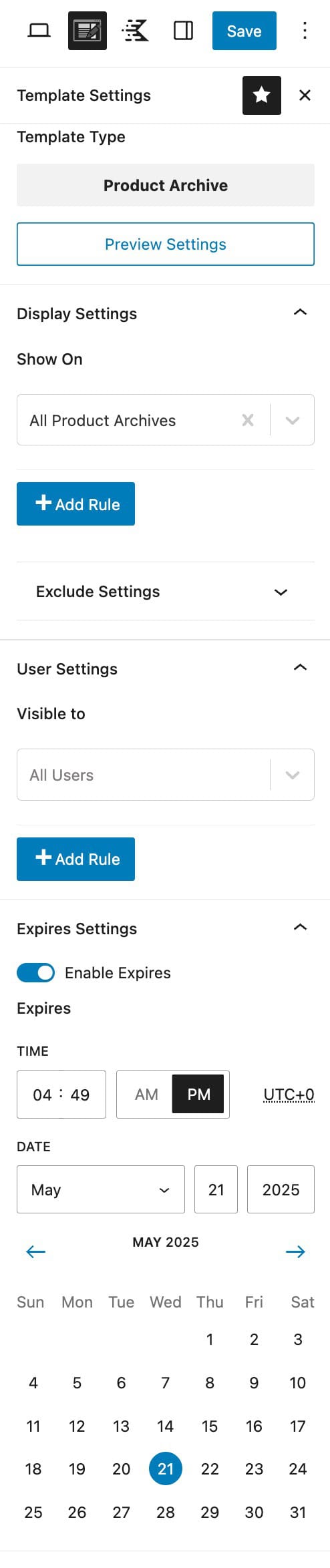
Use the Woo Template Settings to control where the current Woo Template will override and who will see it. Click on the pencil/paper icon in the top right of the editor.
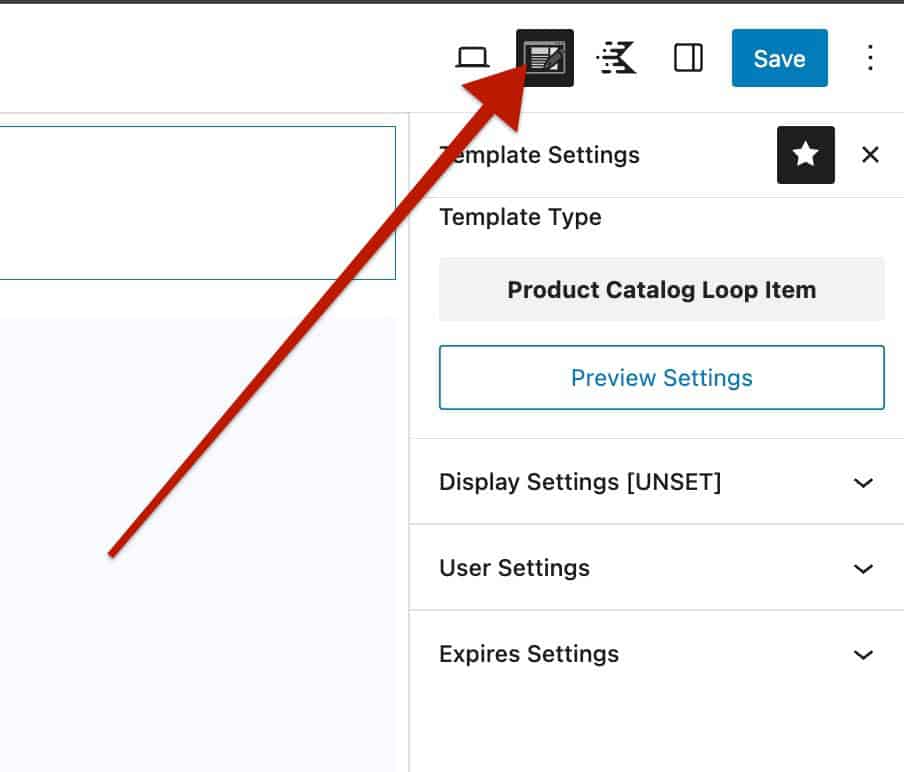
Template Type: Define the template type. This document overviews the Product Archive Woo Template. However, there are other Woo Template types available as well.
Display Settings -> Show On: Use the Display Settings to determine where the Product Archive will take effect. Use the Add Rule button to include additional options.
- Available options include: All Product Archives, Brand Archives, Category Archives, Tag Archives, Shop Page, or Product Search.
User Settings -> Visibile To: Determine which user roles will be able to see the Woo Template in effect.
- Options include: All Users (Default), Logged Out Users, Logged In Users, or based on the Website Available Roles. Use the Add Rule button to add more visibility options.
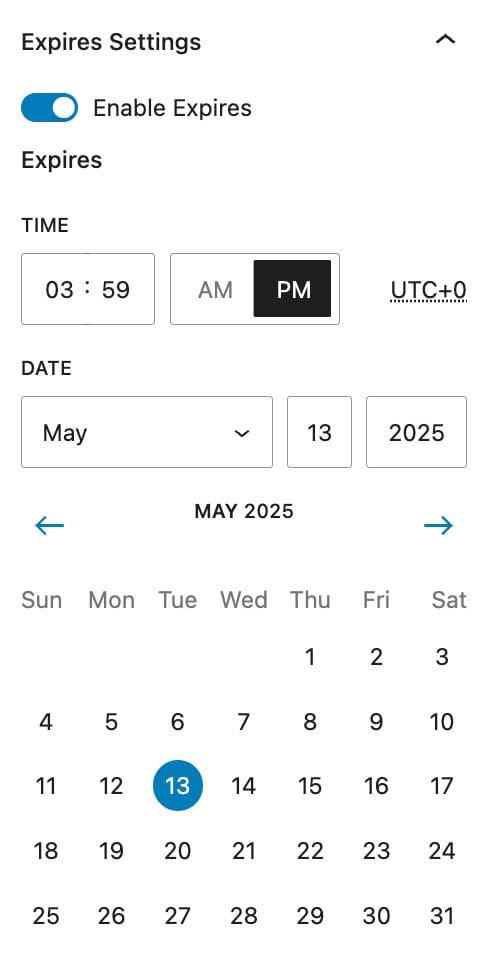
Expires Settings: Enable this option to add an expiration to the Woo Template. Once the expiration is met, the Woo Template will no longer take effect.
Once finished, the Product Archive Woo Template will overtake the appropriate WooCommerce pages and display on the front end accordingly.

