Kadence Shop Kit features the Product Templates (Woo Templates) feature. Using Woo Templates, you can control WooCommerce Product Loop Items, Single Product Pages, and Product Archive pages. Kadence Product Templates feature various Woo Template blocks, such as the Product: Gallery and the Product: Add to Cart blocks, allowing you to customize various WooCommerce pages dynamically.
Enabling Woo Templates
In order to create a Woo Template, you must install, activate, and license the Kadence Shop Kit plugin. (Click here to learn more.) Once the Shop Kit plugin is activated on the website, navigate to the Dashboard -> Shop Kit page and go to the Product Templates tab.
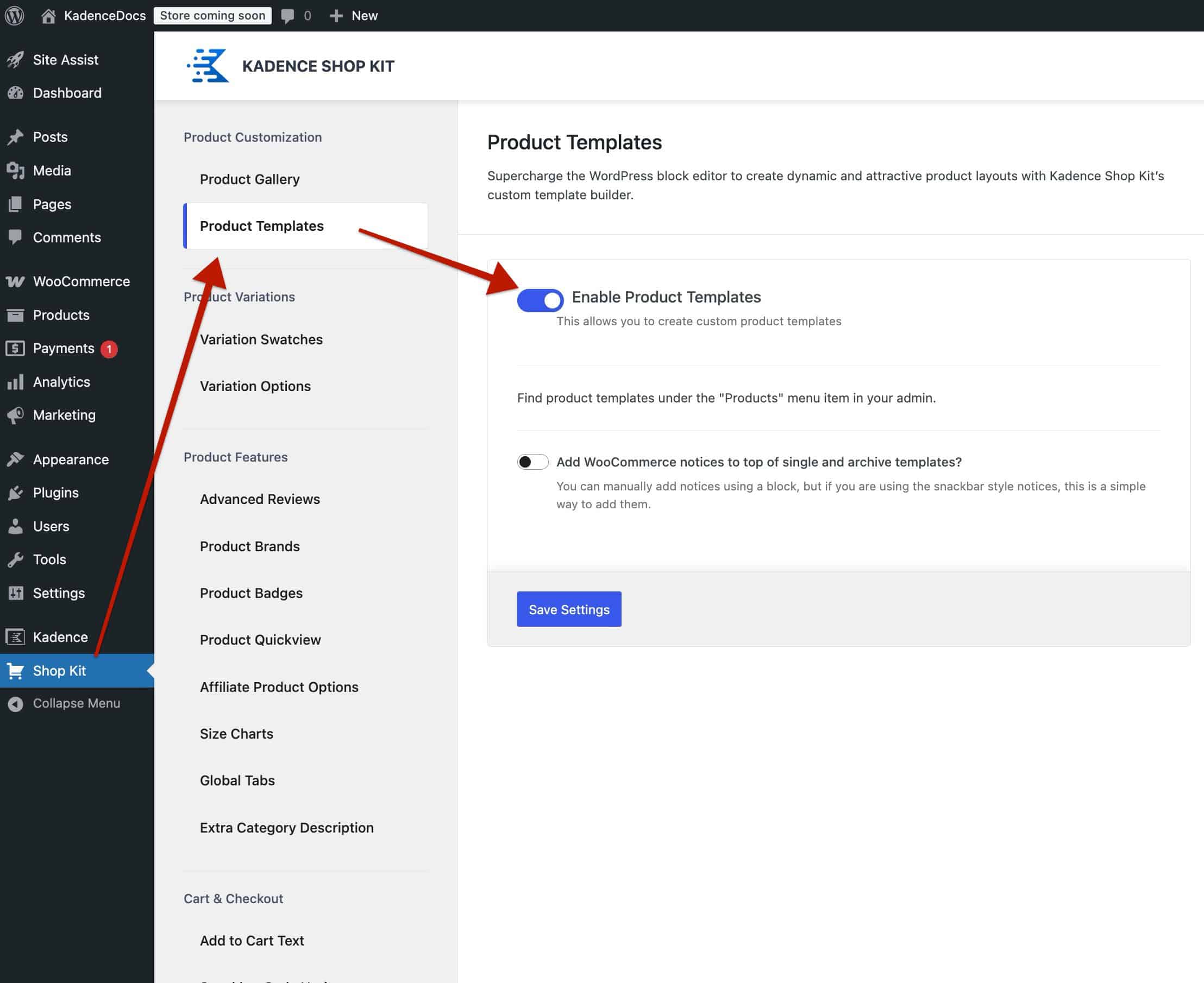
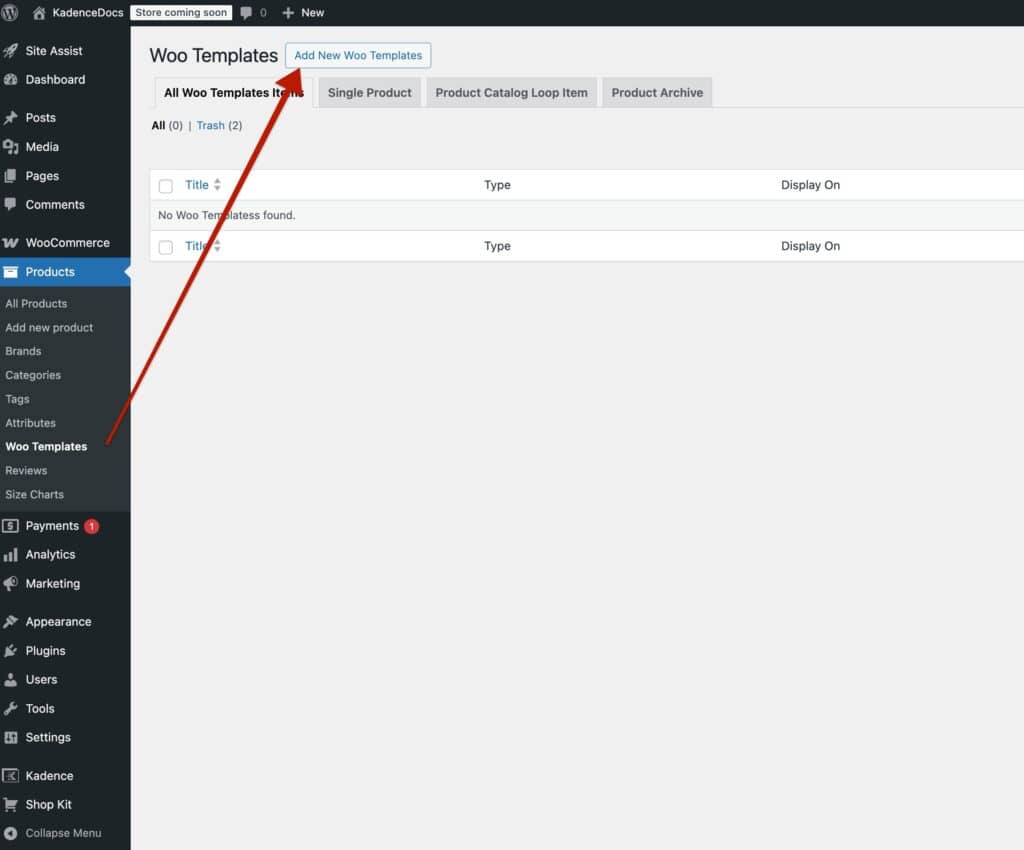
Enable Product Templates and save the changes. Afterward, refresh the page. Then, navigate to the Dashboard -> Products -> Woo Templates page. At the top of the Woo Templates page, click on the Add New Woo Templates button to begin adding a new Woo Template.
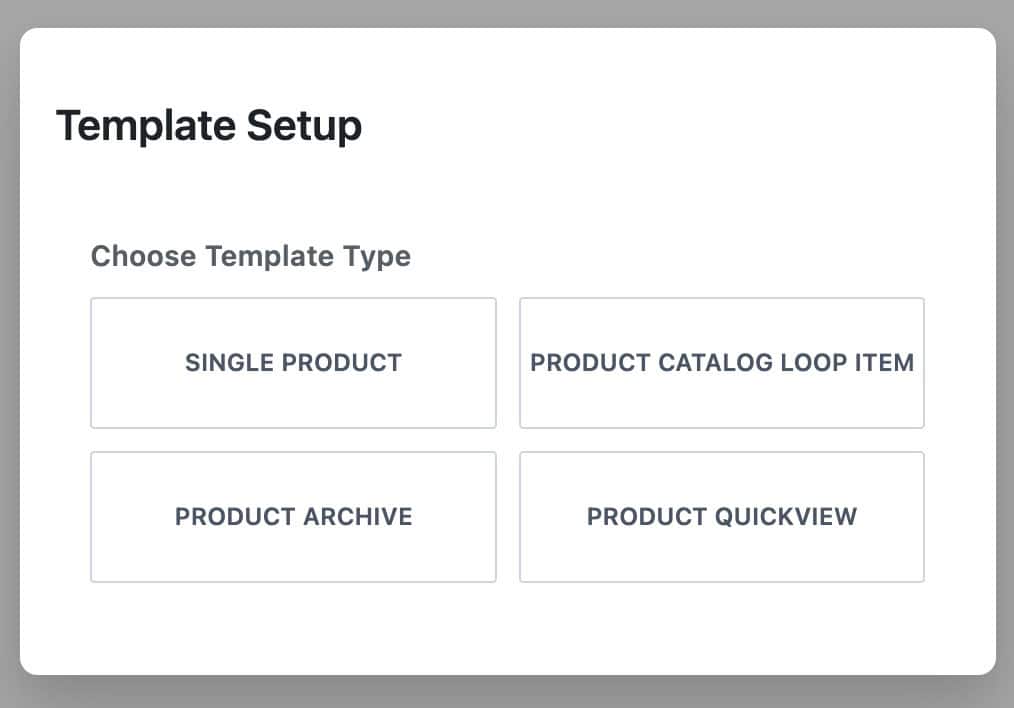
This will open a new Woo Template Post with the option to select the template type. There are a total of four Woo Template Types. Learn more about each template type below.
Types of Woo Templates
The available Woo Template types are: Product Catalog Loop Item templates, Single Product templates, Product Archive templates, and Quickview templates. Use core blocks, Kadence blocks, and Woo Template blocks to design and style your Woo Templates. Learn about each template type below.
Click here for a list of all of the available Woo Template blocks.
Single Product Templates
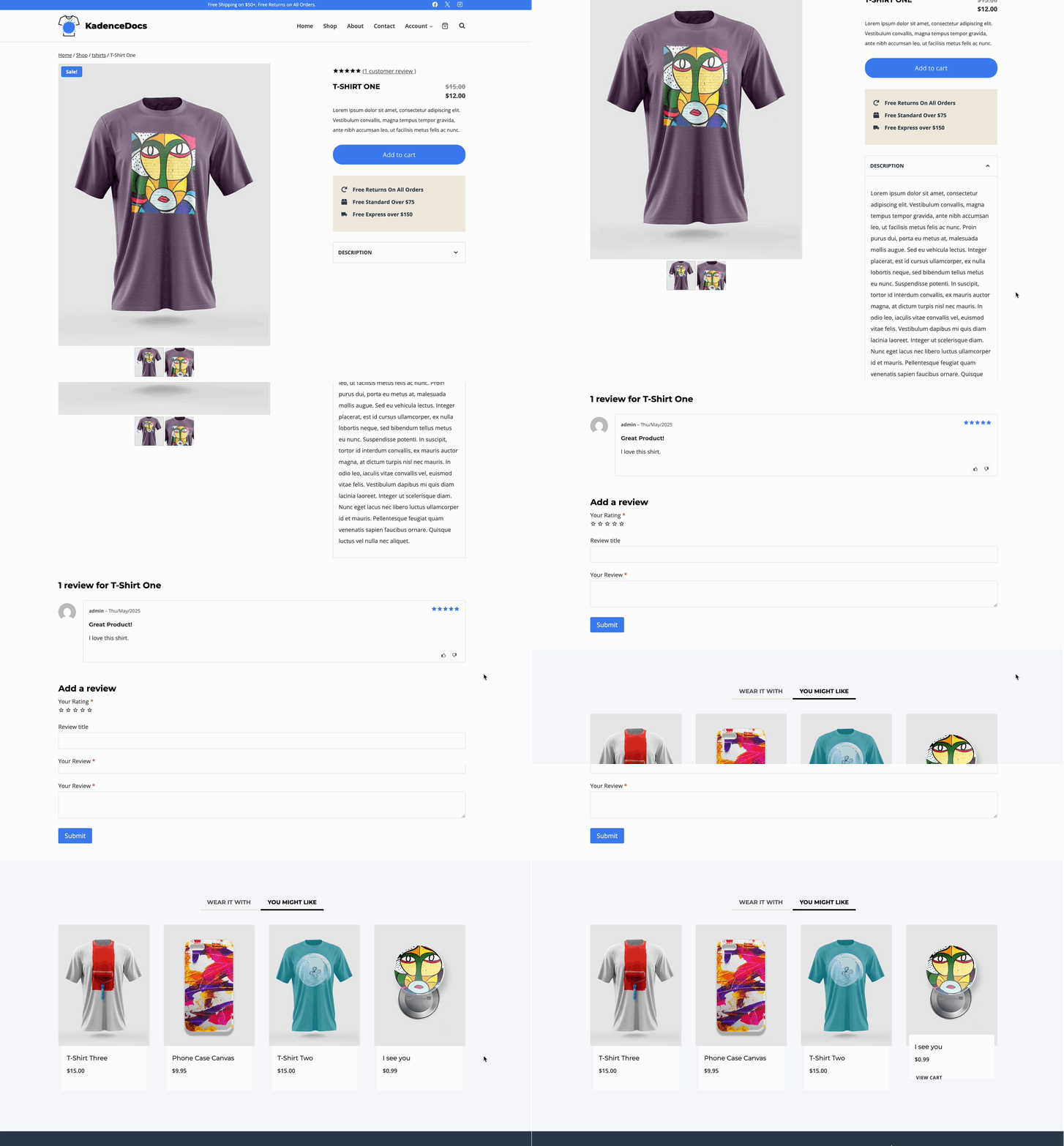
Single Product Woo Templates give you full control over how your individual product pages appear.
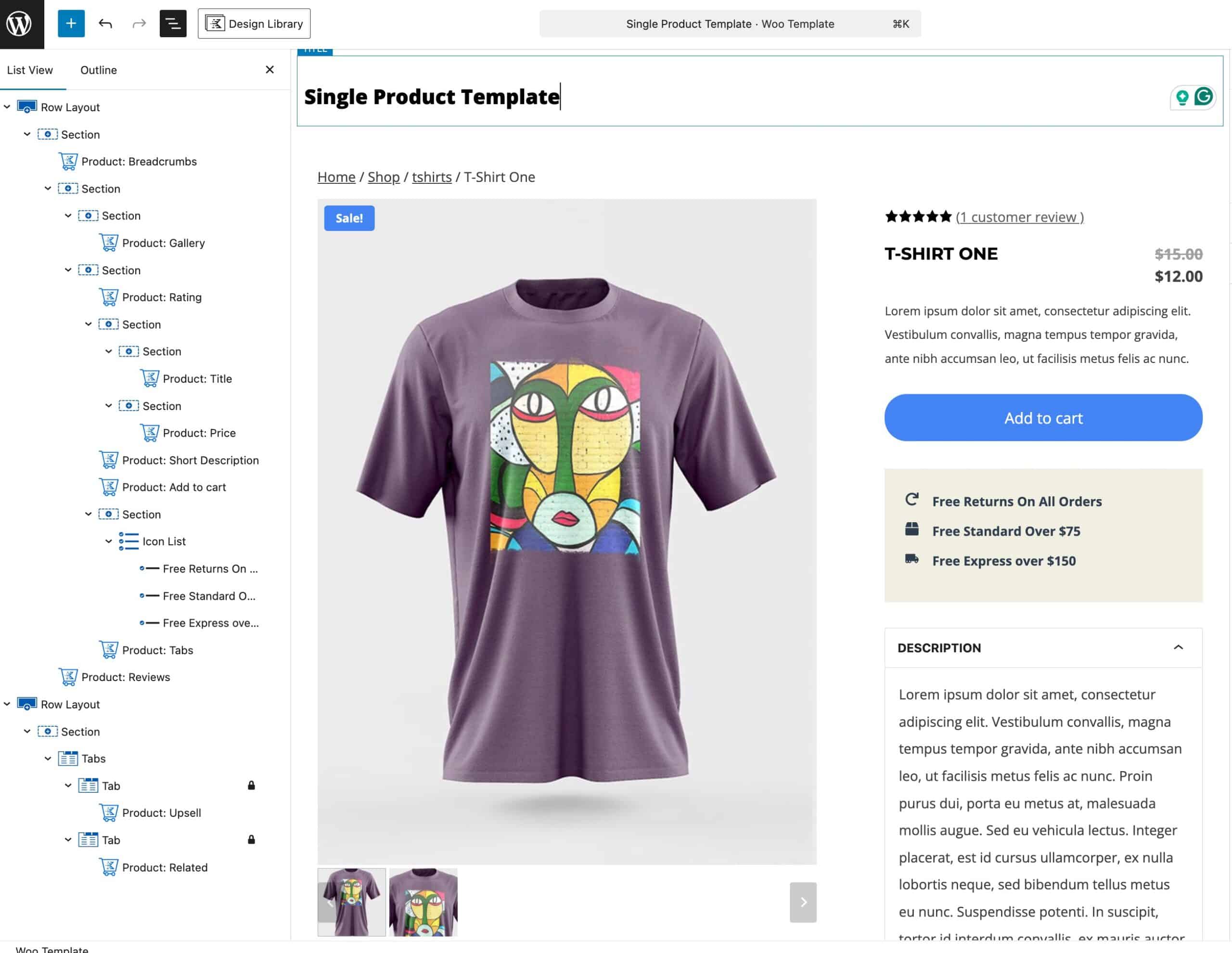
You can use popular Woo Template blocks, such as the Product Gallery, Product Price, and Product Add to Cart blocks, to build the perfect product page layout.
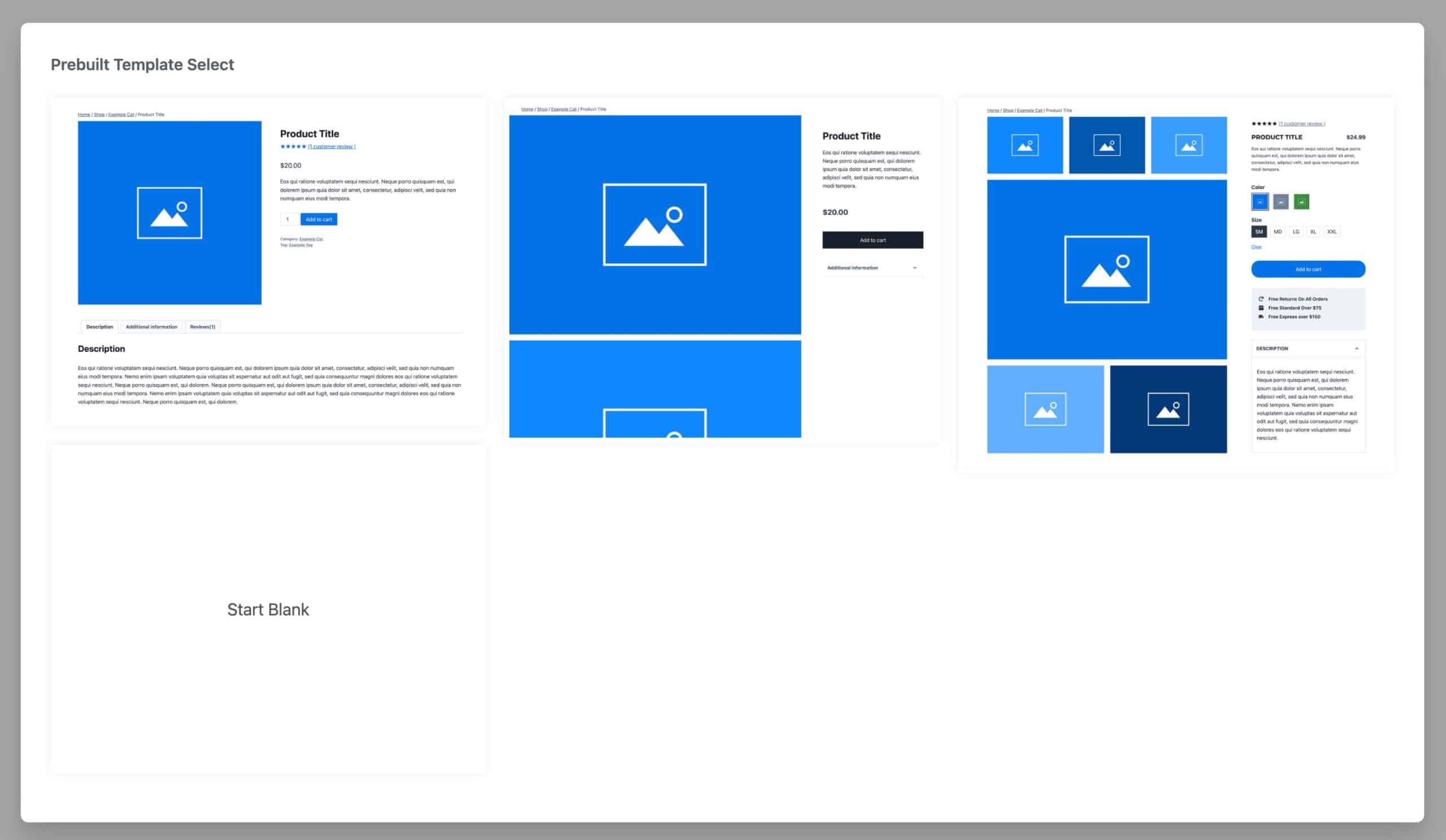
Single Product Woo Templates offer three predesigned layouts to help you get started.
Click here to view a complete overview of Single Product Woo Templates and how they work.
Product Archive Templates
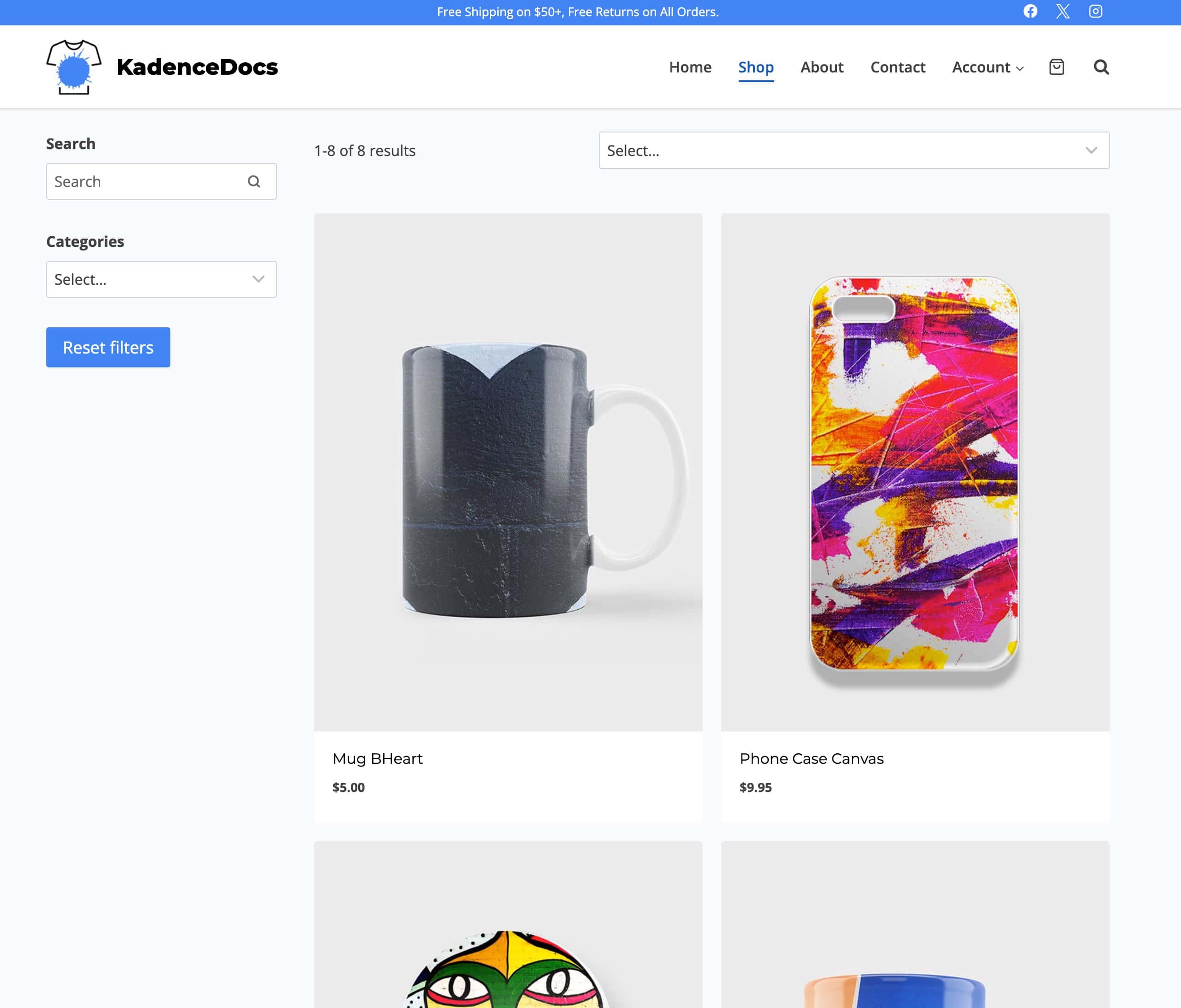
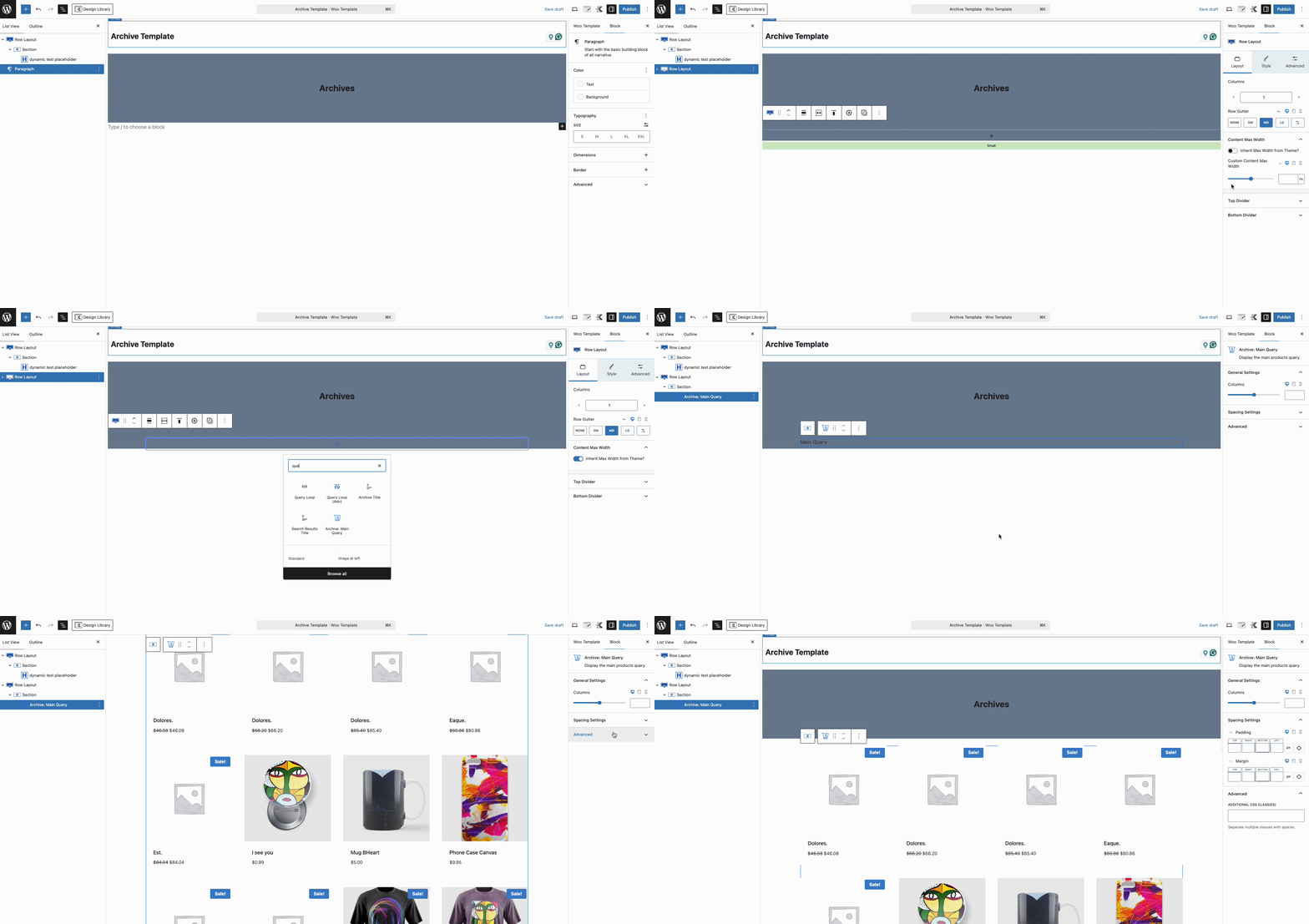
Product Archive Woo Templates let you customize the layout of your WooCommerce Archive pages, including your main Shop page and product category or tag pages.
Choose between the Advanced Query Loop block or the Archive Main Query Woo Template block to display and style your products as preferred.
Click here to view a complete overview of Product Archive Woo Templates and how they work.
Catalog Loop Item Templates
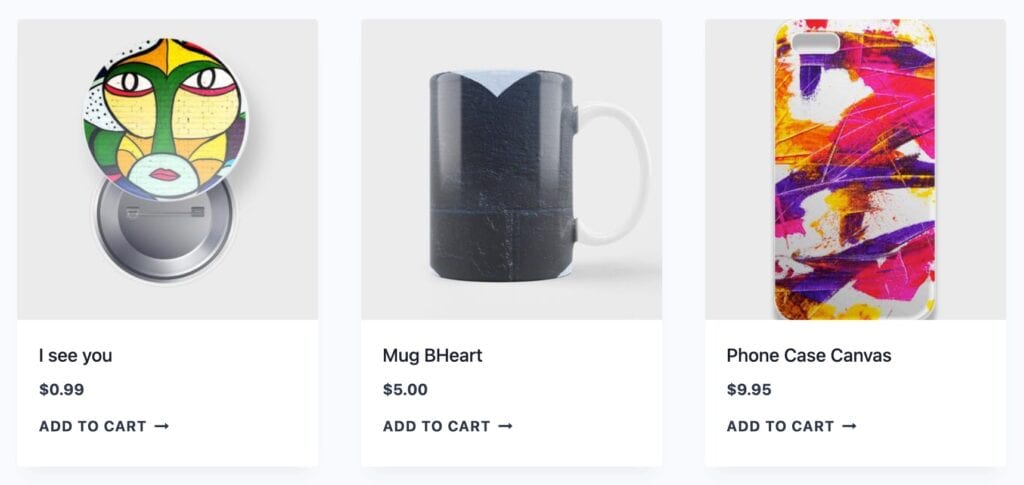
Catalog Loop Item Woo Templates can be used to take control over product loops across your website. Catalog Loop Item templates can be used anywhere the default product loop is, allowing you to control loop items universally as preferred.
Catalog Loop Items can also be used as a Query Loop Card on an Advanced Query, allowing you to reuse the design in custom queries.
Click here to view a complete overview of Product Catalog Item Woo Templates and how they work.

Quickview Templates
Kadence Shop Kit features the Product Quickview feature. This feature allows users to view detailed product information and add items to their cart without leaving the current page.
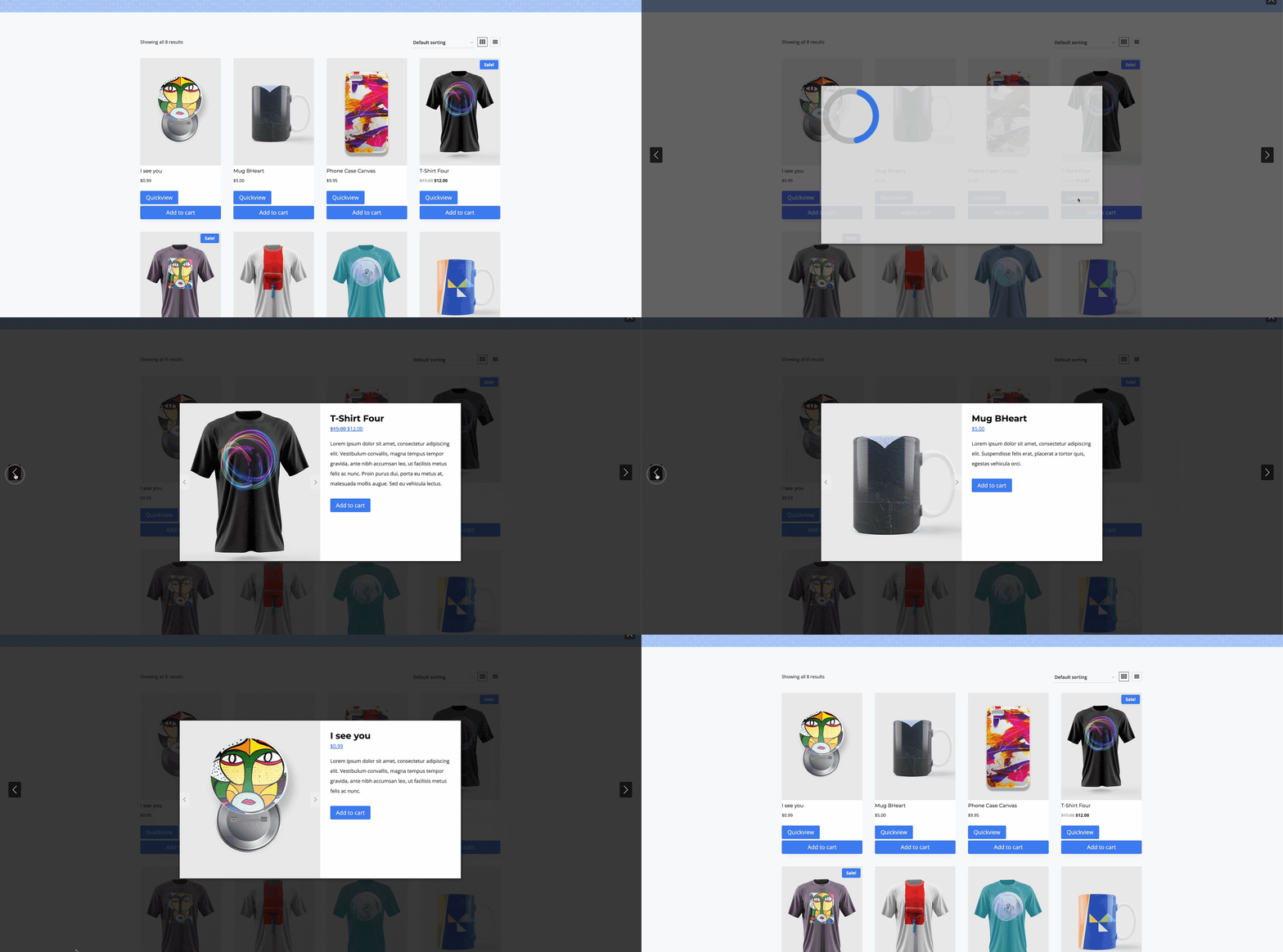
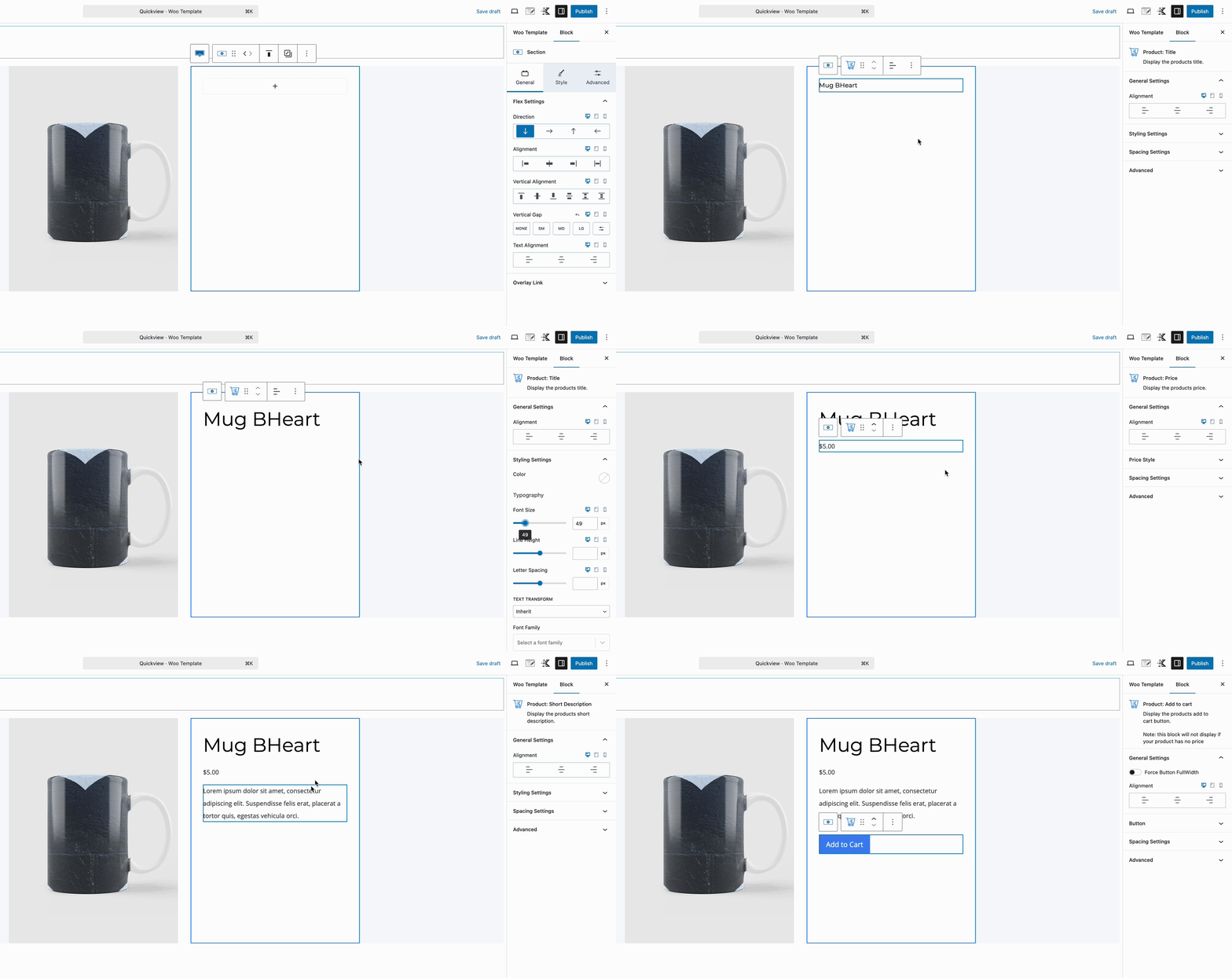
When using Product Quickview, you can use Woo Templates to dynamically control the Product Quickview layout/design.
Click here to learn more about using Woo Templates with Product Quickview.
Woo Template Settings
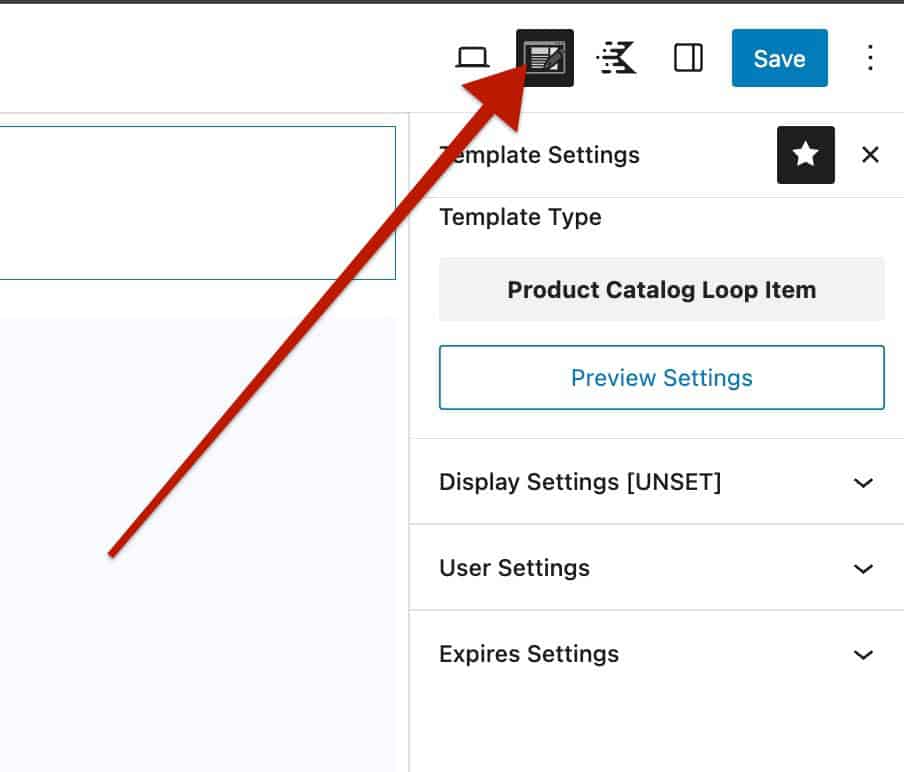
Use the Woo Template Settings to control where the current Woo Template will override and who will see it. Click on the pencil/paper icon in the top right of the editor.
Each template type will have available Woo Template Settings to control where and to whom the template will appear. This also includes the option to set an expiration on the Woo Template.
Use the resources below to learn more about each template type and its available settings.