
Skip to content
Help Center
  • Pricing
  • ProductsExpand
    • Premium PlansGet all the tools you need in one plan
    • Kadence ThemeLightning-fast performance theme for modern websites
    • Kadence BlocksDrop in ready designs with advanced controls for pixel perfect websites
    • Kadence Shop KitCreate a more effective WooCommerce shopping experience
    • Kadence ConversionsBoost sales and build engaged audiences with popups and banners
    • Kadence InsightsEasily create A/B tests. Optimize your pages to drive higher conversions.
    • View All Products
    • Get Kadence + Hosting
      In One Place

      Enjoy faster setup, top-tier performance, and worry-free WordPress hosting – Kadence Theme, Kadence Blocks, and Solid Security all pre-installed.

      Learn More

  • Kadence AI
  • Starter Templates
  • Blog
  • SupportExpand
    • Resource HubStart here for guides, Product docs, FAQs, and Troubleshooting tips, all in one place.
    • Contact SupportStuck on something? We’re here to help! Open a ticket for top-notch support.
    • Contact Our TeamGot pre-sales questions or need help choosing a plan? Open a ticket and our team will guide you.
    • About usCrafted with love in Missoula, Montana. Meet the team behind the mission.
Account Account
Get Kadence
Kadence Shop Kit
  • Features
  • Pricing
  • HelpExpand
    • Documentation
    • Submit a Ticket
    • Feature Requests
    • Roadmap
    • Changelog
Help Center
Kadence Shop Kit

Shop Kit Setup

  • How to Install & Activate Kadence Shop Kit
  • Product Templates (Woo Templates)
  • Product Quickview
  • Variation Swatches
  • Product Badges
  • Product Galleries
  • Shop Kit Product Brands
  • Kadence Advanced Reviews
  • Size Charts
  • Enable Custom Add to Cart Text
  • How to Set Variation Options
  • Snackbar Style Notices
  • Enable and Add Global Tabs
  • Conditional Cart Banners
  • Checkout Coupon Modal
  • Checkout Editor
  • Extra Category Description
  • Single Product Templates (Woo Templates)
  • Product Catalog Loop Item Templates (Woo Templates)
  • Product Archive Templates (Woo Templates)
  • How to Add Gutenberg Editor to WooCommerce
  • Open Affiliate/External Products In A New Tab

Woo Template Blocks

  • Product: Quickview Button Block
  • Woo Template Block – Product: Upsell
  • Woo Template Block – Product: Custom Actions
  • Woo Template Block – Product: Add to Cart
  • Woo Template Block – Product: Title
  • Woo Template Block – Product: Price
  • Woo Template Block – Product: Gallery
  • Woo Template Block – Product: Image
  • Woo Template Block – Product: Short Description
  • Woo Template Block – Product: Description
  • Woo Template Block – Product: Meta
  • Woo Template Block – Product: Tabs
  • Woo Template Block – Product: Rating
  • Woo Template Block – Product: Related
  • Woo Template Block – Product: Upsell
  • Woo Template Block Product: Additional Information
  • Woo Template Block – Product: Reviews Block
  • Woo Template Block – Breadcrumbs
  • Woo Template Block – Product: Notice
  • Woo Template Block – Product: Brand
  • Woo Template Block – Archive: Main Query
  • How to Enable Woo Template Blocks
  • Select a Product for Preview in Woo Template
  • Home
  • Knowledge Base
  • Kadence Shop Kit
  • Kadence Shop Kit
  • Shop Kit Setup

How to Add Gutenberg Editor to WooCommerce

The default WooCommerce product editor is, at the time of this writing, still using the old classic WordPress editor that does not create useful product pages.

The video below from our friends at WPCrafter.com shows you how you can add the blocks editor to create beautiful product layouts for your WooCommerce store.

More screenshots and instructions below if that is your preferred method of learning.

Product Descriptions without Gutenberg

WooCommerce uses the WordPress classic editor for product descriptions, which leaves a lot to be desired for product display. Site owners are essentially locked into displaying a product title, a product description, and little else in terms of design and layout other than some standard text styling. Unless you find a creative use of bold and italics invigorating, you’re out of luck.
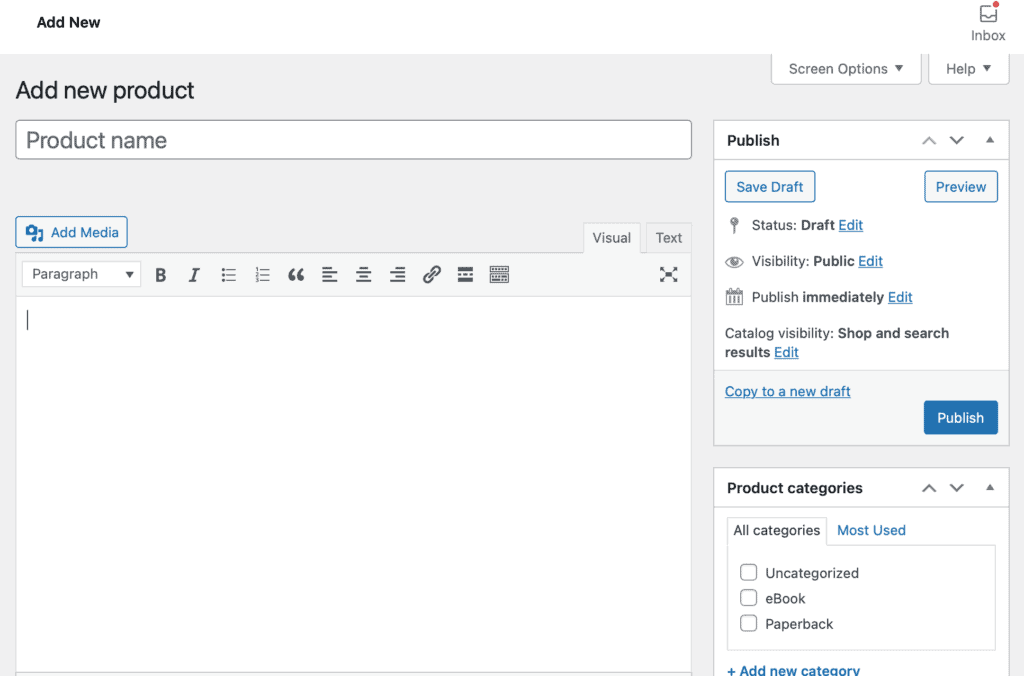
WooCommerce product editing using the classic editor leaves little room for customization with blocks. (WooCommerce version 6.0.0)

However, with a little bit of code, you can turn on the Gutenberg block editor to ensure that your products have all that the block editor, and Kadence Blocks, have to offer.

How to enable Gutenberg to edit your WooCommerce product descriptions

A small bit of code that you can copy from below will turn your product description area into a block-based wonderland.


// enable gutenberg for woocommerce
function activate_gutenberg_product( $can_edit, $post_type ) {
 if ( $post_type == 'product' ) {
        $can_edit = true;
    }
    return $can_edit;
}
add_filter( 'use_block_editor_for_post_type', 'activate_gutenberg_product', 10, 2 );

// enable taxonomy fields for woocommerce with gutenberg on
function enable_taxonomy_rest( $args ) {
    $args['show_in_rest'] = true;
    return $args;
}
add_filter( 'woocommerce_taxonomy_args_product_cat', 'enable_taxonomy_rest' );
add_filter( 'woocommerce_taxonomy_args_product_tag', 'enable_taxonomy_rest' );

Woocommerce Version 7.7.0 – product tab locked

If you’ve added the code above to your site, but you found that you are unable to add new blocks to your products after updating to WooCommerce Version 7.7.0, you should know WooCommerce added a template to the “product” post type, which might be interfering with your customization. The template can be removed using a filter like this:

add_filter('woocommerce_register_post_type_product', function( $args ) {
    unset( $args['template'] );
    return $args;
});

There are two methods of getting this bit of code above into your WordPress installation.

Code Snippets Plugin

First, you can use the very useful Code Snippets plugin to add this code to your WordPress installation. We’ve outlined how to use Code Snippets in our Knowledge Base article here. You can download the Code Snippets plugin by going to your WordPress admin and clicking Plugins > Add New. Then search for Code Snippets.
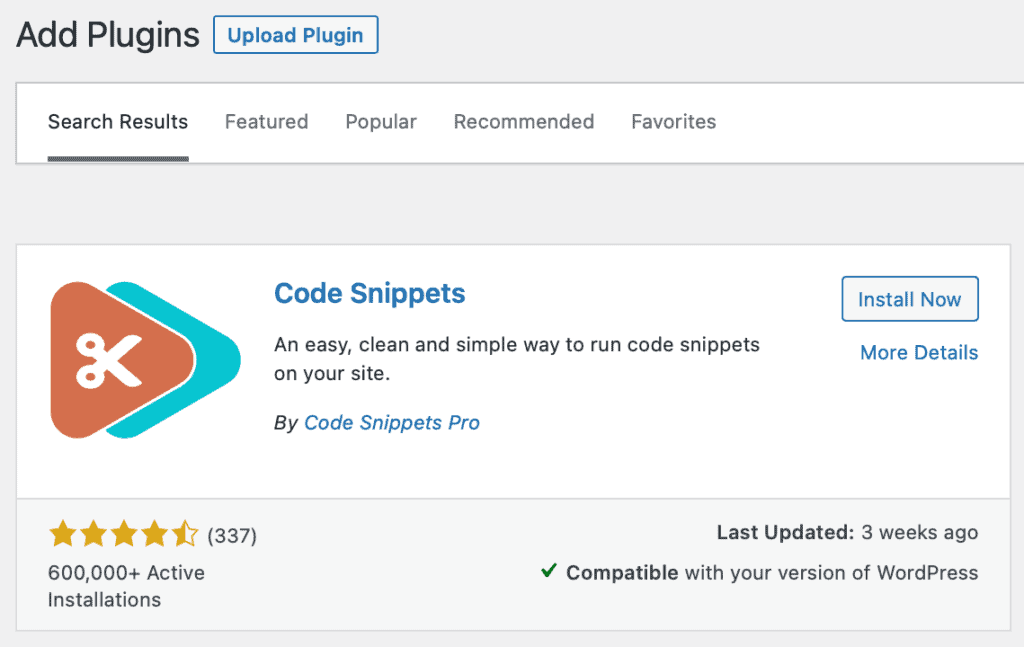
Install Code Snippets from the WordPress plugin directory.

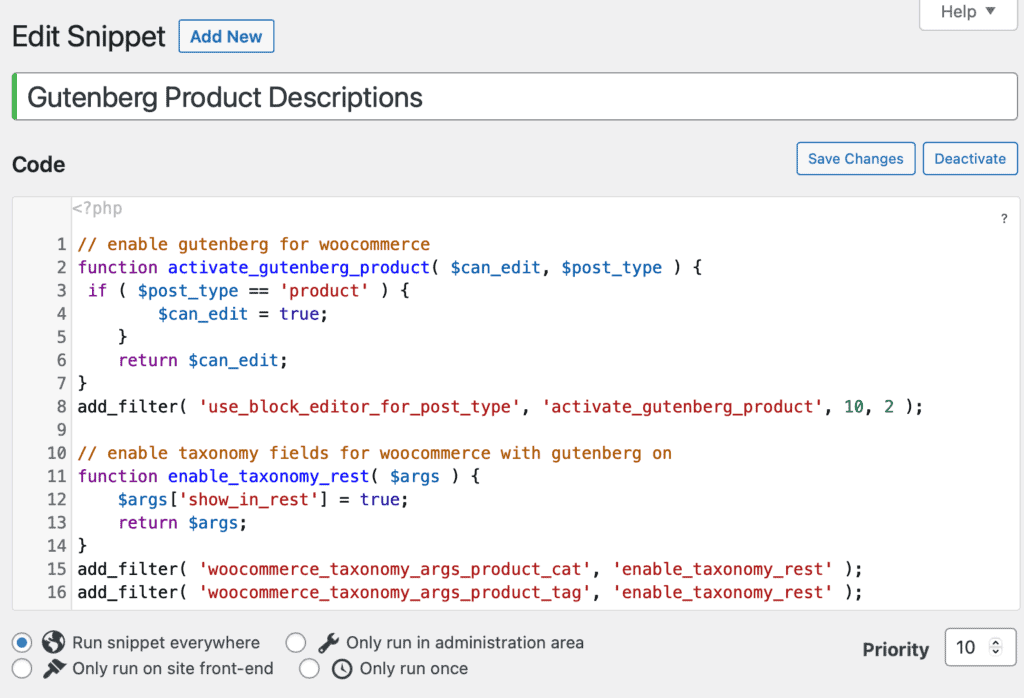
Once you’ve got Code Snippets installed, simply go to Snippets and create a new snippet, paste in the code above, add a description, and save your snippet. You’ve activated blocks for WooCommerce.
Theme Functions File

Alternatively, you can add it to your theme function file. We don’t recommend doing this, as your theme functions file will be overwritten in the future when you update your theme. As well, you can often break your site much more easily when you use the theme functions file. We share this as an option more as a cautionary tale, but it will work. Head to your Appearance > Theme Editor and find your active theme’s functions.php file. Paste the code above into the bottom of the functions.php file.

We recommend using a child theme and making a site backup if you choose to use this method of adding the code to your site.

Convert classic product descriptions to blocks

If you already have some products in your WooCommerce store, you’ll need to convert your existing content to blocks in order to use the block editor for editing that content. You’ll see that your existing product description is listed as “Classic” editor content. Click on Classic to see a dialog that will allow you to “Convert to Blocks” Save your product description and add to it, customizing with the block editor.
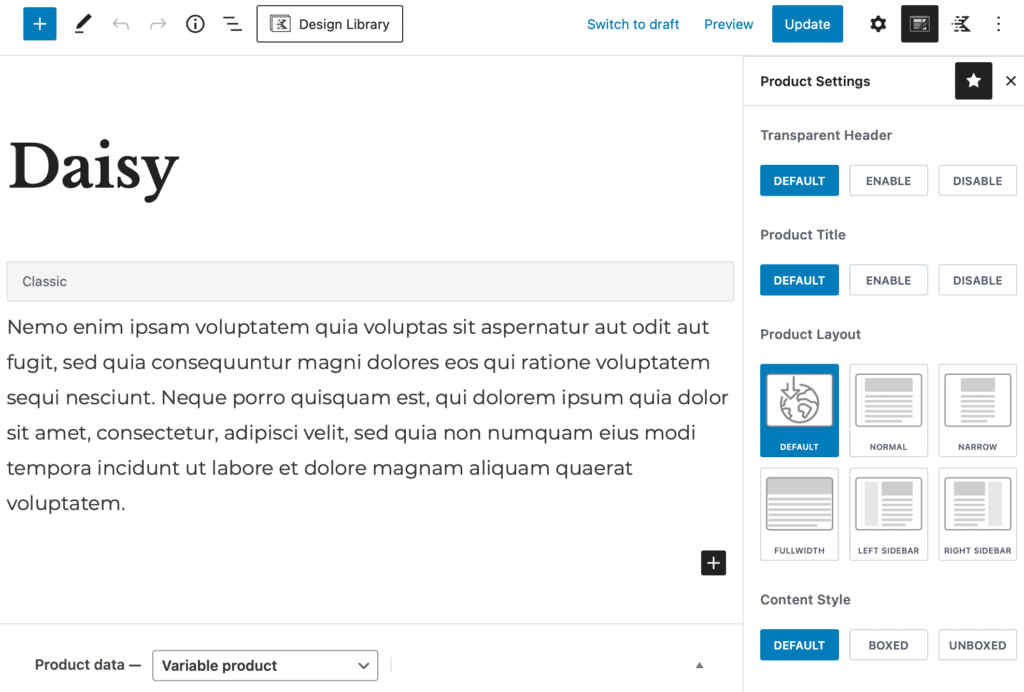
Using the block editor with WooCommerce product design

Once you’ve added the above code to your WordPress site, you now have unlocked all of the features of the block editor for product description design.

It also means that if you’re using Kadence and Kadence Blocks, you can now use any of the features for Kadence Blocks in your WooCommerce product descriptions.

Note that this will only affect the general area where product descriptions are located. But within that space, you can now access any of the Kadence Design Library and add new looks to your product descriptions.


Do you feel this document was helpful?
Product Archive Templates (Woo Templates)Open Affiliate/External Products In A New Tab
The Kadence WP Logo
Crafted in Missoula, Montana
  • Follow Kadence on Facebook
  • Follow Kadence on Youtube
  • X
  • Follow Kadence on Instagram
Trustpilot
Products
  • Kadence Plans
  • Kadence Theme
  • Kadence Blocks
  • Kadence AI
  • Kadence Starter Templates
  • Kadence Shop Kit
  • Kadence Conversions
  • Kadence Pattern Hub
  • View All
Resources
  • Blog
  • Podcast
  • Knowledgebase
  • Support ticket
  • Feature Requests
  • FAQ
  • WordPress Hosting Services
About Us
  • About Kadence
  • Become an affiliate
  • Contact us
  • Terms
  • Privacy Policy
  • Security
Our Partner Brands
  • SolidWP
  • LearnDash
  • The Events Calendar
  • GiveWP
  • MemberDash
Kadence Community
  • Kadence Marketplace
  • Join the Facebook Group
  • Subscribe to our YouTube Channel
© 2024 Kadence WP | All prices are in USD
Logo for StellarWP an umbrella brand of Premium WordPress plugins
  • Pricing
  • Products
    • Premium PlansGet all the tools you need in one plan
    • Kadence ThemeLightning-fast performance theme for modern websites
    • Kadence BlocksDrop in ready designs with advanced controls for pixel perfect websites
    • Kadence Shop KitCreate a more effective WooCommerce shopping experience
    • Kadence ConversionsBoost sales and build engaged audiences with popups and banners
    • Kadence InsightsEasily create A/B tests. Optimize your pages to drive higher conversions.
    • View All Products
    • Get Kadence + Hosting
      In One Place

      Enjoy faster setup, top-tier performance, and worry-free WordPress hosting – Kadence Theme, Kadence Blocks, and Solid Security all pre-installed.

      Learn More

  • Kadence AI
  • Starter Templates
  • Blog
  • Support
    • Resource HubStart here for guides, Product docs, FAQs, and Troubleshooting tips, all in one place.
    • Contact SupportStuck on something? We’re here to help! Open a ticket for top-notch support.
    • Contact Our TeamGot pre-sales questions or need help choosing a plan? Open a ticket and our team will guide you.
    • About usCrafted with love in Missoula, Montana. Meet the team behind the mission.
Account Login
  • Features
  • Pricing
  • HelpExpand
    • Documentation
    • Submit a Ticket
    • Feature Requests
    • Roadmap
    • Changelog