
The easiest way to add custom PHP or JavaScript functions to your site is by using a code snippets plugin. Compared to a child theme, it offers better organization for your custom code, allowing you to enable or disable snippets with a single click, export and import them, and more. Using a plugin also includes safeguards to help prevent site-breaking errors, and if something does go wrong, there are simple ways to regain access and fix your code.
Install the Code Snippets Plugin
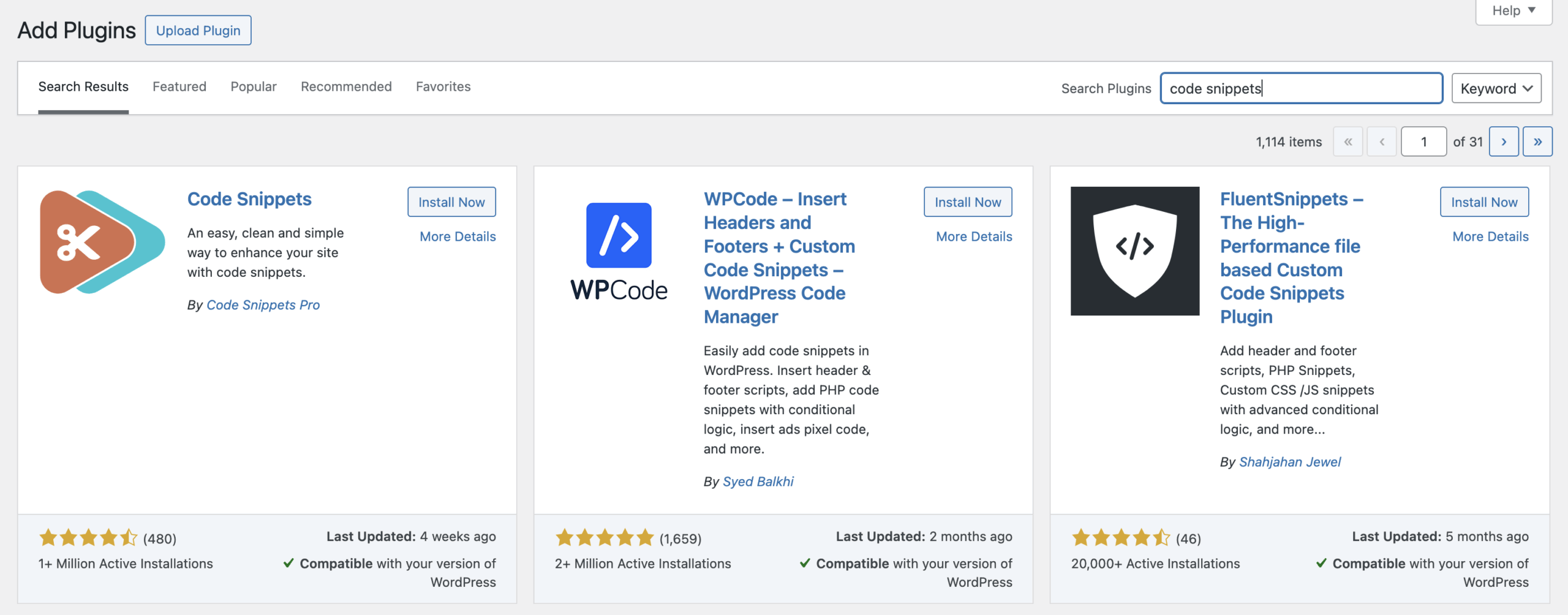
You can install the Code Snippets plugin by going to your WordPress Dashboard and clicking Plugins → Add new. Then search for code snippets.
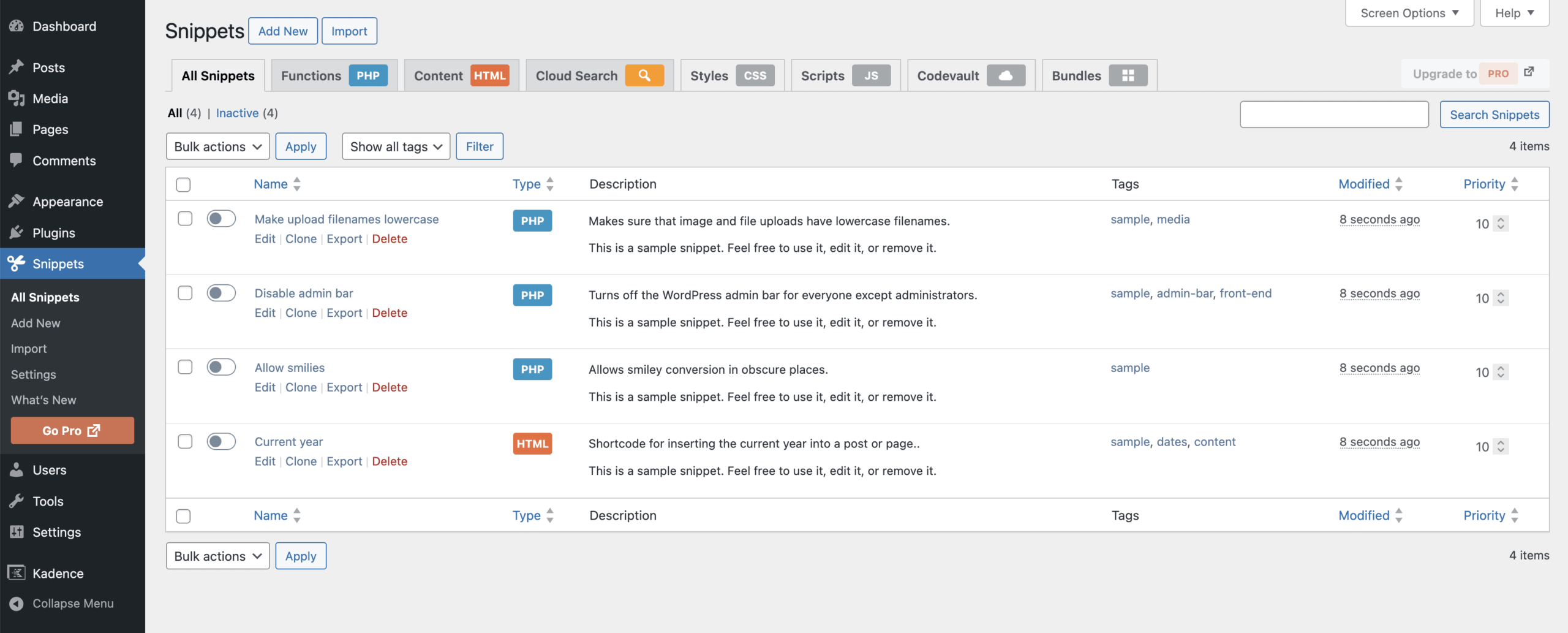
Once installed and activated, you can navigate to Snippets in your admin menu. Code Snippets provides several example snippets that you can use and/or edit to see how things work.
If you want to learn more about the plugin and it’s available settings check out the WordPress plugin page.
Adding a PHP Snippet
To add a PHP snippet, click Add New in the Snippets menu and then add in your code into the code area. The plugin defaults to PHP and you can also set the Location.
Location:
- Run Everywhere (default)
- Only run in administration area
- Only run on site front-end
- Only run once
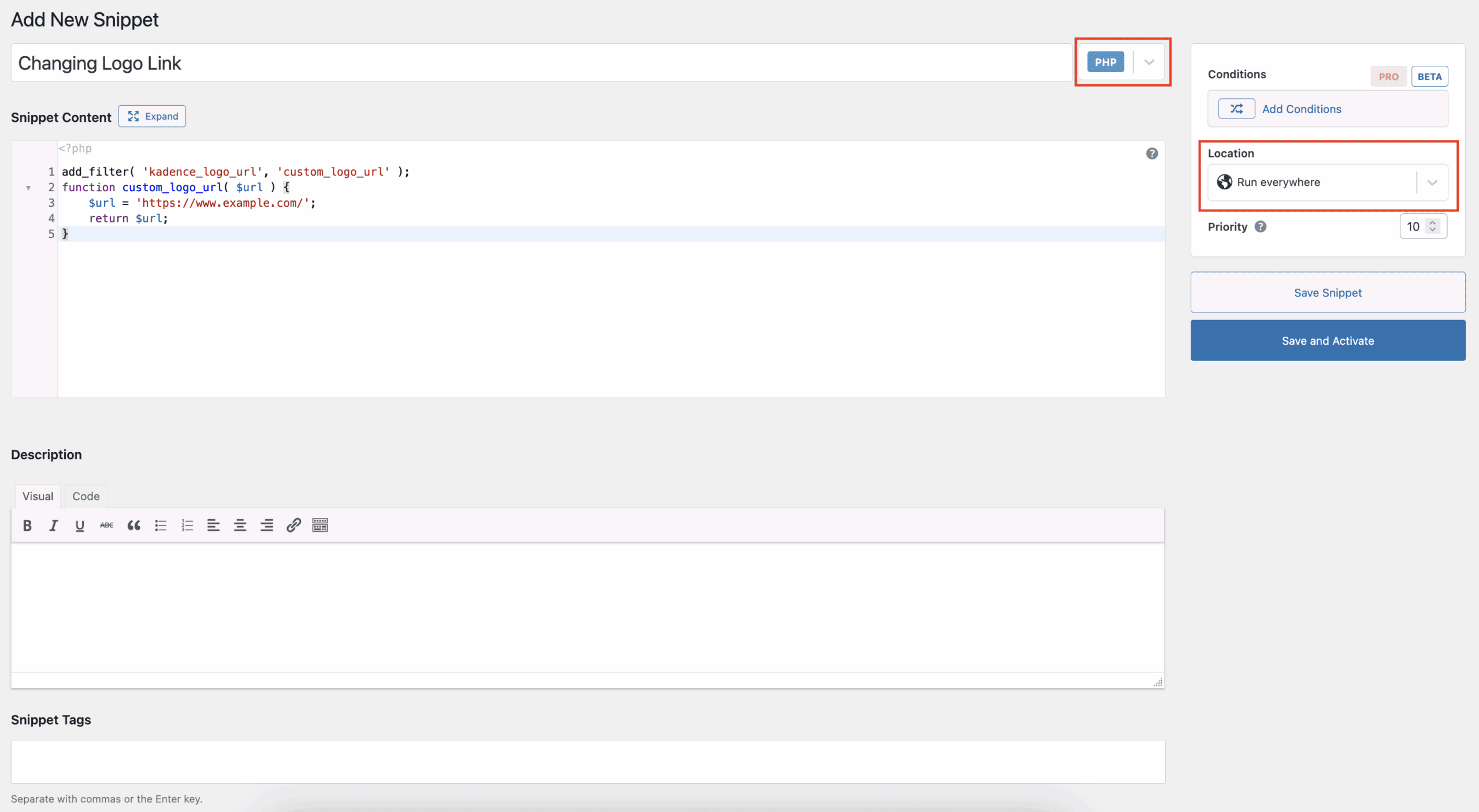
Once you’ve added your function and set the Location, click Save and Activate. If your snippet contains any syntax errors, it will not activate.
Adding a JavaScript or HTML Snippet
To add a JavaScript or HTML code snippet you can click Add New in the Snippets menu and, before adding your code, change the type to HTML and set the Location.
Location:
- Where inserted in editor (default)
- In site <head> section
- In site footer (end of <body>)
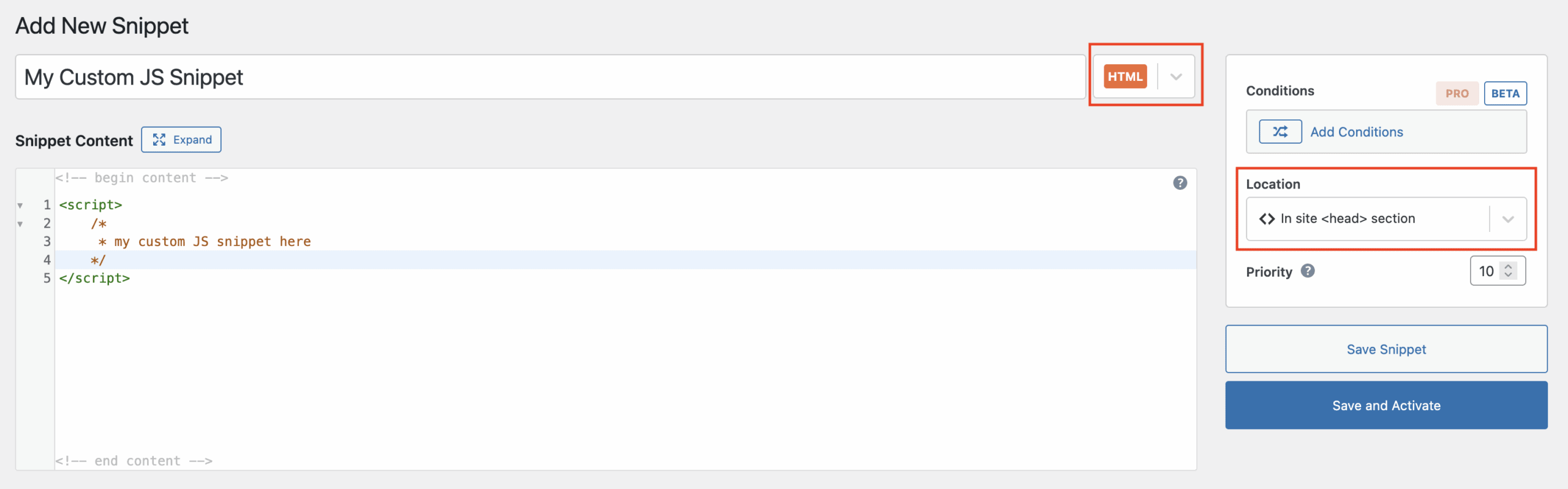
Optionally add a description and tag and then Save and Activate your snippet.
Other Code Snippet Plugins
Here are a few good alternatives for adding snippets to your site:

