
One of the first things to check when troubleshooting website issues is whether caching is the culprit. If you’re using optimization plugins or any plugins that handle script/style caching, you’ll often need to clear the cache. This applies to both your website’s cache and, sometimes, the visitor’s browser cache.
Caching works by storing a version of your site’s code so that pages load faster on repeat visits. While this helps with performance, it can also cause problems when you make changes, execute plugin/theme/WordPress updates, or adjust settings. Issues can occur if the site is still serving an outdated version of your website code.
To avoid issues, clear your caches regularly. This includes your Browser Cache and your Website Cache. In addition to optimization plugins, some plugins, like WooCommerce, also have their own built-in caching system that might also need to be refreshed in some instances. This document covers how to identify cache-related issues and how to clear different types of cache across various devices.
If an issue persists after clearing all forms of caching, it may be caused by a specific optimization setting. Click here to learn how to identify and fix optimization settings that may break styles or functionalities.
To learn more about caching in general, check out this SolidWP article on the essentials of WordPress caching.
Determining Cache-related Issues
There are different ways to determine if an issue is Cache Related. This can be from simply accessing the website from a browser that had never visited it before, to using a No Cache URL parameter to bypass caching plugins. Another key indicator is when different users see different versions of the same page, which often means an outdated cache is being served.
If you make a major update to your website, whether it’s WordPress, PHP, your theme, or plugins, and an issue arises, caching is usually the first thing to check. This also applies to more simple changes, like updating a page or modifying your site’s logo. An outdated cache can often cause problems after updates, so clearing it should be your go-to approach for troubleshooting most issues.
If you see different content from a Logged-in/Logged-out point of view, this is also a known cache-related issue. In this case, you should check your caching plugin or server settings to ensure that cached versions aren’t interfering with user-specific content/settings. Some caching plugins have options to exclude logged-in users from being cached, which can help resolve this.
Testing with Fresh Cache
You can test the issue that is occurring on your website using a fresh cache. There are three main ways to do this.
- Clear the Local Browser Cache: You can clear the Cache of the Local Browser. (See the section below for more). Then, see if visiting the site works. In some cases, this might resolve the issue entirely. If the issue continues, then you will need to dig deeper into clearing your Website Caches.
- Access the website from an Incognito Window: Most web browsers offer the option to open a new Incognito Window. These windows bypass cache so checking if the issue occurs from an Incognito Window can help determine if the issue is Cache-related.
- Testing from a Different Browser: If you have a different browser that has never accessed the website before, you can try accessing the website using a different browser. This will load in fresh Cache, similarly to the previous two steps.
No Cache URL Parameters
If you are using an Optimization Plugin, your plugin provider likely offers a No Cache URL Parameter. These are parameters that can be added to any URL of a website using a specific Cache Plugin. In return, the Cache will be completely bypassed. You can usually google your provider’s name and find information related to bypassing cache using a URL parameter.
Additionally, here are some popular Optimization-plugin-providers and their no-cache parameters along with their source to learn more.
|
Standard (Works on various plugins) |
example.com/?nocache=1 |
|
Litespeed Cache |
example.com/?LSCWP_CTRL=before_optm |
|
FlyingPress |
example.com/?no_optimize |
|
Perfmatters |
example.com/?perfmattersoff |
|
Autoptimize |
example.com/?ao_noptimize=1 |
|
WP Rocket |
example.com/?nowprocket |
|
FastPixel Website Accelerator |
example.com/?fastpixeldisable |
|
Hummingbird |
example.com/?avoid-minify=true |
|
WP Fastest Cache |
example.com/?wpfc=1 |
Once you have determined an issue is indeed cache-related, you should then proceed to fully clear all of your website and browser cache. View the sections below for different ways to clear your cache.
Clearing Browser Caching
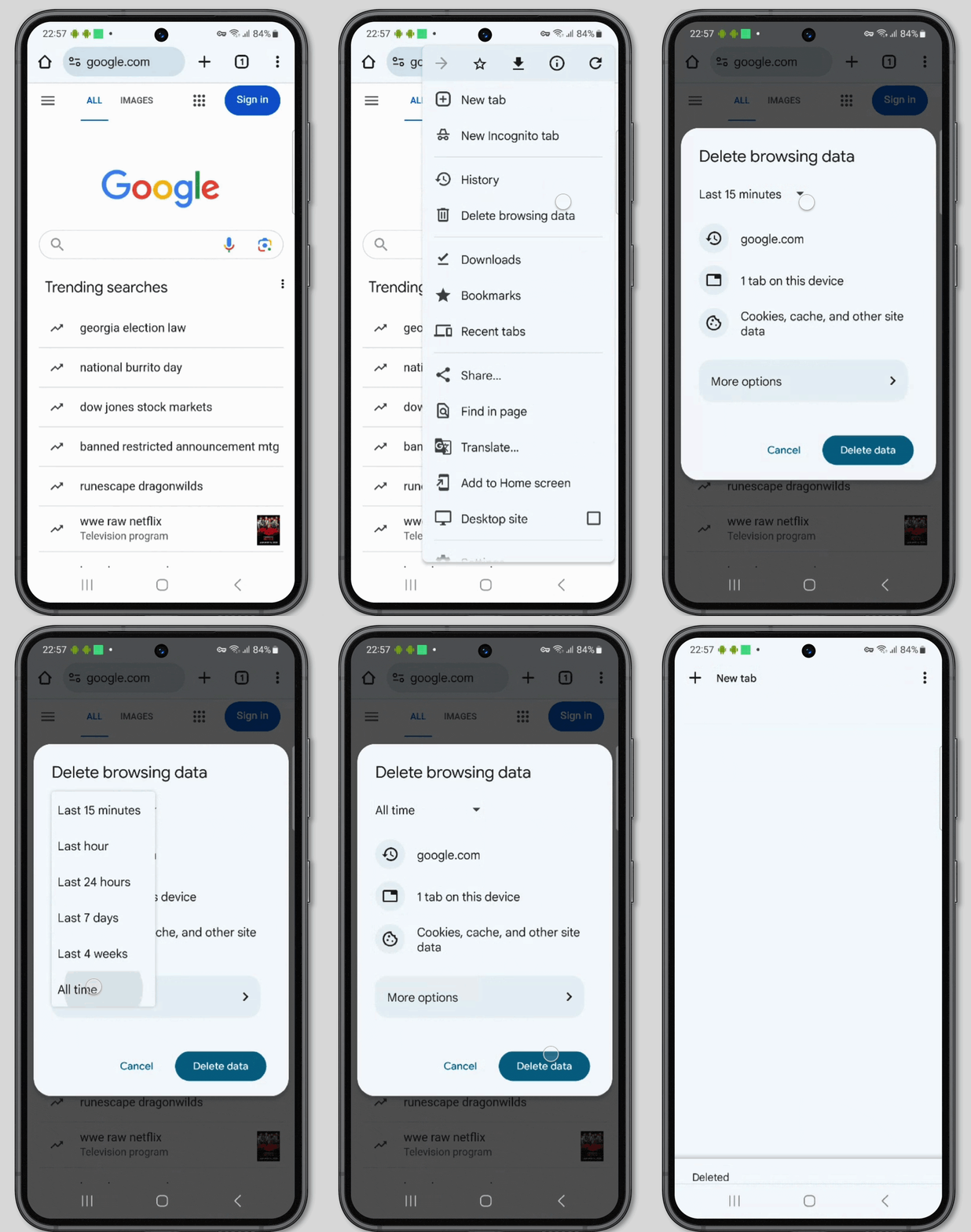
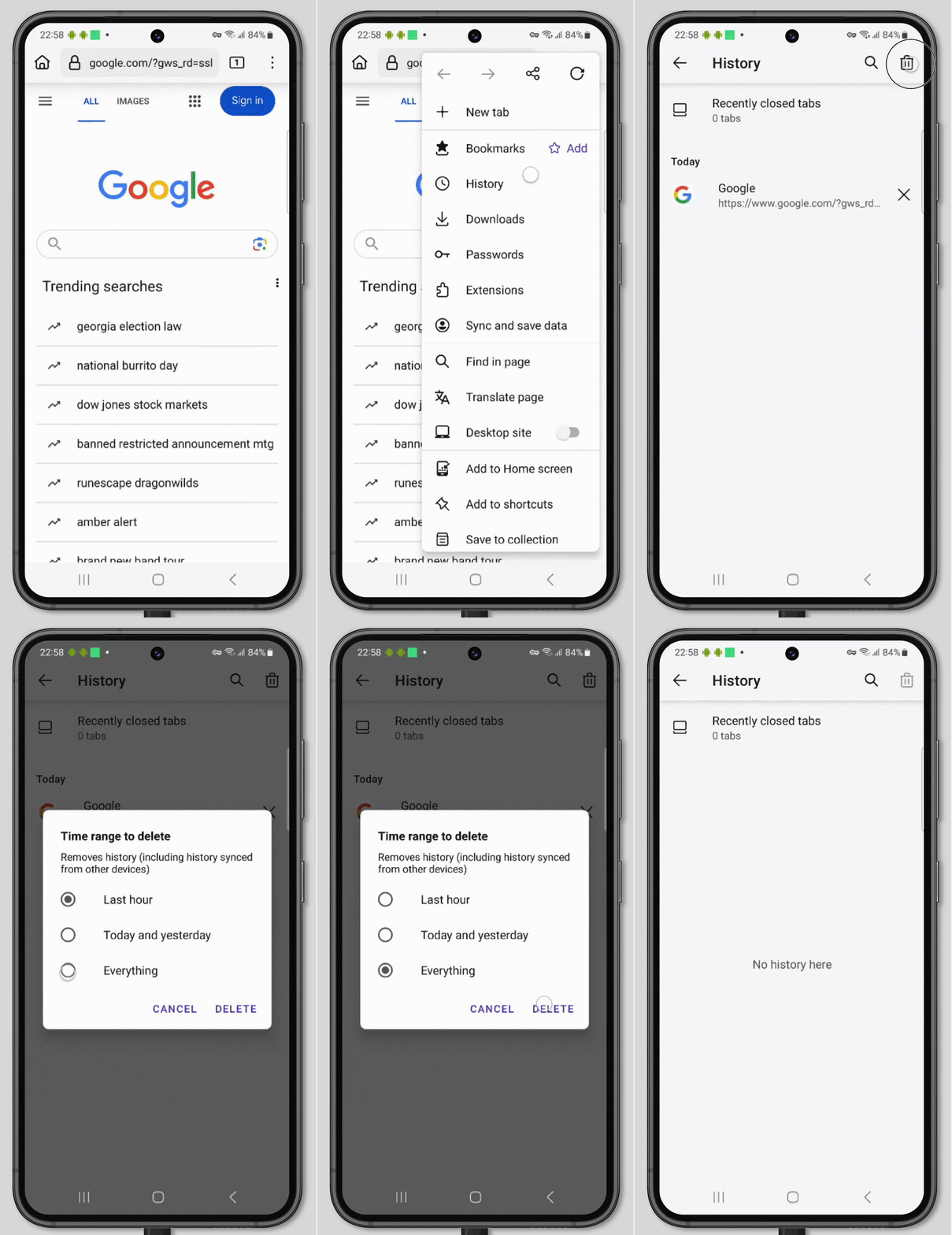
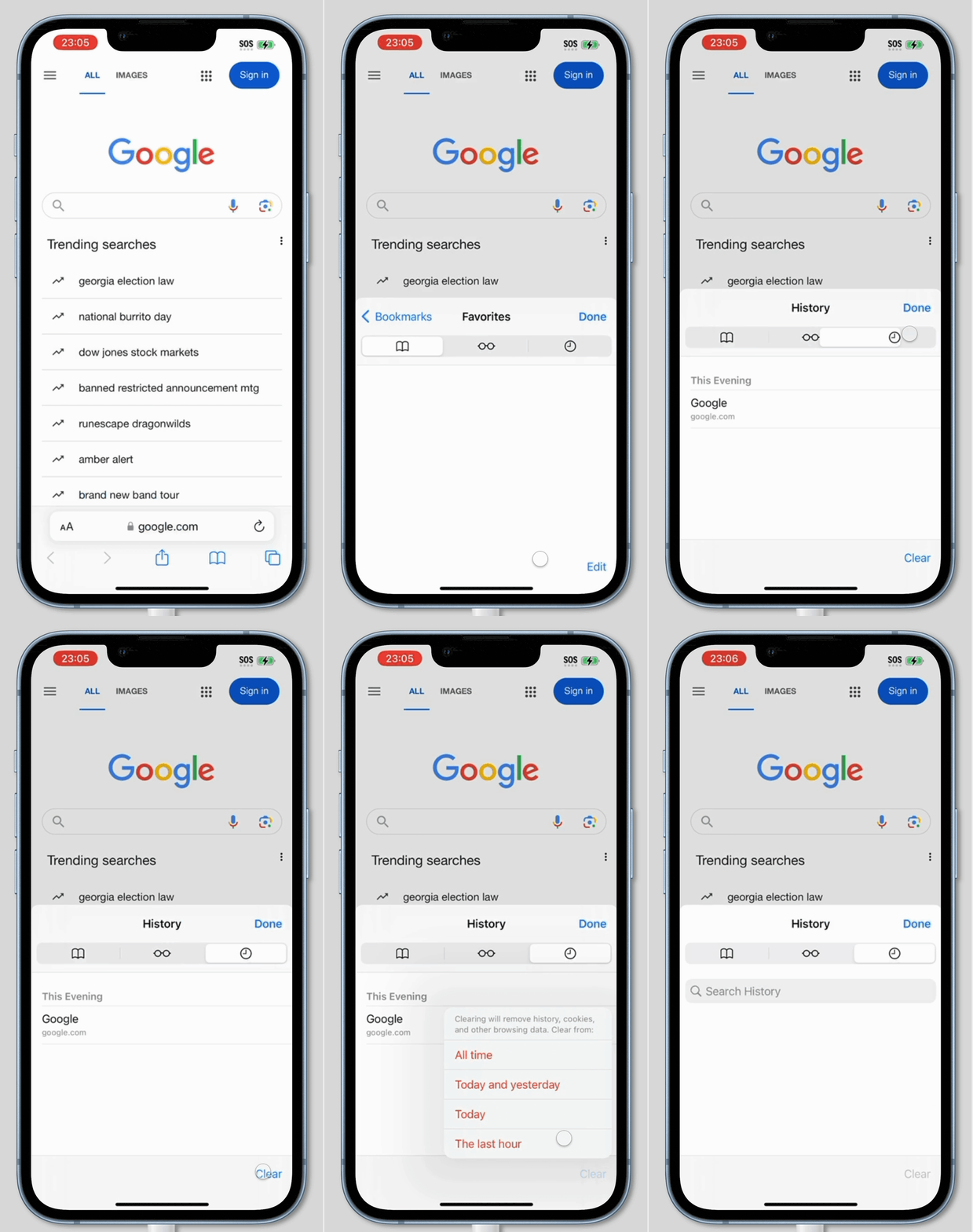
Each web browser offers a way to clear the Caches. This is done slightly differently for each Browser Provider, but the process is close to the same across all web browsers. These options also slightly differ between Mac/Windows and IOS/Android devices. View the sections below to find out how to clear the cache on these different device types and operating systems.
Clearing Cache on Mac
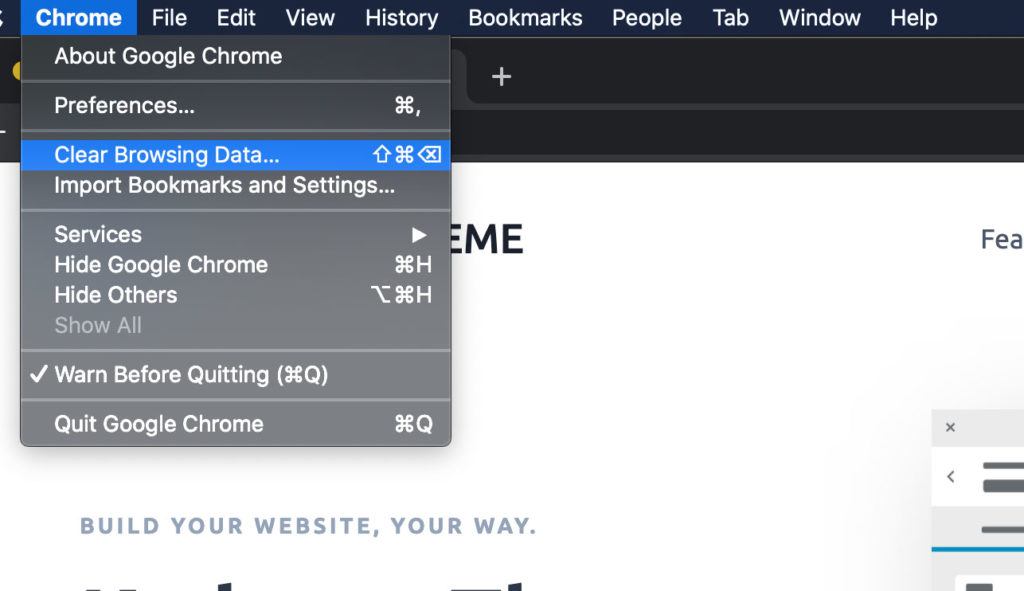
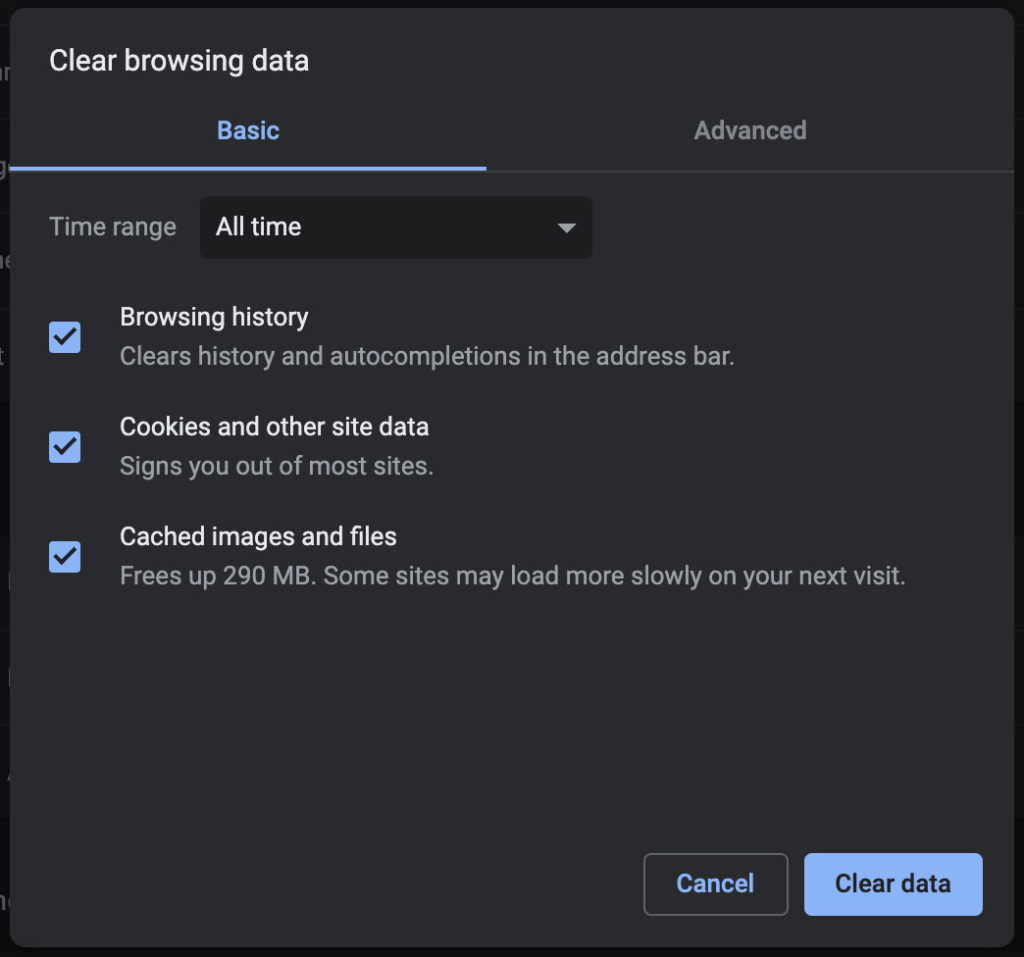
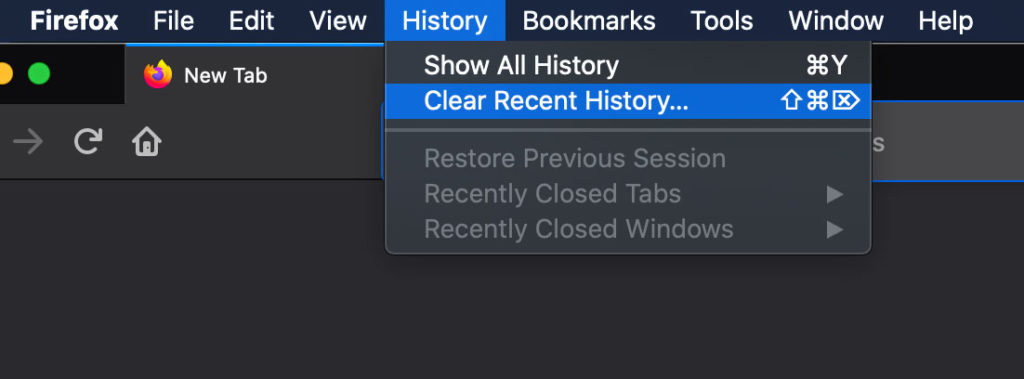
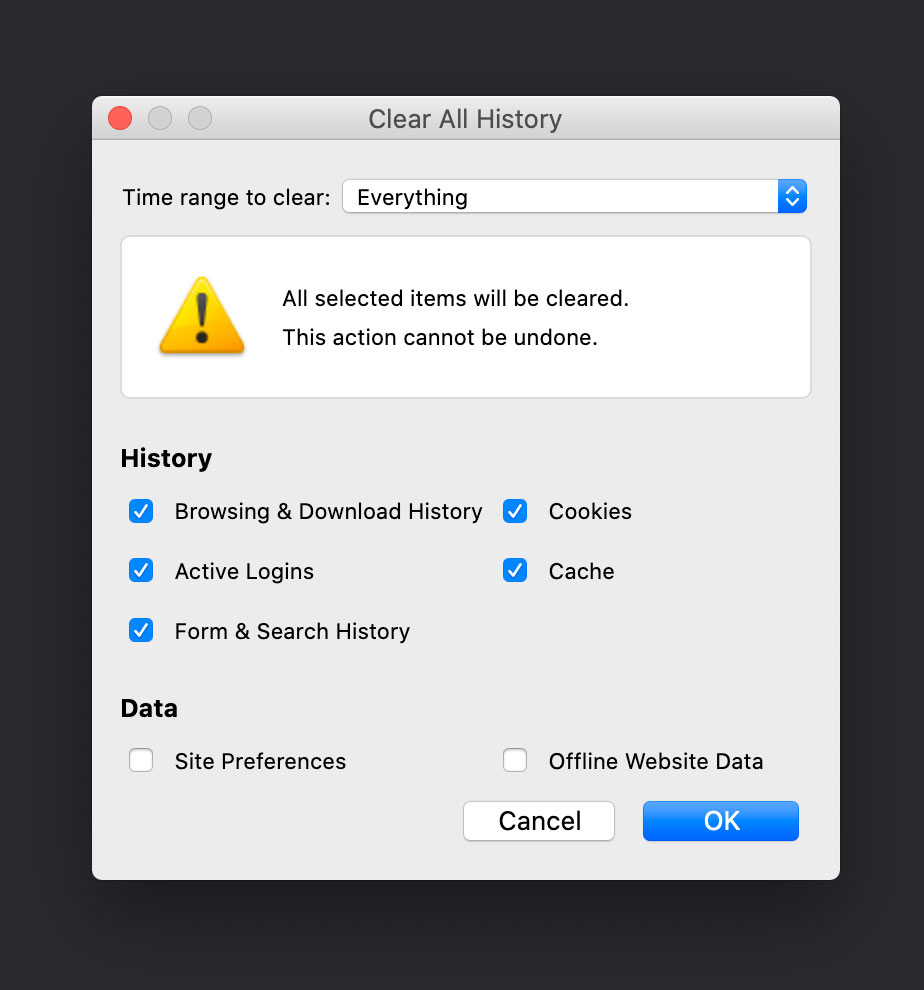
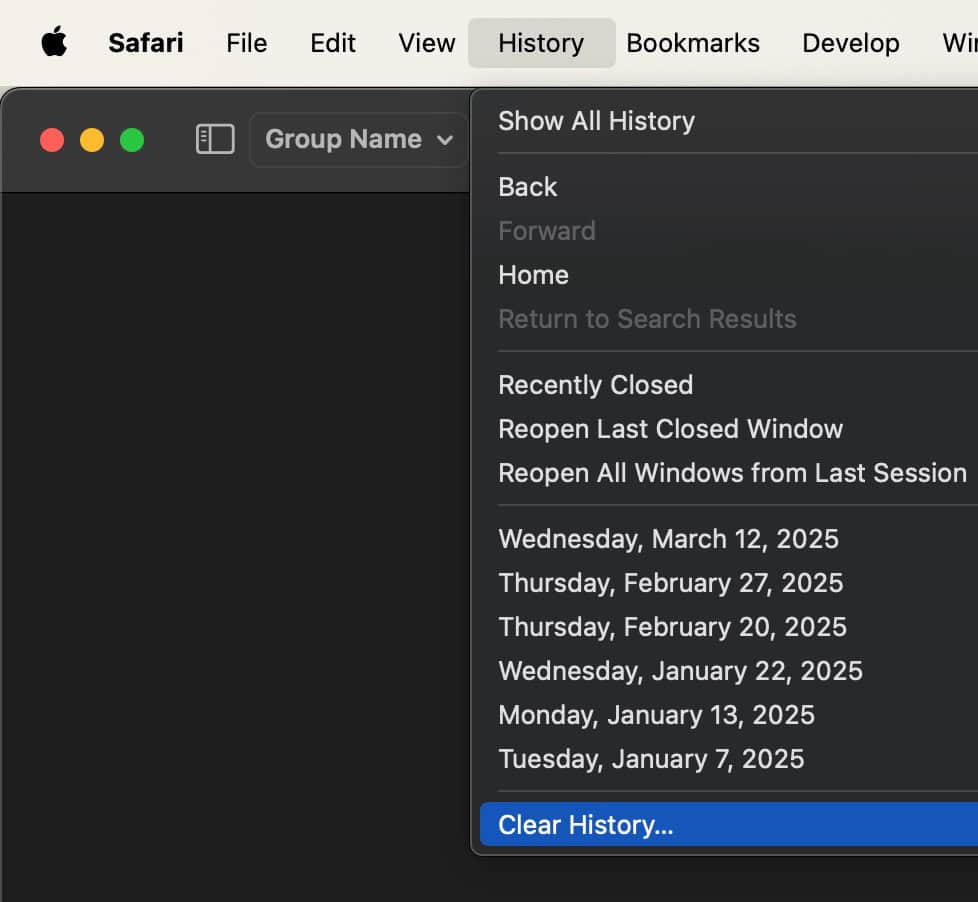
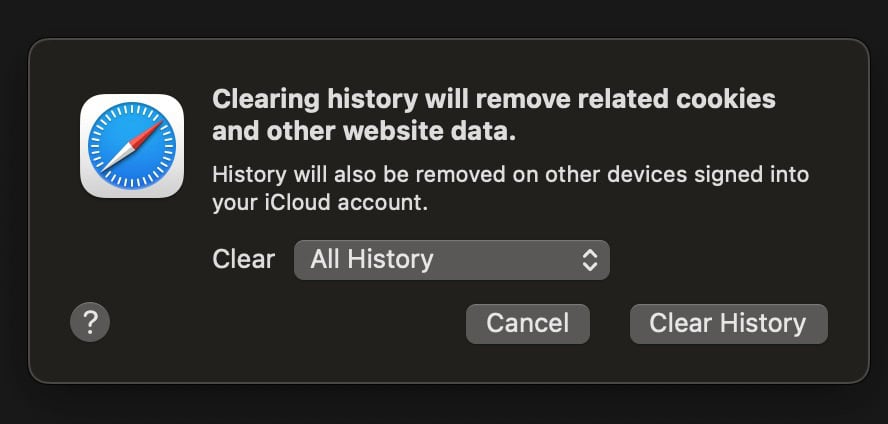
To clear Caches from a mac, you will need to open the web browser and use the top toolbar to clear the browser cache. You should clear everything (all time) to ensure the old cache doesn’t remain.
Chrome
FireFox
Safari
Clearing Cache on Windows
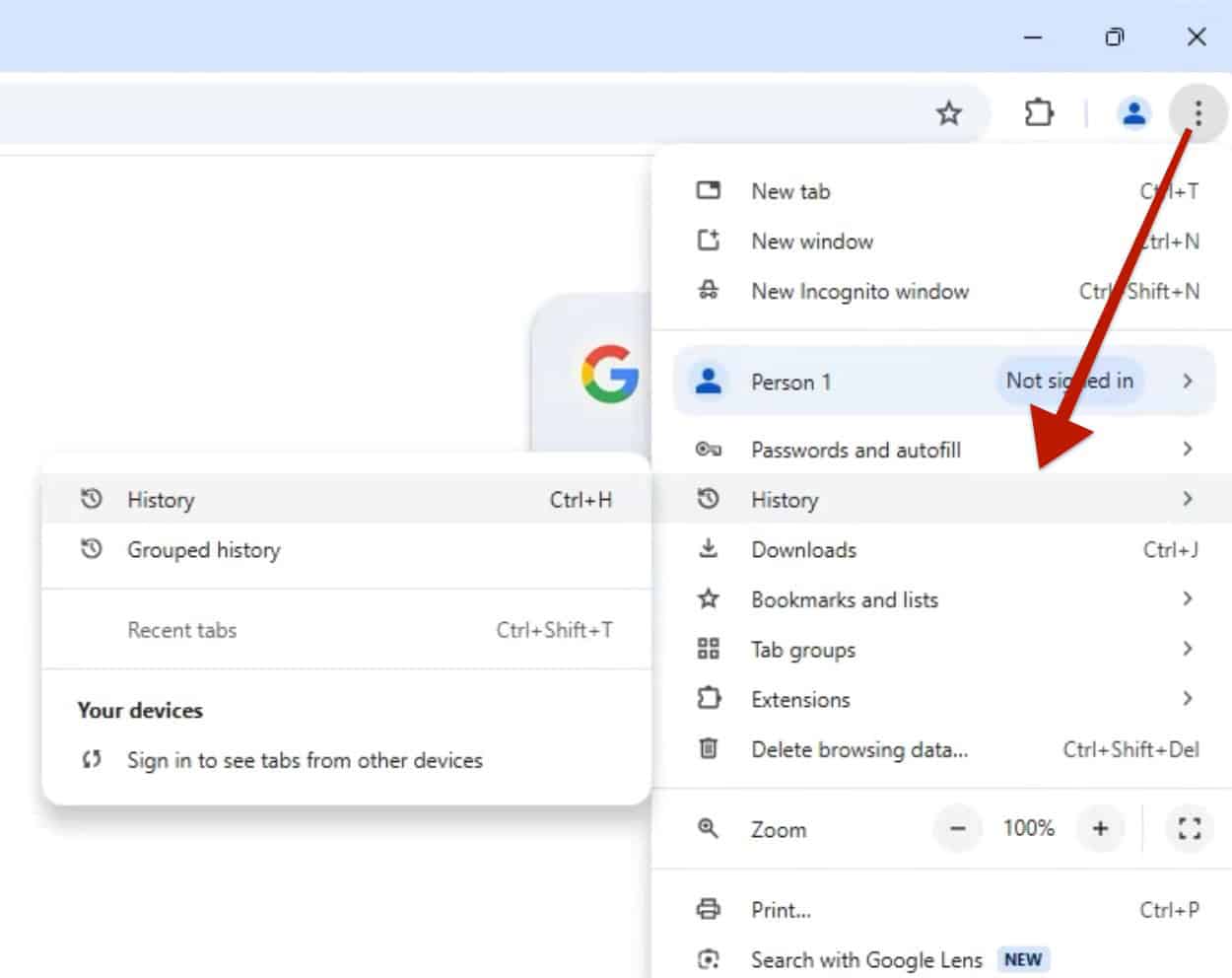
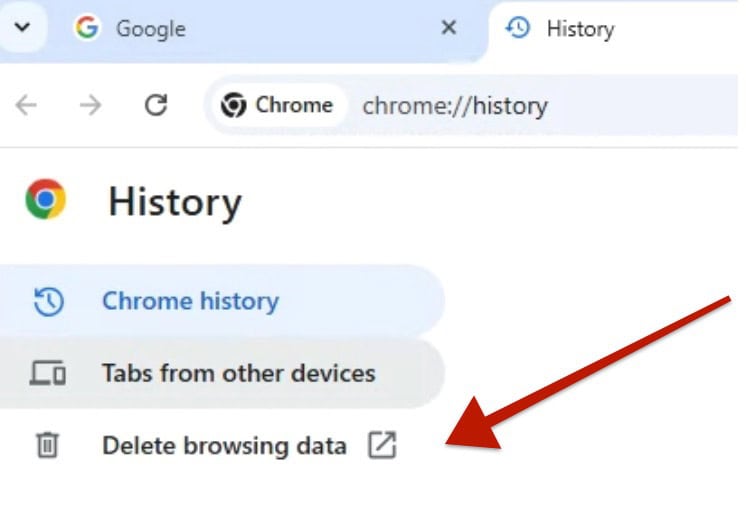
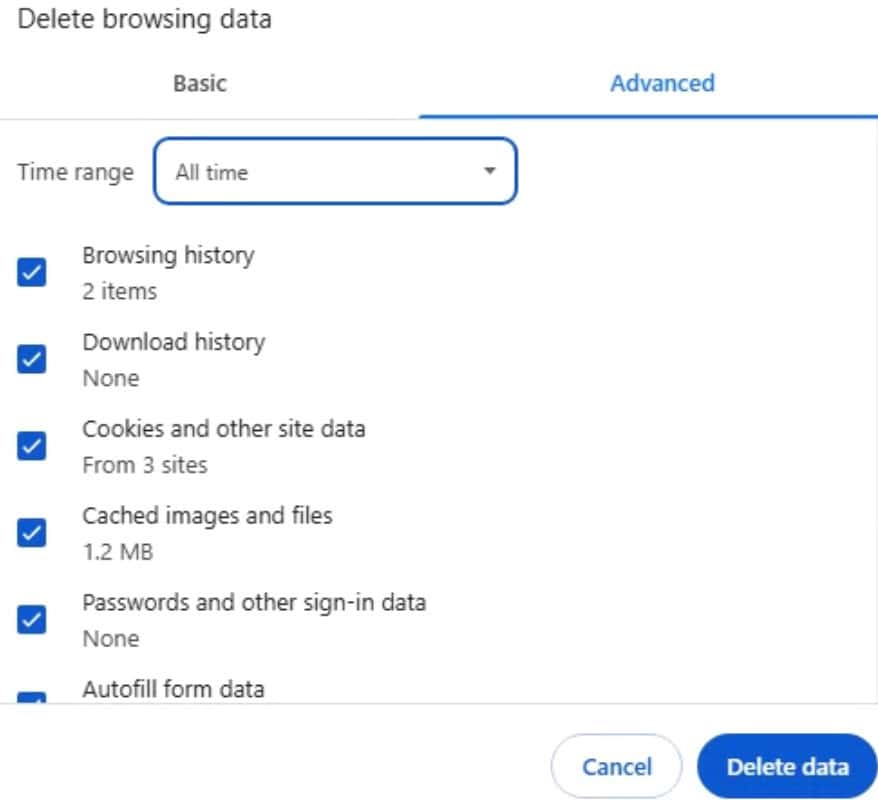
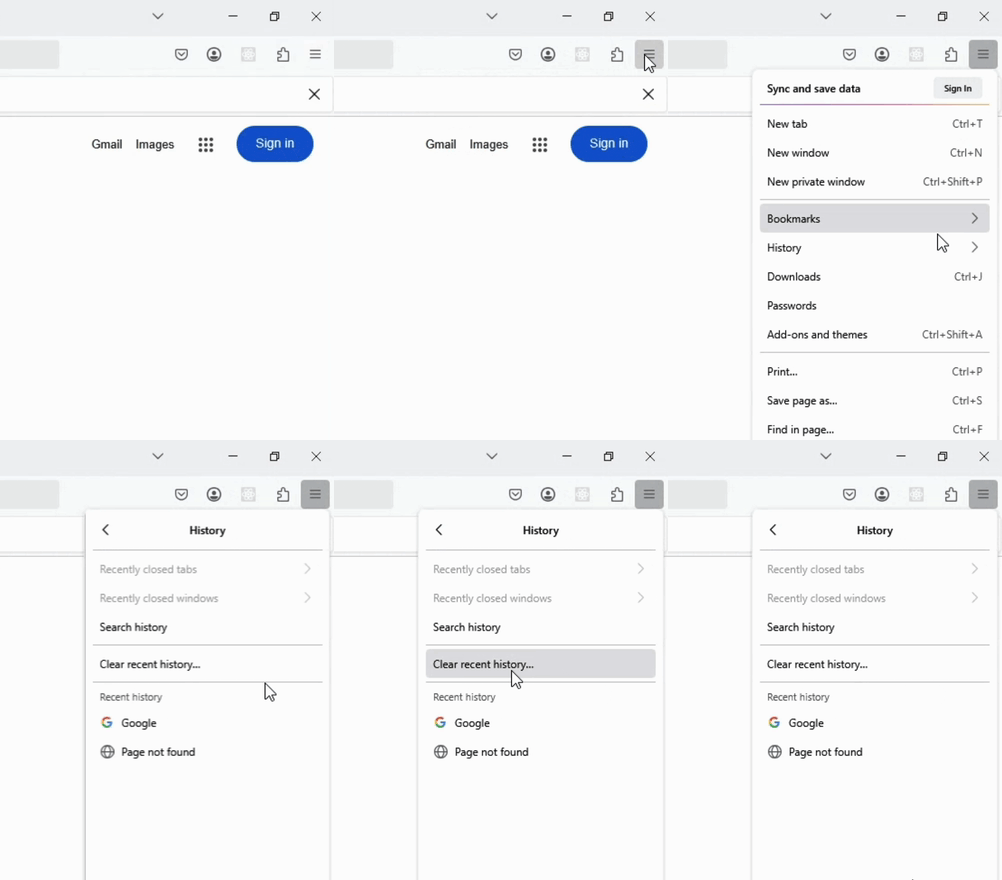
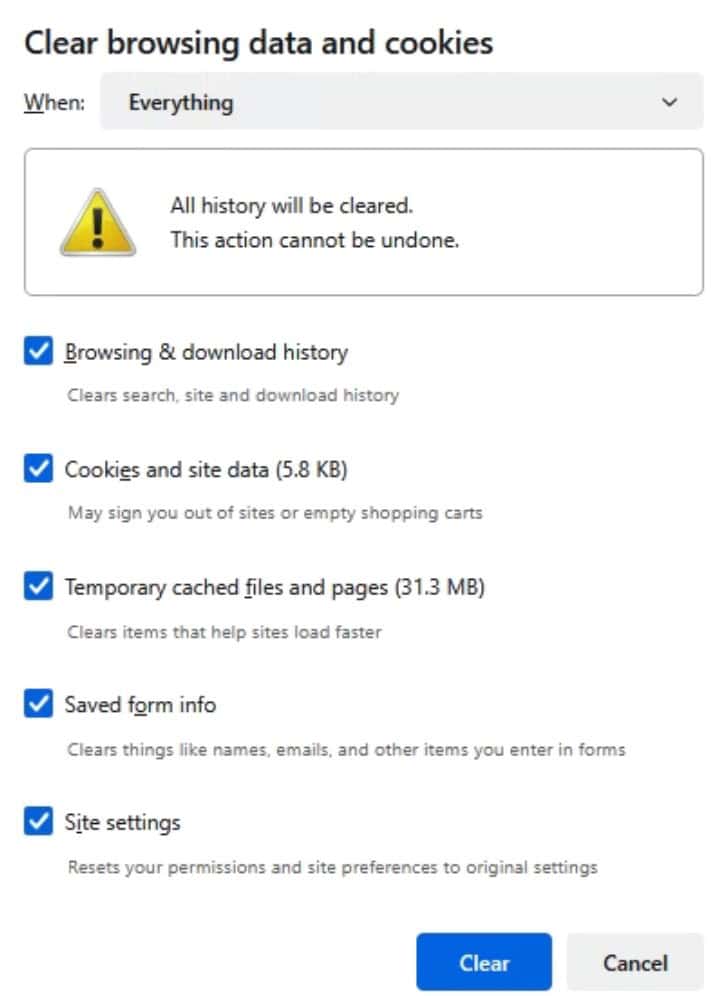
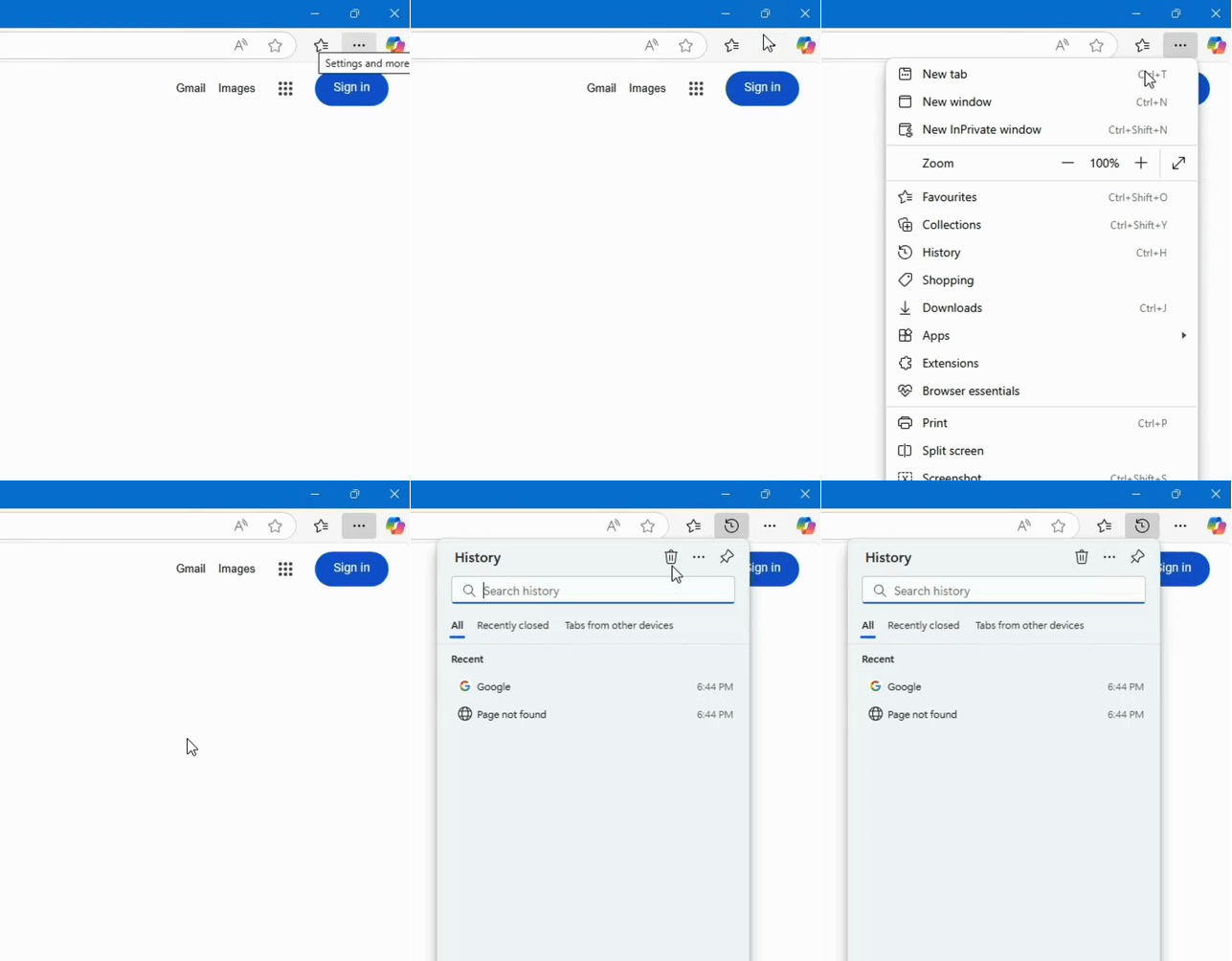
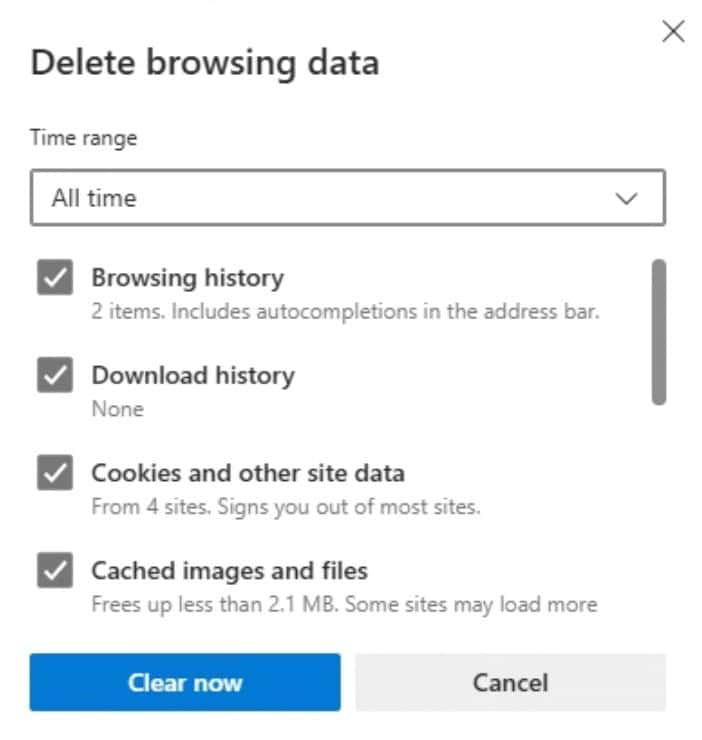
Windows Devices tend to store cache settings slightly differently than Mac Devices. On Windows, you can usually access the browser settings by finding the Settings Toggle. This is usually found near the Top Right Corner of the browser.
Chrome
Firefox
Edge
Clearing Cache on Android
Chrome
Firefox
Edge

Clearing Cache on IOS
Safari
Chrome
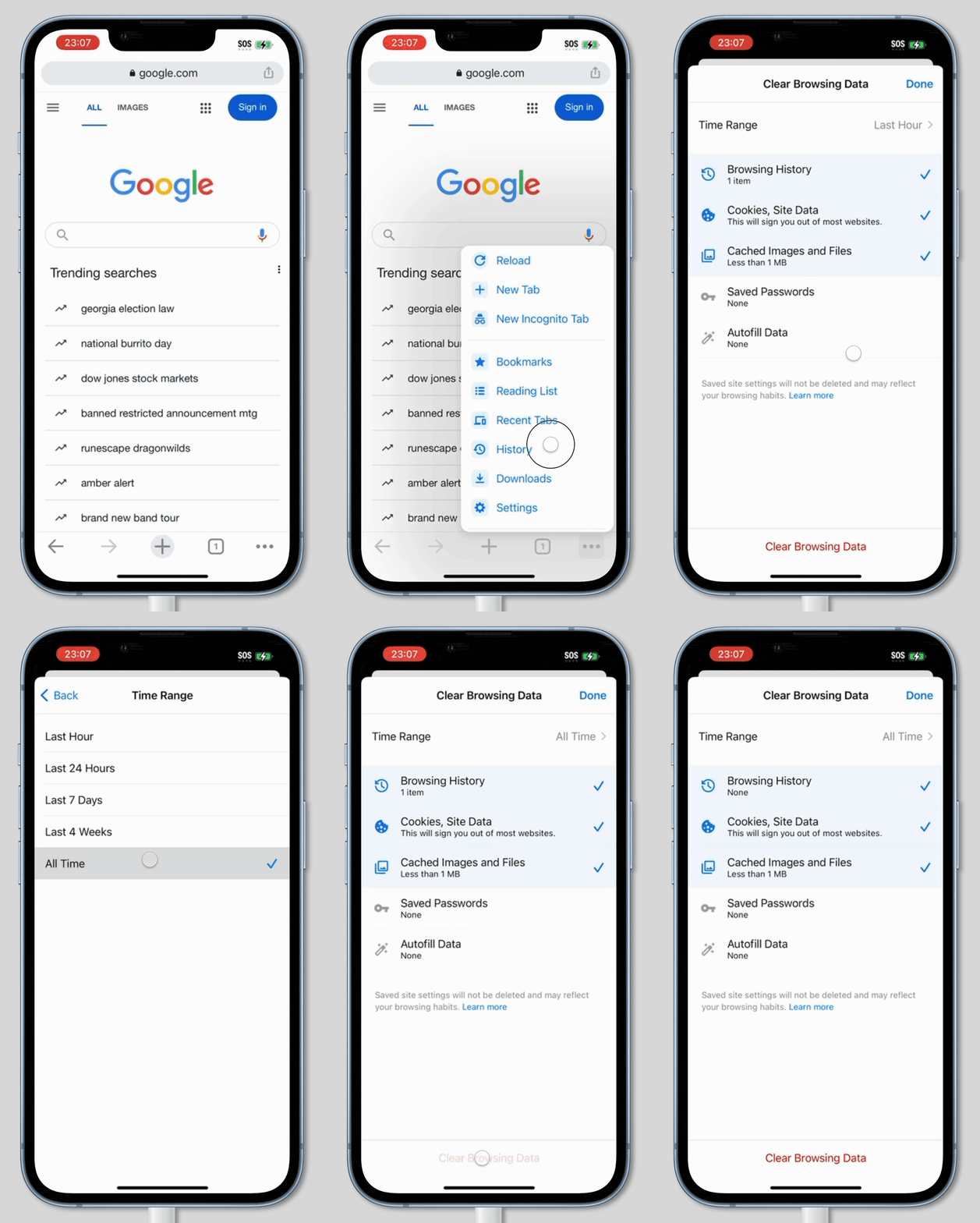
Clearing Website Cache
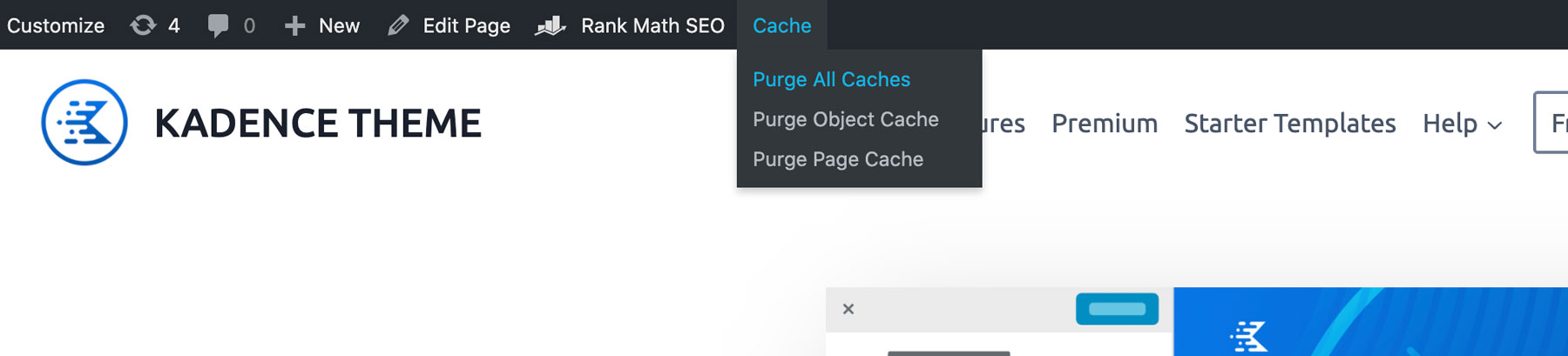
If you’re using an optimization plugin like Fast Velocity Minify, Autoptimize, or LiteSpeed Cache, it’s important to clear the cache regularly. Otherwise, outdated files could cause styles or functions to break.
Most caching plugins have a “Purge Cache” or “Delete Cache” option in the top admin bar. In some cases, your hosting provider may also apply its own caching, which can usually be cleared through a similar option in the admin bar. Look for anything labeled “Purge All Caches” or something similar to refresh your site cache.
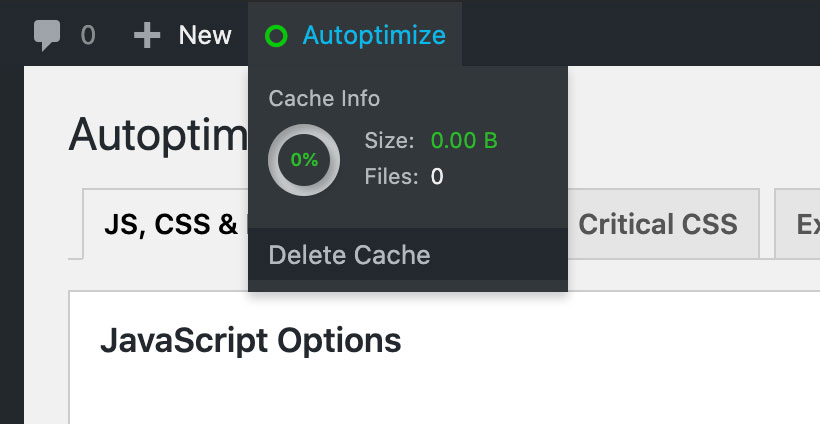
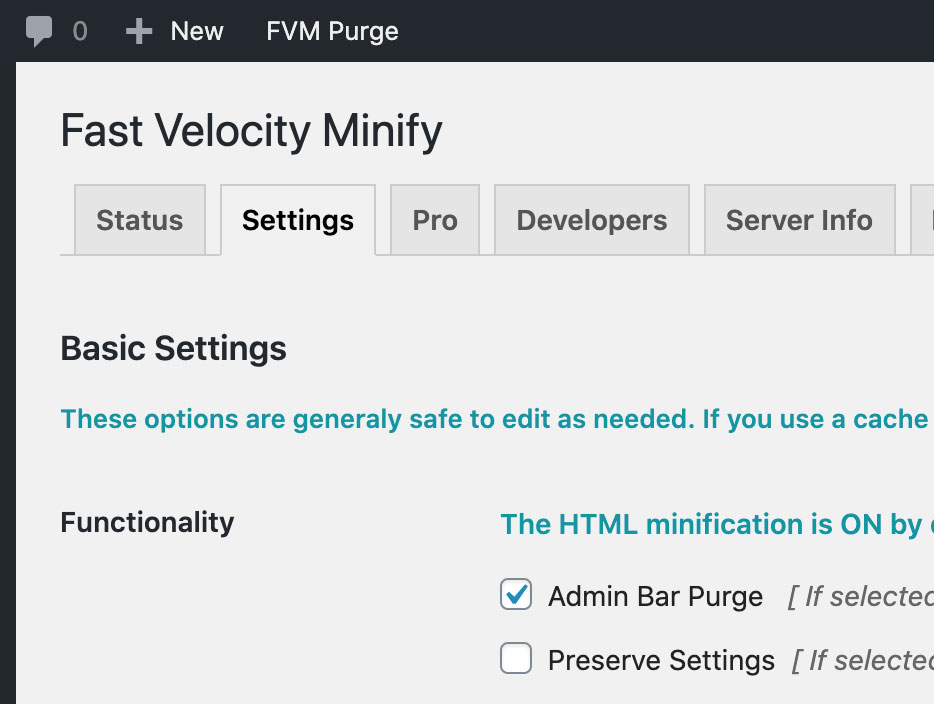
Some plugins, like Fast Velocity Minify, focus on minifying and modifying files rather than traditional caching. However, these optimizations still create cached versions of files, so clearing them regularly is just as important to prevent issues.
WooCommerce Template Caching
It’s uncommon that you would need to clear this but if you are dealing with a translation issue or something strange not working right in WooCommerce this is useful to try. Navigate to Woocommerce > status > tools and from there scroll down to the template cache.
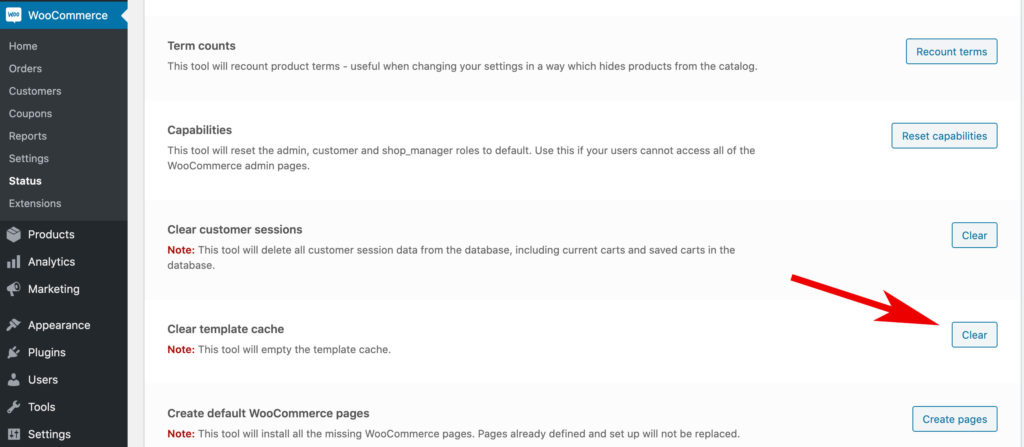
Most optimization plugins automatically exclude WooCommerce pages, like the checkout and cart, from being cached. If these pages are being cached, it can cause issues with dynamic content like pricing and stock updates. This includes causing issues with the Kadence WooCommerce Minicart Header Element. To avoid this, check your caching settings and ensure WooCommerce exclusions are properly applied. Click here to learn more.
Clearing the Cloudflare Cache
- Log in to Cloudflare
• Go to https://dash.cloudflare.com and sign in with your Cloudflare account. - Choose Your Website
• After logging in, you’ll see a list of websites on your account.
• Click the one you want to clear the cache for. - Go to the Caching section
• In the left-hand menu, find and click on Caching.
• Next click on Configuration. - Purge the Cache
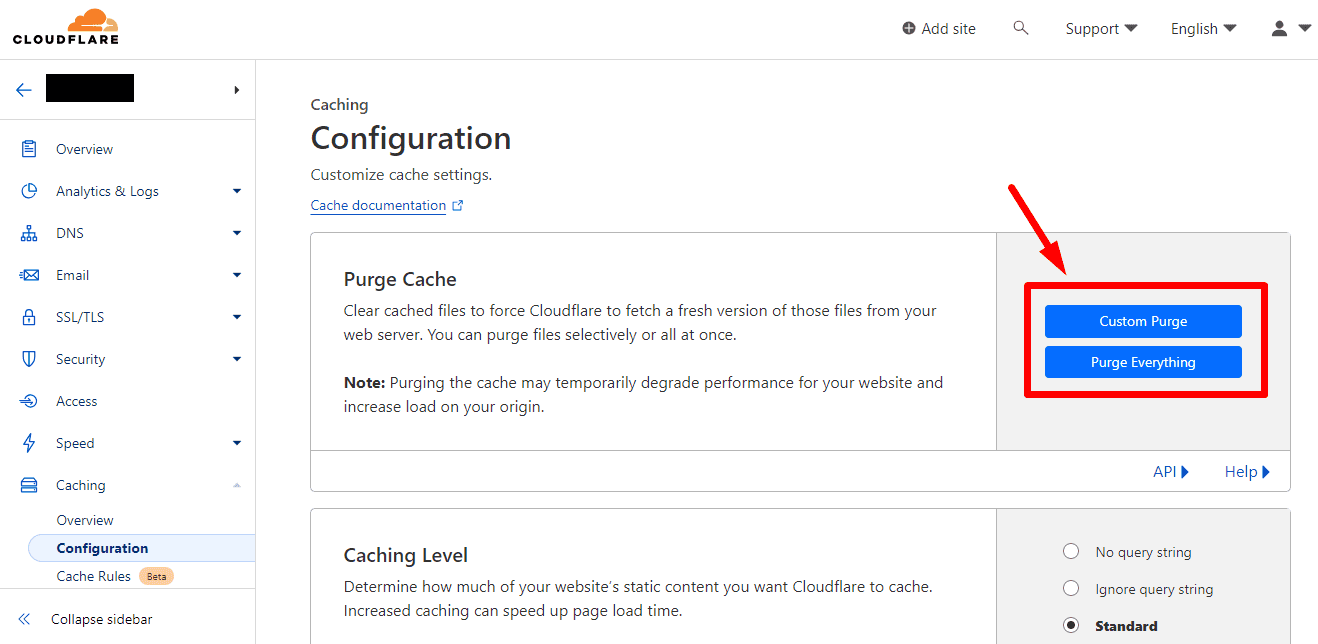
• You’ll see a section called Purge Cache.
• Click Purge Everything if you want to completely clear Cloudflare’s cache for your entire site.
• If you only want to clear specific pages or files, choose Custom Purge and enter the exact URLs. - Confirm Your Action
• Cloudflare will ask you to confirm. Click Purge Everything again (or Purge for custom purges). - Wait and Refresh
• Wait about 30-60 seconds for Cloudflare to clear the cache.
• Refresh your website — you should now see the most up-to-date version.
Conclusion
After clearing all caches, test your site to see if the issue is resolved. If problems persist, check with your hosting provider, as they may have server-side caching in place. It’s also a good idea to ask them about any caching they’ve implemented for general awareness.

