
Use the Kadence Page Layout Settings to customize the page layout. The Page Layout Settings can be accessed from Appearance → Customize → Posts/Pages Layout → Page Layout.

Page Title Settings
Show Page Title: Toggle this to enable or disable the entire page title section.
Page Title Layout: Choose from the In Content or Above Content options. When set to In Content, the title will blend in with the page content. When using the Above Content option, the title will appear as a banner above the page content.
Container Width: Choosing Above Content also allows you to set the Container Width.
- STANDARD: Background Full-Width, Content Contained
- FULLWIDTH: Background and Content Full-Width
- CONTAINED: Background and Content Contained
Page Title Align: Align the title to the left, center, or right side of the page.
Container Min Height: If you’ve selected the Above Content layout option, use this to set a minimum height for the page title section.

Title Elements
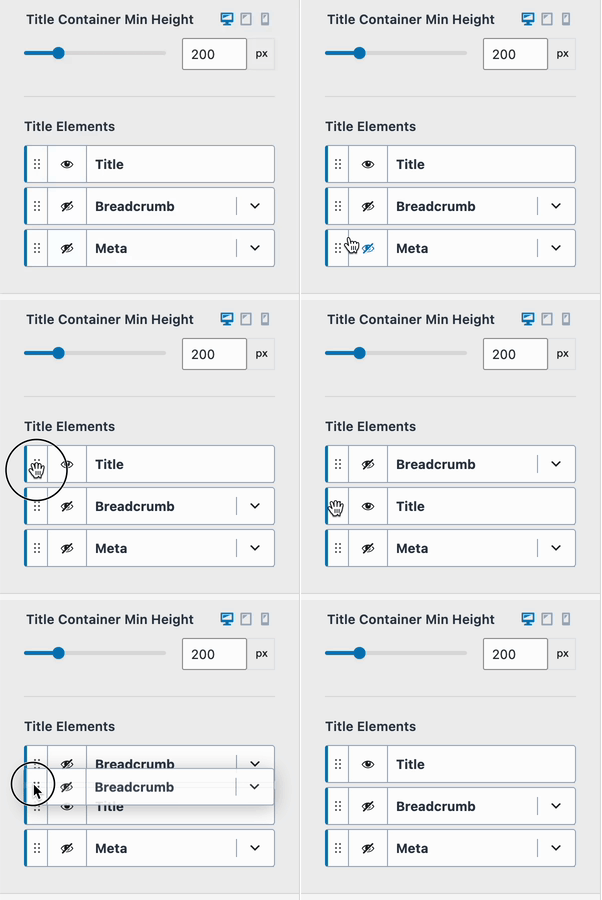
The Title Elements section allows you to control what information appears in your page title section. You can use the eye icons to enable or disable different title elements. In addition to enabling/disabling elements, you can also drag and drop items to control the order.
Breadcrumbs: If you’re using the Kadence Breadcrumbs, you can choose whether or not to display the page title in the breadcrumbs. (The Kadence breadcrumbs main behaviors can be modified from the Customizer -> General -> Breadcrumbs settings.)
Title: Choose to show the page title or not.
Meta: The meta information includes many more options to customize the metas shown within the page title area.
- Divider: Choose the desired meta divider.
- Show Author: Enable or disable the page author.
- Enable Author Link: Link to the author archive.
- Show Author Image: Show author Gravatar.
- Author Image Size: If image enabled, set the image size.
- Author Label: Show or hide the author label (i.e., By).
- Show Date: Show the page’s publish date.
- Show Time: Show the page publish time.
- Date Label: Show or hide the label (i.e., Posted on).
- Show Last Updated Date: Show the page modified date.
- Show only if different from publish date: Enable this if you only wish to show the last updated date if it differs from the original publish date.
- Show Time: Show the page modified time.
- Updated Date Label: Show or hide the label (i.e,. Updated).
Show Comments: Show or hide the page comment count.

Default Page Layout: Select from one of several layouts:
- Normal – Uses the theme’s Content Width.
- Narrow – Creates a layout narrower than the standard theme content width, ideal for more compact designs.
- (The Narrow Layout Content Max Width can be set from the Customizer -> General -> Layout settings.)
- Fullwidth – Extends content to the full width of the page.
- If using a Boxed Site Layout, this option may still respect the container width unless otherwise styled.
- Left/Right Sidebar – Allows a sidebar to be added to the Page Choose between Sidebar 1 and Sidebar 2.
Page Default Sidebar: Choose the Default Sidebar used on pages (i.e. Sidebar 1 or Sidebar 2). This option is applicable when using a sidebar layout.

Content Style: Select either Boxed or Unboxed style. When using the boxed option, the page content will become boxed in. When using unboxed, the content will be unboxed and unrestricted.
Content Vertical Spacing: Controls the spacing above and below the content section.

Additional Page Features
- Show Featured Image: Enable or disable the page’s featured image.
- Featured Image Position: Above, Behind or Below
- Featured Image Ratio: Choose from one of several image ratios.
- Show Comments: Enable or disable the comments section.

Page Design Settings
Use the Design Tab at the top of the Page Layout Settings to control fonts and colors throughout pages.

Page Title Design
Page Title Font: Set the Page Title font and color.
Breadcrumbs Colors: Adjust the Breadcrumbs Color for the initial state and the hover state.
Breadcrumbs Font: Set the font family, font style, and font size for the title breadcrumbs.
Meta Colors: Adjust the Meta Color for the initial state and the hover state.
Meta Font: Set the font family, font style, and font size for the title meta.
Page Title Background: Set the page title background color (only available if Page Title Layout is set to Above Content).
Use Featured Image for Background? Use the page featured image as the title background (only available if Page Title Layout is set to Above Content).
Background Overlay Color: Set the page title background overlay (only available if Page Title Layout is set to Above Content).
Border: Select a Border for the Top and Bottom of the Page Title and/or the Left and Right side. This initial icon will be an X. Click on the X to select a specific Border Style. You will also be able to select the Border Width (px) and Color once a Border Style is selected. (See the GIF below.)

Default Page Layout
Site Background: Set a Background Color for pages. This applies to the entire Site Background.
Content Background: Set a Content Background color for pages. This applies to the Background of the Main Content.

Override Page Layout Settings
The default page layout settings can be overridden on individual pages. While editing a page, click the Page Settings icon in the top bar to adjust your layout settings.


