
The Kadence Theme includes a built-in Related Posts feature that automatically displays posts sharing similar categories or tags. However, if you want complete design and layout control, you can recreate this functionality using the Kadence Blocks Pro Post Grid/Carousel Block inside a Hooked Element.
This method allows you to fully customize how related posts appear, using Kadence Blocks styling options, while keeping the same smart logic that the Kadence Theme uses for determining related content.
This is a premium guide that requires both Kadence Blocks Pro and Theme Kit Pro, which are available in the Plus Plan and greater.
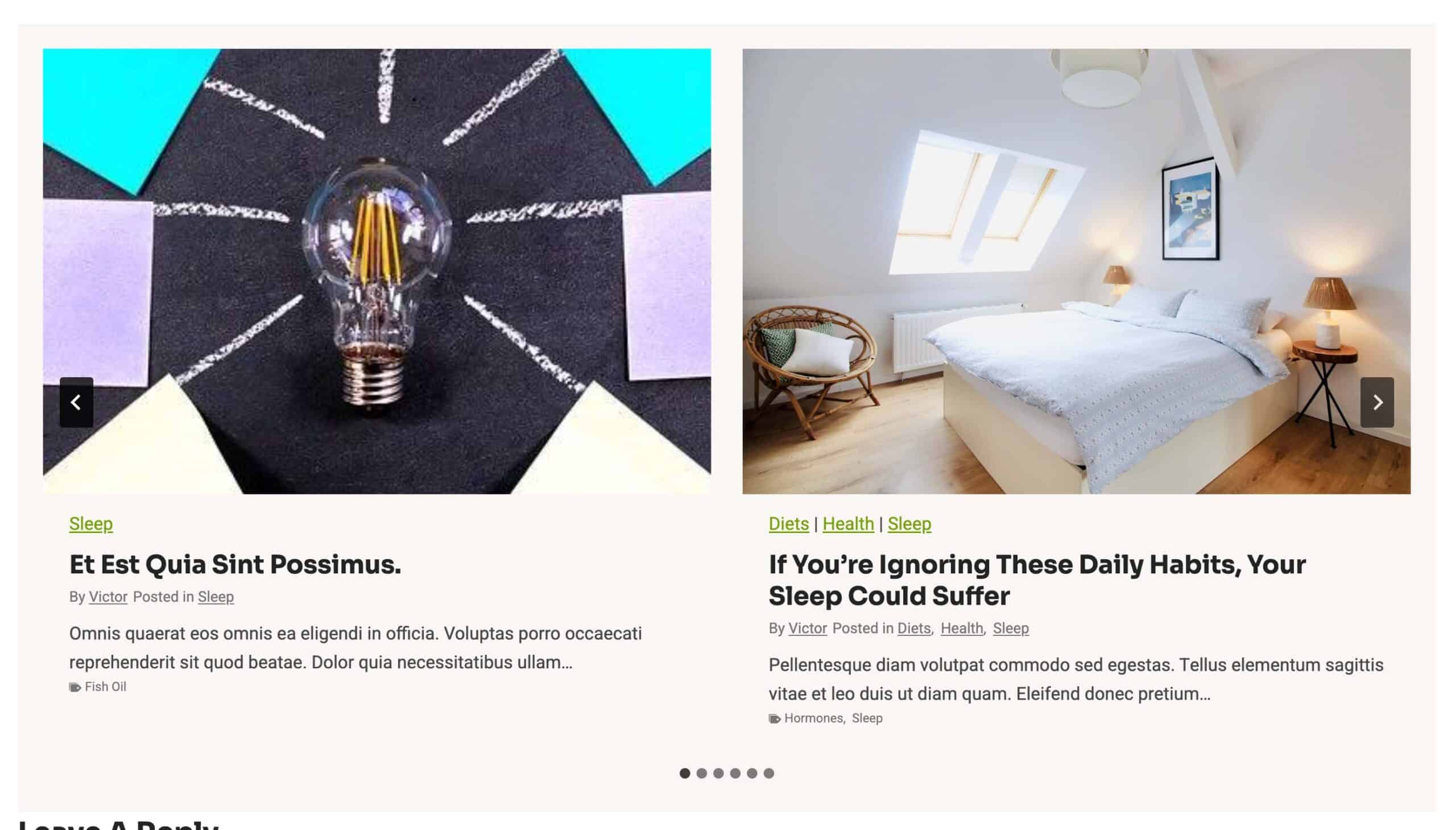
Requirements:
- Kadence Blocks Pro – For the Post Grid/Carousel Block.
- Kadence Theme Kit Pro – For Hooked Elements.
- A method to implement custom code snippets. This can be done typically with a plugin (Learn more) or by modifying the
functions.phpfile in child themes.
Hiding the Default Related Posts Section
The first step is to hide the default Related Posts Section from the website. This can be done by going to the Appearance → Customize → Post/Pages Layout → Single Post Layout settings. Find the setting named Show Related Posts and disable the toggle.
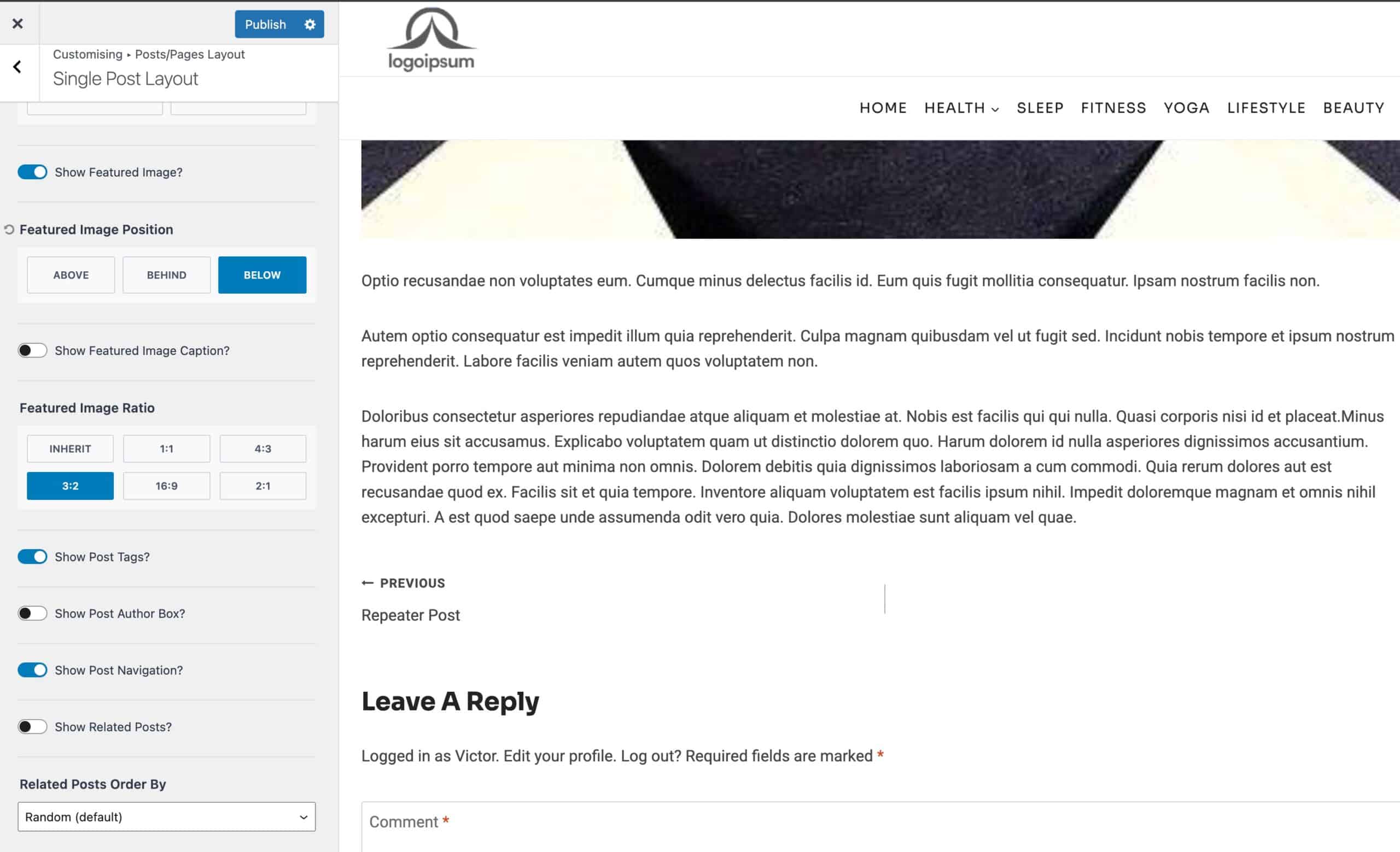
Now, the default Related Posts are hidden.
Adding a Post Grid/Carousel Block to a Hooked Element
To get started, you must have Theme Kit Pro along with Hooked Elements enabled. Hooked Elements can be enabled from the Dashboard → Appearance → Kadence page.
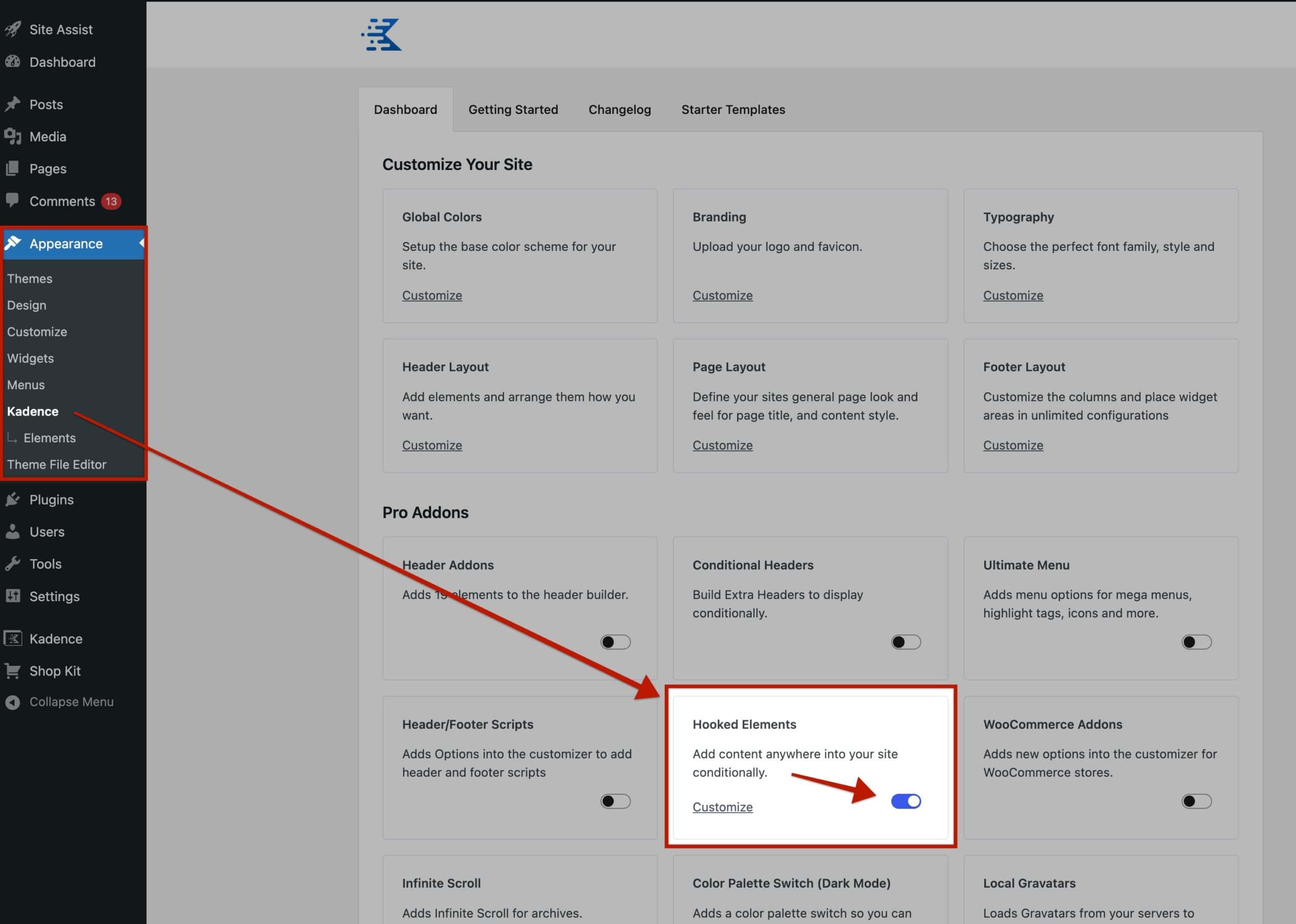
With Hooked Elements enabled, go to the Dashboard → Appearance → Kadence → Elements page and create a new Content Section Element.
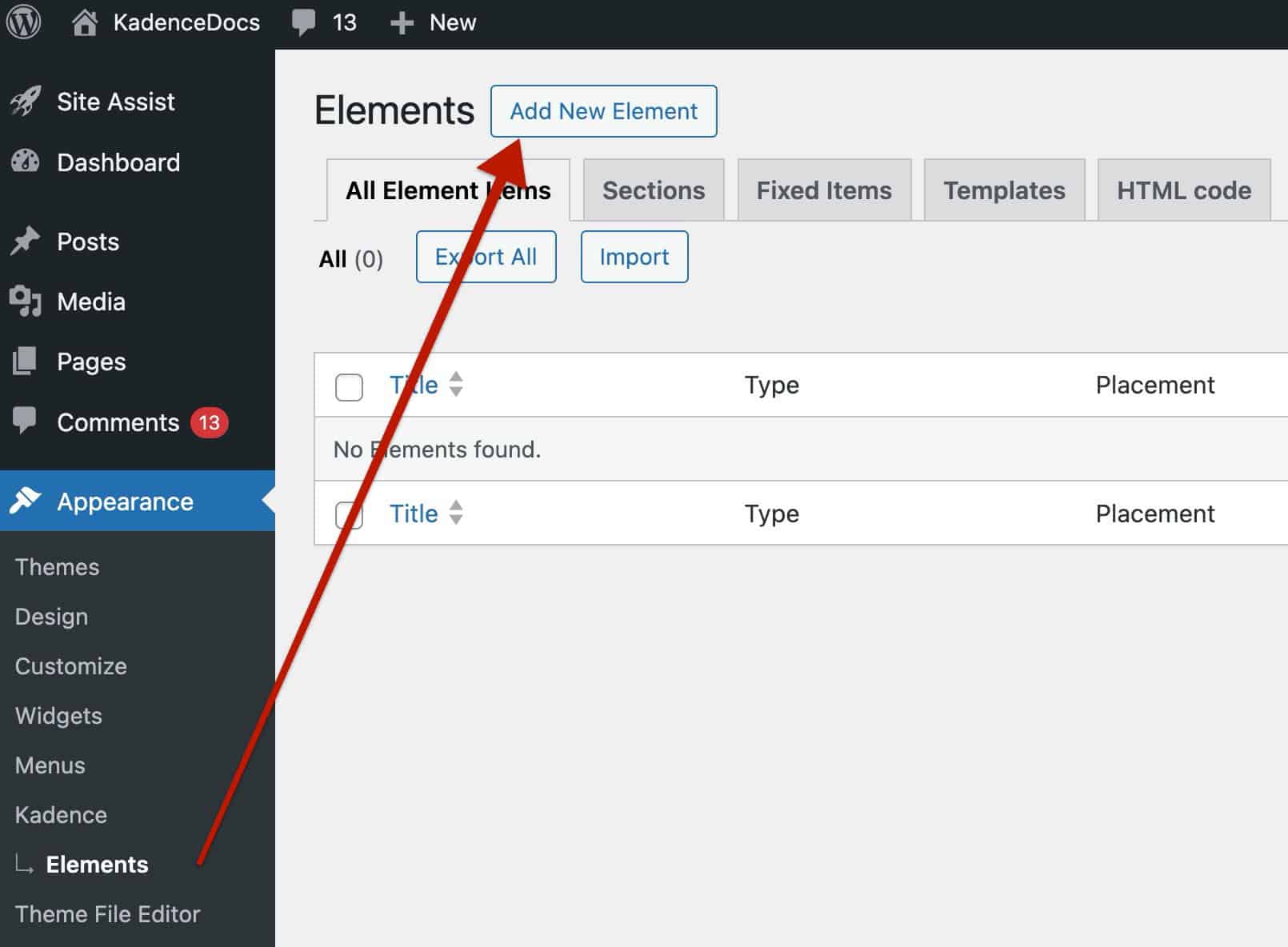
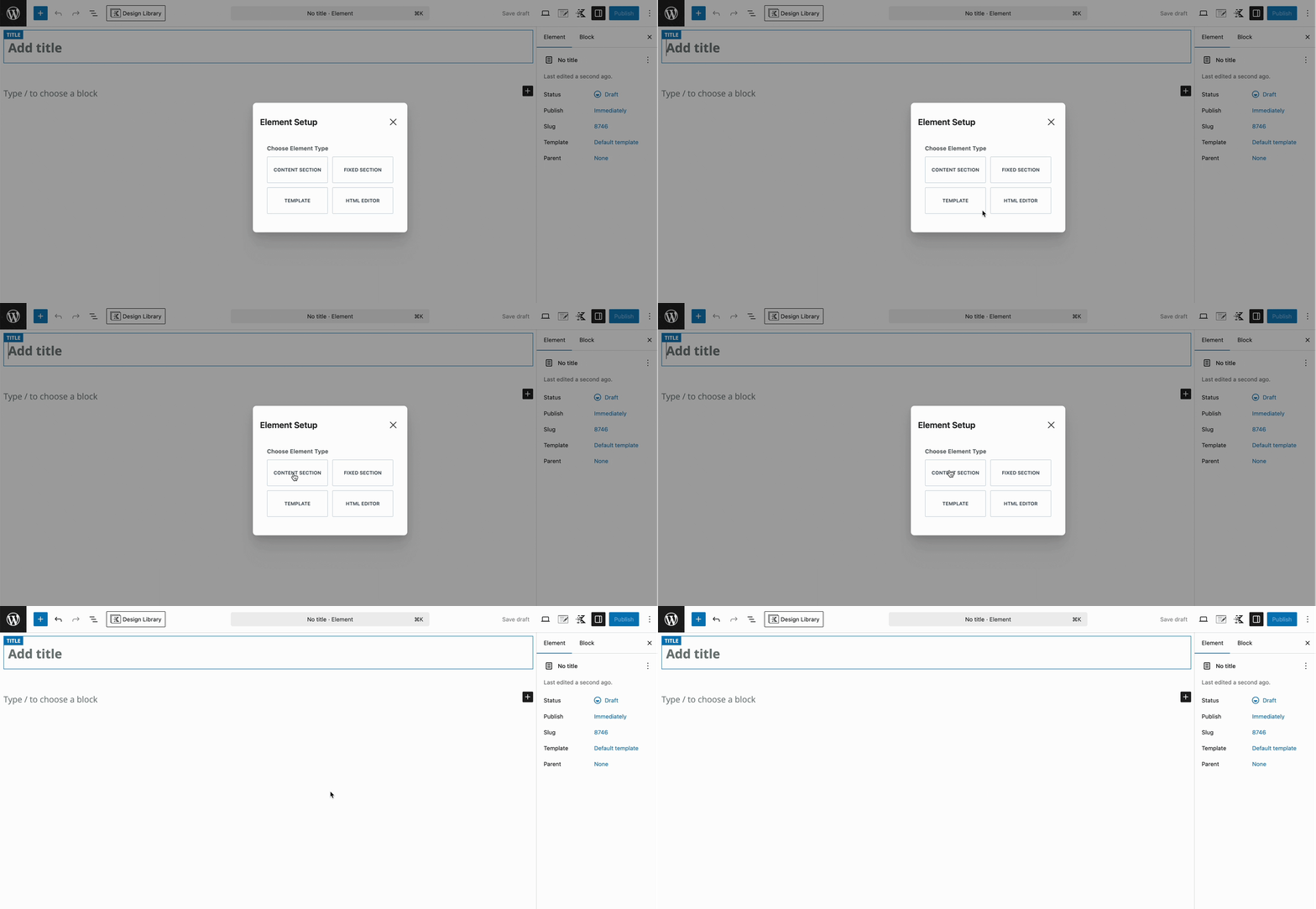
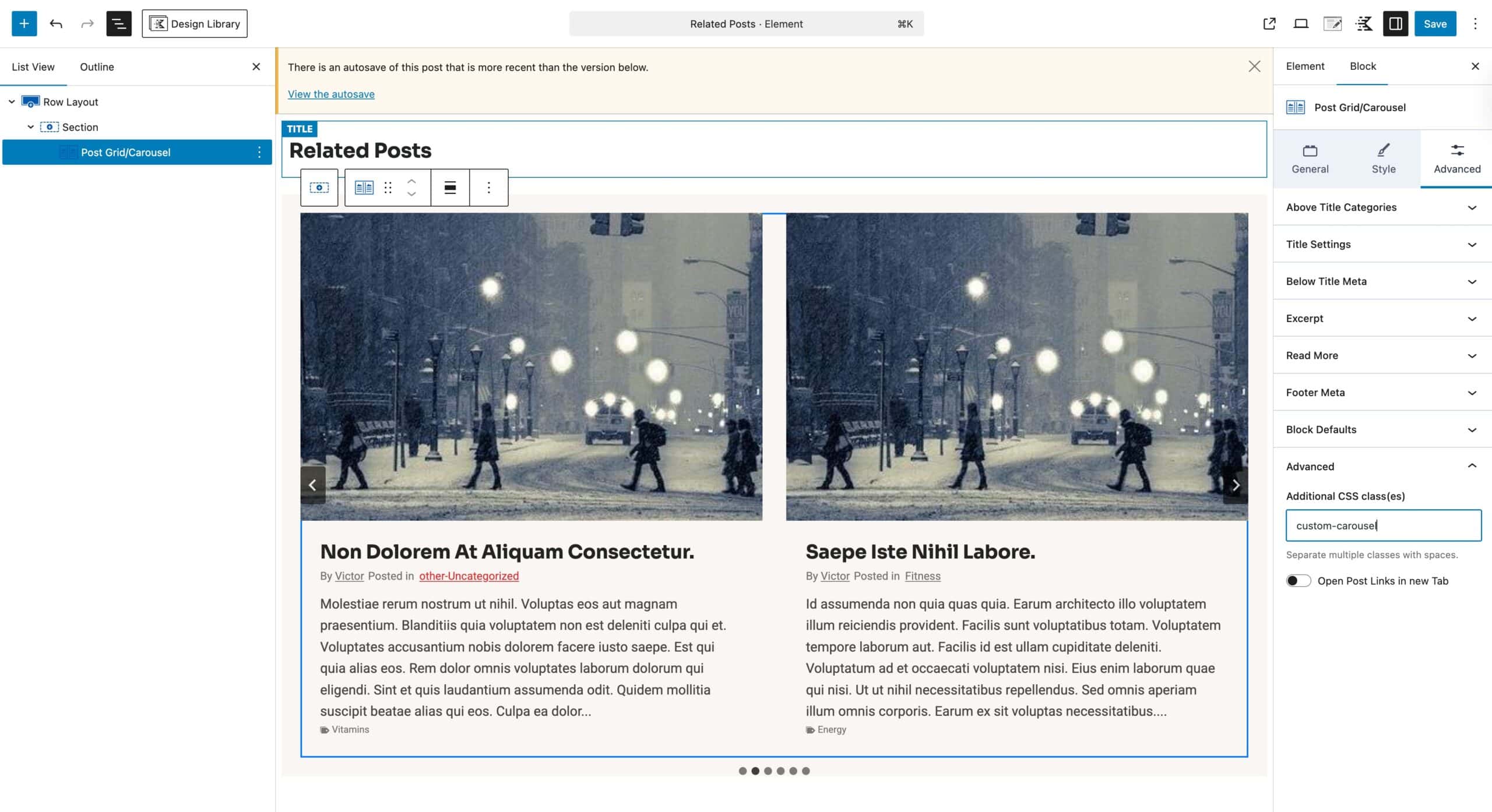
Inside the Hooked Element, add a Post Grid/Carousel Block. You can place it inside a Row Layout Block to control the background contents. You can modify the Post Grid/Carousel Block Settings to meet your styling needs.
Afterward, select the Post Grid/Carousel Block, go to the Block Settings → Advanced Tab → Advanced, and add a Custom CSS Class to the block. This will be a unique identifier, so the modifications only apply specifically to the current Post Grid/Carousel Block.
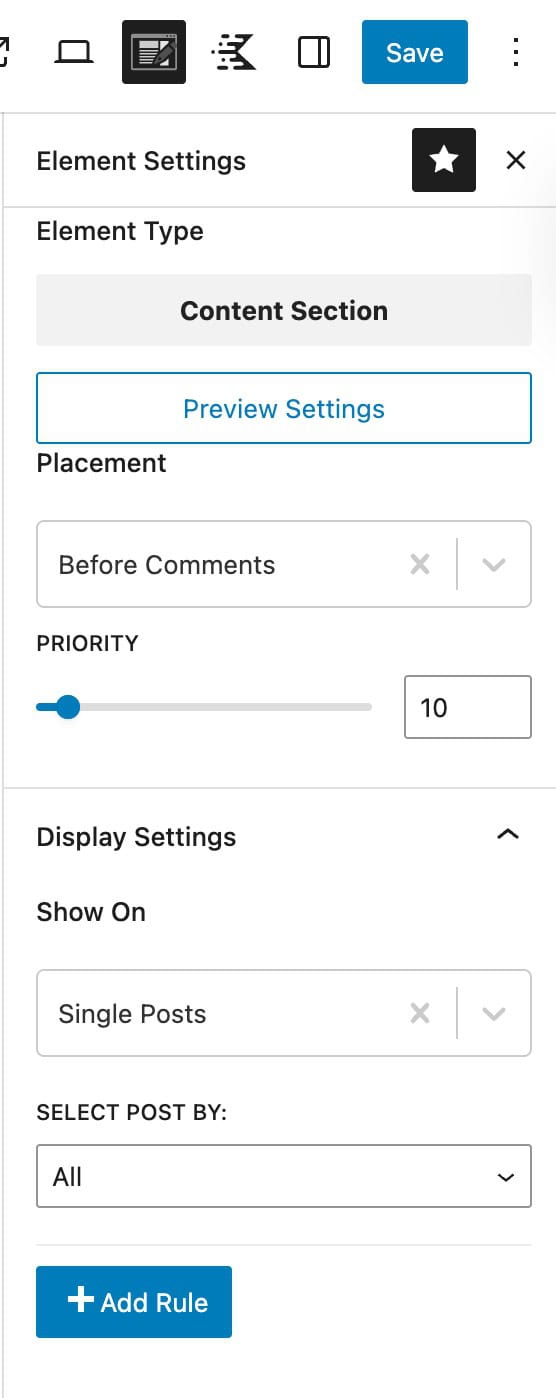
Once finished, use the Element Settings to hook in the Post Grid/Carousel Block accordingly.

There are many Theme Hooks available for the Placement settings. For this use case, the Before Comments hook is great for hooking where needed. However, any single post relative hook will work.
Then, expand the Display Settings tab and set the Show On setting to apply to Single Posts.
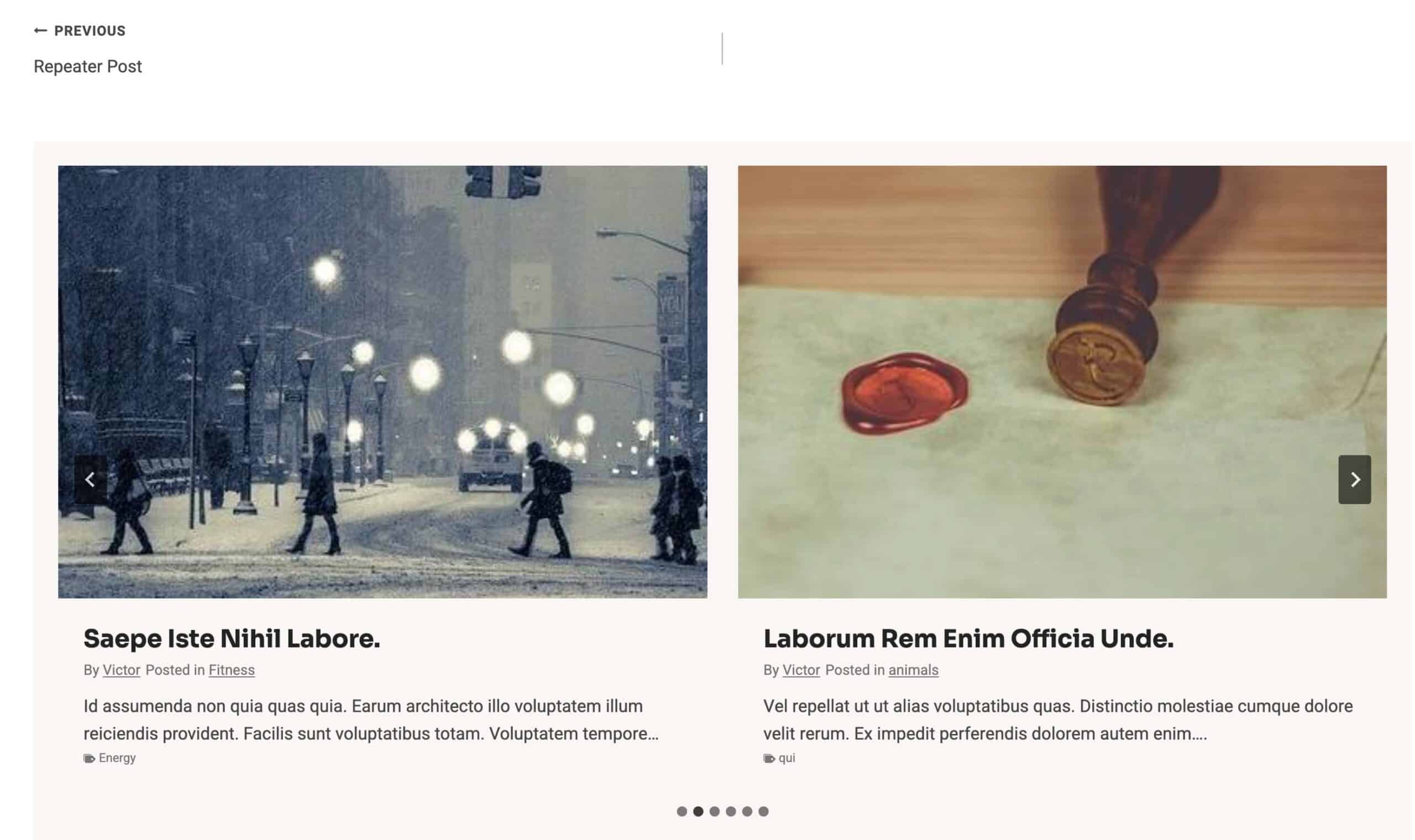
In return, the Post Grid/Carousel will be placed accordingly. Now, the custom code snippet mentioned in the next step is needed to complete this feature.
Modifying the Post Grid/Carousel Query
The Post Grid/Carousel Block offers a built-in filter to customize the query results. You can use a plugin like the Code Snippets plugin to modify and use the following custom code. (Learn more.)
- This custom code uses the same logic that the Kadence Theme Related Posts query uses. Therefore, it will successfully filter the Post Grid/Carousel Block to use this functionality.
- Out of the box, the Kadence Related Posts feature automatically queries posts that share the same categories or tags as the current post. It uses a randomized order and excludes the current post, ensuring each visit displays a fresh mix of similar content.
- In this code, you must replace
YOUR-CUSTOM-CLASSwith the Custom CSS Class added to your Post Grid/Carousel Block within the element.
add_filter( 'kadence_blocks_pro_posts_grid_query_args', function( $args, $attributes ) {

	// Target a specific Post Grid/Carousel block using a custom class
	if ( isset( $attributes['className'] ) && strpos( $attributes['className'], 'YOUR-CUSTOM-CLASS' ) !== false ) {

		$post_id = get_queried_object_id();
		if ( ! $post_id ) {
			return $args;
		}

		// Get category and tag terms for the current post
		$cats = get_the_terms( $post_id, 'category' );
		$tags = get_the_terms( $post_id, 'post_tag' );

		$tax_query = array( 'relation' => 'OR' );

		if ( $cats && ! is_wp_error( $cats ) ) {
			$tax_query[] = array(
				'taxonomy' => 'category',
				'field'    => 'slug',
				'terms'    => wp_list_pluck( $cats, 'slug' ),
			);
		}

		if ( $tags && ! is_wp_error( $tags ) ) {
			$tax_query[] = array(
				'taxonomy' => 'post_tag',
				'field'    => 'slug',
				'terms'    => wp_list_pluck( $tags, 'slug' ),
			);
		}

		// Apply only if at least one taxonomy has terms
		if ( count( $tax_query ) > 1 ) {
			$args['tax_query'] = $tax_query;
		}

		// Exclude the current post
		$args['post__not_in'] = array( $post_id );

		// Match post type to the current post
		$args['post_type'] = get_post_type( $post_id );

		// Sort randomly like Kadence related posts
		$args['orderby'] = 'rand';
	}

	return $args;

}, 10, 2 );
Afterward, your Post Grid/Carousel Block will work the same way the Related Posts feature does, grabbing relevant related posts.
Want more control over the Post Grid/Carousel Block to extend this feature? Consider checking out the How to Design a Post Grid/Carousel using a Kadence Element document.

