
The Kadence Theme includes a built-in Lightbox feature that allows individual images to open in a pop-up overlay, rather than redirecting users to a separate media attachment page. This offers a smoother, more user-friendly image viewing experience.
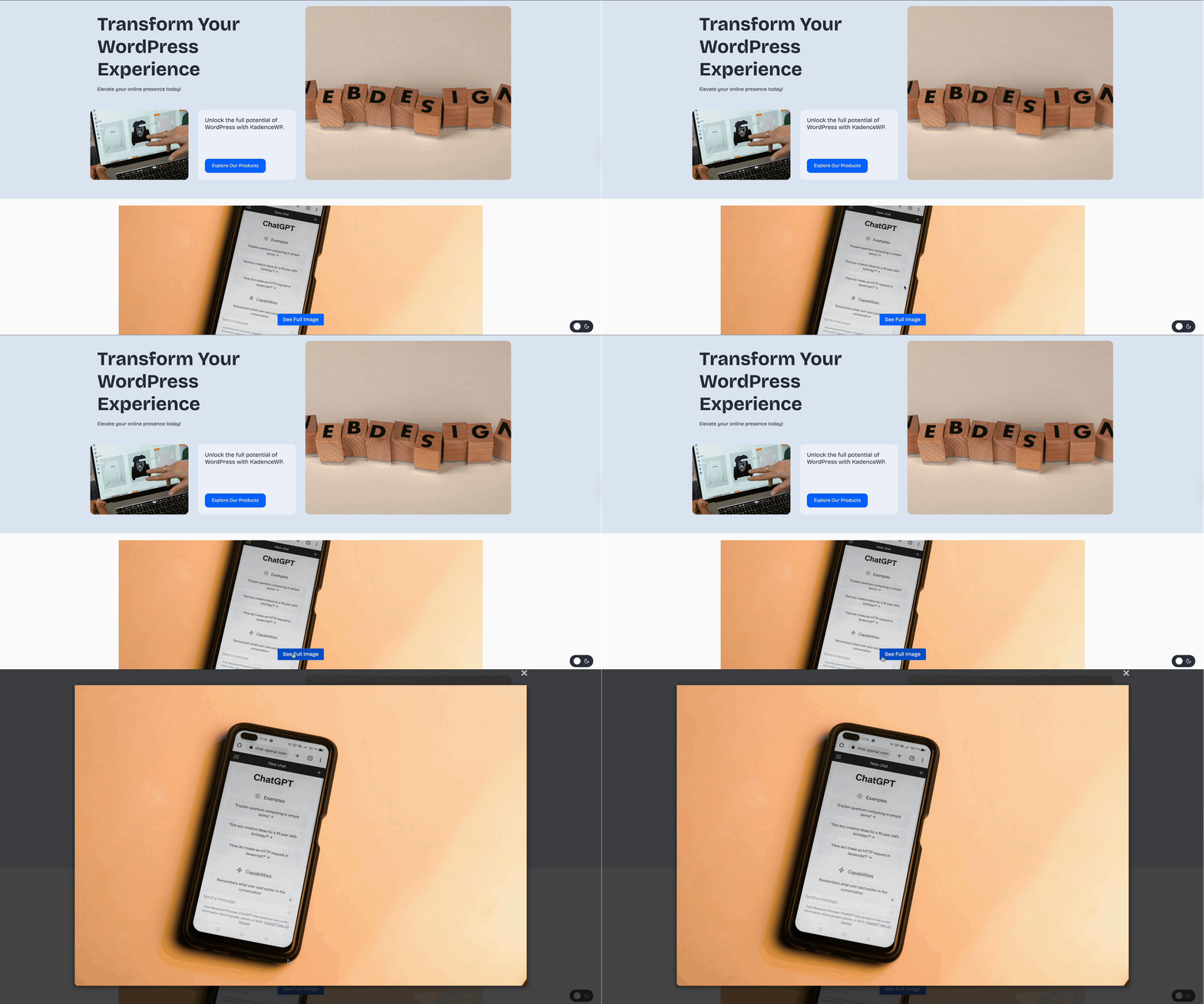
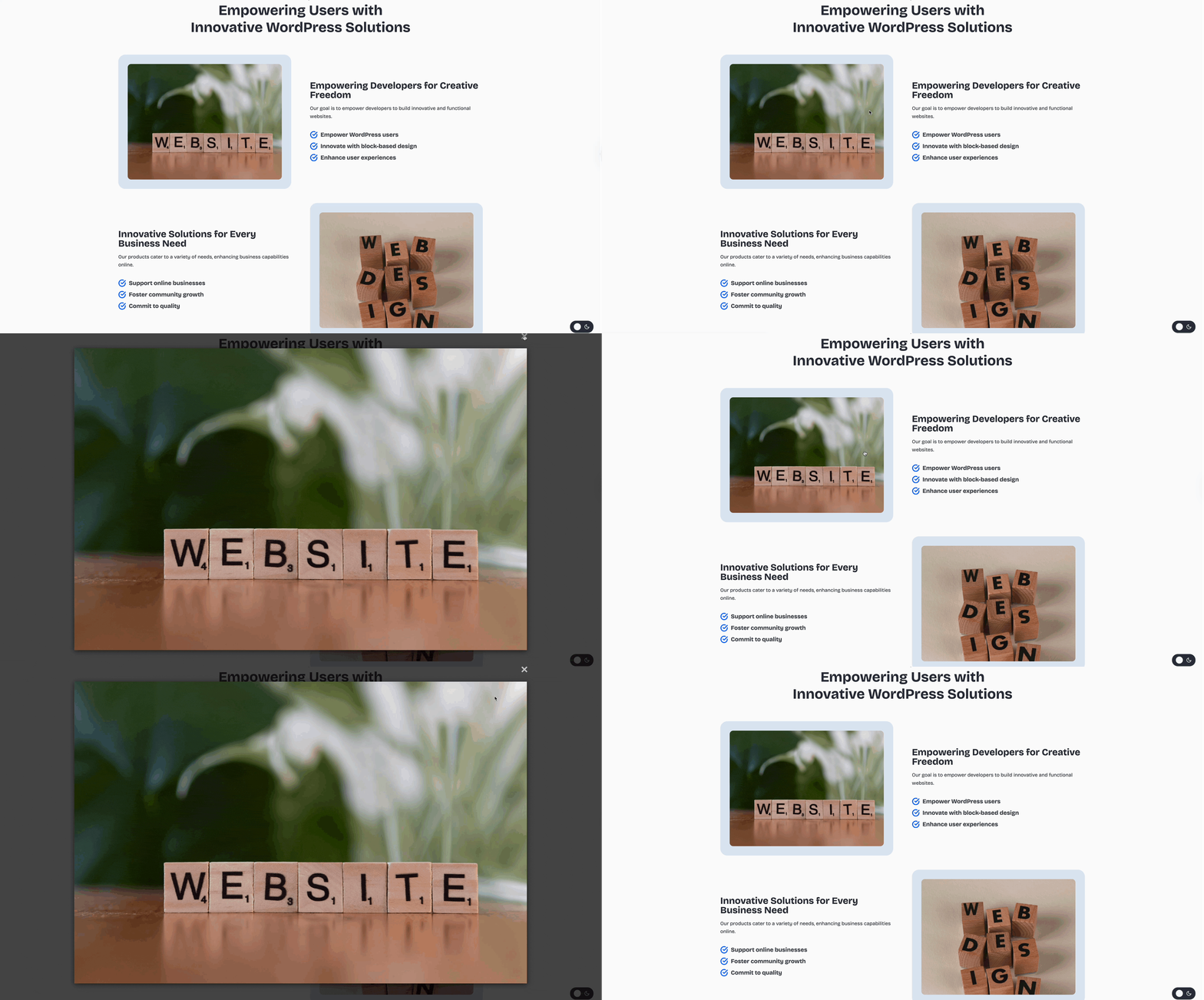
Follow the steps below to learn more about this feature.
Step 1: Enable the Lightbox Setting
- Go to your WordPress Dashboard.
- Navigate to Appearance > Customize.
- In the Customizer panel, go to General > Performance > Lightbox.
- Enable the Lightbox toggle.
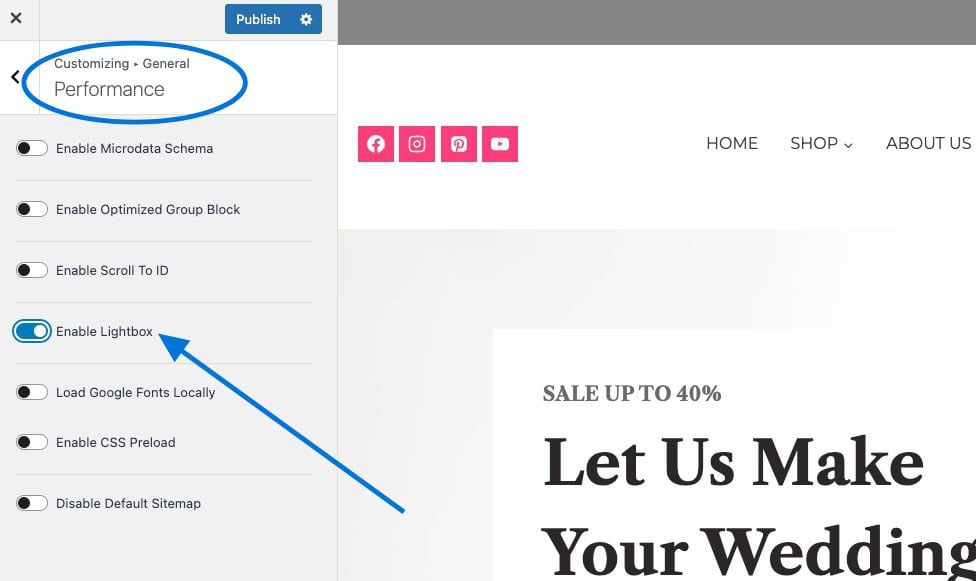
When using Gallery (Adv) blocks, you should use the link block settings to enable a lightbox source.
Step 2: Assign the Media File as the Image Link
When the Lightbox feature is enabled, any image or link that points directly to a Media File will open in a pop-up overlay (Lightbox) instead of redirecting to a separate attachment page.
This works especially well with blocks like:
- Advanced Images
- Advanced Buttons
- Advanced Texts
- This feature also works on core blocks, such as the paragraph, heading, and image blocks.
By linking to an image’s media file, you can display it in a lightbox for a clean, user-friendly viewing experience, without navigating away from the current page.
If you are using a Gallery (Adv) Block, this feature will not work. The Advanced Gallery block offers a built-in way to enable and use Lightbox. You can learn more here.
Adding LightBox to Advanced Image Blocks:
- Edit the page or post containing the image.
- Click on the Image Adv block or Image block to select it.
- In the top block toolbar, find the Link To option. This is represented by a chainlink icon.
- From the dropdown, select the Media File option. This will automatically link the current image to the media file URL.
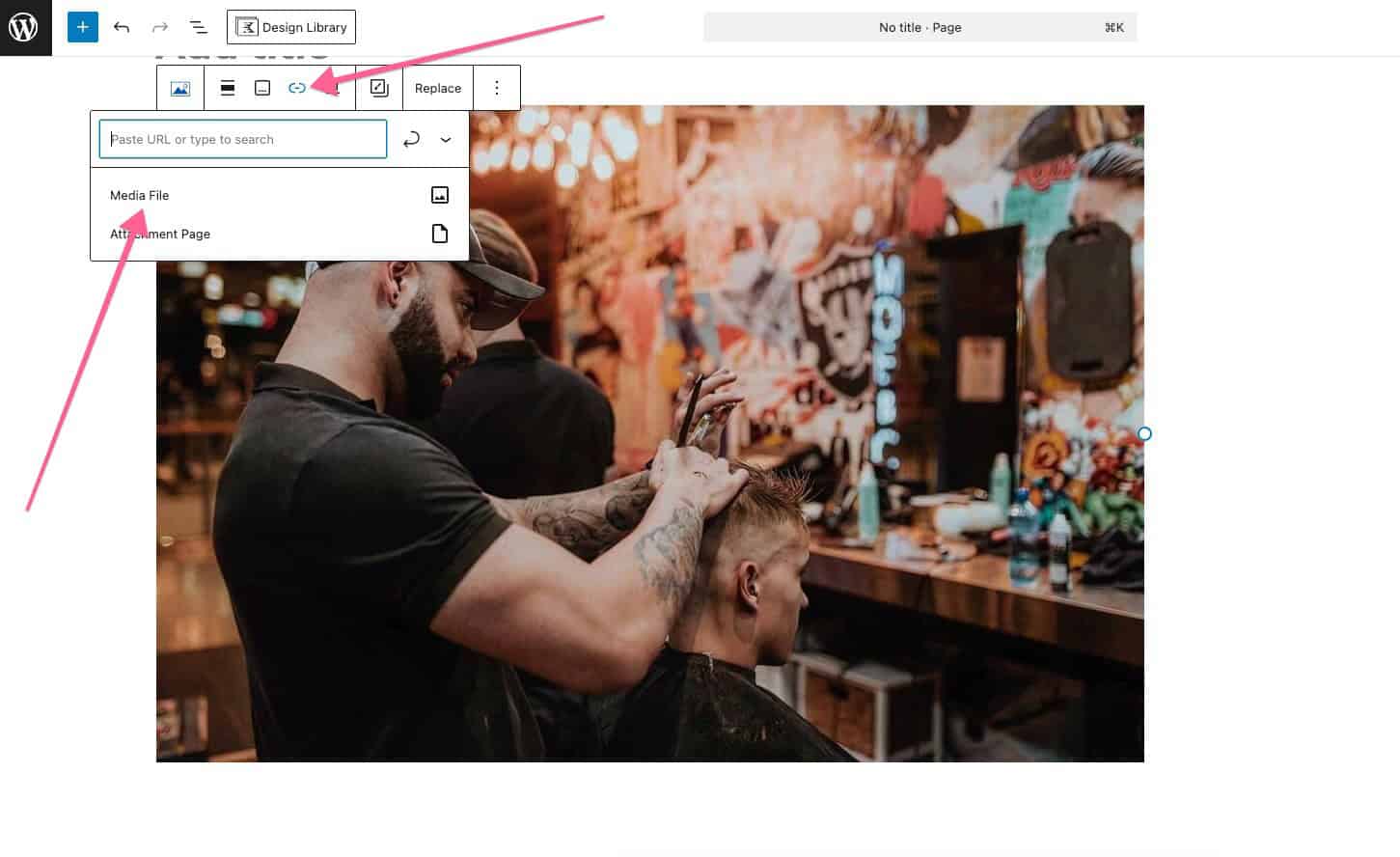
Once finished, whenever the Advanced Image Block is clicked, it will open up the image in a Lightbox.
Example of the Advanced Image Lightbox link effect.
Adding Lightbox to Kadence Blocks Links:
Many Kadence Blocks, such as Advanced Texts and Advanced Buttons, include link settings that allow you to manually define a destination URL. By entering the direct Media File URL of an image, you can configure these blocks to trigger the Lightbox popup when clicked. This allows you to open an image in a Lightbox view even when it’s not placed using an Image block.
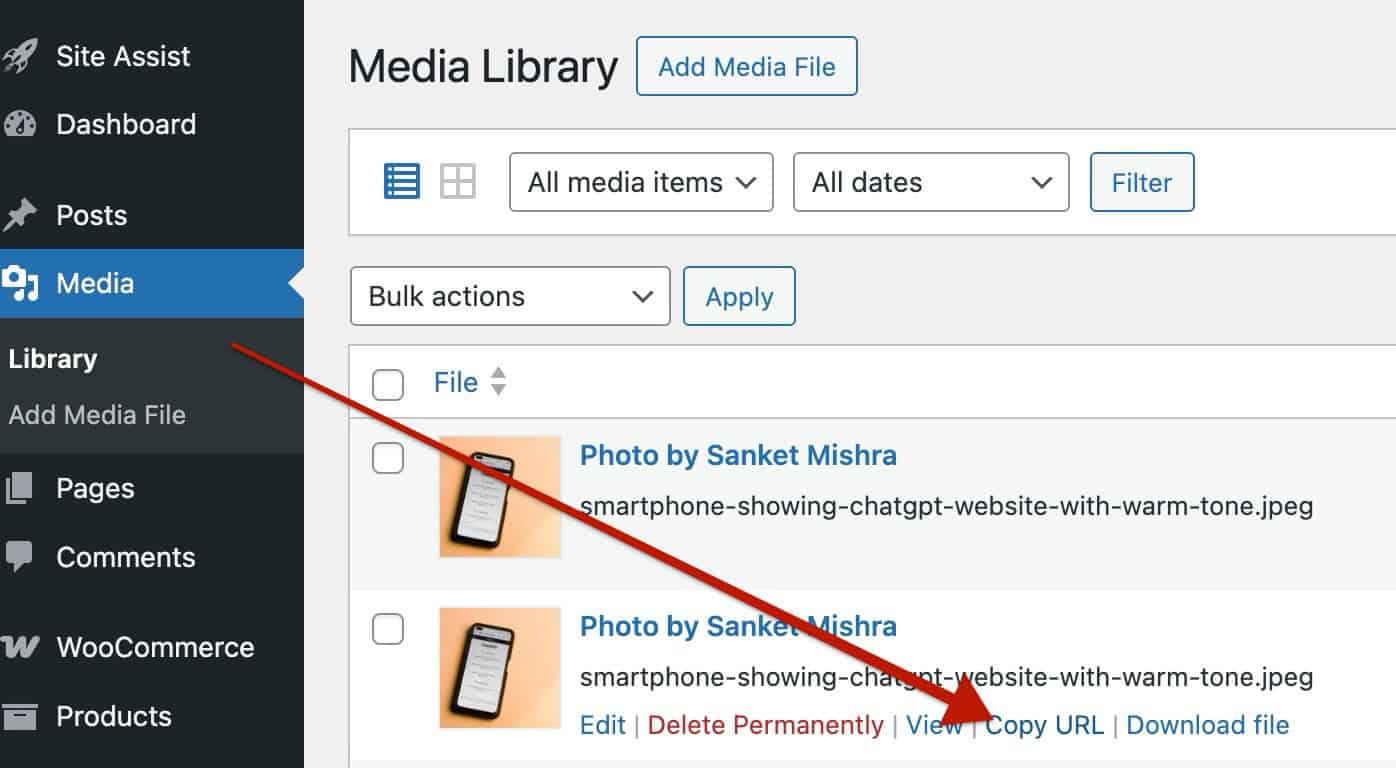
- Go to the Dashboard -> Media Library and copy the URL of the image you wish to use.
(Or grab the media URL your preferred way.)
- In the Block Settings, on an applicable block, find the link-related setting. Link Settings often live in the General tab of the Block Settings.
- Paste the URL of the media file and submit it as the link.
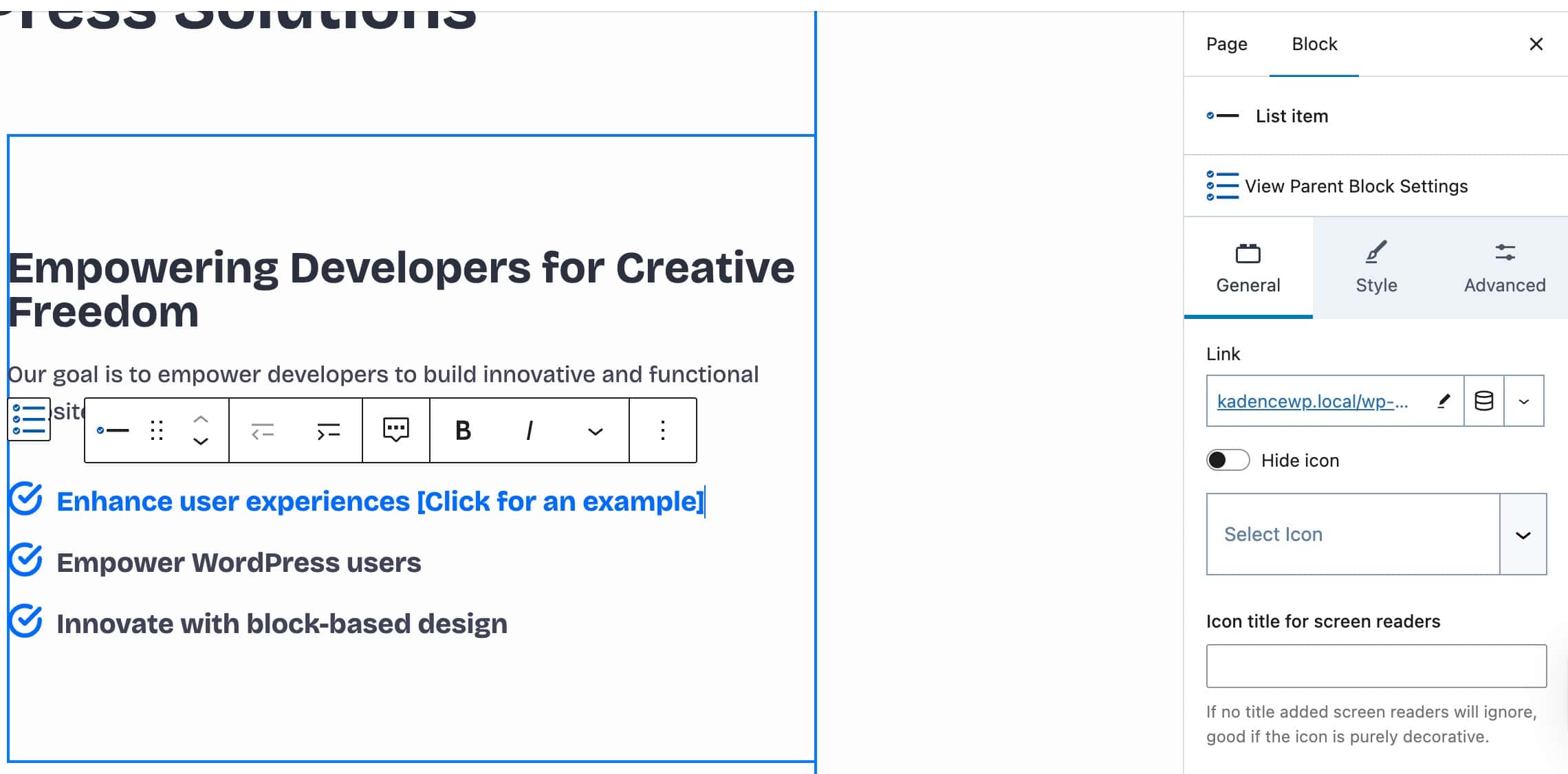
Afterward, whenever the link is clicked, it will open the linked-to image in a Lightbox view. This feature works for advanced buttons, link texts, list texts, and anywhere a media URL can be inserted within blocks.
Example of a Kadence Link being used as a Lightbox.
Results
Once the above settings are configured:
- Clicking on an image with a media file link will open it in a Lightbox popup.
- This enhances the viewing experience without navigating away from the current page.

