
Kadence Hooked Elements give you full control over your site’s layout and content by allowing you to insert elements, whether simple content sections or complete templates, into specific areas via theme hooks. You can design reusable layouts with dynamic content and dictate exactly when and where they appear. Normally, visibility is managed through the Element Display Settings in the editor, but you also have the option to programmatically override these settings for greater flexibility.
Sometimes, you need more dynamic control, such as showing an element only for subcategories of a specific blog category, based on a URL variable, or within certain dates. This is where the kadence_element_display filter becomes useful.
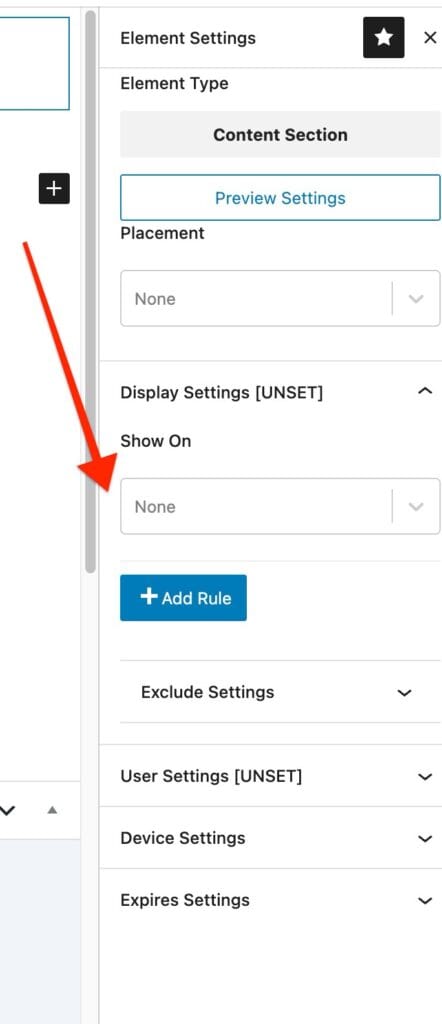
Important: In the Element settings, set Display Settings to None. This ensures there is no conflict between the code logic and the editor rules.
What the kadence_element_display Filter Does
The kadence_element_display filter runs every time Kadence checks whether to show a Hooked Element.
You can use it to:
- Return true to show the element
- Return false to hide the element
- Return $display to keep the original decision from the editor
Filter structure:
apply_filters( 'kadence_element_display', bool $display, WP_Post $element, array $meta )- $display → current decision from the editor
- $element → the Hooked Element post object
- $meta → element meta data
Examples:
Show an Element for All Subcategories of a Parent Blog Category
add_filter( 'kadence_element_display', function( $display, $element, $meta ) {

	$target_element_id = 288297; // Your Hooked Element ID
	$parent_cat_id     = 8890;   // Parent category ID

	if ( $element->ID !== $target_element_id ) {
		return $display;
	}

	static $child_ids = null;
	if ( $child_ids === null ) {
		$child_ids = get_term_children( (int) $parent_cat_id, 'category' );
		if ( is_wp_error( $child_ids ) ) {
			$child_ids = [];
		}
	}

	if ( empty( $child_ids ) ) {
		return false;
	}

	if ( is_category() ) {
		$current_cat_id = get_queried_object_id();
		if ( in_array( $current_cat_id, $child_ids, true ) ) {
			return true;
		}
	}

	return false;

}, 20, 3 );
Show Element Based on a URL Variable
add_filter( 'kadence_element_display', function( $display, $element, $meta ) {

	if ( $element->ID !== 12345 ) {
		return $display;
	}

	if ( isset( $_GET['promo'] ) && $_GET['promo'] === 'yes' ) {
		return true;
	}

	return false;

}, 20, 3 );
Show Element Only on Specific Dates
add_filter( 'kadence_element_display', function( $display, $element, $meta ) {

	if ( $element->ID !== 67890 ) {
		return $display;
	}

	$today = date( 'Y-m-d' );

	if ( $today >= '2025-08-01' && $today <= '2025-08-15' ) {
		return true;
	}

	return false;

}, 20, 3 );
How to Find Your Element ID
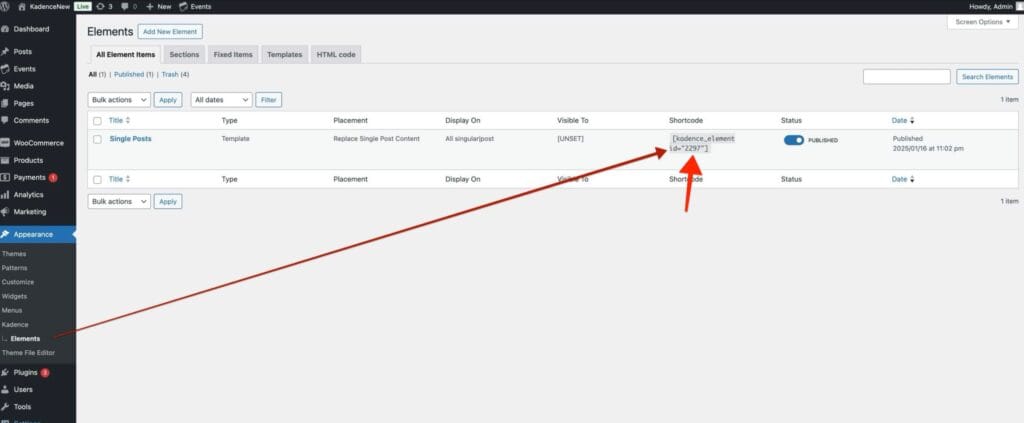
You can find the Element ID by navigating to Dashboard -> Appearance -> Kadence -> Elements and checking the element details.
Where to Put the Code
Code snippets can be added to the functions.php file of a child theme or through a plugin like Code Snippets. You can read documentation on using the Code Snippets Plugin here.

