
HTML anchors are a simple but powerful way to link users to specific sections on a web page. They’re useful for improving navigation, enhancing user experience, and making content easier to find and access.
How to Create Anchors
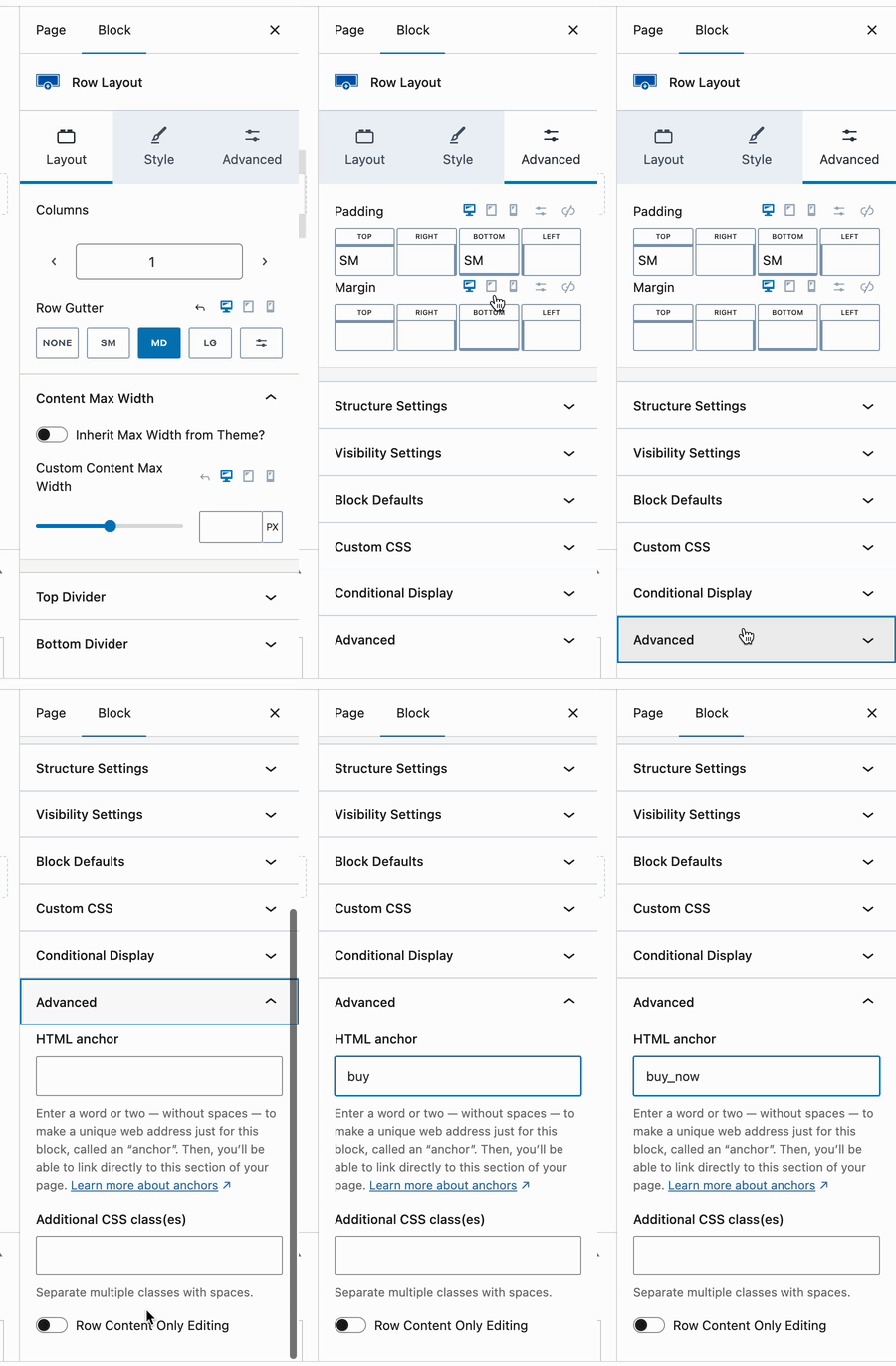
Most blocks allow you to add an anchor (also known as an ID). For example, to add an anchor to Row Layout block, insert a block and then:
- Click on the Advanced tab of the block settings.
- Scroll down and open the Advanced section.
- Here you’ll find the HTML Anchor field. Enter a word or words separated by dashes or underscores.
Tips
Be sure to select a unique anchor as you cannot have multiple anchors on the same page with the same name.
Keep anchor IDs short and relevant (i.e. #pricing, #faqs)
Don’t start anchor IDs with numbers and don’t use spaces
Link to Your Anchor
Next, insert your text or a button on your page and add a link. In the link field, simply add your anchor preceded by the “#” sign. For example: #buy_now

If you are linking from a different page, you can insert the full URL followed by your anchor.

Test Your Link
Save your page and view it. When you click the text or button link, your page should jump down to the targeted section. You will also notice your browser URL may change to include your anchor (i.e. https://my-test-site.com/#buy_now). You can also retrieve the URL by right-clicking on your link and copying the URL to your clipboard. You can then share this link in your emails, newsletters, or social media posts.
Enabling Kadence Smooth Scroll
Instead of suddenly jumping down the page to your anchor, Kadence has a feature that instead scrolls the user smoothly down the page to your anchor.
To enable this feature:
- Access the Customizer (Appearance → Customize)
- Click on General and then Performance
- Make sure Enable Scroll to ID is active
- Publish your changes if necessary

HTML anchors are an easy way to make your website more usable, accessible, and link-friendly. By adding anchor IDs and anchor links, you can help users navigate your content more efficiently.
Adjusting the Scroll Offset
In special cases, you may need to adjust the Kadence Theme Scroll Offset. This can be done using a Kadence Theme filter. Click here to view a full guide on how you can adjust the Kadence Theme Scroll Offset.

