When you create a new page in WordPress, the page title usually appears at the top of the content area. If you’re using the Kadence Theme, you can easily hide this title without using custom code or CSS. This is very common on your Home page or other pages that have their own page headings.
Note: Disabling the page title will remove the H1 tag from your page. It is therefore recommended that you manually add an H1 block to the content of your page for SEO and accessibility purposes.
Hide Individual Page Titles
If you want to hide the page title on an individual page:
- Edit the Page
- From your WordPress dashboard, go to Pages → All Pages and click Edit on the page where you want to remove the title.
- Open the Page Settings Panel
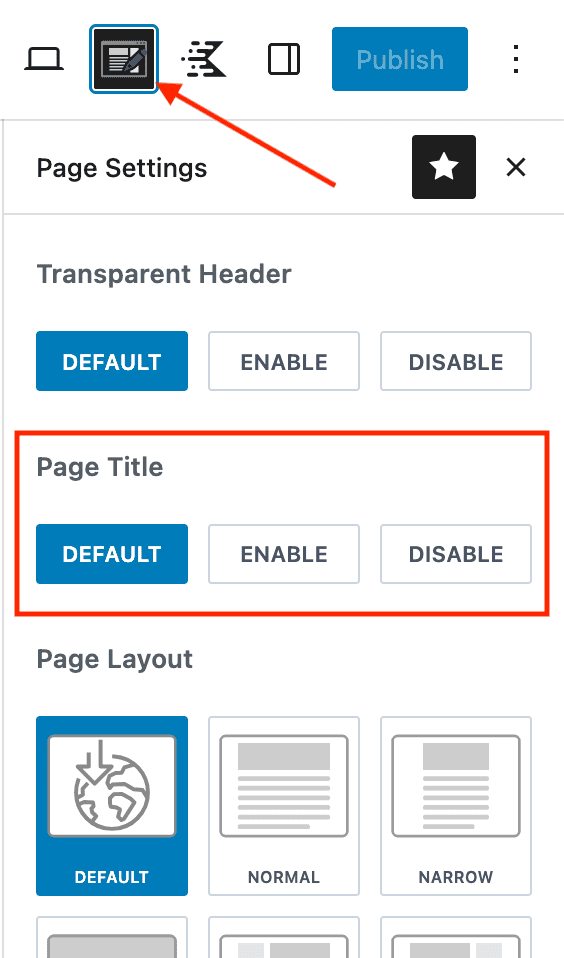
- On the top right-hand side of the editor, look for the Page Settings icon.
- Find the Title Visibility Option
- Scroll down to the Page Title section.
- Click DISABLE to hide the title.
- Update the Page
- Click Update or Publish to save your changes.
- View the page — the title should now be hidden.
Hide Page Titles Site-Wide (Optional)
If you want to hide page titles across your entire site:
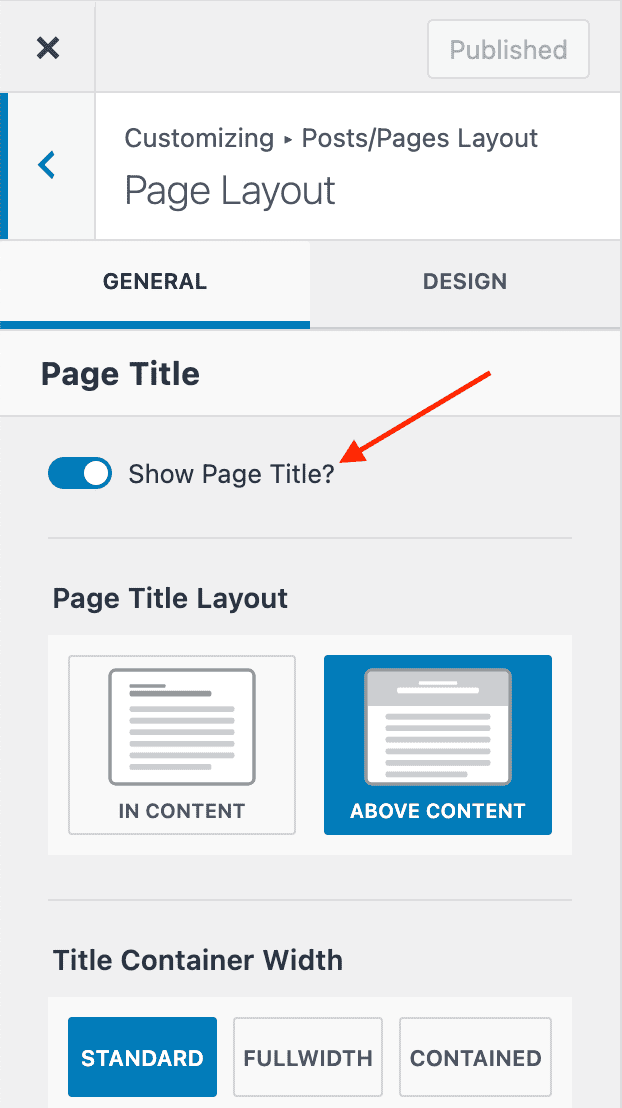
- Go to Appearance → Customize in your dashboard.
- Open Posts/Pages Layout → Page Layout.
- Look for Show Page Title and toggle it off.
- Publish your changes.
This hides titles across all pages by default. You can enable the title on individual pages by selecting ENABLE in the Page Title settings.
For more Customizer layout settings, see also: