
This guide shows how to display a Kadence Theme Kit Pro taxonomy image (like a Category image) inside blocks that support Kadence Blocks Pro Dynamic Content, such as Image (Adv) or Row block background image.
This will display the “Above Header Background Image” saved in the archive settings so it can be used when designing category, taxonomy, and other archive templates with Kadence Blocks.
Since Kadence Dynamic Content does not currently include a built-in “Category Image” option, this workaround uses Archive > Archive Custom Field with Custom Input to pull that saved image.
⚠️ Important: This is an advanced workaround that requires adding PHP. If Kadence adds an official taxonomy image option later, this snippet may no longer be needed. A related feature request exists: Set the source of an image to a specific taxonomy in the loop using the Advanced Image block
Before You Begin
- Kadence Theme is installed and active.
- Kadence Theme Kit Pro is installed and active. (Theme Kit Pro is a plugin add-on and requires the free Kadence Theme.)
- Kadence Blocks and Kadence Blocks Pro are installed and active (Dynamic Content is part of Blocks Pro).
- The taxonomy term already has an image set in Archive Custom Settings.
- These settings are found by editing the term, for example: Dashboard > Posts > Categories > Edit.
✅ Tip: Kadence has a guide for adding custom filters/functions safely. You can read more about it here.
What This Workaround Does
Kadence Theme Kit Pro stores the taxonomy image as term meta (a value saved on the category, tag, or other taxonomy term). Kadence Dynamic Content Custom Inputs are usually aimed at post meta, so this snippet “bridges the gap” by returning the correct image data when the meta key kwp-tax-image-id is requested.
Step 1: Add The PHP Snippet
Add the snippet using one of these common methods:
- A PHP snippet plugin (recommended for most sites)
- A child theme’s functions.php
⚠️ Important: The snippet should not be added to a theme file, since theme updates can overwrite changes. This snippet only works on Advanced Image Blocks that are on a Taxonomy Archive Page inserted via a Hooked Element.
/**
 * Allow Kadence Blocks Pro Dynamic Content to use the Kadence Theme Kit Pro taxonomy image
 * stored in term meta under: kwp-tax-image-id
 */
add_filter( 'kadence_dynamic_content_render', 'kwptax_img', 7, 9 );

function kwptax_img( $output, $item_id, $origin, $group, $field, $para, $custom, $relate, $relcustom ) {

	// Only run for Custom Input requests that reference the taxonomy image key.
	if ( empty( $para ) || 'kb_custom_input' !== $para || empty( $custom ) || false === strpos( $custom, 'kwp-tax-image-id' ) ) {
		return $output;
	}

	$term_id  = absint( $item_id );
	$image_id = get_term_meta( $term_id, 'kwp-tax-image-id', true );

	if ( ! $image_id ) {
		return $output;
	}

	$image_id = absint( $image_id );

	// Return an array that Kadence expects for dynamic images.
	$img = wp_get_attachment_image_src( $image_id, 'full' );
	if ( empty( $img ) ) {
		return $output;
	}

	// Add alt text and attachment ID in the positions Kadence expects.
	$img[4] = get_post_meta( $image_id, '_wp_attachment_image_alt', true );
	$img[5] = $image_id;

	return $img;
}
Step 2: Use The Taxonomy Image In Kadence Block
This example uses Image (Adv) because it supports Dynamic Content with Kadence Blocks Pro. This can also be done with a Row Block background image.
- Open the template or content where the taxonomy image should appear.
- This works best on taxonomy archive pages (Category archives, Tag archives, and other term archives), or inside an archive template design.
- Add an Image (Adv) block.
- In the block settings, enable the Dynamic Content icon for the image source.
- For the Dynamic Content type, select Archive > Archive Custom Field.
- Switch the field selector to Custom Input.
- Enter this meta key exactly: kwp-tax-image-id
- Save changes and view a category archive page on the front end.
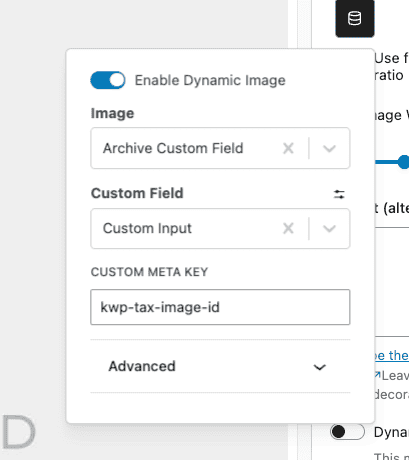
Expected result: If the term has an image set in Theme Kit Pro Archive Custom Settings, the image should render in the Image (Adv) block and for other dynamic options.

