
Backing up a WordPress site is essential for any major update, theme change, or plugin installation. A website is a valuable asset, and having a recent backup is the best way to protect it. While a manual backup is a good practice before a major change, having scheduled automatic backups is highly recommended for ongoing security.
Choosing a Backup Solution
There are many WordPress plugins for creating backups, with options ranging from free to robust premium solutions.
- Solid Backups: (We highly recommend Solid Backups as the most robust and full-featured WordPress backup plugin available. As part of the SolidWP suite, it provides automated schedules, secure cloud storage, and one-click restoration.)
- UpdraftPlus: (Offers free functionality that can be used for quick backups.)
- Duplicator:
- WPvivid:
While this guide will show you how to use the free UpdraftPlus plugin to create a quick, full website backup that can be recovered, you can learn more about a comprehensive solution here: Solid Backups Documentation.
Creating a Manual Backup with UpdraftPlus
This process involves installing the UpdraftPlus plugin and creating a full backup of your website’s files and database.
Installing the UpdraftPlus Plugin
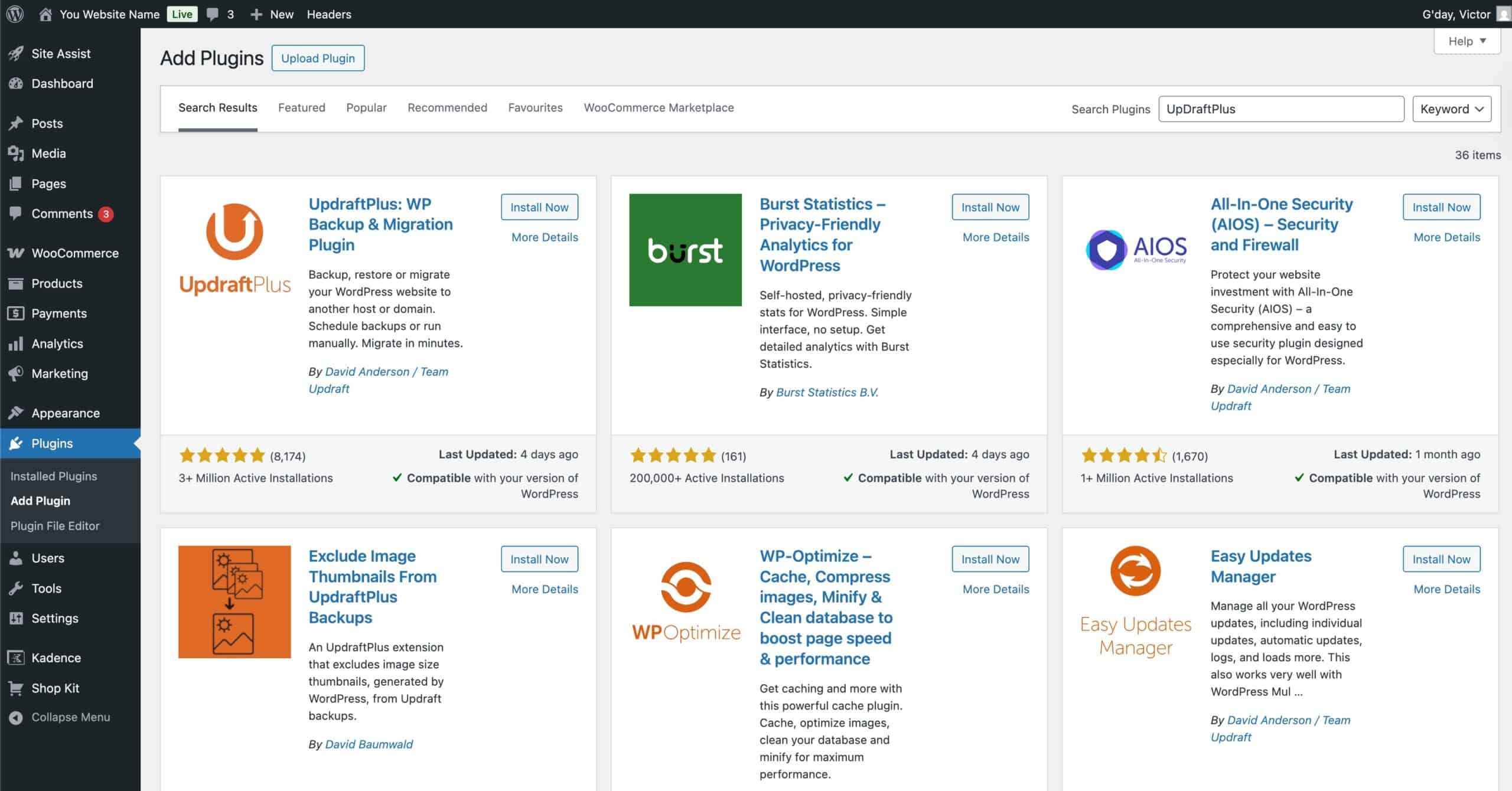
- In your WordPress Dashboard, navigate to Plugins > Add New Plugin.
- Use the search bar to find UpdraftPlus.
- Once you locate the plugin named UpdraftPlus WordPress Backup Plugin, click the Install Now button.
- After installation, click the Activate button to complete the process.
Performing the Backup
Once installed, UpdraftPlus will add a new item to the Settings menu.
- Navigate to Settings > UpdraftPlus Backups in your WordPress Dashboard.
- In the main window, click the blue Backup Now button.
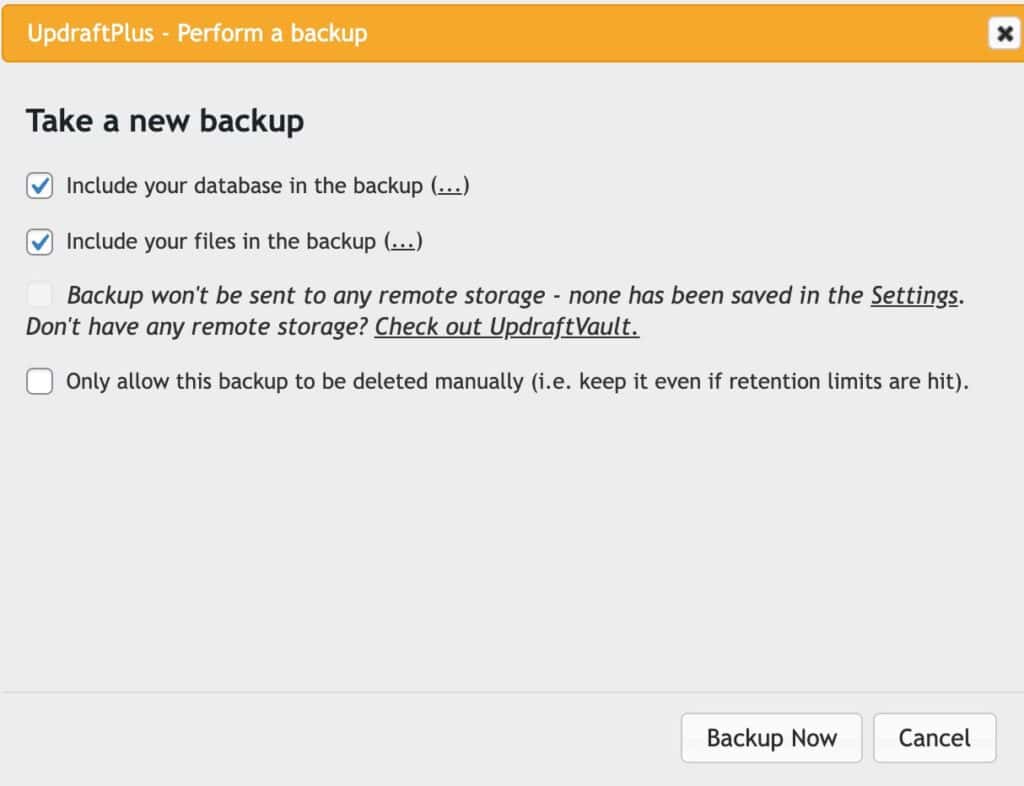
- A pop-up window will appear. Make sure both the Include your database in the backup and Include your files in the backup checkboxes are selected.
- Click the Backup Now button within the pop-up window to begin the process.
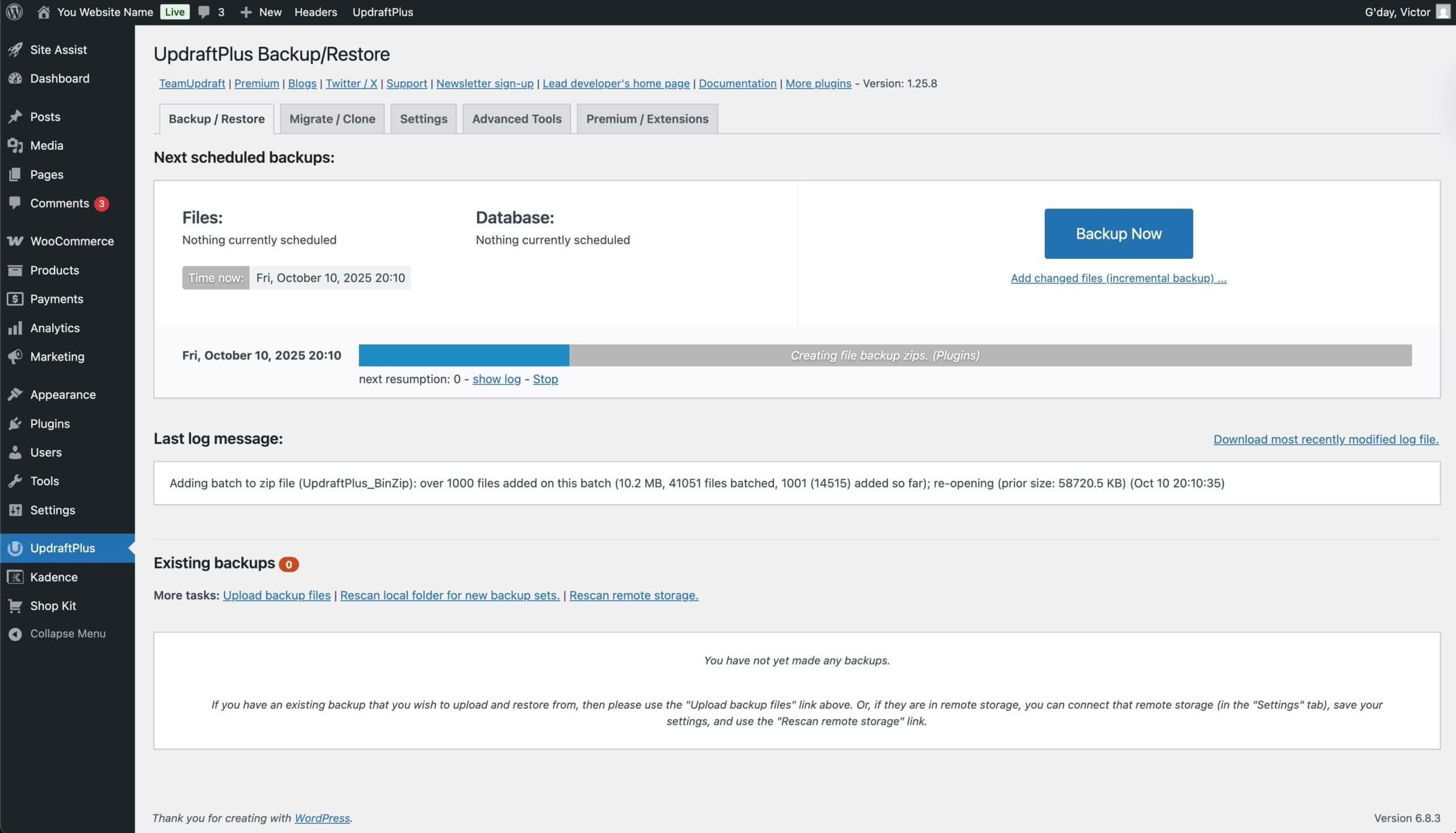
The backup will run in the background. You can monitor its progress from the main UpdraftPlus page. Once the backup is complete, a full backup set will appear in the Existing Backups list below.
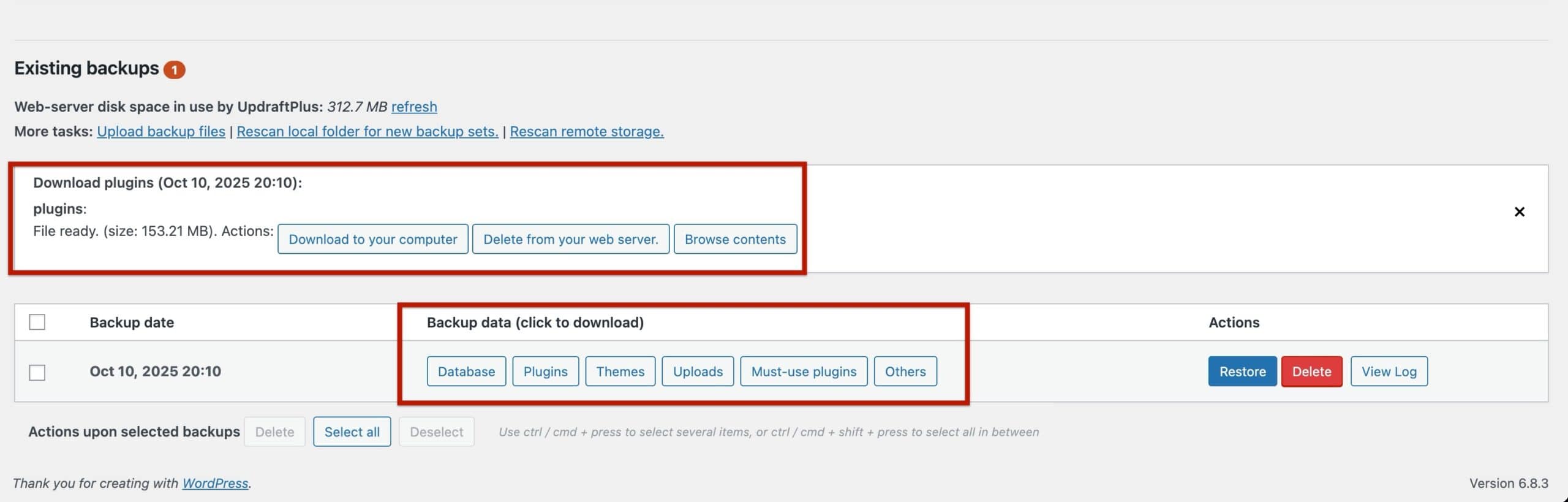
This backup set includes five different file types that represent all parts of your website:
- Database: This file contains all your website’s core content, users, and settings.
- Plugins: This file contains all of your installed plugins.
- Themes: This file contains all of your installed themes.
- Uploads: This file contains all of your images and media files.
- Others: This file contains any other directories in your
wp-contentfolder.- (If your site includes must-use plugins, UpdraftPlus will also create an additional ZIP file for them. If your site does not include must-use plugins, this will not show up for your backup.)
Click on each of the available buttons under your backup entry to download the respective .zip files.
After you have downloaded all five files, you can save them in a folder on your computer or an external storage service. For security reasons, it’s a good practice to then remove the backup from your web server to free up space.
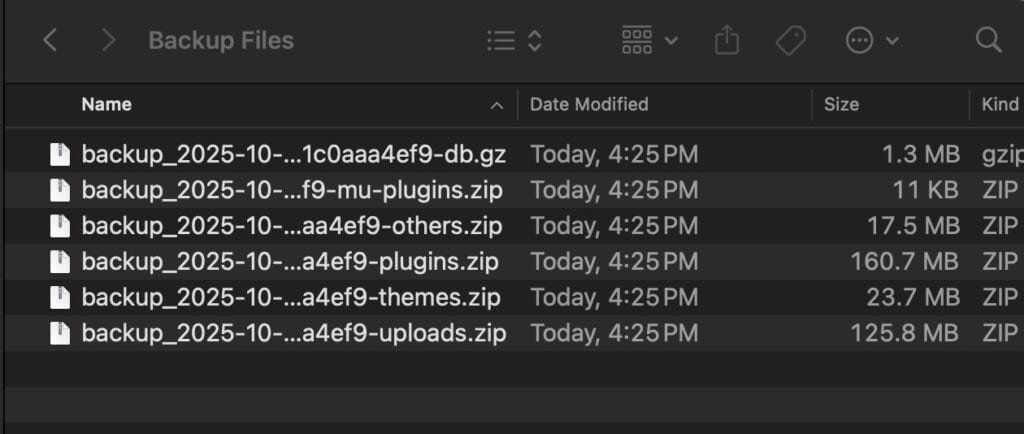
Once the files are properly saved and secure, you have successfully saved a backup of your website.
Tip: The Backup Process may take some time depending on the size of your website. You should keep your browser window open until the backup is complete.
Restoring a Site from a Backup
In the event of a site issue, a previous backup can be used to restore your website to a working state.
- Navigate to UpdraftPlus Backups in your WordPress Dashboard.
- If the backup is not already in the Existing Backups list, click the Upload backup files link to upload the backup files you downloaded to your computer. Once all of the ZIP files are uploaded, they will populate a backup item.
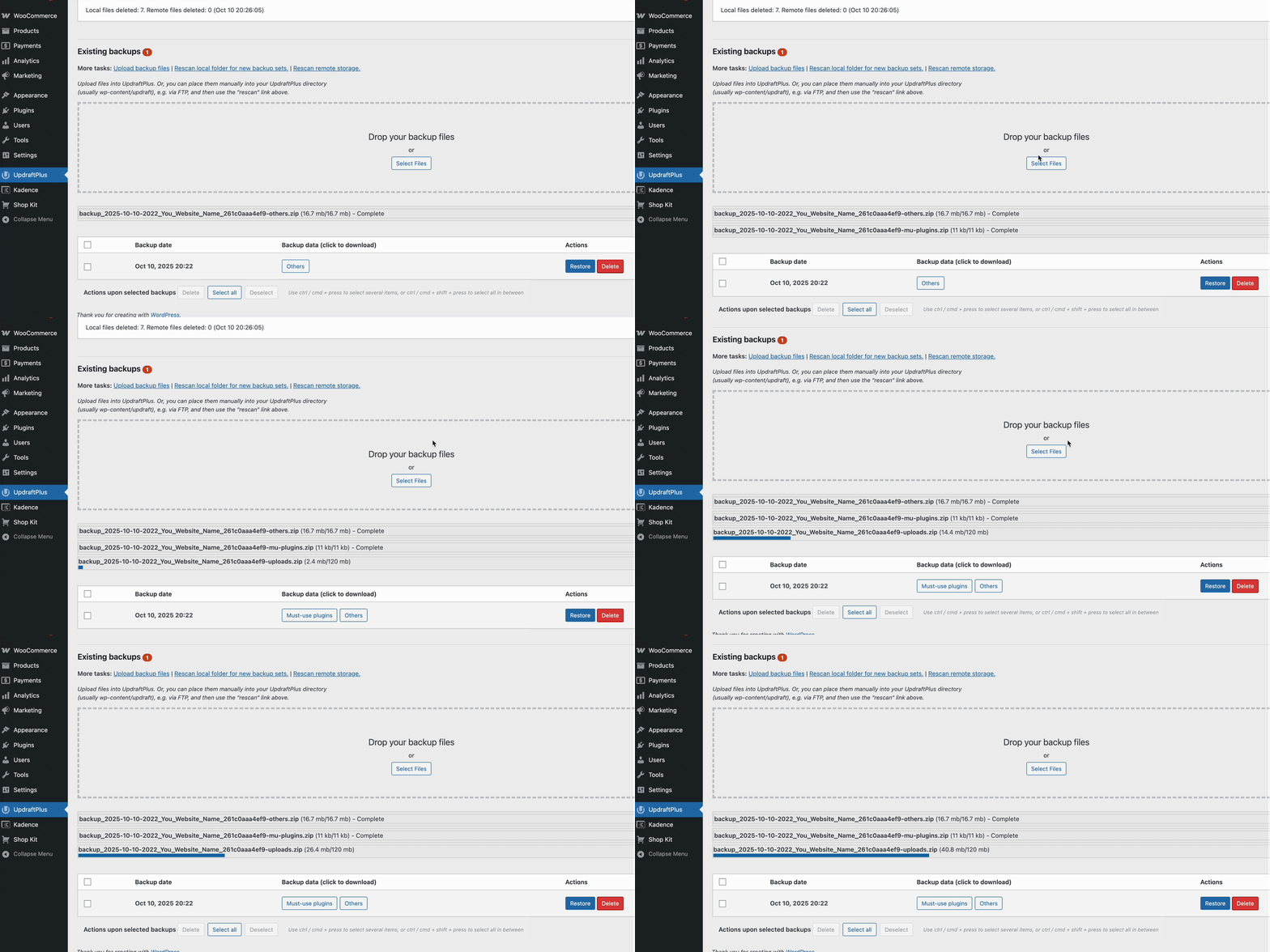
- Once the backup item appears in the Existing Backups list, find the one you need to restore. It’s a good idea to choose the most recent working backup.
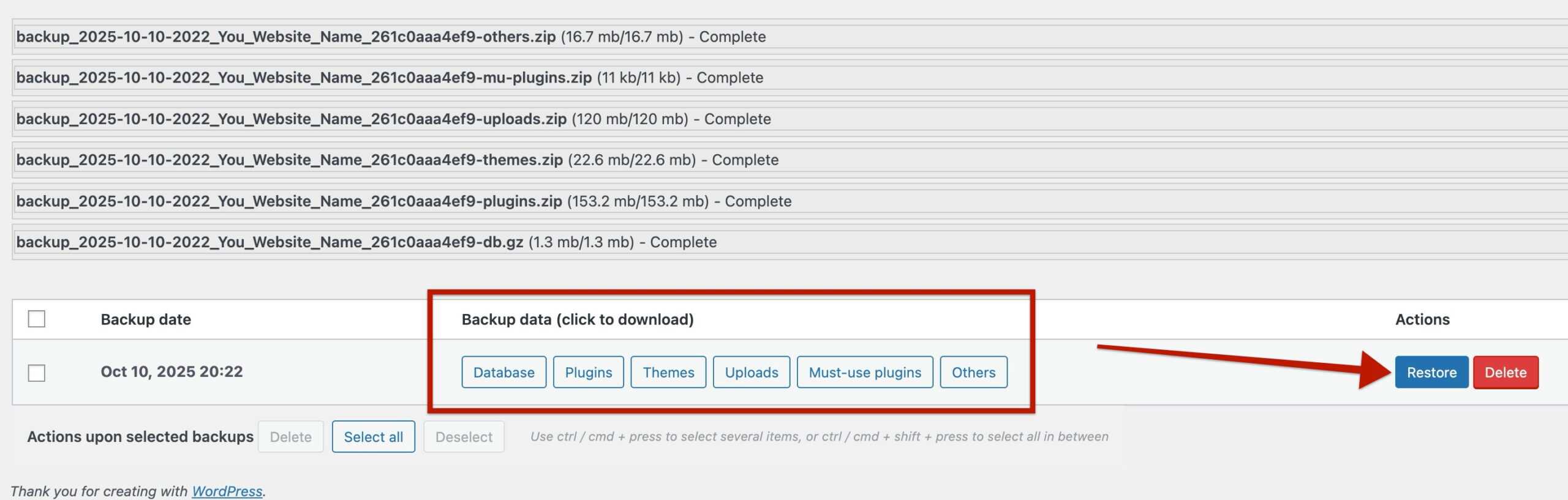
- Restoring this early can cause issues with the restoration, so it is important to double-check and ensure you have uploaded all of the required files. (Must-use plugins are not always applicable, but the rest are.)
- Click the Restore button next to the desired backup.
- A pop-up window will appear, asking which components you would like to restore. Make sure all components are selected and click Next.
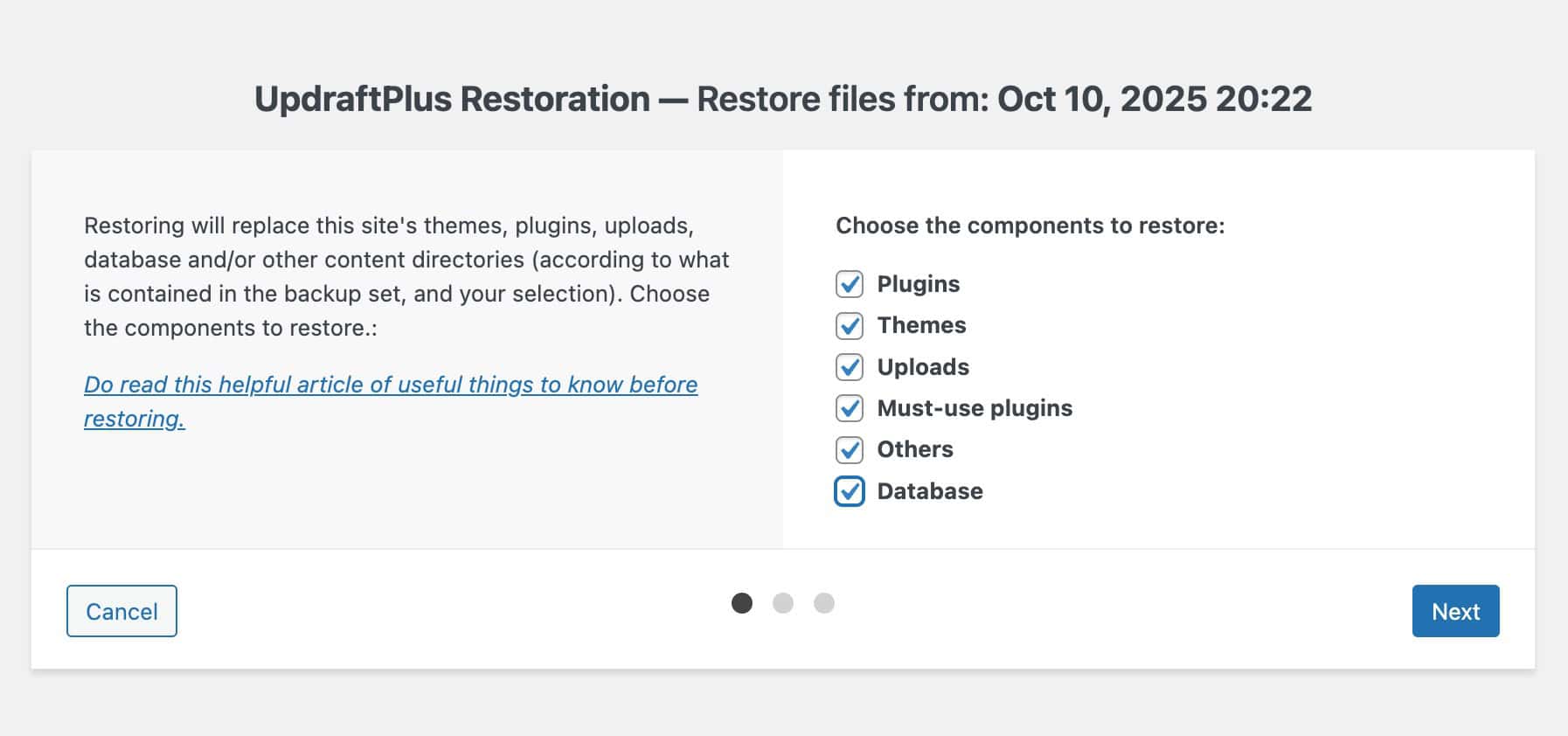
UpdraftPlus will restore your website using the files from the backup.
Important: Restoring a backup will overwrite your current files and database, returning your site to the state it was in at the time the backup was created.

