
The Performance Settings in the Kadence Theme help you control how your website loads, behaves, and integrates with other tools. These options are designed to improve speed, usability, and compatibility, while still giving you flexibility.
You can find these settings in the WordPress Customizer under General > Performance.
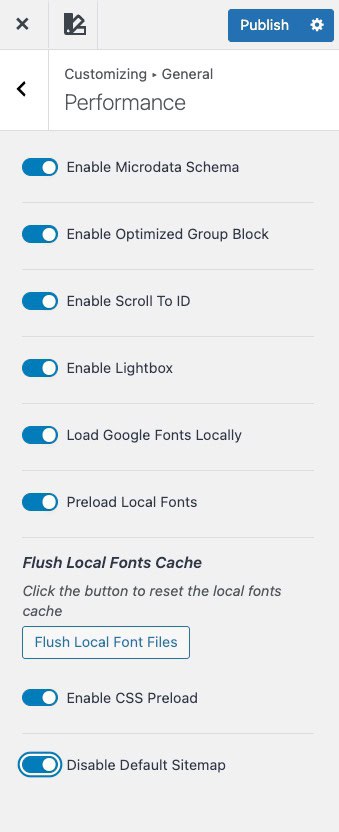
Note: The features shown in this document require the free Kadence Theme to be active on the website.
Enable Microdata Schema
What this does
Kadence automatically adds structured data, also called schema, to your website. This helps search engines understand content like blog posts and products.
When to enable it
- You want Kadence to handle schema automatically.
- You are not using another plugin or custom code for schema.
When to disable it
- You are adding a custom schema manually.
- You are using a third-party SEO or schema plugin that already manages structured data.
Tip
If more than one tool outputs a schema, it can cause duplicate or conflicting data. Disabling this option avoids that.
Enable Optimized Group Block
What this does
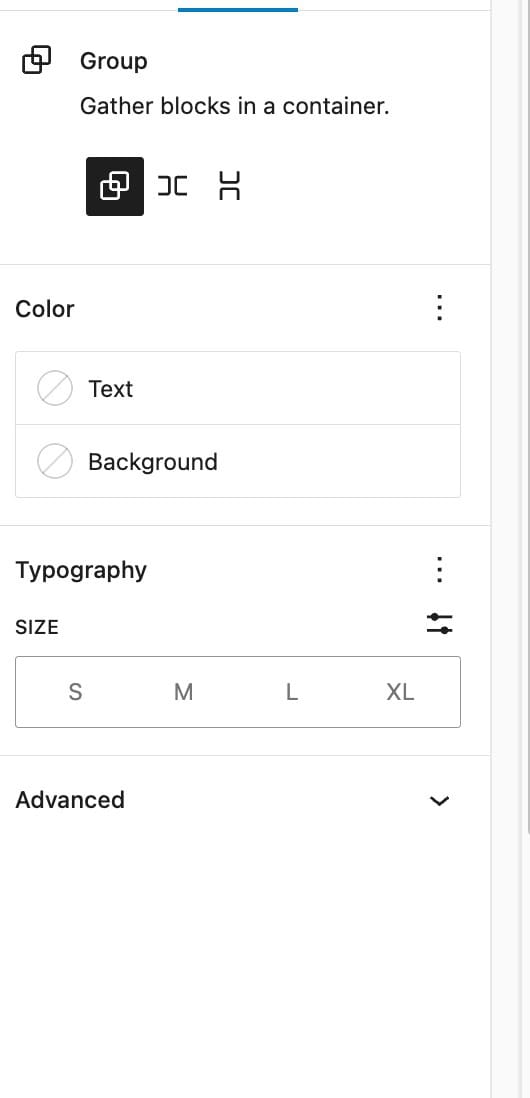
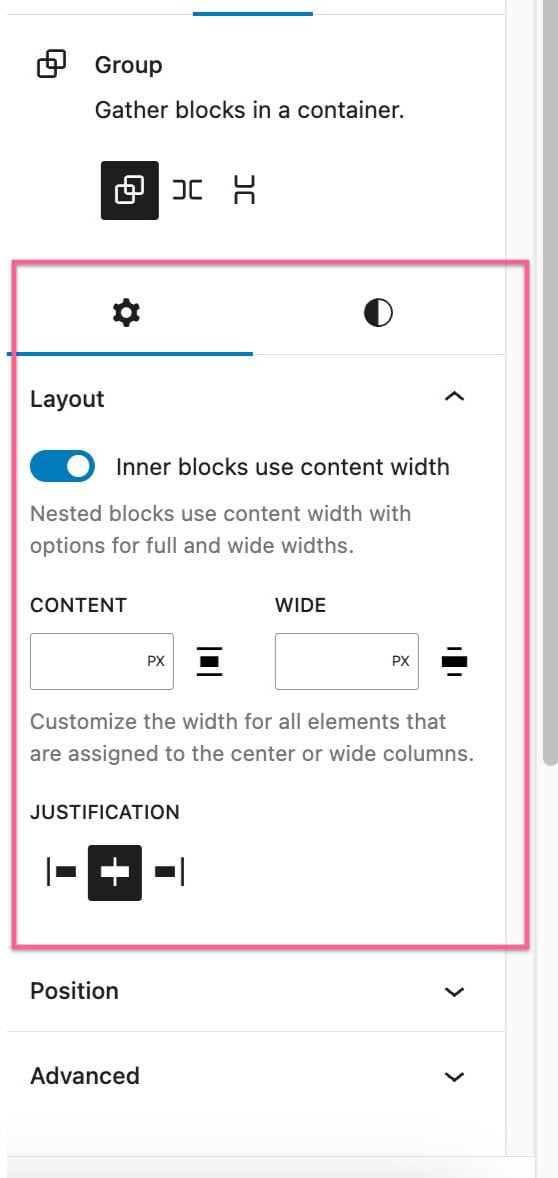
This option enhances the WordPress Core Group block by exposing layout controls directly in the block settings. It was introduced in Kadence Theme version 1.2.1.
What changes when enabled
- Additional layout options appear for the Group block.
- You gain more control over alignment, width, and layout behavior.
Visual comparison
- Group block settings without this option enabled:
- Group block settings with this option enabled:
Related reference:
https://wordpress.org/support/topic/support-for-group-layout-settings
Note: This does not replace the Group block. It only improves how its layout options are displayed.
Enable Scroll To ID
What this does
This setting changes how anchor links behave on a page.
Without this option
- Clicking an anchor link causes the page to jump instantly to the target section.
With this option enabled
- The page smoothly scrolls to the target section instead.
Common use cases
- Navigation menu links that point to sections on the same page.
- Buttons or table of contents links that jump to content further down.
Tip: Smooth scrolling improves user experience, especially on long pages.
Enable Lightbox
What this does
This option allows images to open in a lightbox overlay when clicked. (Learn more.)
Supported blocks include
- WordPress Core Image block
- WordPress Core Gallery block
- Kadence Image Advanced block
Why this is useful
- Images appear larger without leaving the page.
- Visitors can focus on images without distractions.
Note: This option adds lightbox behavior to blocks that normally do not include it by default.
Load Google Fonts Locally
What this does
Instead of loading fonts from Google’s servers, your website downloads and serves Google Fonts locally from your own server.
Benefits
- Improved performance by reducing external requests.
- Better privacy, since visitor browsers do not connect to Google’s font servers.
- More consistent font loading.
Enable CSS Preload
What this does
This setting tells the browser to load CSS files earlier during page load.
Why this matters
- Pages load faster.
- Reduces flashes of unstyled content.
- Ensures important styles are applied as soon as possible.
Result
A smoother and more polished experience for visitors, especially on slower connections.
Warning: In rare cases, custom setups may require testing to confirm compatibility with other performance tools. These tools are meant to help you balance performance, flexibility, and user experience in a simple and controlled way.

