
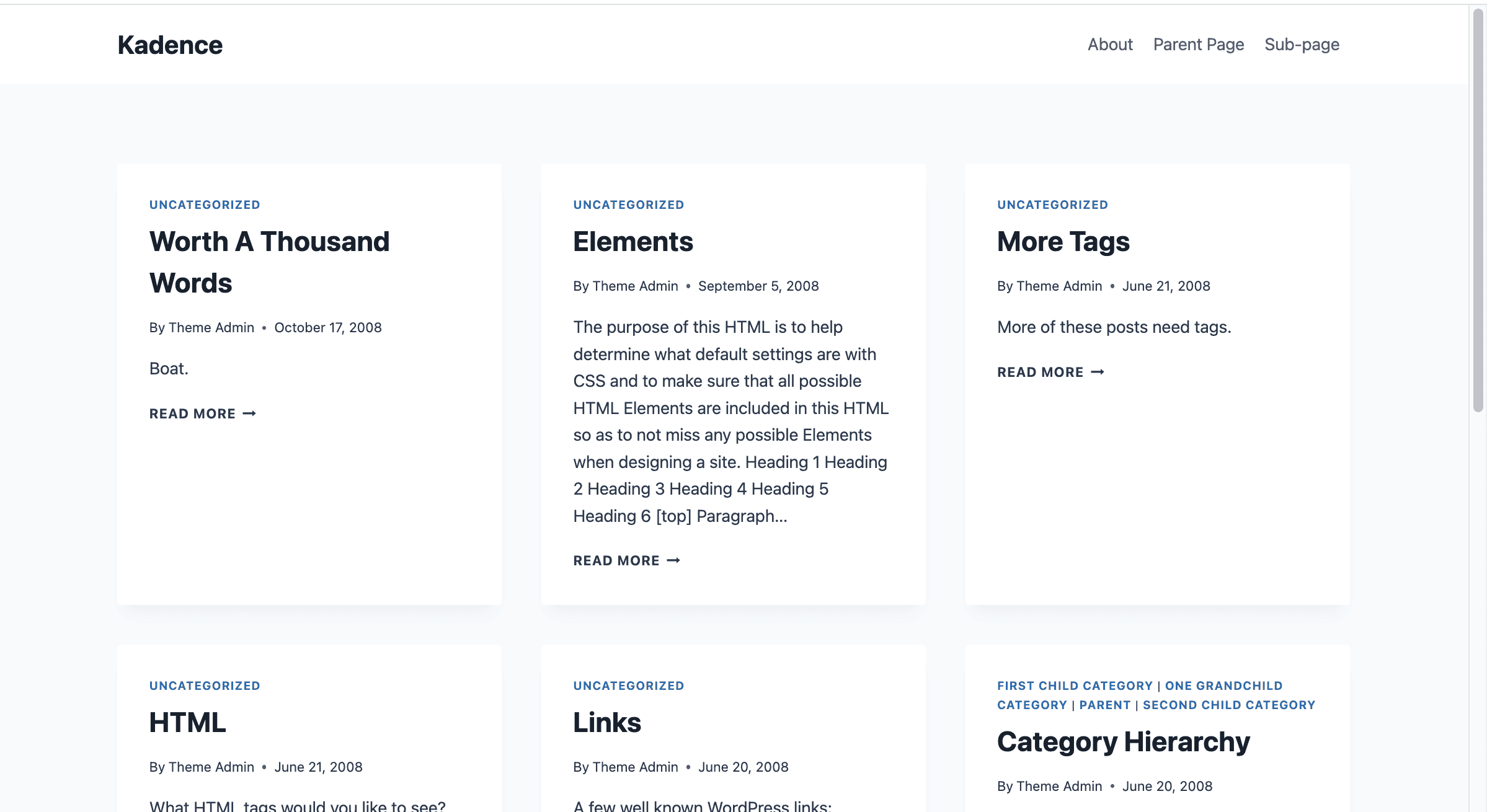
The Kadence archive pages list your individual posts according to your Customizer’s Post Item Layout settings. Here’s the default look:
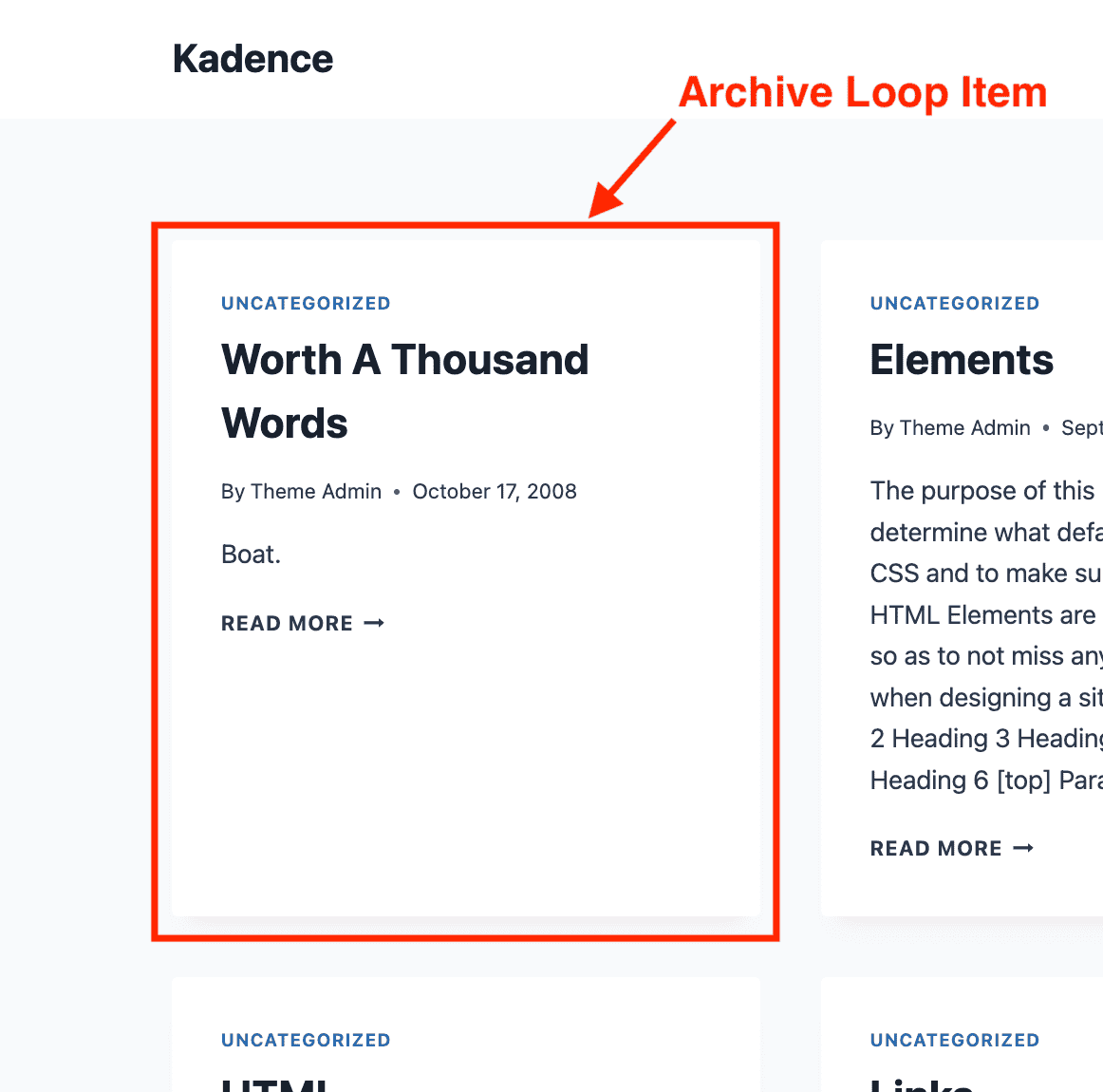
What is an Archive Loop Item?
An Archive Loop Item is the template used to display a single post in your archive grid.
If you wish to add more information or customize the layout, you can utilize Kadence Elements to replace the default archive loop item. While the Customizer does allow some configuration of the archive items, using an Element provides greater control and customization options.
Step 1: Create an Element
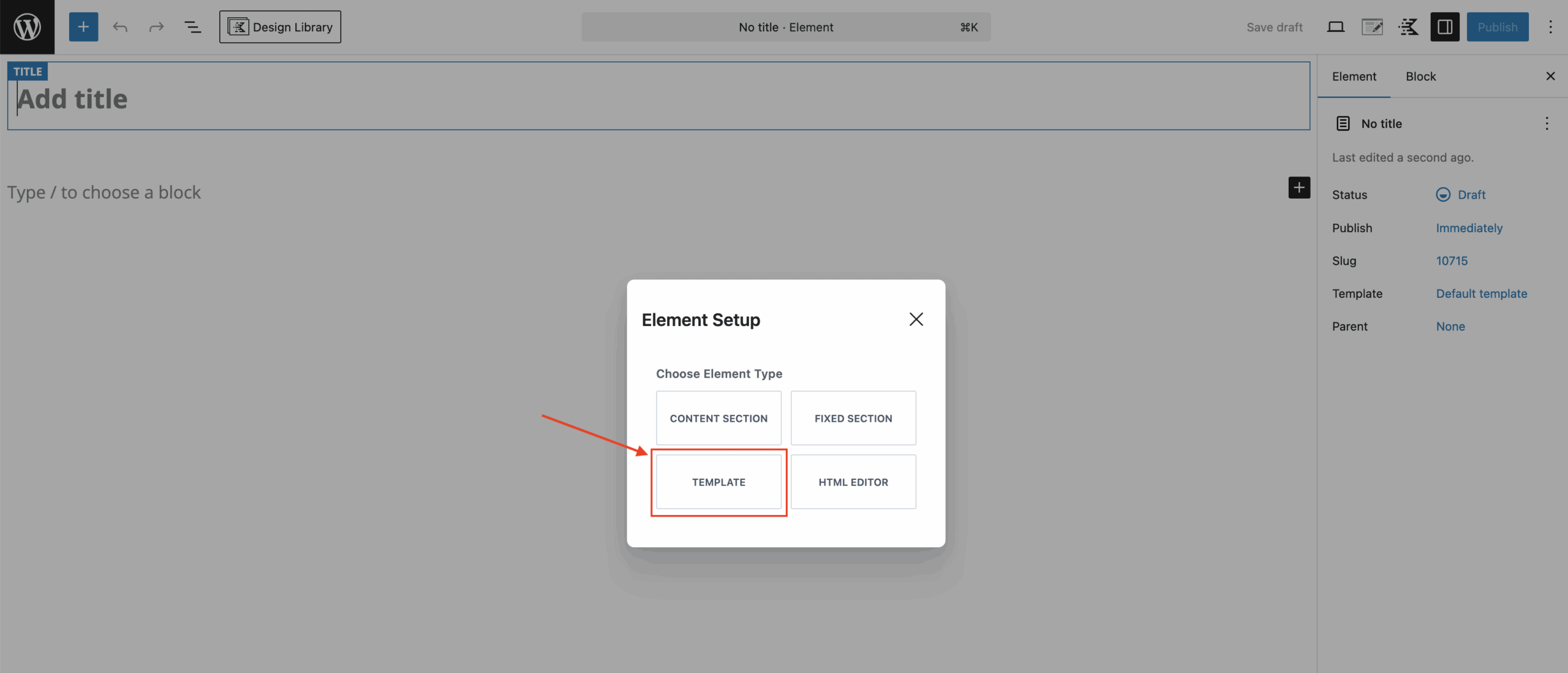
First, create a Template Element. Template Elements replace the default theme output and can be used to replace the archive loop item content.
Step 2: Configure the Element Settings
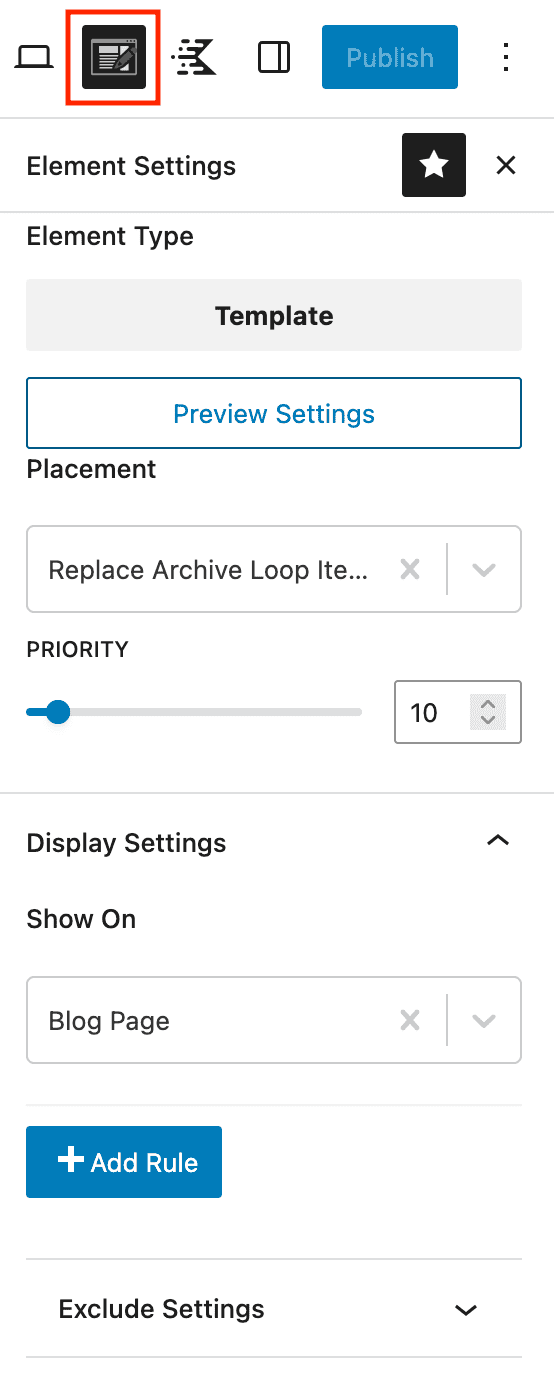
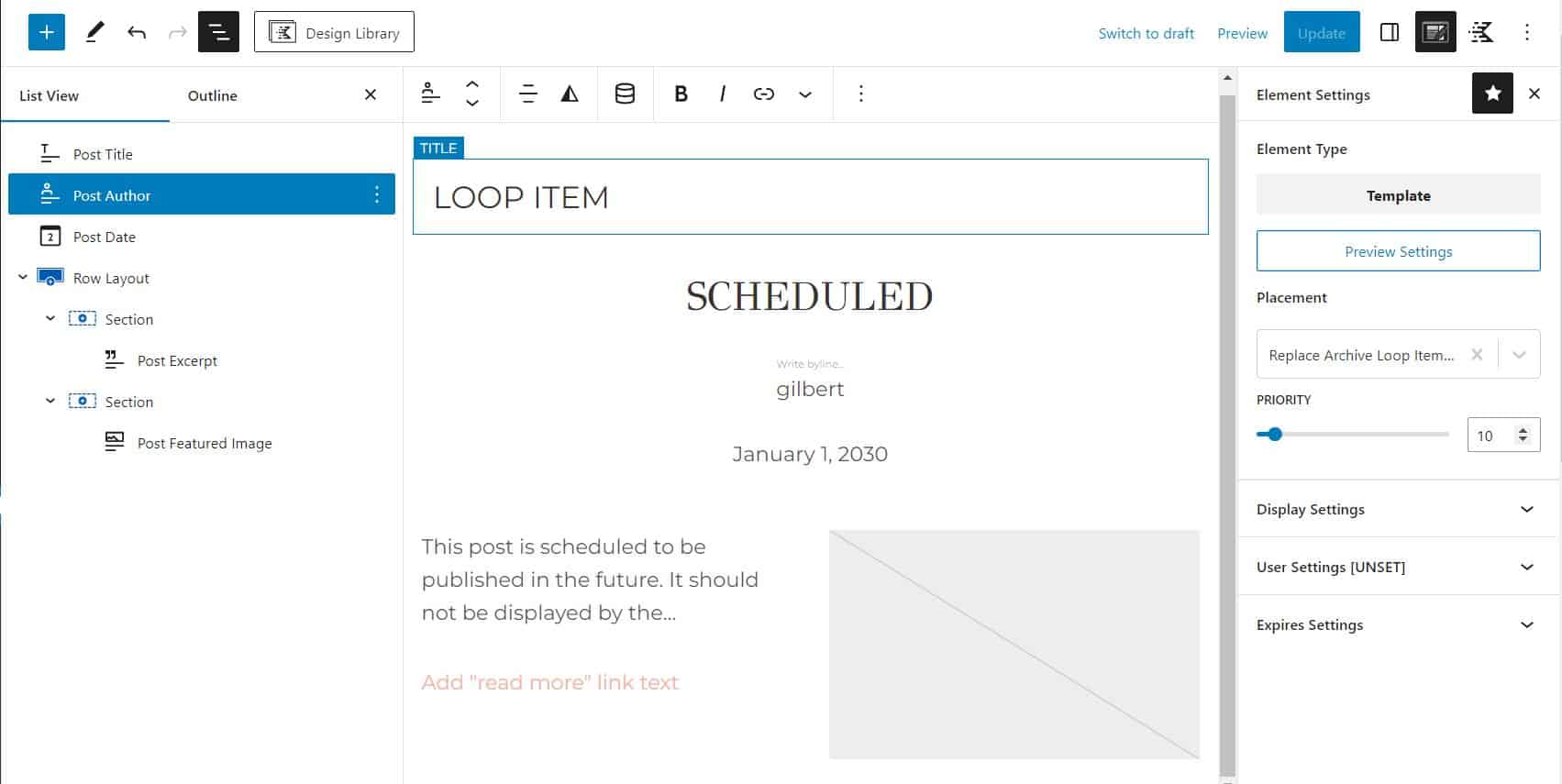
The placement and display settings will determine where your template will appear. To access the Element Settings, click the settings icon in the upper-right of your screen.
Click the Preview Settings button to set the preview context for your loop item. This will allow you to see live results with real data while you’re editing your template.
Placement: set to Replace Archive Loop Item Content to replace the archive loop item.
Display: set the to Blog Page to replace the loop items for your blog. You can also select the archive for your custom post type or taxonomy.
You can add additional display settings by clicking Add Rule. This will allow you to display this template on other archive such as post categories or tags.
Step 3: Design Your Template
Design the template using blocks to dynamically add post data like the post title, post date, featured image, excerpt, and/or content. If you have Kadence Blocks Pro, you can also use dynamic content to display custom fields.
Once you have finalized your design, save your template and preview your blog page. Your loop items will now be displayed using the template you have created.

