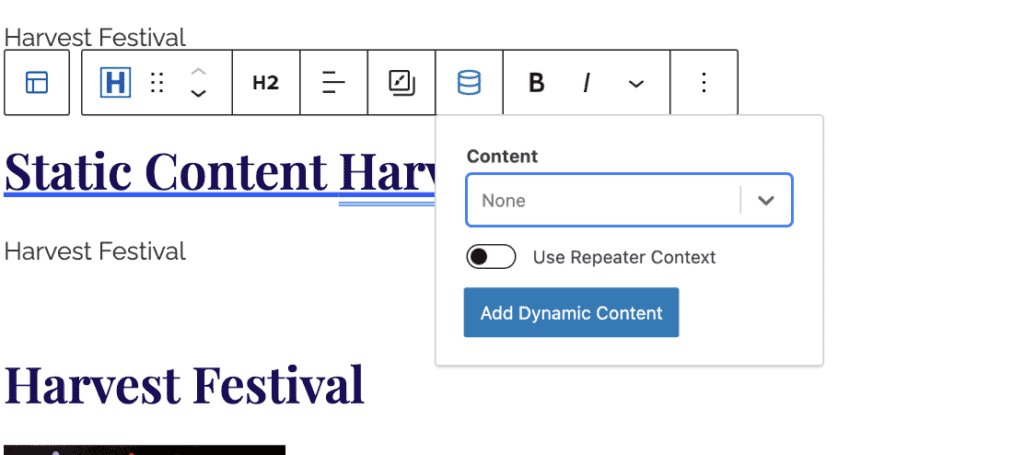
Kadence Blocks Pro offers the Dynamic Content feature. Dynamic Content, generally speaking, is any content entered on your site that is not static. For example, when a user is logged in and reviewing their account on your site, they are viewing their own account information that is dynamically pulled from the WordPress Database rather than statically entered in a post or page.
Requirements
Dynamic Content is a Kadence Feature that comes with the Kadence Blocks Pro plugin.
If you would like to use Dynamic Content inside of an Element and Hook it across your website, you also need the Kadence Theme Kit Pro plugin. This plugin features Hooked Elements, which can be combined with Dynamic Content to create Template Elements and Dynamic Designs that can be hooked across your website.
You can also use Custom Fields from the Advanced Custom Fields, Pods, or Metabox plugin with Dynamic Content. Allowing you to dynamically display your custom fields across your website.
Blocks That Support Dynamic Content
Dynamic Content is a feature available on different Kadence Blocks. It is also available on some Gutenberg Blocks. Here is a list of all of our Blocks that support Dynamic Content.
Kadence Blocks
Default Gutenberg Blocks
Important: For dynamic content that includes multi-line text and/or HTML (e.g., descriptions or multi-line custom fields), use the Dynamic HTML block, as the Advanced Text block may not display this content correctly.
Adding Dynamic Content
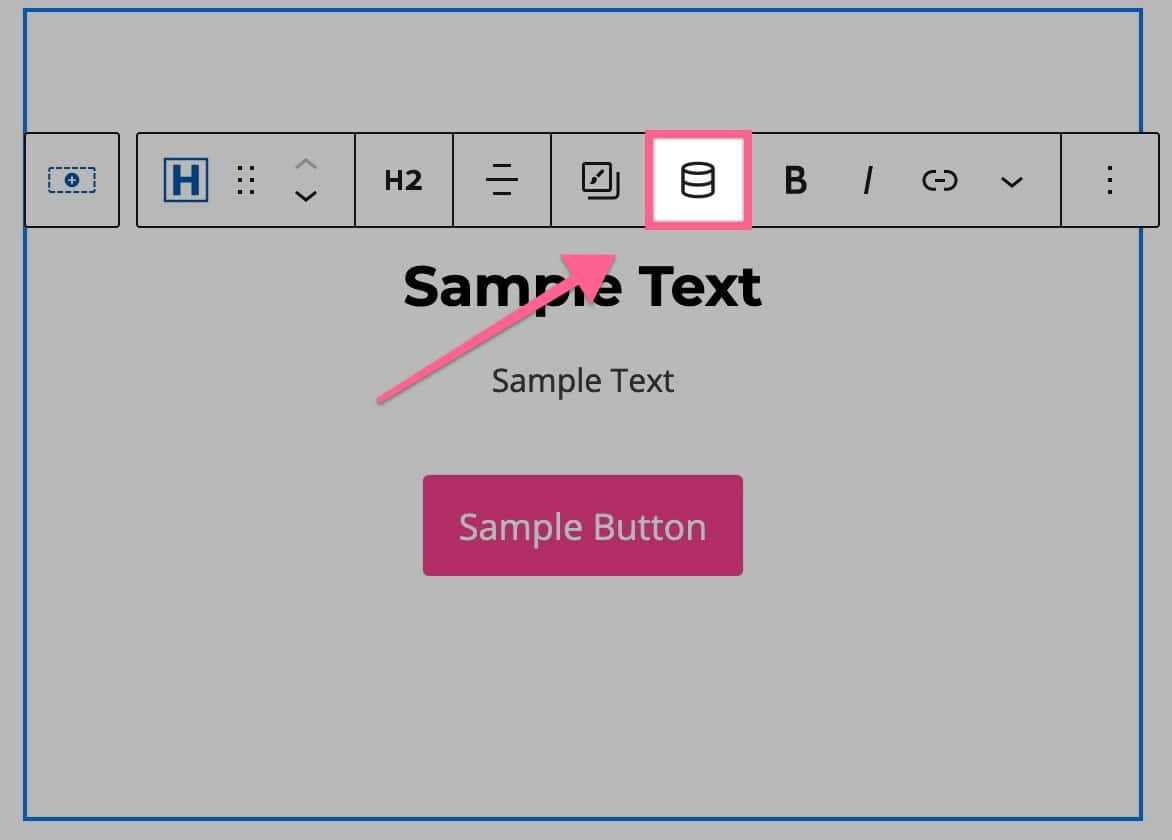
You can add Dynamic Content anywhere you see the Dynamic Content Icon. You will see the Dynamic Content Icon either in the Block ToolBar or next to a Block Setting.
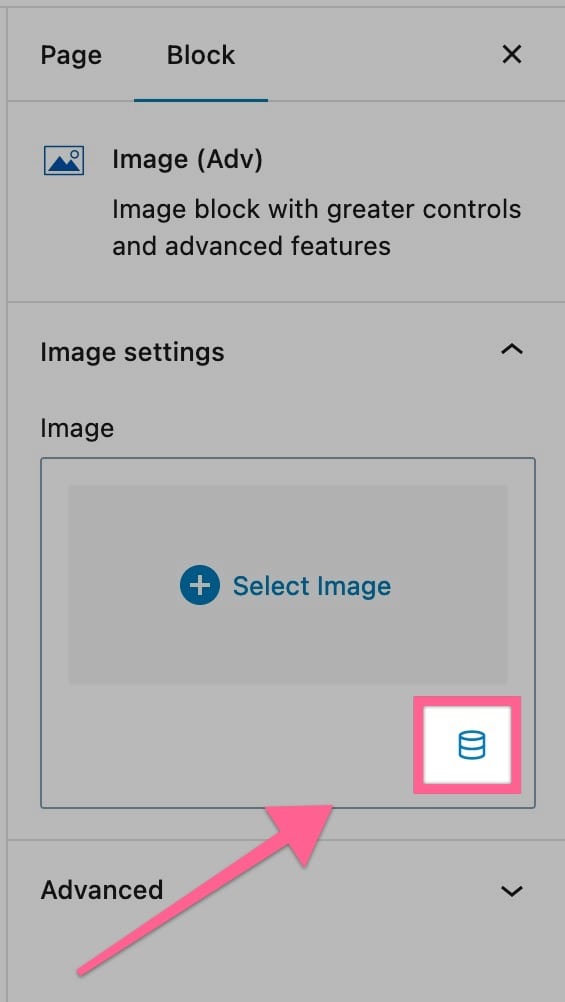
Available Dynamic Content Types
Whenever you add Dynamic Content, you will have to select the Content that you are going to use. This could be like a Post Title or an Author Display Name. You can click on the Dropdown to select one of our many Dynamic Content options available.
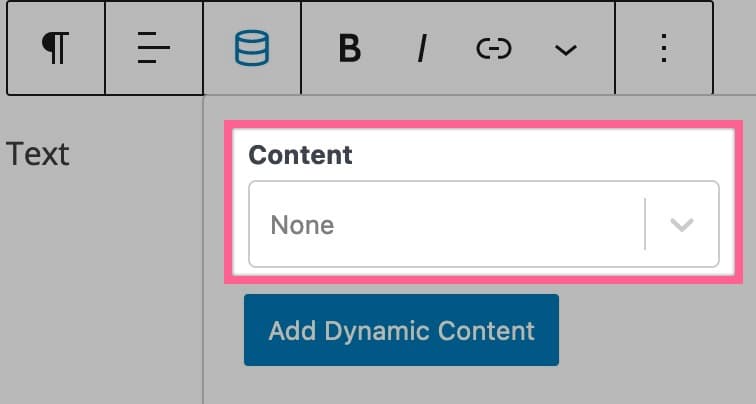
Available Content Options
Custom Inputs
Kadence Dynamic Content allows you to use Custom Inputs to pull values directly from post meta or custom fields, which is especially useful when working with fields/data that Kadence Dynamic Content doesn’t automatically or directly detect.
To use a Custom Input:
- Select Dynamic Content in your block settings.
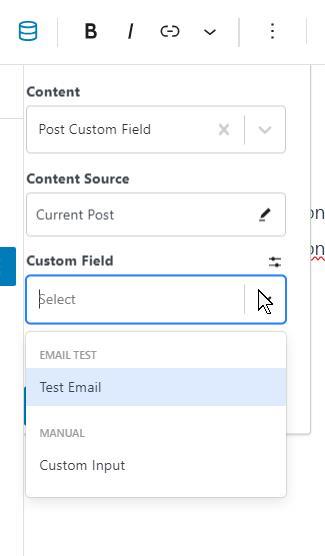
- Choose Post Custom Field as the Dynamic Content type.
- Switch to Custom Input and enter the meta key for the field you want to display.
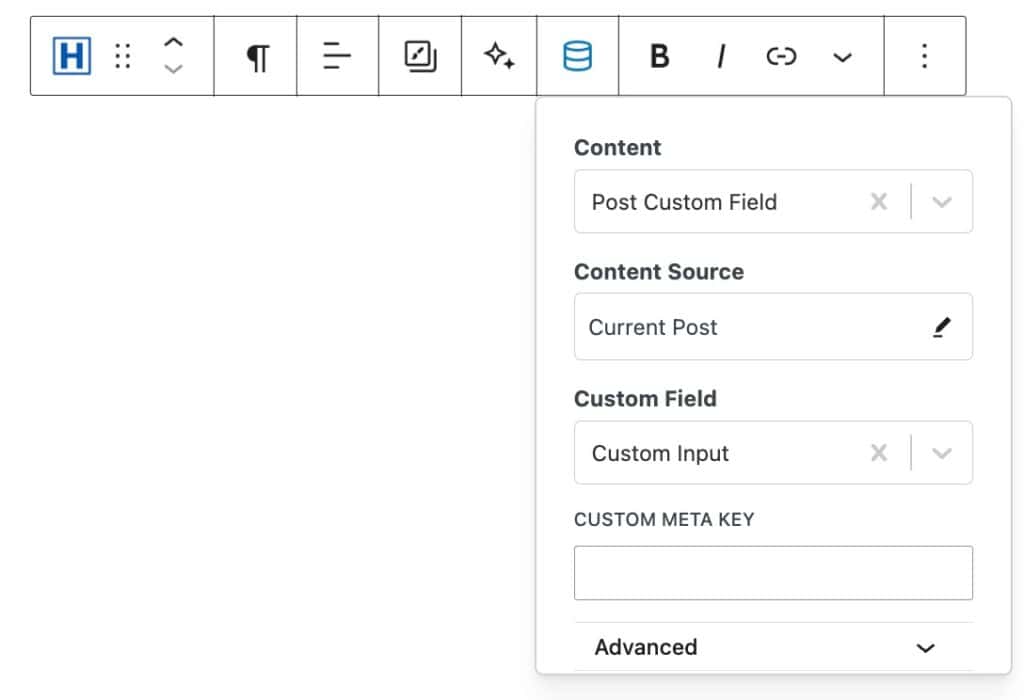
When using Custom Inputs, the meta key you enter corresponds to the field name in your WordPress database:
- For a regular custom field, the meta key is simply the field name:
- Text field named
Display Name→ Custom Meta Key:display_name - Number field named
Age→ Custom Meta Key:age
(Spaces in the field name are replaced with underscores.)
- Text field named
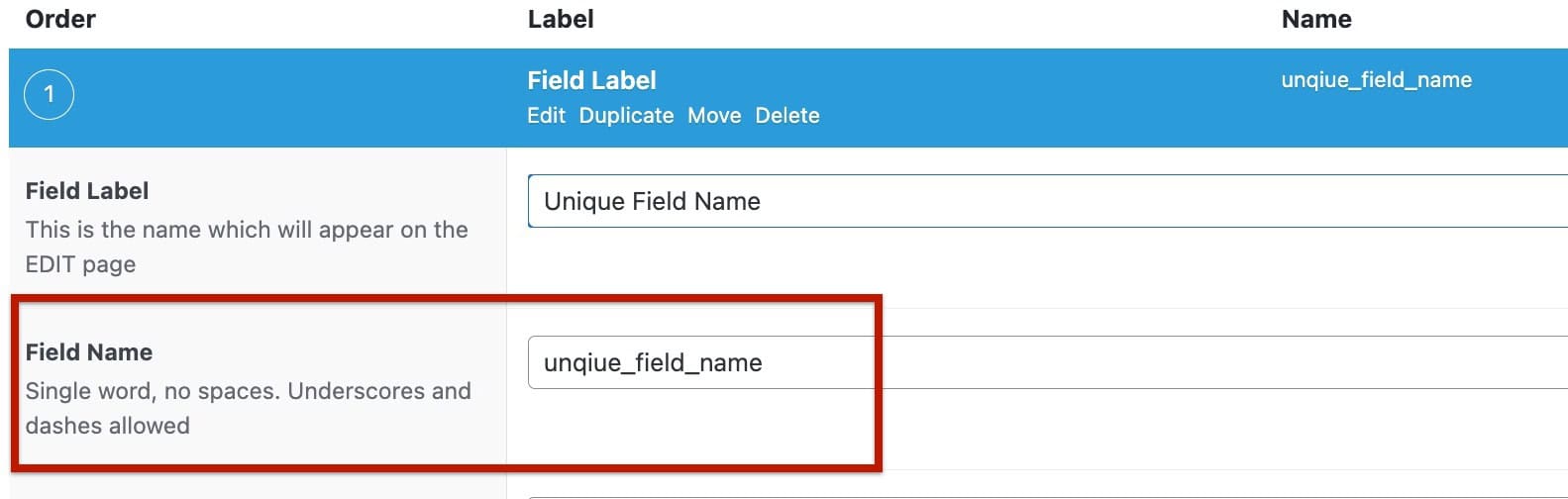
- When working with Group Fields, combine the parent group field name with the sub-field name, separating them with an underscore:
- Group Field:
group - Sub-Field:
text1 - Meta Key:
group_text1
- Group Field:
This allows Kadence Dynamic Content to pull the value of the sub-field directly, bypassing the group wrapper. Custom Inputs can also be used for any other meta key stored in your WordPress database, giving you the flexibility to display dynamic content from all post types.
Dynamic Sources
When selecting Dynamic Content, you have the Source and Content options. The Source option determines which source the Dynamic Content is pulled from. The Source is set to the “Current Post” by default. This means the Dynamic Content would apply to the current post shown on. If you were to add this to an Element and display it on multiple Posts, the Dynamic Content would change according to the Current Post that is being viewed.
The Current Post doesn’t directly mean the default Post. If you apply a Custom Field to a Custom Post Type, it would also use the Current Post source to display content from the Current Custom Post.
Usually, the Source stays as “Current Post”. However, there are many cases where you may want to change this. For example, if a restaurant had a website with a Menu that used Custom Fields to display the Items and Prices. You may want to show the Price of a Menu Item Dynamically somewhere else. You can do this by making the Menu Post the Source for the Dynamic Content and selecting the appropriate Custom Field to display the Price. This would allow you to show the Price Dynamically. If you would change the Menu Price, it will also change on the Dynamic Content.
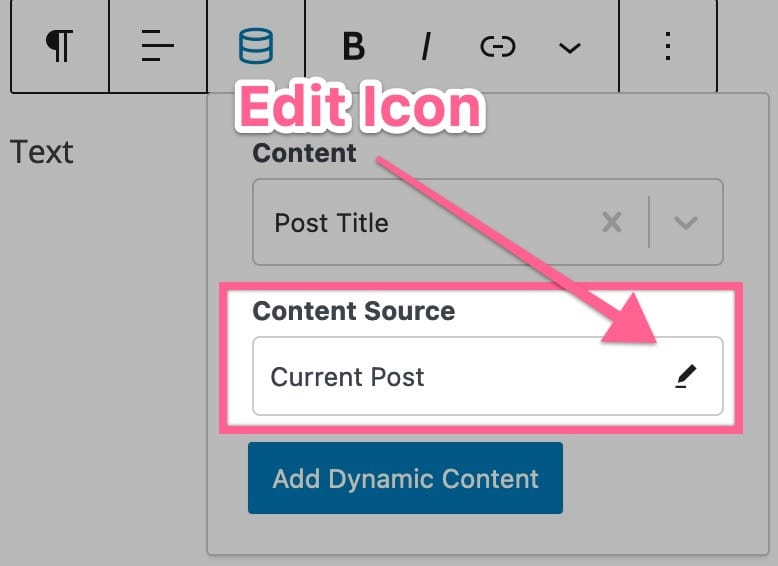
When viewing the Content Source, you will see an Edit Icon. If you click on the Edit Icon, you can Search for a different Content Source to use.
Repeatable Content
One of the notable features within Dynamic Content is “Inline Dynamic Content.” This feature offers two distinct modes:
Inline Mode: In this mode, dynamic content integrates seamlessly with static text within supported blocks. You can customize and edit the text as needed, making it a flexible choice for content creation. This mode is the default way Dynamic Content behaves outside of the Query Loop (Adv) Block.
Replacement Mode: The “Replacement” mode completely replaces the existing text area within supported blocks with dynamic content. This mode is ideal when you want dynamic content to take precedence and remain uneditable, especially in scenarios like query loops.
The system is designed to be intelligent, selecting the appropriate mode based on the context. By default, it uses the “Replacement” mode in situations where it makes more sense, such as within a query loop, and the “Inline” mode for all other scenarios.
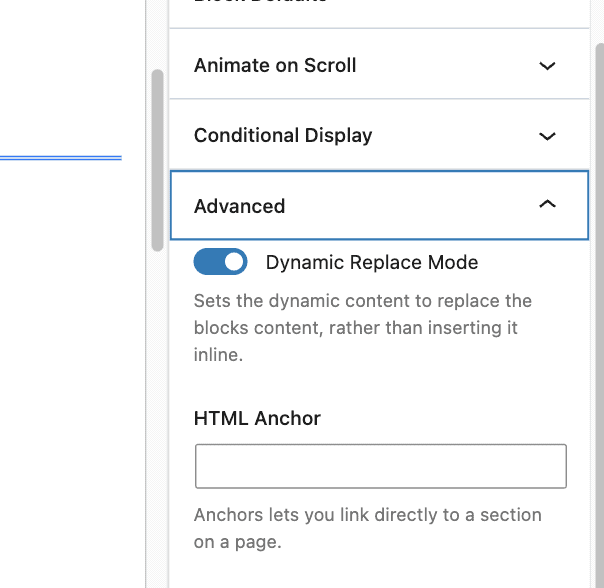
You can manually toggle between the two modes by accessing the “Dynamic Content Mode” or a similar option within the block’s “Advanced” settings.