
If you’ve configured a contact form using the Kadence Form (Adv) block and emails aren’t coming through, there could be several reasons—most of which aren’t related to Kadence itself. Successful email delivery is largely influenced by how you’ve configured your WordPress site, your domain’s DNS settings, and WordPress’s email method.
For more advanced email routing options, this guide also covers setting up WordPress settings and SMTP to ensure your emails are delivered correctly.
Let’s explore these steps in more detail.
Kadence Form (Adv) Email Submit Action
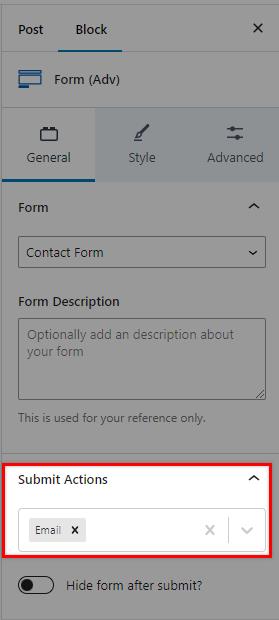
First, check the Submit Actions parameters in the Form (Adv) block settings. The option, Email, should be selected, as shown in the following screenshot.
Kadence Form (Adv) Email Settings
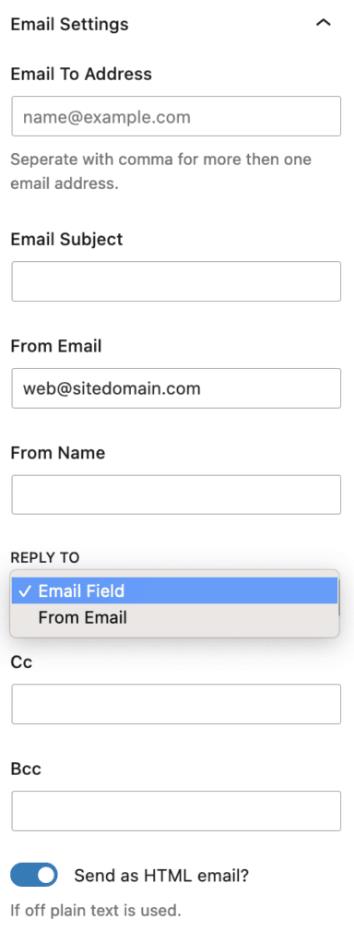
Next, review the Email Settings in the back end of the Form Block. Pay special attention to the “From” Email and “Reply-To” fields, as these are critical for successful email delivery.
If your form submission emails aren’t reaching the recipient’s inbox, they might be flagged as spam. This can happen if any of the following conditions are met:
- The “From” email address doesn’t match your website’s domain.
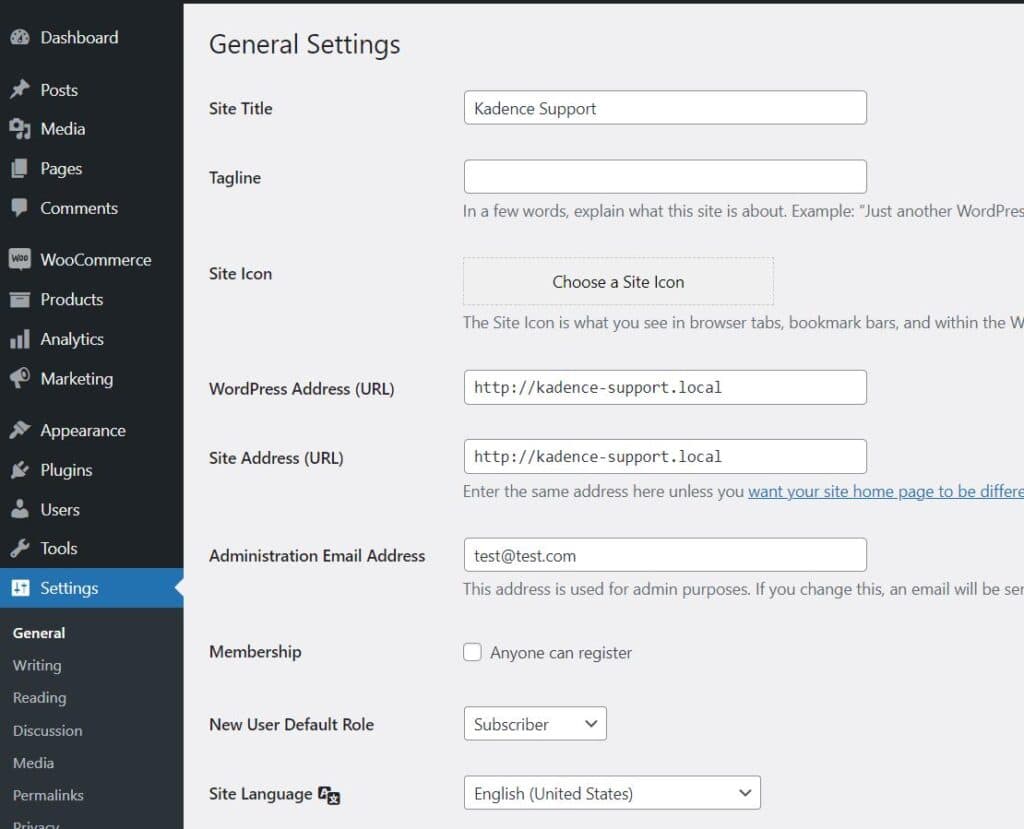
- The “From” email differs from the Administrative Email Address in WordPress’s General Settings.
- The “From” address is not a valid email account or a forwarding alias.
- The “Reply-To” email is different from the “From” address.
- The “Email Subject” line is left blank.
- The “Cc” or “Bcc” fields are used excessively, or multiple recipients are added.
Email providers like Gmail and Outlook often reject messages with no subject line or content, and short, test messages can also appear suspicious and get filtered out as spam.
Ensuring Email Deliverability: Keep Addresses Consistent
Using different domains in the “From” and “Reply-To” fields can negatively affect email deliverability. Many email providers flag such inconsistencies as potential spam or phishing attempts.
To improve the chances of successful email delivery, it’s essential to maintain consistency between these fields. The simplest and most effective way to ensure your Kadence Form (Adv) block emails are delivered is to use the same address for both the “From” and “Reply-To” fields. Additionally, this address should match the default Administrative Email Address in WordPress’s General Settings. Consistency establishes trust and minimizes the risk of your emails being marked as spam.
Setting Up WordPress to Send Legitimate Emails
By default, WordPress uses the wp_mail() function, which is a wrapper for the PHPMailer class, a PHP-based library that extends the standard PHP mail() function. While this setup can work, it lacks email authentication, meaning there’s no guarantee that the message was actually sent by the sender listed.
For security purposes, many email hosts view PHP-generated messages with suspicion. Emails sent through PHP scripts are more likely to be blocked by spam filters. To improve email deliverability, you must authenticate the domain used for sending these emails.
DKIM, SPF, and DMARC: Essential Email Authentication
DKIM, SPF, and DMARC are essential DNS records that validate different aspects of an email’s authenticity:
- DKIM (DomainKeys Identified Mail) ensures that the email content has not been altered and validates the message’s authenticity.
- SPF (Sender Policy Framework) confirms that the email is being sent from an authorized server.
- DMARC (Domain-based Message Authentication, Reporting, and Conformance) integrates both DKIM and SPF, ensuring that the email’s “From” address matches a domain linked to an authenticated server. DMARC also dictates how to handle emails that fail these checks and provides feedback on email deliverability.
Each domain sending or attributing emails through WordPress (or any other platform like a newsletter service) should have properly configured DKIM, SPF, and DMARC records to avoid deliverability issues. This step is especially critical if you’re using PHP to send emails, as it helps establish their legitimacy.
DNS records should be set by qualified administrators. If you need help with DNS and email, ask your host provider.
Using SMTP for Better Email Deliverability
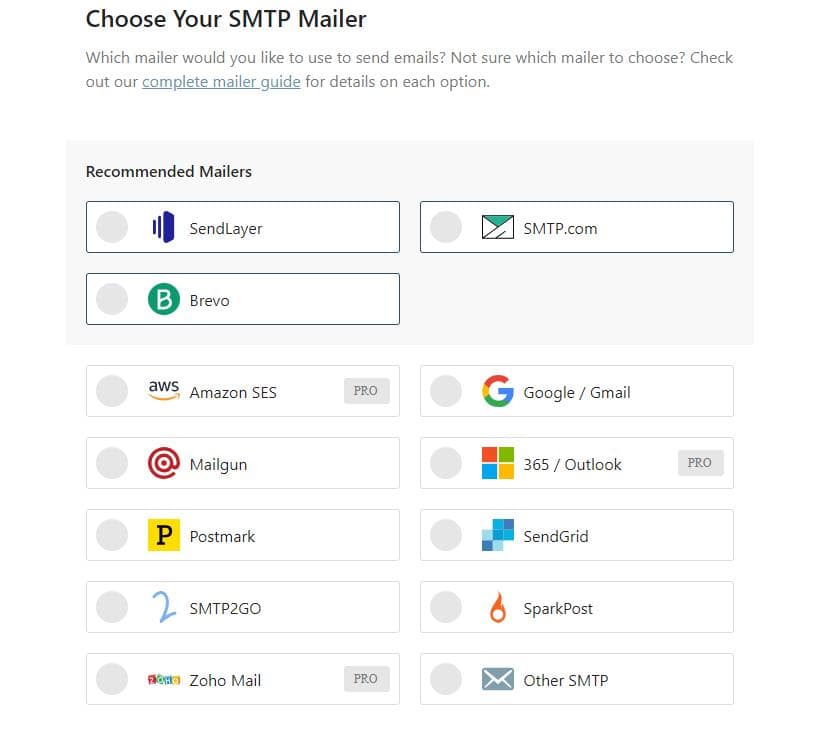
A more reliable solution for improving WordPress email deliverability is setting it up to use SMTP (Simple Mail Transfer Protocol) instead of PHP.
Some managed WordPress hosting services offer built-in or third-party SMTP services to handle WordPress-generated transactional emails. If your hosting provider offers this feature, little to no configuration may be required. However, you’ll need to set up your own SMTP service in most cases today.
Switching to SMTP ensures that your emails are authenticated and more likely to be delivered successfully, avoiding the pitfalls of using PHP mail functions. If you need to set up your own SMTP, we generally recommend using the WP Mail SMTP plugin. The WP Mail SMTP plugin lets you easily connect to popular mailers and other SMTP providers.
Troubleshooting Email Delivery Issues
If you’re having trouble with email delivery from the Kadence Form Block, there are several troubleshooting steps you can follow. While most issues are not directly related to Kadence itself, they can be resolved by examining and adjusting your WordPress and DNS settings.
- Check Domain Blacklisting: First, ensure that your site domain hasn’t been blacklisted for spam, as this can affect email deliverability. You can use online tools such as MX Toolbox to check if your domain is on any blacklist.
- Verify Email Sending: Confirm that your site is actually sending emails by using an email logging plugin. This helps you determine if emails are being generated and sent properly.
- Review Kadence Form Block Settings: If you’ve confirmed that your domain isn’t blacklisted and emails are being sent, check the Kadence Form Block settings. Specifically, look at the “Actions After Submit” parameters and ensure the “Email” option is enabled. Make sure that the “From Email” and “Reply-To” fields are correctly set. The “From” email address should match the domain of the website and be a valid email account using the same domain.
- Ensure Address Consistency: For better email deliverability, keep the “From” and “Reply-To” addresses consistent and use the default Administration Email Address from WordPress’s General Settings. Consistency helps build trust and reduces the likelihood of emails being flagged as spam.
- Properly Configure Your DNS: Create proper SPF, DKIM, and DMARC DNS records for your domain. For assistance with this, check with your hosting provider.
- Advanced Email Routing Solutions: If you need a more robust email routing solution, consider adding an SMTP plugin such as WP Mail SMTP. Sending properly authenticated email via SMTP can vastly improve deliverability.
By following these steps, you can address most email delivery issues and ensure that your Kadence Form emails are sent and received as intended.

