
If you want your Kadence-built website to load faster without the need for extra optimization tools, the Kadence Performance tool (built into Kadence Blocks) can assist. It requires no extra setup other than installing Kadence Blocks, works alongside your existing optimization tools, and is designed to give you a noticeable speed boost with just a few clicks.
The Kadence Performance Optimizer can help you:
- Improve your Web Core Vitals and PageSpeed Insights scores.
- Give your website visitors a better, faster user experience.
- Boost your SEO rankings by cutting down general page loading times.
Other caching plugins may also handle some optimizations performed by Kadence Performance. We encourage using a caching plugin alongside Kadence Performance, as it is designed to complement, not replace, your caching plugin by adding extended performance features
Kadence Performance is a feature available in the Free – Kadence Blocks Plugin.
What Kadence Performance Does
Kadence Performance focuses on optimizing the content your visitors see first while making sure everything else loads swiftly in the background. Here’s what it includes:
- Lazy Load Background Images: Images below-the-fold should be lazy loaded and load as you scroll down the page, rather than instantly.
- Smart Image Optimization: This helps automatically serve the right image size for each screen, so mobile visitors aren’t forced to download desktop-sized images and vice versa.
- Lazy Load HTML Below the Fold: Helps delay the loading of non-critical sections on the page until your visitor scrolls to them. This improves the perceived speed and allows resources to focus on above-the-fold content first.
Enabling/Disabling the Optimizer
The Kadence Blocks Performance Optimizer can be enabled globally using the Kadence Block Controls. In the Block Editor, navigate to Block Controls, then expand the Performance Optimizer tab to enable it.
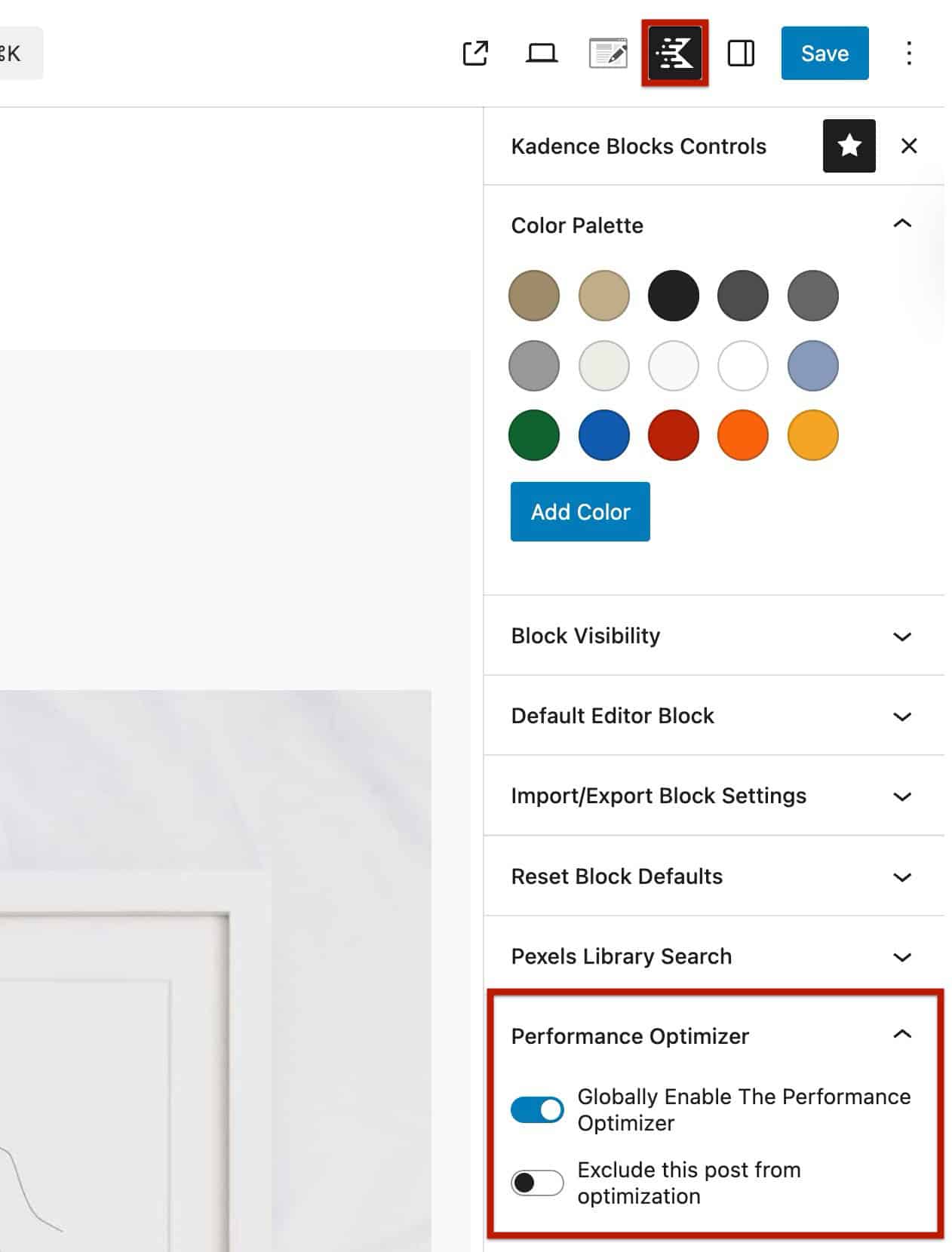
Additionally, you can disable the optimizer for an individual post or page by selecting Exclude this post from optimization in the Block Editor.
Running the Optimizer
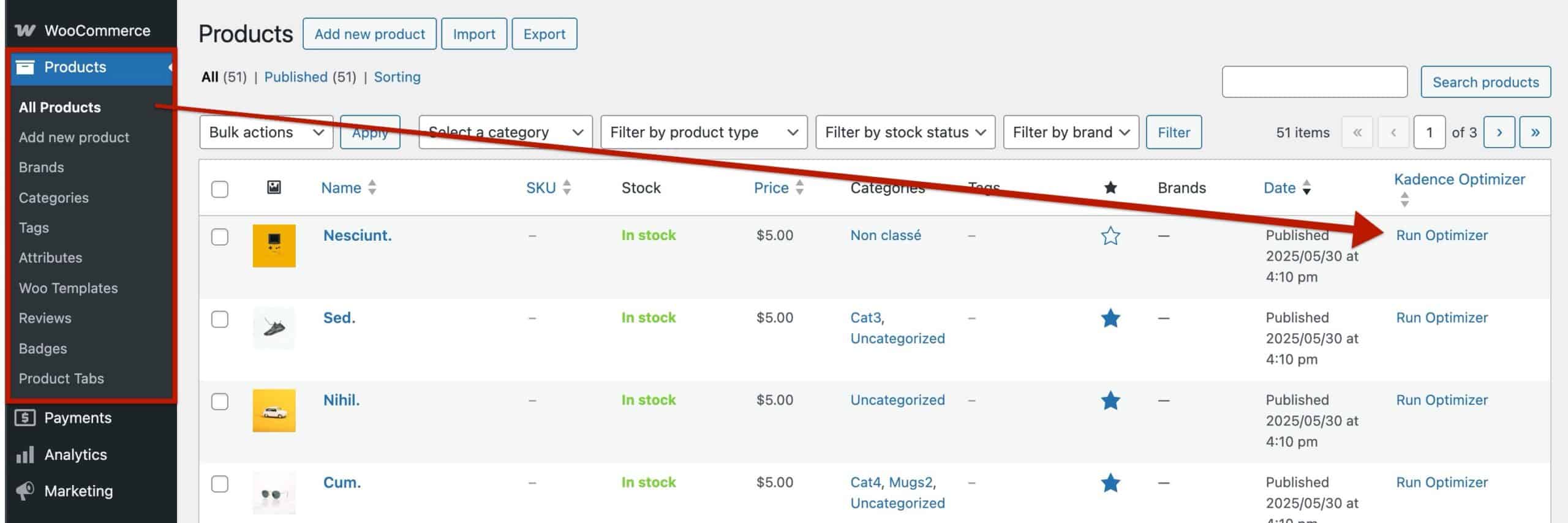
With Kadence Performance enabled, you can begin optimizing your site’s content. The optimizer supports standard posts, pages, WooCommerce products, and other single custom post types.
To run the optimizer:
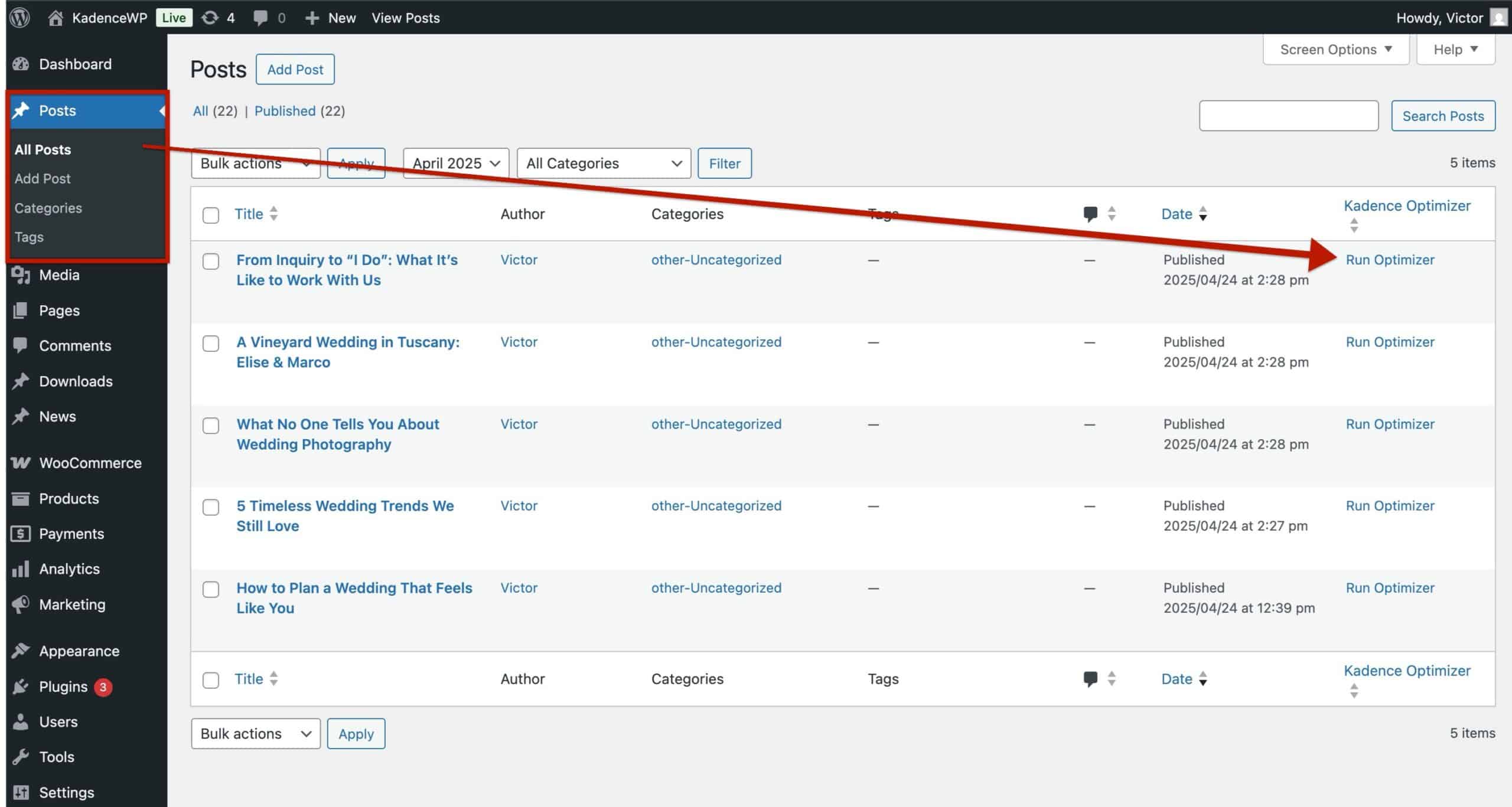
- Go to your WordPress dashboard.
- Navigate to the list view for the content you want to optimize
(for example: Dashboard → Posts → All Posts). - On the far right of each item, click Run Optimizer.
This will apply Kadence Performance optimizations to that specific post or page.

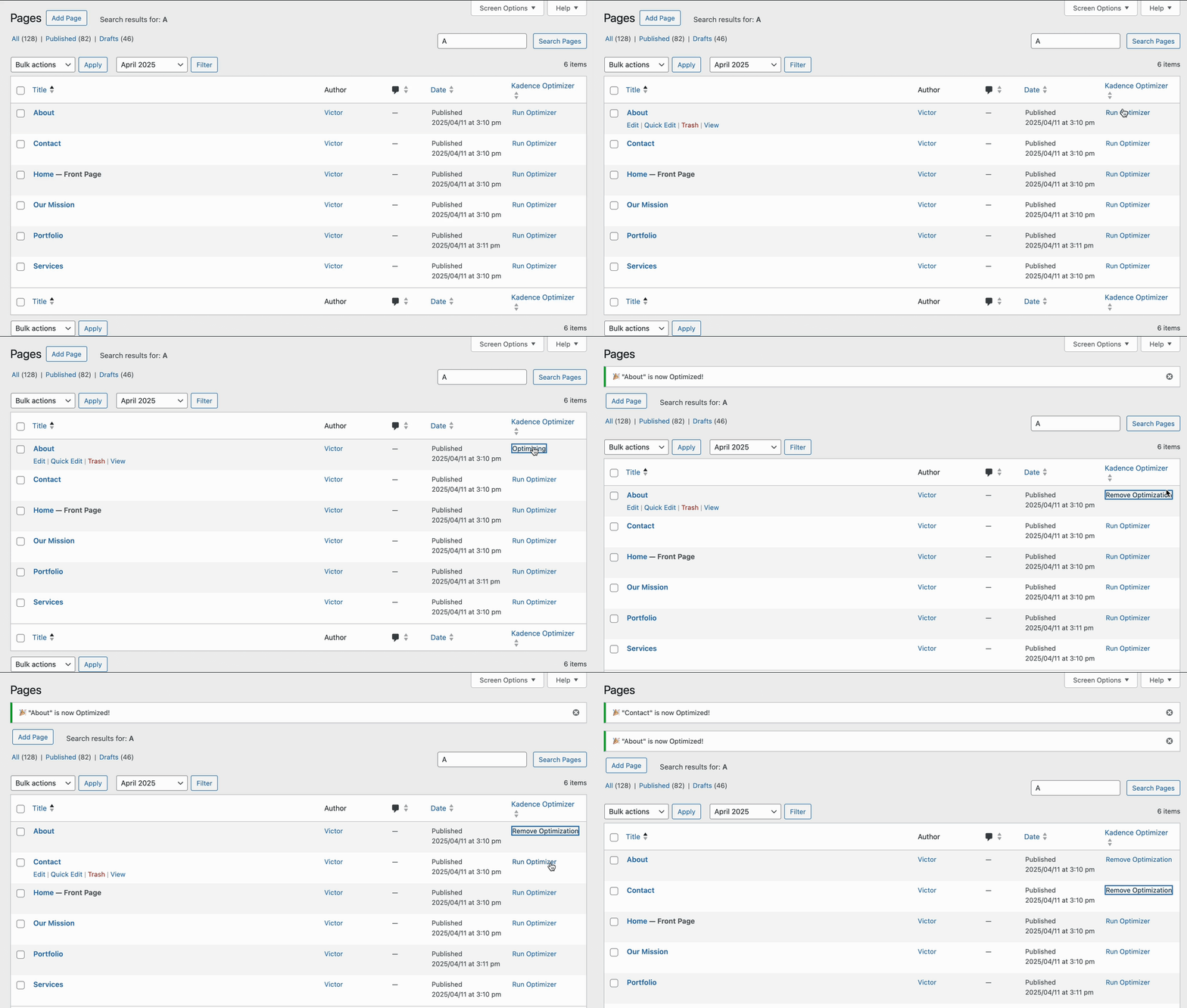
Removing Optimization
For any reason, if you wish to undo/remove the optimization applied by Kadence Performance, that can be done as well.
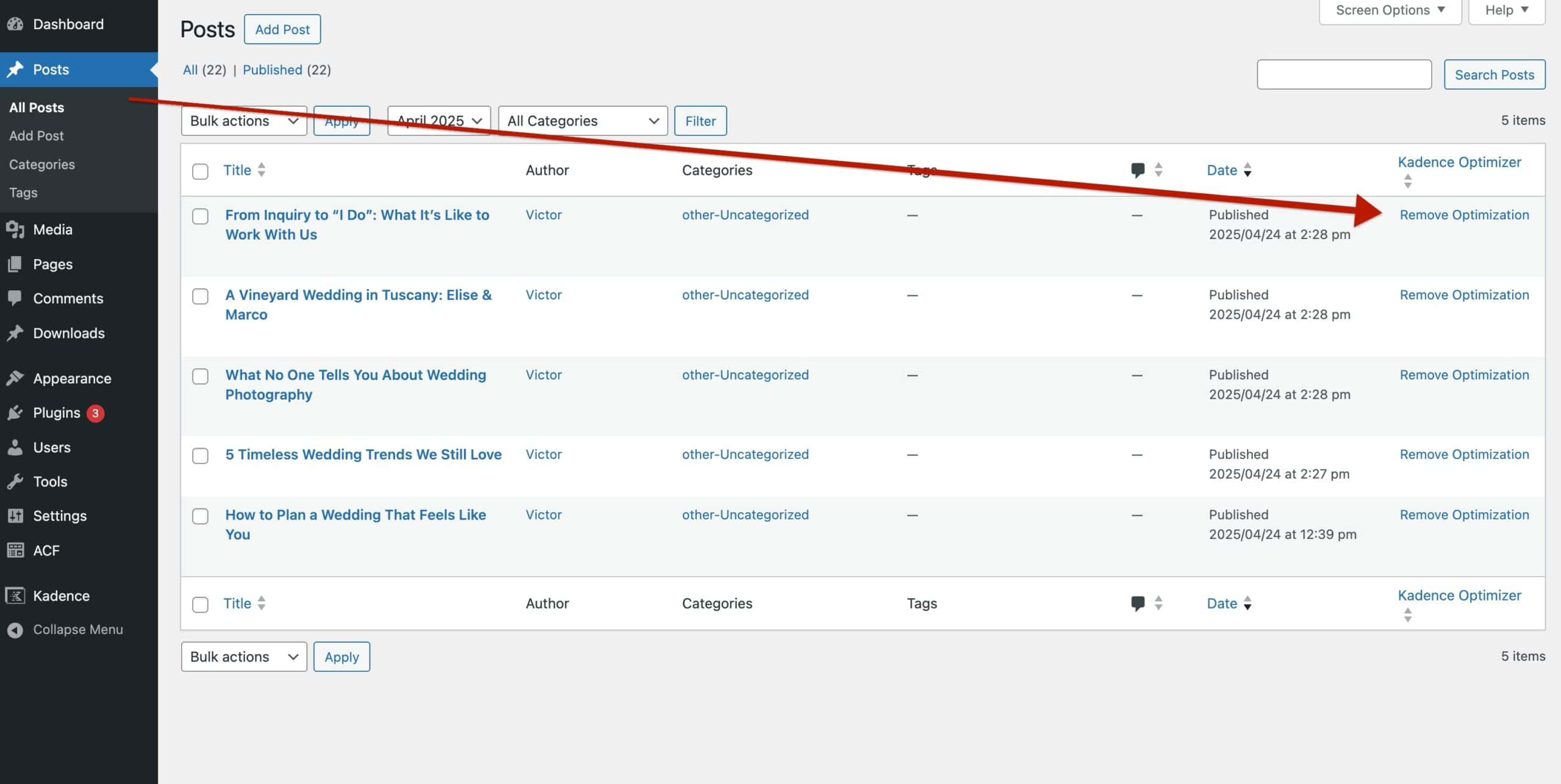
Just go to the All Posts page (or the list view for whatever post type you’re working with). Instead of Run Optimizer, you’ll see an option that says Remove Optimization. Click it, and the optimization will be removed from that post.
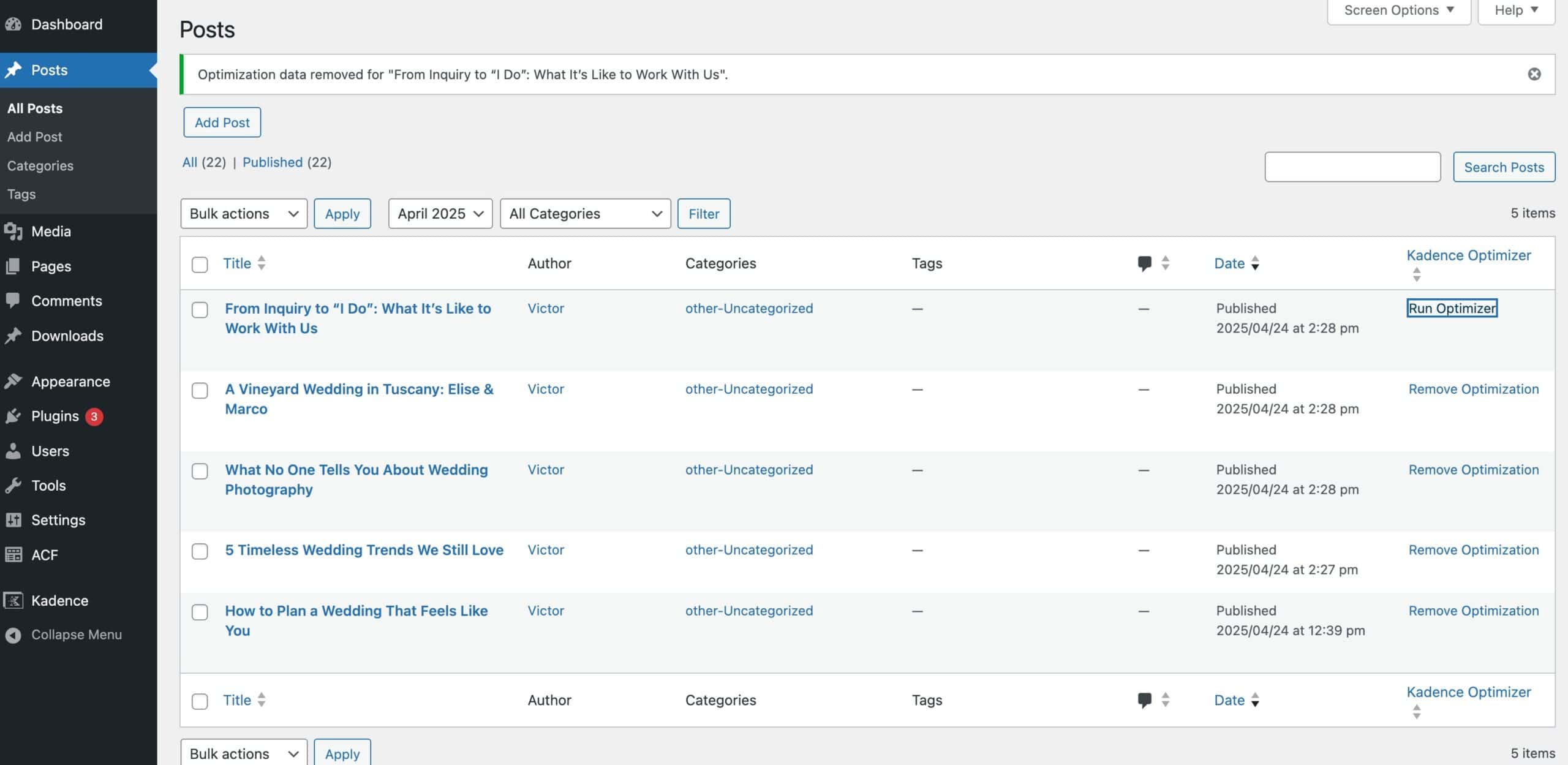
Afterward, you will see a prompt in the dashboard, confirming you have removed optimization for that specific post.
Bulk Optimization
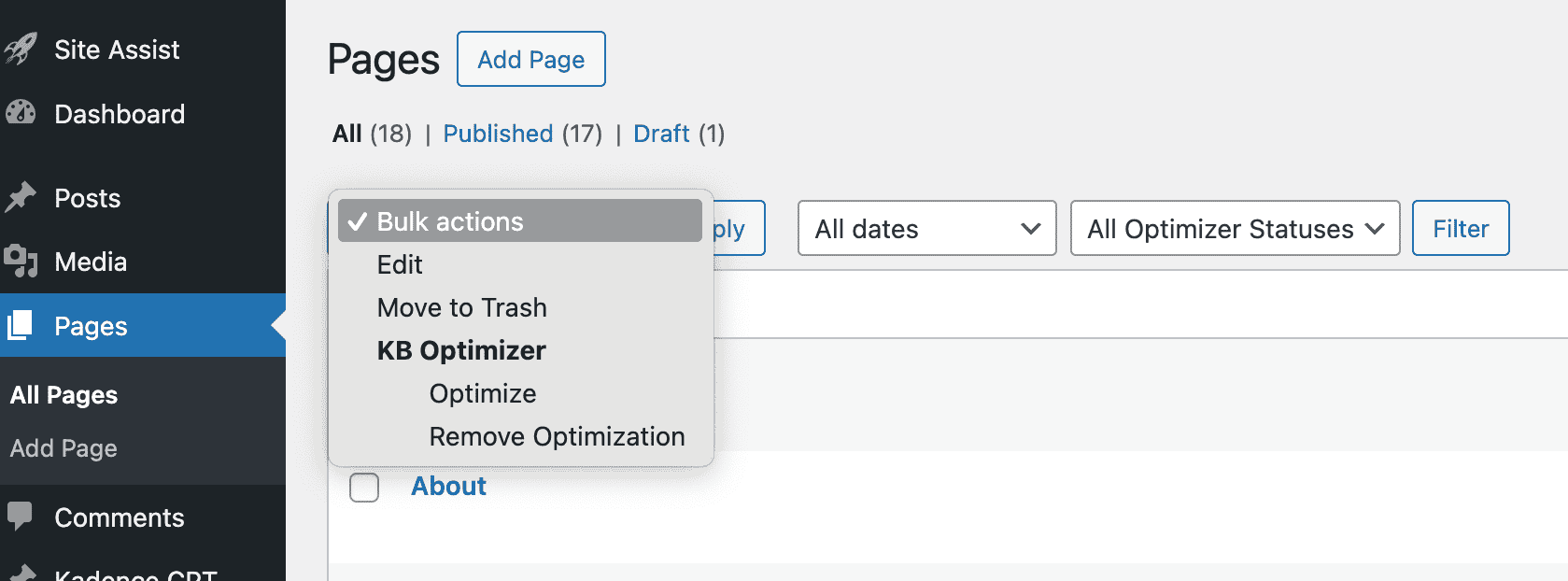
Kadence Performance also supports Bulk Optimization, allowing you to optimize multiple posts or pages at once directly from the post list screen. Select multiple posts and use the Bulk Actions dropdown to access bulk-optimization features. This includes a bulk optimize or bulk unoptimize option.
Filtering Optimized Pages
In the All Posts or All Pages screen, you’ll see an Optimizer Status dropdown next to the Date filter.
Use this dropdown to filter content by optimization status, including: Optimized, Outdated, Excluded, or Not Optimized
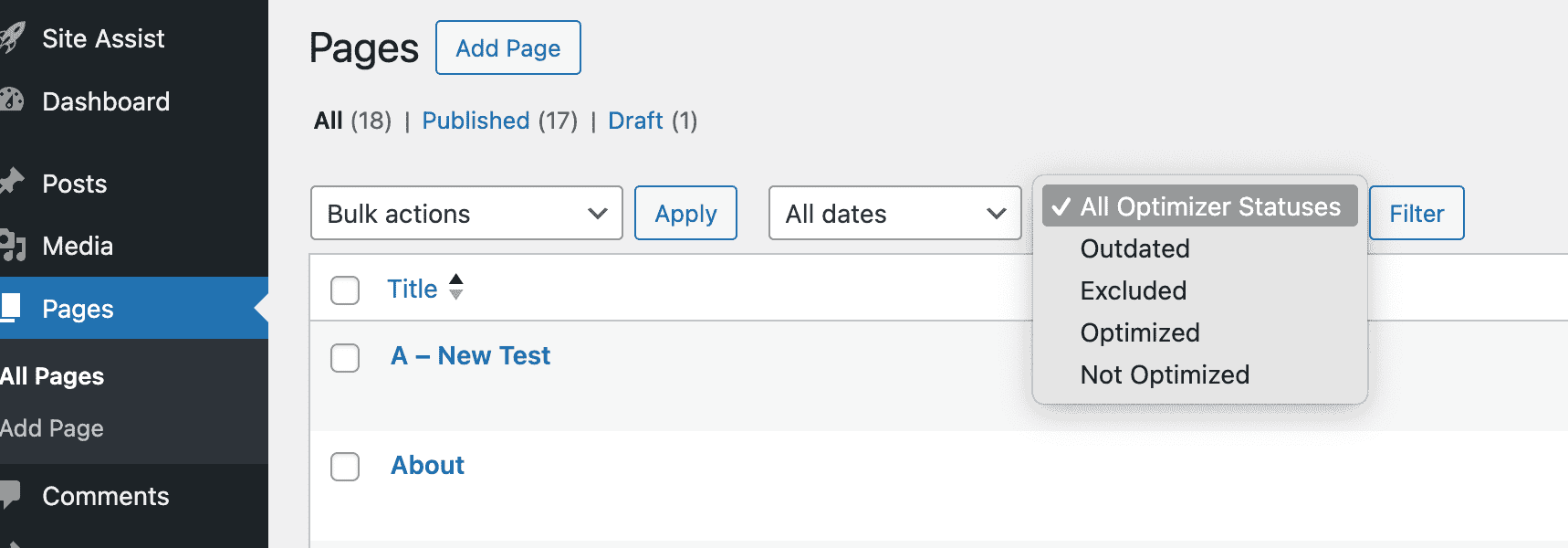
This makes it easy to quickly find which posts or pages are already optimized, need re-optimization, or have been excluded from Kadence Performance.
When to Re-Optimize
Kadence Performance automatically re-optimizes a post or page when you update its content in the editor.
However, a post or page may be marked as Outdated if changes are made outside of the page editor, such as:
- Updates to the header or footer
- Changes made through Kadence Elements or templates
- Layout changes applied globally
In these cases, you can re-optimize the content by removing optimization and running the optimizer again from the post or page list.

