
You may see the following error when opening the Kadence Design Library: “Error, Unable to access library database, please try re-syncing.”
This indicates that your site is unable to connect to Kadence’s Design Library API or is unable to store the library data locally. In most cases, this is caused by a server, security, or connection-related issue rather than a bug in Kadence.
Why This Happens
The Kadence Design Library relies on:
- The WordPress REST API
- Outbound HTTPS connections from your server
If any of these are blocked or misconfigured, the library cannot sync and show items properly.
Step-by-Step Solutions
Below are some common solutions that can help resolve the error entirely.
Step 1: Re-sync the Design Library
This should always be the first troubleshooting step.
- Open the Kadence Design Library.
- In the Design Library modal, click the Sync with cloud refresh icon in the top-right corner.

If the error persists, continue with the steps below.
Step 2: Check Whether the REST API Is Blocked
Kadence uses the WordPress REST API to sync and download Design Library items. If REST API requests are blocked, the library cannot connect.
Common causes include:
- Security plugins
- Hosting firewalls
- ModSecurity rules at the server level
What to do:
- Temporarily disable any active security plugins.
- Re-sync the Design Library.
- If the issue resolves, adjust your security plugin or firewall rules to allow REST API requests.
Step 3: Confirm Your Server Allows Outbound HTTPS Requests
Your server must be able to make outbound HTTPS connections to Kadence’s servers.
Common causes include:
- cURL is not enabled or installed
- Outbound connections are blocked by the hosting provider
- SSL certificate issues on the server
What to do:
- Go to Dashboard > Tools > Site Health > Info.
- Open the Server tab.
- Confirm that cURL is listed and enabled.
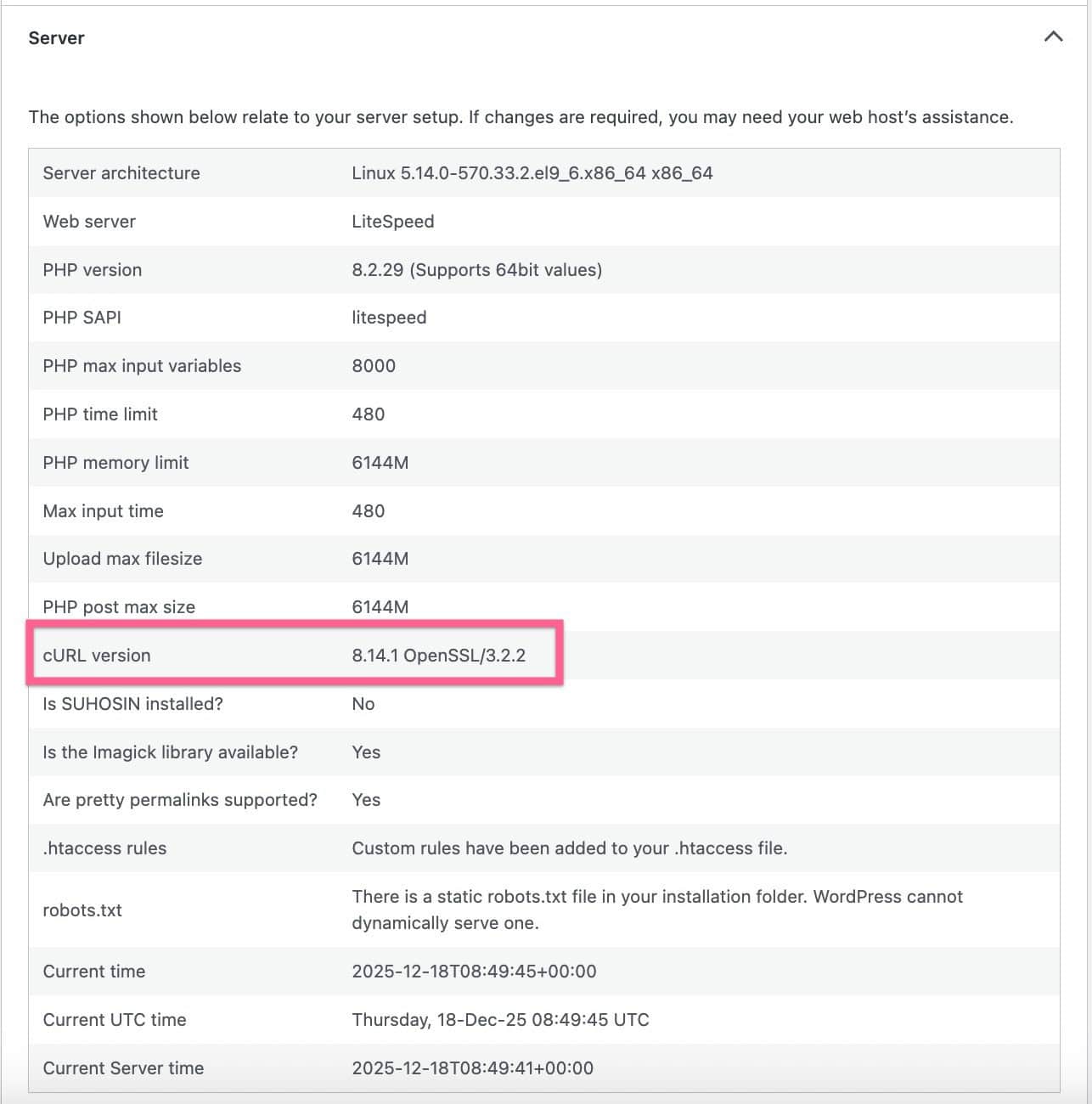
If cURL is missing or errors are reported:
- Contact your hosting provider and ask them to:
- Enable or install cURL
- Allow outbound HTTPS requests from your server
Most hosts can confirm or adjust these settings quickly.
Next Steps
If you have completed all steps above and the error still appears:
- Provide your hosting provider with the exact error message
- Ask them to check for blocked REST API or outbound HTTPS requests
Once server-level restrictions are resolved, the Kadence Design Library should sync and work without errors.

