Skip to content
Help Center
  • Pricing
  • ProductsExpand
    • Premium PlansGet all the tools you need in one plan
    • Kadence ThemeLightning-fast performance theme for modern websites
    • Kadence BlocksDrop in ready designs with advanced controls for pixel perfect websites
    • Kadence Shop KitCreate a more effective WooCommerce shopping experience
    • Kadence ConversionsBoost sales and build engaged audiences with popups and banners
    • Kadence InsightsEasily create A/B tests. Optimize your pages to drive higher conversions.
    • View All Products
    • Get Kadence + Hosting
      In One Place

      Enjoy faster setup, top-tier performance, and worry-free WordPress hosting – Kadence Theme, Kadence Blocks, and Solid Security all pre-installed.

      Learn More

  • Kadence AI
  • Starter Templates
  • Blog
  • SupportExpand
    • Resource HubStart here for guides, Product docs, FAQs, and Troubleshooting tips, all in one place.
    • Contact SupportStuck on something? We’re here to help! Open a ticket for top-notch support.
    • Contact Our TeamGot pre-sales questions or need help choosing a plan? Open a ticket and our team will guide you.
    • About usCrafted with love in Missoula, Montana. Meet the team behind the mission.
Account Account
Get Kadence
Kadence Blocks
  • Features
  • Pro
  • Blocks
  • HelpExpand
    • Documentation
    • Submit a Ticket
    • Facebook Group
    • Feature Requests
    • Roadmap
    • Changelog
Help Center
Kadence Blocks

Kadence Blocks

  • Row Layout Block
  • Text (Adv) Block
  • Buttons (Adv) Block
  • Image (Adv) Block
  • Gallery (Adv) Block
  • Section Block
  • Testimonial Block
  • Table of Contents Block
  • Form Block
  • Form (Adv) Block
  • Table (Adv) Block
  • Accordion Block
  • Tabs Block
  • Info Box Block
  • Google Maps Block
  • Show More Block
  • Icon Block
  • Icon List Block
  • Progress Bar Block
  • Posts Block
  • Count Up Block
  • Countdown Block
  • Vector Graphic Block
  • Lottie Animations Block
  • Repeater Block
  • Spacer/Divider Block
  • The Kadence Header (Adv) Block
  • The Kadence Navigation (Adv) Block
  • The Kadence Navigation Link Block
  • Search (Adv) Block
  • Site Identity Block
  • Kadence Blocks Default Icon Selections

Getting Started

  • Installing Kadence Blocks
  • Getting Started with Kadence Performance
  • Kadence AI-Powered Design Library
  • Setting custom widths in multi-column Row Layout Blocks
  • How to define a color Palette with Kadence Blocks
  • How to delete/remove a Block
  • How to Duplicate and Copy/Paste Block Styles
  • Setting Block Defaults
  • Kadence Blocks Pexels Integration

Block Tutorials

  • How to Import and Export Blocks or Sections Between Websites
  • How to Use Flexbox Layouts with Section Blocks
  • How to Make a Top Section Sticky with Kadence Blocks
  • Using Padding and Margin in Kadence Blocks
  • Responsive Breakpoints in Kadence
  • Using GIFS and Lottie Animations with Kadence Blocks
  • Adding a Fullwidth Row
  • Modal Block Quick Start Guide
  • Image Overlay Quick Start Guide
  • How to hide Kadence blocks via WordPress Gutenberg Preferences
  • How To Add Animate on Scroll Effects To Your Page
  • How to add Custom CSS Classes and HTML IDs to Kadence Blocks
  • How to Show Events Using the Kadence Post Grid/Carousel Block
  • How to use Popup Modal Filters with Advanced Query Loops
  • Create a Full Screen Landing Page
  • Displaying Shortcodes in the WordPress Editor
  • Advanced Navigation Sub Menus and Mega Menus
  • Creating Sticky and Transparent Advanced Headers
  • Getting started with Advanced Header/Navigations
  • Building Headers and Footers in Full Site Editing with Kadence Blocks
  • Split Content Quick Start Guide
  • Applying Block-Level Custom CSS in Kadence Blocks
  • How to Access the Kadence Design Library
  • Adding Video Backgrounds to Row Layout
  • Pexels Picker
  • Adding Classic Wireframes, Starter Packs, and Sections to the New Design Library
  • How to customize the design library color palette
  • Adding Privacy Policy link to Kadence Form
  • Set Equal Column Heights with the Row Layout Block
  • How to Control the Hero or Title Section Sitewide and Per Page in Kadence
  • How to Change the Query Loop (Adv) “All” Button Text

Kadence Blocks Pro

  • Kadence Blocks Pro Plugin
  • Product Carousel Block
  • User Info Block
  • Portfolio Grid/Carousel Block
  • Query Loop (Adv) Block
  • Post Grid/Carousel Block
  • The Kadence Block Controls
  • Dynamic Content
  • Display Blocks Conditionally (Conditional Display)
  • Advanced Slider
  • Video Popup Block
  • Image Overlay Block
  • Split Content Block
  • Modal Block
  • Using a Dynamic List Block
  • Dynamic Content: Custom Input and Showing Fields from all Post Types
  • Dynamic HTML Block
  • Using Custom SVG Icons with Kadence Blocks Pro
  • Kadence Custom Fonts
  • Post Grid/Carousel Block – Configure a Blog List

Troubleshooting Blocks

  • Troubleshooting the “Error, Unable to access library database, please try re-syncing” error on the Kadence Blocks Design Library
  • Troubleshooting Query Loop (Adv) Blocks, Filters, and Search issues
  • Kadence Blocks Errors when SCRIPT_DEBUG is Enabled
  • Troubleshooting White/Blank Screens in the Editor or Customizer
  • How to Force Reindex Advanced Queries
  • How to Download Previous Versions of the Kadence Theme and Plugins
  • Resolving Autoplay Problems in Advanced Slider/Gallery Blocks
  • Recommended Server Resources
  • Troubleshooting Kadence Form (Adv) Email Delivery
  • How to Recover a Broken Block

Advanced

  • How to Modify SVG Dividers in Kadence Row Layout Blocks
  • How to Override the Kadence Forms Email Template
  • Prebuilt Layouts
  • How To Set Your Own Conditions for Successful Form (Adv) Submissions
  • How to Block Form (Adv) Spam Using WordPress Disallowed Comment Keys
  • Custom Queries for the Portfolio Grid/Carousel Block (Filter)
  • Customizing the Kadence Blocks Pro Post Grid/Carousel block’s Query to show multiple post types
  • Custom Queries for the Posts Block (Filter)
  • How to Set a Gradient Border for the Section block
  • Run JavaScript when Query Loop (Adv) Updates
  • Custom Upload Directory in Kadence Form (Adv) Block
  • Populate Select, Checkbox, and Radio field option values programmatically in Form (Adv)
  • Query Loop (Adv) Block: Split Character Filter
  • How to add Multiple Markers in the Kadence Google Maps Block
  • Custom Queries for the Post Grid/Carousel Block (Filter)
  • How to Run JavaScript After a Kadence Form is Successfully Submitted (On Event)
  • Dynamically Displaying ACF or Metabox Relationships in Query Loop (Adv) blocks
  • How to Customize the Kadence Blocks Variable Font Sizes (SM, MD, LG, XL, 2XL, and 3XL)
  • Using Tooltips with Kadence Blocks
  • Custom Queries for the Advanced Query Loop Block (Filter)
  • Adding a Custom Font to Kadence Blocks

Advanced Headers

  • How to use Advanced Headers Globally and Conditionally in Kadence
  • The Kadence Header (Adv) Block
  • Using Advanced Header / Navigation Blocks vs Kadence Theme Header Builder
  • Advanced Header Best Practices
  • Getting the most out of Navigation Link Blocks
  • Creating Sticky and Transparent Advanced Headers
  • Advanced Navigation Sub Menus and Mega Menus
  • The Kadence Navigation Builder
  • The Kadence Visual Builder & Off Canvas Settings
  • Importing & Exporting Advanced Headers & Navigations

Kadence Form Integrations

  • How to Modify the Form (Adv) Submit Actions using a Filter
  • How to integrate hCaptcha with Kadence Form (Adv) Blocks
  • How to Integrate Kadence Forms with Cloudflare Turnstile
  • How to Integrate Google reCAPTCHA with Kadence Forms
  • How to Integrate Google Analytics with Kadence Forms
  • Integrating Kadence Forms with FluentCRM
  • Integrating Kadence Forms with Kit (ConvertKit)
  • Kadence Forms and Database Entries
  • Kadence Forms and Auto Respond Emails
  • Integrating Kadence Forms with Webhooks
  • Integrating Kadence Forms with Mailchimp
  • Integrating Kadence Forms with Brevo
  • Integrating Kadence Forms with ActiveCampaign
  • Integrating Kadence Forms with Mailerlite
  • Home
  • Knowledge Base
  • Kadence Blocks
  • Kadence Blocks

Icon List Block

The Icon List Block allows you to add a styled list to your pages and posts. Start by inserting an Icon List block to your post.
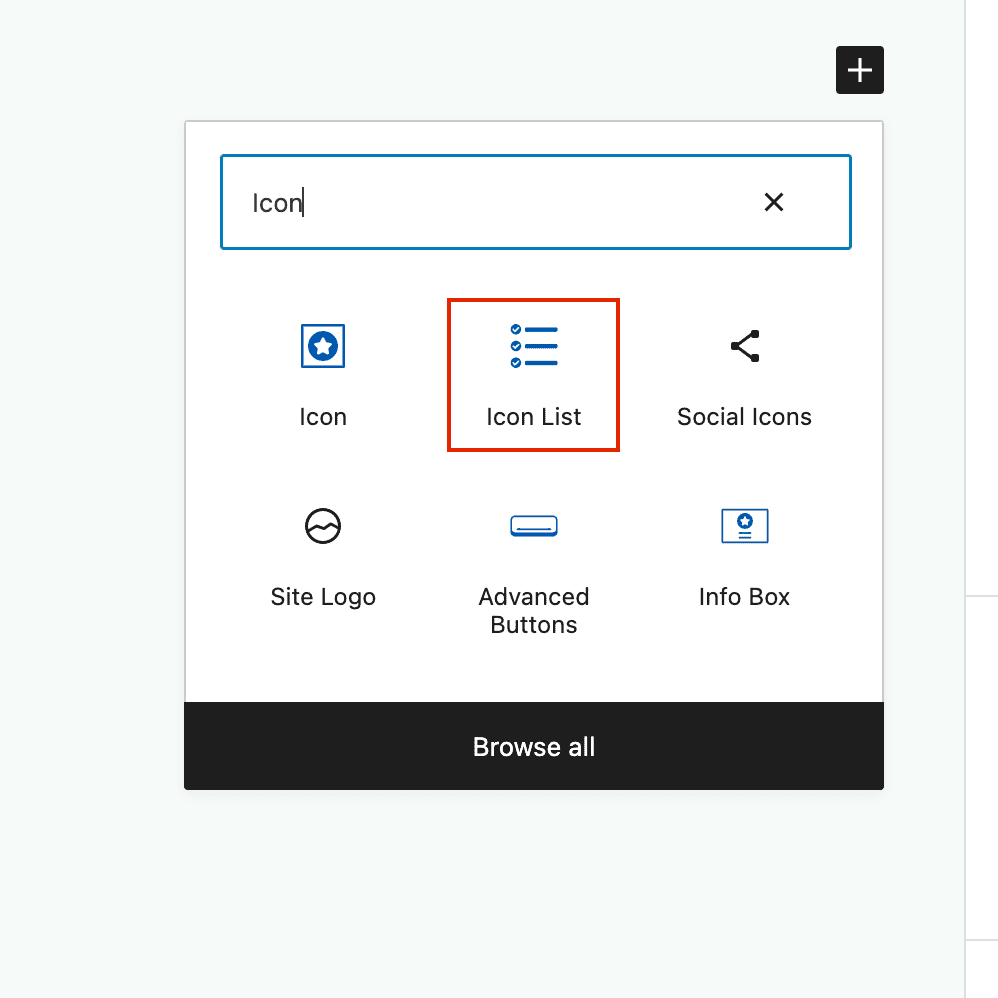
Table of Contents
  • General Settings
  • Style Settings
    • Icon Styling
    • Text Styling
    • Link Styling
  • List Items
    • General Settings
    • Style Settings
      • Advanced Highlight Settings

General Settings

Note: Be sure to select the Parent Block to adjust these settings.

List Columns: Choose from 1, 2 or 3 columns. Select tablet or mobile to adjust the responsive columns.

List Column Gap: When using 2 or 3 columns, adjust the gap between your columns.

List Vertical Spacing: Adjust the spacing between your list items.

List Horizontal Icon and Label Spacing: Adjust the spacing between your icon and list text.

Icon Align: Align your icon to the text (top, center, bottom). This is especially important when you have multi-line list items.
Icon List Block - General Settings

Style Settings

Icon Styling

Select the default icon. This can be overridden on individual list items.

Icon Size: Adjust your icon size in pixels units. Blank will inherit the size of your text font-size.

Line Width: Adjust the thickness of your icon lines. This setting may not work when using custom icons.

Icon Color: Customize the color of your icons. Defaults to the color of your text settings. This setting may not work when using custom icons.

Icon Style: Setting to “Stacked” allows you to set the icon background and border color, border size, border radius, and padding.
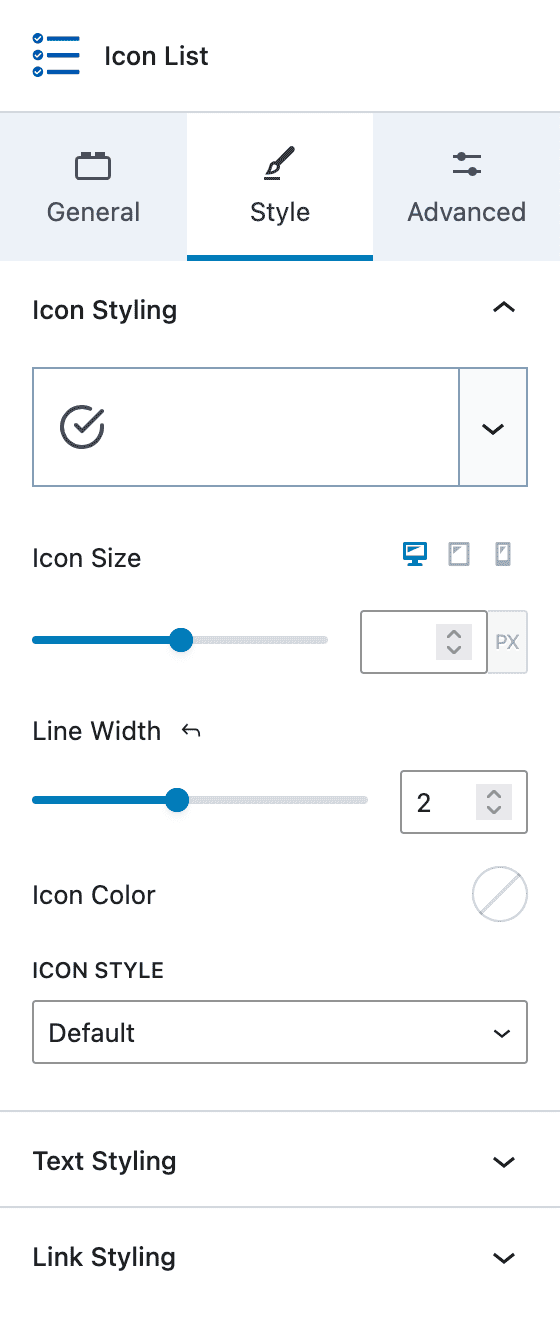
Icon List Block - Style - Icon Styling

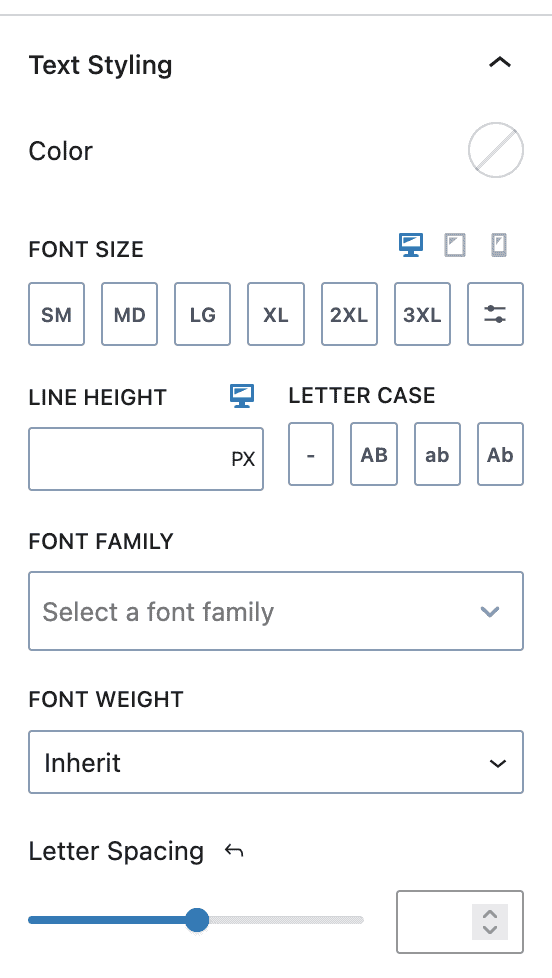
Text Styling

The Text Styling section allows you to set:

  • Color
  • Font Size
  • Line Height
  • Letter Case
  • Font Family
  • Font Weight
  • Letter Spacing
Icon List Block - Style - Text Styling

Link Styling

The Link Styling section allows you to set:

  • Link Color – Normal and Hover
  • Underline – Inherit, Underline, Underline on Hover, None
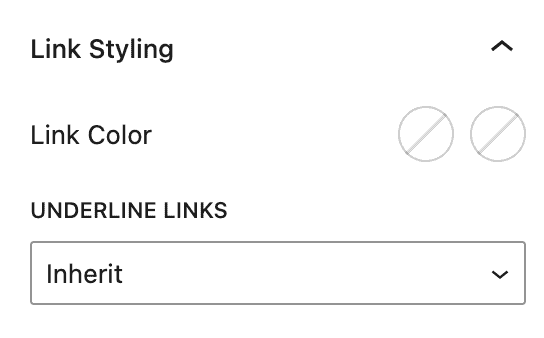
Icon List Block - Style - Link Styles

List Items

Individual list items have their own settings that will override the parent settings.

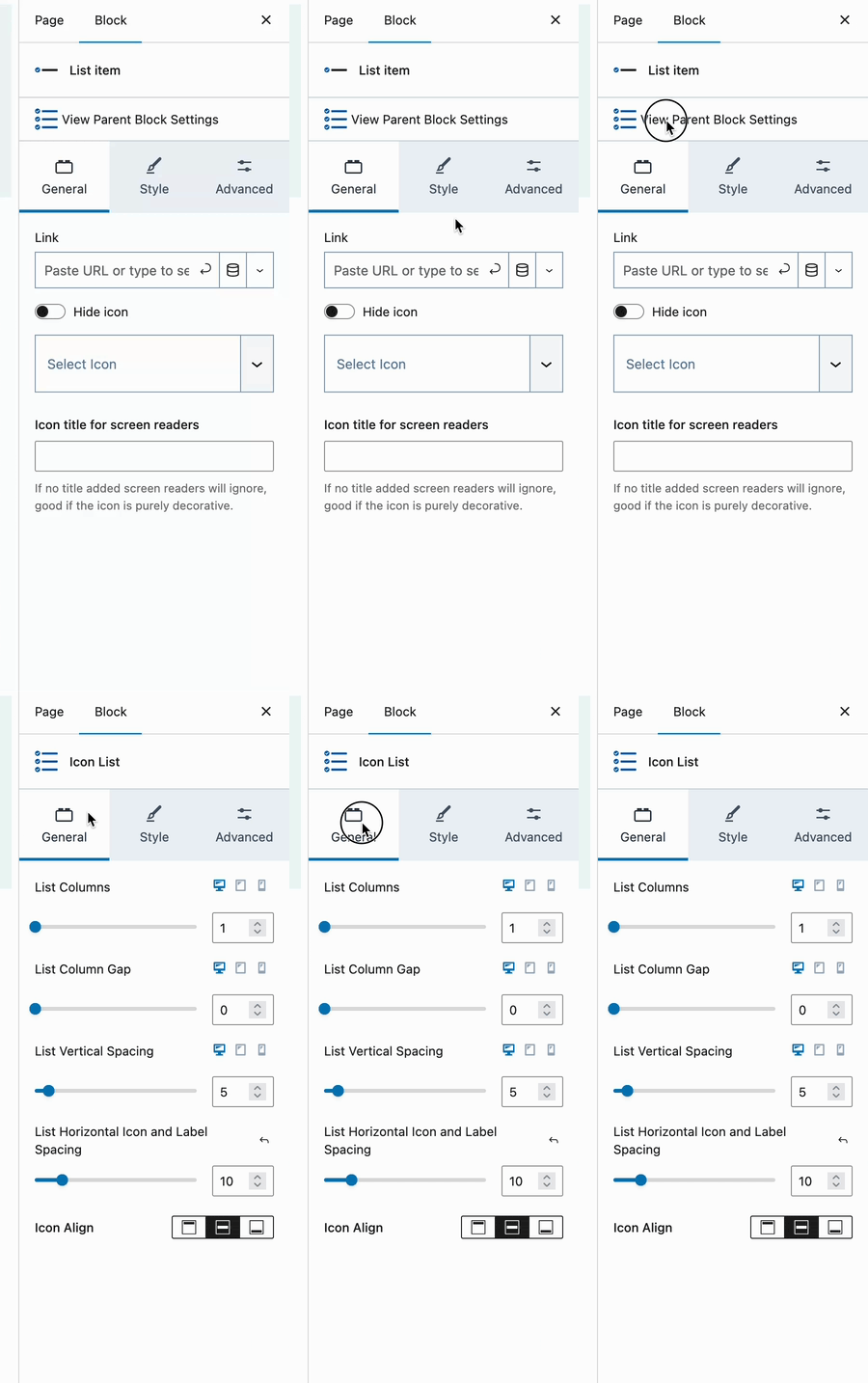
General Settings

Link: Apply a link to the entire list item (including the icon).

Hide icon: Hide the icon for this list item.

Select Icon: Set an icon for this list item. This will override the Icon List block parent setting.

Icon title for screen readers: If your list item does not include descriptive text, you can specify a title for improved accessibility.
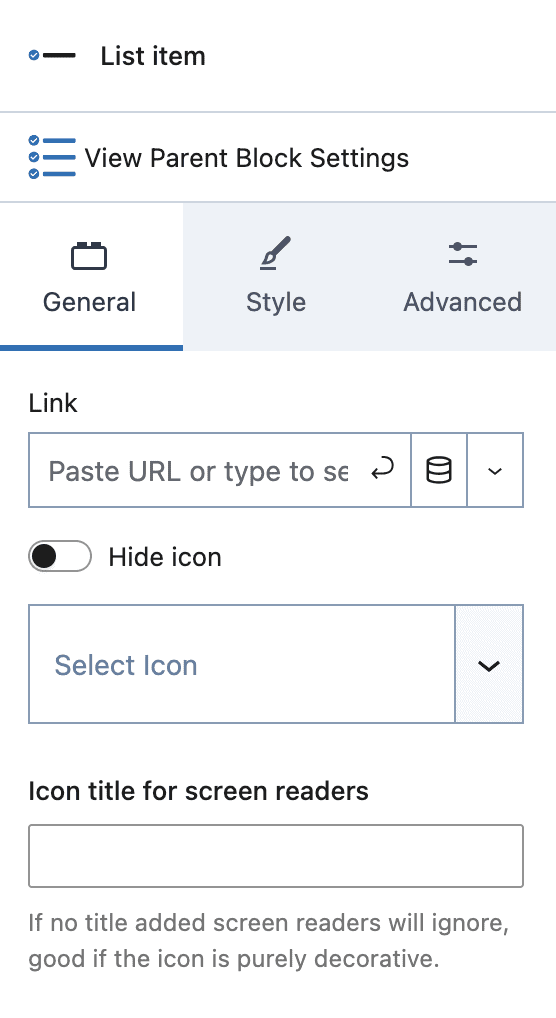
Icon List Block - Item - General Settings

Style Settings

Icon Size: Set the icon size for this item.

Line Width: Set the icon line width.

Icon Color: Set a custom color for your icon.

By default, the above settings will be inherited from the Icon List block settings unless overridden here.

Icon Style:

  • Inherit – Use the parent Icon List setting
  • Default – Use the default setting
  • Stacked – Set a custom “stacked” style
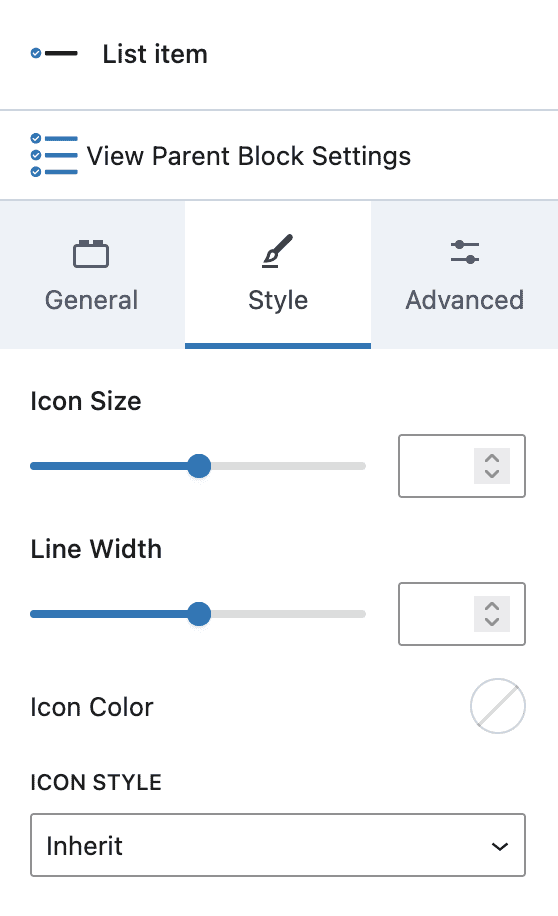
Icon List Block - Item - Style

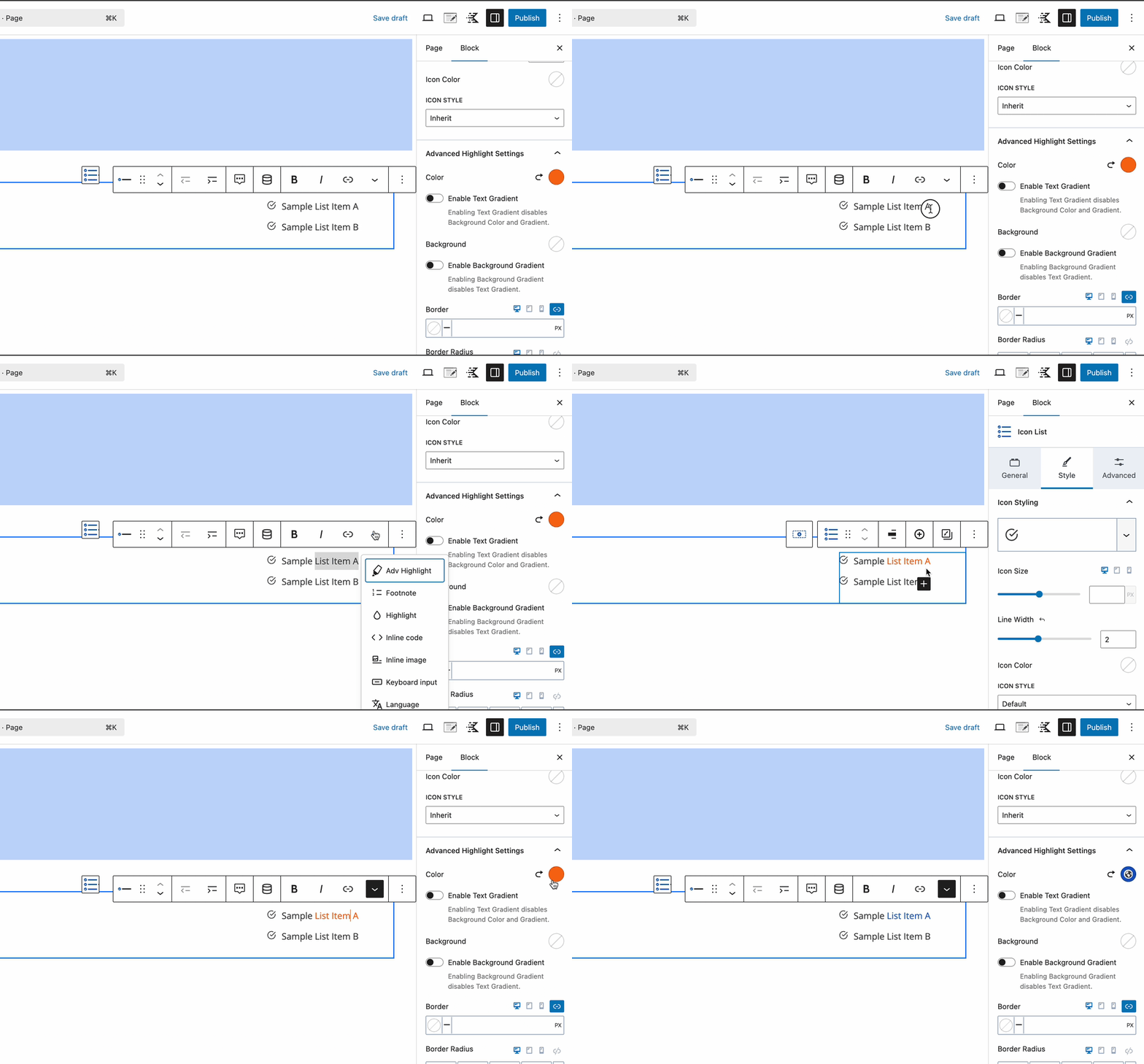
Advanced Highlight Settings

List Advanced Highlight Settings
Do you feel this document was helpful?
Icon BlockProgress Bar Block
The Kadence WP Logo
Crafted in Missoula, Montana
  • Follow Kadence on Facebook
  • Follow Kadence on Youtube
  • X
  • Follow Kadence on Instagram
Trustpilot
Products
  • Kadence Plans
  • Kadence Theme
  • Kadence Blocks
  • Kadence AI
  • Kadence Starter Templates
  • Kadence Shop Kit
  • Kadence Conversions
  • Kadence Pattern Hub
  • View All
Resources
  • Blog
  • Podcast
  • Knowledgebase
  • Support ticket
  • Feature Requests
  • FAQ
  • WordPress Hosting Services
About Us
  • About Kadence
  • Become an affiliate
  • Contact us
  • Terms
  • Privacy Policy
  • Security
Our Partner Brands
  • SolidWP
  • LearnDash
  • The Events Calendar
  • GiveWP
  • MemberDash
Kadence Community
  • Kadence Marketplace
  • Join the Facebook Group
  • Subscribe to our YouTube Channel
© 2024 Kadence WP | All prices are in USD
Logo for StellarWP an umbrella brand of Premium WordPress plugins
  • Pricing
  • Products
    • Premium PlansGet all the tools you need in one plan
    • Kadence ThemeLightning-fast performance theme for modern websites
    • Kadence BlocksDrop in ready designs with advanced controls for pixel perfect websites
    • Kadence Shop KitCreate a more effective WooCommerce shopping experience
    • Kadence ConversionsBoost sales and build engaged audiences with popups and banners
    • Kadence InsightsEasily create A/B tests. Optimize your pages to drive higher conversions.
    • View All Products
    • Get Kadence + Hosting
      In One Place

      Enjoy faster setup, top-tier performance, and worry-free WordPress hosting – Kadence Theme, Kadence Blocks, and Solid Security all pre-installed.

      Learn More

  • Kadence AI
  • Starter Templates
  • Blog
  • Support
    • Resource HubStart here for guides, Product docs, FAQs, and Troubleshooting tips, all in one place.
    • Contact SupportStuck on something? We’re here to help! Open a ticket for top-notch support.
    • Contact Our TeamGot pre-sales questions or need help choosing a plan? Open a ticket and our team will guide you.
    • About usCrafted with love in Missoula, Montana. Meet the team behind the mission.
Account Login
  • Features
  • Pro
  • Blocks
  • HelpExpand
    • Documentation
    • Submit a Ticket
    • Facebook Group
    • Feature Requests
    • Roadmap
    • Changelog