Skip to content
Help Center
  • Pricing
  • ProductsExpand
    • Premium PlansGet all the tools you need in one plan
    • Kadence ThemeLightning-fast performance theme for modern websites
    • Kadence BlocksDrop in ready designs with advanced controls for pixel perfect websites
    • Kadence Shop KitCreate a more effective WooCommerce shopping experience
    • Kadence ConversionsBoost sales and build engaged audiences with popups and banners
    • Kadence InsightsEasily create A/B tests. Optimize your pages to drive higher conversions.
    • View All Products
    • Get Kadence + Hosting
      In One Place

      Enjoy faster setup, top-tier performance, and worry-free WordPress hosting – Kadence Theme, Kadence Blocks, and Solid Security all pre-installed.

      Learn More

  • Kadence AI
  • Starter Templates
  • Blog
  • SupportExpand
    • Resource HubStart here for guides, Product docs, FAQs, and Troubleshooting tips, all in one place.
    • Contact SupportStuck on something? We’re here to help! Open a ticket for top-notch support.
    • Contact Our TeamGot pre-sales questions or need help choosing a plan? Open a ticket and our team will guide you.
    • About usCrafted with love in Missoula, Montana. Meet the team behind the mission.
Account Account
Get Kadence
Kadence Blocks
  • Features
  • Pro
  • Blocks
  • HelpExpand
    • Documentation
    • Submit a Ticket
    • Facebook Group
    • Feature Requests
    • Roadmap
    • Changelog
Help Center
Kadence Blocks

Kadence Blocks

  • Row Layout Block
  • Text (Adv) Block
  • Buttons (Adv) Block
  • Image (Adv) Block
  • Gallery (Adv) Block
  • Section Block
  • Testimonial Block
  • Table of Contents Block
  • Form Block
  • Form (Adv) Block
  • Table (Adv) Block
  • Accordion Block
  • Tabs Block
  • Info Box Block
  • Google Maps Block
  • Show More Block
  • Icon Block
  • Icon List Block
  • Progress Bar Block
  • Posts Block
  • Count Up Block
  • Countdown Block
  • Vector Graphic Block
  • Lottie Animations Block
  • Repeater Block
  • Spacer/Divider Block
  • The Kadence Header (Adv) Block
  • The Kadence Navigation (Adv) Block
  • The Kadence Navigation Link Block
  • Search (Adv) Block
  • Site Identity Block
  • Kadence Blocks Default Icon Selections

Getting Started

  • Installing Kadence Blocks
  • Getting Started with Kadence Performance
  • Kadence AI-Powered Design Library
  • Setting custom widths in multi-column Row Layout Blocks
  • How to define a color Palette with Kadence Blocks
  • How to delete/remove a Block
  • How to Duplicate and Copy/Paste Block Styles
  • Setting Block Defaults
  • Kadence Blocks Pexels Integration

Block Tutorials

  • How to Import and Export Blocks or Sections Between Websites
  • How to Use Flexbox Layouts with Section Blocks
  • How to Make a Top Section Sticky with Kadence Blocks
  • Using Padding and Margin in Kadence Blocks
  • Responsive Breakpoints in Kadence
  • Using GIFS and Lottie Animations with Kadence Blocks
  • Adding a Full-width Row
  • Modal Block Quick Start Guide
  • Image Overlay Quick Start Guide
  • How to hide Kadence blocks via WordPress Gutenberg Preferences
  • How To Add Animate on Scroll Effects To Your Page
  • How to add Custom CSS Classes and HTML IDs to Kadence Blocks
  • How to Show Events Using the Kadence Post Grid/Carousel Block
  • How to use Popup Modal Filters with Advanced Query Loops
  • Create a Full Screen Landing Page
  • Displaying Shortcodes in the WordPress Editor
  • Advanced Navigation Sub Menus and Mega Menus
  • Creating Sticky and Transparent Advanced Headers
  • Getting started with Advanced Header/Navigations
  • Building Headers and Footers in Full Site Editing with Kadence Blocks
  • Split Content Quick Start Guide
  • Applying Block-Level Custom CSS in Kadence Blocks
  • How to Access the Kadence Design Library
  • Adding Video Backgrounds to Row Layout
  • Pexels Picker
  • Adding Classic Wireframes, Starter Packs, and Sections to the New Design Library
  • How to customize the design library color palette
  • Adding Privacy Policy link to Kadence Form
  • Set Equal Column Heights with the Row Layout Block
  • How to Control the Hero or Title Section Sitewide and Per Page in Kadence
  • How to Change the Query Loop (Adv) “All” Button Text

Kadence Blocks Pro

  • Kadence Blocks Pro Plugin
  • Product Carousel Block
  • User Info Block
  • Portfolio Grid/Carousel Block
  • Query Loop (Adv) Block
  • Post Grid/Carousel Block
  • The Kadence Block Controls
  • Dynamic Content
  • Display Blocks Conditionally (Conditional Display)
  • Advanced Slider
  • Video Popup Block
  • Image Overlay Block
  • Split Content Block
  • Modal Block
  • Using a Dynamic List Block
  • Dynamic Content: Custom Input and Showing Fields from all Post Types
  • Dynamic HTML Block
  • Using Custom SVG Icons with Kadence Blocks Pro
  • Kadence Custom Fonts
  • Post Grid/Carousel Block – Configure a Blog List

Troubleshooting Blocks

  • Troubleshooting the “Error, Unable to access library database, please try re-syncing” error on the Kadence Blocks Design Library
  • Troubleshooting Query Loop (Adv) Blocks, Filters, and Search issues
  • Kadence Blocks Errors when SCRIPT_DEBUG is Enabled
  • Troubleshooting White/Blank Screens in the Editor or Customizer
  • How to Force Reindex Advanced Queries
  • How to Download Previous Versions of the Kadence Theme and Plugins
  • Resolving Autoplay Problems in Advanced Slider/Gallery Blocks
  • Recommended Server Resources
  • Troubleshooting Kadence Form (Adv) Email Delivery
  • How to Recover a Broken Block

Advanced

  • How to Modify SVG Dividers in Kadence Row Layout Blocks
  • How to Override the Kadence Forms Email Template
  • Prebuilt Layouts
  • How To Set Your Own Conditions for Successful Form (Adv) Submissions
  • How to Block Form (Adv) Spam Using WordPress Disallowed Comment Keys
  • Custom Queries for the Portfolio Grid/Carousel Block (Filter)
  • Customizing the Kadence Blocks Pro Post Grid/Carousel block’s Query to show multiple post types
  • Custom Queries for the Posts Block (Filter)
  • How to Set a Gradient Border for the Section block
  • Run JavaScript when Query Loop (Adv) Updates
  • Custom Upload Directory in Kadence Form (Adv) Block
  • Populate Select, Checkbox, and Radio field option values programmatically in Form (Adv)
  • Query Loop (Adv) Block: Split Character Filter
  • How to add Multiple Markers in the Kadence Google Maps Block
  • Custom Queries for the Post Grid/Carousel Block (Filter)
  • How to Run JavaScript After a Kadence Form is Successfully Submitted (On Event)
  • Dynamically Displaying ACF or Metabox Relationships in Query Loop (Adv) blocks
  • How to Customize the Kadence Blocks Variable Font Sizes (SM, MD, LG, XL, 2XL, and 3XL)
  • Using Tooltips with Kadence Blocks
  • Custom Queries for the Advanced Query Loop Block (Filter)
  • Adding a Custom Font to Kadence Blocks

Advanced Headers

  • How to use Advanced Headers Globally and Conditionally in Kadence
  • The Kadence Header (Adv) Block
  • Using Advanced Header / Navigation Blocks vs Kadence Theme Header Builder
  • Advanced Header Best Practices
  • Getting the most out of Navigation Link Blocks
  • Creating Sticky and Transparent Advanced Headers
  • Advanced Navigation Sub Menus and Mega Menus
  • The Kadence Navigation Builder
  • The Kadence Visual Builder & Off Canvas Settings
  • Importing & Exporting Advanced Headers & Navigations

Kadence Form Integrations

  • How to Modify the Form (Adv) Submit Actions using a Filter
  • How to integrate hCaptcha with Kadence Form (Adv) Blocks
  • How to Integrate Kadence Forms with Cloudflare Turnstile
  • How to Integrate Google reCAPTCHA with Kadence Forms
  • How to Integrate Google Analytics with Kadence Forms
  • Integrating Kadence Forms with FluentCRM
  • Integrating Kadence Forms with Kit (ConvertKit)
  • Kadence Forms and Database Entries
  • Kadence Forms and Auto Respond Emails
  • Integrating Kadence Forms with Webhooks
  • Integrating Kadence Forms with Mailchimp
  • Integrating Kadence Forms with Brevo
  • Integrating Kadence Forms with ActiveCampaign
  • Integrating Kadence Forms with Mailerlite
  • Home
  • Knowledge Base
  • Kadence Blocks
  • Kadence Blocks
  • Block Tutorials

How To Add Animate on Scroll Effects To Your Page

Want to make your WordPress site feel more modern and engaging? Adding animations that trigger as you scroll down the page is a simple way to bring your content to life. Whether it’s images fading in or text sliding up, these subtle effects can make a big impact.

In this guide, we’ll show you how to easily add scroll animations to your WordPress site using Kadence blocks.

NOTE: This feature requires the Kadence Express Plan or higher. Please see our Pricing page to view your purchase options. This feature can be unlocked either through the Kadence Creative Kit or the Kadence Blocks Pro plugins.

Table of Contents
  • What is Animate on Scroll?
  • What Blocks Can Be Animated?
  • How To Animate A Block
    • Animation Settings
    • Default Settings
  • Animate on Scroll Tips
    • Focus on Key Content
    • Avoid Overuse
    • Keep It Consistent
    • Test Responsiveness

What is Animate on Scroll?

Animate on scroll is a feature that adds motion to your page, making it feel more interactive and interesting. Instead of everything appearing all at once, content is revealed gradually, guiding the visitor’s attention and making the experience more engaging. Animations can include effects like:

  • Fade
  • Flip
  • Slide
  • Zoom
  • Cover
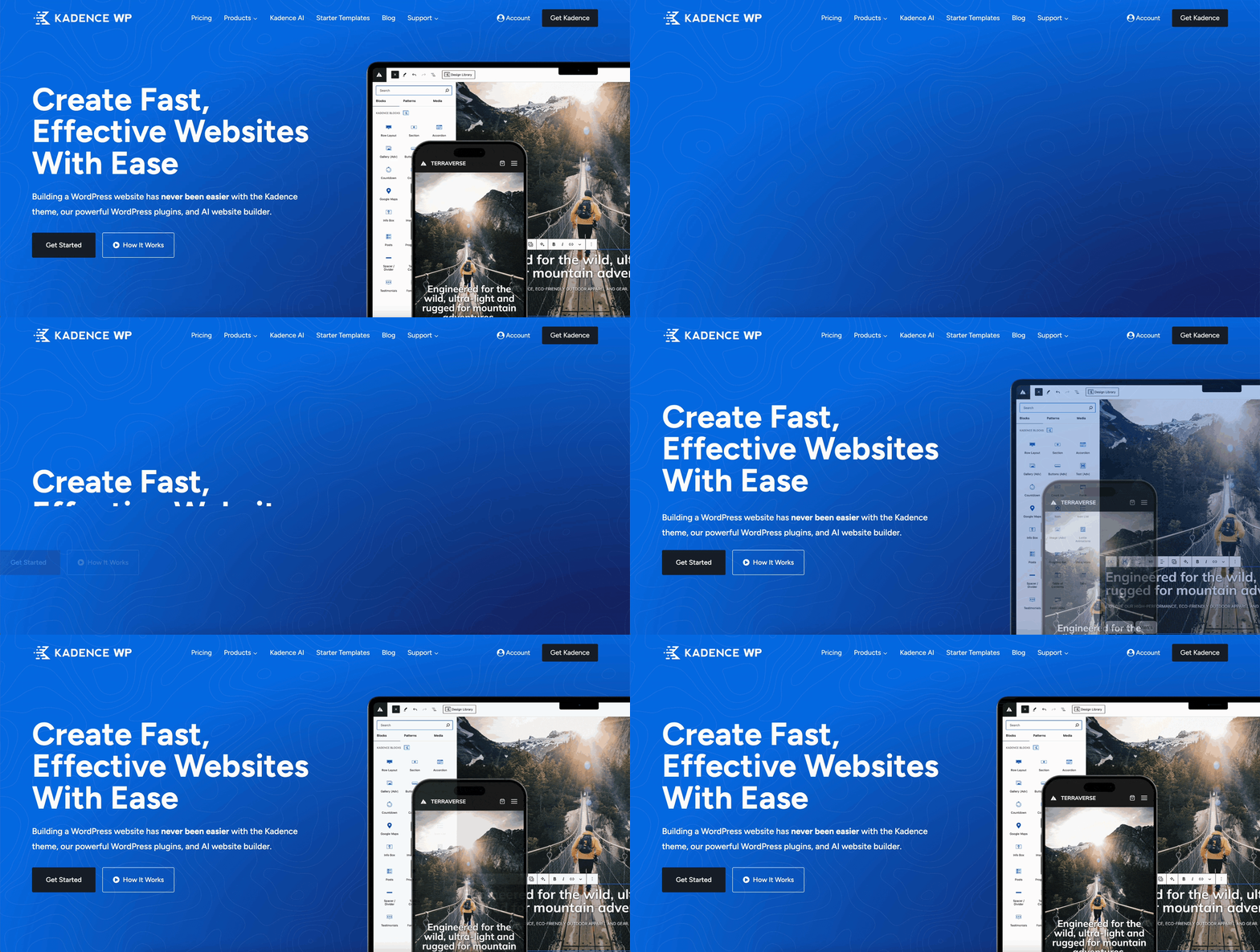
Kadence home page animation

What Blocks Can Be Animated?

Kadence blocks that can be animated include:

  • Section
  • Buttons (Adv) – Single Button
  • Text (Adv)
  • Form
  • Image (Adv)
  • Video Popup
  • Image Overlay
  • Split Content

Pro Tip: You can animate any content by including it inside an animated Section block.

How To Animate A Block

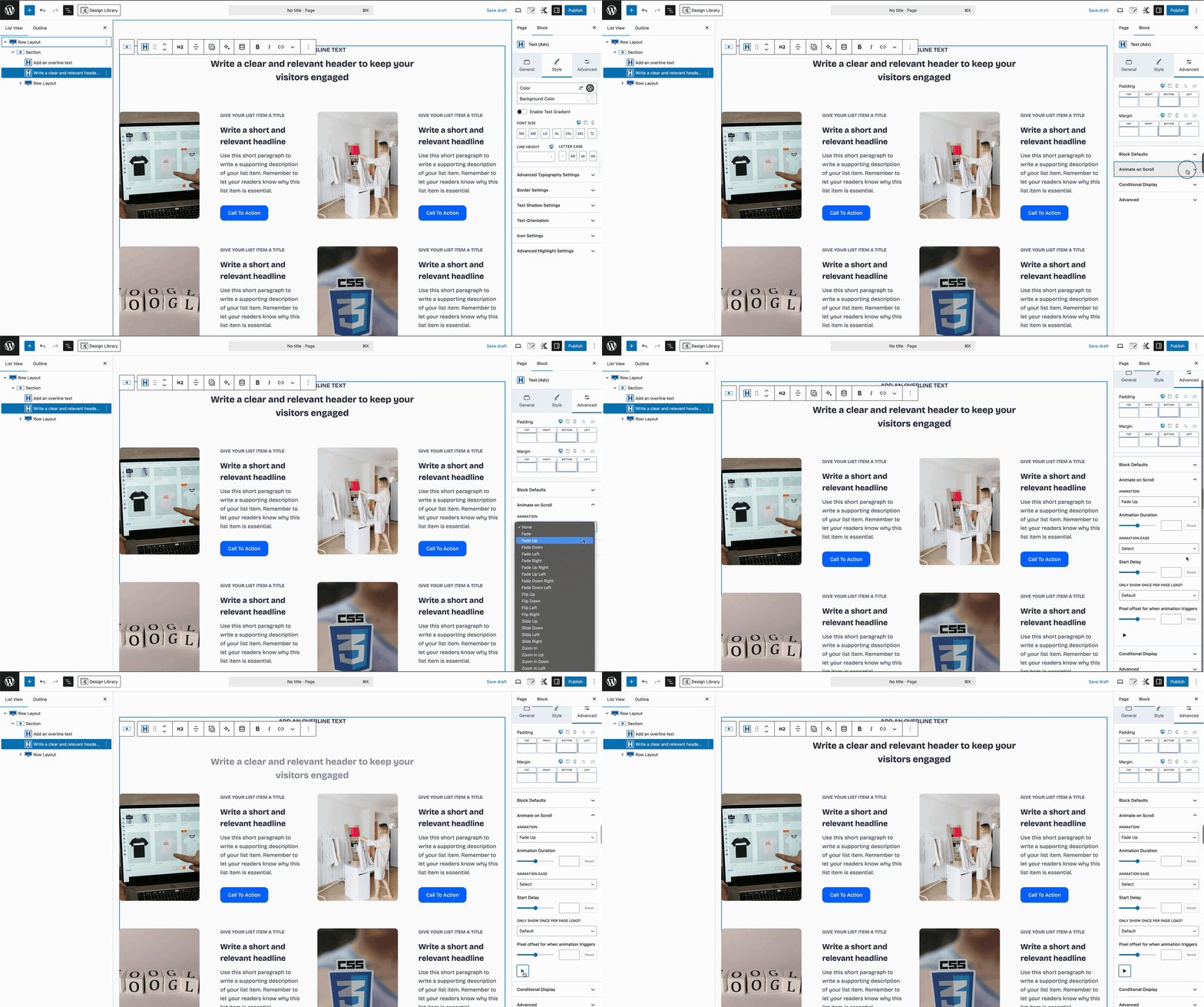
Step 1: Insert one of the blocks listed above.

Step 2: Click the Advanced settings tab and open the Animate on Scroll section

Step 3: Select an Animation and adjust your settings
AOS Gif

Animation Settings

Animation: Select an animation from the dropdown. Selecting an animation will reveal the additional settings.

Animation Duration: Choose how long the animation will last, start to finish. Use the slider to select 50 – 3000ms (0.05 – 3 seconds). Default/empty is 400ms (0.4 seconds).

Animation Ease: Select one of several easing functions or leave blank for no easing.

Start Delay: Select the time delay for the animation to start as the element scrolls into view. Select 50 – 3000ms (0.05 – 3 seconds) delay. Default/empty is 0 seconds.

Only Show Once Per Page Load: Default/False will show every time the user scrolls down. True will only show once per page load.

Pixel offset for when animation triggers: Slide to adjust from -300 – 300 pixels. Default/empty is 0.

To preview your animation in the editor, click the play ▶ button.

Animate on Scroll settings

Default Settings

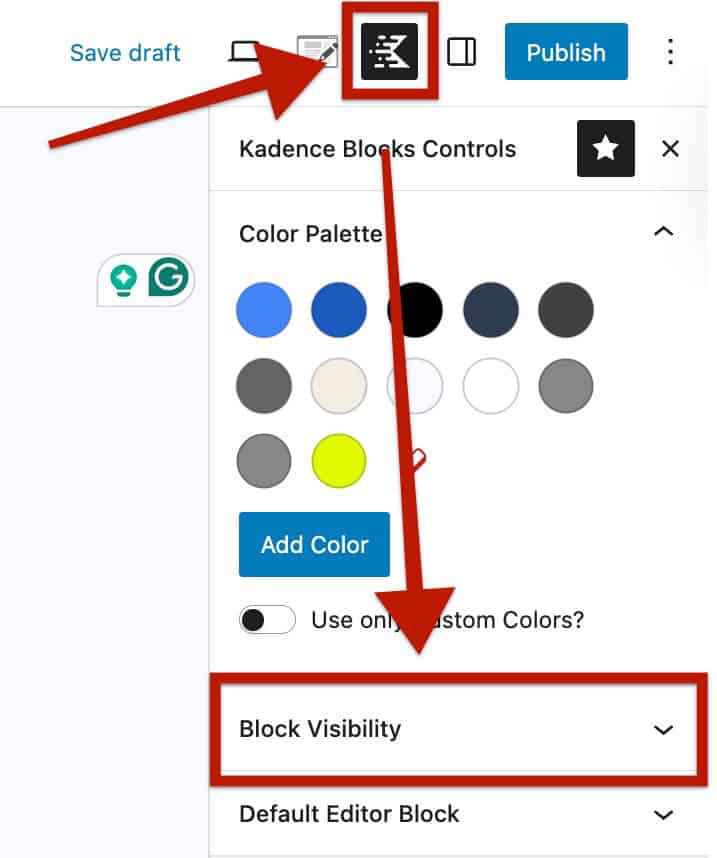
You can set default settings by going to Kadence Blocks Control > Block Visibility > Animate on Scroll
Block Controls

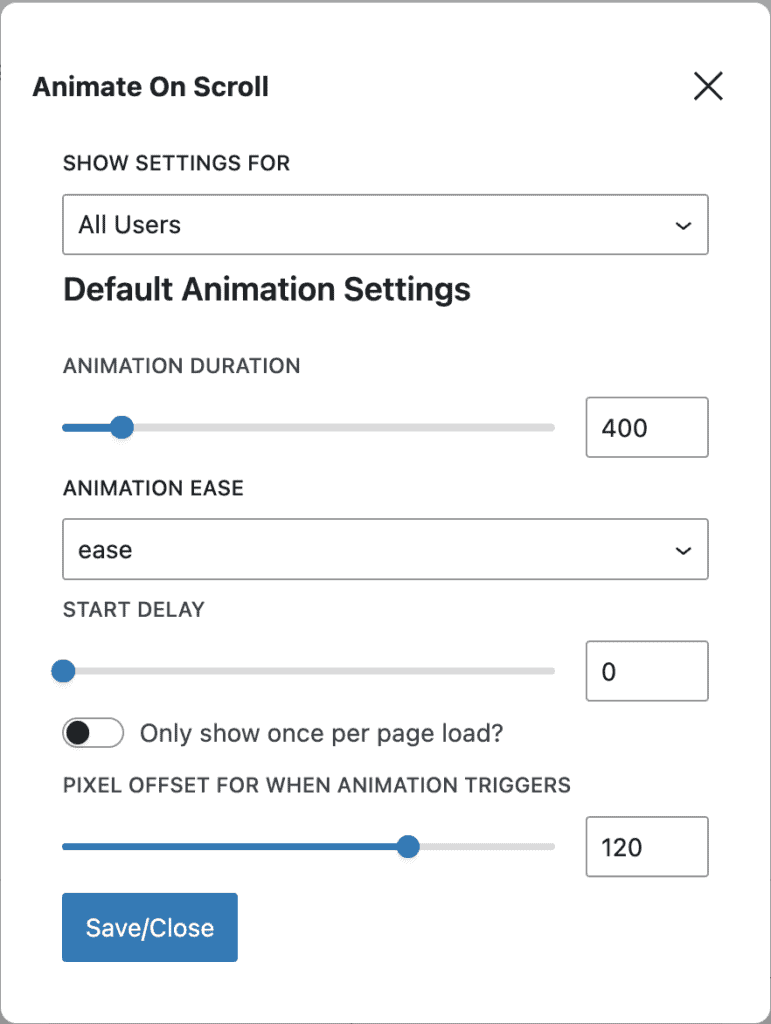
From here, you can configure the Default Animation Settings:

  • Animation Duration
  • Animation Ease
  • Start Delay
  • Only show once per page load
  • Pixel Offset for When Animation Triggers

After making changes, click Save/Close to apply your default settings.

Note: These defaults will only apply to newly added blocks. Existing blocks will keep their current animation settings.
Animate on Scroll Tips

When using scroll animations, less is more. Animations should enhance the user experience, not distract from it. A good rule of thumb: if an animation helps draw attention or guide the visitor’s eyes, it’s likely worth including. If it’s just for decoration, consider leaving it static.

Here are a few tips for deciding how many and which elements to animate on a WordPress page:

Focus on Key Content

Animate the most important elements you want visitors to notice, such as:

  • Headings or section titles
  • Feature images or product highlights
  • Call-to-action buttons (e.g., “Contact Us” or “Buy Now”)
  • Testimonials or statistics

Avoid Overuse

Too many animations can feel overwhelming or slow down your site. Avoid animating:

  • Every paragraph of text
  • Small icons or decorative elements
  • Navigation items (unless it’s intentional and subtle)
  • Nesting animations (i.e., animating a block inside another animated block)

Animate on scroll can impact performance, especially on slower computers or mobile devices. Some performance tips include:

  • Animate fewer elements (i.e., less is more)
  • Use lightweight effects (i.e,. use fade or slide versus zoom or flip)
  • Stagger animations (i.e., delay animations to avoid multiple simultaneous animations)
  • Limit animation duration (i.e,. 600ms or less)

Keep It Consistent

Stick to one or two animation styles across the page to maintain a clean, professional look. For example, use a fade-up for content sections and a slide-in for images.

Test Responsiveness

Kadence Animate on Scroll settings apply to all screen sizes. Be sure to test your animations on tablets and mobile devices. What looks great on a desktop might feel too busy or confusing on smaller screens.


Do you feel this document was helpful?
How to hide Kadence blocks via WordPress Gutenberg PreferencesHow to add Custom CSS Classes and HTML IDs to Kadence Blocks
The Kadence WP Logo
Crafted in Missoula, Montana
  • Follow Kadence on Facebook
  • Follow Kadence on Youtube
  • X
  • Follow Kadence on Instagram
Trustpilot
Products
  • Kadence Plans
  • Kadence Theme
  • Kadence Blocks
  • Kadence AI
  • Kadence Starter Templates
  • Kadence Shop Kit
  • Kadence Conversions
  • Kadence Pattern Hub
  • View All
Resources
  • Blog
  • Podcast
  • Knowledgebase
  • Support ticket
  • Feature Requests
  • FAQ
  • WordPress Hosting Services
About Us
  • About Kadence
  • Become an affiliate
  • Contact us
  • Terms
  • Privacy Policy
  • Security
Our Partner Brands
  • SolidWP
  • LearnDash
  • The Events Calendar
  • GiveWP
  • MemberDash
Kadence Community
  • Kadence Marketplace
  • Join the Facebook Group
  • Subscribe to our YouTube Channel
© 2024 Kadence WP | All prices are in USD
Logo for StellarWP an umbrella brand of Premium WordPress plugins
  • Pricing
  • Products
    • Premium PlansGet all the tools you need in one plan
    • Kadence ThemeLightning-fast performance theme for modern websites
    • Kadence BlocksDrop in ready designs with advanced controls for pixel perfect websites
    • Kadence Shop KitCreate a more effective WooCommerce shopping experience
    • Kadence ConversionsBoost sales and build engaged audiences with popups and banners
    • Kadence InsightsEasily create A/B tests. Optimize your pages to drive higher conversions.
    • View All Products
    • Get Kadence + Hosting
      In One Place

      Enjoy faster setup, top-tier performance, and worry-free WordPress hosting – Kadence Theme, Kadence Blocks, and Solid Security all pre-installed.

      Learn More

  • Kadence AI
  • Starter Templates
  • Blog
  • Support
    • Resource HubStart here for guides, Product docs, FAQs, and Troubleshooting tips, all in one place.
    • Contact SupportStuck on something? We’re here to help! Open a ticket for top-notch support.
    • Contact Our TeamGot pre-sales questions or need help choosing a plan? Open a ticket and our team will guide you.
    • About usCrafted with love in Missoula, Montana. Meet the team behind the mission.
Account Login
  • Features
  • Pro
  • Blocks
  • HelpExpand
    • Documentation
    • Submit a Ticket
    • Facebook Group
    • Feature Requests
    • Roadmap
    • Changelog