
Kadence features an exclusive collection of Kadence Pre-Designed Starter Templates. We offer both Free and Premium Pre-Designed Starter Templates that can be customized and used for any purpose. From Blogging and E-Commerce Starter Templates to Learning Management Systems and Restricted Membership Starter Templates, we have many different categories of Pre-Designed Starter Templates for many different use cases
Note: It is recommended to import Starter Templates on clean, fresh installations of WordPress. If your website has existing content on it, you should back everything up first and then test the importation process in a staging/secondary environment.
To get started with a Kadence Pre-Designed Starter Template, you must install and activate the following Theme and Plugins on your WordPress website:
-The free Kadence Theme.
-The free Gutenberg Blocks by Kadence Blocks – Page Builder Features plugin
-The free AI Powered Starter Templates by Kadence plugin.
Premium Pre-Designed Starter Templates can only be used when either of the two following requirements are met.
- For users using the Express Plan, use the Creative Kit plugin to access premium Starter Templates and designs,
- For users with plans greater than the Express Plan, both the Kadence Blocks Pro and Kadence Theme Kit Pro plugins must be activated to access premium Starter Templates and designs.
(View our pricing here)
Some of our Starter Templates require 3rd party premium plugins. This includes plugins like LearnDash. Any 3rd Party Premium plugin must be purchased outside of Kadence and Activated and Licensed on your website in order to import the 3rd Party Premium Content. However, you can still import a Starter Template with partial content if you do not have or do not wish to use the 3rd Party Premium plugin on your website.
This document goes over our Pre-Designed Starter Templates. We also offer Kadence AI-Powered Starter Templates. To learn more, Click Here.
Selecting a Starter Template
Once you have the AI Powered Starter Templates by Kadence WP plugin activated on your website, you can view your Starter Templates by going to your Dashboard -> Site Assist -> Starter Templates page. Then, you can click on the Pre-Designed Starter Templates link. You can also view our Pre-Designed Starter Templates outside of WordPress using the Kadence Starter Templates page.

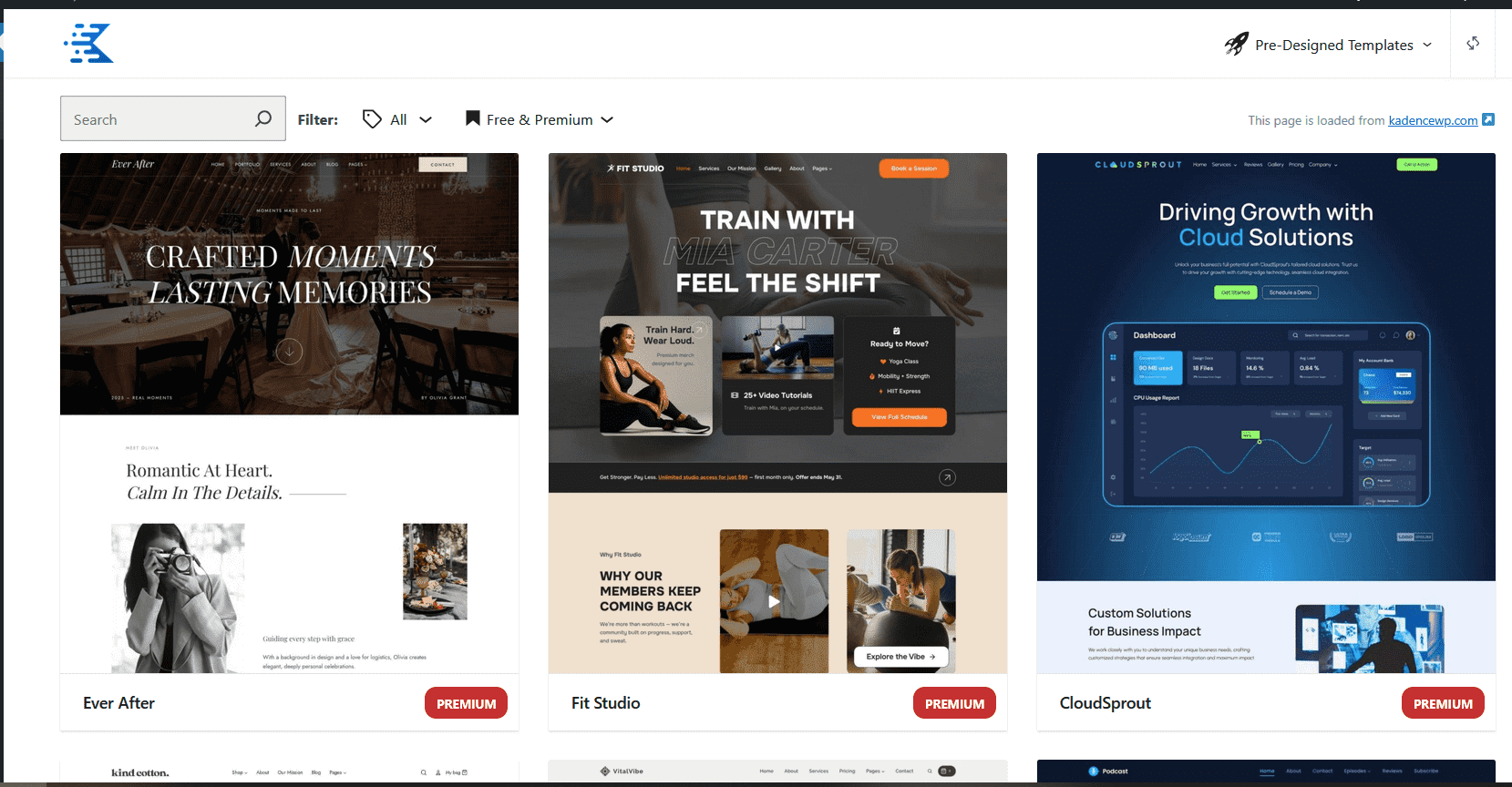
After you reach the Starter Templates page, you will be able to view and select various Starter Templates.
On the top left corner, you will find a Search Bar and Filters that you can use to sort through the Starter Templates. To find a Starter Template, you can use the search box and type in its name. You can also filter Starter Templates by the following categories: Business, Course, Event, E-commerce, Nonprofit, Photography, Blog, Political, or Membership. Additionally, you can filter templates based on whether they are Free or Premium Starter Templates.

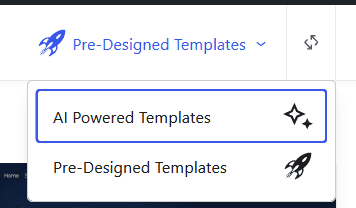
Near the Top Right of the Starter Templates page, you will see the Template Selector. By default, this will usually be set to the Pre-Designed Templates or AI Powered Templates. You can change this between Pre-Designed Templates and AI Powered Templates.
You will also see a Refresh Icon. This is to Refresh the Pattern Hub Library. Anytime you are having trouble connecting to the Pattern Hub Library or importing a Starter Template, you can try refreshing the Pattern Hub Library to reconnect to the Kadence Pattern Hub and potentially resolve the issue.
Once you find a template you like, you can simply click on it to view it. This will allow you to navigate through the Starter Template Pages and help you determine if you want to use the template.
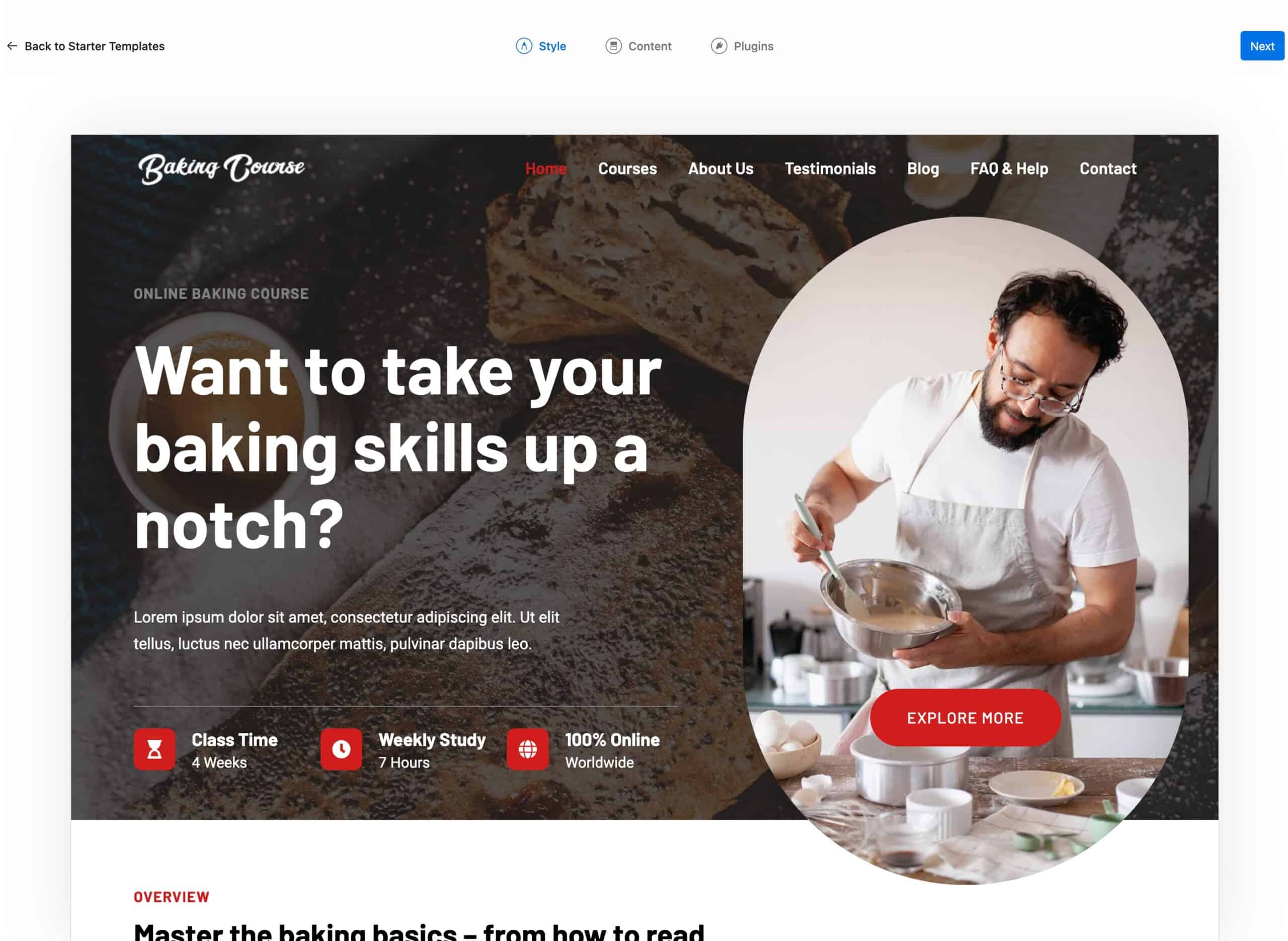
Style Starter
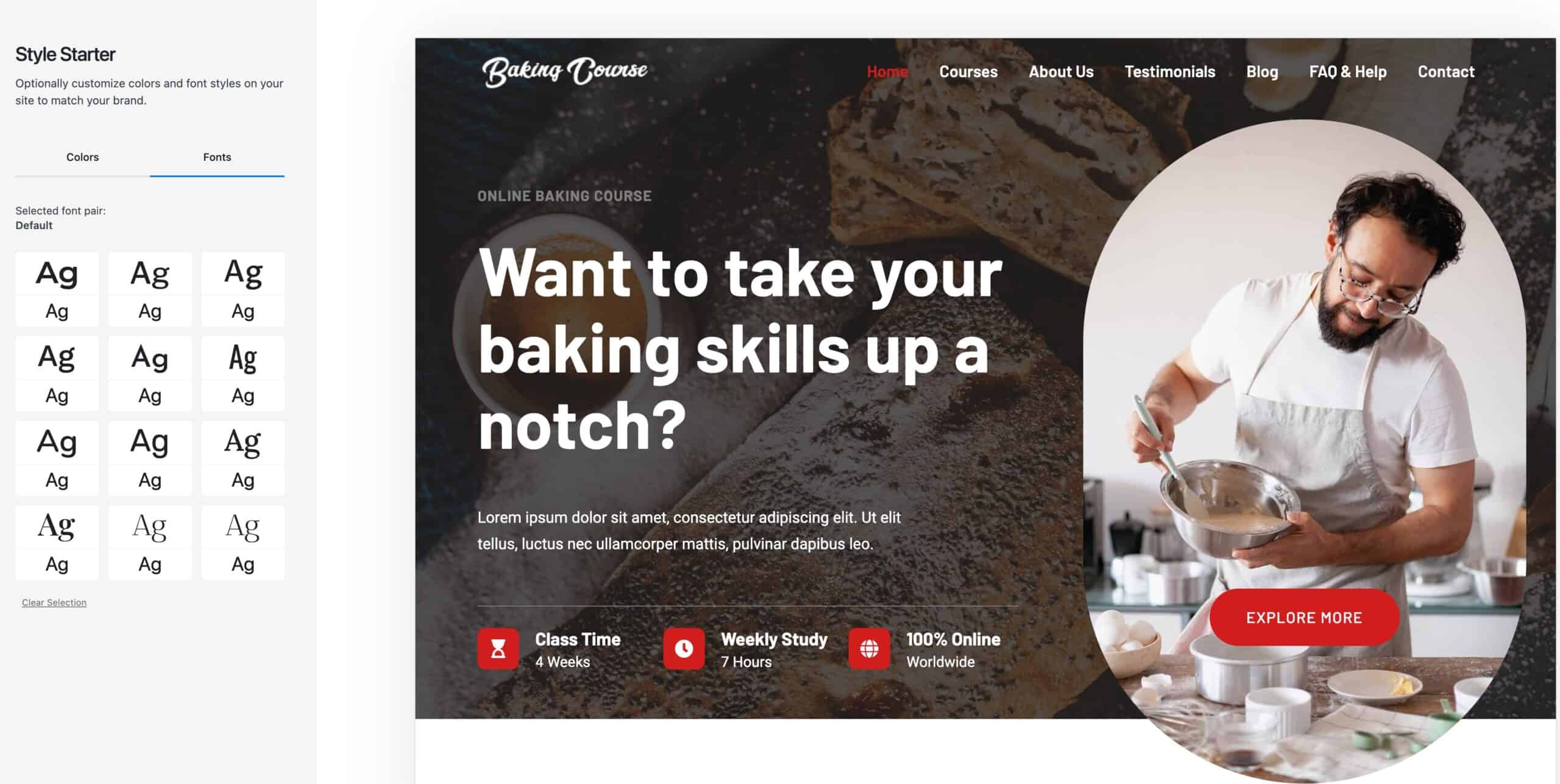
Once you select a Pre-Designed Starter Template, you will be able to pick between different premade Color Palettes to use. This allows you to customize the main colors across your website.

On the side of the Colors Tab, you will see the Fonts Tab. Here, you can select which Font Pair you would like to use with your Pre-Designed Starter Template.
Content
The next step is to pick which Content you would like to Import. You have a few options here. You can import either the Full Template or Import Selected Pages from that Template.
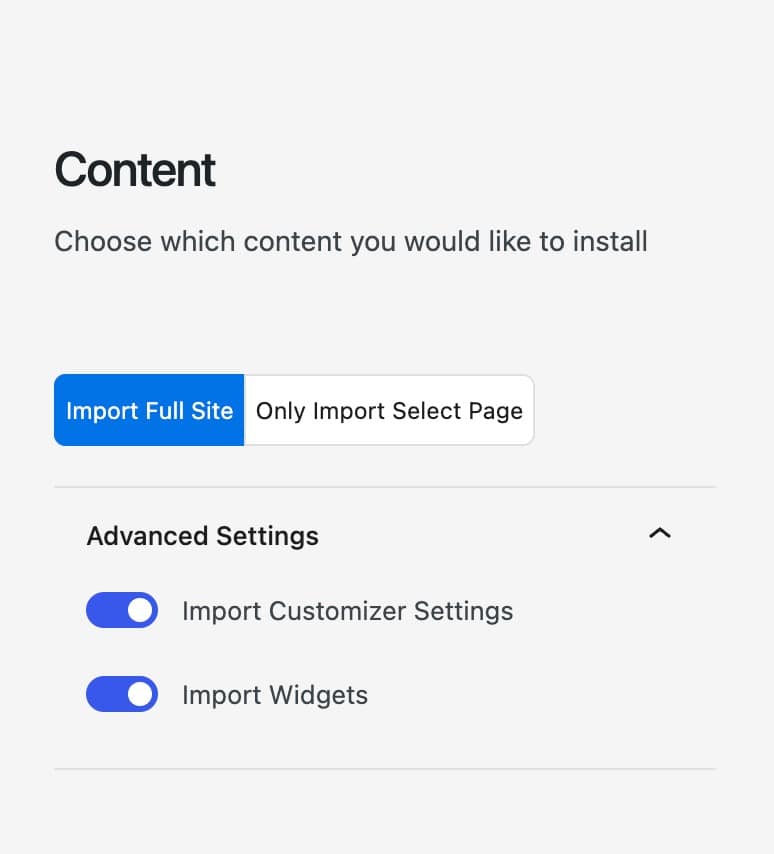
By default, you will be inside of the Import Full Site selection. This option allows you to import all of the pages, customizer settings, and widgets.
If you expand the Advance Settings, you will have additional options that you can toggle on or off.
Import Customizer Settings – This includes the Customizer Theme Settings, such as the Header, Footer, and Post/Pages Settings.
Import Widgets – This imports the Widgets used on the selected Starter Template.
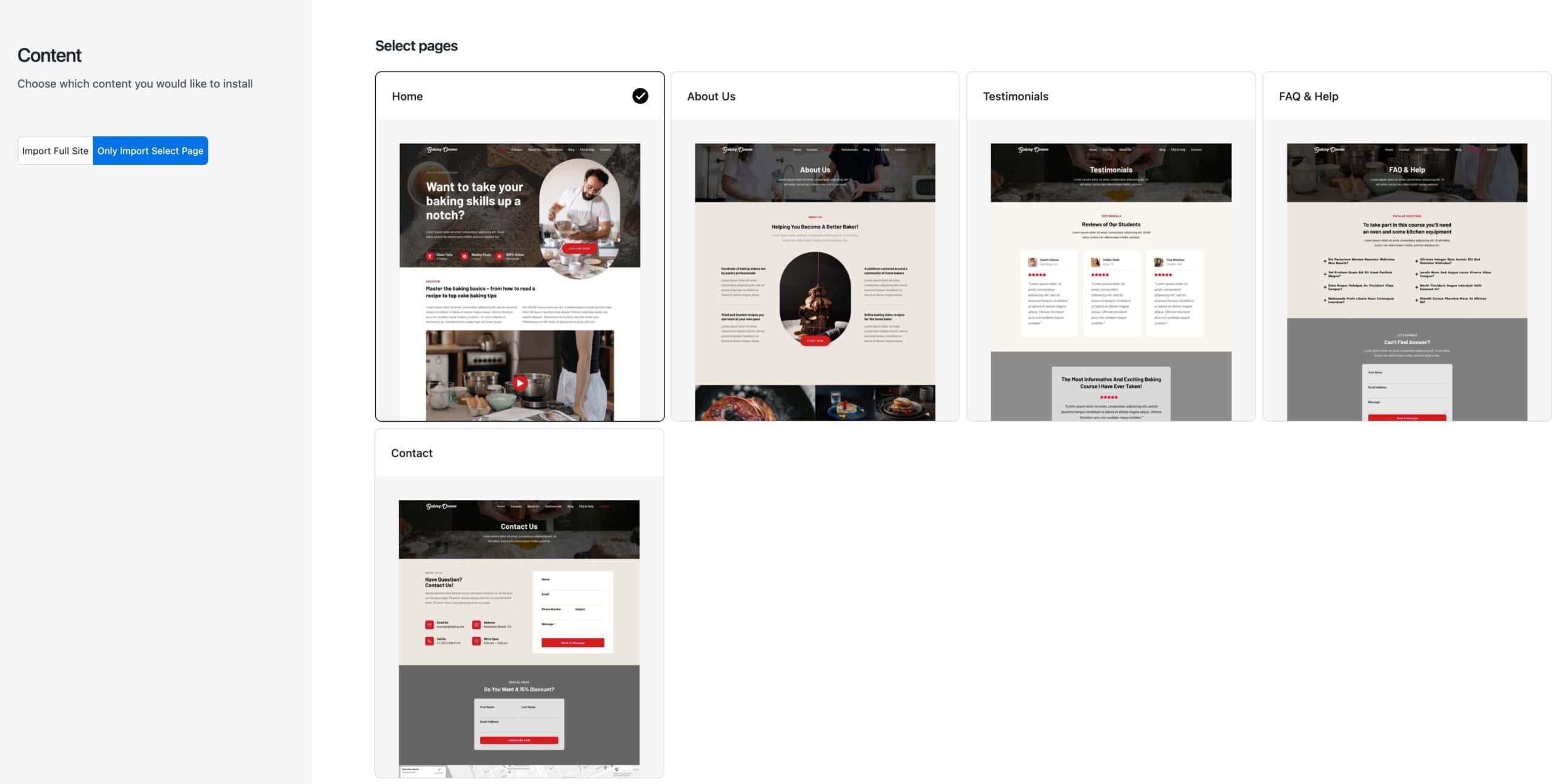
If you select the Only Import Select Page option, you will be given a list of Selectable Pages. You can click on a page to select or deselect it from being imported. Pages with a Checkmark are selected to be imported. Pages without the check mark will not be imported.
Reimporting the same starter template or importing a new one
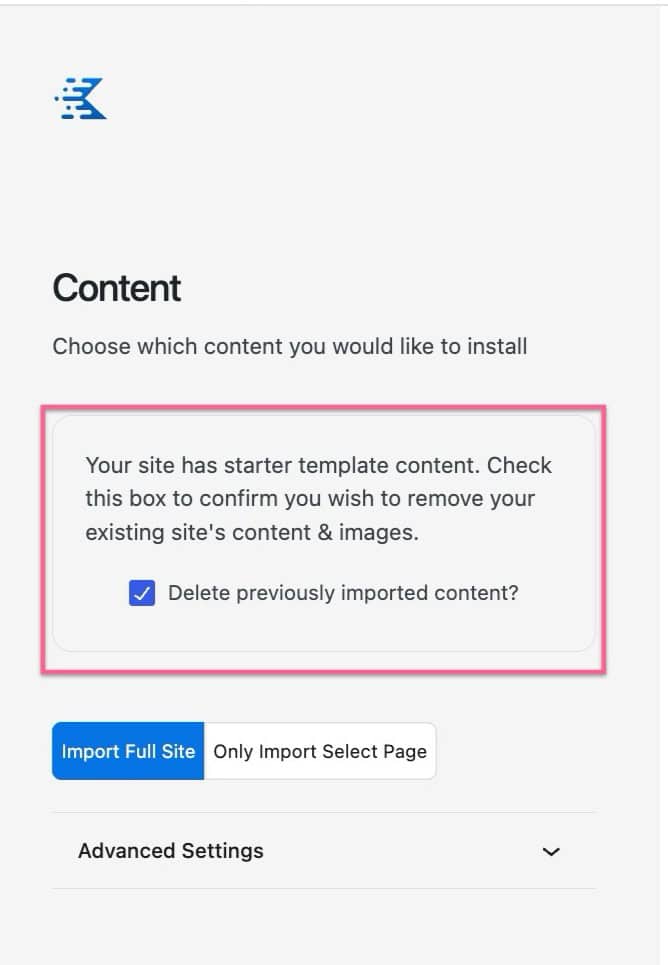
If you’ve edited the content of your imported starter template pages but decide you want to start fresh, you’ll see the following message during the import process under the Content section:
- “Your site has starter template content. Check this box to confirm you wish to remove your existing site’s content & images.”
- Along with a checkbox labeled “Delete previously imported content?”
Notes:
- Checking “Delete previously imported content?” will remove all previously imported pages, including any edits you’ve made. Use this option only if you want to completely reset your imported content.
- If you only want to restart a single page, then you can import it via the Design Library > Starter Packs. Refer to our guide here: Adding Starter Packs (Pages)
Plugins
After selecting your Content settings, the last step is to set up the Plugins you would like to import. The Pre-Designed Starter Template may have required plugins. If the plugins are free, they can be downloaded from here automatically. If your Starter Template requires a 3rd party premium plugin, you can still import it using partial content if you do not own that premium plugin.
You can also add additional plugins to your import. The additional importable plugins include; the WooCommerce, GiveWP, The Events Calendar, Event Tickets, Orderable, Kadence WooCommerce Email Designer, and/or the Solid Security plugins.
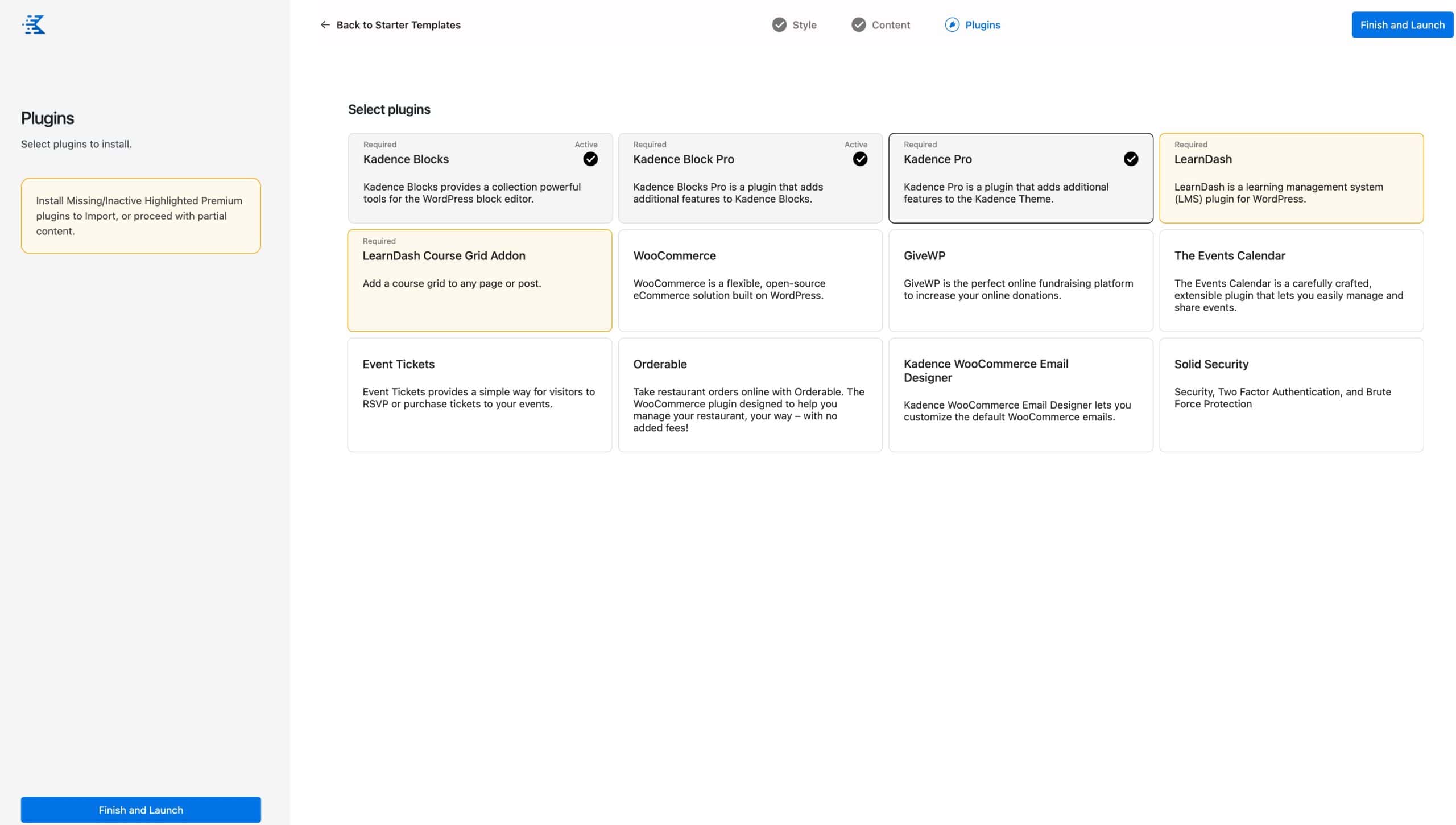
You can select the plugin(s) you wish to add to your website, and then you can press the “Finish and Launch” button to begin the importation process. Once everything is imported, you can click on the “See my site” button.
That’s it! Now, you can customize and use your Pre-Designed Starter Template as needed.

