
If you are interested in selling Pattern Hub library access, you may perhaps want to have Woocommerce and your shop on a different WordPress install than the location of your Pattern Hub. For example, the shop where you sell your library might be on the domain patternlibrary.com, and the actual Pattern Hub library could be on a subdomain like modern.patternlibrary.com
Our favorite solution for this is WooCommerce Software License. It works really well with subscriptions and allows users to generate keys for themselves. It, however, is not free.
Additionally, you can also sell keys from one site for libraries hosted on another site using the Kadence SureCart Licensing plugin for Pattern Hub. This plugin is available in the Ultimate Plan.
Create your Pattern Hub Access Product (WooCommerce Site)
In this tutorial, we won’t cover using Subscriptions, but the process is very similar. Create a new product, set it as virtual, and, depending on which plugin you are using, set up the license configuration.
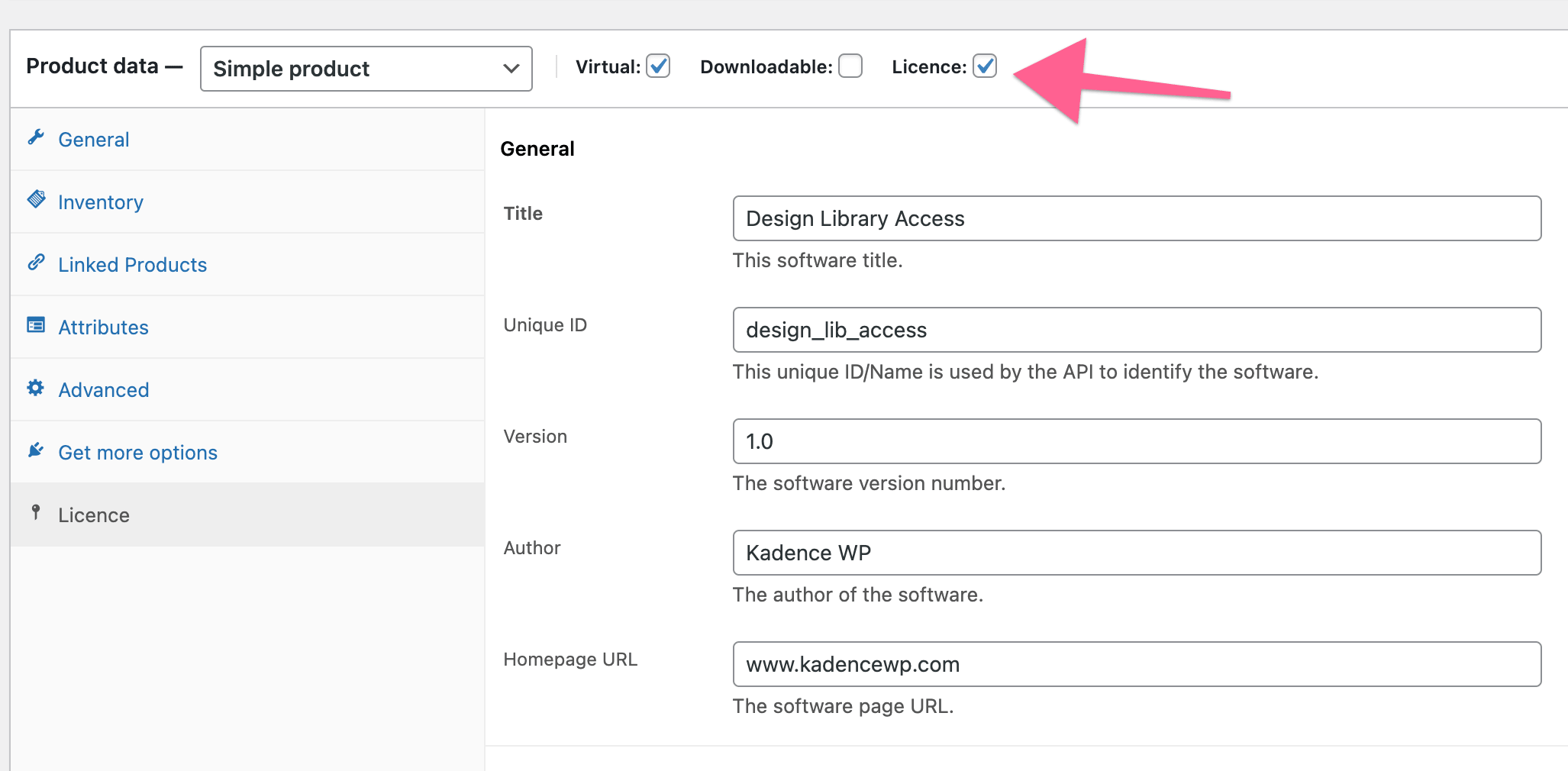
Let’s assume you have more than one collection that you want to sell on your site. An easy way to accomplish this is by defining custom prefixes per product license generation.
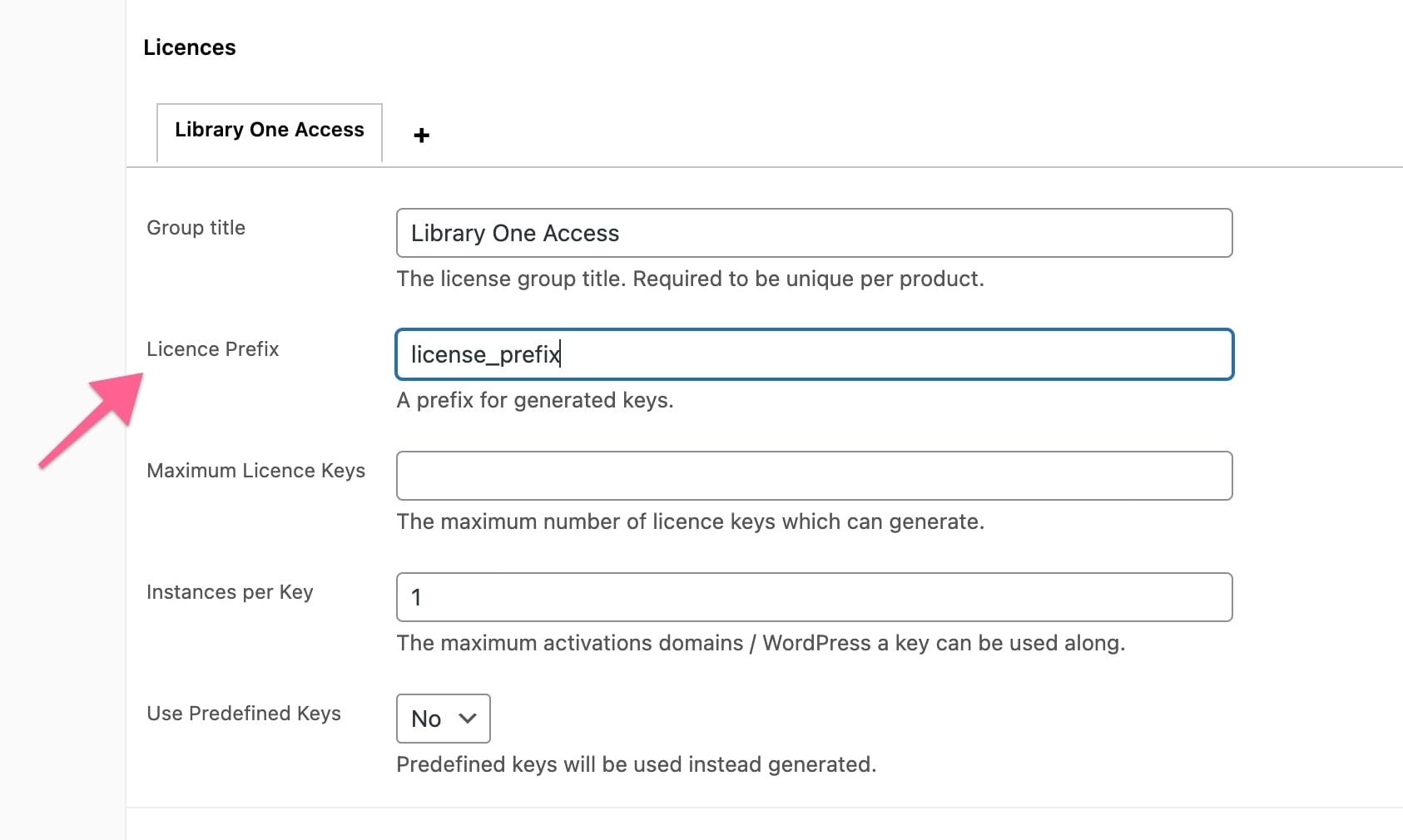
For this example, the first collection is going to have a slug of COLLECTION_ONE, and the second collection is going to have a slug of COLLECTION_TWO. The license generator for collection one is going to have a prefix of col_one, and the license generator for collection two is going to have a prefix of col_two. Finally, the Unique product IDs also have to be connected, so for collection one in this example, the product ID is PRODUCT_UNIQUE_ID, and for collection two, it’s PRODUCT_UNIQUE_ID_TWO.
In this code, if the license matches, PRODUCT_UNIQUE_ID will be given to the user upon connection. If the license does not match, then PRODUCT_UNIQUE_ID_TWO will be displayed instead. You can extend this code to account for more Products and Collections.
It’s important to note the customer will need to know the URL of your Pattern Hub site in our example, which is a subdomain. It’s important that you put that in the product description or in the product order information so the customer knows which URL to use to add the Pattern Hub connection to their website.
Connect Kadence Pattern Hub to License Check
For this step, you need to add a custom PHP filter. To do that, consider using a code snippet plugin to add the PHP filter. You will be adding these snippets to the site where you have your Kadence Pattern Hub and not the site where WooCommerce is installed.
The following snippet will get the key used for access and remote query the site where you have WooCommerce and WooCommerce Software License running to verify its validity. You must replace “https://patternlibrary.com” with the URL for where you have WooCommerce running.
/**
 * Validates license with WooCommerce Software License.
 *
 * @param Boolean         $access true or false based on access.
 * @param String          $key the access key.
 * @param WP_REST_Request $request full details about the request.
 * @return Boolean based on if access should be granted.
 */
function custom_check_cloud_access( $access, $key, $request ) {
	// If true the key matches with settings in Kadence Pattern Hub. Let that pass for testing purposes.
	if ( $access ) {
		return $access;
	}
	// Define woocommerce site.
	$api_url = 'https://patternlibrary.com';
	// Determine product ID based on key.
	if ( substr( $key, 0, strlen( 'col_one' ) ) === 'col_one' ) {
		$product_id = 'PRODUCT_UNIQUE_ID';
	} else {
		$product_id = 'PRODUCT_UNIQUE_ID_TWO';
	}
	// Get the requester site.
	$site = preg_replace('(^https?://)', '', $request->get_param( 'site' ) );
	$args = array(
		'woo_sl_action'      => 'status-check',
		'licence_key'        => $key,
		'product_unique_id'  => $product_id,
		'domain'             => $site,
	);
	$request_uri = $api_url . '?' . http_build_query( $args );
	$data = wp_safe_remote_get( $request_uri );
	// Couldn't Access the api site.
	if ( is_wp_error( $data ) || $data['response']['code'] != 200 ) {
		return $access;
	}

	$data_body = json_decode( $data['body'] );
	if ( ! is_object( $data_body ) && isset( $data_body[0] ) && is_object( $data_body[0] ) ) {
		$data_body = $data_body[0];
	}
	if ( isset( $data_body->status) ) {
		if ( $data_body->status == 'success' ) {
			// Lets activate it for this domain if it's not.
			if ( $data_body->status_code && 's203' === $data_body->status_code ) {
				$args['woo_sl_action'] = 'activate';
				$request_uri = $api_url . '?' . http_build_query( $args );
				$second_data = wp_safe_remote_get( $request_uri );
			}
			//the license is active and the software is active
			return true;
		} elseif ( $data_body->status == 'error' ) {
			// Lets activate it for this domain if possible.
			if ( $data_body->status_code && 'e204' === $data_body->status_code ) {
				$args['woo_sl_action'] = 'activate';
				$request_uri = $api_url . '?' . http_build_query( $args );
				$second_data = wp_safe_remote_get( $request_uri );
				// Couldn't Access the api site.
				if ( is_wp_error( $second_data ) || $second_data['response']['code'] != 200 ) {
					return $access;
				}
				$response_body = wp_remote_retrieve_body( $second_data );
				if ( empty( $response_body ) ) {
					return $access;
				}
				$response = json_decode( $response_body );
				end( $response );
				$response_data = current( $response );
				if ( is_object( $response_data ) && 'success' === $response_data->status ) {
					return true;
				} else {
					return $access;
				}
			}
			return $access;
		}
	}
	return $access;
}
add_filter( 'kadence_cloud_rest_request_access', 'custom_check_cloud_access', 10, 3 );
Next, we want to limit access to the correct collection based on the license key. We can do that with the following function.
/**
 * Set access to a specific pattern hub library collection.
 *
 * @param array  $args the query args for retrieving items.
 * @param string $key the access key.
 * @param array  $request_extras the extra args for the request.
 * @return array with updated query args.
 */
function custom_kadence_cloud_query_args( $args, $key, $request_extras ) {
	if ( substr( $key, 0, strlen( 'col_one' ) ) === 'col_one' ) {
		$args['tax_query'] = array(
			array(
				'taxonomy' => 'kadence-cloud-collections',
				'field' => 'slug',
				'terms' => array( 'COLLECTION_ONE' ),
			),
		);
	} else {
		$args['tax_query'] = array(
			array(
				'taxonomy' => 'kadence-cloud-collections',
				'field' => 'slug',
				'terms' => array( 'COLLECTION_TWO' ),
			),
		);
	}
	return $args;
}
add_filter( 'kadence_cloud_template_query_args', 'custom_kadence_cloud_query_args', 10, 3 );
With the SureCart Pro or Business Plan, you can get an addon for their built-in licensing system. It works well with their subscriptions and allows the users to access a license key and activate the Pattern Hub library. The steps are similar for SureCart as they are for WooCommerce. However, there is an additional step needed in the SureCart method. Follow the instructions below to learn how to sell access keys from other websites using SureCart.
On the website that is selling the SureCart Product, you should complete the following steps:
- Create your SureCart Digital Product..You should have SureCart Licensing enabled. (Learn more) You can enable Licensing on the product and add a downloadable ZIP file to the product. It is recommended to include a compressed text file explaining how to connect to the Pattern Hub library.
- Then save the Product ID for later and then save the product.
(Find the Product ID in the URL of the SureCart Product Editor.)
- Then save the Product ID for later and then save the product.

- You also need to create a SureCart Public Token. That can be done from your SureCart account by going here, logging into SureCart, and creating a new token. Copy and save the Public Token.
On the website that hosts the Pattern Hub Library, you should complete these steps:
- Have a Pattern Hub library created and ready to be used. Be sure to add the Collections to the appropriate items. (These collections will be represented as COLLECTION_ONE and COLLECTION_TWO in the custom PHP code. You can adjust them as needed)
- Activate the Kadence SureCart Licensing Plugin (View step three in this document).
- Once the Kadence SureCart Licensing Plugin is active, head over to the Dashboard -> Pattern Hub -> Settings page.
- Go to the SureCart Settings and add your SureCart Public Token to the proper area. Then click on the Add Product button, put in your Product IDs, and save the changes.
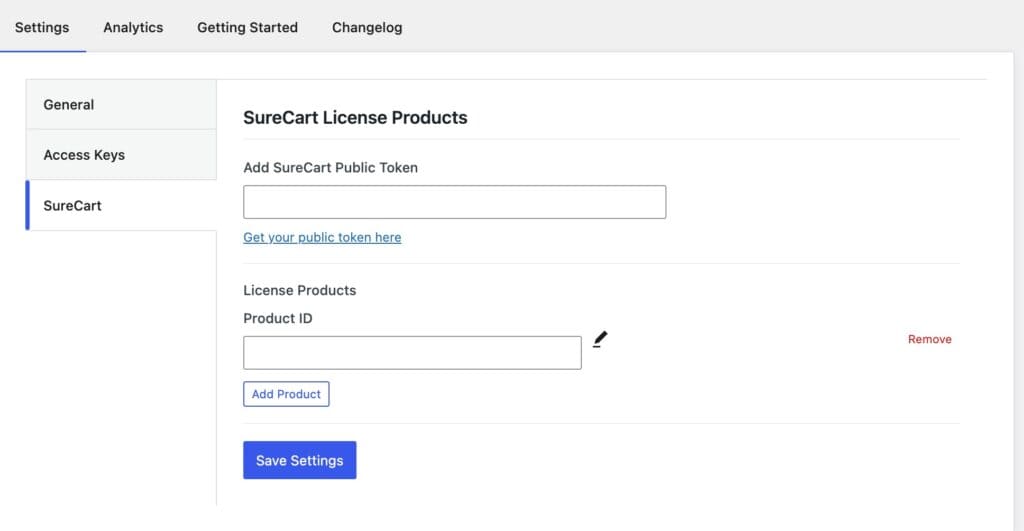
- Finally, customize the Custom PHP Codes below to use your details. These codes should be added to the Website Hosting the Pattern Hub Library and can be added using a plugin like the Code Snippets Plugin. (The same codes as above will be put below, with phrasing that is more friendly for SureCart users).
- For this code example, the first collection is going to have a slug of COLLECTION_ONE, and the second collection is going to have a slug of COLLECTION_TWO. The Unique product IDs also have to be connected, so for collection one in this example, the product ID is PRODUCT_UNIQUE_ID, and for collection two, it’s PRODUCT_UNIQUE_ID_TWO.
- In this code, if the license matches, PRODUCT_UNIQUE_ID will be given to the user upon connection. If the license does not match, then PRODUCT_UNIQUE_ID_TWO will be displayed. You can extend this code to account for more Products and Collections.
The following snippet will get the key used for access and remote query the site where you have Surecart is running to verify its validity. You must replace “https://patternlibrary.com” with the URL for where you have SureCart running.
/**
 * Validates license with SureCart Licensing.
 *
 * @param Boolean         $access true or false based on access.
 * @param String          $key the access key.
 * @param WP_REST_Request $request full details about the request.
 * @return Boolean based on if access should be granted.
 */
function custom_check_cloud_access( $access, $key, $request ) {
	// If true the key matches with settings in Kadence Pattern Hub. Let that pass for testing purposes.
	if ( $access ) {
		return $access;
	}
	// Define surecart site.
	$api_url = 'https://patternlibrary.com';
	// Determine product ID based on key.
	if ( substr( $key, 0, strlen( 'col_one' ) ) === 'col_one' ) {
		$product_id = 'PRODUCT_UNIQUE_ID';
	} else {
		$product_id = 'PRODUCT_UNIQUE_ID_TWO';
	}
	// Get the requester site.
	$site = preg_replace('(^https?://)', '', $request->get_param( 'site' ) );
	$args = array(
		'woo_sl_action'      => 'status-check',
		'licence_key'        => $key,
		'product_unique_id'  => $product_id,
		'domain'             => $site,
	);
	$request_uri = $api_url . '?' . http_build_query( $args );
	$data = wp_safe_remote_get( $request_uri );
	// Couldn't Access the api site.
	if ( is_wp_error( $data ) || $data['response']['code'] != 200 ) {
		return $access;
	}

	$data_body = json_decode( $data['body'] );
	if ( ! is_object( $data_body ) && isset( $data_body[0] ) && is_object( $data_body[0] ) ) {
		$data_body = $data_body[0];
	}
	if ( isset( $data_body->status) ) {
		if ( $data_body->status == 'success' ) {
			// Lets activate it for this domain if it's not.
			if ( $data_body->status_code && 's203' === $data_body->status_code ) {
				$args['woo_sl_action'] = 'activate';
				$request_uri = $api_url . '?' . http_build_query( $args );
				$second_data = wp_safe_remote_get( $request_uri );
			}
			//the license is active and the software is active
			return true;
		} elseif ( $data_body->status == 'error' ) {
			// Lets activate it for this domain if possible.
			if ( $data_body->status_code && 'e204' === $data_body->status_code ) {
				$args['woo_sl_action'] = 'activate';
				$request_uri = $api_url . '?' . http_build_query( $args );
				$second_data = wp_safe_remote_get( $request_uri );
				// Couldn't Access the api site.
				if ( is_wp_error( $second_data ) || $second_data['response']['code'] != 200 ) {
					return $access;
				}
				$response_body = wp_remote_retrieve_body( $second_data );
				if ( empty( $response_body ) ) {
					return $access;
				}
				$response = json_decode( $response_body );
				end( $response );
				$response_data = current( $response );
				if ( is_object( $response_data ) && 'success' === $response_data->status ) {
					return true;
				} else {
					return $access;
				}
			}
			return $access;
		}
	}
	return $access;
}
add_filter( 'kadence_cloud_rest_request_access', 'custom_check_cloud_access', 10, 3 );
Next, we want to limit access to the correct collection based on the license key. We can do that with the following function.
/**
 * Set access to a specific pattern hub library collection.
 *
 * @param array  $args the query args for retrieving items.
 * @param string $key the access key.
 * @param array  $request_extras the extra args for the request.
 * @return array with updated query args.
 */
function custom_kadence_cloud_query_args( $args, $key, $request_extras ) {
	if ( substr( $key, 0, strlen( 'col_one' ) ) === 'col_one' ) {
		$args['tax_query'] = array(
			array(
				'taxonomy' => 'kadence-cloud-collections',
				'field' => 'slug',
				'terms' => array( 'COLLECTION_ONE' ),
			),
		);
	} else {
		$args['tax_query'] = array(
			array(
				'taxonomy' => 'kadence-cloud-collections',
				'field' => 'slug',
				'terms' => array( 'COLLECTION_TWO' ),
			),
		);
	}
	return $args;
}
add_filter( 'kadence_cloud_template_query_args', 'custom_kadence_cloud_query_args', 10, 3 );
