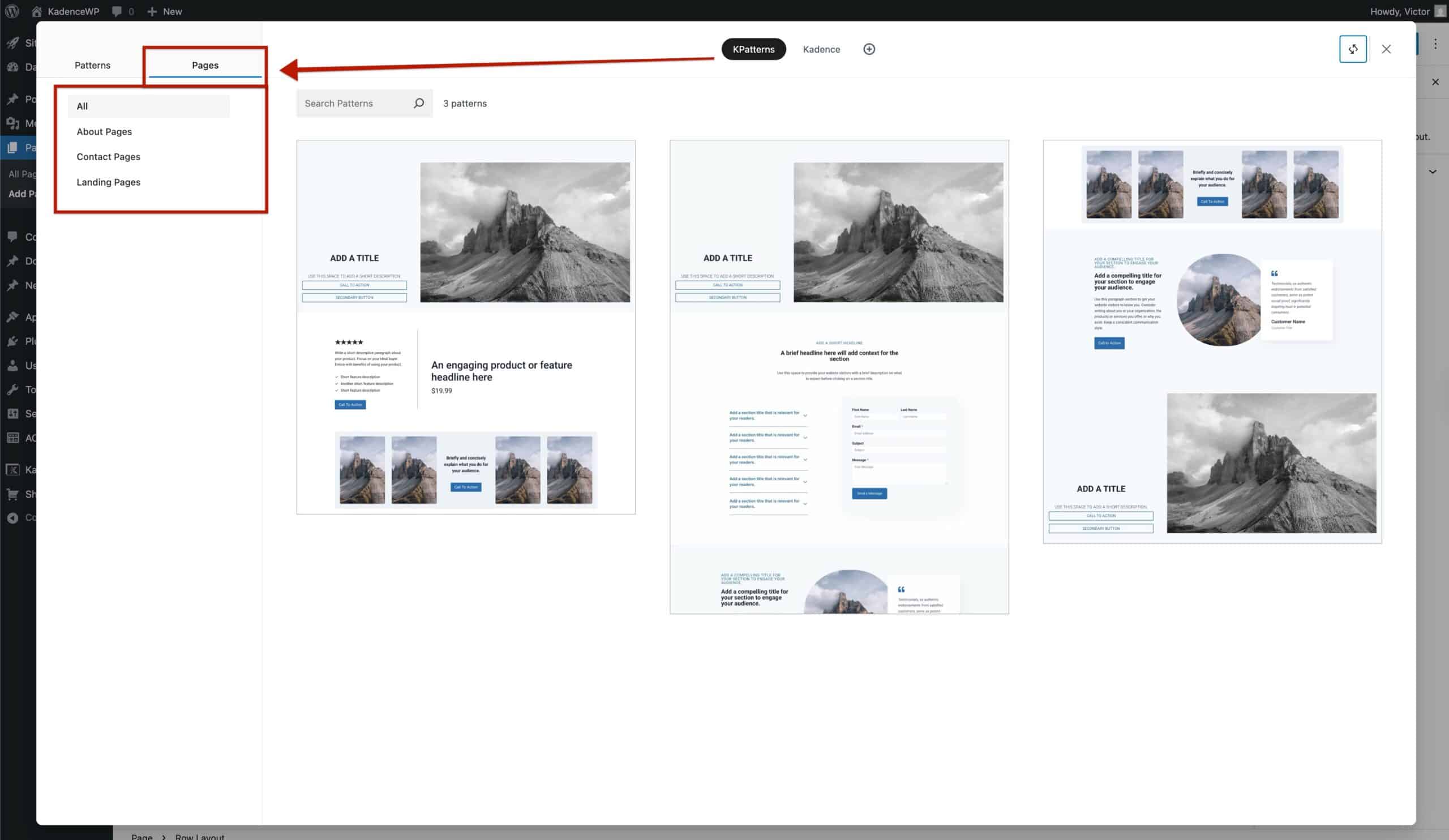
Kadence Pattern Hub helps creators build and manage custom Kadence-block-based pattern libraries. With the Pattern Hub Pages extension, you can take your collections even further by combining multiple Pattern Hub items to create full-page layouts.
Getting Started
To use the Pattern Hub Pages plugin, you must have the Ultimate/Lifetime Plan and Kadence Pattern Hub plugin pre-installed, activated, and licensed on the website first. Afterward, you can continue to install and use the Pattern Hub – Pages plugin.
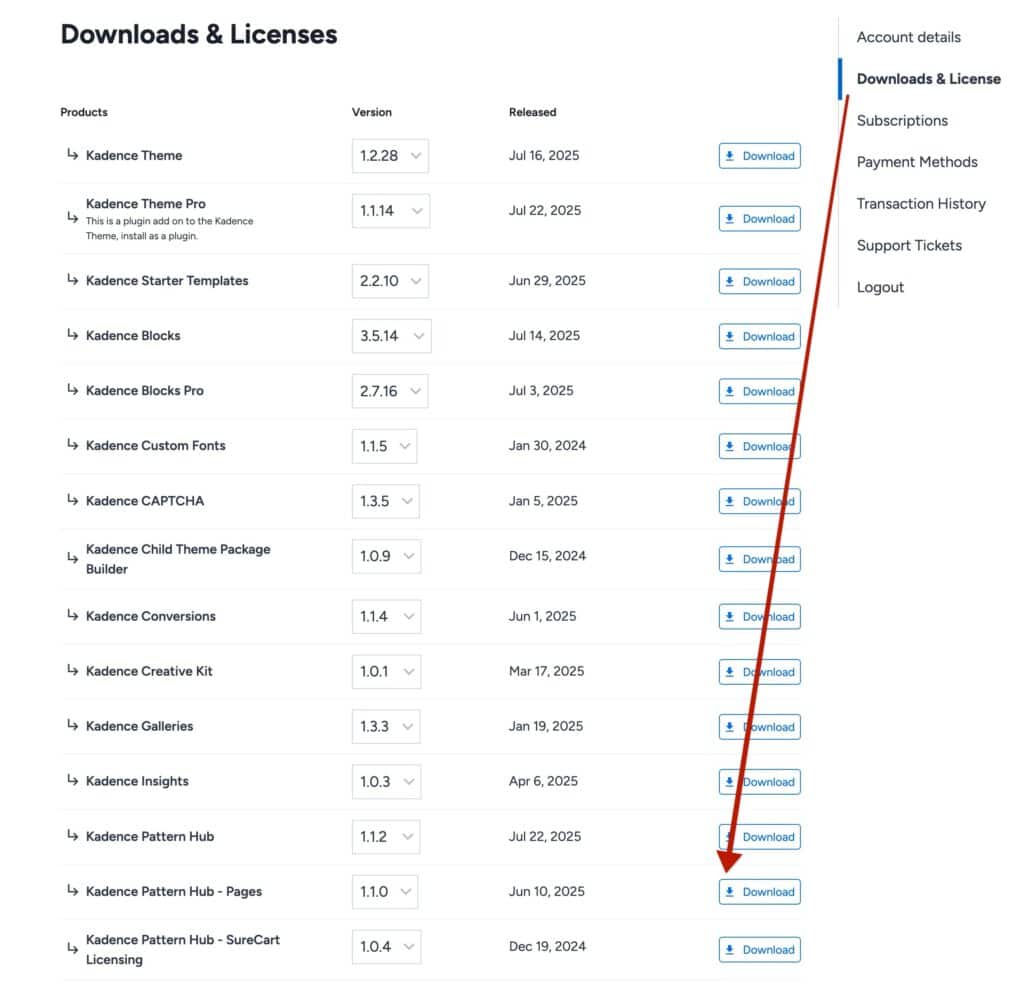
You can download the Pattern Hub Pages plugin from the Kadence account downloads.
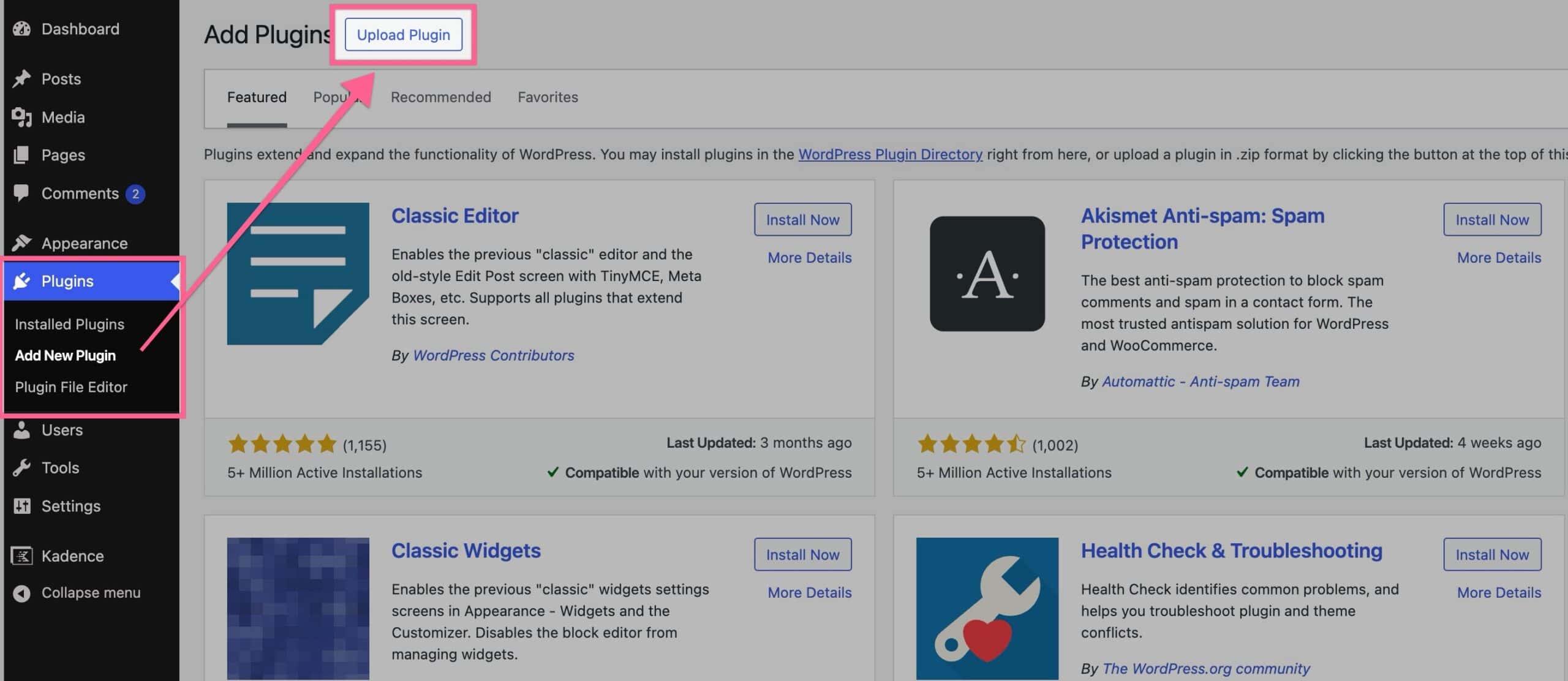
Once the plugin is downloaded, navigate to the Dashboard -> Plugins -> Add New page, then click on the Upload Plugin button at the top of the page.
Install and activate the Pattern Hub Pages plugin and leave it activated alongside the Kadence Pattern Hub plugin to successfully use this extension.
Creating Pages
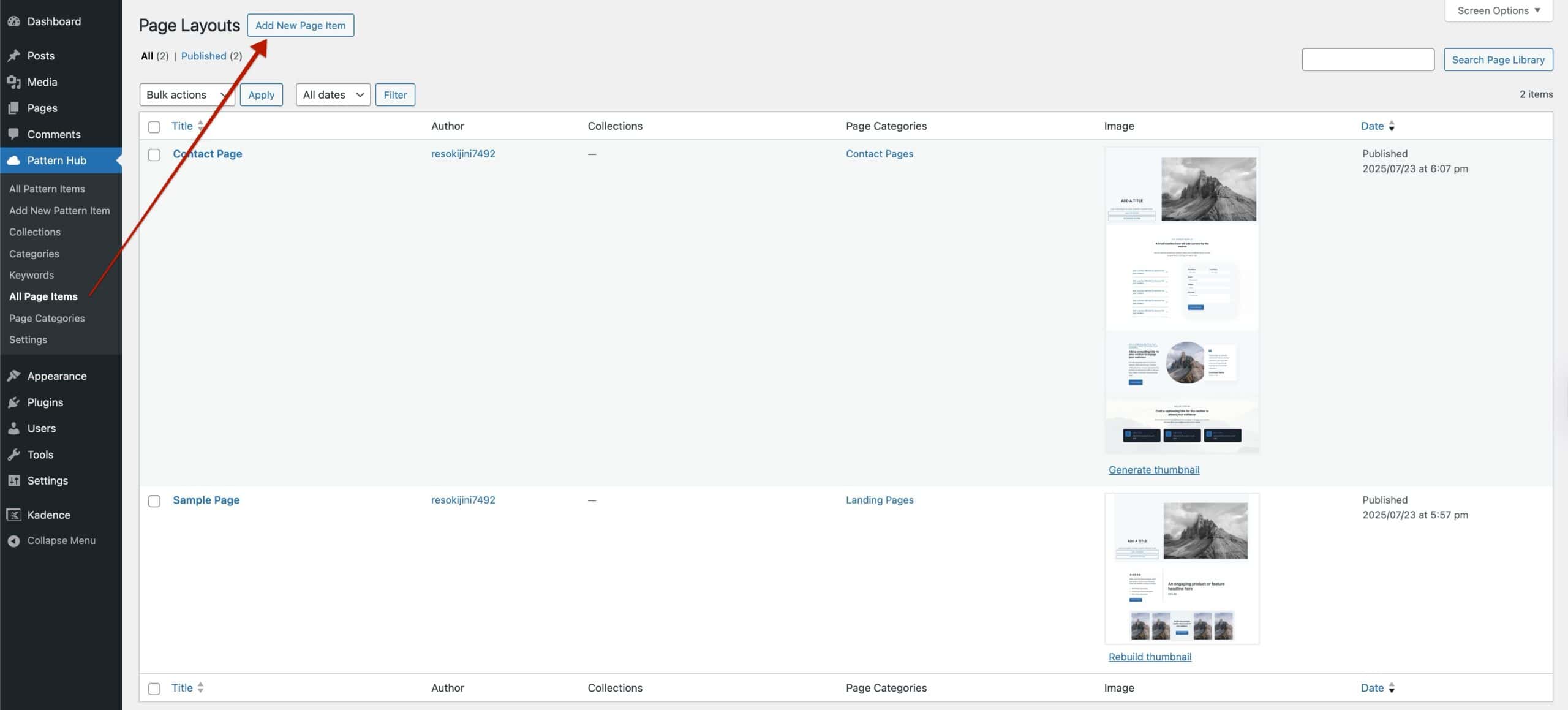
New pages can be created from the Dashboard -> Pattern Hub -> All Page Items page. To build a page, you must already have pattern items created that can be used within the page. (Click here to learn about creating Pattern Hub Items.)
Begin creating a new page by clicking the Add New Page Item button.
Page Pattern Layout
The first set of settings is the Page Pattern Layout settings. Here, you can select multiple existing Pattern Hub Items to form a complete page.
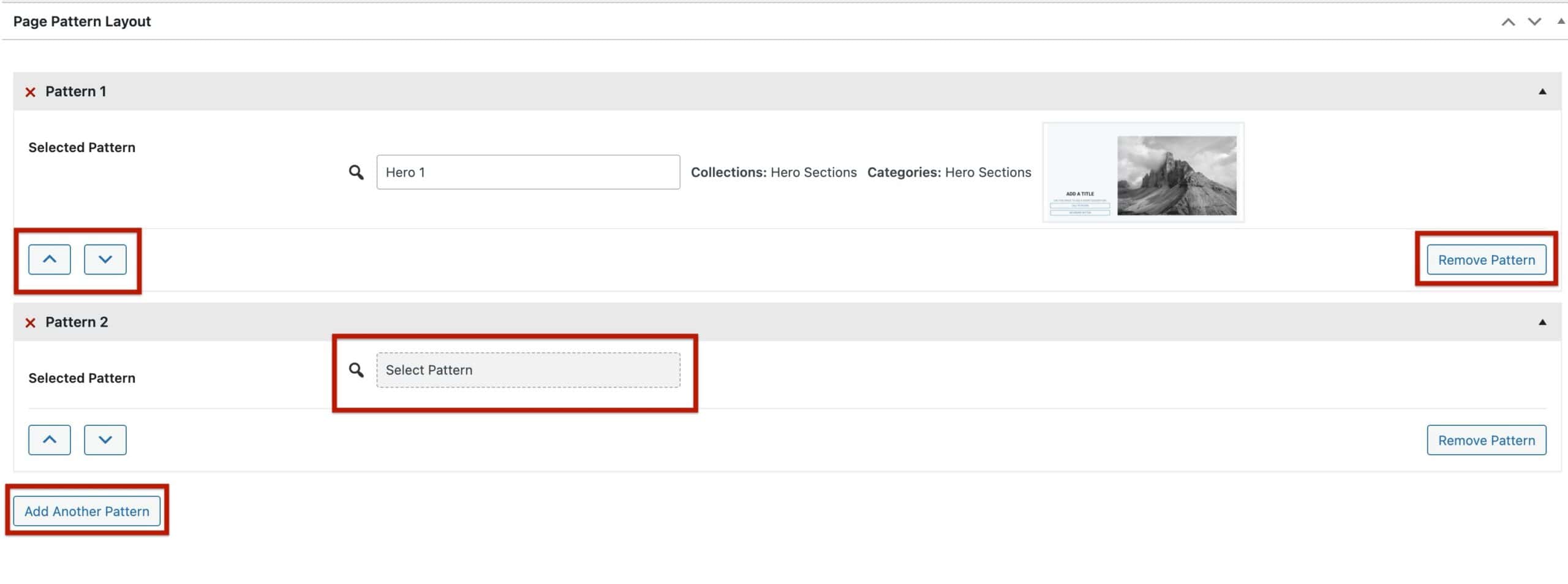
- Use the select pattern button to select an initial pattern or change a current selection to a new one.
- Use the add another pattern button to add additional patterns to the page layout.
- Use the arrow icons to re-arrange patterns already imported into the current page.
- Use the remove pattern button to remove any existing imported pattern items.
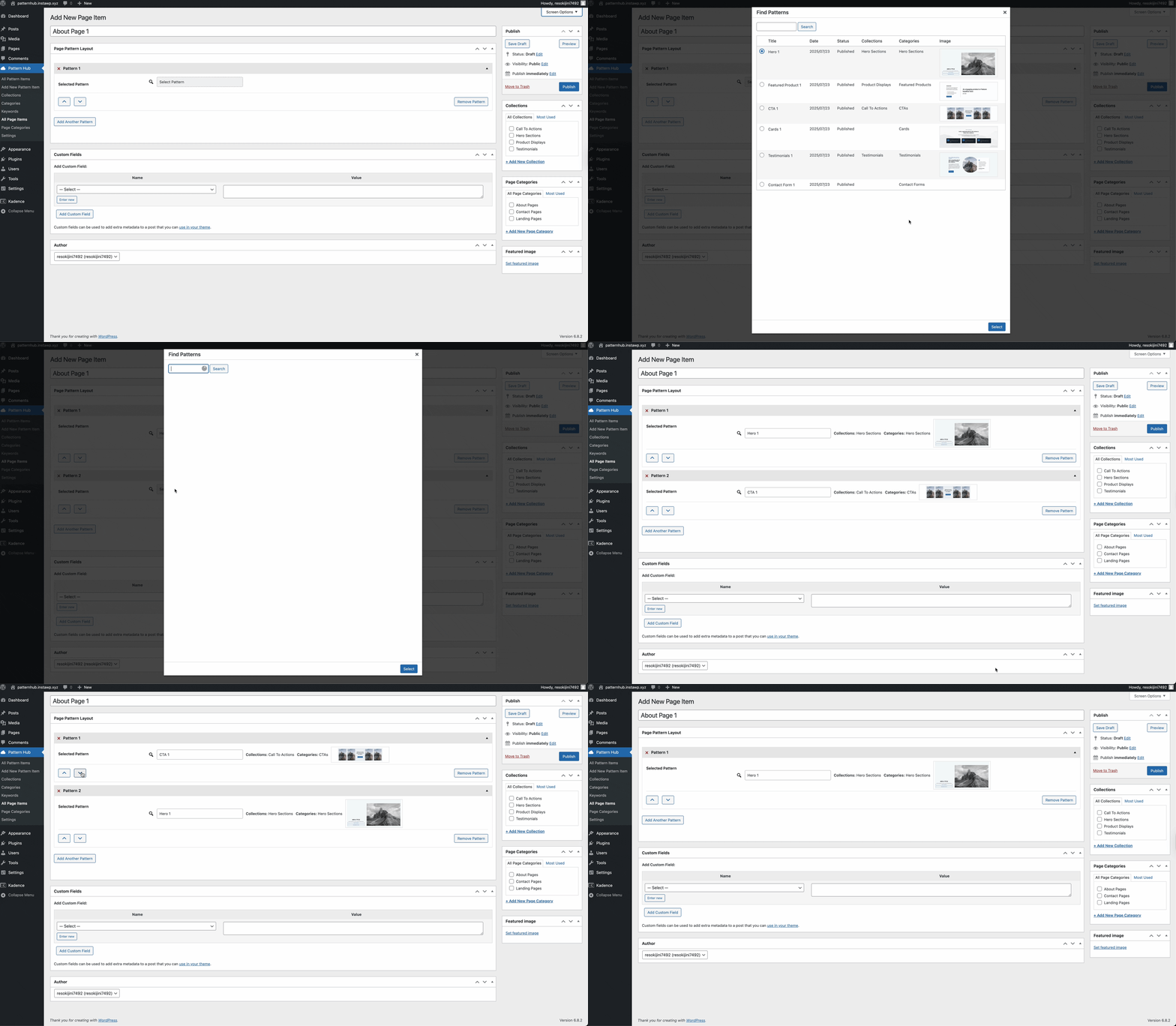
This allows you to combine multiple pattern hub items into a full page layout.
Custom Fields
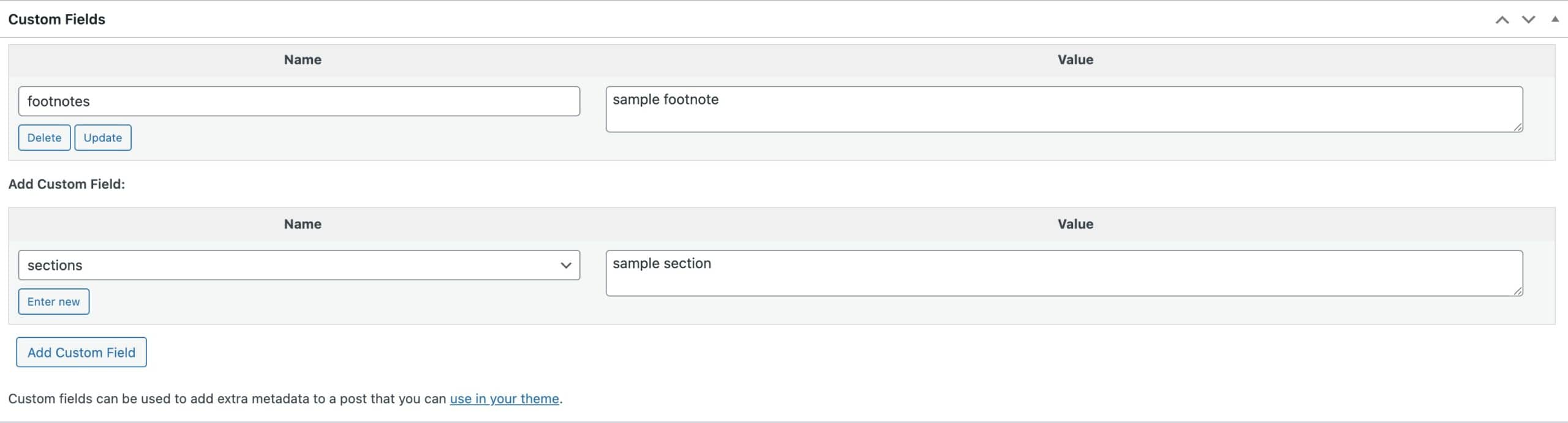
Use the Custom Fields section to add optional, additional Custom Fields to the post metadata. This can be useful for grabbing additional data in more advanced use-cases. The available field names consist of sections and footnotes. Additionally, you can set a custom value. You can learn more about Custom Fields in WordPress here.
Author
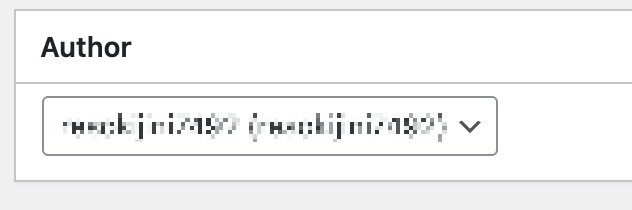
The Author area defines who the author of the Pattern Hub Page Item is. By default, this is set to the original creator of the Pattern Hub Page Item.
Pattern Hub Page Categories
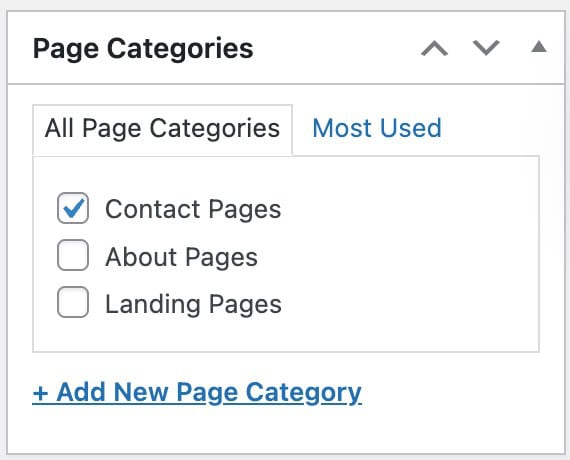
Categories allow you to easily sort Pattern Hub Pages. When front-facing users view your Pattern Hub, they will be able to use categories for navigating multiple page patterns. You can learn more about building Pattern Hub Page Categories below.
Collections
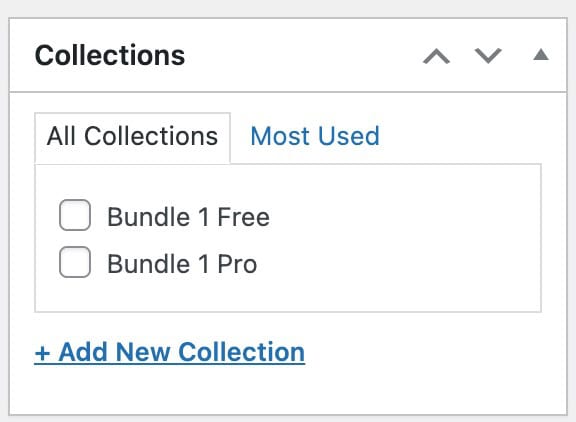
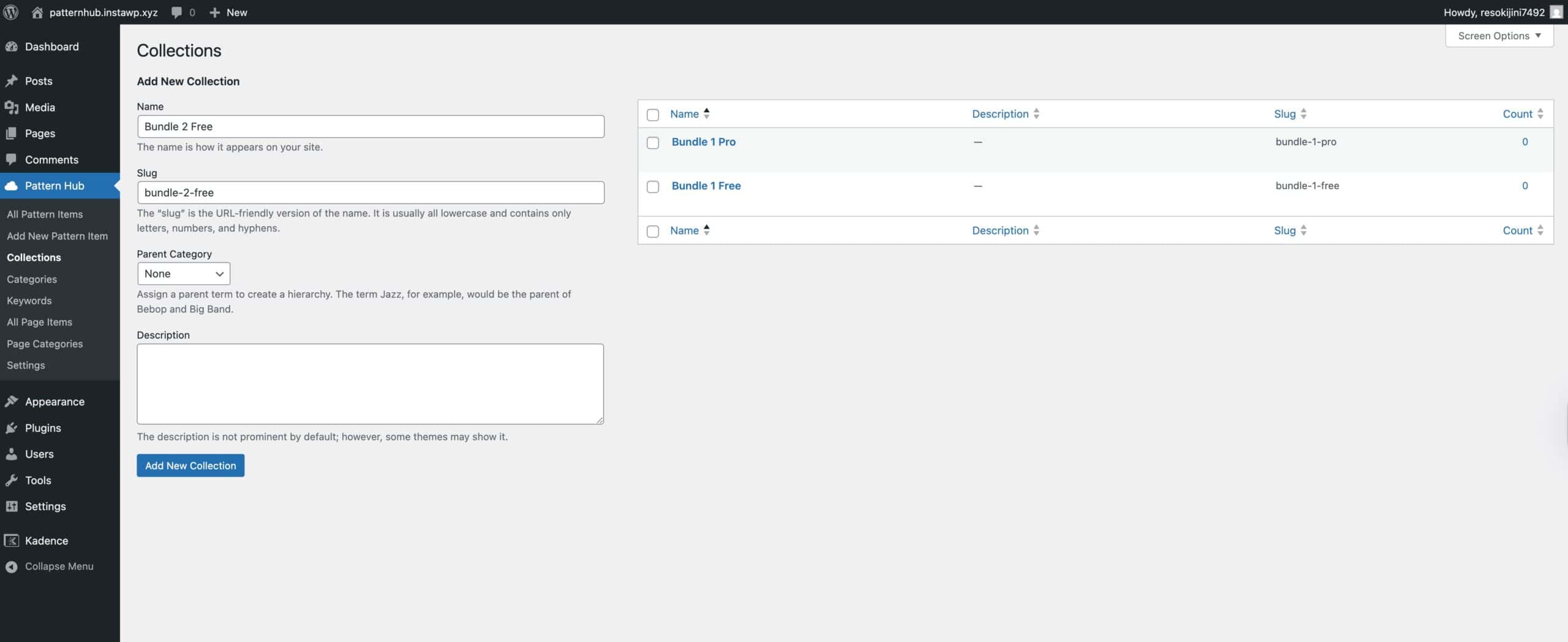
Pattern Hub offers the use of Collections to control which access key has access to which set of items. Assign the page to the appropriate collection(s) to ensure it can be accessed from accessible pattern hub connections. You can click here to learn more about Pattern Hub collections.
Featured Image
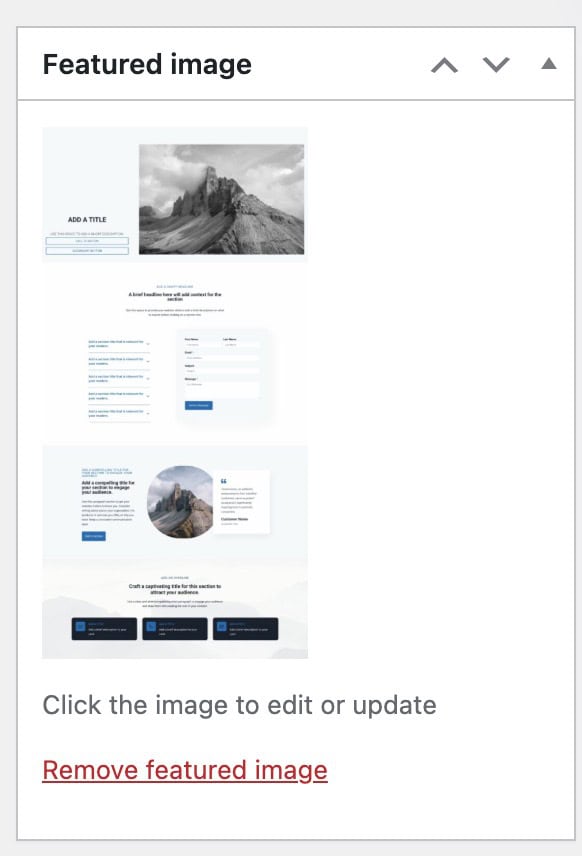
The Featured Image setting allows you to manually set a featured image for the Page Item. When viewing the design library, the featured image will be shown to represent the Pattern Page.
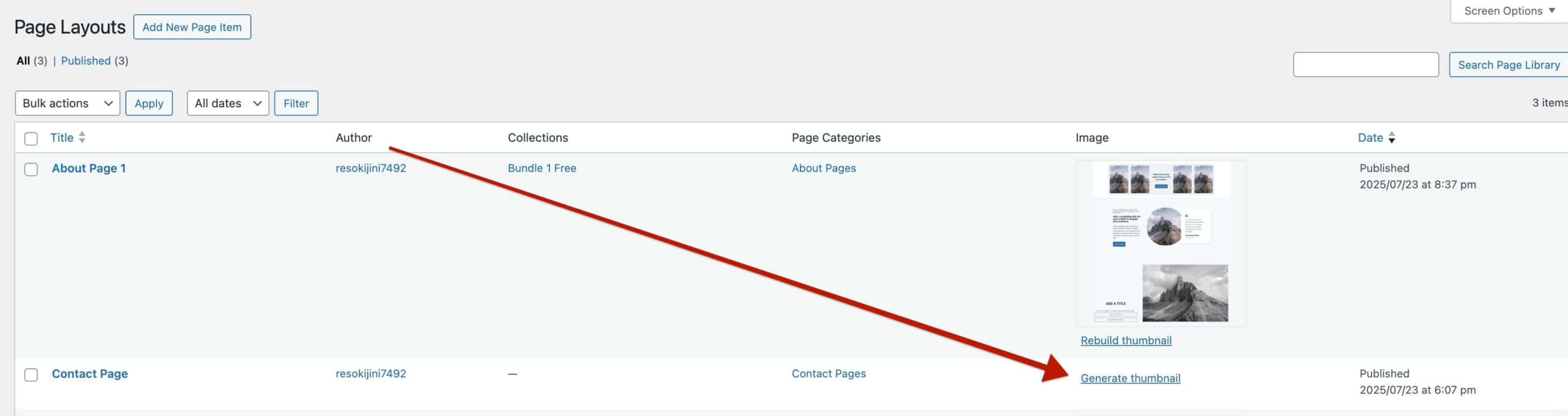
Pattern Hub has a built-in method for obtaining full images of your Pattern Items and Pattern Pages. In these cases, you do not need to manually set a featured image. Instead, you can follow the steps in this guide to learn how you can automatically generate featured images for your Pattern Items and Pages.
Creating Page Categories
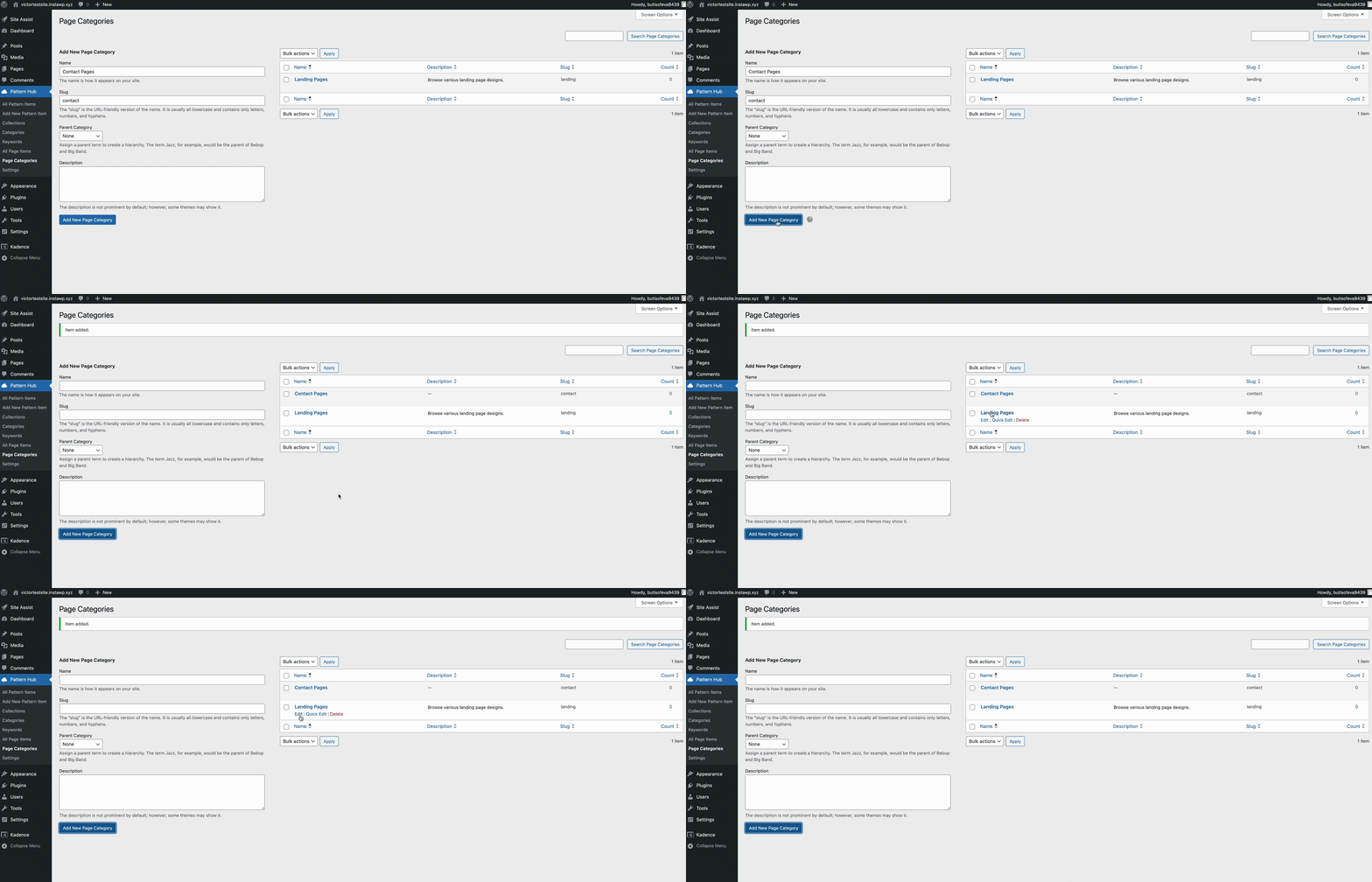
Help sort/categorize different pages using the Page Categories. You can access them from the Dashboard -> Pattern Hub -> Page Categories page. Here, you can create, edit, and delete Page Categories.
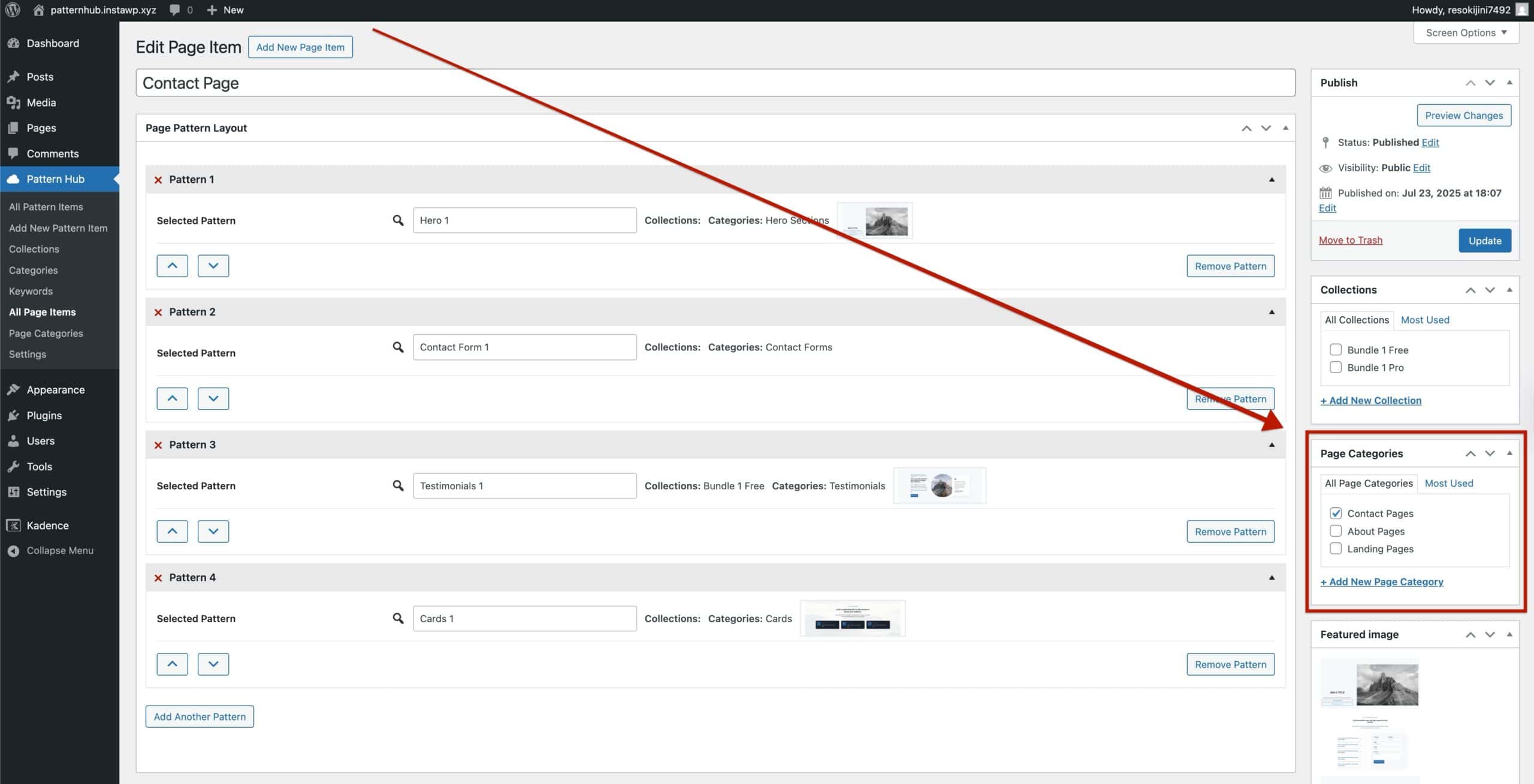
Once you have a Page Category, you can assign it to Page Items when creating or editing them.
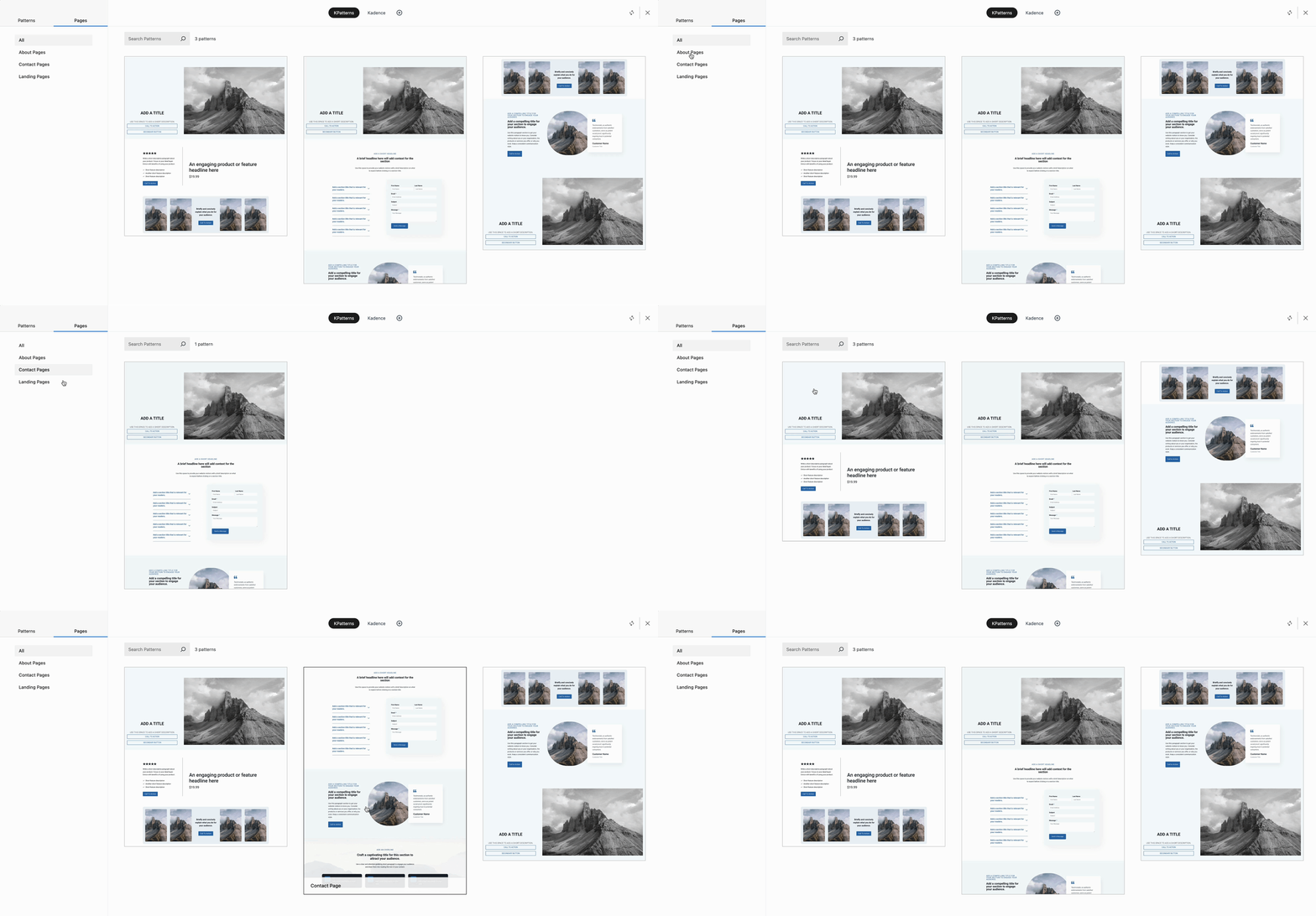
Afterward, when accessing the Pattern Hub, you will be able to browse through Page Item Categories to filter items.
Enabling/Disabling Pages
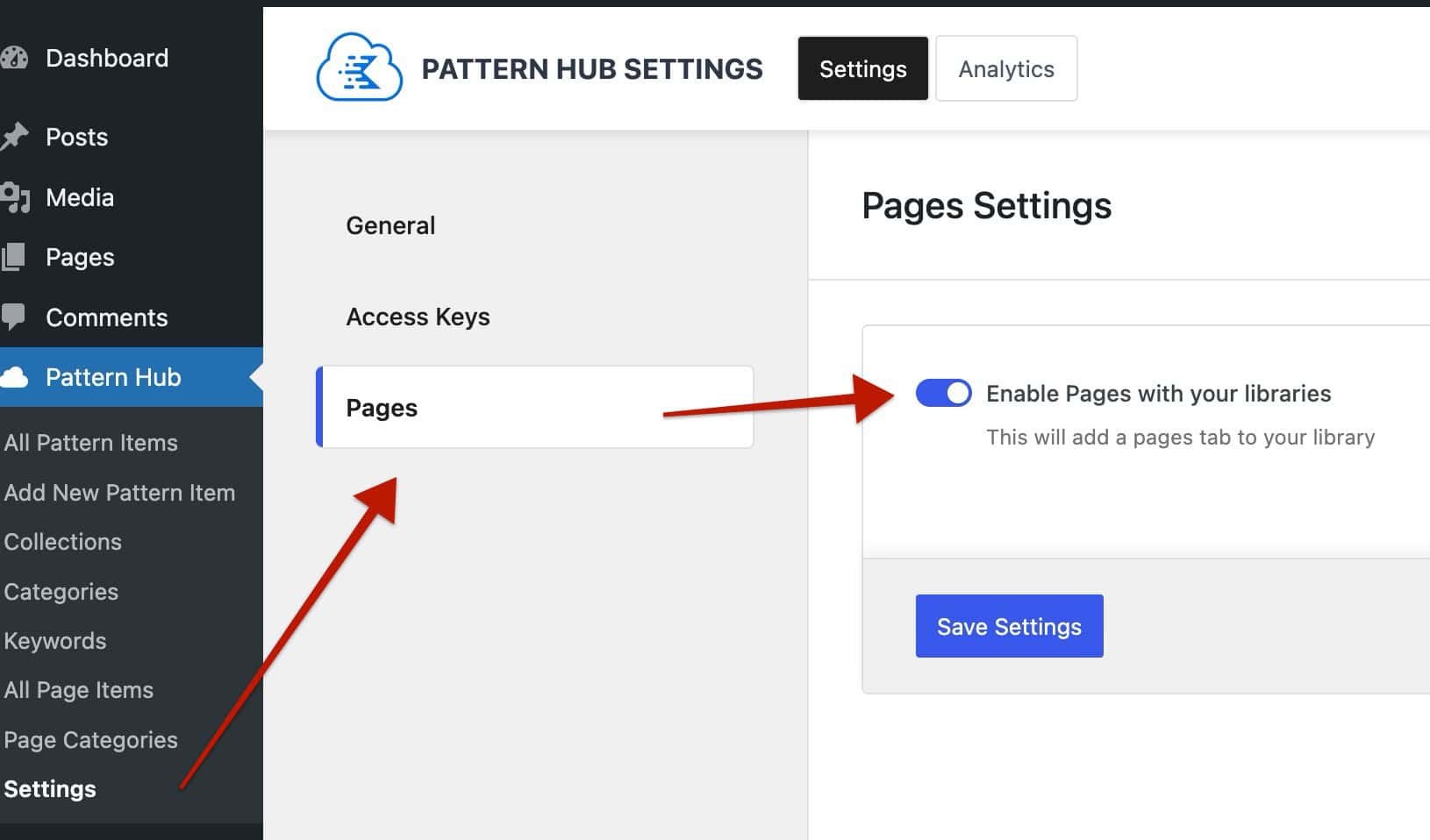
Pattern Hub Pages can be enabled or disabled from your Pattern Hub Library. Navigate to the Dashboard -> Pattern Hub -> Settings page and click on the Pattern Hub Pages tab to enable or disable Pattern Hub Pages.