Skip to content
Help Center
  • Pricing
  • ProductsExpand
    • Premium PlansGet all the tools you need in one plan
    • Kadence ThemeLightning-fast performance theme for modern websites
    • Kadence BlocksDrop in ready designs with advanced controls for pixel perfect websites
    • Kadence Shop KitCreate a more effective WooCommerce shopping experience
    • Kadence ConversionsBoost sales and build engaged audiences with popups and banners
    • Kadence InsightsEasily create A/B tests. Optimize your pages to drive higher conversions.
    • View All Products
    • Get Kadence + Hosting
      In One Place

      Enjoy faster setup, top-tier performance, and worry-free WordPress hosting – Kadence Theme, Kadence Blocks, and Solid Security all pre-installed.

      Learn More

  • Kadence AI
  • Starter Templates
  • Blog
  • SupportExpand
    • Resource HubStart here for guides, Product docs, FAQs, and Troubleshooting tips, all in one place.
    • Contact SupportStuck on something? We’re here to help! Open a ticket for top-notch support.
    • Contact Our TeamGot pre-sales questions or need help choosing a plan? Open a ticket and our team will guide you.
    • About usCrafted with love in Missoula, Montana. Meet the team behind the mission.
Account Account
Get Kadence
Kadence Theme
  • Features
  • Pro
  • Starter Templates
  • HelpExpand
    • Documentation
    • Facebook Group
    • Submit a Ticket
    • Feature Requests
    • Roadmap
    • Changelog
Help Center
Kadence Theme

Getting Started

Customize Settings

Header

General WordPress

Troubleshooting

  • Troubleshooting White/Blank Screens in the Editor or Customizer
  • How to Download Previous Versions of the Kadence Theme and Plugins
  • Recommended Server Resources

Advanced

Theme Kit Pro

  • Kadence Custom Fonts

Kadence Elements

Hooked Element Guides

  • How to Design a Post Grid/Carousel using a Kadence Element

Woocommerce

  • Home
  • Knowledge Base
  • Kadence Theme
  • Kadence Blocks
  • Kadence Blocks Pro

Dynamic Content

Kadence Blocks Pro offers the Dynamic Content feature. Dynamic Content, generally speaking, is any content entered on your site that is not static. For example, when a user is logged in and reviewing their account on your site, they are viewing their own account information that is dynamically pulled from the WordPress Database rather than statically entered in a post or page.

Table of Contents
  • Requirements
  • Blocks That Support Dynamic Content
  • Adding Dynamic Content
    • Available Dynamic Content Types
      • Custom Inputs
    • Dynamic Sources
  • Repeatable Content
  • Dynamic Custom Fields
  • More Resources

Requirements

Dynamic Content is a Kadence Feature that comes with the Kadence Blocks Pro plugin.

If you would like to use Dynamic Content inside of an Element and Hook it across your website, you also need the Kadence Theme Kit Pro plugin. This plugin features Hooked Elements, which can be combined with Dynamic Content to create Template Elements and Dynamic Designs that can be hooked across your website.

You can also use Custom Fields from the Advanced Custom Fields, Pods, or Metabox plugin with Dynamic Content. Allowing you to dynamically display your custom fields across your website.

Blocks That Support Dynamic Content

Dynamic Content is a feature available on different Kadence Blocks. It is also available on some Gutenberg Blocks. Here is a list of all of our Blocks that support Dynamic Content.

Kadence Blocks

  • Dynamic HTML Block
  • Advanced Text Block
  • Advanced Button Block
  • Advanced Image Block
  • Advanced Gallery Block
  • Dynamic List Block
  • Image Overlay Block
  • Split Content Block
  • Video Popup Block
  • Row Layout Block
  • Section Block
  • Icon Block
  • Icon List Block
  • Info Box Block
  • Multiple Advanced Form Fields

Default Gutenberg Blocks

  • Paragraph Block
  • Heading Block
  • Quote Block
  • Preformatted Block
  • Pullquote Block
  • Table Block
  • Verse Block
  • Media and Text Block
  • Button Block

Important: For dynamic content that includes multi-line text and/or HTML (e.g., descriptions or multi-line custom fields), use the Dynamic HTML block, as the Advanced Text block may not display this content correctly.

Adding Dynamic Content

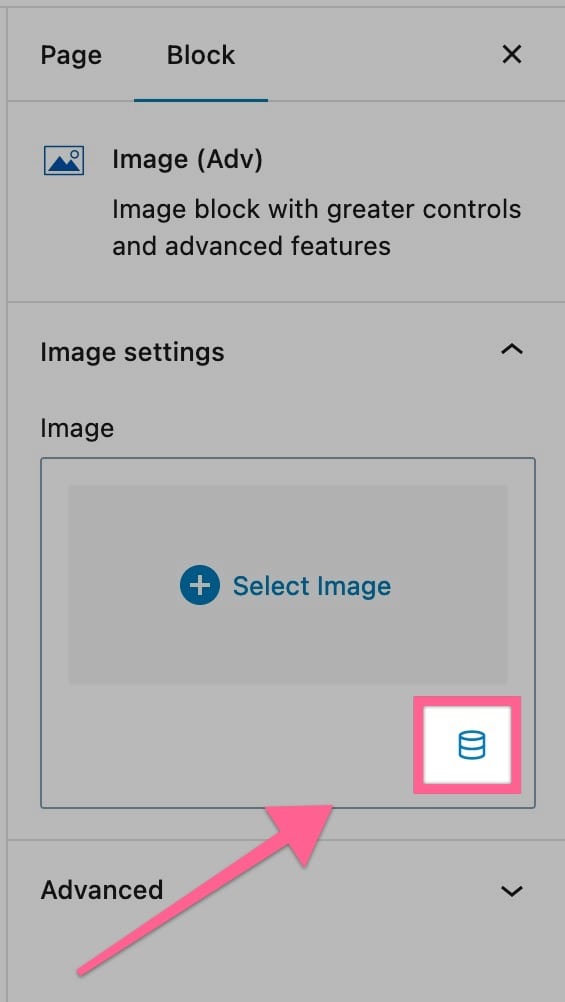
You can add Dynamic Content anywhere you see the Dynamic Content Icon. You will see the Dynamic Content Icon either in the Block ToolBar or next to a Block Setting.
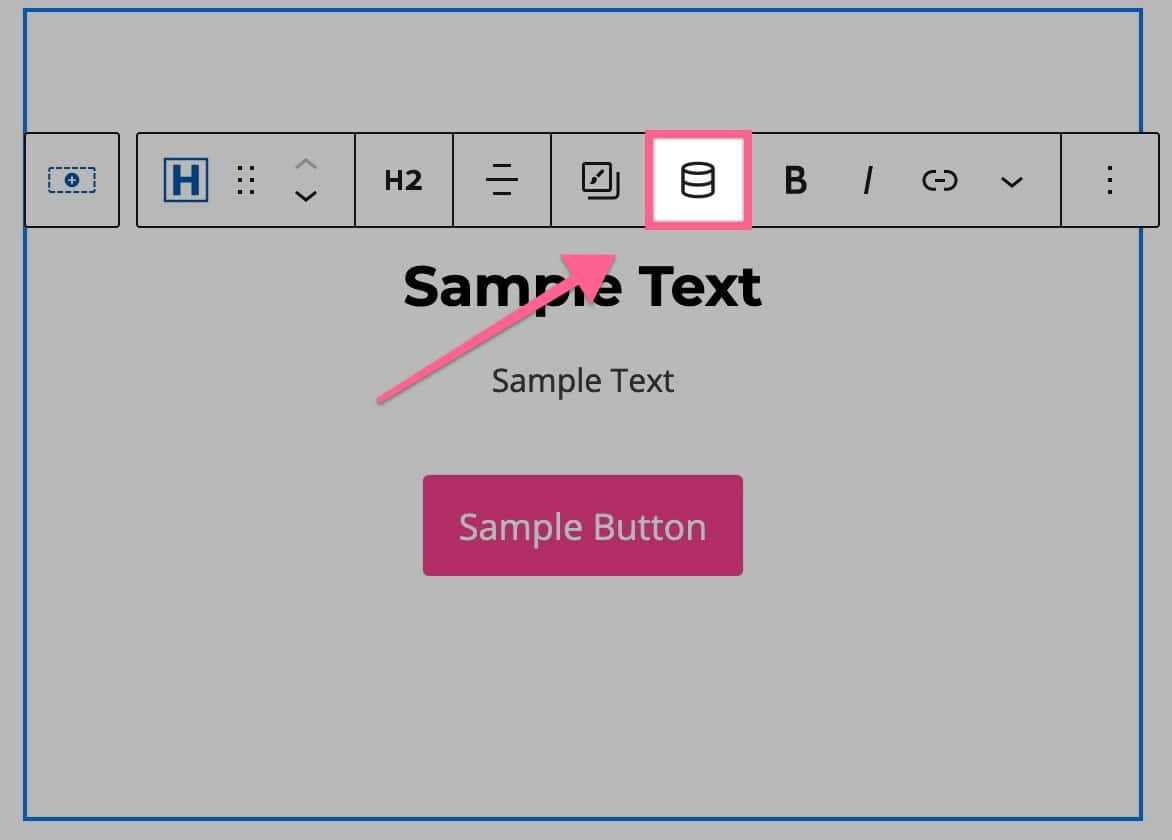
Block Toolbar Dynamic Icon
Dynamic Icon Block Setting

Available Dynamic Content Types

Whenever you add Dynamic Content, you will have to select the Content that you are going to use. This could be like a Post Title or an Author Display Name. You can click on the Dropdown to select one of our many Dynamic Content options available.
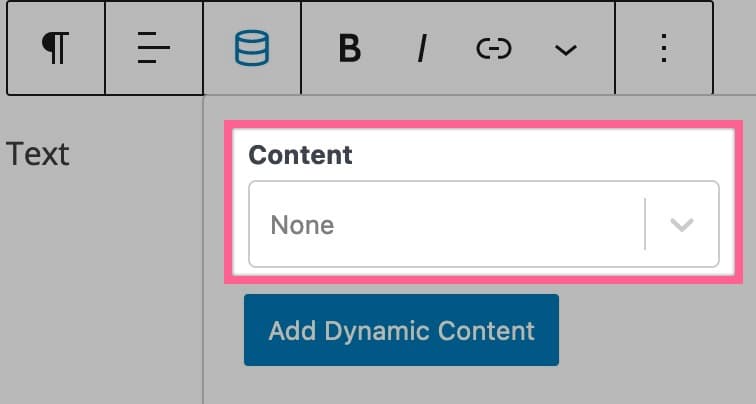
Content Selection

Available Content Options

  • Post – Post Title, Post URL, Post Excerpt, Post ID, Post Date, Post Last Modified Date, Featured Image URL, Post Type, Post Status, and Post Custom Field.
  • Archive – Title, URL, Description, or Archive Custom Field.
  • Site – Site Title, Tagline, URL, Page Title, Current User’s Display Name, or Site Custom Setting.
  • Media – Media URL, Media Title, Media Caption, Media Description, Media Alt Text, Media File Name, Attachment URL, Media Custom Field
  • Author – Author Display Name, Author First Name, Author Last Name, Author Bio, or Author Custom Field
  • Meta Relationship – Post Title, Post URL, Post Excerpt, Post Featured Image, Post Featured Image URL, Post Type, or Post Custom Field.
  • When using a Custom Relationship Field to connect one post to another, the Meta Relationship dynamic content type allows you to pull data from the first related post in the relationship array. (This is limited to only the first relational post.)
  • In the dynamic content dropdown, you’ll notice options like Post Title, Post URL, Post Excerpt, Post Featured Image, Post Featured Image URL, Post Type, and Post Custom Field all under the Meta Relationship section. These may appear similar to the standard “post” dynamic options, but instead of pulling content from the current post, they pull it from the first related post defined by the relationship field.
  • Keep in mind: The standard dynamic options (like Post Title or Featured Image) refer to the current post, while the Meta Relationship options refer specifically to the first related post defined by the ACF relationship field.
  • Current User – First Name, Last Name, Display Name, Email, User Description, Website, Username, User ID, or User Custom Field
  • Time – Current Year, Current Month, or Current Day of the Week.

Custom Inputs

Kadence Dynamic Content allows you to use Custom Inputs to pull values directly from post meta or custom fields, which is especially useful when working with fields/data that Kadence Dynamic Content doesn’t automatically or directly detect.

To use a Custom Input:

  1. Select Dynamic Content in your block settings.
  2. Choose Post Custom Field as the Dynamic Content type.
  3. Switch to Custom Input and enter the meta key for the field you want to display.
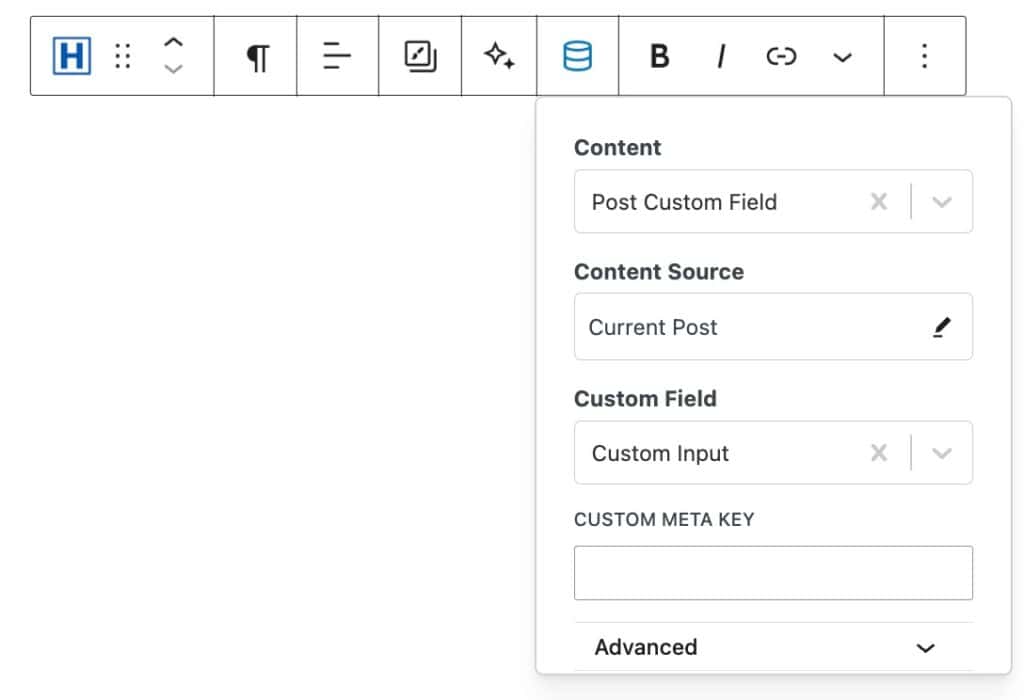
Custom Input

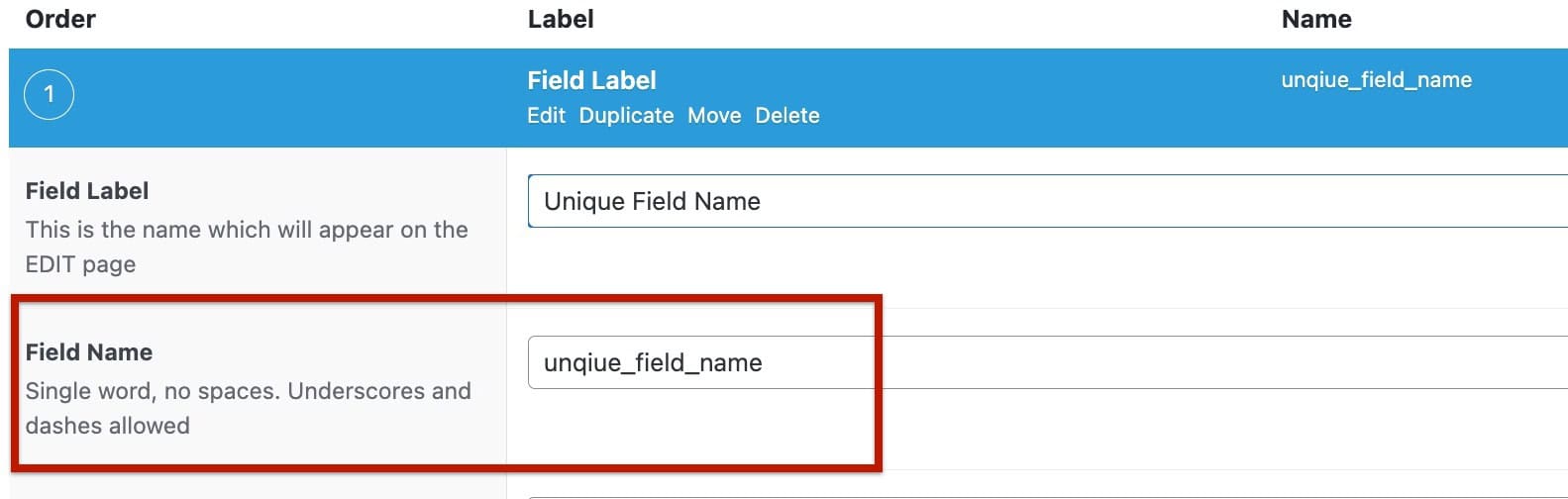
When using Custom Inputs, the meta key you enter corresponds to the field name in your WordPress database:

  • For a regular custom field, the meta key is simply the field name:
    • Text field named Display Name → Custom Meta Key: display_name
    • Number field named Age → Custom Meta Key: age
      (Spaces in the field name are replaced with underscores.)
Example Field name
  • When working with Group Fields, combine the parent group field name with the sub-field name, separating them with an underscore:
    • Group Field: group
    • Sub-Field: text1
    • Meta Key: group_text1

This allows Kadence Dynamic Content to pull the value of the sub-field directly, bypassing the group wrapper. Custom Inputs can also be used for any other meta key stored in your WordPress database, giving you the flexibility to display dynamic content from all post types.

Dynamic Sources

When selecting Dynamic Content, you have the Source and Content options. The Source option determines which source the Dynamic Content is pulled from. The Source is set to the “Current Post” by default. This means the Dynamic Content would apply to the current post shown on. If you were to add this to an Element and display it on multiple Posts, the Dynamic Content would change according to the Current Post that is being viewed.

The Current Post doesn’t directly mean the default Post. If you apply a Custom Field to a Custom Post Type, it would also use the Current Post source to display content from the Current Custom Post.

Usually, the Source stays as “Current Post”. However, there are many cases where you may want to change this. For example, if a restaurant had a website with a Menu that used Custom Fields to display the Items and Prices. You may want to show the Price of a Menu Item Dynamically somewhere else. You can do this by making the Menu Post the Source for the Dynamic Content and selecting the appropriate Custom Field to display the Price. This would allow you to show the Price Dynamically. If you would change the Menu Price, it will also change on the Dynamic Content.

When viewing the Content Source, you will see an Edit Icon. If you click on the Edit Icon, you can Search for a different Content Source to use.
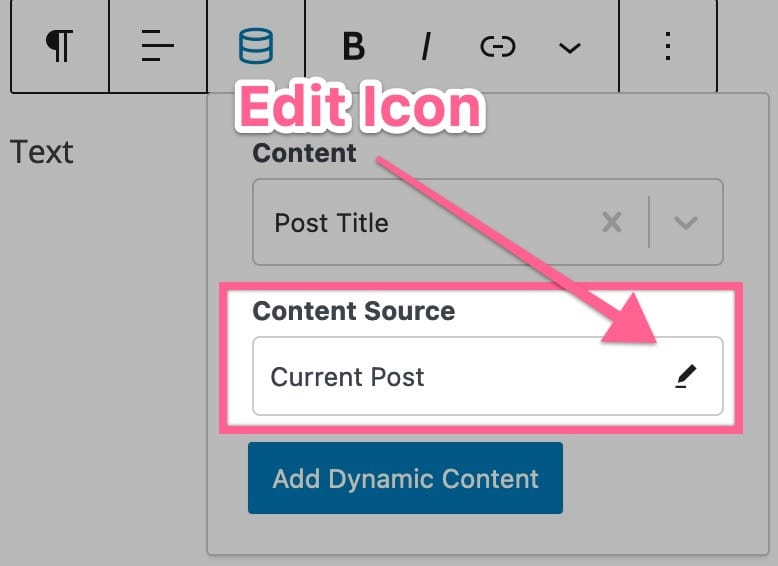
Edit Source

Repeatable Content

One of the notable features within Dynamic Content is “Inline Dynamic Content.” This feature offers two distinct modes:

Inline Mode: In this mode, dynamic content integrates seamlessly with static text within supported blocks. You can customize and edit the text as needed, making it a flexible choice for content creation. This mode is the default way Dynamic Content behaves outside of the Query Loop (Adv) Block.

Replacement Mode: The “Replacement” mode completely replaces the existing text area within supported blocks with dynamic content. This mode is ideal when you want dynamic content to take precedence and remain uneditable, especially in scenarios like query loops.

The system is designed to be intelligent, selecting the appropriate mode based on the context. By default, it uses the “Replacement” mode in situations where it makes more sense, such as within a query loop, and the “Inline” mode for all other scenarios.

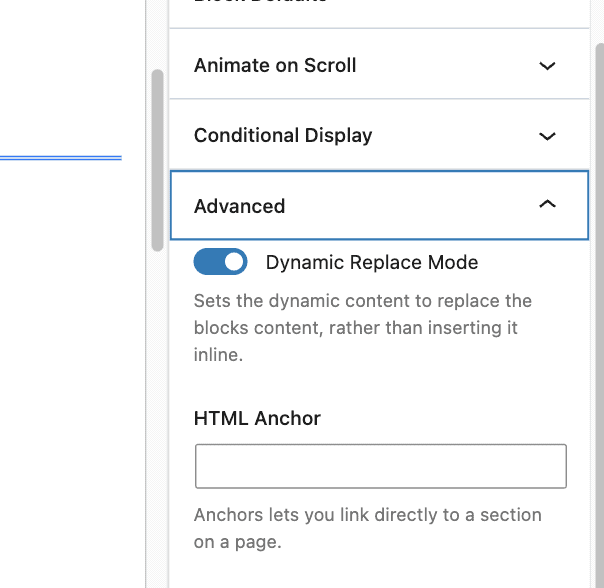
You can manually toggle between the two modes by accessing the “Dynamic Content Mode” or a similar option within the block’s “Advanced” settings.
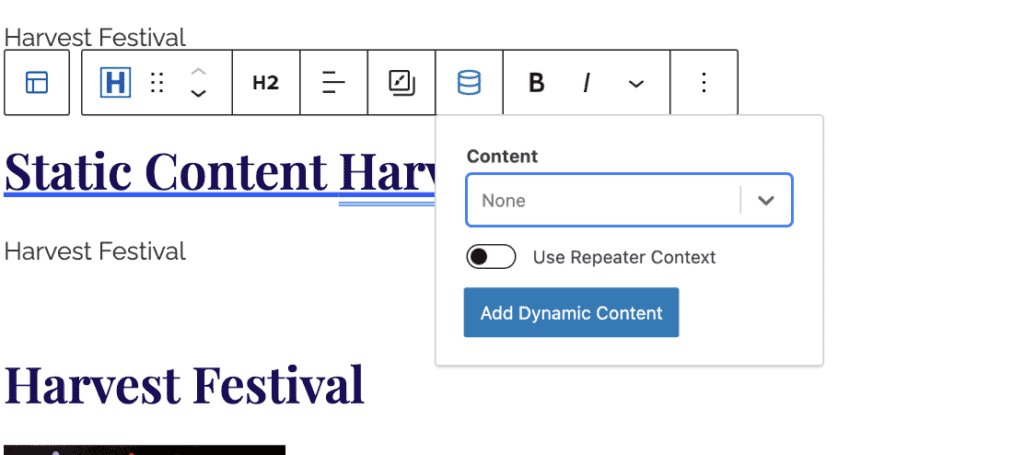
Use Repeater Context
Dynamic Replace Mode Block Setting

Dynamic Custom Fields

You can display Custom Fields from ACF or Metabox using Dynamic Content.

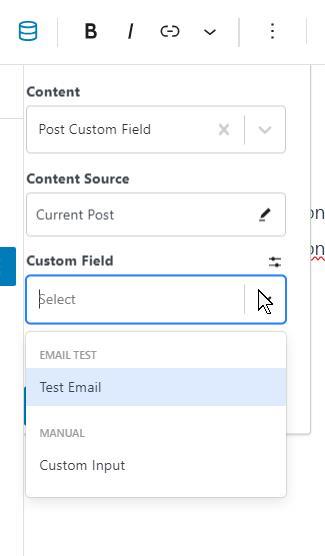
When selecting your Dynamic Content Type, you can select Post Custom Field. Then, you will be able to select your Custom Field to show it dynamically.

custom field select

More Resources

  • How to Use Dynamic Content with Kadence
  • Dynamic Content Inputs and Showing Fields From all Post Types
Do you feel this document was helpful?
The Kadence WP Logo
Crafted in Missoula, Montana
  • Follow Kadence on Facebook
  • Follow Kadence on Youtube
  • X
  • Follow Kadence on Instagram
Trustpilot
Products
  • Kadence Plans
  • Kadence Theme
  • Kadence Blocks
  • Kadence AI
  • Kadence Starter Templates
  • Kadence Shop Kit
  • Kadence Conversions
  • Kadence Pattern Hub
  • View All
Resources
  • Blog
  • Podcast
  • Knowledgebase
  • Support ticket
  • Feature Requests
  • FAQ
  • WordPress Hosting Services
About Us
  • About Kadence
  • Become an affiliate
  • Contact us
  • Terms
  • Privacy Policy
  • Security
Our Partner Brands
  • SolidWP
  • LearnDash
  • The Events Calendar
  • GiveWP
  • MemberDash
Kadence Community
  • Kadence Marketplace
  • Join the Facebook Group
  • Subscribe to our YouTube Channel
© 2024 Kadence WP | All prices are in USD
Logo for StellarWP an umbrella brand of Premium WordPress plugins
  • Pricing
  • Products
    • Premium PlansGet all the tools you need in one plan
    • Kadence ThemeLightning-fast performance theme for modern websites
    • Kadence BlocksDrop in ready designs with advanced controls for pixel perfect websites
    • Kadence Shop KitCreate a more effective WooCommerce shopping experience
    • Kadence ConversionsBoost sales and build engaged audiences with popups and banners
    • Kadence InsightsEasily create A/B tests. Optimize your pages to drive higher conversions.
    • View All Products
    • Get Kadence + Hosting
      In One Place

      Enjoy faster setup, top-tier performance, and worry-free WordPress hosting – Kadence Theme, Kadence Blocks, and Solid Security all pre-installed.

      Learn More

  • Kadence AI
  • Starter Templates
  • Blog
  • Support
    • Resource HubStart here for guides, Product docs, FAQs, and Troubleshooting tips, all in one place.
    • Contact SupportStuck on something? We’re here to help! Open a ticket for top-notch support.
    • Contact Our TeamGot pre-sales questions or need help choosing a plan? Open a ticket and our team will guide you.
    • About usCrafted with love in Missoula, Montana. Meet the team behind the mission.
Account Login
  • Features
  • Pro
  • Starter Templates
  • HelpExpand
    • Documentation
    • Facebook Group
    • Submit a Ticket
    • Feature Requests
    • Roadmap
    • Changelog