
Kadence Pattern Hub connects the Pattern Hub Website to the User Website using API Authentication. If something interferes with this process, you may see the No Connection Data error. This guide covers common causes of the No Connection Data error and how to fix it.

Before completing the steps below, make sure you’ve correctly followed the How to Create Your Own Pattern Hub guide. This guide covers how to install and configure Kadence Pattern Hub. If you’ve completed all the steps and are still facing issues, then use the troubleshooting steps below to help resolve the No Connection Data error.
Public Website
The Kadence Pattern Hub plugin must be installed on a publicly accessible site, meaning the website is live with an active URL. If the site is offline or running in a local environment, other websites won’t be able to detect or use the Pattern Hub.
Check your Connection Details
When connecting to a Pattern Hub Library, there’s always a chance that the Connection URL or Connection Key might be incorrect. Make sure you’re using the correct details, as any mismatch will lead to this error.
Permalink Structure
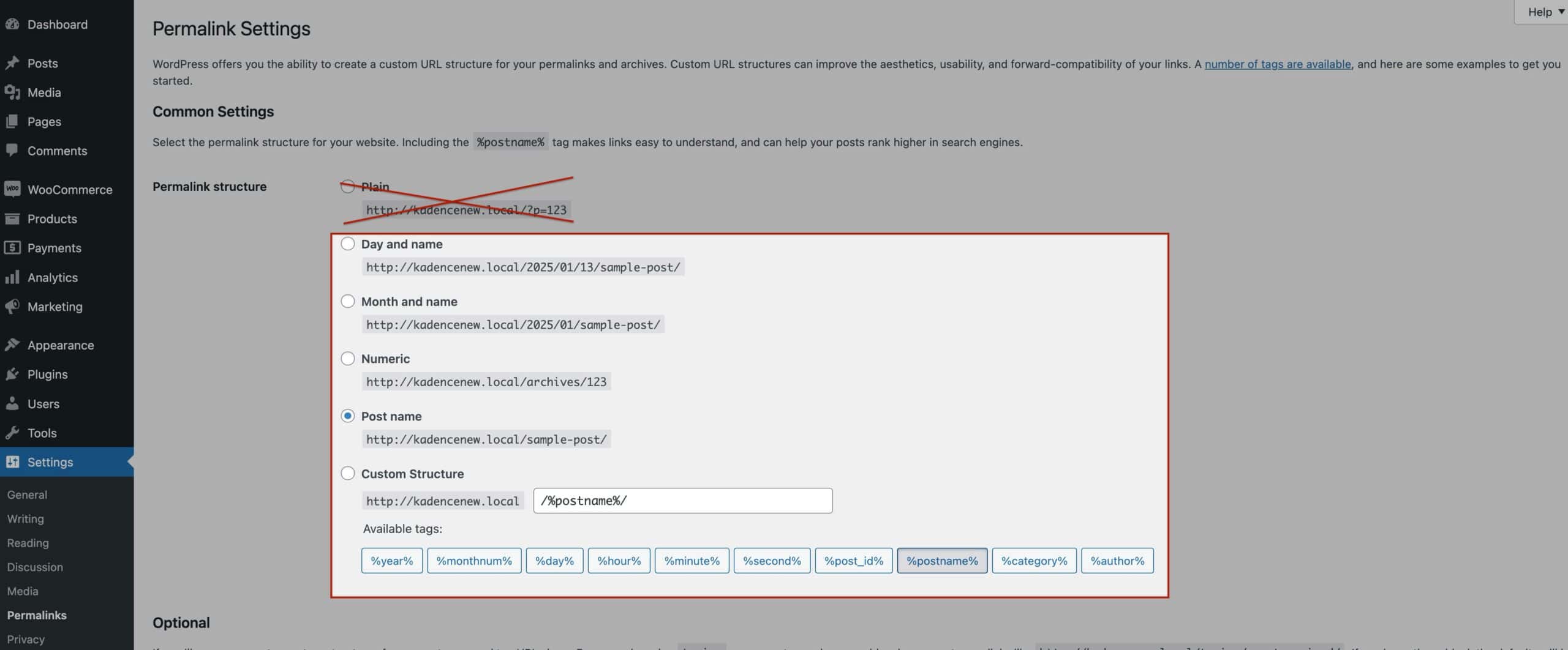
Websites that host a Pattern Hub should use a Permalink Structure other than the default structure, Plain. If a website uses the Plain Permalink Structure, then the connection data may not be available.
Security Settings
Sometimes, Security Plugin Settings or Hosting Security Configurations can block API connections, causing this error. Security Plugins and Settings can block the API Connection from either the Pattern-Hub-hosted website or the Connecting Website. In return, when troubleshooting Security Settings, you should perform the security-related steps on both the Hosting and Connecting websites.
- If you’re using a security plugin, try troubleshooting by deactivating settings one by one. After each change clear your website and browser cache. Then from another website, check if the No Connection Data error persists.
- If you don’t use a security plugin, check your hosting security settings for anything that might be blocking the connection. Your hosting provider may have server error logs that give more details. You can also contact your host for further help.
Firewalls
Firewalls, whether from your Hosting Provider or a Security Plugin, can block incoming and outgoing requests. Try temporarily disabling the Firewall to see if that resolves the issue. (This should be tested on both the Pattern Hub-hosted and the Connecting websites.)
If it does, re-enable the Firewall and check which API Connection is being Blocked. Once you identify it, you can add an Exception for that API Call to prevent the issue from happening again.
CORS
CORS (Cross-Origin Resource Sharing) allows your Pattern Hub Hosting website to share resources with other sites. It needs to be enabled so the Pattern Hub can connect and work properly. Browsers first check if sharing is allowed before loading anything.
You should ensure your Server is set up to allow CORS. If CORS is not enabled, you’ll encounter the No Connection Data error. You can reach out to your hosting provider if you are not sure how to enable CORS. You can also click here to learn more about CORS.
SSL
If your SSL Certificate is expired or improperly configured, secure connections may fail, preventing the Pattern Hub connection. Ensure your SSL Certificate for the Pattern Hub-hosted Website Domain is valid and correctly installed. You can check this through your hosting provider or by using online SSL validation tools.
Whitelisting IPs
Some Hosting/Security Configurations can cause connections to be Blocked if they are not added to a Whitelist. In this case, you have two main options. One is to remove the whitelist feature entirely and allow all IPs to make the connection. Another option is to manually whitelist client IP addresses.
If you are unsure how this can be modified, as this can vary from environment to environment, consider reaching out directly to your hosting provider for further instructions.
Sourcing the issue
Whenever this issue occurs, there are a few ways to check for errors that can point you in the right direction of the root cause. When diagnosing the issue or reporting it to Kadence Support, you should check the following things to help understand the root cause of the issue.
Console Logged Errors
Console Logged Errors often provide insights into issues that occur. From a website that is attempting to connect to the Pattern Hub (Not the Pattern Hub-hosted website), try connecting to the Pattern Hub in question. Whenever you receive the No Connection Data Error, check for Console Logged Errors. These errors will guide you in the right direction of the main cause.
You can view our document for checking Console Logged Errors by clicking here.
WordPress Error Logs
Another way to source the issue is by checking the WordPress Error Logs. On the Pattern Hub-hosted Website, you can enable debug mode. Then, try connecting to the Pattern Hub from a different website. Once you get the No Connection Data Error, check the debug.log file for any key indicators of the issue. (The debug.log on the Pattern Hub-hosted website may provide useful insights into the cause of the error.)
You can view our document about enabling and viewing the WordPress Error Logs by clicking here.
Plugin/Theme Conflicts
Plugin and Theme Conflicts can often cause issues on websites. (When checking for a Plugin and Theme Conflict, you should test this thoroughly on both the Pattern Hub-hosted and the Connecting websites.)
If you are using a theme other than the Kadence Theme, try switching over to a default theme like Twenty Twenty and see if the issue continues. If you are using a Kadence Child Theme, try activating your Kadence Parent Theme and see if the issue continues.
If the theme is ruled out as not being a cause, you should then check for a Plugin Conflict. You can check for a Plugin Conflict by following these steps:
- On the Pattern Hub-hosted website, try deactivating all non-Kadence products and clearing all of your Caches.
- Go to another website, try to connect to the Pattern Hub, and see if the issue occurs.
- If the issue doesn’t occur, begin to reactivate all plugins one by one.
- Each time you activate a plugin, clear your Caches and check to see if the issue occurs.
Once the issue occurs after activating a specific plugin, then that plugin is causing a conflict with the Pattern Hub Connection.
Server-side Error Logs
When an API request is rejected, the server may log errors explaining why the request was denied. This depends on your hosting provider and overall website environment. Not all setups provide direct access to server logs, but if yours does, the logs can offer more detailed information about the issue. (You should test this thoroughly on both the Pattern Hub-hosted and the Connecting websites.)

