
Kadence gives you a lot of flexibility when it comes to adding your own styling and scripts. You can apply them site-wide, or limit them to specific pages or blocks depending on what you need.
- If you’re using the free Kadence Theme, you can add Custom CSS that affects your whole website.
- With Kadence Theme Kit Pro, you can go a step further and add Custom Scripts globally, like JavaScript or jQuery.
- Kadence Blocks Free lets you style individual blocks without affecting the rest of the page..
- For more precise control, Kadence Blocks Pro allows you to insert Custom CSS and Custom Scripts for a single page or post with Block Controls.
This guide will walk you through all the different ways to add Custom CSS and scripts with Kadence so you can tune your design exactly how you want it.
Global CSS (Core WordPress)
WordPress includes a simple, built-in way to add Custom CSS, and the Kadence Theme works perfectly with it.
To use it, you can do the following:
- Go to Appearance → Customize in your WordPress Dashboard.
- Click Additional CSS.
- Add your CSS code in the text box and hit Publish.
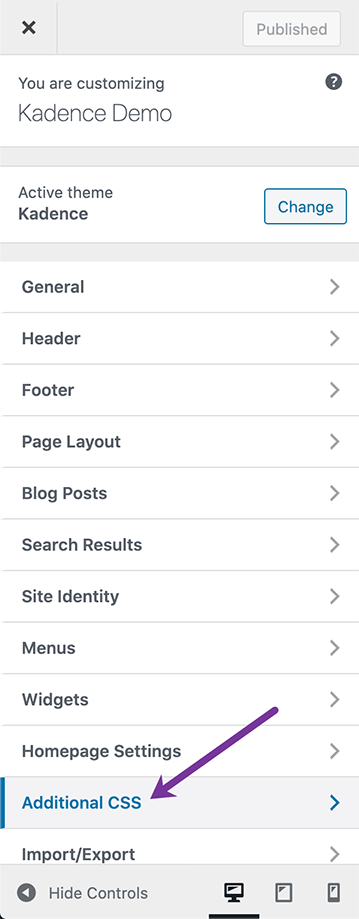
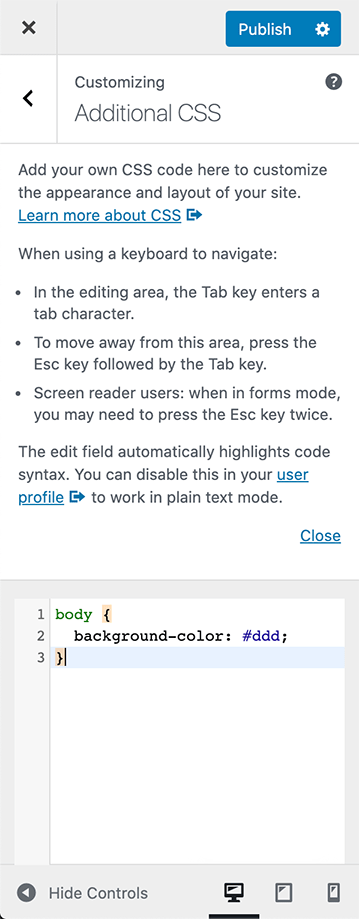
This CSS will apply across your entire website, including all pages, posts, and archives.
Global Scripts (Kadence Theme Kit Pro)
Kadence Theme Kit Pro unlocks the ability to use Custom Scripts, similarly to how Global CSS works, but for script-specific content. (JavaScript/JQuery).
To get started, make sure you have installed and activated the Kadence Theme Kit Pro plugin. Then, go to the WordPress Dashboard -> Appearance -> Kadence page and enable the Header/Footer Scripts option.
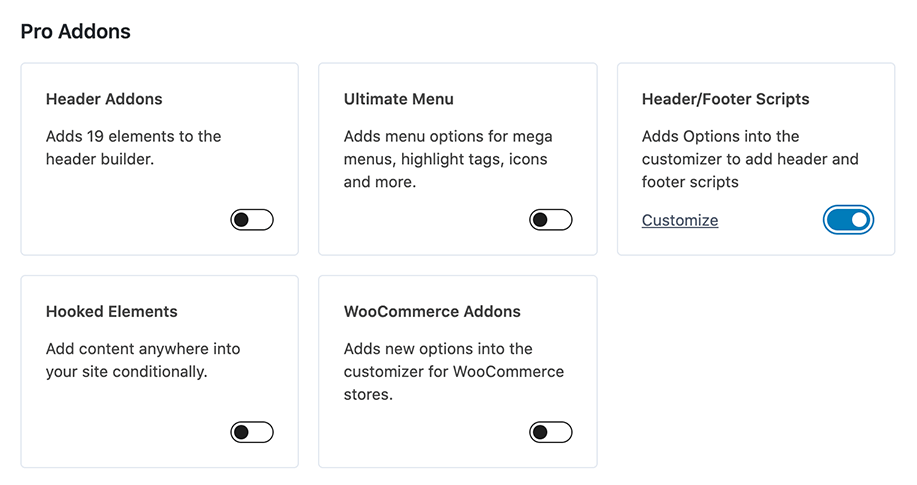
Afterward, click on the Customize link to be taken to the Custom Scripts section in the WordPress Customizer
(Or go to the WordPress Dashboard -> Appearance -> Customize -> Custom Scripts settings manually).
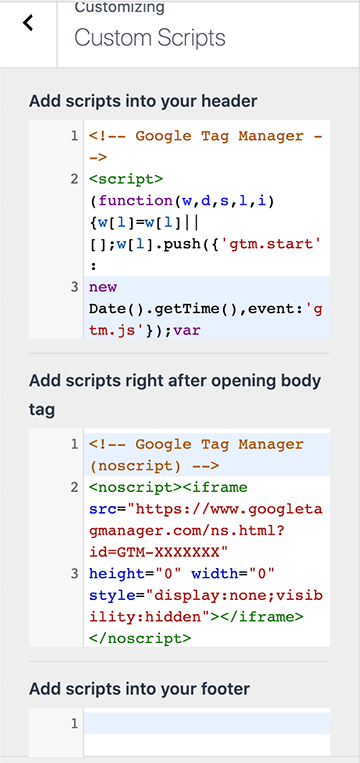
You can add scripts to the Header, right after the opening Body Tag, or into the Footer.
These scripts will appear on every page of your site. A common example of this feature being used is by adding Google Tag Manager scripts. (See the image example.)
You should ensure your Script Code is wrapped in <script></script> tags to ensure the code is properly read.
Block-Level Custom CSS (Kadence Blocks Free)
If you only want to style one block without changing anything else on the page, Kadence Blocks Free makes it simple.
Here’s how:
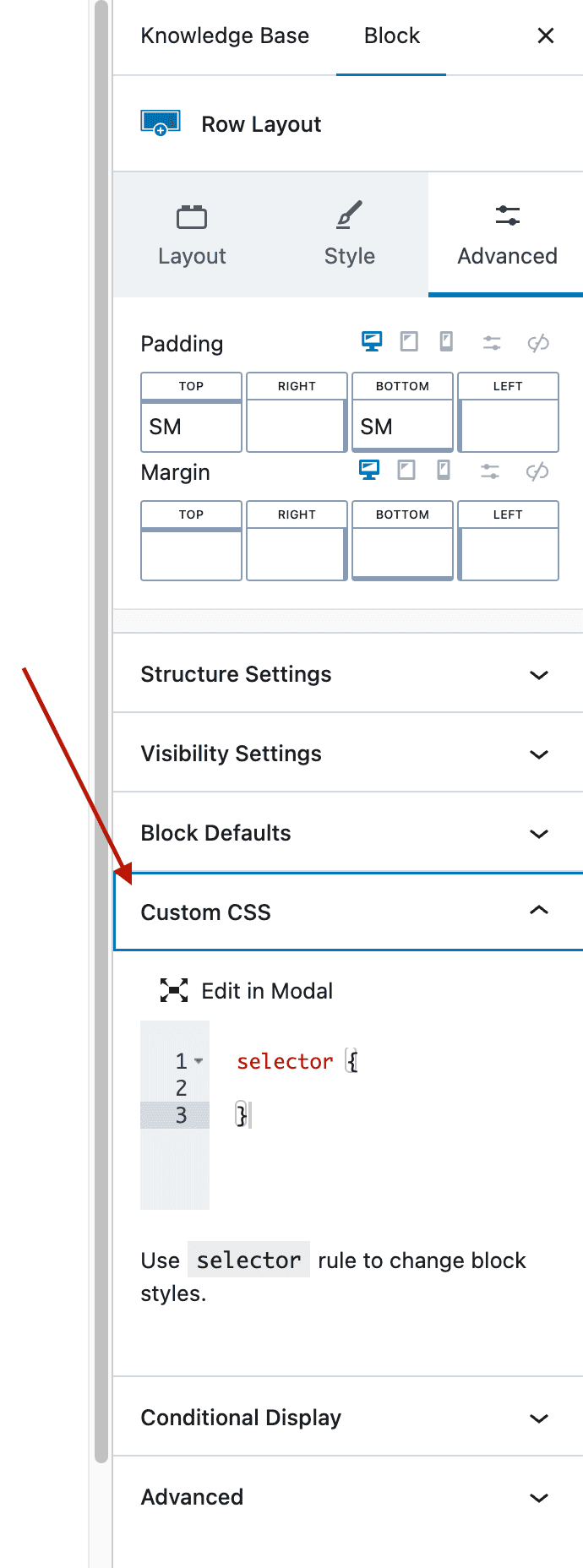
- Click on a Row Layout or Section block in the editor.
- Go to the Block settings sidebar on the right and navigate to the Advanced tab.
- Scroll down until you see the Custom CSS panel.
- Inside the editor, you’ll see a pre-filled keyword selector.
- Use selector as a placeholder. It automatically maps to the current block you’re editing.
Example:
selector {
    background-color: #f5f5f5;
    border-radius: 10px;
    padding: 20px;
}
This way, your CSS only affects the block you’re editing, leaving other elements untouched.
You can also expand the selector by targeting specific inner elements, such as paragraphs. For example, see the code below.
selector p {
    font-size: 16px;
}
Use the Edit In Modal button if you wish to edit the CSS Selector in a pop-up modal instead of from within the Block Settings panel.
Page or Post Specific CSS & JS (Kadence Blocks Pro)
Kadence Blocks Pro unlocks the Block Controls (Learn more). These controls show up within the WordPress Editor when editing any post type. Within the Block Controls, you can find an option to add Page-Specific CSS/JS. This feature allows you to add Custom CSS or Scripts without it applying globally, but on a specific page.
The Block Controls can be located at the top right corner of the WordPress Editor. Look for and click on the K Icon. Then, locate and expand the Page Scripts dropdown to access the ability to add post-specific codes.
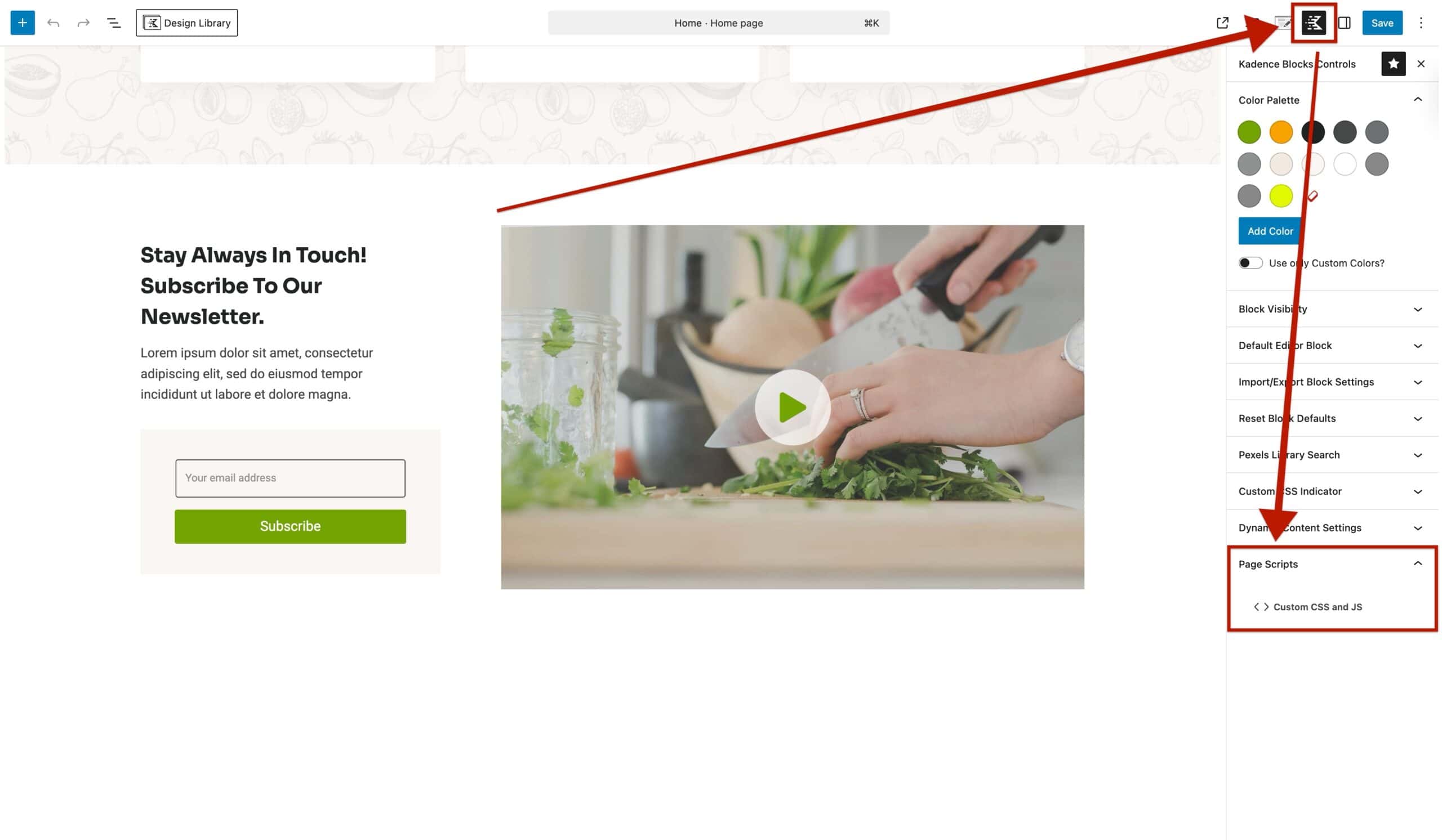
This will open a modal where you can add Custom CSS to the Post/Page, or insert Custom Scripts into the Head, Body, and/or Footer sections.
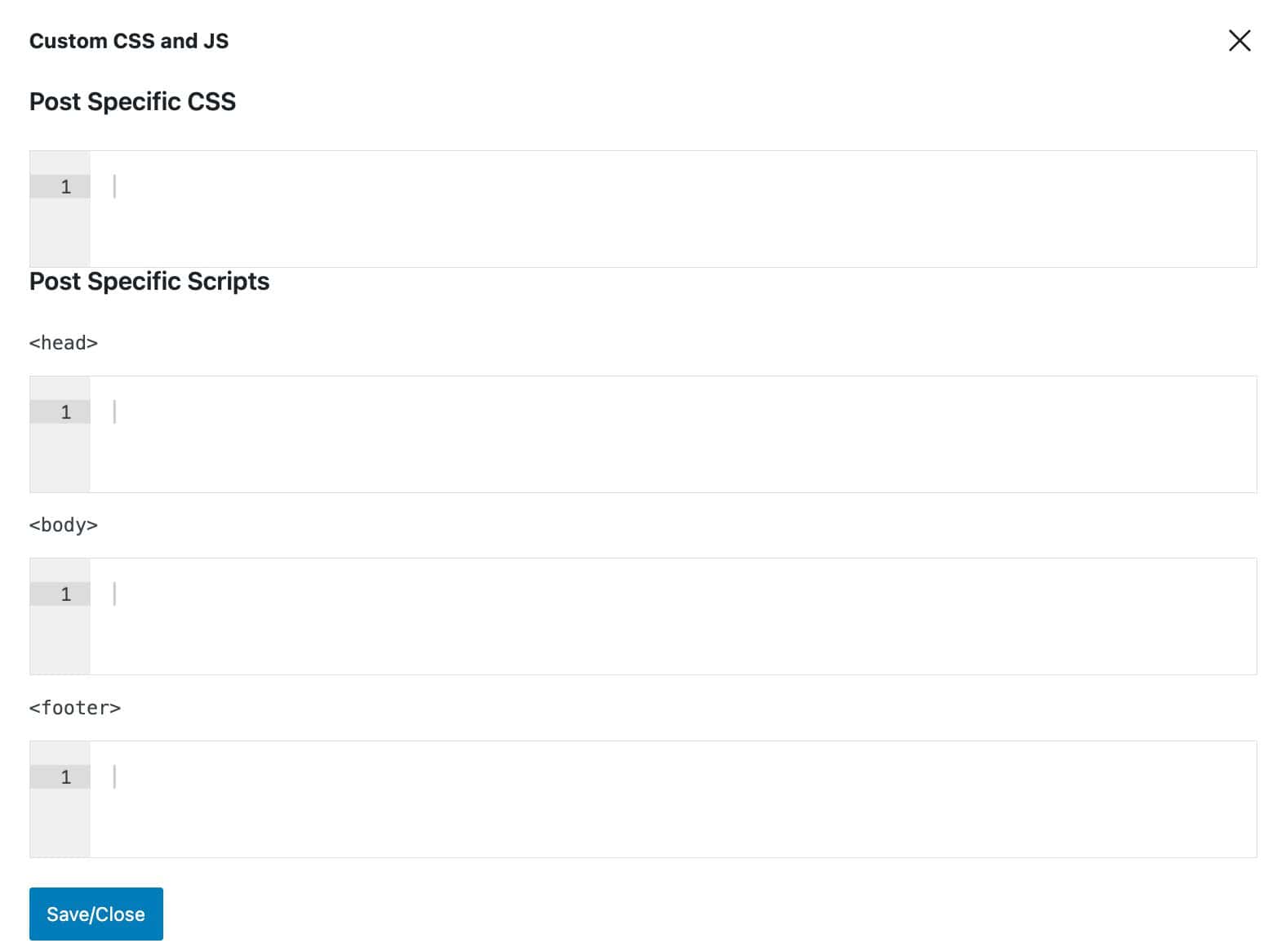
Note: It’s not necessary to include the opening and closing <style> tags for CSS but you do need to wrap your scripts in a <script> tag in the scripts sections.

