Skip to content
Help Center
  • Pricing
  • ProductsExpand
    • Premium PlansGet all the tools you need in one plan
    • Kadence ThemeLightning-fast performance theme for modern websites
    • Kadence BlocksDrop in ready designs with advanced controls for pixel perfect websites
    • Kadence Shop KitCreate a more effective WooCommerce shopping experience
    • Kadence ConversionsBoost sales and build engaged audiences with popups and banners
    • Kadence InsightsEasily create A/B tests. Optimize your pages to drive higher conversions.
    • View All Products
    • Get Kadence + Hosting
      In One Place

      Enjoy faster setup, top-tier performance, and worry-free WordPress hosting – Kadence Theme, Kadence Blocks, and Solid Security all pre-installed.

      Learn More

  • Kadence AI
  • Starter Templates
  • Blog
  • SupportExpand
    • Resource HubStart here for guides, Product docs, FAQs, and Troubleshooting tips, all in one place.
    • Contact SupportStuck on something? We’re here to help! Open a ticket for top-notch support.
    • Contact Our TeamGot pre-sales questions or need help choosing a plan? Open a ticket and our team will guide you.
    • About usCrafted with love in Missoula, Montana. Meet the team behind the mission.
Account Account
Get Kadence
Kadence Theme
  • Features
  • Pro
  • Starter Templates
  • HelpExpand
    • Documentation
    • Facebook Group
    • Submit a Ticket
    • Feature Requests
    • Roadmap
    • Changelog
Help Center
Kadence Theme

Getting Started

Customize Settings

Header

General WordPress

Troubleshooting

  • Troubleshooting White/Blank Screens in the Editor or Customizer
  • How to Download Previous Versions of the Kadence Theme and Plugins
  • Recommended Server Resources

Advanced

Theme Kit Pro

  • Kadence Custom Fonts

Kadence Elements

Hooked Element Guides

  • How to Design a Post Grid/Carousel using a Kadence Element

Woocommerce

  • Home
  • Knowledge Base
  • Kadence Theme
  • Kadence Blocks
  • Block Tutorials

How to Control the Hero or Title Section Sitewide and Per Page in Kadence

The Hero Section (also called a Title Section) is the top part of your page that usually includes the page title, subtitle, background image or color, and layout styling. With the Kadence Theme, you have full flexibility to control this section globally across your site or customize it for individual pages and posts. You can even create completely custom designs using Kadence Blocks or Kadence Hooked Elements (Pro).

This guide walks you through the different ways to control and design your Hero/Title Sections depending on your needs.


1. Controlling Sitewide Hero/Title Sections

If you want to control the appearance of Hero/Title Sections for all posts, pages, or archives across your site, the Customizer is the best place to start.

Using the Customizer

Go to Appearance → Customize → Posts/Pages Layout. Here, you’ll find settings to enable or disable the built-in Title Section and adjust its appearance.

You can:

  • Show or hide the title section globally for posts, pages, and archives
  • Set layout options such as alignment, spacing, and background color or image
  • Customize typography and section padding
  • Toggle the “Use Featured Image for Background?” option ON so the background image of the “Above Content” title sections will show different background images for each page.

These changes apply globally, so all pages or posts of that type will follow the same styling.

Helpful guides:

  • Customizing the Theme’s built-in Post Title
  • Customizing the Theme’s built-in Page Title

2. Controlling Hero/Title Sections for Individual Pages or Posts

If you want to create unique Hero Sections for specific pages or posts, you can do that directly from the editor.

Step 1: Disable the Built-In Title Section

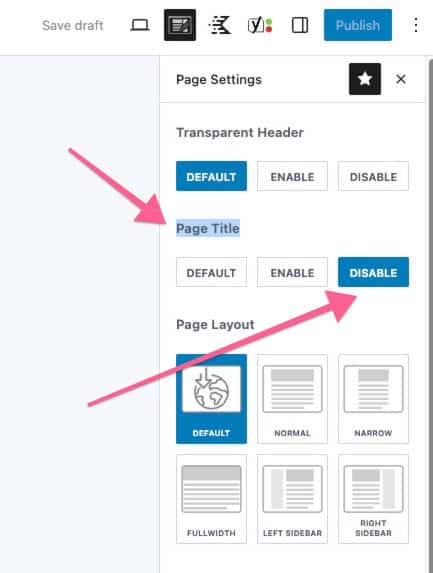
In the WordPress editor, open the Page Settings or Post Settings panel (usually on the right side).
Then set “Show Page Title” or “Show Post Title” to Disable.

This removes the default title section so you can design your own.
Step 2: Create Your Custom Hero Section

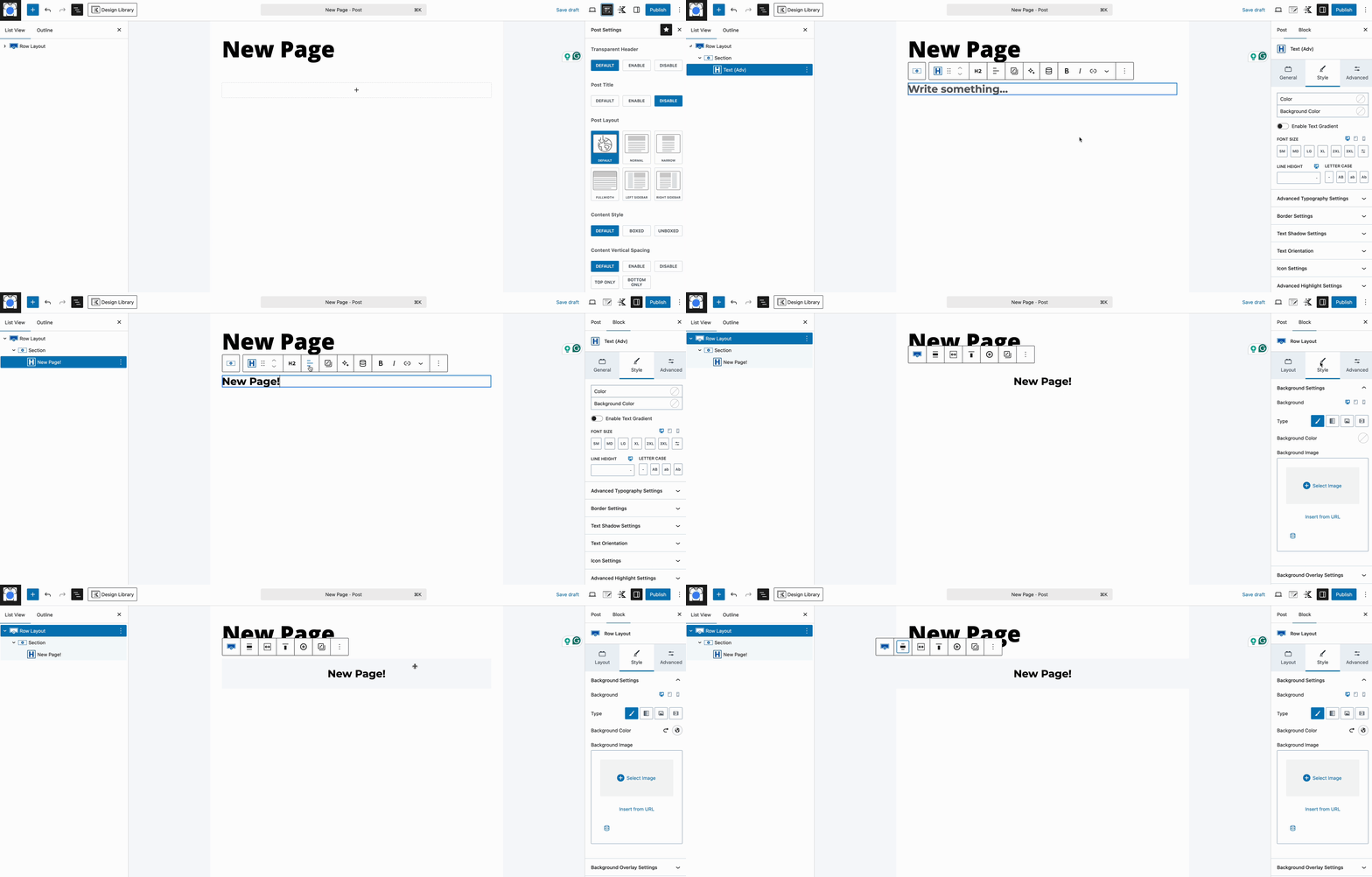
Use Kadence Blocks directly in the content editor to build your section.
Custom Title Demo

Recommended blocks:

  • Row Layout – for flexible layouts and background options (images, colors, overlays)
  • Advanced Text – for styled titles, subtitles, and headings

You can customize:

  • Layout structure (columns, width, spacing)
  • Background (image, color, overlay)
  • Typography and alignment
  • Visibility per device

This method gives you complete control over the look and feel of the section on a page-by-page basis.

⚠️ Note: This method only works for individual posts, pages, or custom post types. It does not apply to archive pages like categories or blog listings.


3. Creating Dynamic or Sitewide Hero Sections with Hooked Elements (Kadence Pro)

For more advanced control, especially on archive pages or for inserting dynamic content, you can use Kadence Hooked Elements, available with the Kadence Theme Pro addon.

What Are Hooked Elements?

Hooked Elements let you insert custom content in specific areas of your site by hooking into predefined positions in the theme layout. This works for:

  • Pages
  • Posts
  • Archive pages (categories, tags, blog feed, etc.)

Use Cases

  • Replace the default Title Section with your own custom design
  • Add additional content (like a subtitle or banner) above or below the default title
  • Use dynamic content like post titles or featured images

How to Create a Hooked Element


Creating an Element

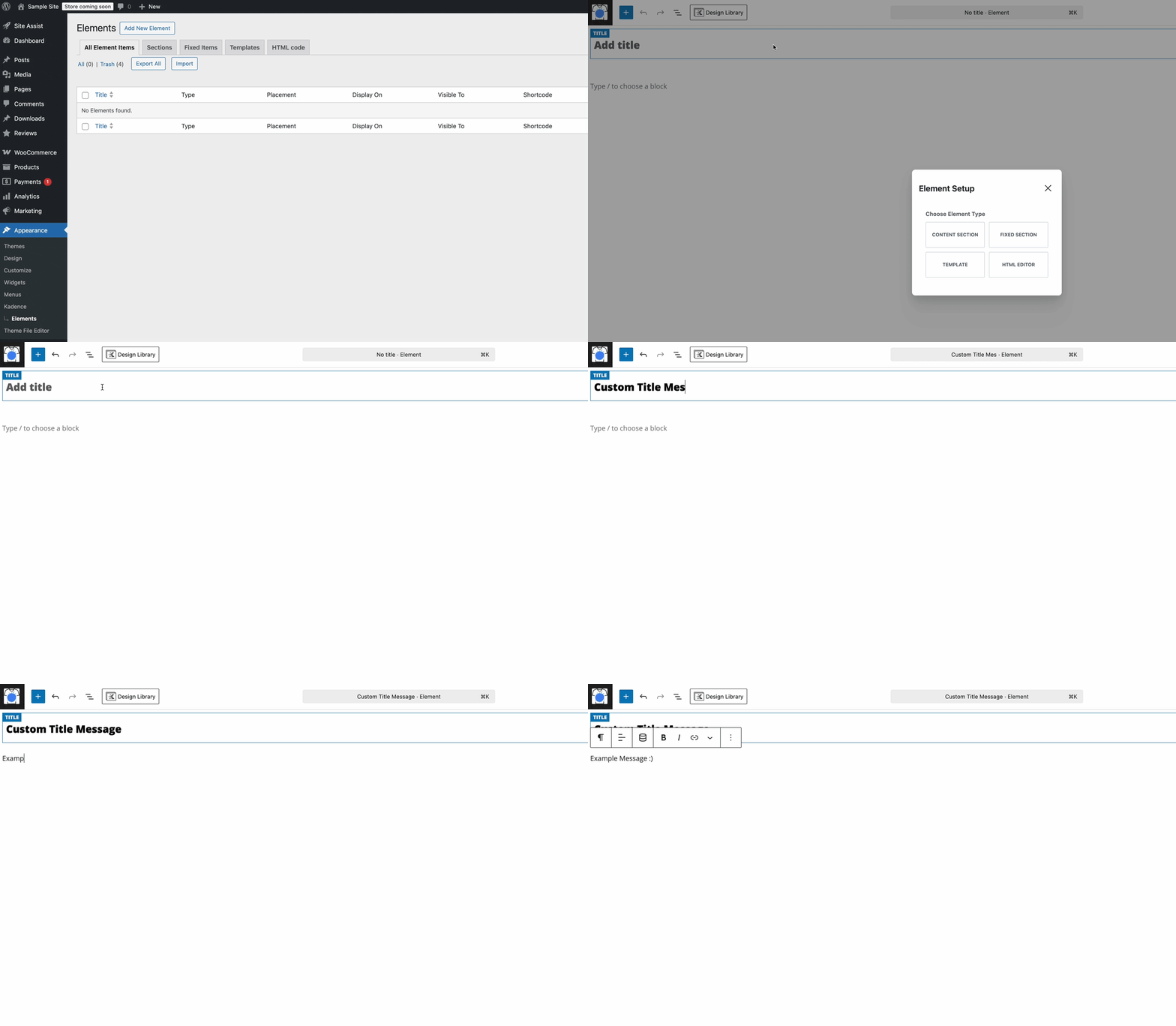
  1. Go to: Appearance → Kadence → Elements → Add New
  2. Choose Content Section
  3. Add your design using Kadence Blocks
  4. Under Placement, choose where it should appear:
    • Use “Replace Above Content Hero” to fully replace the default title section
    • Or use insert options to place content above/below the existing title
  5. Set Display Settings:
    • Choose where it shows (e.g., single post, all pages, archive)
    • Optionally limit by device or user role

If you’re using Kadence Blocks Pro, you can also pull in Dynamic Content, such as:

  • Post or page title
  • Featured image
  • Custom fields

This method is ideal for consistent and dynamic layouts across your site.

References:

  • Using Dynamic Content
  • How to Use Element Hooks
  • Creating Content Elements
Do you feel this document was helpful?
The Kadence WP Logo
Crafted in Missoula, Montana
  • Follow Kadence on Facebook
  • Follow Kadence on Youtube
  • X
  • Follow Kadence on Instagram
Trustpilot
Products
  • Kadence Plans
  • Kadence Theme
  • Kadence Blocks
  • Kadence AI
  • Kadence Starter Templates
  • Kadence Shop Kit
  • Kadence Conversions
  • Kadence Pattern Hub
  • View All
Resources
  • Blog
  • Podcast
  • Knowledgebase
  • Support ticket
  • Feature Requests
  • FAQ
  • WordPress Hosting Services
About Us
  • About Kadence
  • Become an affiliate
  • Contact us
  • Terms
  • Privacy Policy
  • Security
Our Partner Brands
  • SolidWP
  • LearnDash
  • The Events Calendar
  • GiveWP
  • MemberDash
Kadence Community
  • Kadence Marketplace
  • Join the Facebook Group
  • Subscribe to our YouTube Channel
© 2024 Kadence WP | All prices are in USD
Logo for StellarWP an umbrella brand of Premium WordPress plugins
  • Pricing
  • Products
    • Premium PlansGet all the tools you need in one plan
    • Kadence ThemeLightning-fast performance theme for modern websites
    • Kadence BlocksDrop in ready designs with advanced controls for pixel perfect websites
    • Kadence Shop KitCreate a more effective WooCommerce shopping experience
    • Kadence ConversionsBoost sales and build engaged audiences with popups and banners
    • Kadence InsightsEasily create A/B tests. Optimize your pages to drive higher conversions.
    • View All Products
    • Get Kadence + Hosting
      In One Place

      Enjoy faster setup, top-tier performance, and worry-free WordPress hosting – Kadence Theme, Kadence Blocks, and Solid Security all pre-installed.

      Learn More

  • Kadence AI
  • Starter Templates
  • Blog
  • Support
    • Resource HubStart here for guides, Product docs, FAQs, and Troubleshooting tips, all in one place.
    • Contact SupportStuck on something? We’re here to help! Open a ticket for top-notch support.
    • Contact Our TeamGot pre-sales questions or need help choosing a plan? Open a ticket and our team will guide you.
    • About usCrafted with love in Missoula, Montana. Meet the team behind the mission.
Account Login
  • Features
  • Pro
  • Starter Templates
  • HelpExpand
    • Documentation
    • Facebook Group
    • Submit a Ticket
    • Feature Requests
    • Roadmap
    • Changelog