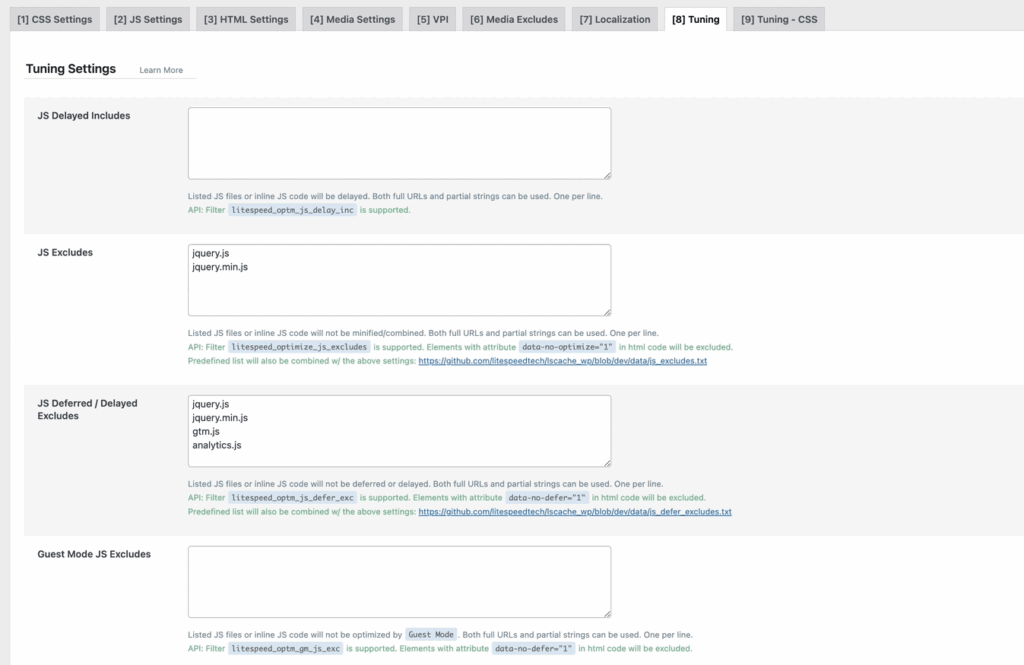
When using a Caching/Optimization plugin, styles or functionalities may occasionally break. This can vary depending on the site and its configuration, as each website is unique. Kadence products are fast right out of the box, but as a site grows and adds more content, enabling Caching/Optimization becomes more important. In some cases, optimization can cause Styles or Functionality to break due to various factors. For example, delaying JavaScript for critical elements like the Header may lead to unexpected issues.
If you encounter issues with broken styles or functionalities, you can troubleshoot by disabling specific settings or excluding the file causing the problem. This guide will walk you through how to Troubleshoot Optimization Settings and help identify which files need to be excluded.
Identifying the Optimization/Caching Setting
The first step is to identify If your Caching/Optimization plugin is causing the broken style/functionality. You can identify if this comes from a Cache/Optimization Setting by disabling your Cache/Optimization Plugin completely. Then, clear your web browser cache and see if the issue continues. If the issue goes away, the issue is coming from the Cache/Optimization configuration.
You can also often use the /?nocache=1 parameter at the end of a URL to bypass caching. This can help determine whether the issue is cache-related. Simply add /?nocache=1 to the end of the URL and visit the page. If the issue no longer occurs, then caching is the likely cause.
For example: https://website.com/about-us/?nocache=1
Once you have clarified that the Optimization/Caching Plugin configuration is responsible for the broken style/functionality, you can follow the steps below to identify the plugin setting.
- Enable your Optimization/Caching plugin.
- Begin to disable Optimization/Caching settings one by one.
- After each change, clear both your Website and Browser Caches.
- Then, check to see if the issue occurs.
Once the issue occurs after disabling a specific setting, you’ve identified the cause of the broken style or function. From here, you can either disable the setting completely or, if your plugin allows, exclude the file causing the issue. Below, you can learn how to locate and exclude files.
Identifying the File
Once you’ve found the setting causing the issue, you can locate the file where the issue occurs. Then, you will be able to exclude that file from optimization.
Here’s how to do it:
- Determine the source of the style or functionality: Check whether it comes from a Kadence plugin or the Kadence theme. The best way to do this is by backtracking to where you set the style or functionality:
- If you used the Customizer Settings or anything from Dashboard -> Appearance -> Kadence, the setting comes from the Kadence Theme. (If the setting wasn’t specific to another plugin, such as Theme Kit Pro)
- If you set up the style or functionality using a Kadence Block or dynamic content, it comes from the Kadence Blocks plugin.
(This rule applies to all Kadence products. For example, if you’re facing a styling issue with Kadence Conversions, check the Kadence Conversion Plugin Folder. If an issue was specific to a Hooked Element, then it would be related to Theme Kit Pro, etc.)
- Disable your Cache/Optimization plugin: The next step is to fully disable all forms of Caching/Optimization. This ensures that files load in their default state for accurate troubleshooting. (This step must be done in order for the remaining steps to work properly)
- Load a page where the issue occurs: Open the page or post where the style or function would usually break when your Optimization/Caching Settings were enabled previously. This will allow you to load the files in question in their natural state and locate them using the Inspector Tools.
- Use Inspector Tools: Once on the page in question, right-click on the page and select Inspect to view the page source.
- View the Page Source: In the top left corner, click on Sources. Then, in the tab under Sources, select the Page tab. This will let you view the Plugin and Theme Files loaded on the page.
- Locate the file: In the Inspector Page File Source, expand the wp-content folder, then find and expand the Plugin or Theme folder. Inside the folder, you’ll typically see two subfolders: one for JS and one for CSS.
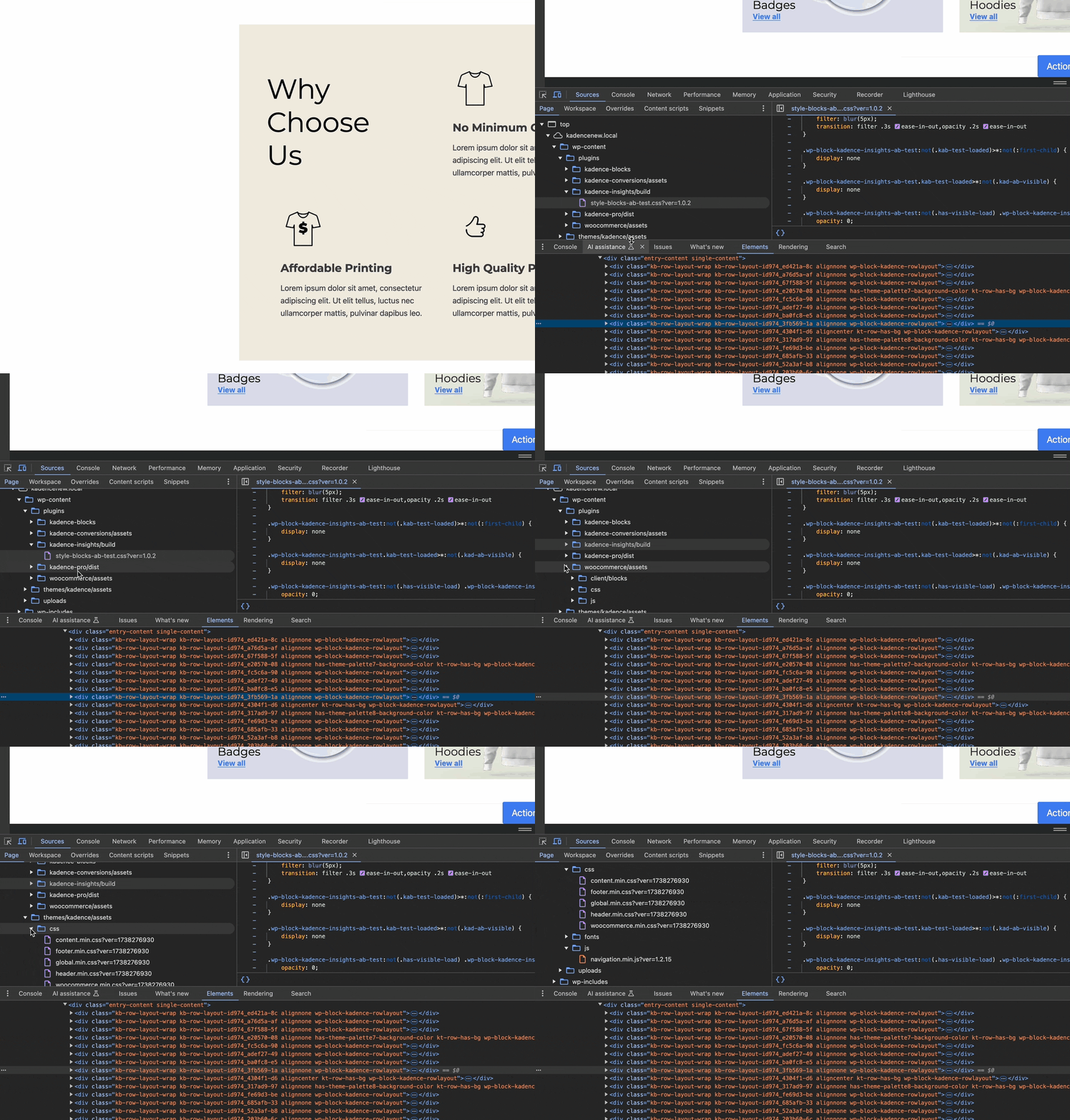
- If the issue is visual (like a broken layout), it’s likely caused by CSS, so expand the CSS folder.
- If the issue is functional (like a modal not opening or query filtering not working), it’s likely caused by JS, so expand the JS folder.
- For example, here is the File Source for Kadence Blocks Pro whenever Animate On Scroll features are being used on the active page.
- (In this example: If the issue was related to a Style, such as a Text Color or Text Size, you would focus on the CSS file. If the issue was related to the Animation not playing or working properly, you would focus on the JS file.)
- Please note that this feature is also available with Kadence Creative Kit. So if you are using Creative Kit and not Kadence Blocks Pro, look within the Creative Kit directory instead of the Blocks Pro directory.

- You can right-click on the file and either Copy the File Name or the File Link. When copying the File Link, you will also gain the directory details. Some Caching Plugins go off of specific File Names, while others may require the Directory and File Name.
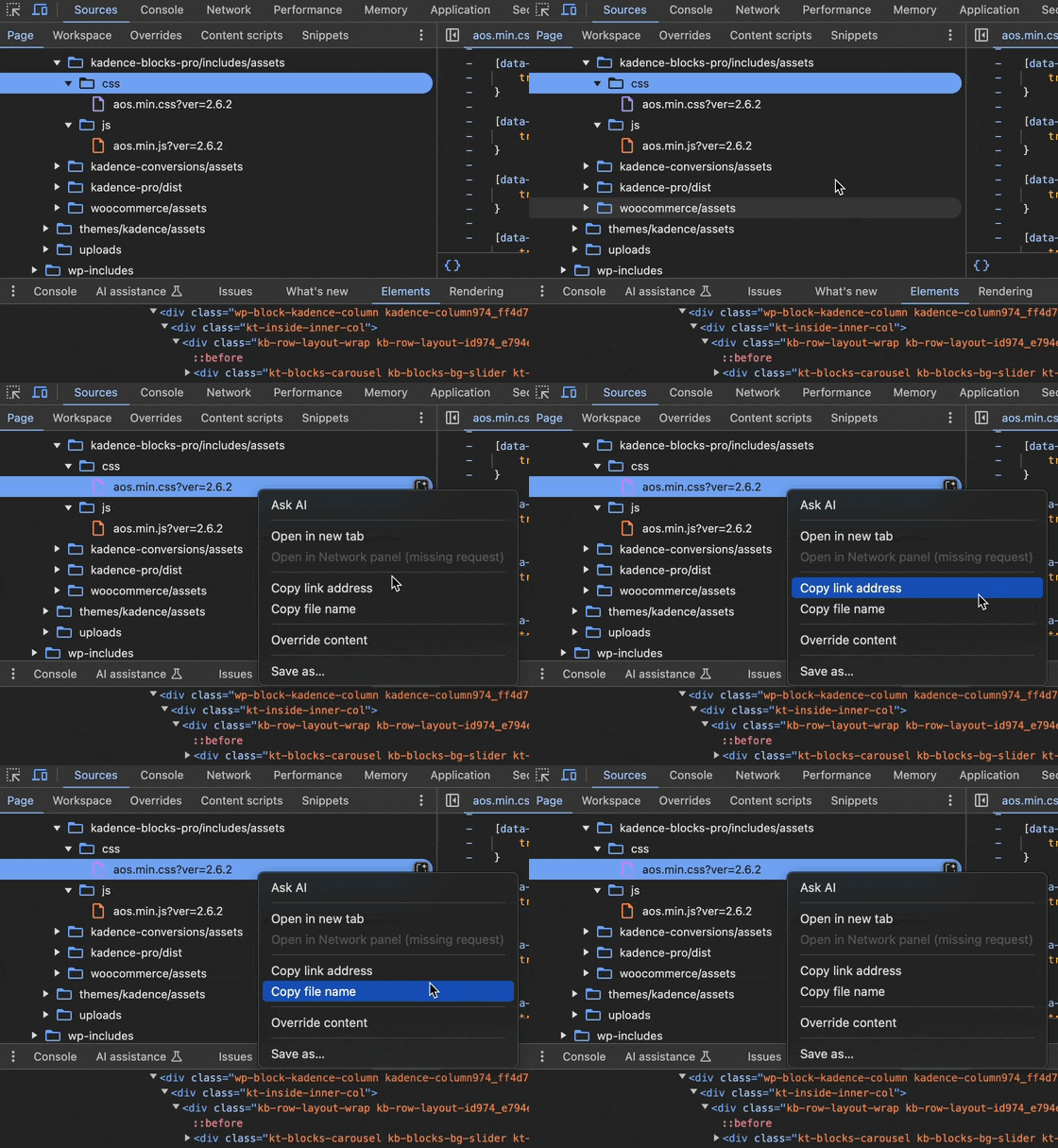
- Here is an example of the file name
aos.min.css?ver=2.6.2
- Here is an example of the File URL
http://samplewebsite.com/wp-content/plugins/kadence-blocks-pro/includes/assets/css/aos.min.css?ver=2.6.2
- The last step is to remove the
?ver=x.x.xtext from the File Name. This will change as updates occur and you do not need to specify these version details to exclude the file. - If you are using the File URL, you can remove the
?ver=x.x.xtext from the end of the File Name as well. However, you also want to remove the Website URL text that occurs before/wp-content/.
- Here is an example of the Corrected File Name
aos.min.css?
- Here is an example of the Corrected File URL
/wp-content/plugins/kadence-blocks-pro/includes/assets/css/aos.min.css?ver=2.6.2
Excluding Files from Caching/Optimization
Caching/Optimization Plugins often offer the option to Exclude CSS or JS files from forms of optimization. Once you have identified the Caching Setting responsible for the issue and have identified the file in question, you should have the option to Exclude Files from that form of Optimization.
This is typically managed through the Caching/Optimization Settings. Some plugins provide exclusion options directly below the Main Optimization Setting once it is enabled, while others may have a dedicated section, such as “Excludes”, “Tuning”, or “Fine-Tuning.”