
Every website owner eventually needs to consider performance optimization when building a website with WordPress. Whether you’re running a personal blog or a full-scale eCommerce store, speed impacts everything from user experience to SEO rankings. That’s where PageSpeed Insights (PSI) comes in.
PSI is a tool that helps you understand how your website performs in the real world, and why it might need a performance tune-up. In this guide, we’ll explain what PageSpeed Insights is, why it matters, and how it ties into broader topics like SEO, accessibility, and WordPress optimization, especially when building with Kadence.
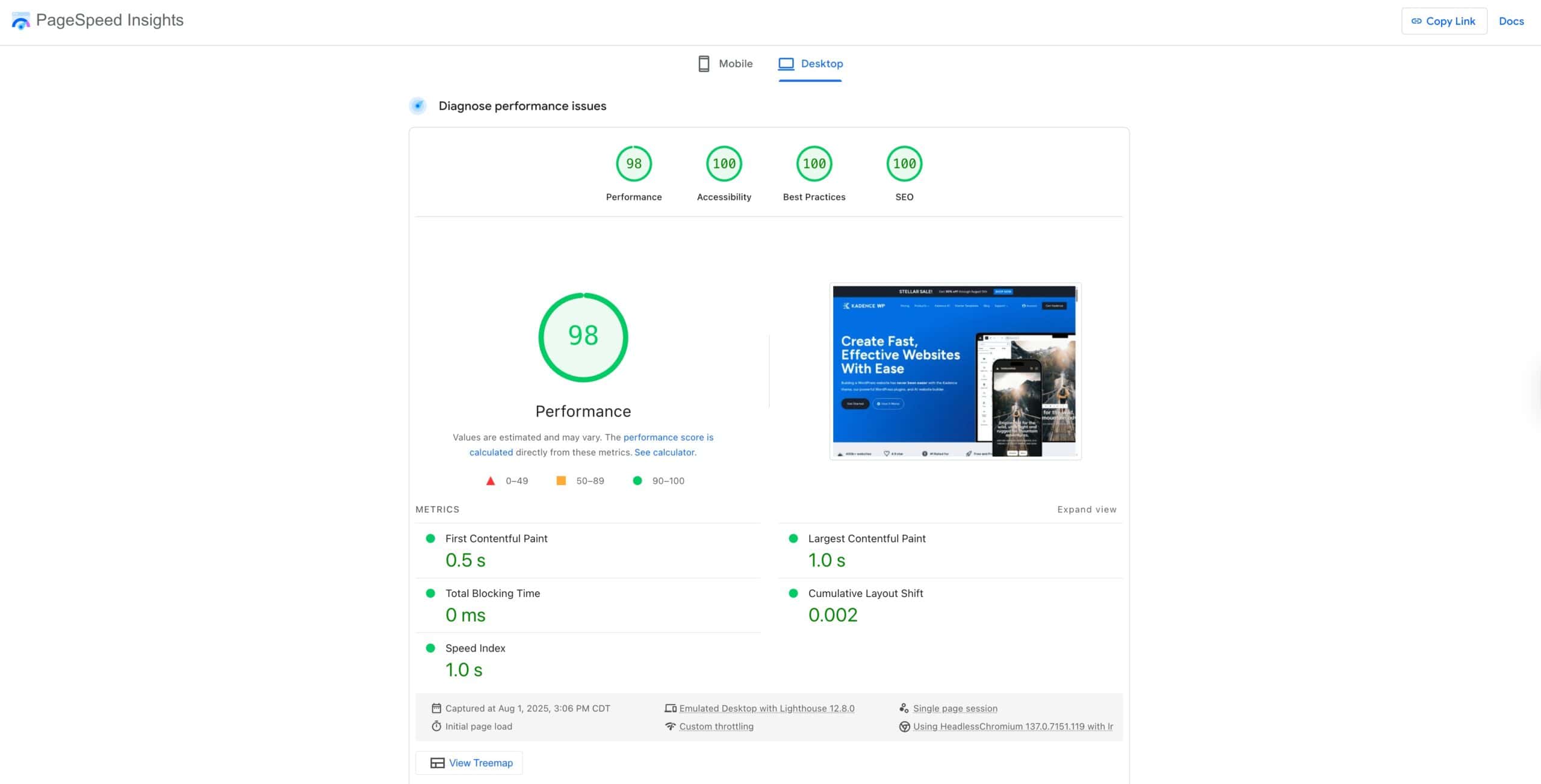
If you run into cases where your front-end may load slowly, the Page Speed Insights tool is a great way to help determine where that is coming from.
What is PSI, and why does it matter?
PageSpeed Insights (PSI) is a free tool by Google that helps you understand how your website performs, both in terms of speed and user experience. But beyond just loading time, PSI measures how your site functions in real-world conditions and provides specific suggestions you can use to improve your results. If your site is slow/sluggish, hard to navigate, or unstable as it loads, PSI is one of the best ways to figure out what’s wrong and how to fix it.
There are many speed-testing tools out there, but PSI is different because it reflects how Google evaluates your site. This matters because PSI connects directly to your site’s SEO performance and Core Web Vitals, which are official ranking factors. By understanding what PSI measures and how to read your results, you can make informed decisions that directly impact how well your site performs in search and how good it feels for your visitors to use.
What does PSI measure?
PageSpeed Insights measures your core web vitals, website structure, best practices, performance, and more. (Learn more below.)
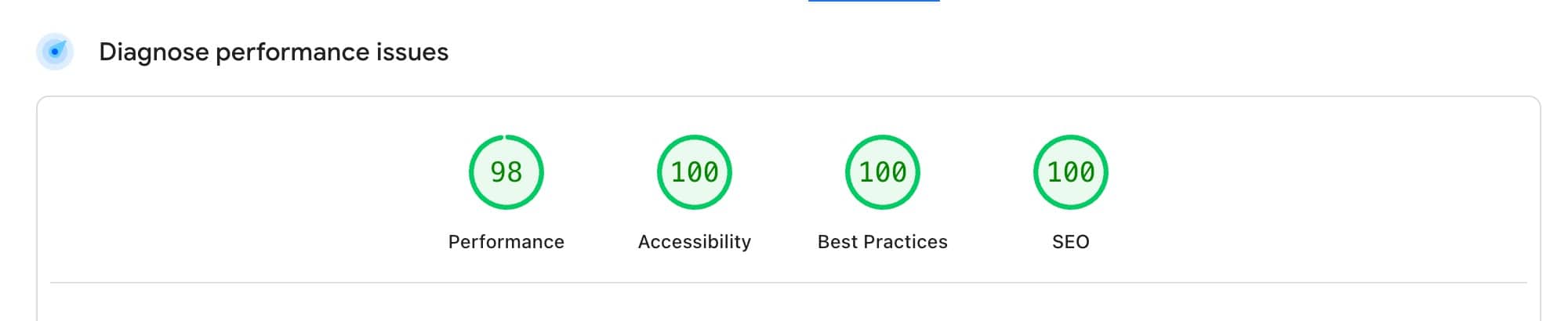
Performance
This score evaluates how quickly your page loads and becomes usable. It’s heavily based on Core Web Vitals, including metrics like the following:
- Largest Contentful Paint (LCP) – How long it takes for the main content of your page to load.
- Cumulative Layout Shift (CLS) – How much your page layout may shift as the page fully loads.
- Interaction to Next Paint (INP) – How responsive your website feels when a user interacts with it.
These aren’t just performance numbers, and these aren’t the only units measured to grade your website performance. These scores and values are tied to real user experience measurements and are considered official ranking signals by Google.
Kadence follows the standard optimization practices out of the box. However, in almost every case, you will need to further optimize your website to maximize your performance potential. You can learn more about this and how you can further optimize your Kadence website below.
WordPress, Kadence, and Performance Optimization
WordPress is a powerful, flexible content management system that works well right out of the box. But that flexibility comes with a small trade-off, performance, which can vary depending on how you use it.
Kadence products are also designed to be highly optimized from the start. However, because they’re so flexible, there are countless ways you can build your site, and some of those choices may require extra optimization to keep things running at top speed.
This isn’t unique to WordPress or Kadence. In almost every area of web development, the more features and content you add, the more you’ll need to fine-tune performance. Since WordPress and Kadence are built to work universally, you have a solid foundation, but a little extra optimization can help you squeeze out every bit of performance possible for your specific setup.
There isn’t a one-size-fits-all for optimization either. Many plugins are designed to help improve optimization, such as minifying and deferring files. Many optimization/caching plugins do close to the same things, with slight trade-offs. Below are some popular optimization solutions.
- Solid Performance
- Autoptimize
- Imagify (Image-specific optimization)
- Other popular WordPress.org picks
Hosting Factors
In rare cases, the biggest reason your site feels slow isn’t your images, scripts, or plugins; it’s your hosting.
If you’re on a lower-tier hosting plan or sharing a server with lots of other websites, performance can take a hit. And since not all websites need the same level of power, there’s no single “best” hosting setup for everyone. But if your server is underpowered for your site’s needs, no amount of on-site optimization can fully make up for it.
Here are a few signs that your hosting could be holding your site back:
- “Reduce initial server response time” warning: This means your server is taking too long to respond when someone tries to visit your site. It’s often a sign of limited server resources or high traffic on a shared server host.
- Slow Time to First Byte (TTFB): If your site takes a while before it even starts loading, it could be that your server is overloaded or not fast enough to handle requests efficiently.
- Your site is optimized, but still slow: If you’ve already optimized images, enabled caching, and done everything else right, but you’re still seeing low scores, your hosting might be the missing piece of the puzzle.
In these cases, consider reaching out to your host’s support to check for bottlenecks or exploring better-tier hosting plans or options. Sometimes, upgrading your plan or switching to a provider with faster infrastructure can make a big difference in terms of website speed and user experience.
Accessibility
This section of PSI checks whether your website is usable by all visitors, including those using assistive technologies like screen readers or keyboard navigation. The Kadence Theme and Kadence plugins are built with accessibility in mind and follow WCAG 2.0 (Web Content Accessibility Guidelines) standards. Out of the box, your site should pass most of the accessibility checks in PSI. However, some flags may still appear, particularly if you’ve added custom code or if you use third-party content that does not account for accessibility.
Common Accessibility Flags and How to Handle Them
Using PSI, you may encounter specific warnings tied to accessibility. These often relate to missing labels, alt text, or link clarity. In most cases, Kadence provides built-in settings to address these:
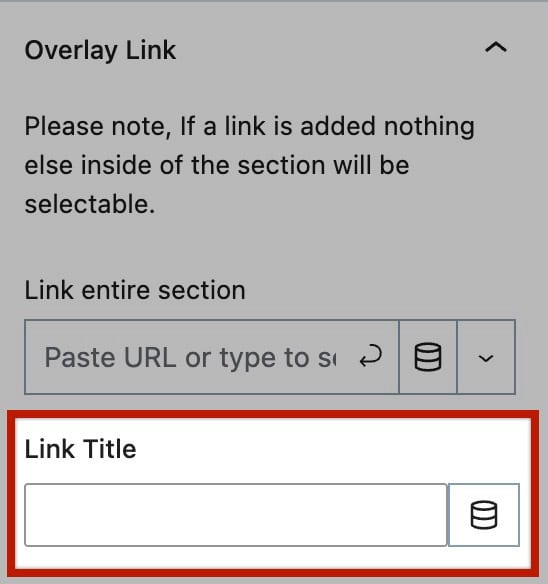
- Link Without Discernible Name: If you’re using a Link Overlay, PSI may flag a link for not having a clear name. To resolve this, use the Overlay Link setting to provide a discernible label. Kadence includes this feature so you can add accessible texts. Advanced Text Links and Advanced Button Links also offer this feature.
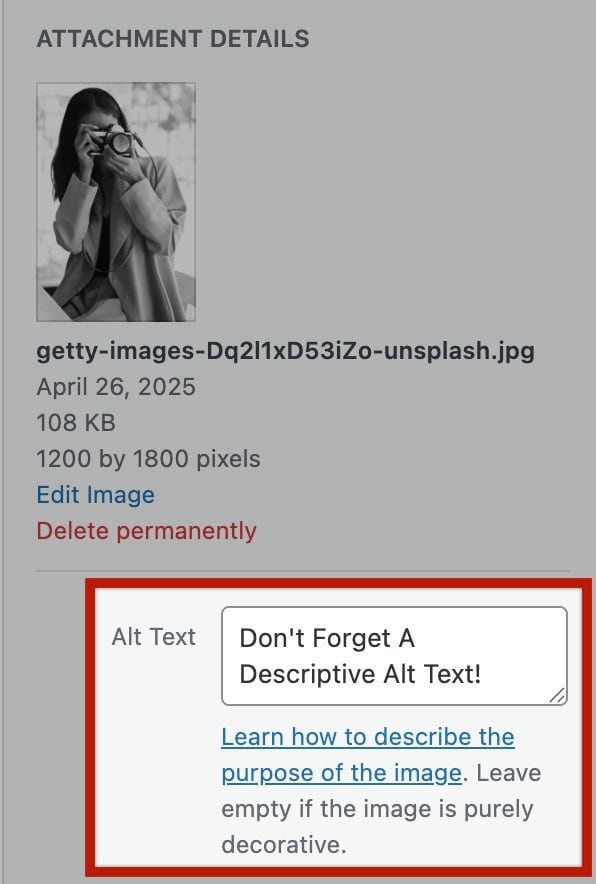
- Missing Alt Text on Images: WordPress in general supports image alt text, but it’s up to you to add meaningful descriptions when inserting images. PSI will flag any image that lacks alternative text, so be sure to manually add this when uploading media files.
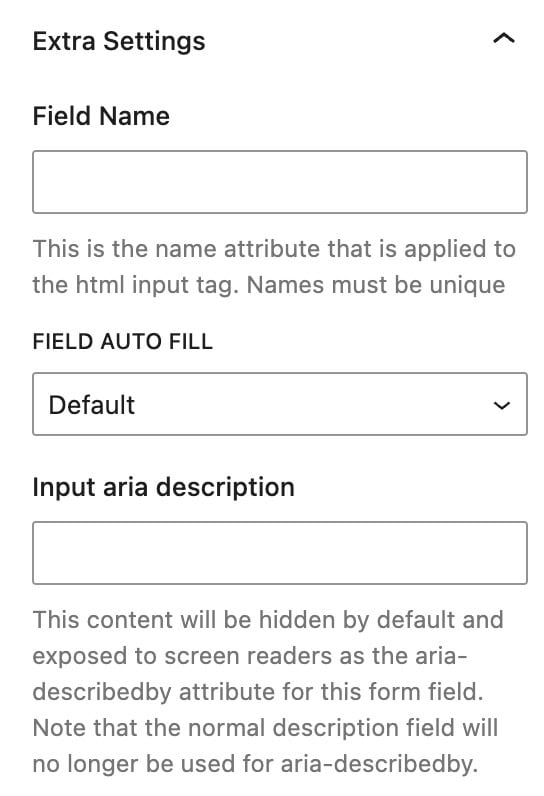
- Field Names and Input ARIA Descriptions: The Kadence Form (Adv) block is designed to include proper labeling and roles. You can also find advanced settings for manually setting names and titles.
SEO
This category evaluates on-page SEO best practices, such as the use of meta tags, proper heading structure, and internal linking. WordPress core already follows standard SEO-friendly practices in its output, such as clean URLs, semantic HTML, and more.
Kadence is built to work closely with core WordPress and continues this SEO-friendly foundation by using semantic markup and optimized performance practices. However, WordPress by itself does not manage metadata or provide SEO analysis tools. For this reason, it is almost always recommended to use a dedicated SEO plugin to fully manage your site’s on-page SEO.
Why Use an SEO Plugin?
An SEO plugin helps ensure your site is optimized for search engines by handling the areas WordPress doesn’t cover on its own. These plugins typically offer:
- Meta Tag Management: Easily add and customize meta titles, descriptions, and Open Graph data for every page and post.
- SEO Checklists and Guidance: Most plugins provide real-time SEO checks and suggestions to help you structure your content effectively.
- Content Structure Optimization: Many tools highlight heading hierarchy issues, keyword usage, and readability to help ensure your pages are well-organized for both users and search engines.
When paired with Kadence, these plugins ensure your site is built on a strong SEO foundation. Each SEO plugin differs slightly, but most of them cover most of the same things. There is no one-size-fits-all size fits all when it comes to SEO, and picking the right plugin depends on your specific needs. Below are some popular SEO-optimization plugins.
Best Practices
This score covers general web standards, such as using HTTPS, avoiding deprecated APIs, and ensuring security best practices are followed.
Most WordPress sites using the Kadence Theme and Kadence Blocks already meet many of these standards out of the box.
- In web development, there are countless standards and “best practices,” but not all of them are weighted equally. For example, placing a
divinside aspanis technically invalid HTML, but it’s also a common practice in web development and very rarely causes functional problems. PSI recognizes this distinction and doesn’t flag issues unless they present real usability concerns. - Other tools, especially those focused on strict code validation, may surface warnings or errors that PSI does not. These tools are valuable for catching edge cases or maintaining clean codebases, but it’s important to keep perspective: just because something is technically “wrong” doesn’t mean it’s negatively impacting your users or is a true issue.
Kadence is built with this balance in mind.
Best Practices vs. Required Fixes
It’s also important to note that not every PSI accessibility warning is a requirement. Some fall under “Best Practices” and are not strictly required to pass. These are suggestions that improve usability but won’t necessarily hurt your scores or SEO if unaddressed.
In summary, Kadence aims to give you an accessible foundation, but maintaining full compliance often depends on how you use the tools. Always review your PSI accessibility results to catch anything that may require manual adjustment.
How to run a PSI test
Running a PageSpeed Insights test is completely free. To get started, follow the steps below.
- Visit pagespeed.web.dev
- Enter your website URL.
- Click “Analyze”.
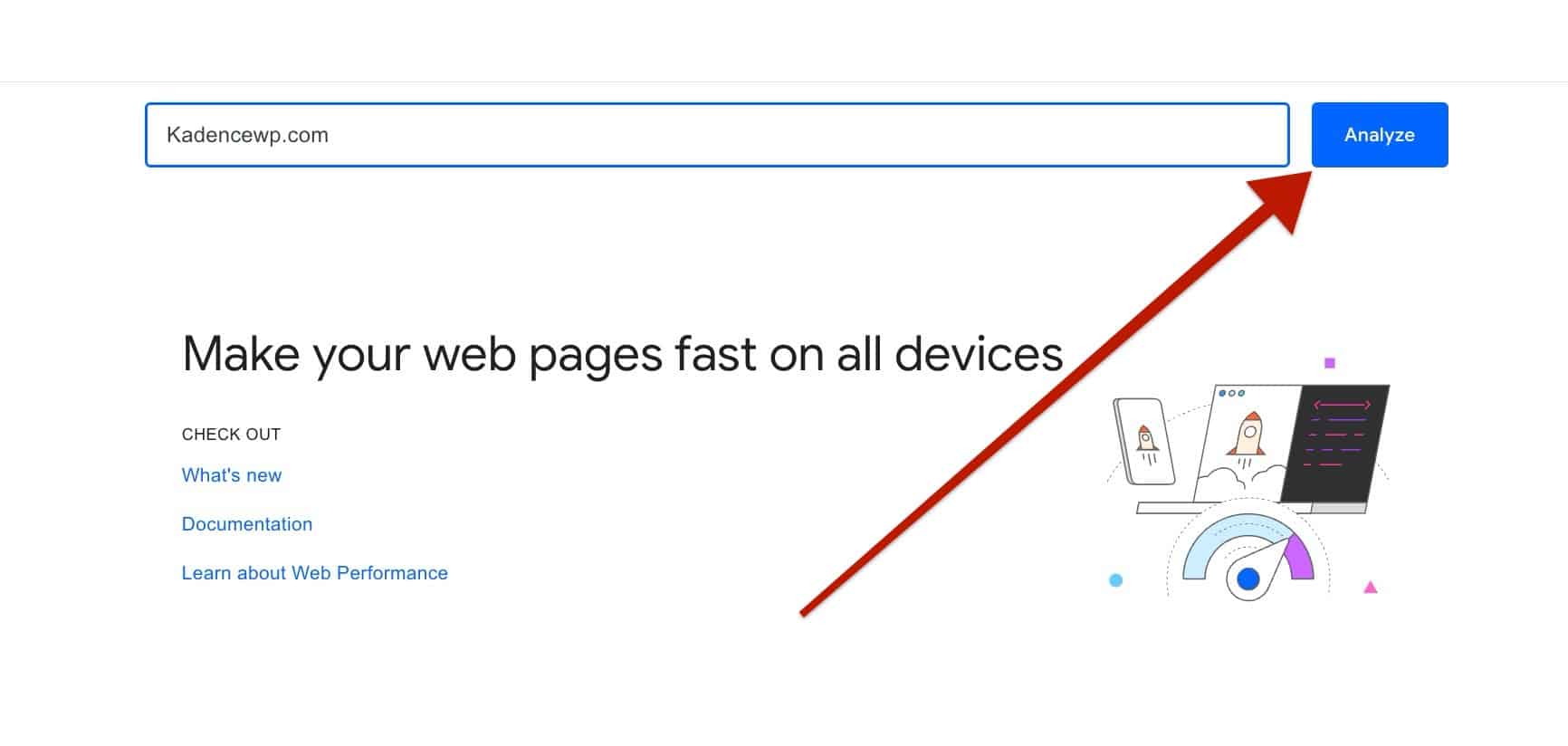
- Wait a few moments to receive your results.
- Scroll down to see your scores in each category and review suggestions for improvement.

Filtering Warnings
In PSI, you can filter specific warnings. This can help fully determine which warnings are related to which measurements. For example, you can filter LCP issues, CLS issues, and more.
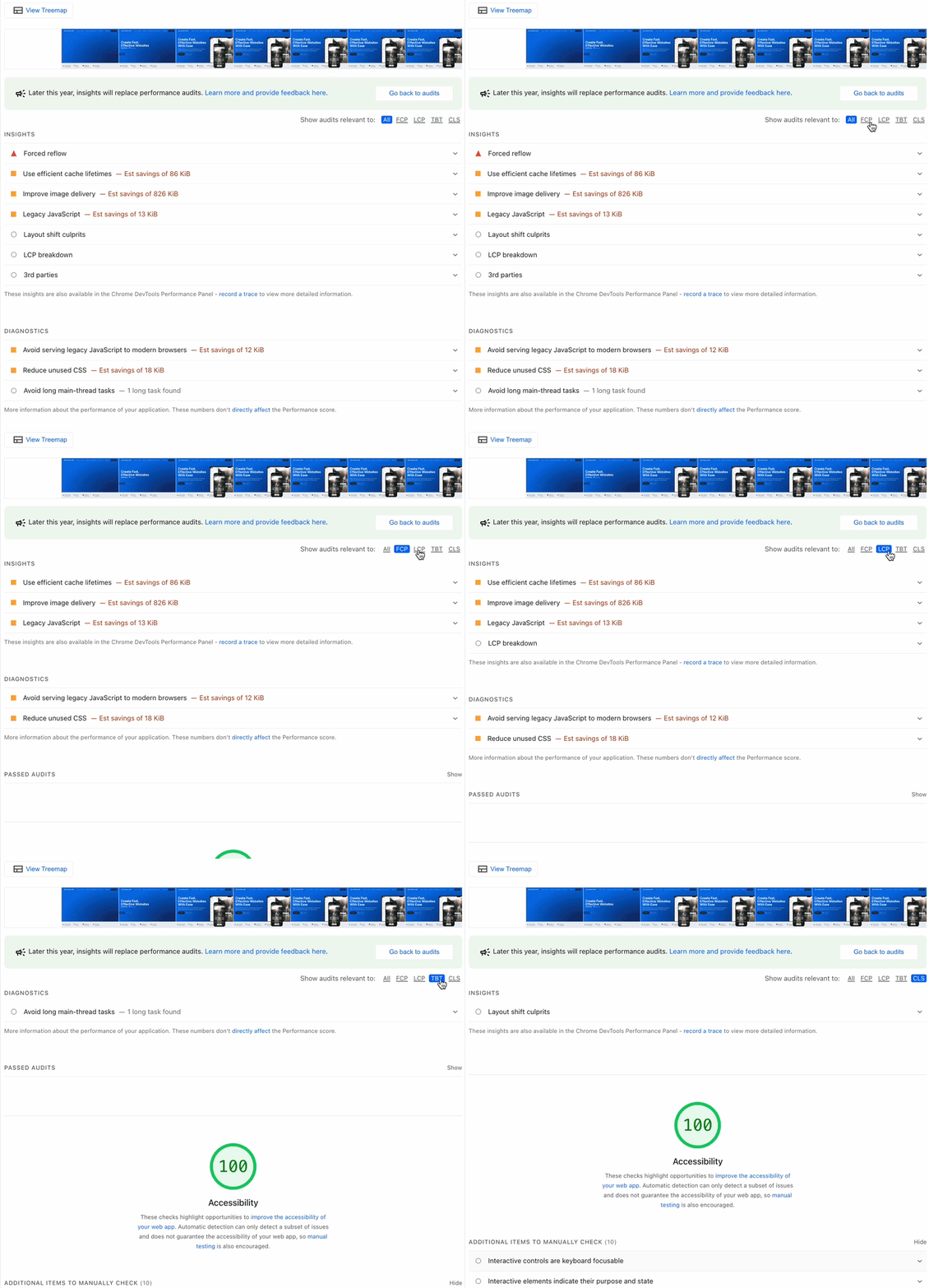
Filtering issues can help in many scenarios. Such as having a low LCP score, but passing all other metric measurements. In these cases, filtering for LCP-specific issues can help speed up the process of resolving the LCP score.

